Built for K-12, universities, libraries and makerspaces
The teacher / student split is part of the School plan - the same plan trusted by schools running everything from a single classroom printer to a full lab of fleets. Students get a friendly landing page they can use without training; teachers get a control centre with everything they need to approve, monitor and unblock the class.
One Dashboards page, a reserved view for each role
/panel/dashboard is the unified Dashboard builder, and the teacher and student views live inside it as two reserved templates. When their dashboard is enabled, a teacher lands on the reserved Teacher dashboard and a student lands on the reserved Student dashboard - no separate login. A header switcher lets anyone with access jump between the reserved role dashboards and any custom dashboards you've built.
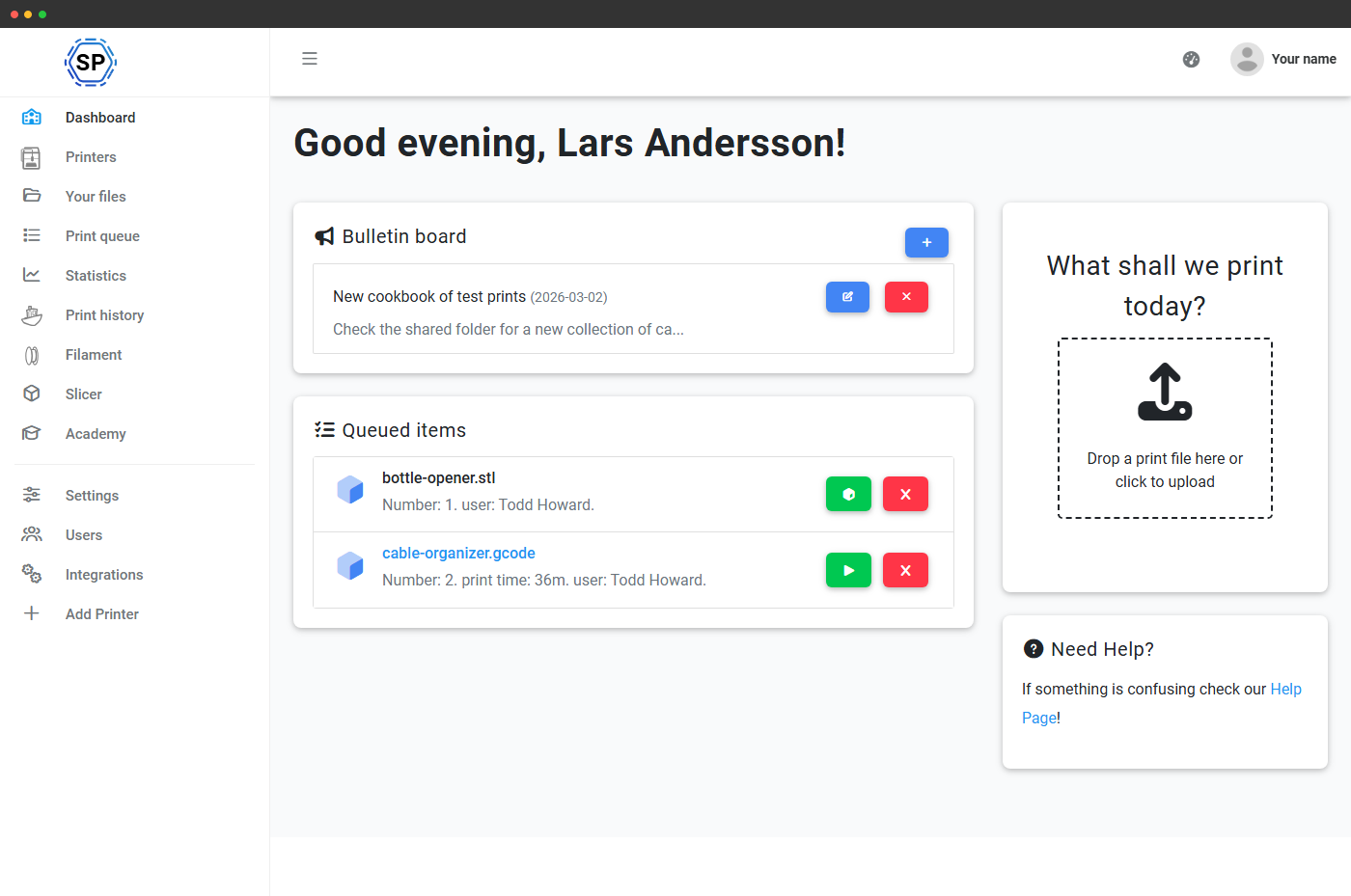
Approvals, quota requests, queue, fleet status, bulletin.
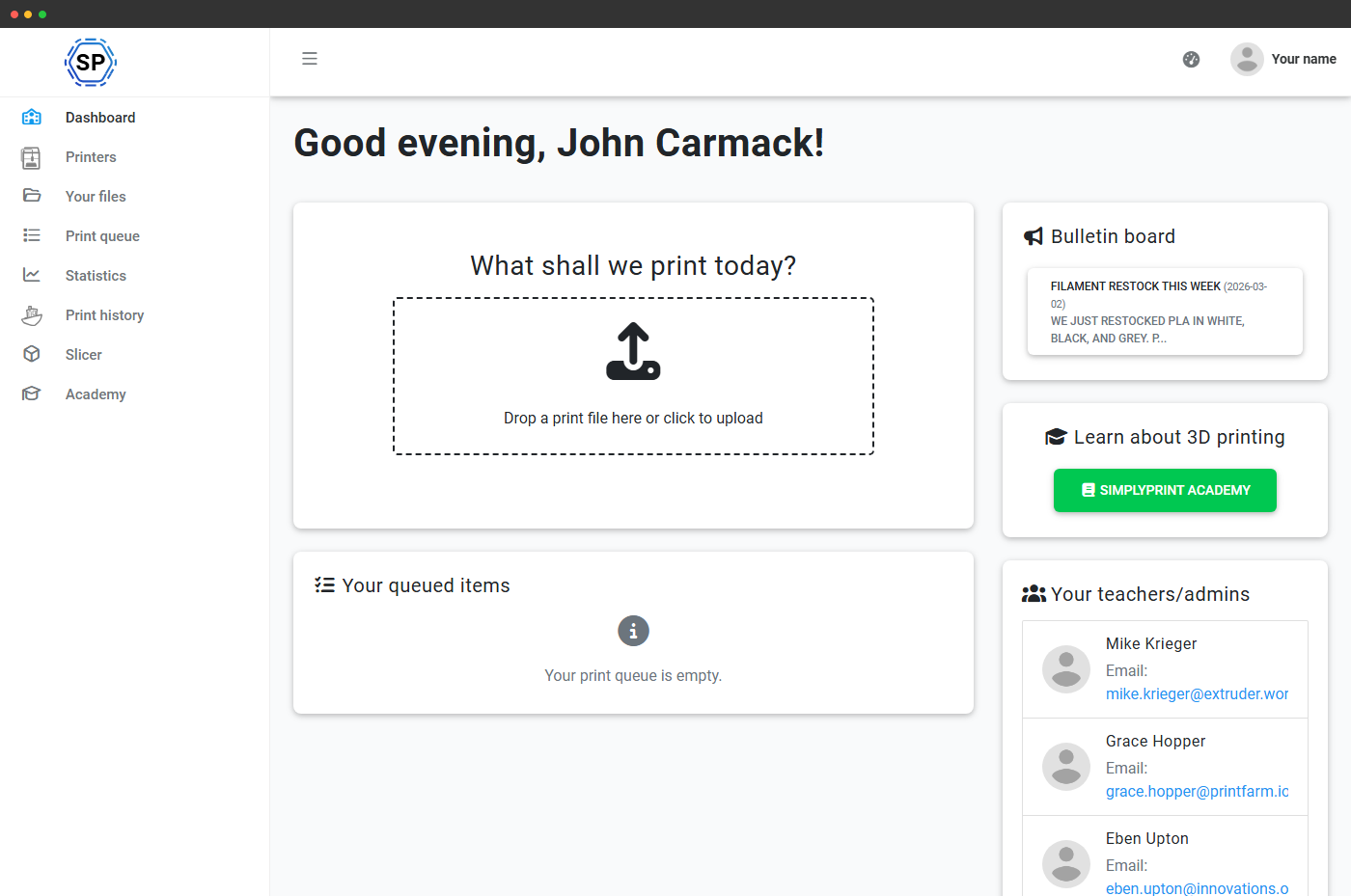
Upload zone, own queue, bulletin, quick links, Academy.
The teacher dashboard: everything you need to run the lab
The teacher view is built around the classroom workflow: approve new students, grant quota when someone runs out, see which printers need attention, broadcast a message to the whole class - all without digging through menus.
What's on it: pending approvals (one-click approve / deny), quota requests inbox (grant, reply, notify), fleet status cards (next finish, idle, paused, attention, offline), pending print approvals surfaced on the dashboard, school queue, bulletin board.
The student dashboard: simple enough for day one
Students don't need a fleet overview - they need to upload a file, see their queue, and know who to ask for help. The student dashboard puts exactly those things front and centre.
What's on it: a big drag-and-drop upload zone that goes straight to the queue, the student's own queued / running / finished prints, teacher-curated quick links, a contact list of teachers and admins with name + photo + email + phone, the bulletin board (read-only), and a SimplyPrint Academy shortcut.
A shared bulletin board for the whole class
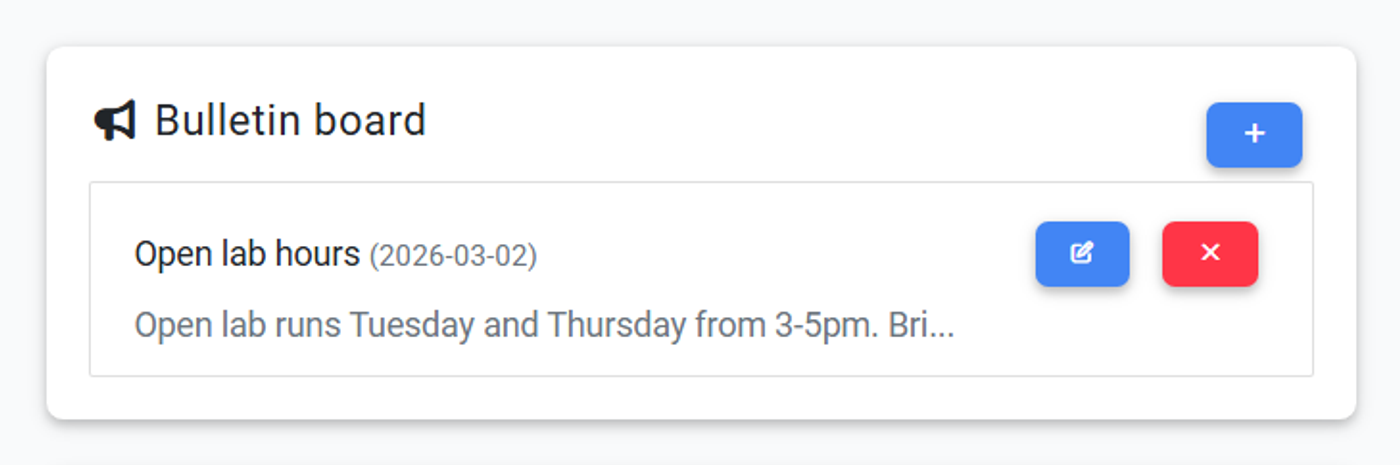
Teachers write, students read. Use the bulletin to announce a printer being down, a homework deadline, a new build plate, the day's open lab hours - whatever the class needs to know. The board lives on both dashboards, so a message posted by a teacher shows up the next time a student opens the panel.
Rich text, scheduled visibility, multiple messages pinned at once - it's a tiny CMS designed for the classroom, not a glorified Slack channel.
Configure both dashboards in the Dashboard builder
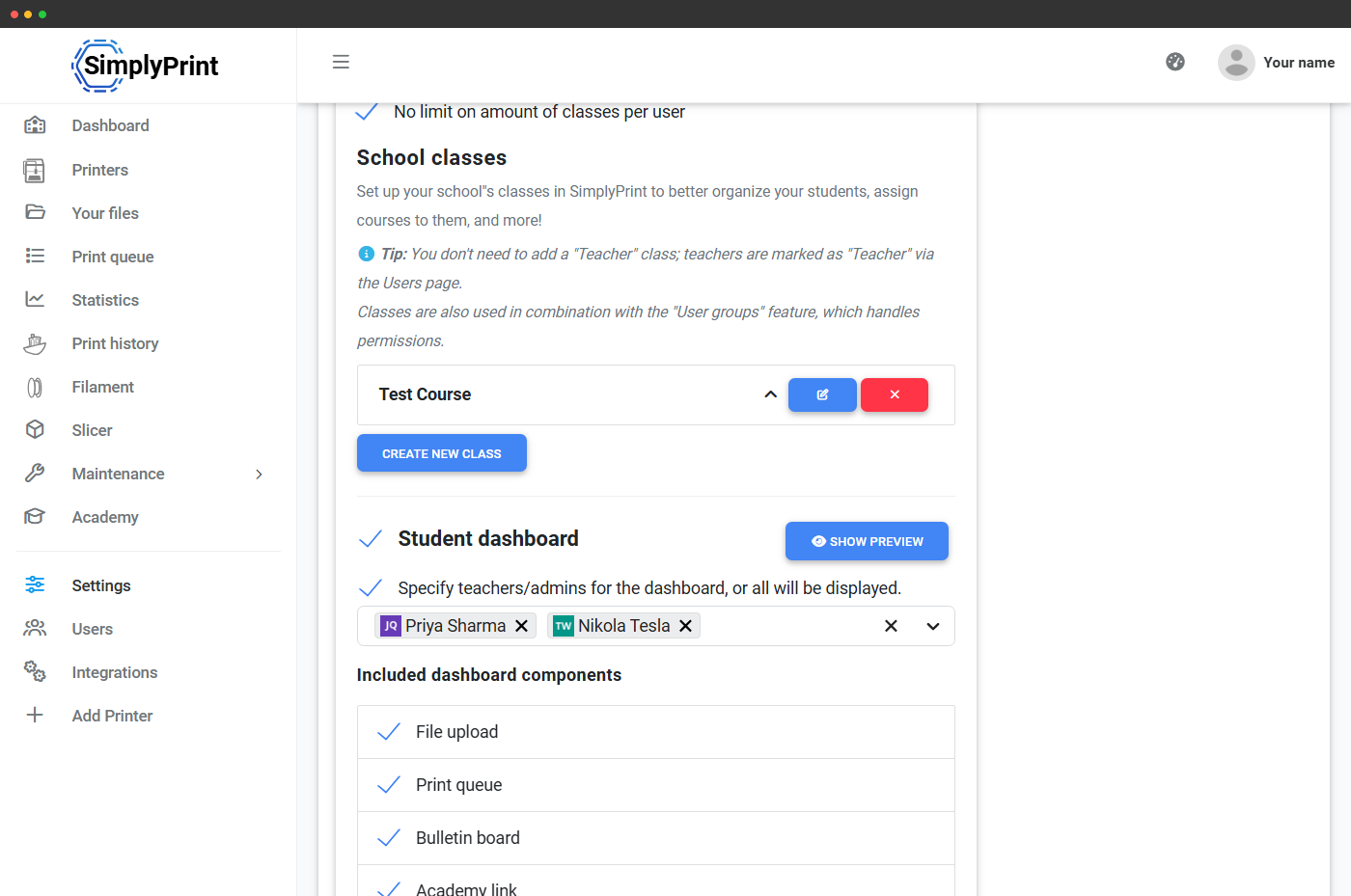
Each reserved dashboard is built from cards, exactly like a custom one. Open the Student dashboard (/panel/dashboard/student) or the Teacher dashboard (/panel/dashboard/teacher), hit Edit, and add, remove, reorder or reconfigure cards from the palette. Don't use the bulletin board? Remove it from both. Want a different set of shortcuts for students? Edit the quick-links card.
The two master Enabled toggles stay in Settings → Organization → School settings, next to a shortcut into the builder. Fresh School accounts start from sensible reserved-dashboard templates, so both sides work on day one.
- Teacher dashboard: printer status, the print queue, an approvals to-do (print-queue approvals, pending members and quota requests in one place), file upload, the bulletin board and quick links
- Student dashboard: file upload, the print queue, the bulletin board, quick links and an admin directory (their teachers and admins)
Quick links and a curated "who to ask" list
Two power tools that turn the reserved student dashboard from a generic landing page into something tailored to your classroom. Both are cards you configure in the builder on the reserved Student dashboard.
Highlighted + regular links
Big coloured buttons or a compact list, each with an FA icon - edited on the quick-links card.
Curate the contact list
Show every teacher and admin, or hand-pick a few - set on the admins card.
See what students see - before you save
Open the reserved Student (or Teacher) dashboard and you're looking at exactly what that role sees - the builder renders it live with your real cards and data as you edit. While a dashboard is still disabled, only you and other dashboard managers can open it, so you can stage and preview the whole thing before you flip the Enabled toggle and reveal it to the class. Change a card, watch it update, save when it looks right. No more "let me log out and log back in as a test student".
Students land on the dashboard the moment they log in
When a student's reserved dashboard is enabled, the Dashboard entry () leads their sidebar - and because the first visible sidebar item is the account's landing page, they open the panel straight onto their upload zone. No "where do I click?" moment for first-time students, and teachers get the same treatment for the reserved teacher dashboard.
If both reserved dashboards are disabled, the Dashboard entry drops lower and greys out - still reachable, but never forced as anyone's home page - so those users land on the standard printers / files view instead.
How a quota request actually flows, end to end
The student-to-teacher quota loop is four steps:
- Student hits "Request more quota" from their dashboard - either from the quota widget or the print-blocked modal when they hit their cap mid-job.
- Teacher sees it in their inbox widget on the teacher dashboard - thumbnail, current usage, the student's note about why they need more.
- Teacher grants (with optional note) or denies (with reason) in one click. They can grant the exact amount the student asked for, or override it up or down.
- Student gets a notification in-app and by email, with the teacher's note attached. If denied, the reason text is included so the student knows what to do next.
Plan access: which plan ships the teacher / student dashboard?
The dual teacher / student dashboard is a School-plan exclusive. It's part of the wider Education feature set: classroom-shaped permissions, quotas, an Academy with custom courses, SSO, bulletin boards and more - all included, no per-seat surcharge.
| Feature / Limit | Free | Basic | Pro | Print Farm | Enterprise | School | Cloud Slicer | Filament Manager |
|---|---|---|---|---|---|---|---|---|
|
Teacher & student dashboard
Role-aware /panel/dashboard with configurable widgets, bulletin board, quick links and quota / approval inboxes.
|
||||||||
|
Quotas, limits & balance
Powers the quota-requests widget on the teacher dashboard - give each student a print budget and review top-up requests.
|
||||||||
|
Print queue approval
Require teacher approval before a student's print can be sent to a printer - approvals surface on the teacher dashboard.
|
||||||||
|
Academy with custom courses
Linked from the student dashboard's Academy CTA - build your own lessons or use ours.
|
||||||||
|
SSO / SAML (incl. Unilogin)
Let students and teachers sign in with the same identity provider your school already uses.
|
Want to learn more about our plans?
View full pricing & feature comparisonFrequently asked questions
Who counts as a "teacher" vs a "student"?
teacher flag is set on their company membership) or a student (every other non-admin user). There's no separate student role to assign - if someone isn't a teacher or admin, they're a student by default. Admins and account partners are treated as teachers for dashboard routing.Can I turn the teacher / student dashboard off entirely?
Do students see other students' prints in the queue?
Can students post to the bulletin board?
What happens when a student requests more print quota?
Does this need SSO?
Can I preview the student dashboard without logging in as a student?
Which plan includes it?
Want to build your own dashboards too?
The teacher and student dashboards are reserved, ready-made views. On top of them, the School plan includes the full custom dashboard builder - drag cards for printer status, statistics, the queue, maintenance and more onto a grid, and share each dashboard with your whole account or a specific group. Schools get 5 custom dashboards on top of the reserved teacher and student ones.
See custom dashboardsPart of the bigger SimplyPrint for schools picture
The dashboard is one piece of a complete classroom platform: print quotas, queue approval, classes (manual or SSO-imported), an Academy you can tailor, role-based permissions, and printer monitoring built for a lab full of mixed printers. See the full SimplyPrint for schools page to explore everything the School plan includes, or read about how SimplyPrint handles multiple users on the same printers.
Explore the SimplyPrint for schools landing page