The #1 feature print farms say they'd miss most
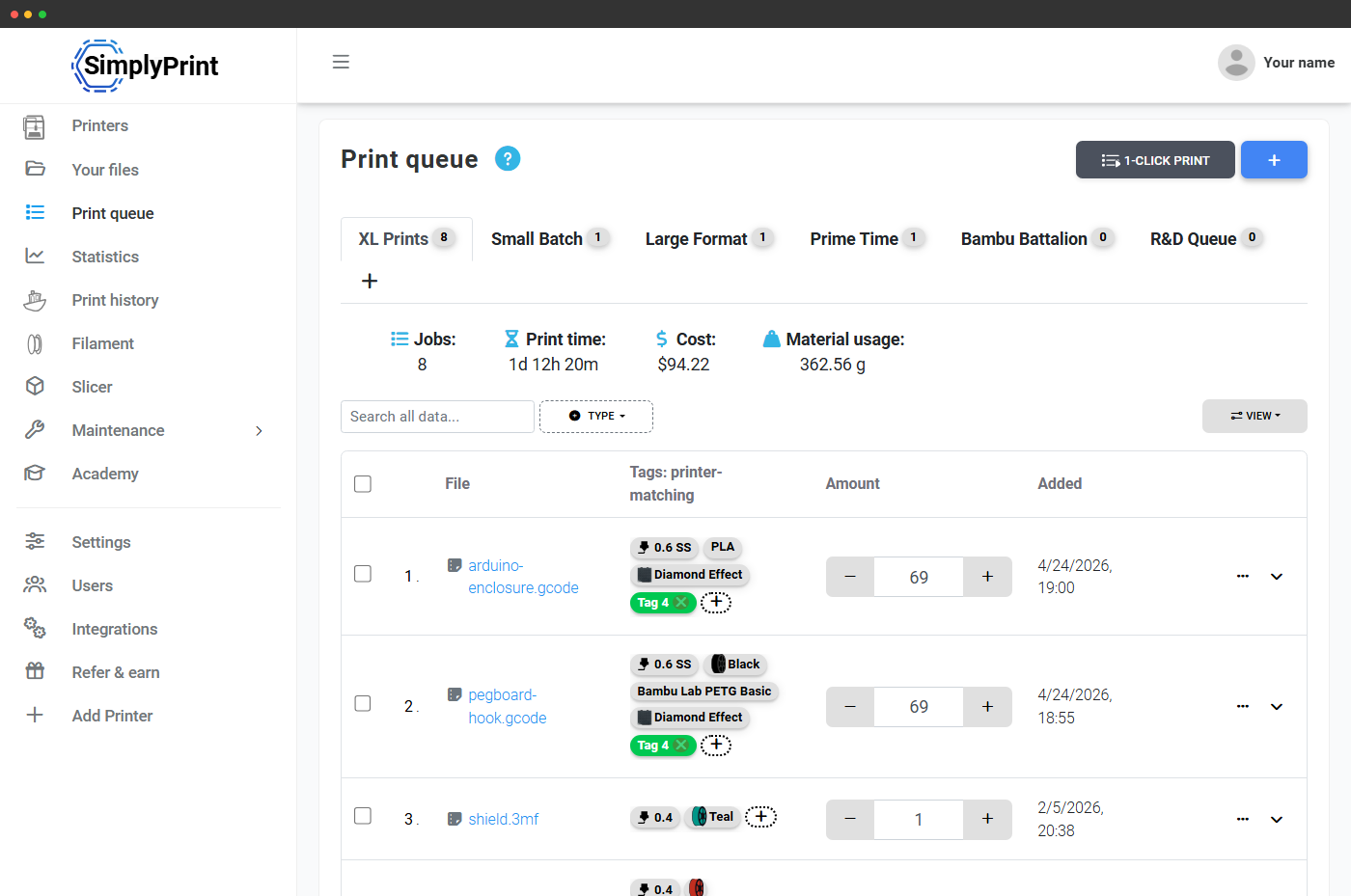
In our 2026 print-farm survey, operators running 5 to 140 printers named the queue the thing they'd miss most, reporting 10 to 20 hours per week saved and roughly double the effective capacity with no extra staff.
"If someone orders 270 of the same item, I can now just queue it up and know when it's complete. It makes the most difficult part of running the print farm an easy thing."
Free to start · no credit card · works with the printers you already own
Start your free trialStart the next queued job on every free printer in one click
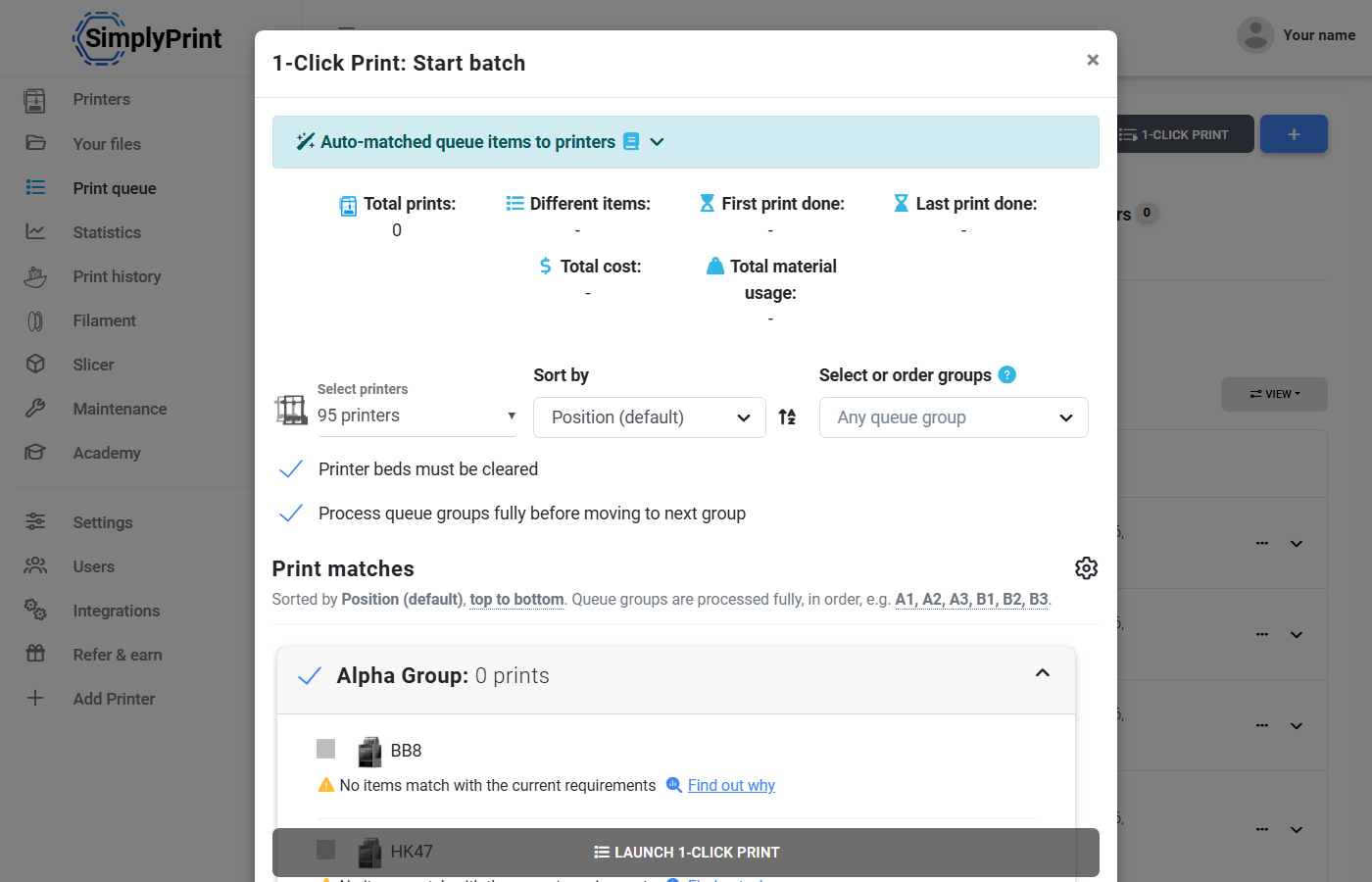
With one click, you can start the next queued job on all your online and available 3D printers at once, thanks to the matching system.
No more starting each printer by hand. Pair it with Staggered Start and the platform staggers the power-hungry preheat phase so starting your whole farm at once won't trip a breaker.
Match every job to the right printer, automatically
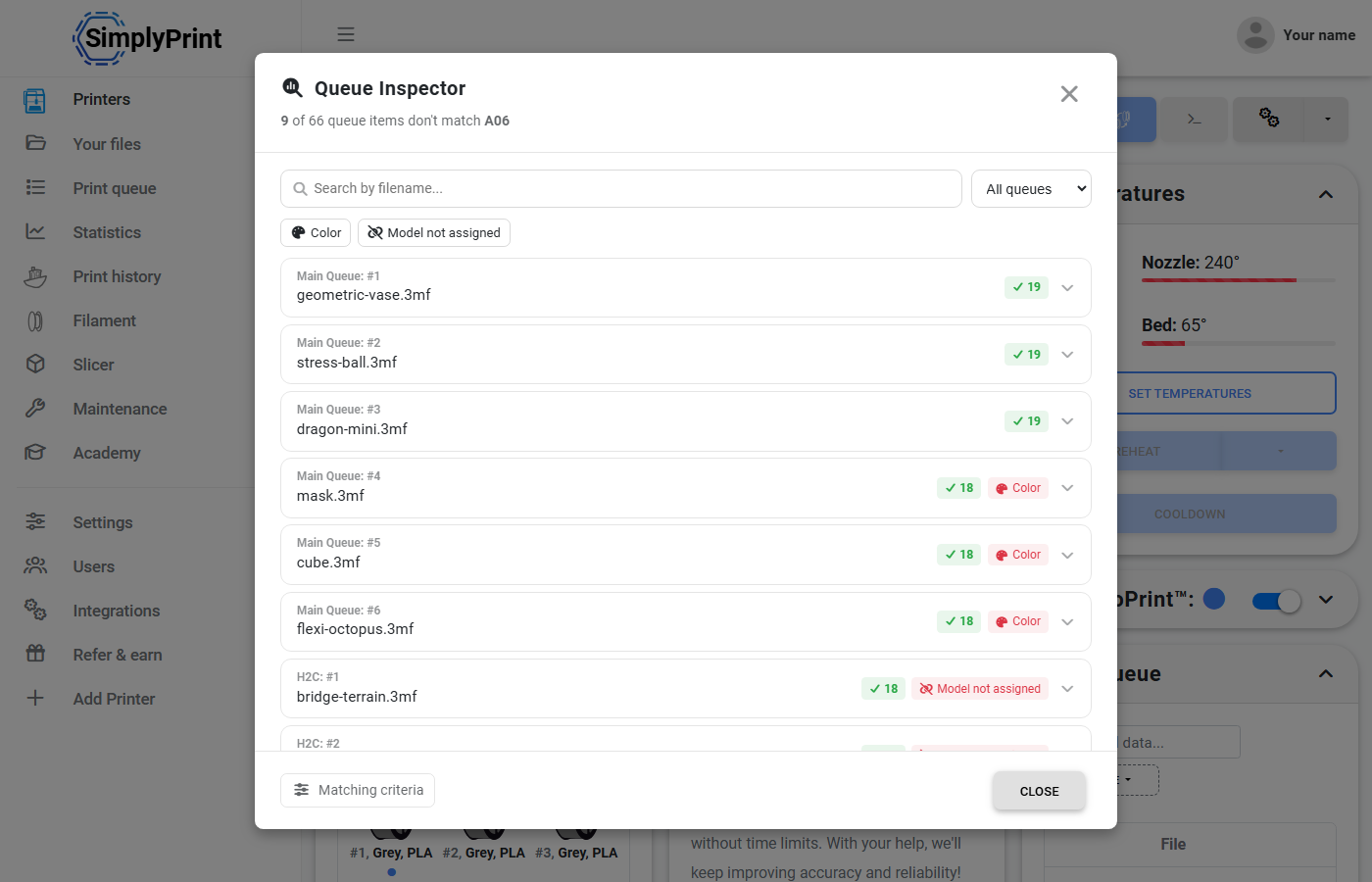
The queue analyses each item and only matches a job to a printer that can actually run it, in terms of max print size and temperatures.
By assigning tags, such as required nozzle size, material type (PLA, PETG, etc.), and possibly color as well as custom tags, the printer must match these tags to be deemed suitable for the job.
This way no printer is assigned a job that doesn't fit the bed, runs too hot for the assigned material, or exceeds what the printer hardware can handle.
Queue 270 of the same item as one entry
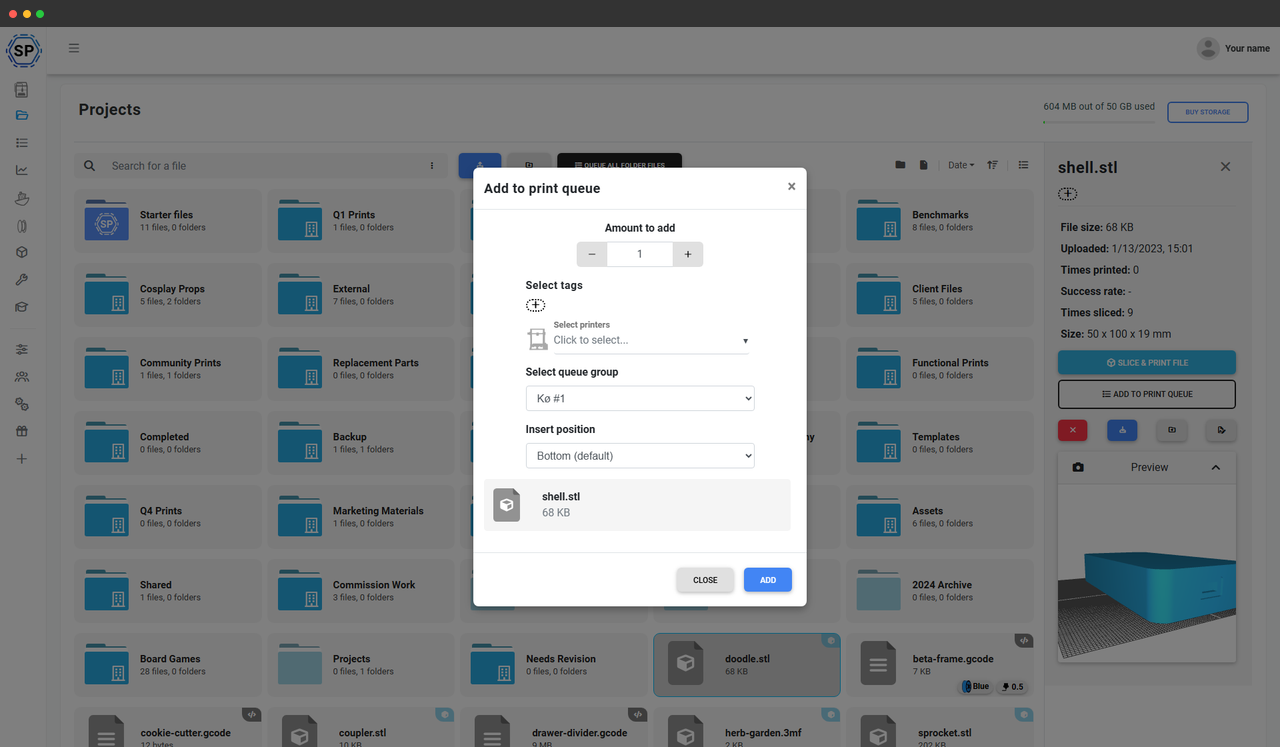
Set how many copies you need and the queue treats them as a single entry, counting down as each one prints. No duplicating files, no re-adding the same job 270 times.
You always see how many are left and how many are done, so a large repeat order is one line in the queue you can watch to completion instead of a stack of identical jobs to babysit.
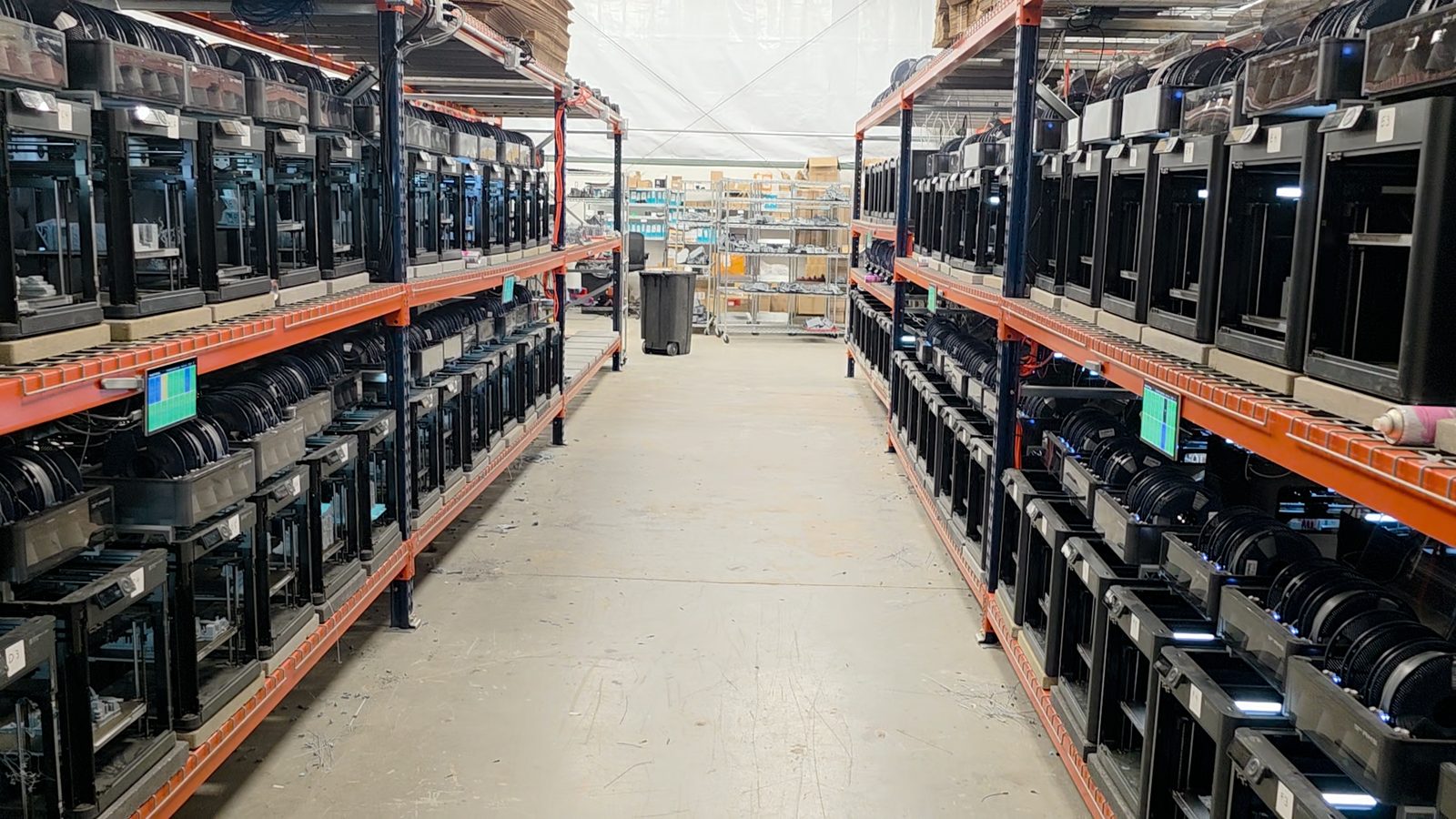
See how Tabletop Terrain uses Print Queue to run 150+ printers (Bambu Lab P1 + H2C)
I wouldn't have to keep stuff in my head anymore.
Each free printer pulls the next job it can run
Queue 10 of something and it starts on whichever compatible printer frees up first - the queue is model-agnostic, so a mixed fleet of Bambu Lab, Prusa, Creality and Elegoo machines all pull from the same backlog. When a printer finishes, it takes the next job it can actually run, and the same job is never handed to two printers at once.
You stay in control of the order: drag items to reprioritise, push an urgent job to the top, and the next-available logic fills your printers around it.
Keep one customer order or production run together
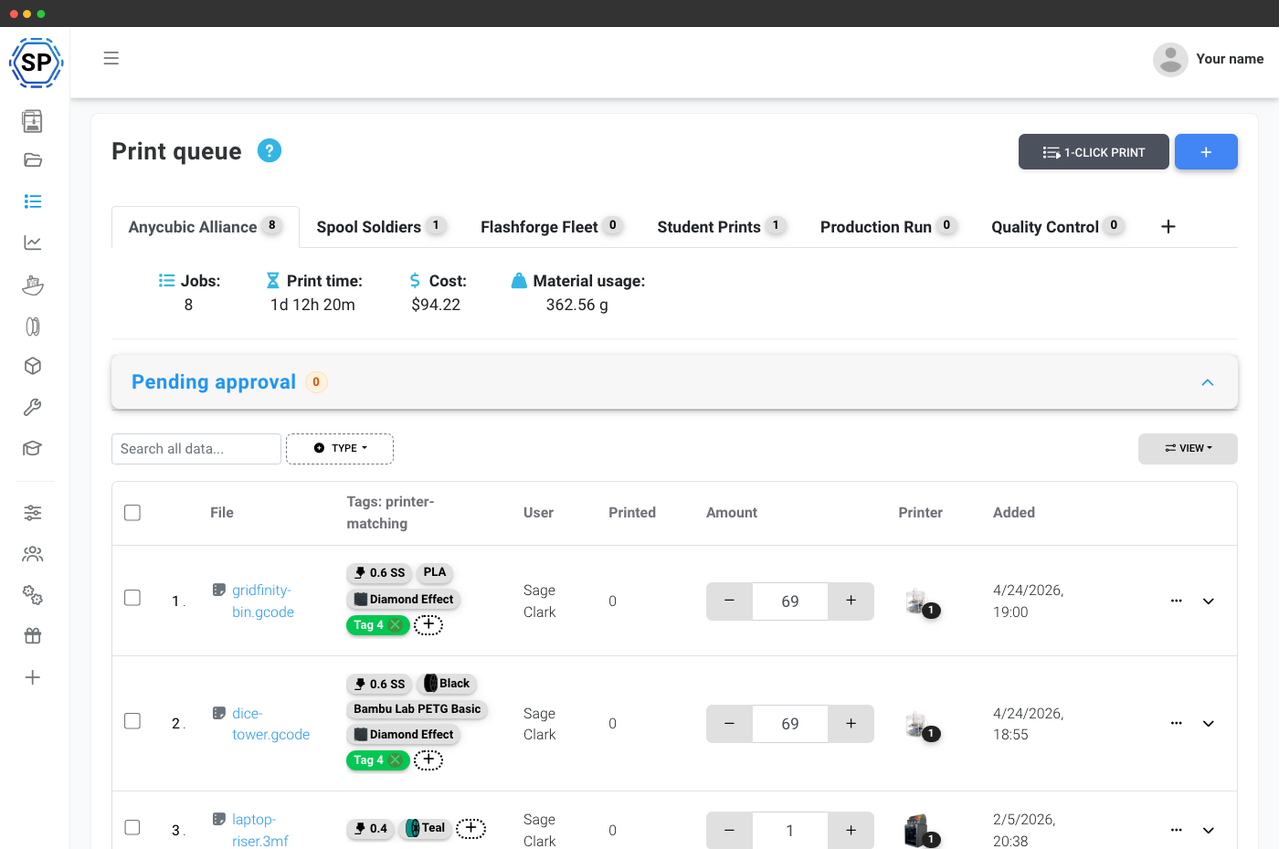
Queue groups let you keep the parts of a single order, product, or production run in their own group instead of scattered through one long list. Each group is a tab with its own job count, print time, cost and material total, so you can see at a glance where an order stands.
Turn on processing a group fully before moving to the next, and 1-click print finishes everything in one group before it starts the next - so an order ships complete rather than half-printed across the floor.
Know when every job finishes, not just what's next
Once a farm has a backlog, the question stops being "what prints next" and becomes "when does this order ship". The queue now plans the whole backlog against your real printer fleet and working hours, so you can give a customer a finish date instead of a guess.
These planning tools - the timeline, deadlines, the to-do list, working hours and expected-finish times - are part of the Print Farm plan and above.
See your whole farm on a printer timeline
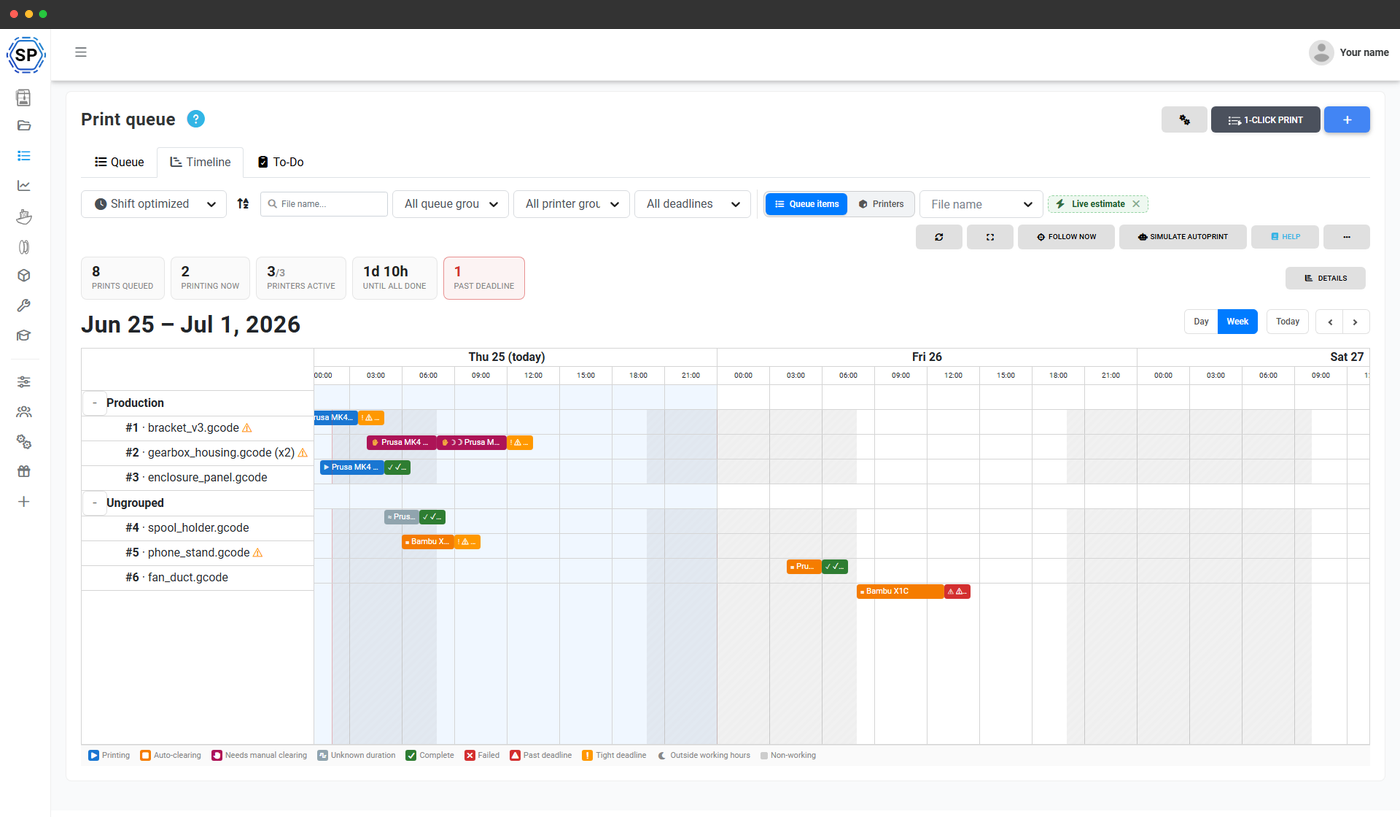
The queue timeline lays every queued and running job out as a Gantt chart, one row per printer, so you can see at a glance which machines are loaded for the next hours or days and where the gaps are.
It plans around your working hours and each printer's current job, giving you an expected finish time for the backlog instead of an open-ended list. Spot an idle printer, a job that overruns a deadline, or a bottleneck before it costs you a shipment.
A to-do list of what's blocking more prints
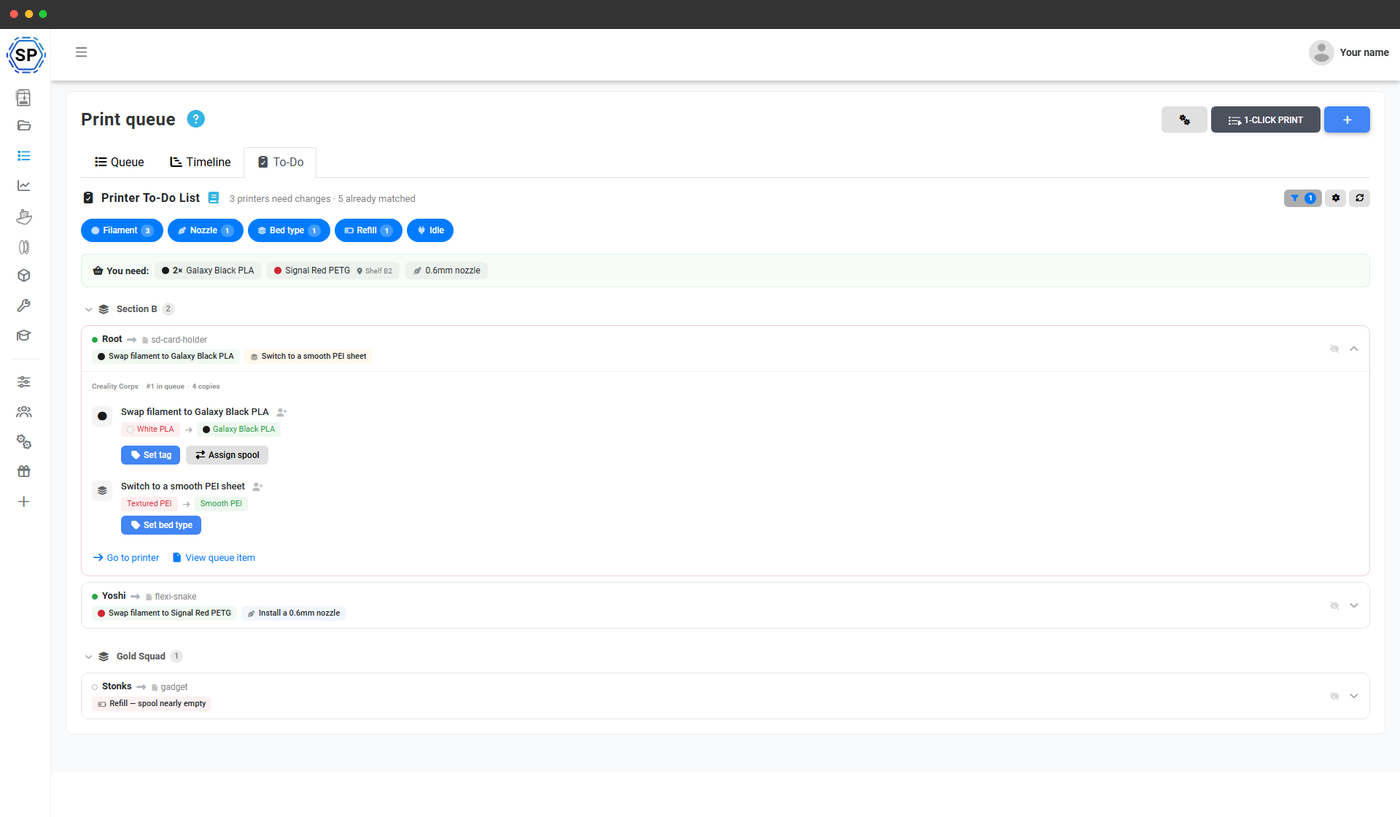
When the queue can't start more jobs, it tells you why. The to-do list turns "why is nothing printing" into a short, actionable list: a printer is offline, a spool needs changing to the right material, a bed needs clearing, a job is waiting on approval.
Work down the list and you unlock the next round of prints - no guessing which of 40 machines is the one holding up the order.
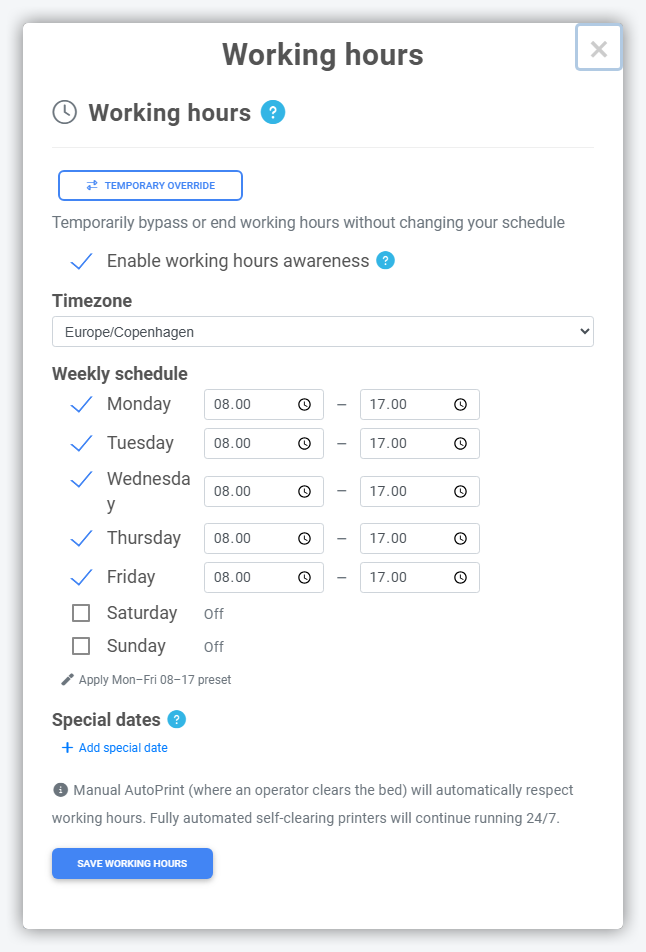
Plan against your real working hours
Tell SimplyPrint when your farm is staffed and the queue plans around it. If a 14-hour print can only be started while someone's there to clear the bed, the schedule accounts for that instead of pretending the farm runs unattended at 3am.
The result is an honest expected-finish time for each job and for the backlog as a whole - the number you can actually quote a customer.
Set a deadline and let urgent orders jump the line
Give a job or a whole group a deadline and the queue flags anything at risk of missing it against the planned schedule, so a slipping order surfaces before the customer chases you for it.
Need something out today? Move it to the top in one click and the next-available logic fills your printers around it. The queue keeps the rush job first while the rest of the backlog flows on automatically.
Ready to stop starting printers by hand?
Add your printers, queue your jobs, and start your whole farm in one click.
Free to start · no credit card · works with the printers you already own. Prefer to look around first? Browse the interactive demos.
Pipe your store orders straight into the queue
The SimplyPrint API can add queue items for you, with tags and a queue group set on each one. Wire up your Etsy, Shopify or ShipStation orders and a paid order becomes a queued job automatically, routed to the right printers and grouped with the rest of that order.
It is the same add-to-queue action the panel uses, so an order that lands at 2am is queued and ready for the next 1-click start - no manual re-entry. Several print farms already run their own order bridges this way.
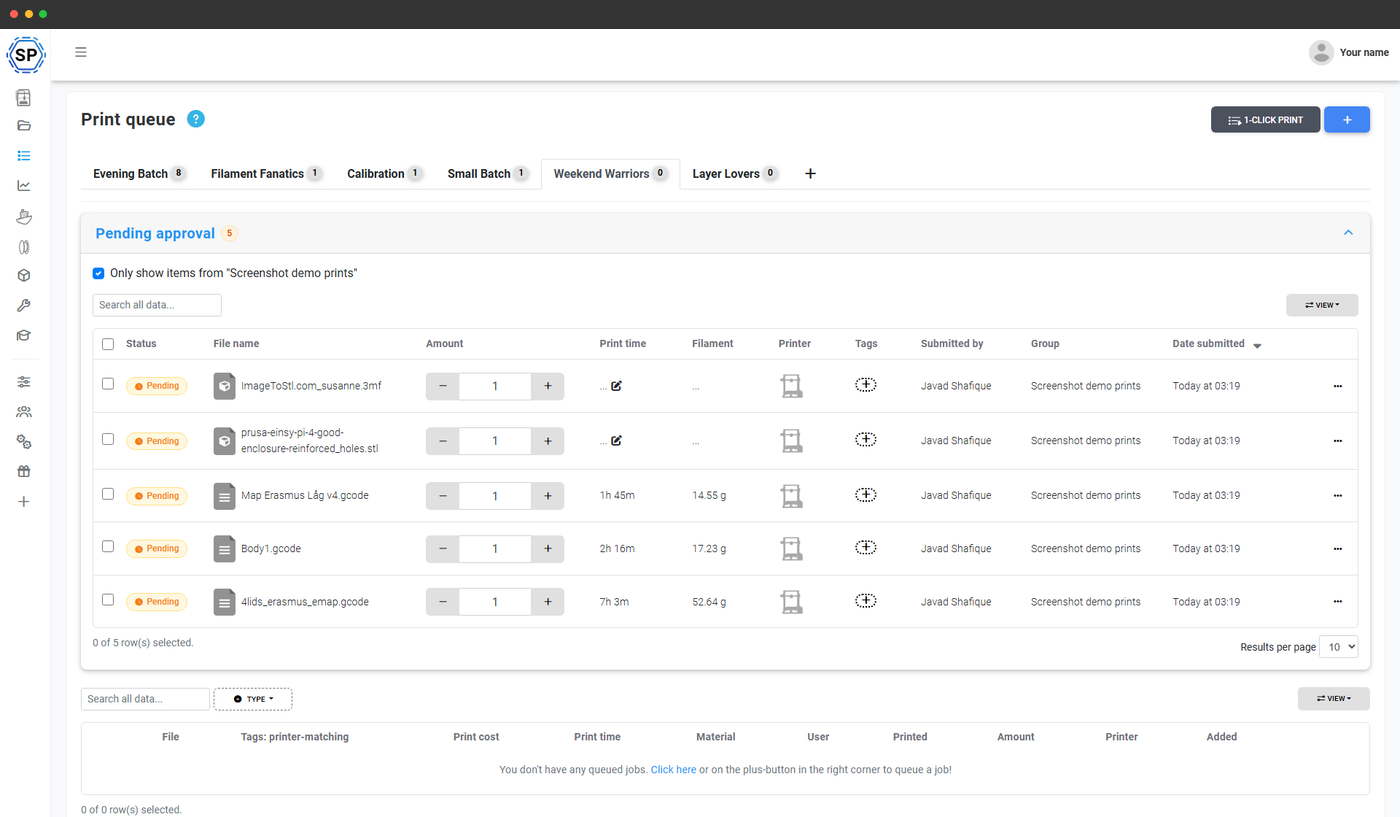
Let your team or students queue up prints
The queue can act as a shared print backlog for your team or students: they queue up what they need, and you start the jobs when you and the printers are free.
Give those users permission to add items to the queue, but not to start prints - so nothing runs without your say-so.
Works with the rest of your workflow
The queue sits at the centre of how you run prints in SimplyPrint. These features build on top of it.
What print-farm operators say about the queue
More from the 2026 print-farm feedback survey, operators running 6 to 100+ printers:
"This makes it easier to do 80% of the work you do every day, which is sending print tasks."
Start your free trial"Trying to manage print jobs on this many printers with both big and small jobs would be a nightmare without it. Best way to manage a print farm."