From a single classroom to a multi-school district
Whether you're a science teacher with three Bambu Labs in the corner of the room, a university makerspace coordinator with twenty Prusas, or a district IT lead rolling SimplyPrint out across fifteen schools, the controls scale with you. Per-class rosters, per-group quota policies, queue approval, SSO and an audit log are all on the School plan from the start.
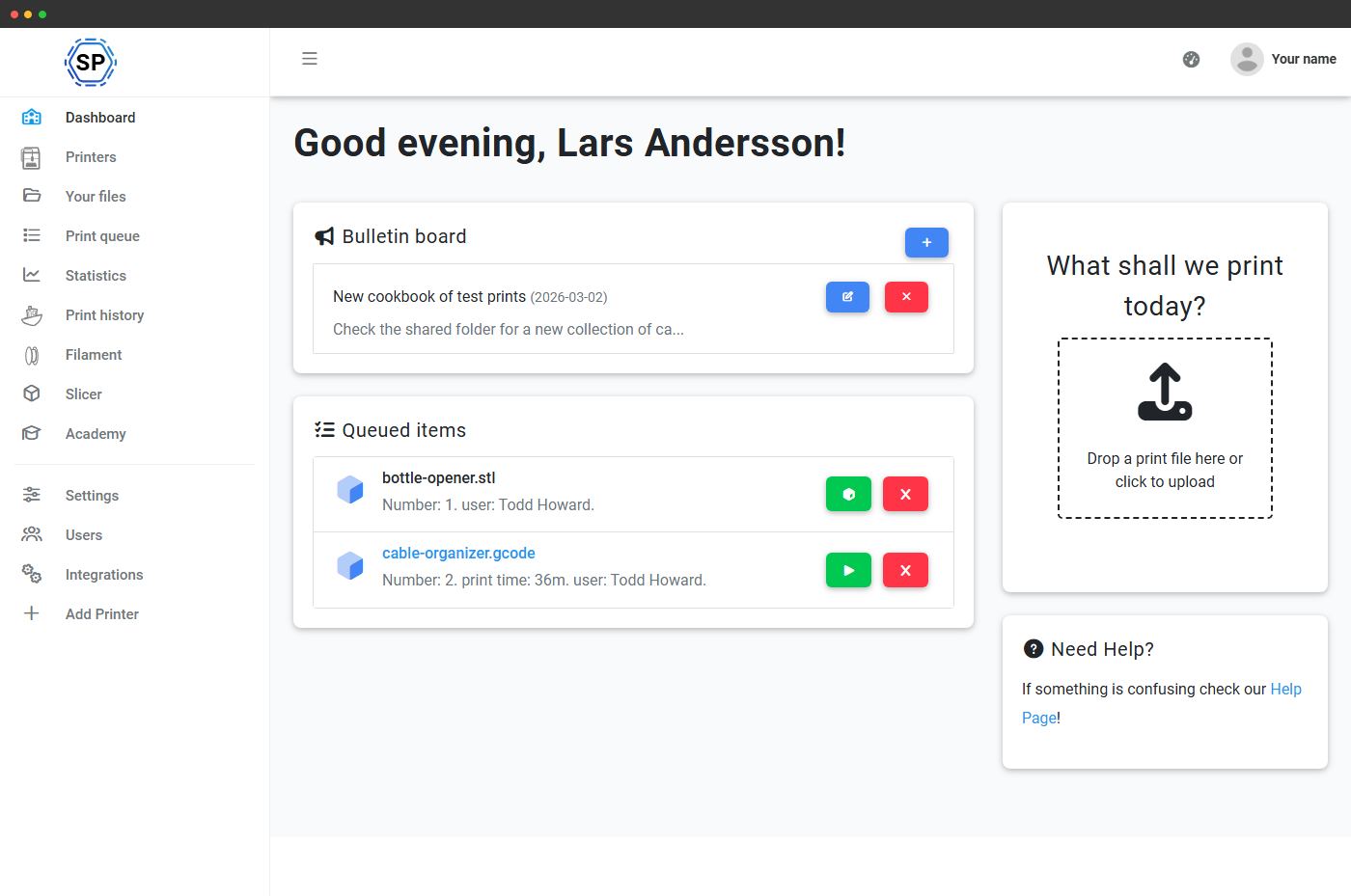
Teacher and student dashboards, designed for the classroom
Each persona gets a dedicated dashboard - and a drag-and-drop editor for admins to lay out widgets per group. The teacher dashboard surfaces pending queue approvals, quota requests waiting on a decision, the class roster, recent prints, the school bulletin and more. The student dashboard shows their own quota, their pending submissions, the school bulletin and quick links into class resources. Layouts are configured per user group, so admins, teachers, lab assistants and students can each have a different default view.
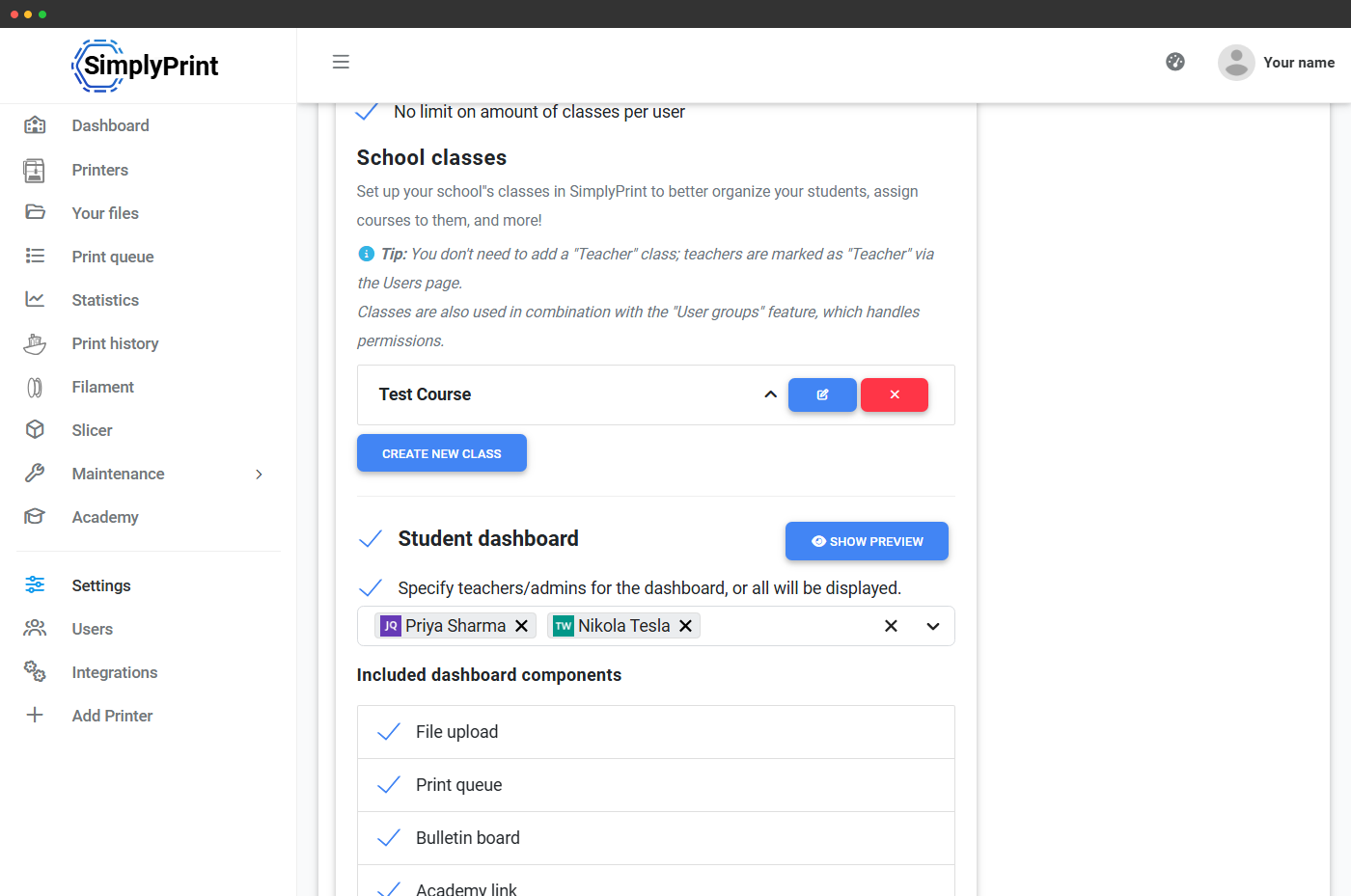
More on the teacher and student dashboardsClasses: roster students the way they're actually grouped
User groups handle permissions; classes handle which students are in which actual class. Define unlimited classes ("Year 10 Design", "Engineering 101", "After-school Makers"), import a roster from CSV, set a max-classes-per-user cap, and pick what happens at signup: assign to a default class, prompt the student to choose, or leave unassigned. Teachers see only the classes they're attached to. Per-class queue groups and per-class quotas mean every class can have its own production lane and budget.
Read the school classes feature page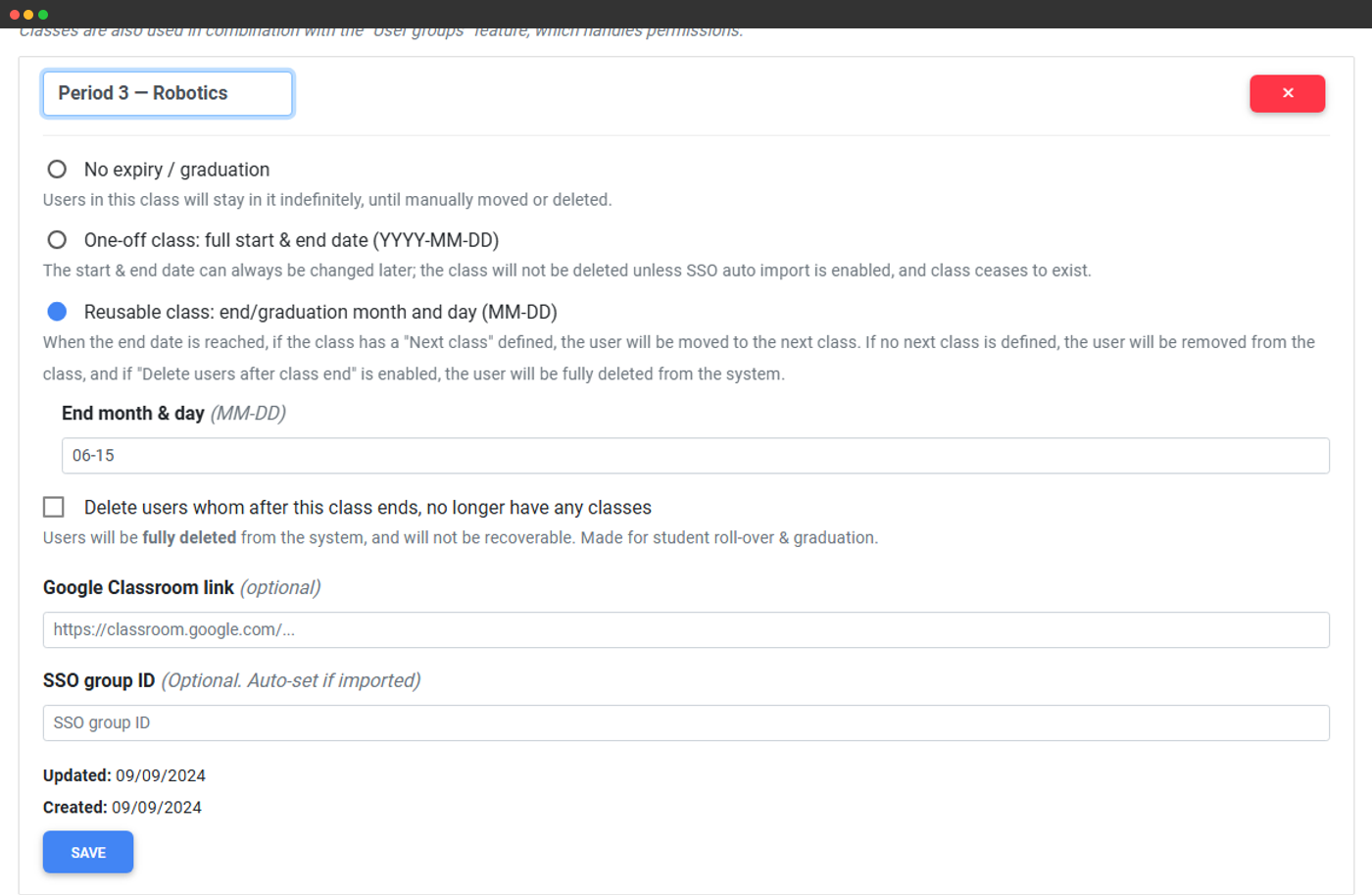
Queue approval: every student print past a teacher first
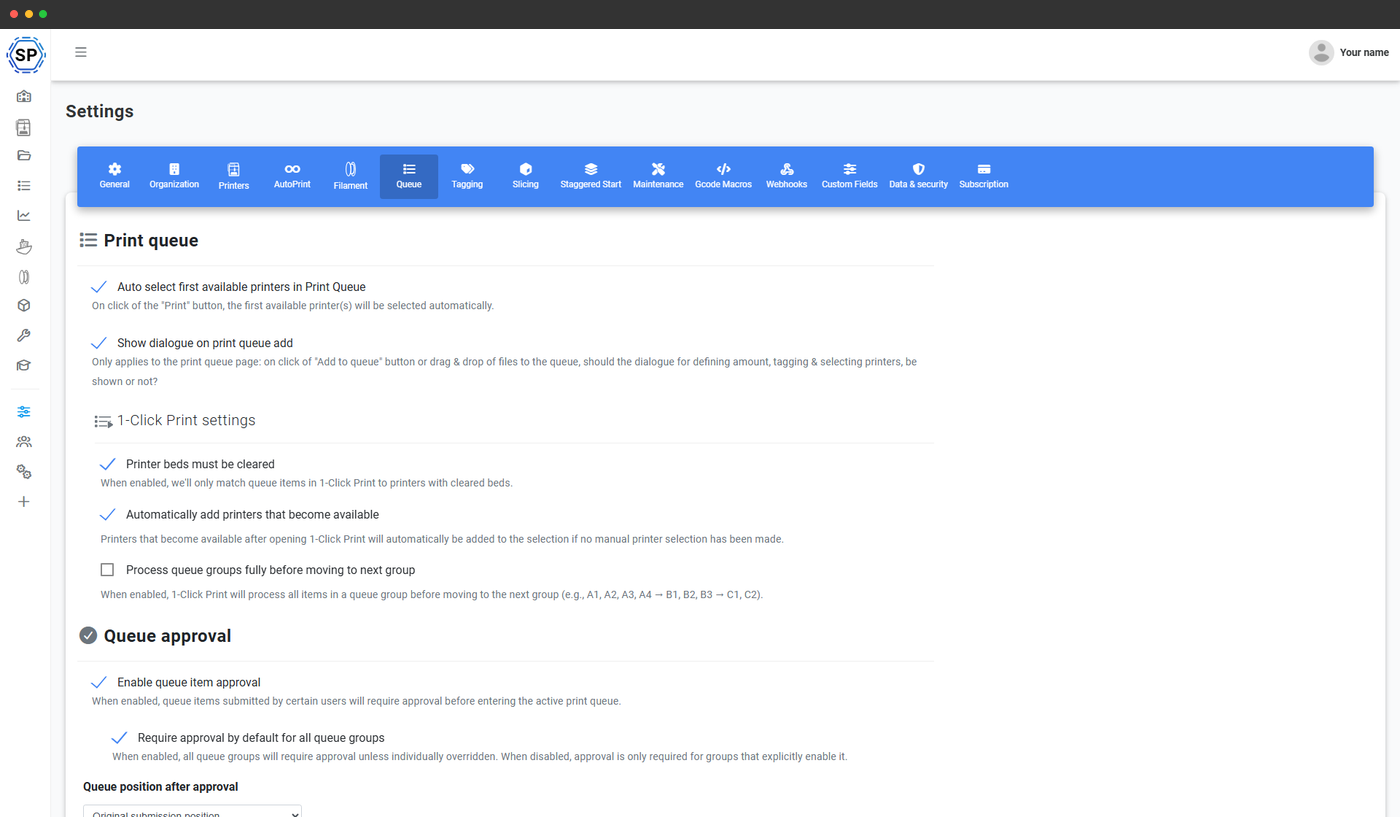
Turn queue approval on for your school and any submission from a non-exempt group lands in a pending lane instead of the live queue. Approvers see the thumbnail, gcode analysis, estimated cost and the submitter's current quota usage, then approve, deny with a reason, send back for revision, or print-and-approve in one click. Per-group overrides let you require approval only for student groups while letting staff submit straight to the live queue. Comments thread, audit attribution and notification routing all included.
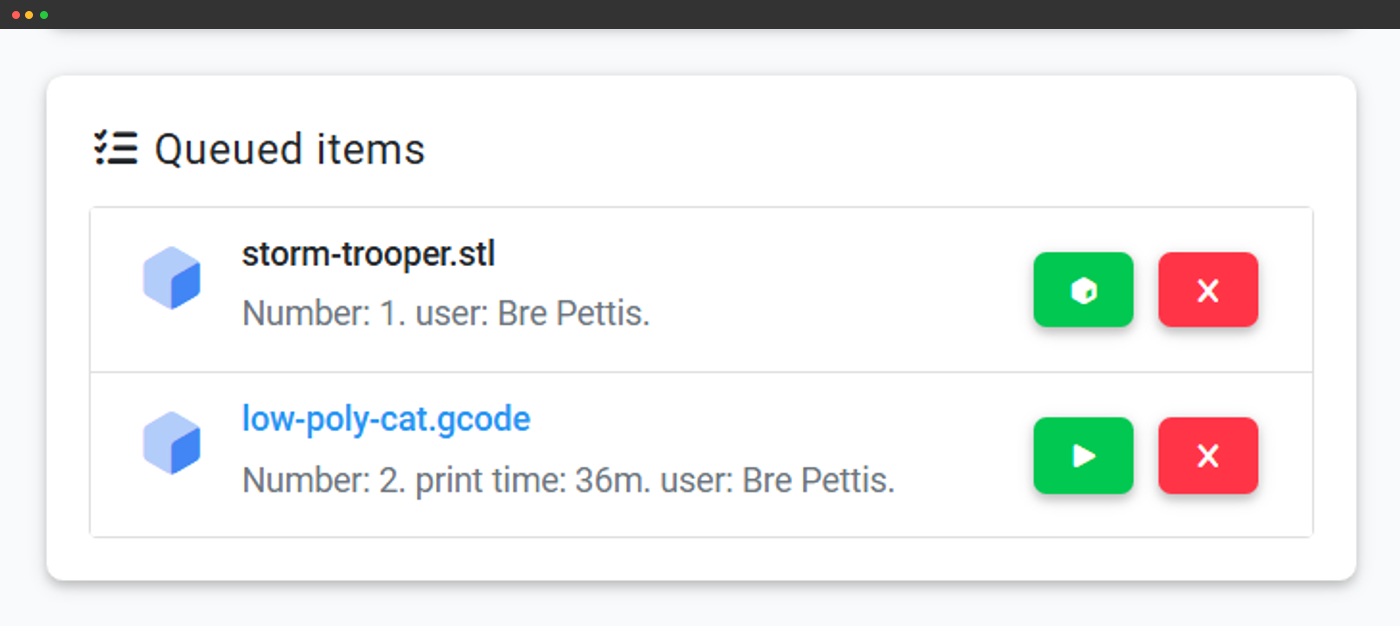
Pending approval inbox
Every pending submission shows up on the teacher dashboard with thumbnail, gcode analysis and quota impact.
Skip approval per rank
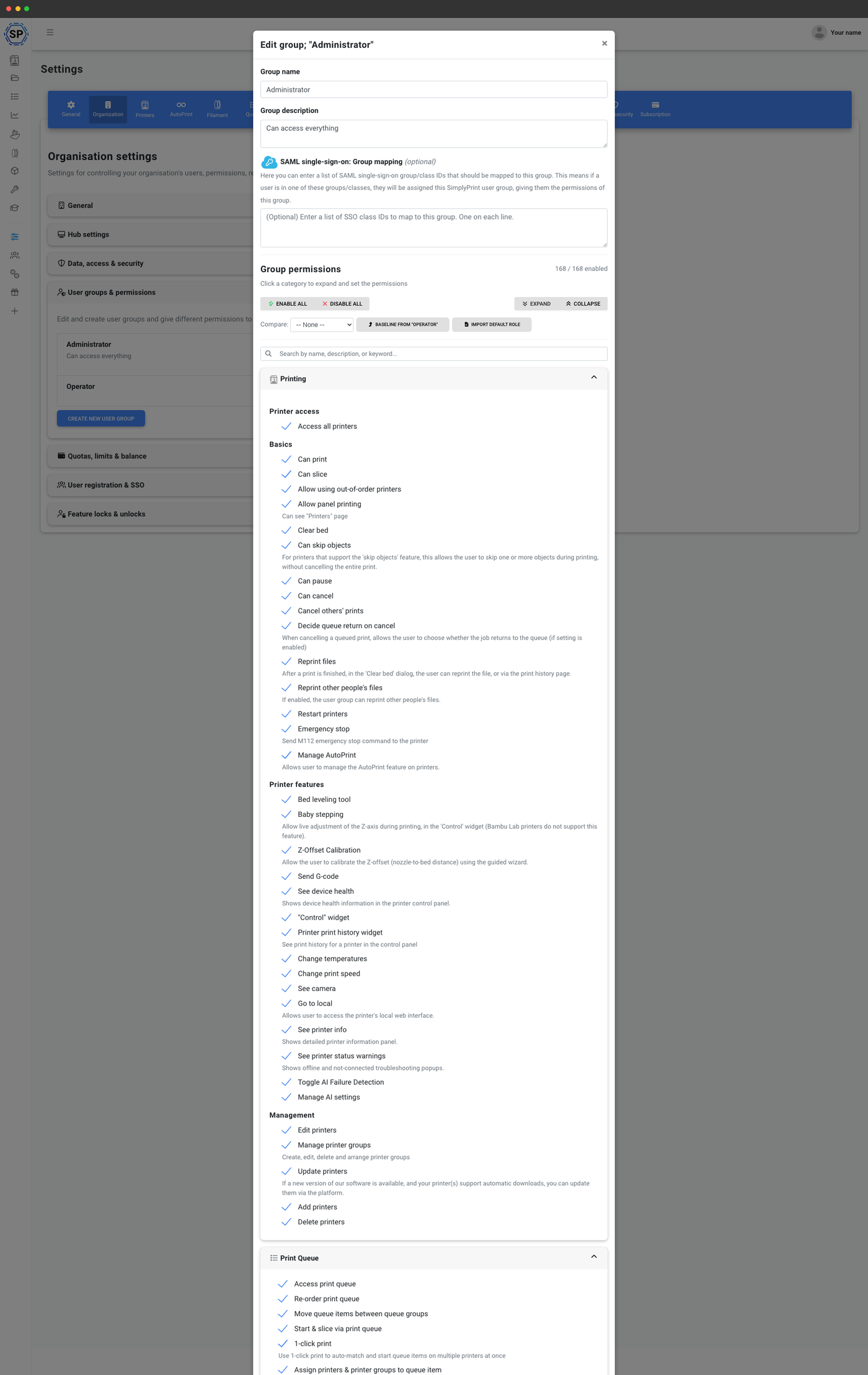
Teachers, lab assistants and admins can bypass the pending lane via a per-rank permission.
Send back for revision
Revoke a prior approval, leave a comment with the change request, the student resubmits the same item.
Print and approve
One-click action that approves the item AND sends it to the printer immediately, for trusted submissions.
Print quotas, per-job limits and prepaid balance per user group
Classrooms run on shared printers and finite filament budgets. The quotas and limits system lets you set fair-use rules per user group: cap how many prints, grams of material, print hours, slicer credits or amount of money a group can use in a daily, weekly, monthly or custom-day period. Optional rollover with a rollover cap. Layer on concurrent limits (max printers a student can occupy at once, max queue items per student) and per-job limits (max print duration, max XYZ dimensions, with optional per-printer-model overrides).
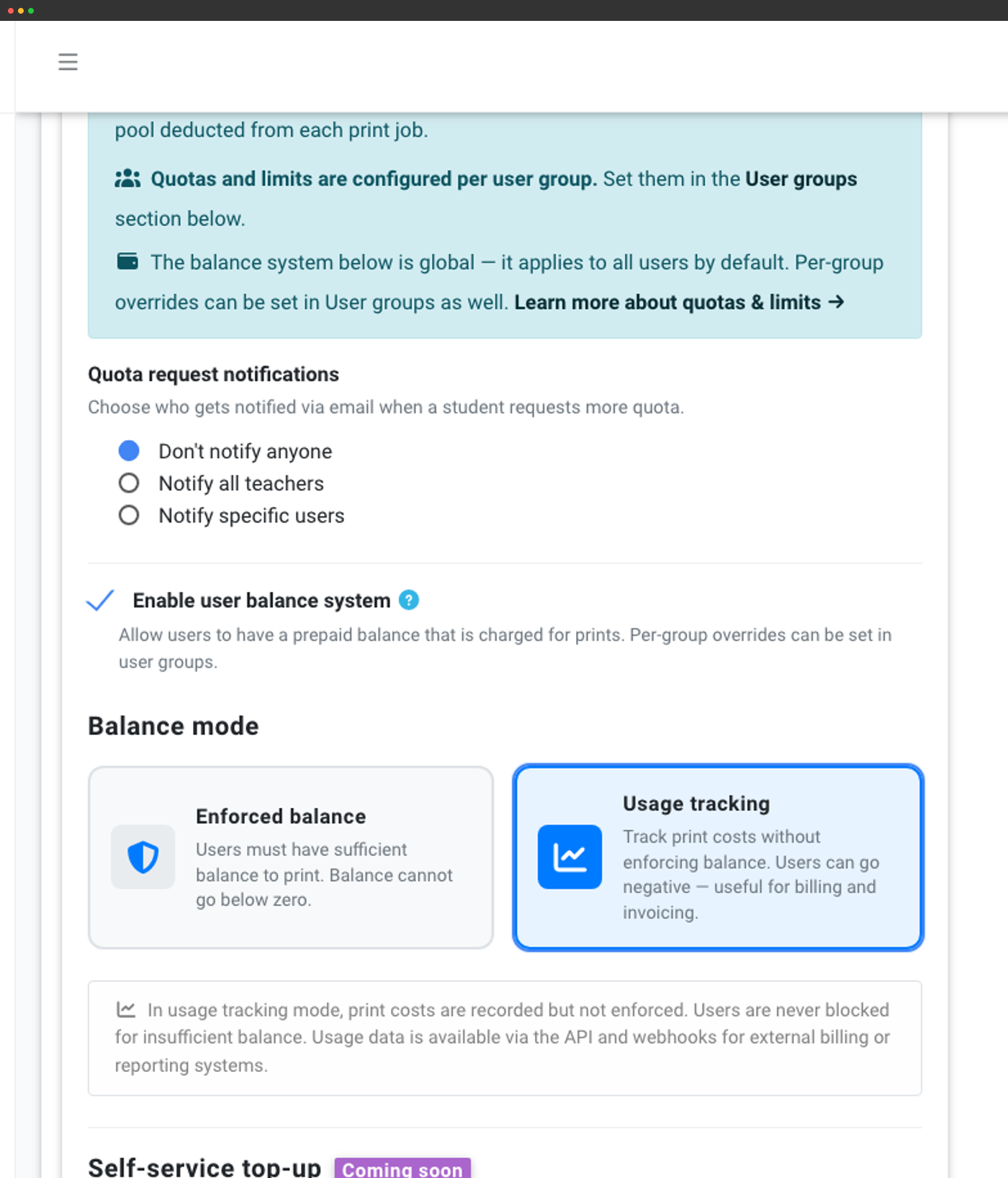
The prepaid balance system gives every student a credit pot prints draw down from. Pick Enforced mode to block prints when balance runs out, or Usage tracking mode to never block and instead log cost for invoicing (think departmental chargeback). Configure auto-refill on a schedule, exempt teachers globally, set discount rules with optional start and end dates, and route quota-request notifications to a specific teacher or admin.
Students request more quota, teachers approve from the dashboard
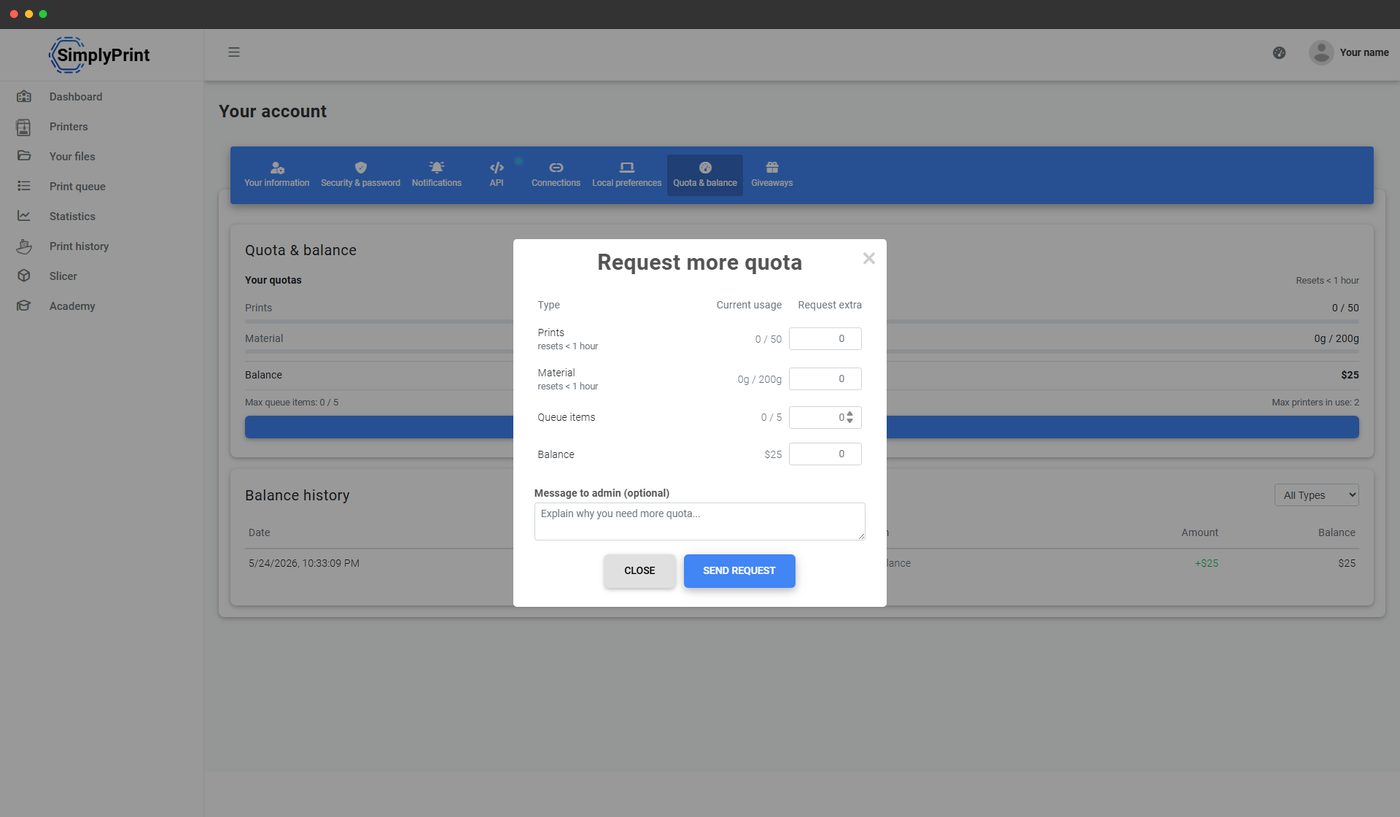
When a student hits a quota cap or runs out of balance, they can submit a Request more from the topbar, the queue page, the slicer welcome screen or the print-blocked modal - the request lands in the teacher's Quota requests inbox on their dashboard. Teachers see each request with the student's current usage, can adjust the amount, leave a message and approve or deny in batch. Notifications can be routed to all teachers or to specific admin users, and the student gets a notification back when their request is resolved.
SAML single sign-on for Google Workspace, Microsoft Entra ID, Auth0
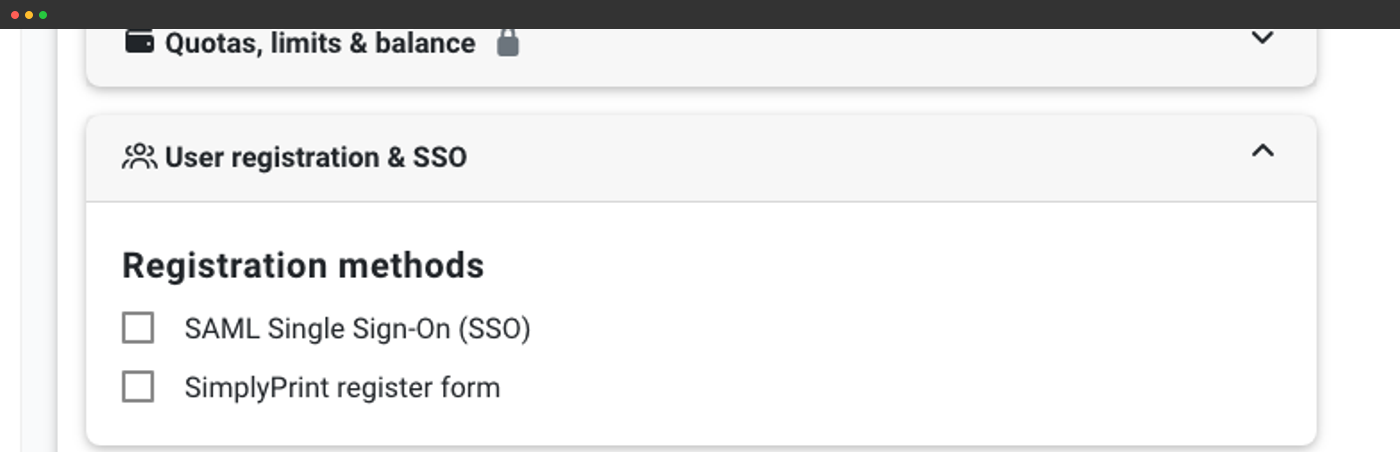
School and district IT teams almost always require single sign-on. SimplyPrint supports SAML 2.0 across the major identity providers schools actually use:
- Google Workspace - the most common K-12 IdP
- Microsoft Entra ID (formerly Azure AD) - common in larger districts and universities
- Auth0 - flexible enterprise IdP
- Federation-based SAML - for districts using their own federation layer
- Any SAML 2.0 IdP - generic provider config for everything else
Paste a Google Classroom URL when configuring SSO group → class mapping; SimplyPrint pulls class membership from Classroom on each sync. SSO setup guides for Google, Microsoft, Auth0 and SAML
GDPR, SDPC and the security paperwork your IT team will ask for
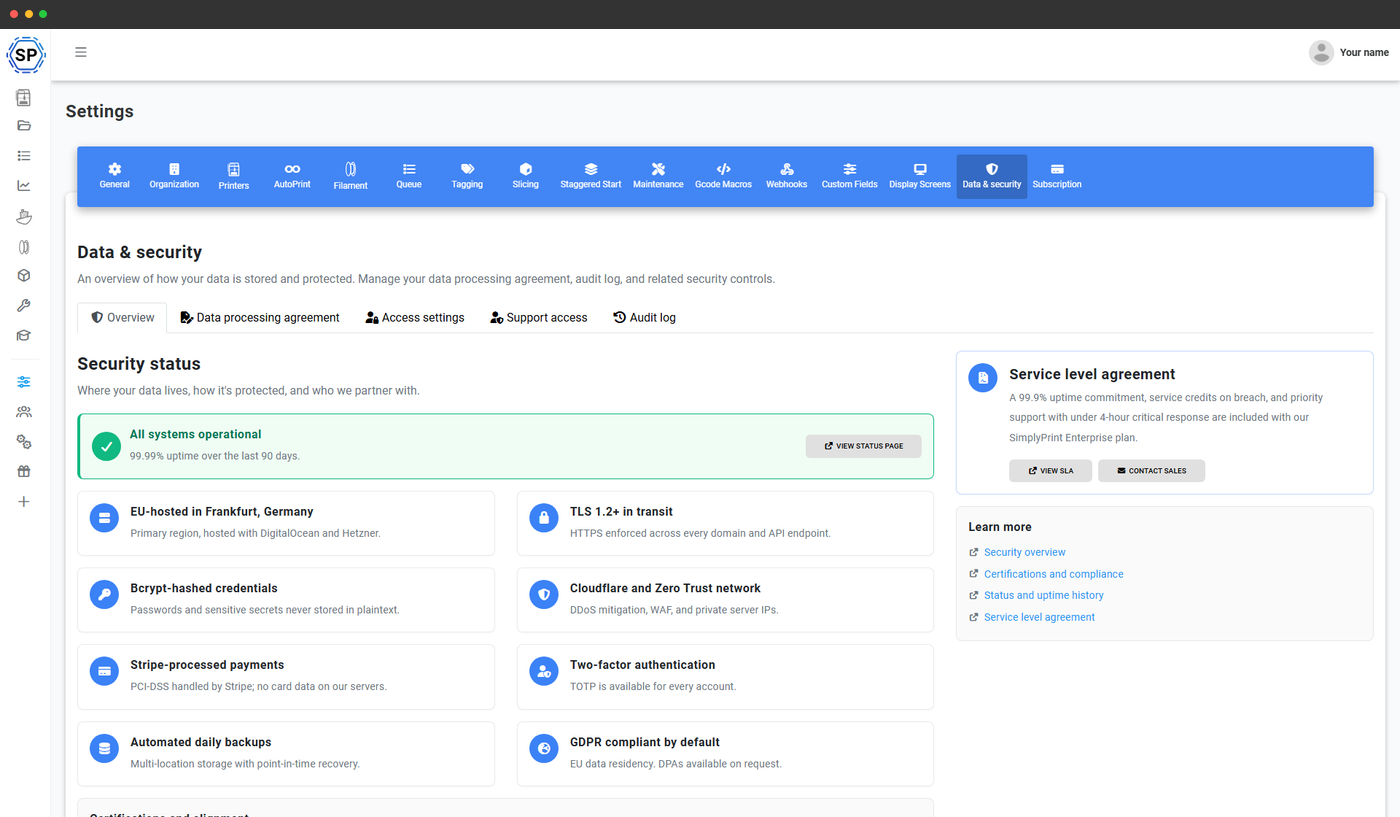
SimplyPrint is built in Denmark and runs on EU-hosted infrastructure, so GDPR is the baseline, not the upsell. On the School plan you also get:
- In-product Data Processing Agreement - sign the DPA from the panel, no PDF-emailing back and forth
- Company audit log - full history of organisation actions: approvals, permission changes, balance adjustments, role assignments
- IP whitelisting - lock panel access to school or district IP ranges
- SDPC Standard NDPA - SimplyPrint is a signatory on the SDPC multi-state K-12 NDPA. Districts in covered states can subscribe to the existing agreement via Exhibit E instead of negotiating their own contract.
Step-by-step: require 2FA and restrict panel access by IP.
Built for the school budget conversation
Most schools end up cobbling together four or five separate tools to run their 3D printers: a queue manager, a Chromebook-compatible slicer, a classroom dashboard for teachers, an audit trail for IT and a file storage layer for student projects. SimplyPrint replaces all of those line items with a single platform on a single PO. When you're pitching this to a budget approver, the procurement story is consolidation: fewer vendors to vet, fewer DPAs to chase, one renewal cycle, one support contact, one bill.
The Hub: a kiosk-style page for the printer lab
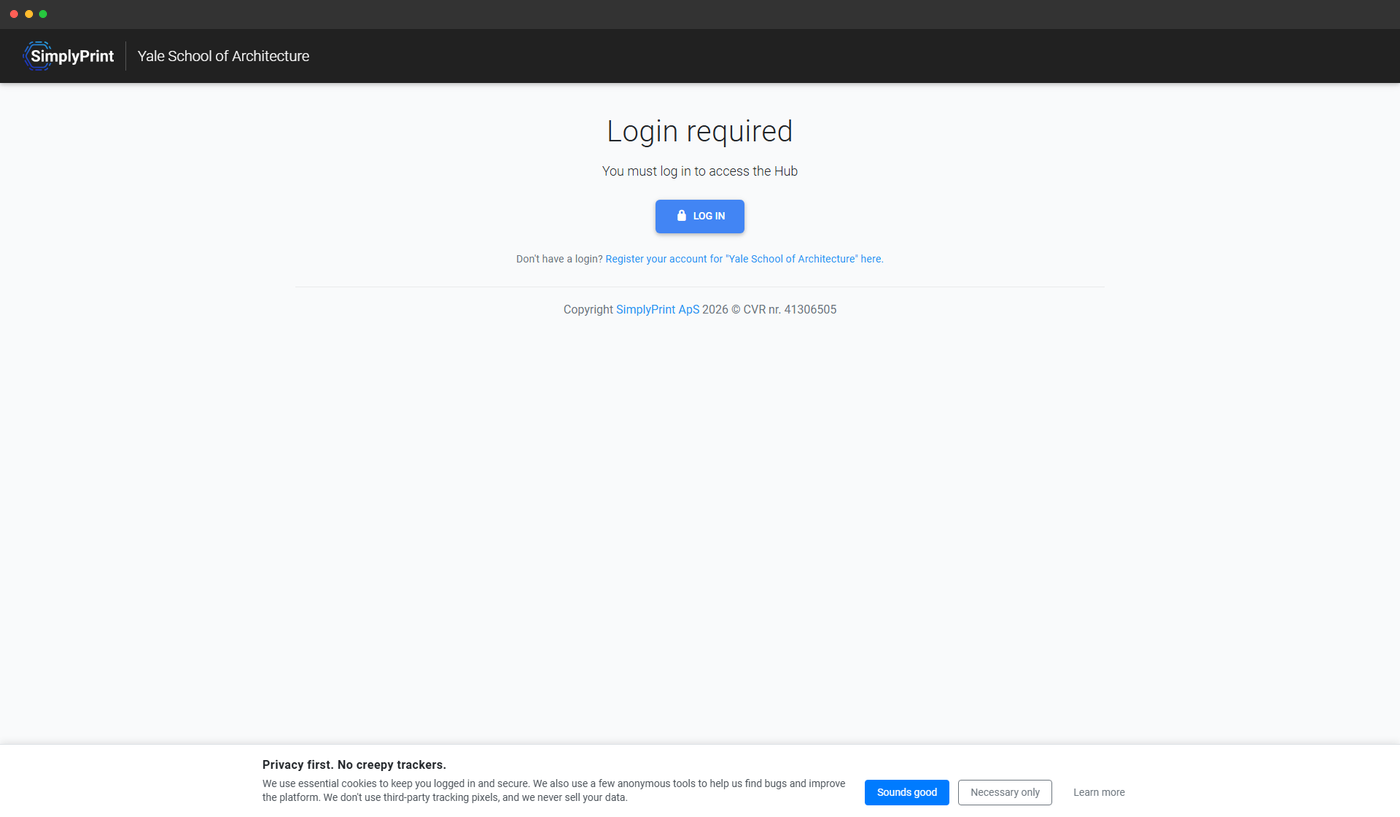
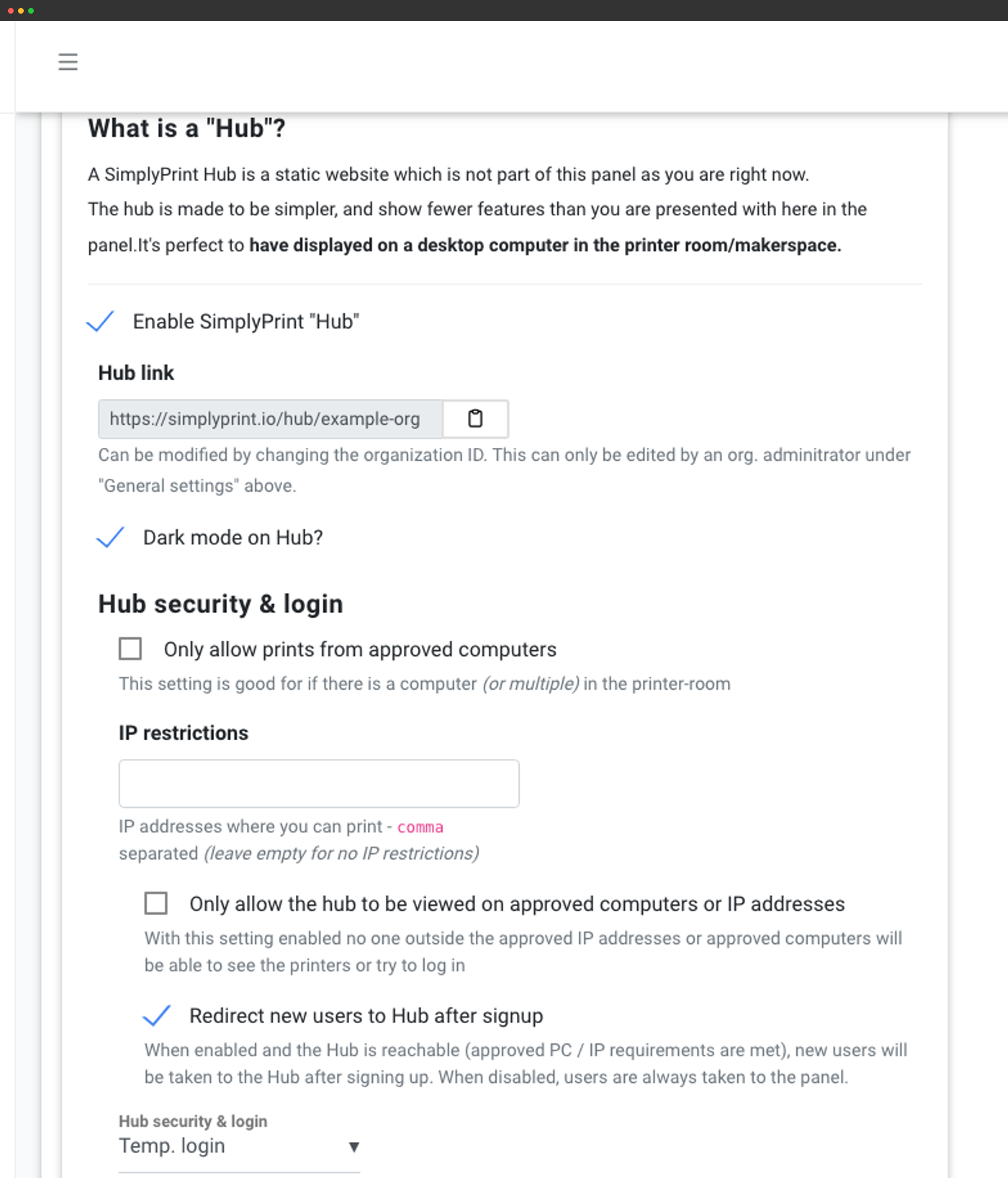
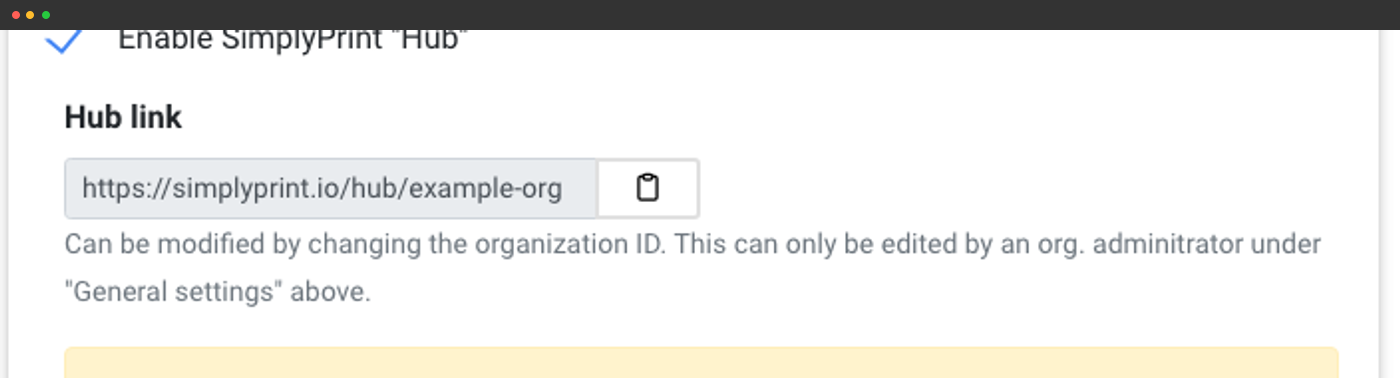
Your school gets a dedicated public-facing Hub page at simplyprint.io/hub/{your-school-id} - a stripped-down, distraction-free interface designed to live on the lab computer next to the printers. Same logins as the main panel, way less clicking through. Lock it to specific IPs or computers so only the lab terminal can reach it.
Printers grouped by class or room
Status pills and quick actions, organised by your class or queue groups.
Lock to lab IPs and computers
Restrict prints or even viewing to approved IP ranges - critical for shared school networks.
Auto-logout for class periods
Temporary login mode so each class period starts fresh instead of inheriting the last student's session.
Which classroom features come on which plan
The School plan is built specifically for classrooms and makerspaces. Multi-user collaboration and the Hub are also available on Print Farm and Enterprise; queue approval, quotas and the teacher and student dashboards are School and Enterprise only (with the dashboard host itself reserved for School).
| Feature / Limit | Free | Basic | Pro | Print Farm | Enterprise | School | Cloud Slicer | Filament Manager |
|---|---|---|---|---|---|---|---|---|
|
Multiple users
Invite teachers and students with separate logins and permissions.
|
||||||||
|
Queue approval workflow
Route every student submission past a teacher before it hits the live queue.
|
||||||||
|
Quotas, limits and balance
Periodic quotas, per-job limits, prepaid balance with enforced or tracking modes.
|
||||||||
|
Teacher and student dashboards
Per-persona dashboards with pending approvals and quota request inboxes.
|
||||||||
|
SAML single sign-on
Google Workspace, Microsoft Entra ID, Auth0, Federation-based SAML or any SAML 2.0 IdP.
|
||||||||
|
Company audit log
Full history of organisation actions for auditors and IT review.
|
||||||||
|
In-product DPA signing
Sign the data-processing agreement directly from the panel.
|
||||||||
|
IP whitelisting
Lock panel access to school or district IP ranges.
|
Want to learn more about our plans?
View full pricing & feature comparison