No more notes taped to the printer
When a class, a club and a dozen students share the same printers, someone always finds "their" printer busy. Reservations put who has which printer, and when, in one calendar that the printers themselves respect - so nobody has to guard a printer or ask around. SimplyPrint is a cloud-based 3D printer management platform for FDM printers from most major brands; printer reservations add a booking calendar to it.
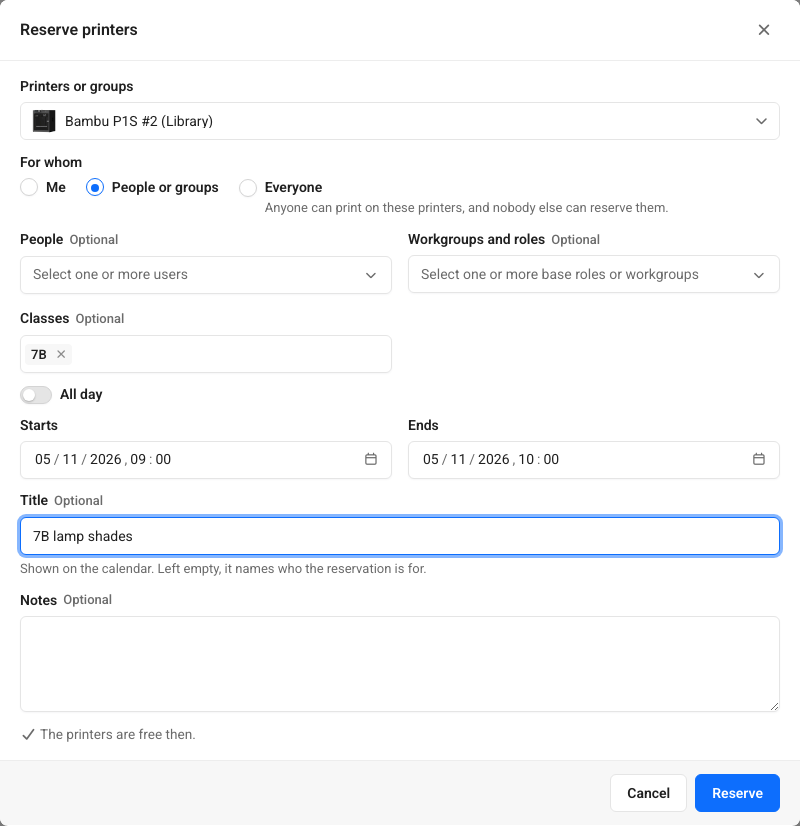
Reserve printers for a class in a few clicks
Click or drag across empty time in the calendar, or press Reserve printers. Pick one printer, several, or a whole printer group, then who it is for: yourself, people, base roles, workgroups, school classes, a project (on Enterprise), or everyone. A reservation of a printer group follows the group, so a printer added to it later is held too.
The dialog checks as you go. It tells you when the printers are free, and lists anything in the way before you save: another reservation, a maintenance window, someone's scheduled print, a printer that is offline.
See who has which printer, and when
One calendar shows reservations, maintenance windows and scheduled prints together, in each person's own timezone. Narrow it to a printer group, drag a reservation to move it, or click one for its details.
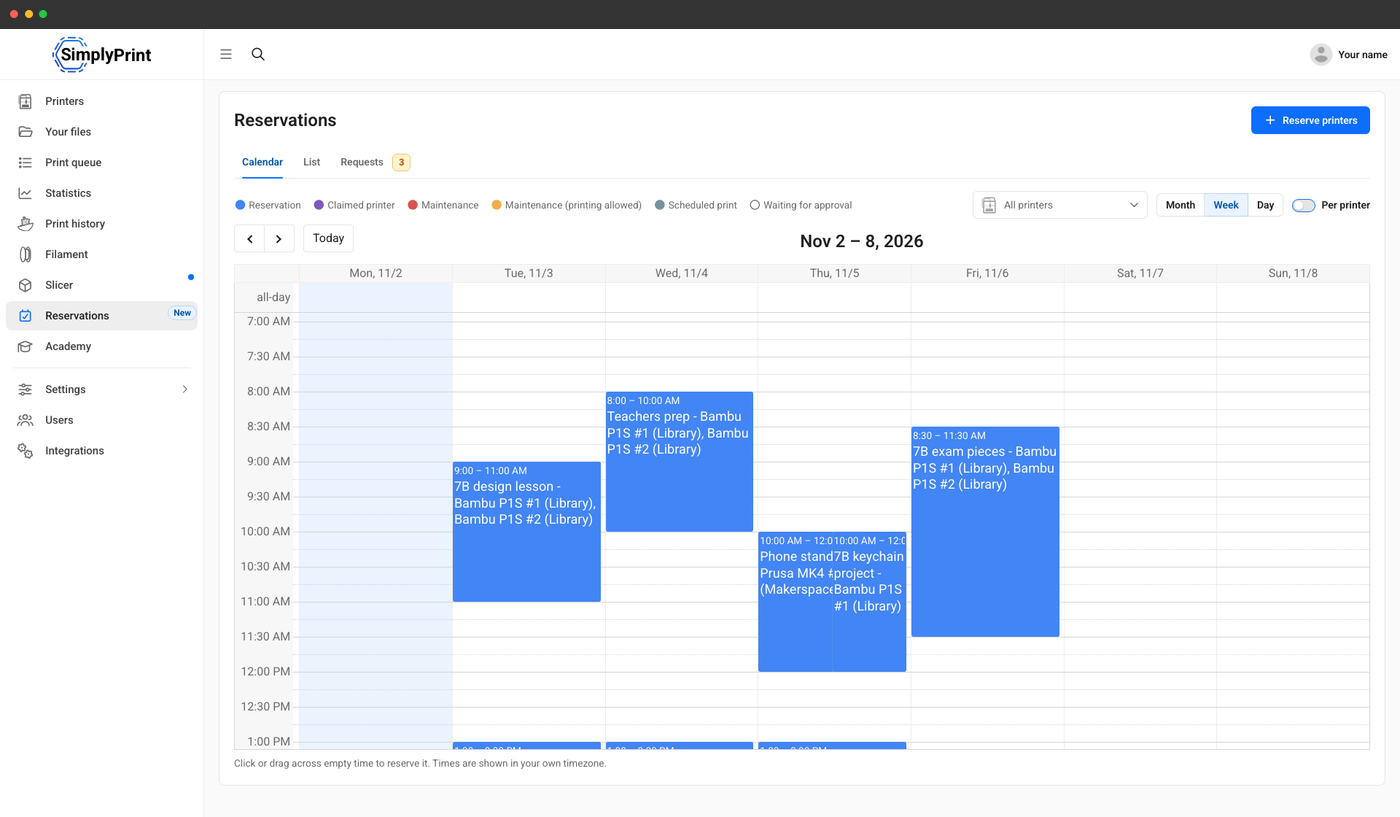
Every reservation of the week, with its printers named.
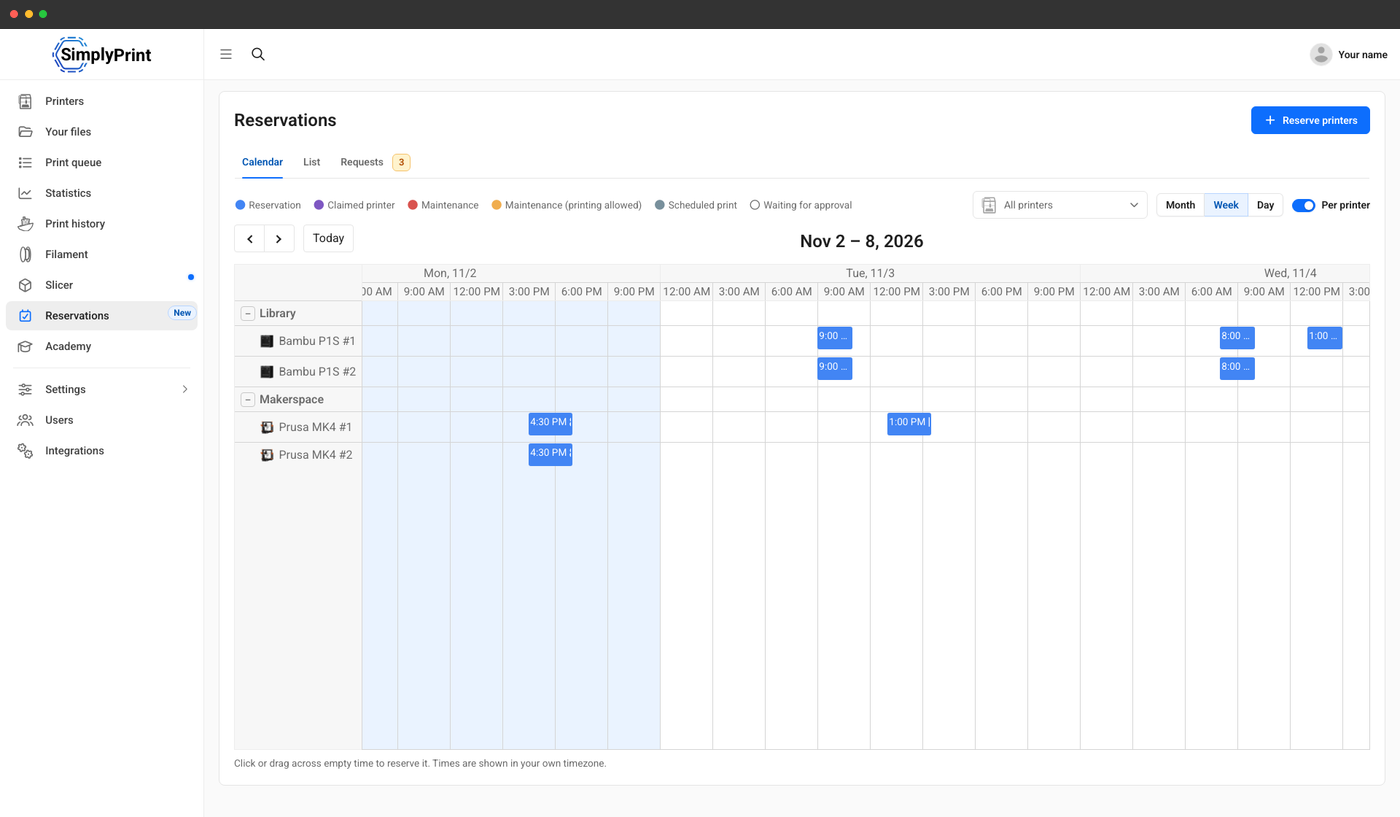
One row per printer, under its printer group.
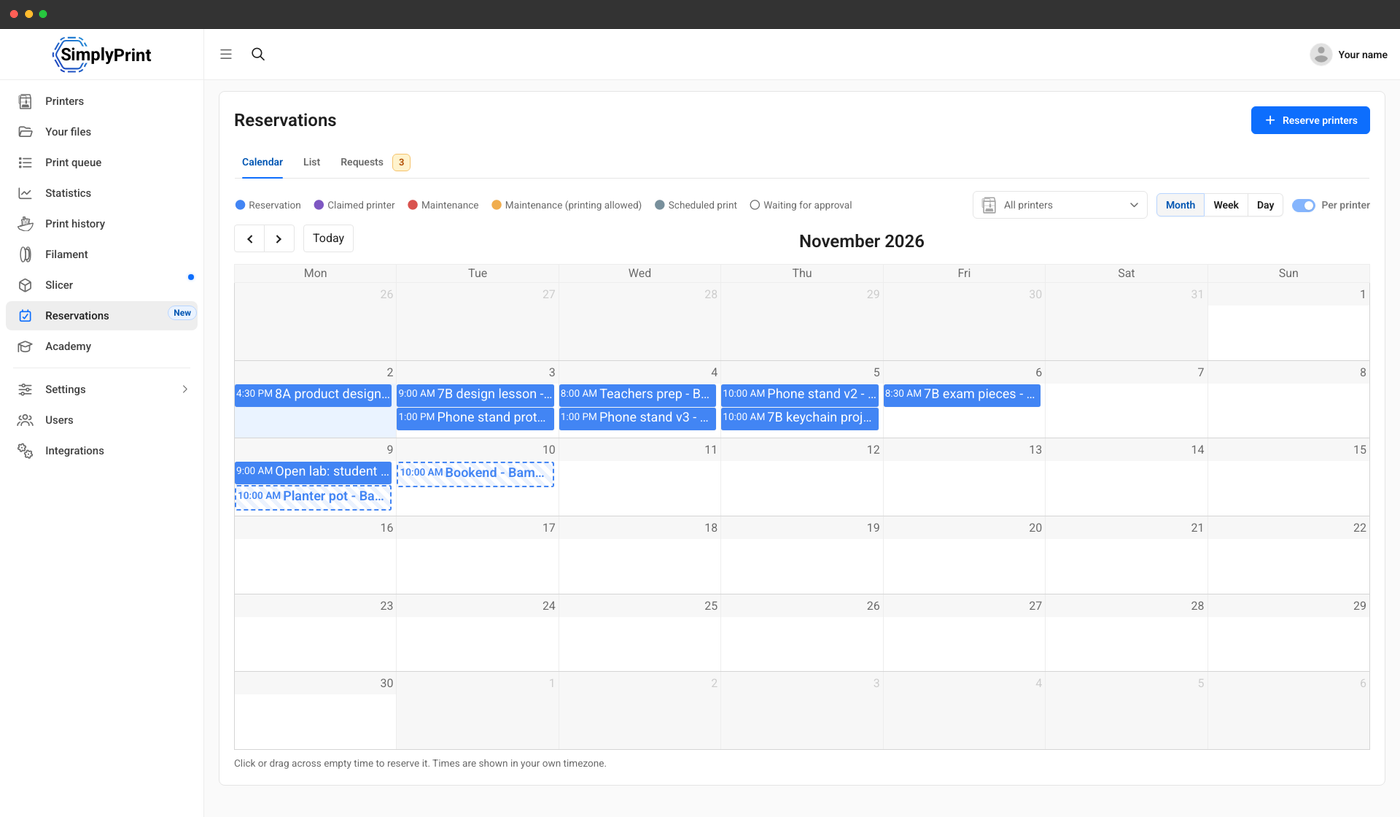
The month at a glance, requests outlined.
Reserving is optional: unreserved printers work as usual
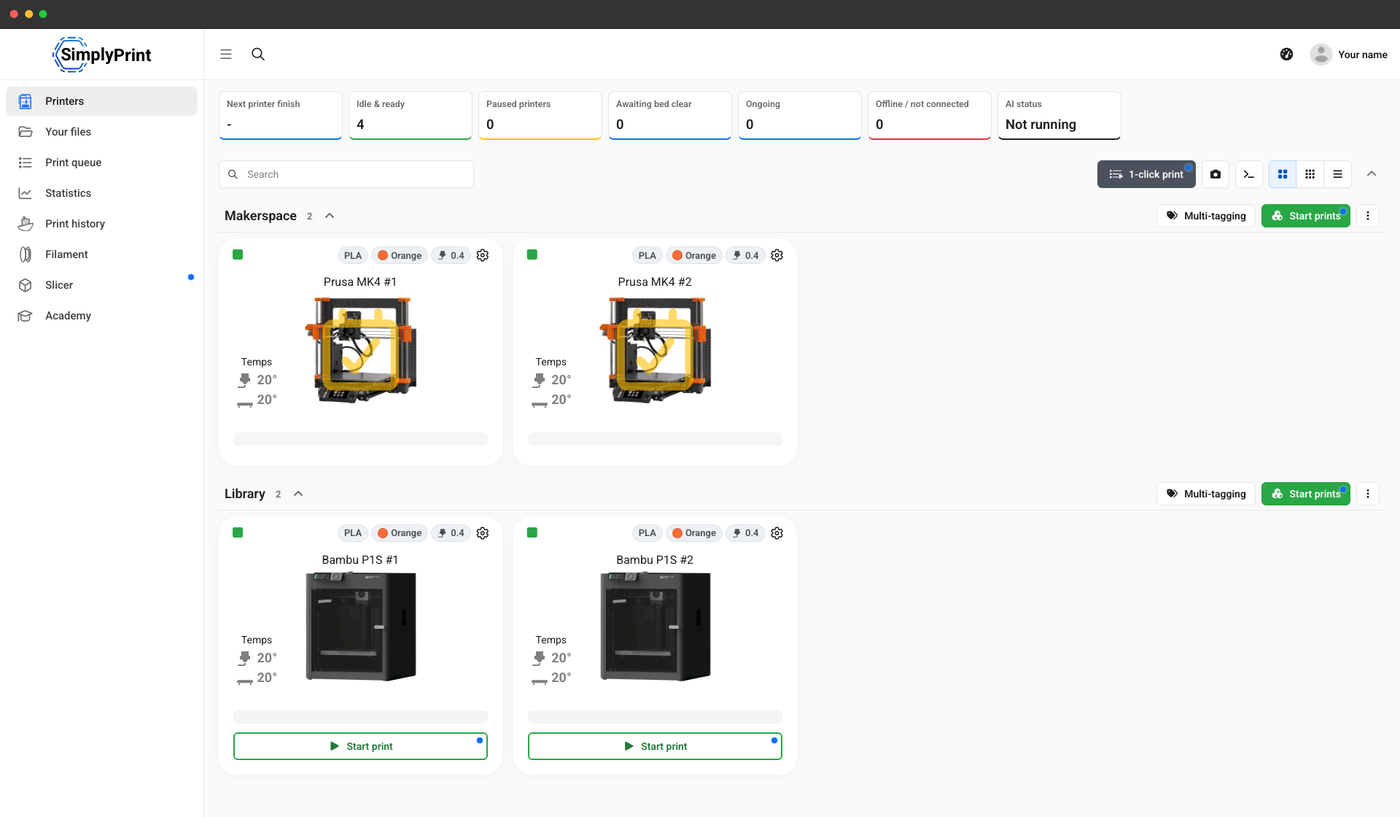
Reservations never take printers away from anyone by default. A printer nobody has reserved is open to everyone allowed to print, as it is today. Only during a reservation does a printer wait for the people it is for, and the print queue, scheduled prints and AutoPrint plan around it rather than into it.
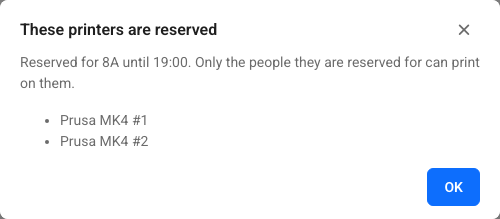
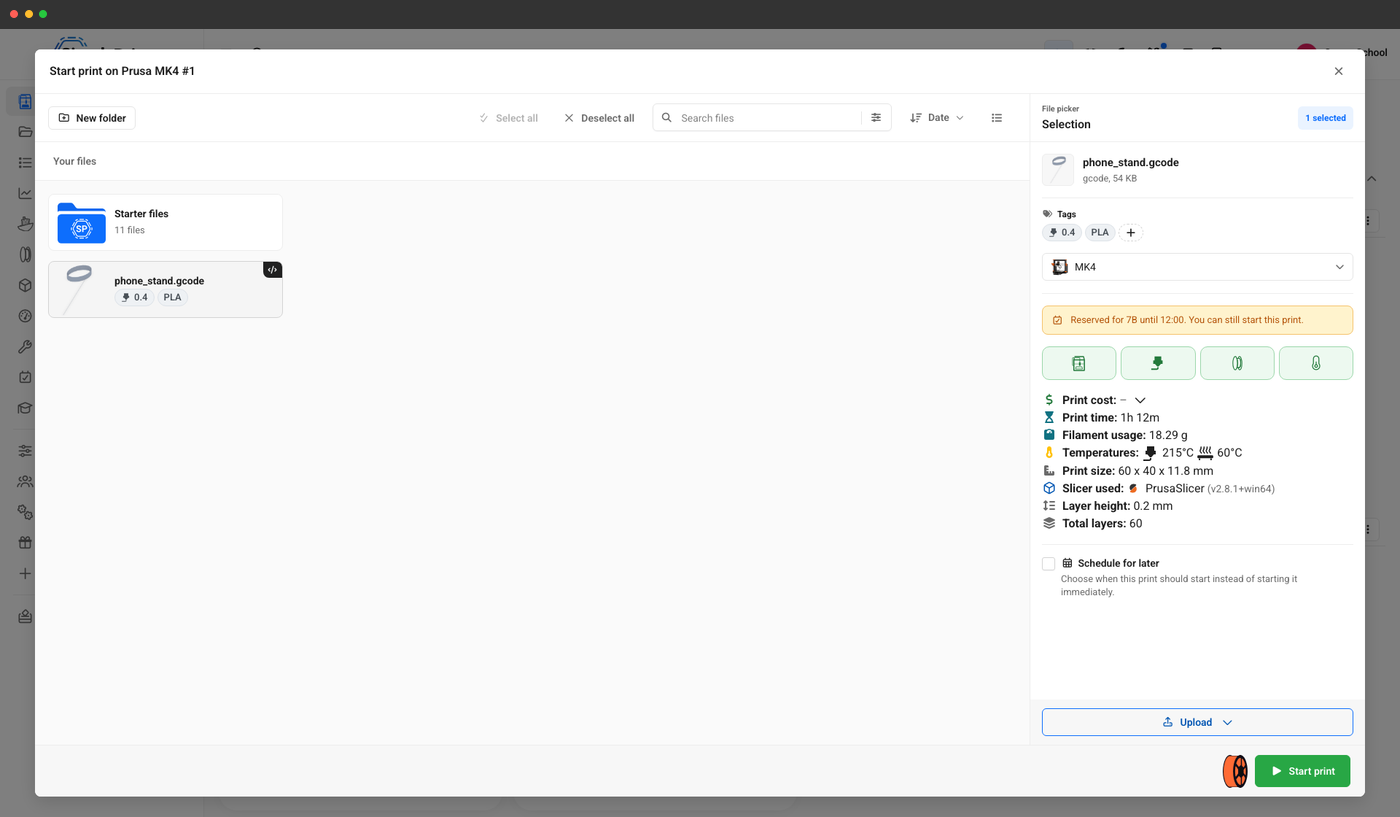
Students who cannot see reservations are never sent to a page they cannot open. The printer card, the start dialog and the control panel simply say who the printer is reserved for, and until when.
Let students ask, and teachers approve
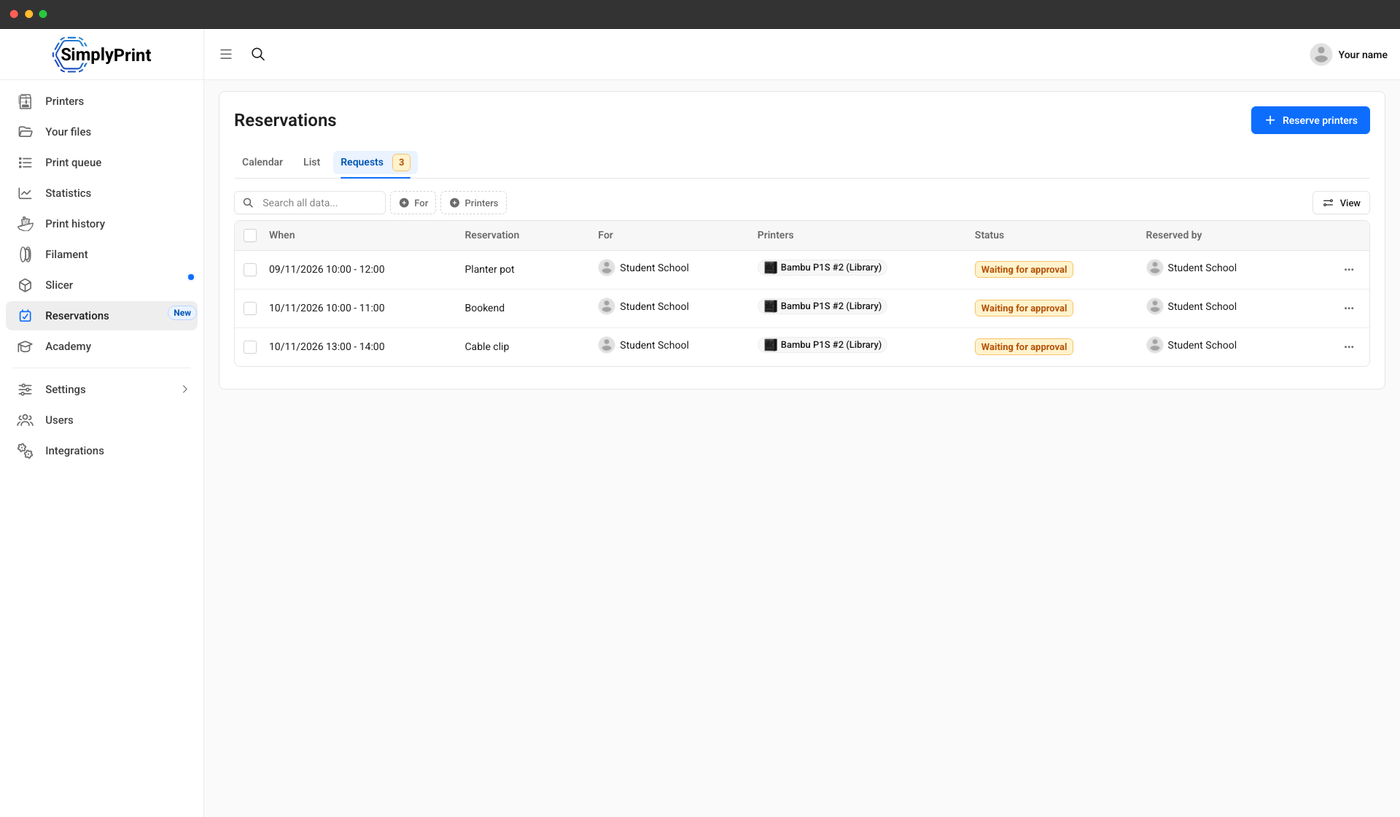
Want students to reserve a printer for an exam piece, but not without a say? Switch on Reservations need approval. A student's reservation then waits as a request, holding nothing until someone approves it. Teachers decide the requests for their own classes and workgroups; a rejection can carry a reason, which the student gets with the answer.
A Requests tab
Every request waiting for you, with a count, decided in bulk.
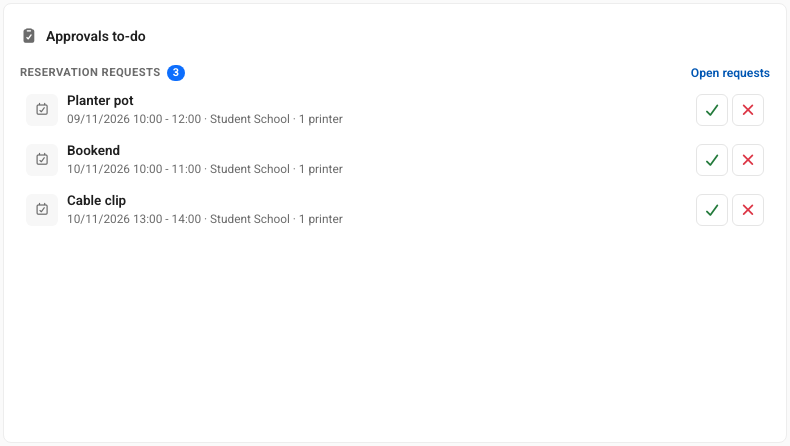
On the dashboard
Approve or reject from the Approvals to-do card.
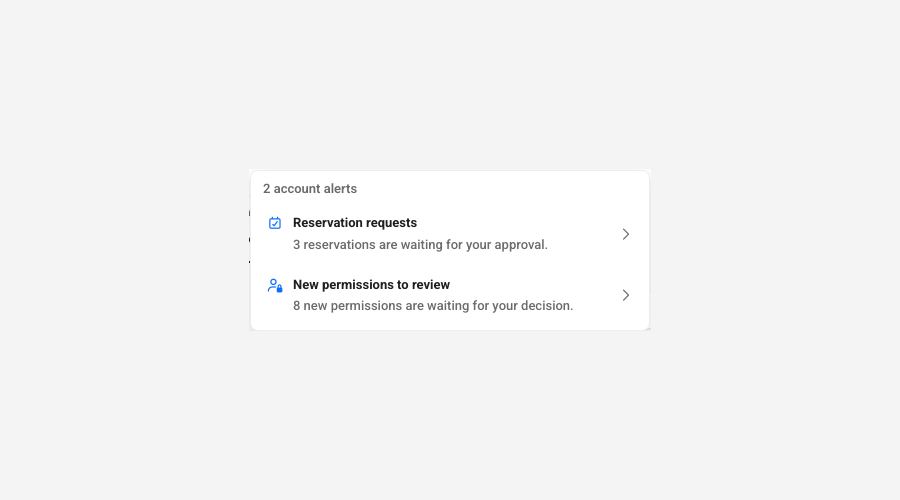
In the account alerts
Waiting requests sit beside queue and member approvals.
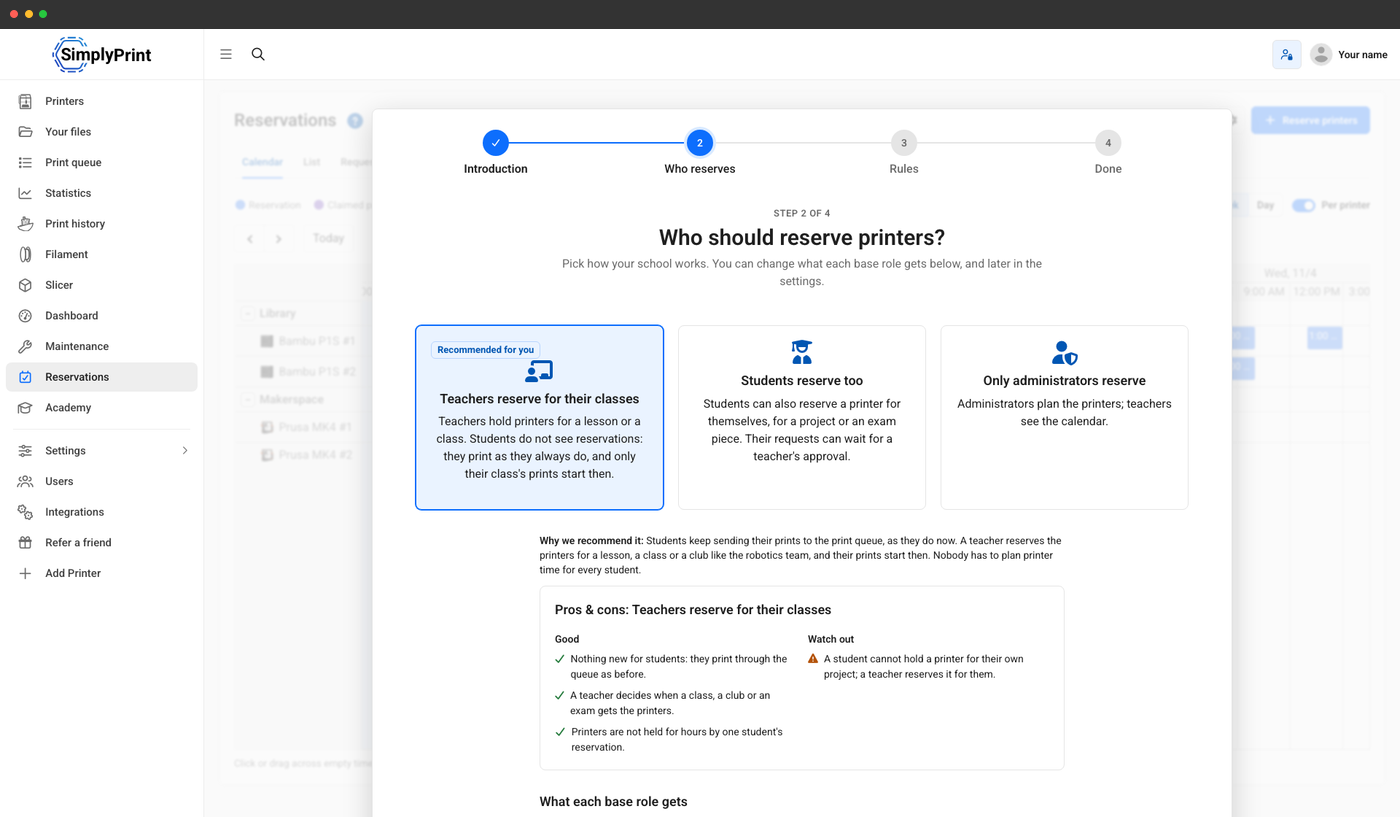
Set up in a minute, the way your school works
The first time you open Reservations, a short guide asks how you want to work, with the pros and cons of each: teachers reserve for their classes (what we recommend for schools), students reserve too, or only administrators reserve. It sets what each base role may do, and a couple of optional limits. Let me see it first shows the page before you decide.
Schools can answer the same question in the school setup, alongside the rest of their account's setup. Everything can be changed later.
Fair rules, kept by the system
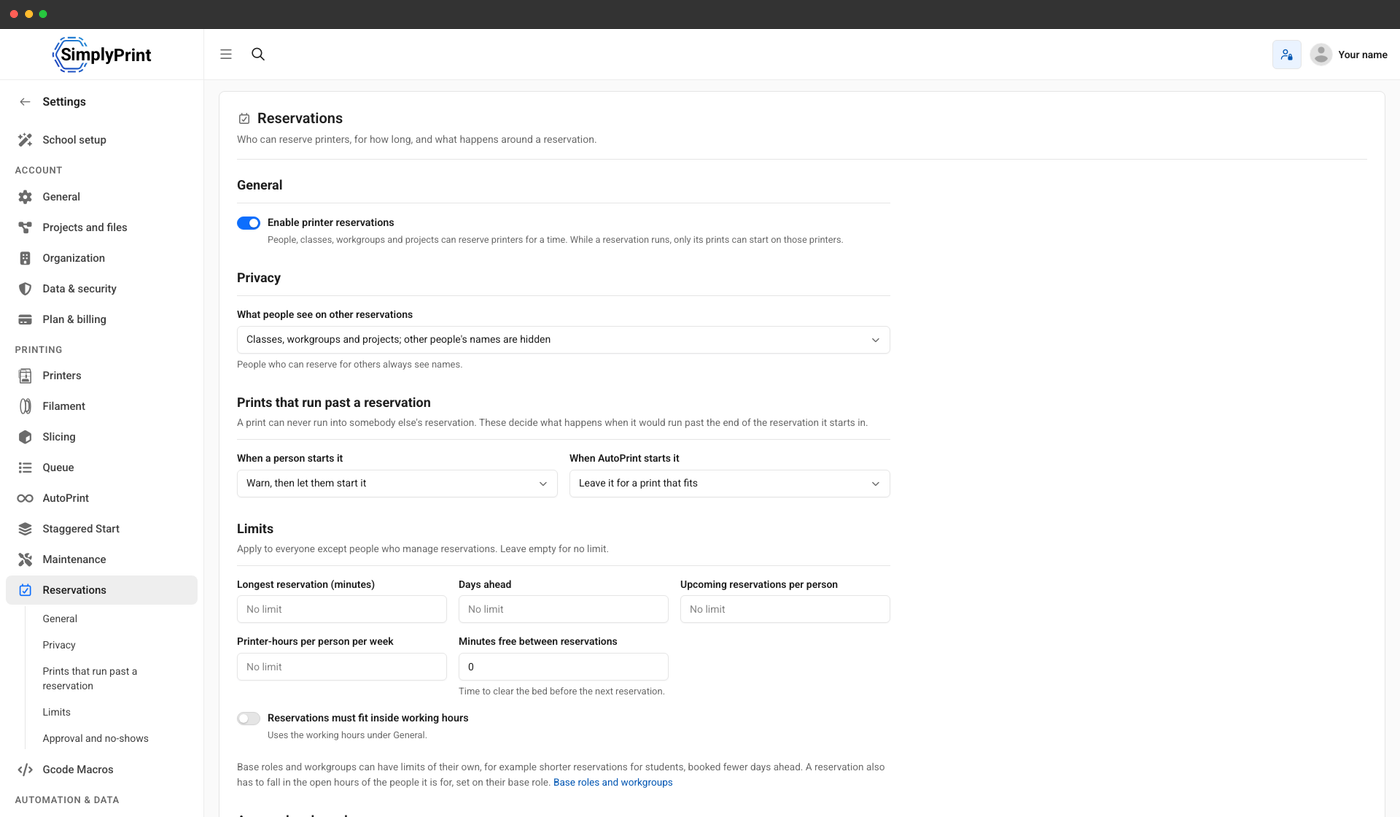
Set the rules once and the reserve dialog applies them, so nobody has to police the calendar:
- Limits - the longest reservation, how many days ahead, upcoming reservations and printer-hours per person per week
- Time to clear the bed - minutes kept free between reservations
- Opening hours - reservations inside the account's working hours, and the open hours of the people they are for
- No-shows - printers are freed for others when nothing starts on them
- Prints that run long - warn or refuse a print that would run past its own reservation
Students' names stay private
By default, everyone sees the class, workgroup or project a reservation is for, while other students' names are hidden: they show as Someone. People who reserve for others always see names. One setting shows everyone's names instead.
These permissions decide the rest, per base role:
- View reservations - open the calendar
- Reserve printers for themselves
- Reserve printers for others - people, base roles, workgroups, classes and projects
- Approve reservation requests
- Manage all reservations - and the settings
- Print on reserved printers - with a warning first
A technician can still print, after a warning
Give staff the Print on reserved printers permission and they can still start a print on a reserved printer - from the printer card, the print queue or 1-Click Print in the panel. They are warned that the printer is reserved, and until when, and can print anyway. Everyone else is told the printer is reserved.
Reservations in your own tools
Reservations are in the SimplyPrint API: list and find them, check a slot, reserve, change, cancel, approve or reject, and claim. Integrations connected with OAuth2 ask for the reservations.read and reservations.write scopes, and the user's own permissions still apply.
Read the API docsPlan access: which plans include printer reservations?
Printer reservations are part of the School and Enterprise plans, for every printer in the account, with no add-on to buy.
| Feature / Limit | Free | Basic | Pro | Print Farm | Enterprise | School | Cloud Slicer | Filament Manager |
|---|---|---|---|---|---|---|---|---|
|
Printer reservations
The reservations calendar, requests and approval, limits and the reservation permissions.
|
Want to learn more about our plans?
View full pricing & feature comparison