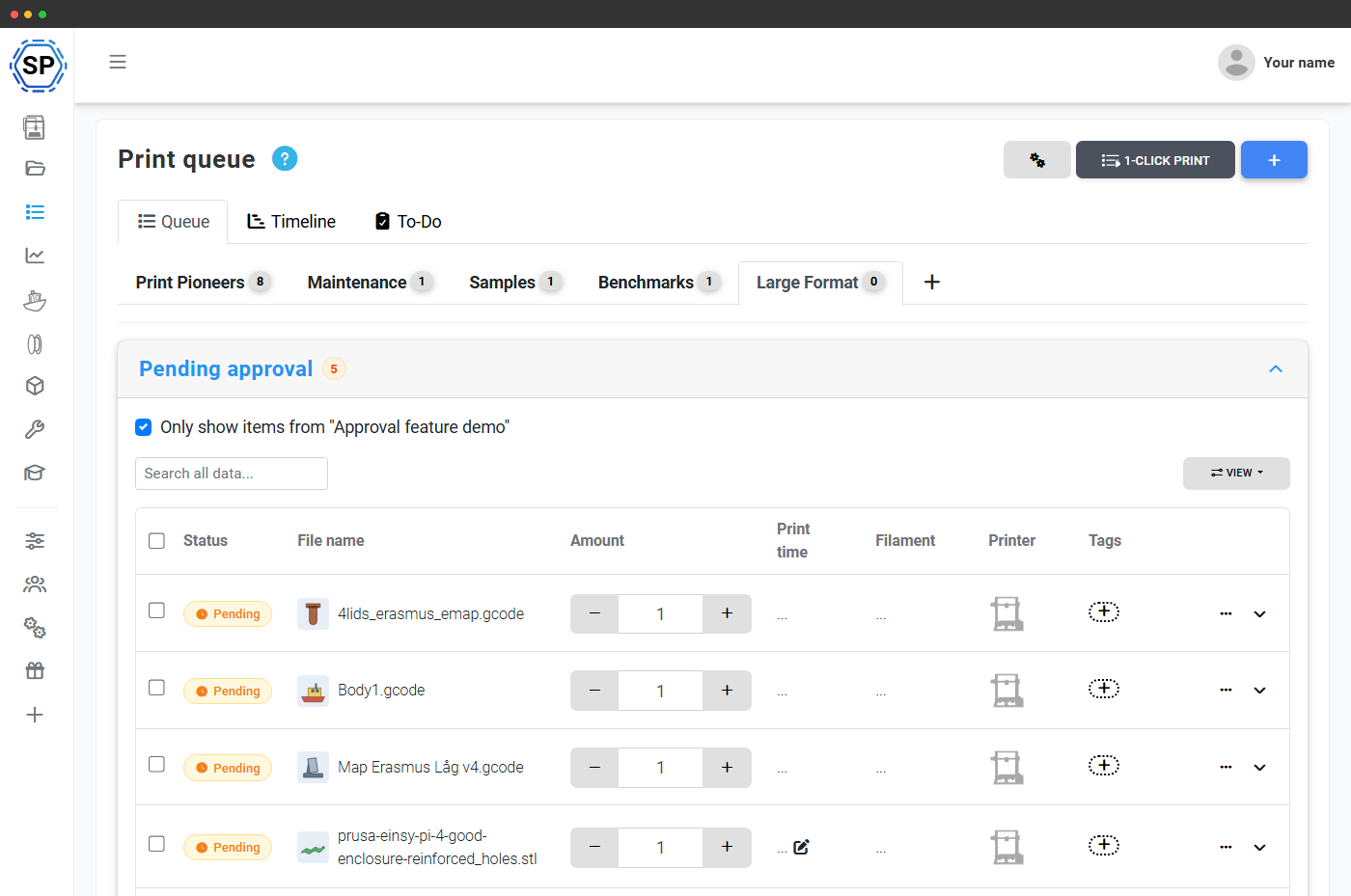
Nothing prints until you say so
When a whole class can add jobs to the queue, you need a way to catch the 14-hour print, the wrong material, or the model that was never going to come off the bed - before it ties up a printer.
Queue approval puts every submission into a pending lane first. You review it, you decide, and only approved jobs ever reach a machine. Teachers, lab managers, and makerspace staff get oversight of every print without having to watch every printer.
Students submit a print request, not a print
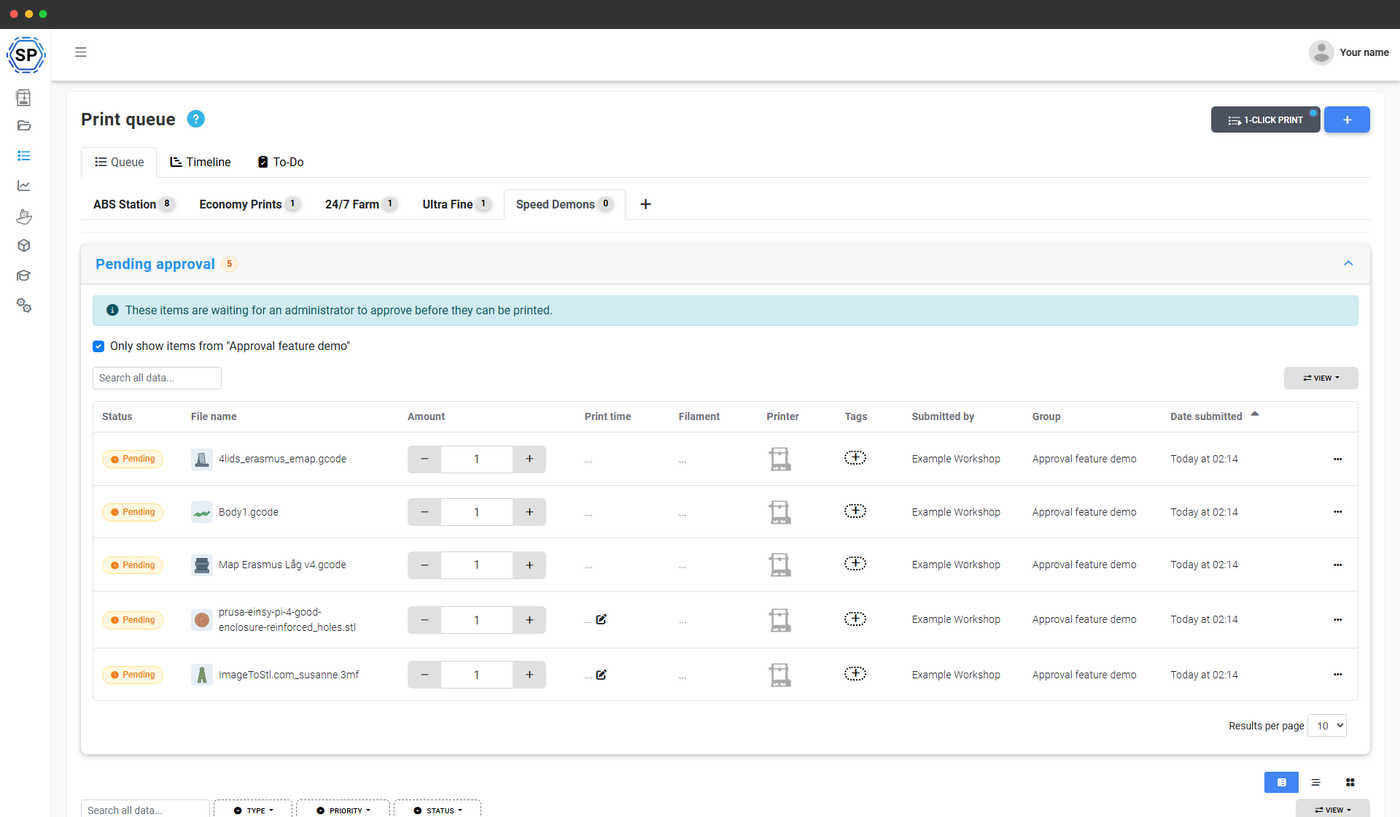
A student uploads a file or picks an existing one and adds it to the queue as usual. If their group requires approval, the job lands in a pending approval lane instead of starting - they see a clear status pill on their own item (pending, approved, denied, or changes requested) so they always know where their request stands.
They can add a comment to explain what they are printing or ask a question, and they will be notified the moment you act on it.
Review the model, the cost and the time in one place
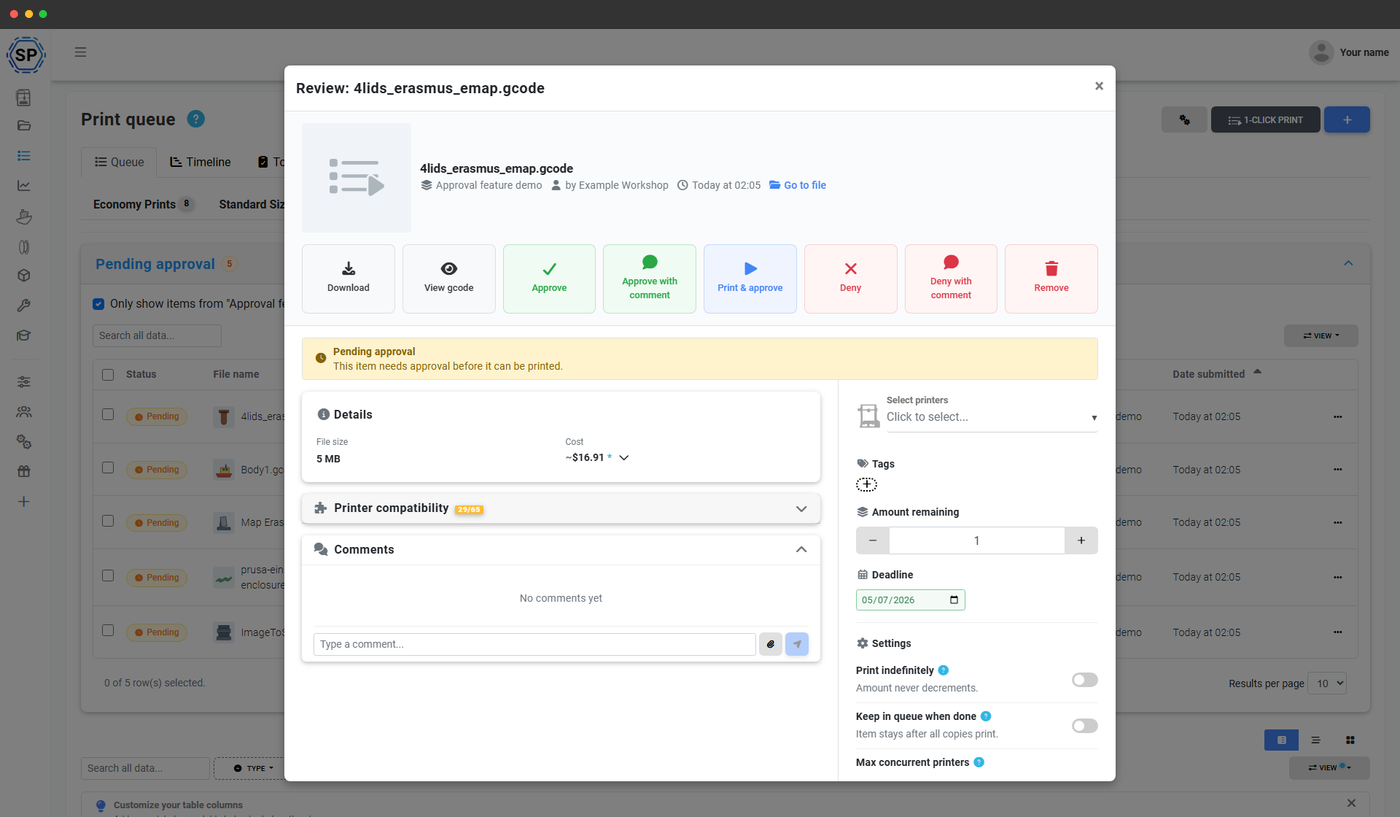
Open any pending submission and you get the whole picture in one review pane: the 3D thumbnail, the gcode analysis (print time and material used), the estimated cost, and the submitter's current quota usage. Open the full gcode preview to inspect the toolpaths before you commit a printer to it.
From the same pane you can adjust the copy count, assign the printer, model or queue group, and set tags - so an approved job is queued exactly the way you want it to run.
Approve, deny, or send it back for changes
Every submission has three honest outcomes:
- Approve - the job moves into the live queue and prints like any other. You choose where it lands: its original spot, the top, or the bottom.
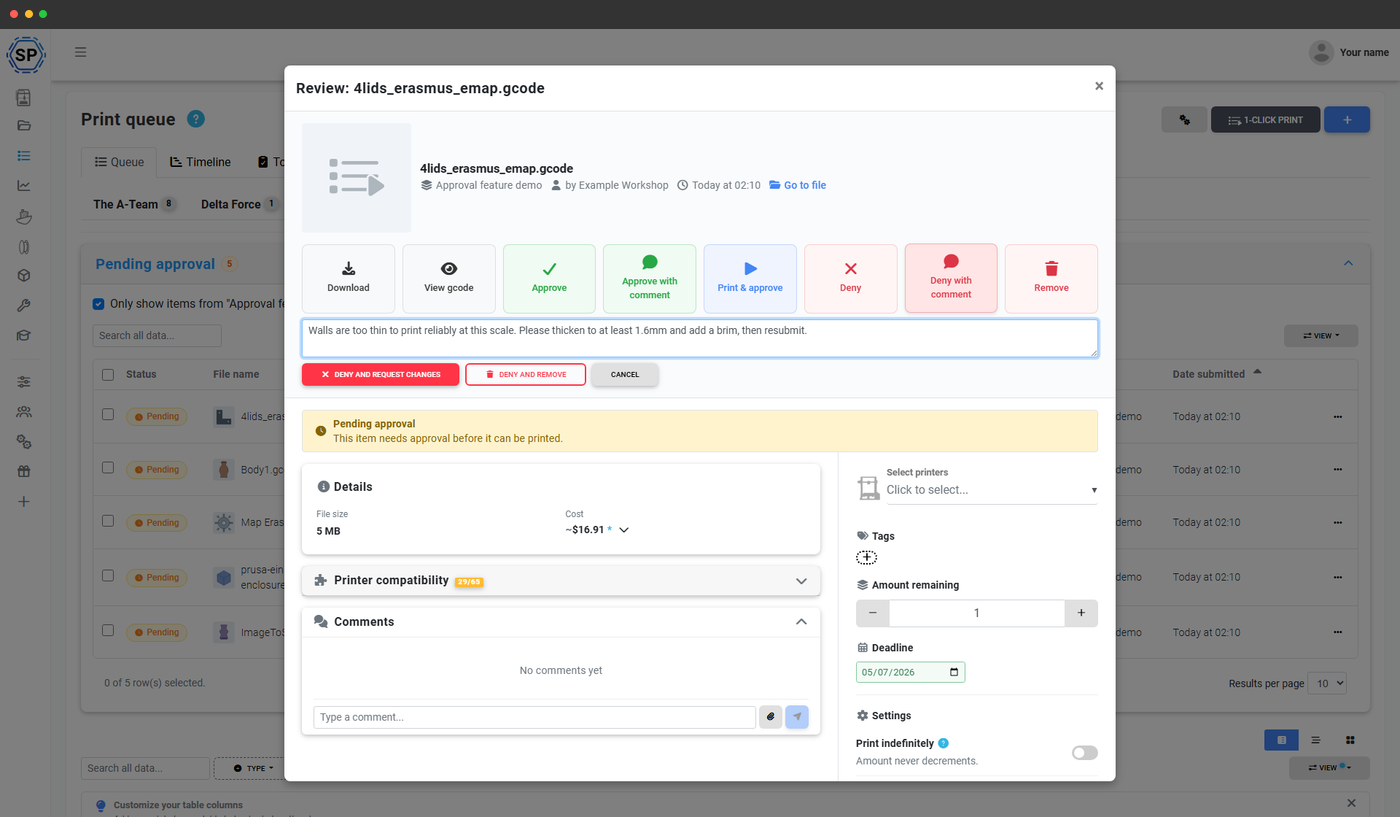
- Deny - with a required reason, so the student knows exactly what was wrong. Deny and leave it for a resubmission, or deny and remove it entirely.
- Send back for revision - re-pends the job with a note asking for a fix, so the student can swap the file and resubmit without starting over.
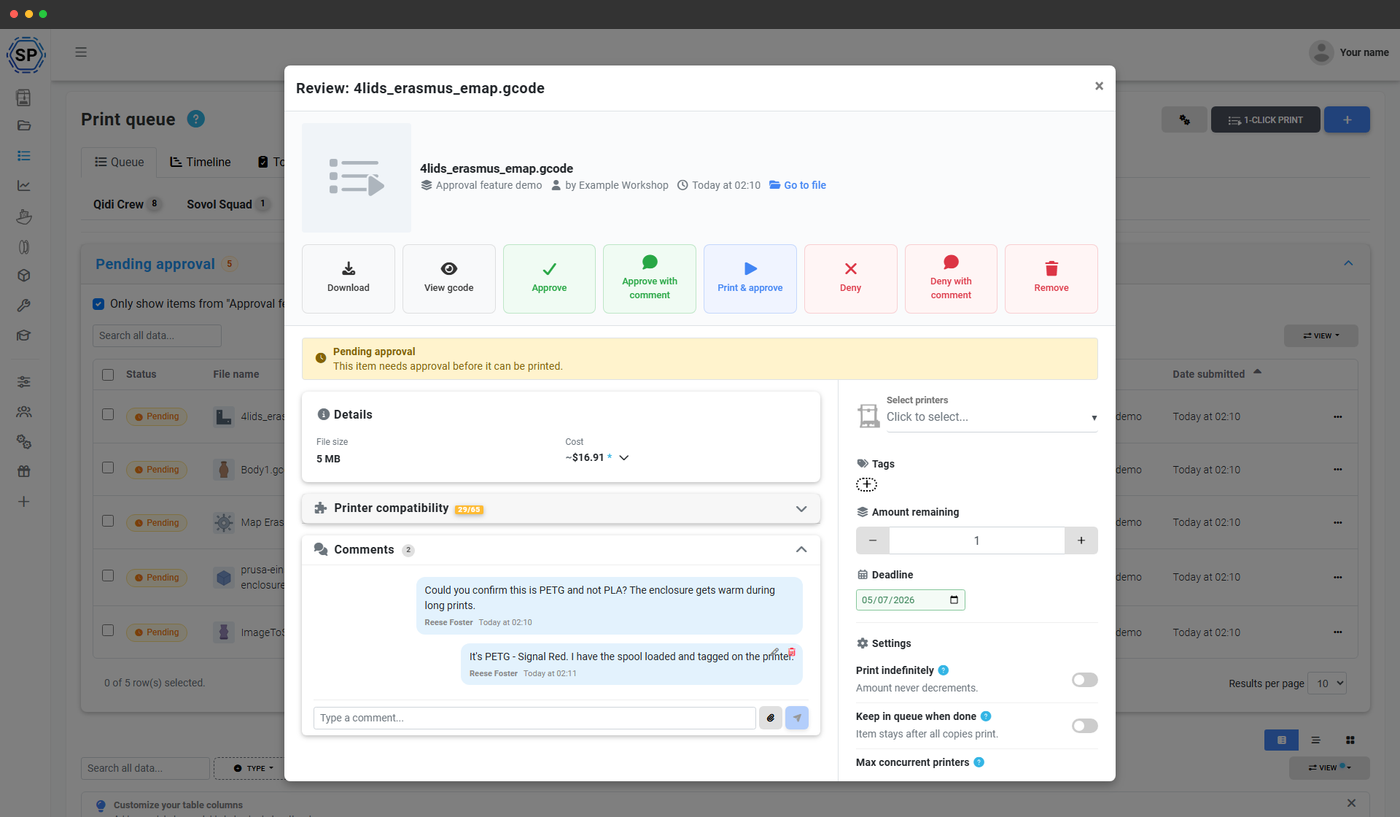
Talk it through with a comment thread on every job
Each pending submission carries its own comment thread, so the review is a conversation, not a silent rejection. Ask the student to add a brim, point out the model is too tall for the printer, or confirm the material - all on the job itself. They reply, you re-check, and the whole exchange stays attached to the print.
It turns approval into a teaching moment: students learn why a job was sent back, not just that it was.
Give your lab oversight without the babysitting
Turn on approval, set which groups need it, and review prints from one place.
Start your free trialDecide exactly who needs approval, and who skips it
Approval is policy-driven, not all-or-nothing. Set a default for the whole account, then override it per queue group: always require approval, never require it, or fall back to the default. You can also restrict approval to specific user groups within a group, or exempt others entirely.
Trusted users - your teachers, lab assistants, or a specialist student group - can be given skip approval so their jobs go straight to the live queue. New students get the full review; the people you trust don't wait.
Everyone is notified at the right moment
Approvers can be pinged whenever a new submission arrives, so the pending lane is never a queue you have to remember to check. Submitters are notified the moment their job is approved, denied, or sent back - and the approver's name can be shown beside the status pill so it is clear who signed off.
No chasing, no lost requests: the review loop closes itself.

Review from the queue, or from your dashboard
The pending lane sits right on the print queue page as a collapsible table above the live queue, filterable by group, with bulk approve and bulk deny for when a class submits at once.
On the School plan, the same pending submissions also appear as a widget on the teacher dashboard, next to the quota requests inbox - so the first thing you see when you log in is what needs your attention.
Built for shared labs and classrooms
Approval is one half of running a queue that the whole class can use. Pair it with the rest of the platform.
Plan availability
Queue approval is part of the Education (School) and Enterprise plans. The Print Farm plan includes the print queue itself but not the approval workflow.
| Feature / Limit | Free | Basic | Pro | Print Farm | Enterprise | School | Cloud Slicer | Filament Manager |
|---|---|---|---|---|---|---|---|---|
|
Queue approval workflow
Pending lane, review modal, approve / deny / send back, comment threads and per-group policy. Education and Enterprise plans.
|
||||||||
|
Print quotas & balance
Pairs with approval to cap usage per user group. Education and Enterprise plans.
|
Want to learn more about our plans?
View full pricing & feature comparison