Scheduled 3D printing

Schedule your 3D print for 3am without being awake for it

Tick Schedule for later when you send a print, pick any moment from one minute to seven days out, and close the tab. Our servers release the job, not your browser - so it can start when the printer is ready while electricity is cheaper at night, or be finished before the room is needed in the morning. It works on 600+ printer models across 130+ brands, including machines whose own firmware has no start timer at all. The printer is held for you from the moment you schedule. Also called delayed start, or a print timer.

Get started for free
Feature image

Who needs to choose when a print starts?

Anyone whose printer cannot just run whenever it likes. People who pay less for electricity at night than in the evening. People whose printer stands in a bedroom, a home office or a classroom that is occupied during the day. Print farms that want the first jobs of the day finished before the first person walks in. Shared machines in labs and makerspaces, where your turn is booked for Thursday night. If "start it now" is the wrong answer for you, this is the feature.

Four reasons to set a start time

Scheduling is not really about the calendar. It is about whatever makes right now the wrong moment - the electricity bill, the room, the shift, or the person who has to be there when it finishes.

Cheap night-rate power

Electricity is often much cheaper at 3am than at 6pm. Run the print while it is cheap.

Parts waiting at 9am

Start the first jobs before anyone arrives, so the plates are finished by the time the day begins.

Quiet while the room is used

No noise or fumes in a bedroom, office or classroom during the hours people are in it.

Finishes while you are there

Time a 14-hour job to end at 3pm, not 3am, so it comes off the bed the same day.

What running overnight actually saves you

The heated bed and hotend use most of a printer's power, and a long print keeps them hot for hours. If your electricity is cheaper at night, the same print can cost noticeably less just for running between midnight and 6am instead of in the evening - and that difference costs you nothing but the start time. What has stopped people taking it is that the start time is the one thing a slicer will not let you set, so the print gets started whenever you happen to be standing at the machine, which is exactly the expensive hour.

With Schedule Print you pick the hour your electricity is cheapest and forget about it. The print is booked as soon as you finish slicing and becomes eligible at that hour; it starts on the next server pass if the printer is ready. One thing to be clear about: the printer has to be powered and connected when the start is attempted. This is a scheduler, not a power switch.

How to schedule a 3D print in SimplyPrint

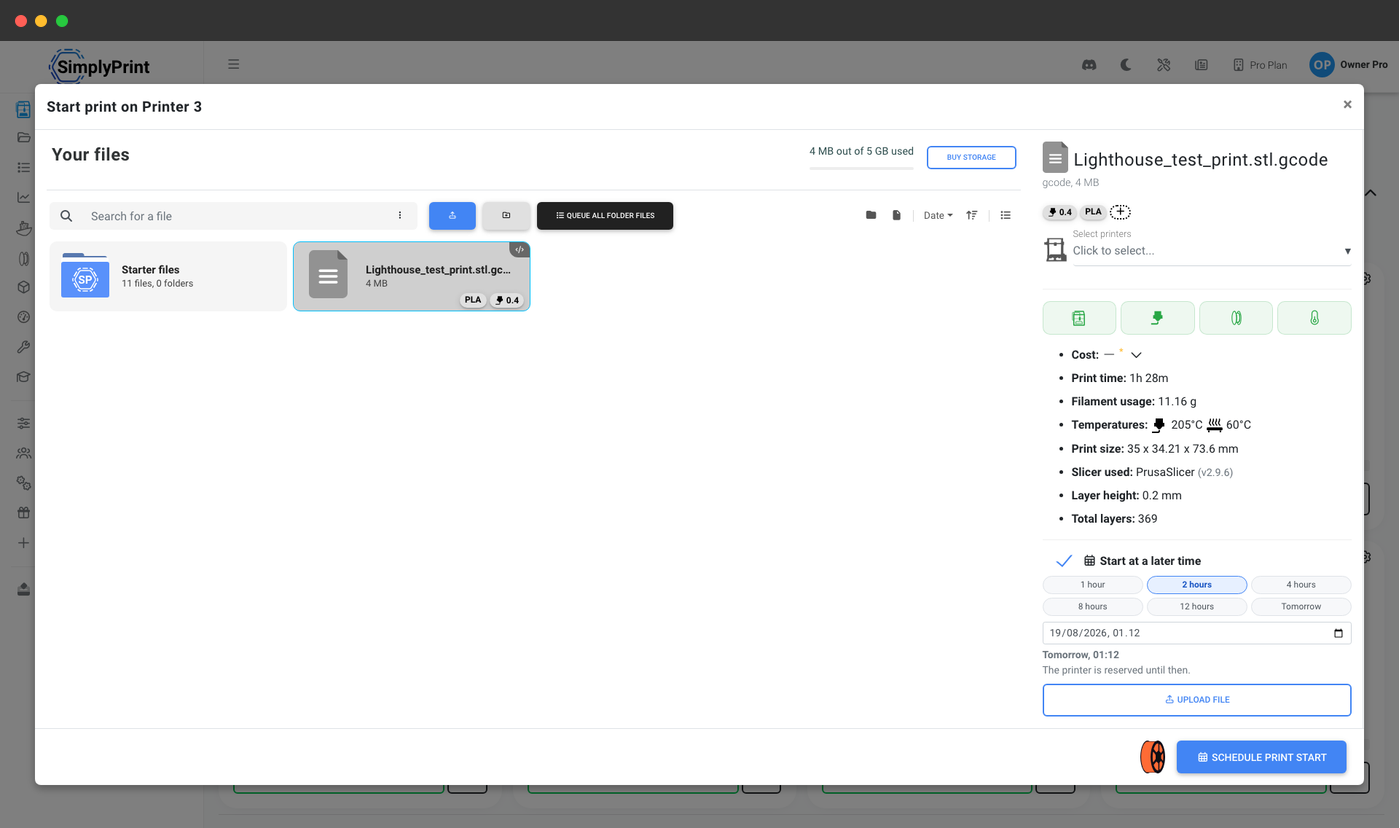
Pick your file the way you always do. In the Start print window, tick Schedule for later and the time controls appear. Choose an exact moment in the date-and-time picker, or use one of the three quick choices underneath - 1 hour, 4 hours or Tomorrow. Choose Start at to use that time directly, or Finish by to have SimplyPrint derive a start time from the estimated duration.

The submit button changes from starting the print to Schedule print, so there is no ambiguity about what is about to happen, and anything from one minute to seven days ahead is accepted. From the print queue, "Start on printer(s)" opens the printer picker, and its confirm button carries a Schedule for later option beside it. (With a single printer and no multi-material system the queue starts straight away without that picker, so schedule those jobs from the printer's own Start print window instead.) It is in the REST API too - a schedule_for field on the create-job call, plus a reschedule endpoint - and on our hosted MCP server, so an ERP, a shop-floor script or an AI assistant can book a print and move it later without a person opening the panel.

See every way a print gets started

Does my computer have to stay on? No - the schedule runs on the server

A scheduled print in SimplyPrint is held server-side and released by the existing Staggered Start queue runner, while composing with AutoPrint rather than depending on it. Close the tab. Shut the laptop. Leave the building, put your phone in a drawer, lose your internet connection at home. At the moment you chose, the job becomes eligible and starts on the next server pass if the printer is ready. The only thing that has to be reachable is the printer itself.

That is what separates it from the workarounds people are usually pointed at:

ApproachWhat actually presses startRe-time or cancel later?Needs a machine left on?
Dwell (G4) commands in your start G-codeThe printer, once you have already started the jobNo - the delay is baked into the sliced file, so changing it means re-slicing and re-uploadingNo
A smart plug on a timerNothing. It powers the printer up; something still has to send the jobOnly the power schedule, not the printNo
A PC left awake with a task schedulerA script on your own computerYes, if you wrote it that wayYes - the computer has to stay awake all night
A self-hosted single-printer pluginThe small computer attached to that one printerDepends on the pluginYes - that host has to stay up
SimplyPrint Schedule PrintSimplyPrint's servers, once the scheduled job is eligible and the printer is readyYes - Change time, Start now or Cancel, from the panel, your phone or the APINo

It works on printers whose firmware never got a start timer

People have been asking printer vendors for a scheduled start for years. "Schedule Print for Specific Time" has been open on BambuStudio's issue tracker since 2022 and a second delayed-start request was opened there in 2026; the Bambu Lab forum has carried the same request since 2024. In Prusa's firmware tracker somebody sketched almost exactly this interface - start in 15 minutes, or start at 09:45 - noting that Prusa Connect already does it and asking for the same thing offline.

That last one is the pattern worth noticing: where a vendor has shipped a scheduled start, it works on that vendor's own printers, through that vendor's own cloud. Schedule Print works regardless of what any vendor has built, and regardless of whose printer it is. It lives in the SimplyPrint platform, above the firmware, so it behaves the same on 600+ printer models across 130+ brands - including every machine whose own firmware has no concept of a start time, and across a mixed fleet where no two printers run the same firmware.

The printer is held for you from the moment you schedule

A reservation, not a reminder

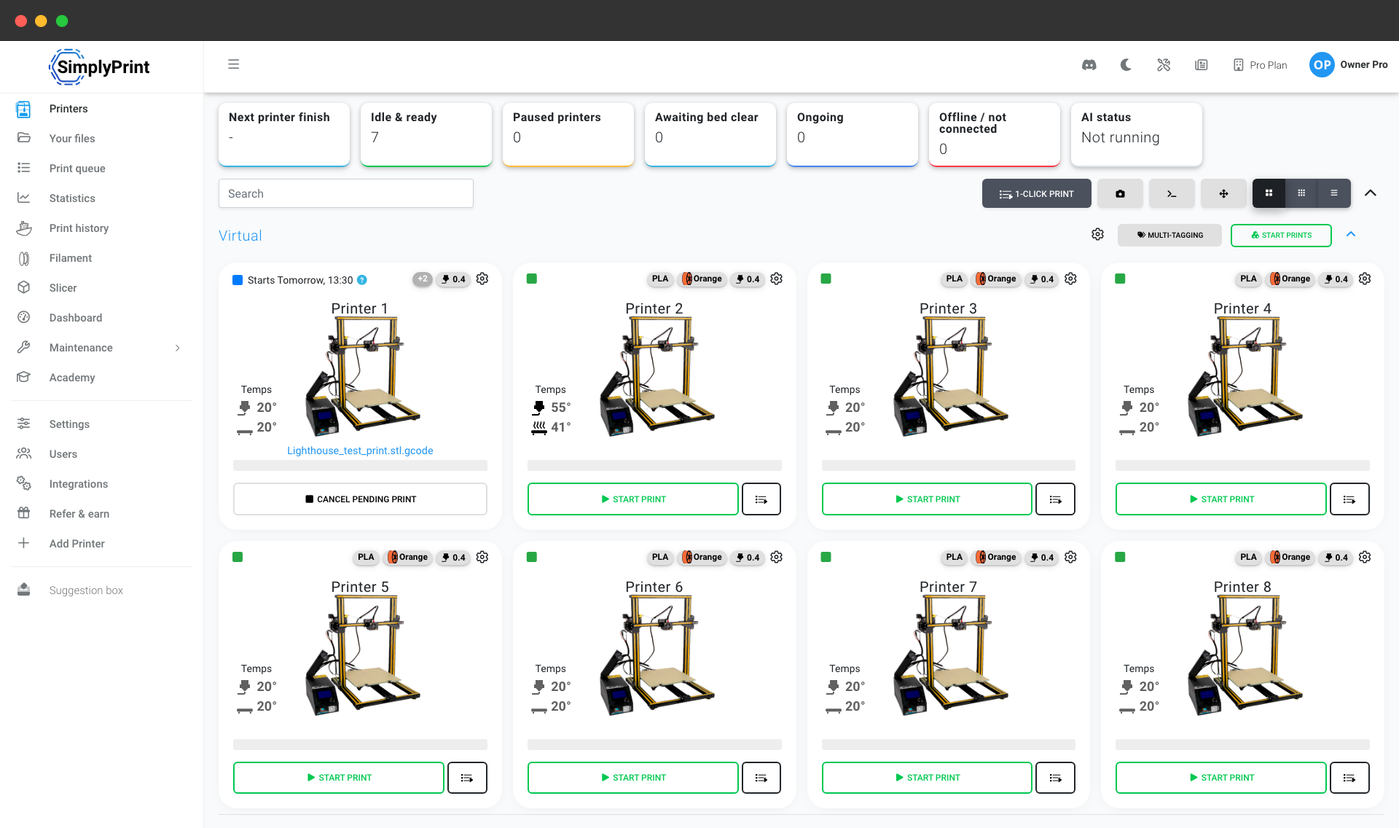
Scheduling a print does not leave a note for later - it takes the printer off the table straight away. The machine enters a pending state and its card in the printers list reads Starts Tomorrow, 13:30 instead of idle, so nobody on your team starts something else on it and no automation claims it either.

That reservation is the whole reason a scheduled print is worth trusting. A timer that just tries to start something at 3am might work; holding the printer from the moment you book it is what makes it reliable. It is also what makes an evening of planning stick on a fleet: you can walk a row of printers at 6pm, line up tomorrow morning's first jobs on each one, and know nothing will slide into those slots overnight.

In our 2026 print-farm survey, one 140-printer farm, 3DFY Labs, put SimplyPrint's overall effect at "We can manage approx. 2x the printers with the same number of staff" (capacity question, n=14).
Feature image

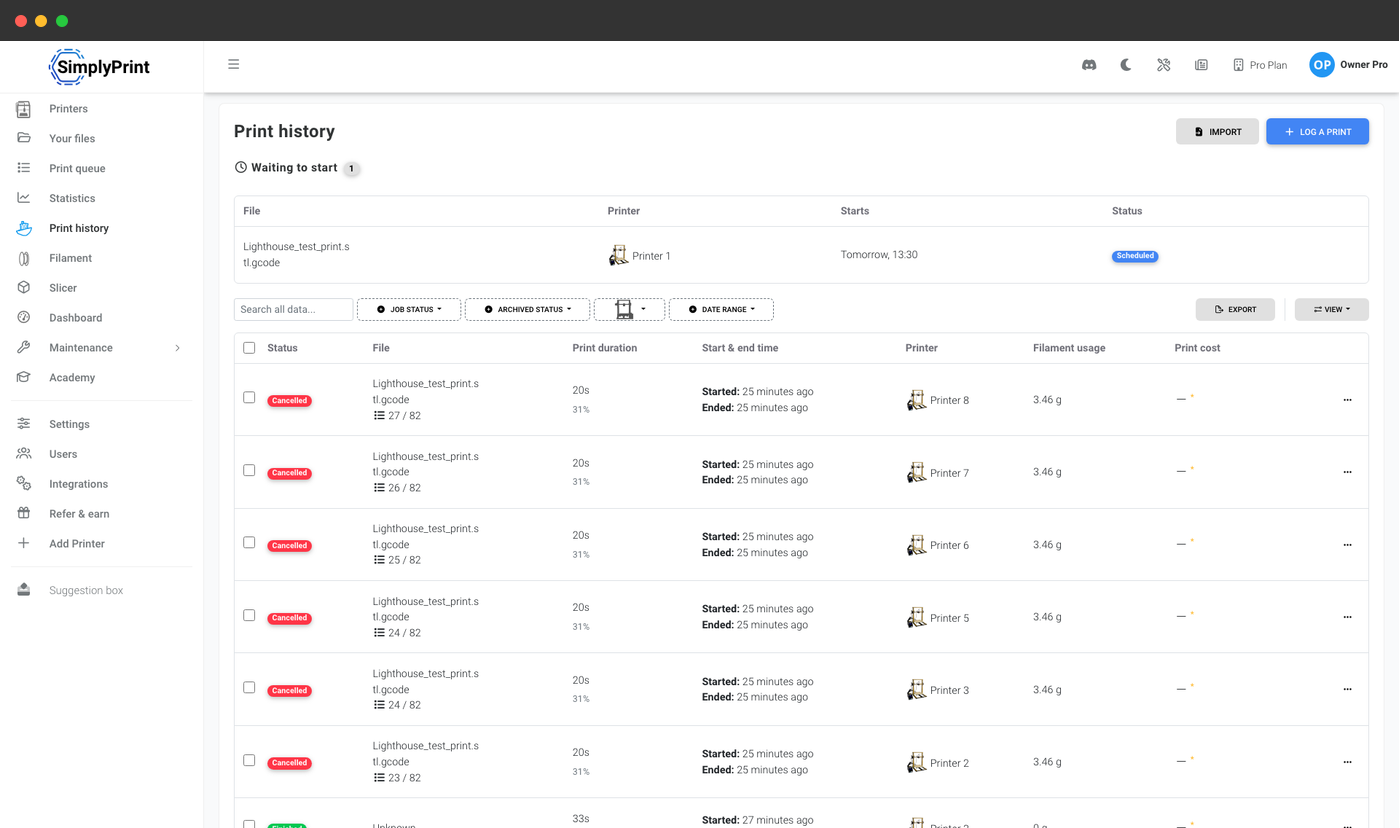
Everything waiting to start, and how to change it

Moving a print by an hour needs no re-slicing and no re-upload - the time is a property of the booking, not the file.
frame frame frame

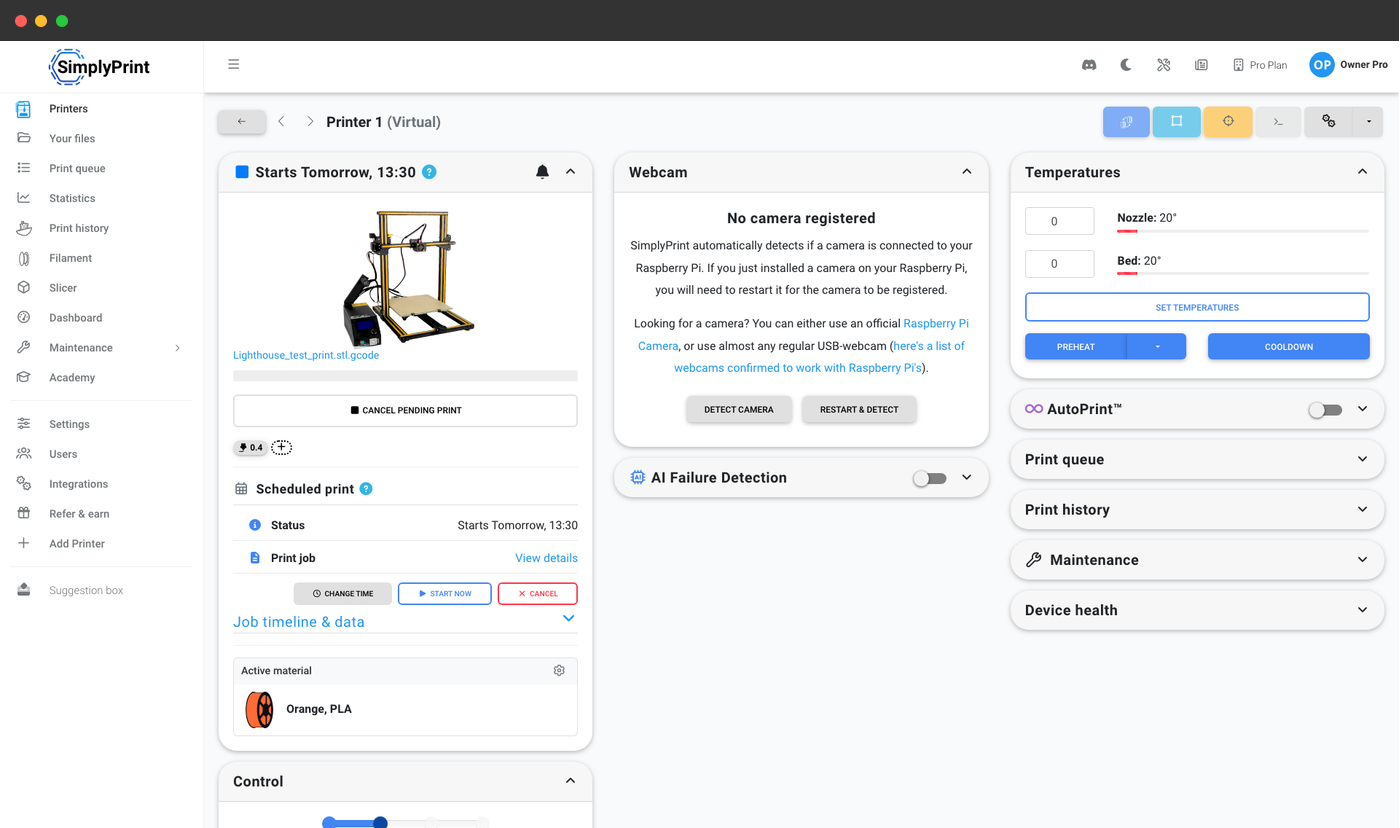
1. The Scheduled print widget on the printer

The printer's control panel gets its own widget: when it starts, and Change time, Start now and Cancel.

2. Everything booked, in one table

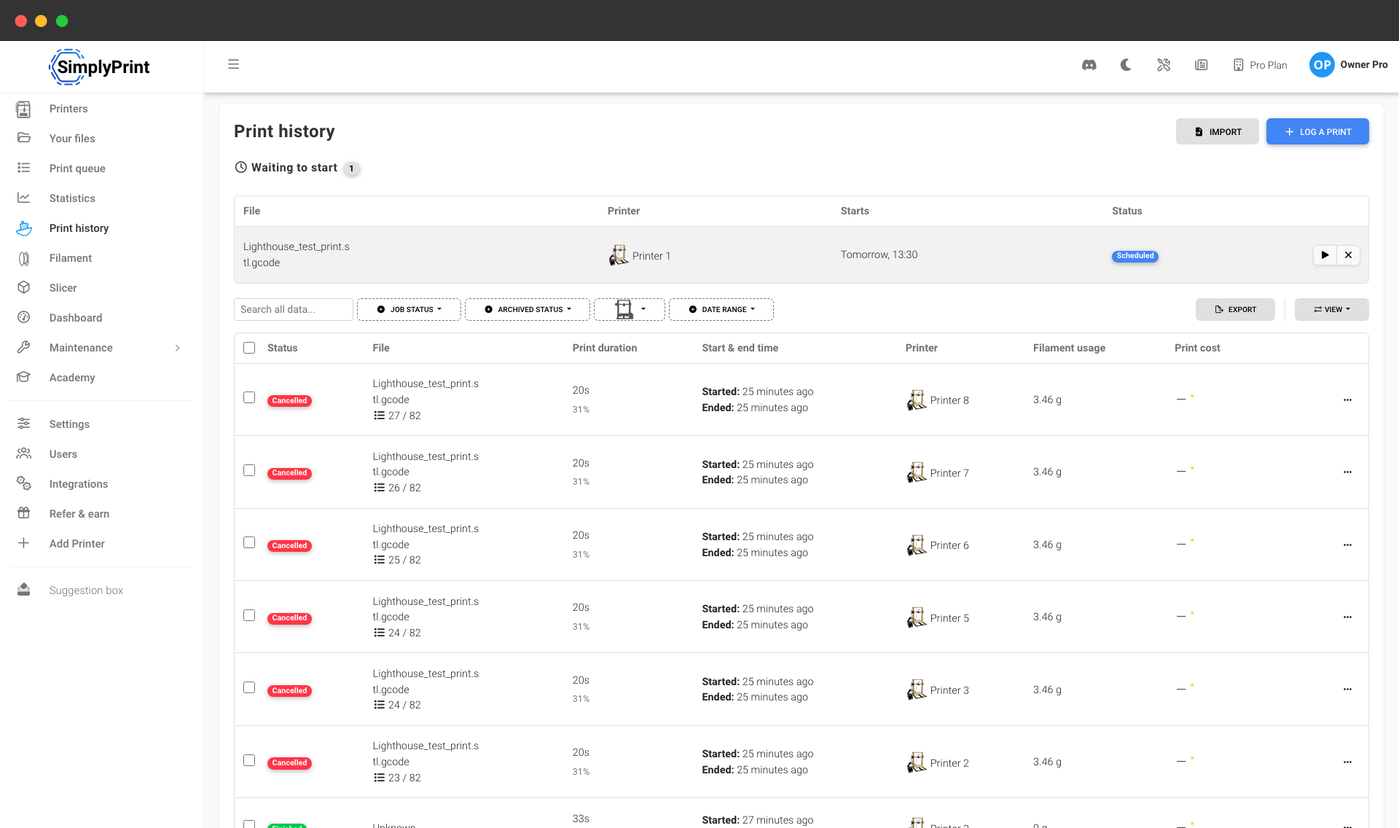
Print history grows a Waiting to start table: every booked print, which printer, and when. One glance answers "what happens tonight?".

3. Release or drop a job from the row itself

Each scheduled row carries Change time, Start now and Cancel, so you can move, release or drop a whole evening's bookings from one table.

What happens if the printer is offline at 3am?

Printers get unplugged, routers reboot, and a machine that was fine at 11pm is not always fine at 3am. What happens at the scheduled moment depends on why the printer was not ready, and the two cases behave differently.

If SimplyPrint already knows the printer is offline, the booking becomes an ordinary pending print and waits for the printer to reconnect. If the printer still looked ready when the start was issued but disappeared during that attempt, SimplyPrint gives up after a few minutes, cancels the pending job and hands the printer back rather than leaving it wedged.

If the printer is simply busy, paused or in an error state, the booking is not thrown away. It stays on that printer as an ordinary pending print with no fixed time, and starts once the printer is free again - which can be a good deal later than the hour you picked. So check what is on the bed before scheduling onto a machine that may still be running something, and cancel the booking from the printer's widget if you no longer want it.

A plan change is handled deliberately too. If an account drops below Pro while prints are still waiting for their time, those prints are cancelled, rather than a print starting on an account that is no longer entitled to it. Prints already released are unaffected.

Schedule Print, Staggered Start, AutoPrint: which one do you need?

These four get confused constantly, because they all end with a printer starting. They answer different questions, and most accounts end up with more than one.

FeatureThe question it answers
Print queueWhat gets printed next, and on which compatible printer.
Schedule PrintWhen one specific print is allowed to begin.
Staggered StartIn what order prints begin once capacity frees up, so twenty printers do not all preheat at once and trip a breaker.
AutoPrintWhether printing continues across jobs without a person - clearing the bed and picking up the next item.
They are not alternatives, and Schedule Print shares its queue machinery with Staggered Start. When a scheduled print comes due, the runner does not start it directly - it makes the job eligible and hands it to the same release passes Staggered Start already governs. So a 3am batch of twenty scheduled prints still heats in waves, on the limit you set; on an account with no stagger groups, the job goes through the ungrouped pass and starts on its next pass if the printer is ready.

Check the plans separately, because they differ: Schedule Print is included on Pro and up. Staggered Start is on the Print Farm, School and Enterprise plans. You do not need both to use either - here is how Staggered Start works.

Decide who is allowed to hold a printer overnight

Being able to start a print and being able to reserve a printer until 3am are not the same authority, and on a shared machine they should not be the same checkbox. Can schedule prints is its own per-rank permission, under Printing in the basics right beside Can print, and its checkbox only appears for ranks that already have Can print. Existing base roles that can print keep scheduling access when the feature is introduced; workgroups stay opt-in, and an admin can adjust either. Account owners and full-access users always have it. Ranks arrive with the Print Farm plan and up - on Pro every user in the account can schedule, because there are no ranks to split.

Re-timing is protected too. Changing or cancelling someone else's scheduled print additionally needs the permission to cancel other people's prints, so a colleague's 4am job cannot be quietly moved by accident.

That split is what makes shared machines workable. In a university lab or a makerspace, a booked slot becomes a real reservation instead of a sign-up sheet: every student can start a print during the session, while the lab manager decides which ranks may hold a machine overnight - granted per rank rather than per person, so it survives the intake in September. The same split is useful in a farm, where operators start prints all day and only shift leads take a machine out of circulation until 5am.

See user ranks and permissions

Plan access: what do I need to schedule prints?

Schedule Print is included on the Pro, Print Farm, School and Enterprise plans. There is no add-on to buy, no per-printer licence, no per-schedule fee and no setup fee - Pro is the cheapest plan that unlocks it, and it applies to every printer in the account. There is no cap on how many prints you can have booked; each printer holds one scheduled print at a time, because the booking reserves the machine.

Feature / Limit Free Basic Pro Print Farm Enterprise School Cloud Slicer Filament Manager
Schedule Print
Book a print from one minute to seven days ahead, on any printer in the account, with the printer reserved until it runs.

Want to learn more about our plans?

View full pricing & feature comparison

Frequently asked questions

Yes. In SimplyPrint you pick your file as normal, tick "Schedule for later" in the Start print window, and choose when. The exact date-and-time picker has three quick choices - 1 hour, 4 hours and Tomorrow. Choose Start at to use that instant directly, or Finish by to derive the start from the estimated duration. The submit button becomes "Schedule print", and the print can be booked from one minute up to seven days ahead. From that moment the printer is reserved and its card reads "Starts Tomorrow, 13:30". At the chosen start time, the job becomes eligible and starts on the next server pass if the printer is ready. Most slicers and printer firmwares have no start-time field at all, which is why this lives in the cloud platform rather than in the sliced file - so it works the same across 600+ printer models and 130+ brands. Schedule Print is included on the Pro plan and up.
No. Unlike common do-it-yourself approaches, the start is issued server-side by SimplyPrint through the existing Staggered Start queue runner, and the feature composes with AutoPrint. Once the print is scheduled, nothing on your side needs to be running: close the tab, shut the laptop, turn the desktop off, go home, lose your home internet connection. At the moment you picked, the job becomes eligible. Compare that with a task scheduler on a PC, which needs that machine awake all night, or a self-hosted plugin, which needs its host up. The printer itself still has to be reachable. If it is already reported offline, the print waits pending for it to reconnect; if it disappears during a start attempt, the attempt is cancelled after a few minutes rather than left hanging.
Find out when your cheaper hours start - usually somewhere between late evening and early morning - then set the print to become eligible then, instead of starting it whenever you happen to be at the machine. In SimplyPrint that is one checkbox and a time: tick "Schedule for later", pick the hour, and the print waits. The heated bed and hotend use nearly all of a printer's power, and a long print keeps them hot for hours, so moving the whole run into the cheap hours is a real saving on the same print for the same effort. One caveat worth stating plainly: the printer must be powered on, connected and ready before the runner sends the start command. This is a scheduler, not a power switch.
Yes. Nothing is required from the printer's firmware - the schedule is held by SimplyPrint, becomes eligible when its time comes, and starts when the printer is ready, so it works the same way across 600+ models and 130+ brands, and across a mixed fleet where no two printers run the same firmware. That is precisely the gap it fills. A scheduled start has been asked for on the Bambu Lab forum and in BambuStudio's issue tracker, where "Schedule Print for Specific Time" has been open since 2022, and in Prusa's firmware tracker, where somebody sketched almost exactly this interface - start in 15 minutes, or start at 09:45. Where a vendor has shipped something like it, such as Prusa Connect, it covers that vendor's own printers only. You do not need to wait for any of them, and you do not need every machine to be the same brand: connect the printer to SimplyPrint and the start time becomes something you set in the cloud, along with re-timing and cancelling.
From one minute ahead up to seven days ahead, and both limits are enforced by the API as well as by the picker. The cap is the end of the seventh day rather than the exact hour you are booking from, so "next Tuesday at 11pm" is accepted rather than rejected for being a few hours over. The minimum exists because the schedule has to clear the runner's next tick. The seven-day maximum is deliberate and has a reason worth knowing: the printer is held for the whole time it is booked, so booking weeks out would take a machine off the fleet for days before it ever printed. A short horizon keeps the reservation honest. If you need a print to run further out than a week, keep it in the print queue and schedule it when it comes within range.
The schedule is cleared when its time arrives, then the normal pending-print rules take over. A printer that is already reported offline, busy, paused or in an error state keeps the print pending until it is ready, which can be well after the hour you picked. There is one narrower failure case: if the printer still looked ready and disappeared during the start attempt, SimplyPrint cancels that attempt after a few minutes and releases the printer rather than leaving it wedged. Check what is on the bed before scheduling a machine that may still be running, and cancel the booking from the printer's widget if you no longer want it. The rest of the fleet is unaffected. A plan change is handled too - if an account drops below Pro while prints are still waiting, those prints are cancelled instead of starting on an account no longer entitled to the feature.
Yes. The printer's control panel carries a Scheduled print widget showing the job and its timeline, with three buttons: Change time moves it, Start now clears the schedule so the print becomes eligible immediately and starts on the next server pass if the printer is ready, and Cancel drops it and hands the printer back. The print history page also carries a "Waiting to start" table listing everything queued to begin that you can see, and scheduled rows offer the same Change time, Start now and Cancel actions. There is a reschedule endpoint on the API and an equivalent MCP tool, so a script or an assistant can move a scheduled print too. Because the time is a property of the booking rather than of the sliced file, moving a print by an hour changes nothing about the file and needs no re-slicing or re-upload.
It is the workaround most often suggested, and it does technically hold the printer before it begins - but it has three problems that matter in practice. The delay is baked into the sliced file, so changing the start by an hour means slicing again and re-uploading. It is a duration, not a time, so it only lands on 3am if you started the job at exactly the right moment, which defeats the point. And you cannot cancel or re-time it from anywhere; you have to physically catch the printer while it sits there waiting. It is also per-file rather than per-printer, which makes it unusable across a fleet - twenty machines means twenty edited files - and it leaves the machine powered and occupied for the whole delay. A server-issued schedule avoids all of that: the file is untouched, the time is an absolute moment you picked, and you can move or cancel it from your phone.
Yes - scheduling is a separate permission from printing. "Can schedule prints" sits under Printing in your rank settings, in the basics right beside "Can print", and its checkbox only appears for ranks that already have Can print, because holding a printer for later is a bigger decision than using one now. That split is what shared machines need: in a university lab or makerspace, everyone can print during their session while only staff can reserve a machine until 5am; in a farm, operators start prints all day while only shift leads take a printer out of circulation overnight. It is granted per rank rather than per person, so it survives staff and student turnover. An admin turns it on for the ranks that should have it, and account owners and full-access users always have it. Ranks and permissions come with the Print Farm plan and up - on Pro there is a single account with no ranks to split, so everyone in it can schedule. Changing or cancelling someone else's scheduled print additionally requires the permission to cancel other people's prints.
They answer four different questions and are designed to work together. The print queue is what needs printing - a shared backlog of jobs, each matched to a printer that can actually run it. Schedule Print is when one specific print becomes eligible to begin: you pick a moment, and it can start from then if the printer is ready. Staggered Start is the order prints begin in once capacity frees up, so a farm never preheats every machine at once and trips a breaker. AutoPrint is unattended running across jobs - when a printer finishes and the bed is cleared, it picks up the next matching job by itself. They compose rather than compete: when a scheduled print comes due, the Schedule Print runner makes it eligible and hands it to the same release passes Staggered Start governs, so a 3am batch of twenty still heats in waves. On an account with no stagger groups it goes through the ungrouped pass and starts on its next pass if the printer is ready. Note the plans differ - Schedule Print is on Pro and up, Staggered Start on Print Farm, School and Enterprise.
It is held. Scheduling books the printer, it does not just remind you: from the moment you book it, the printer shows as taken rather than free, so nobody on your team starts something else on it and no automation claims it either. Its card in the printers list reads "Starts Tomorrow, 13:30" for anyone looking at the fleet. That reservation is the whole reason a scheduled print is worth trusting - a timer that just tries to start something overnight is a gamble, while a booking that reserves the machine is a plan. If you change your mind, Cancel releases the printer immediately, and Start now makes the job eligible immediately so it starts on the next server pass if the printer is ready.
That is a judgement call about your own machine and your own space, and you should follow your printer manufacturer's guidance and any rules that apply to your building - many workplaces, schools and insurers have their own policy on unattended operation. What SimplyPrint changes is your visibility and reach: you can watch the printer's camera and its live status from your phone, get notified when something goes wrong, and cancel or re-time the print remotely without going back to the machine. Compared with leaving a machine on a mechanical timer, a scheduled print is easier to keep an eye on, not harder. It is also worth noting that scheduling often works in the opposite direction to unattended printing - one of the most common uses is deliberately timing a long job to finish while somebody is still on shift, rather than at 3am when nobody is there to take it off the bed.
Schedule Print is included on the Pro plan and up - Pro, Print Farm, School and Enterprise all have it, and Pro is the cheapest plan that unlocks it. It is included in the plan itself, with no add-on to buy, no per-printer licence, no per-schedule fee and no setup fee, and it applies to every printer in the account. There is no cap on how many prints you can have booked; each printer holds one scheduled print at a time, because the booking reserves the machine. From Print Farm and up it is also gated by the per-rank "Can schedule prints" permission, so you choose which of your team can use it - on Pro there are no ranks, and everyone in the account can schedule. If an account drops to a plan without the feature, prints still waiting for their scheduled time are cancelled, rather than a print starting on an account that is no longer entitled to it - prints already released are unaffected. The list of prints waiting to start is not itself gated, so accounts using Staggered Start can see their pending prints there too.
Yes. The create-job endpoint accepts a schedule_for value, and sending it books the print exactly as ticking the box in the panel does - the printer is reserved and the same plan and permission checks apply server-side, so an integration cannot quietly bypass them. The one-minute-to-seven-days window is identical to the panel's. There is a separate reschedule endpoint for moving a print that is already waiting or releasing it to start now, which is what you want when a shop order slips, rather than cancelling and re-creating the job. Any system that can start a print with our REST API can start it at a chosen time instead - an ERP, an order pipeline, a shop-floor script. The same actions are exposed on our hosted MCP server, so an AI assistant connected to your account can do it conversationally: telling it to push tonight's print back to 2am is enough, and it uses the same reserved and permission-checked path underneath.

Table of Contents