Stop one student printing the whole spool
Open up a lab of 3D printers to a class and a few students will happily print figurines until the filament runs out. Quotas put a fair allowance on every account - so each student gets, say, 5 prints, 200g of filament or two hours of print time a week - and the limit enforces itself. No clipboard, no honour system, no teacher standing over the machines.
Quotas, limits and balance are part of the School and Enterprise plans, the same plans built for classrooms, university labs, libraries and makerspaces.
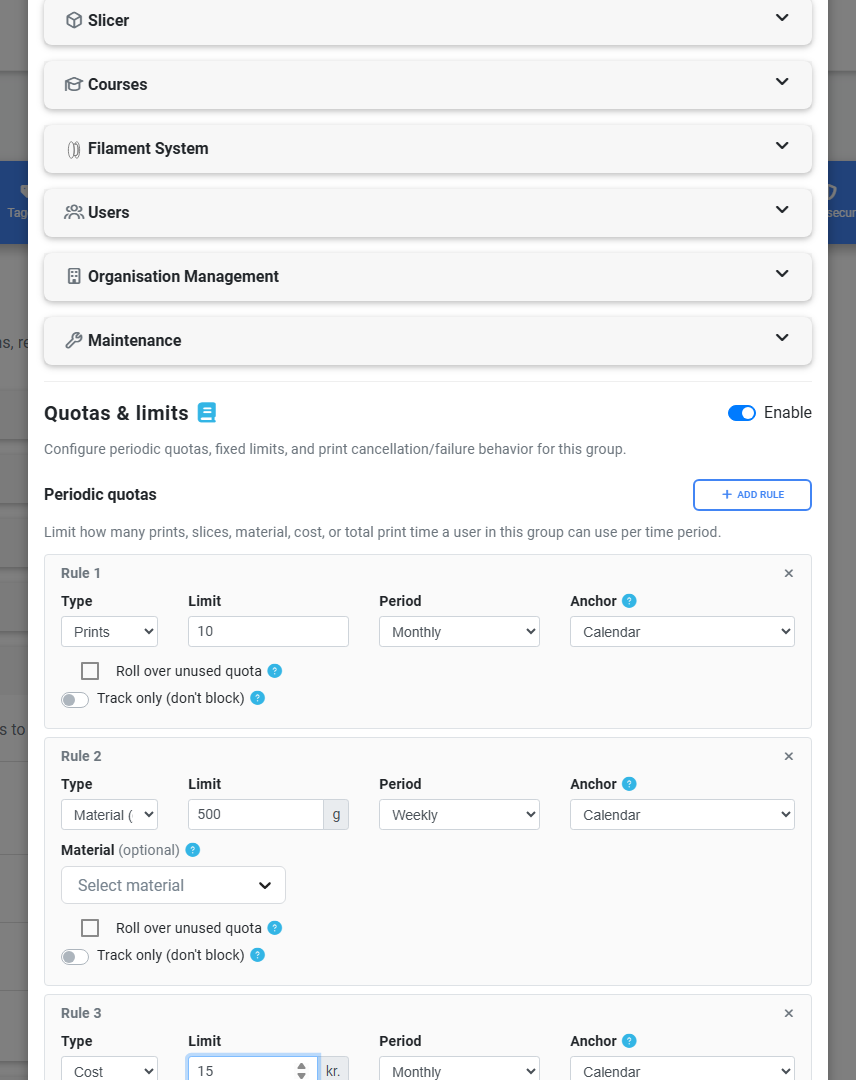
Limit prints, filament, print time or cost
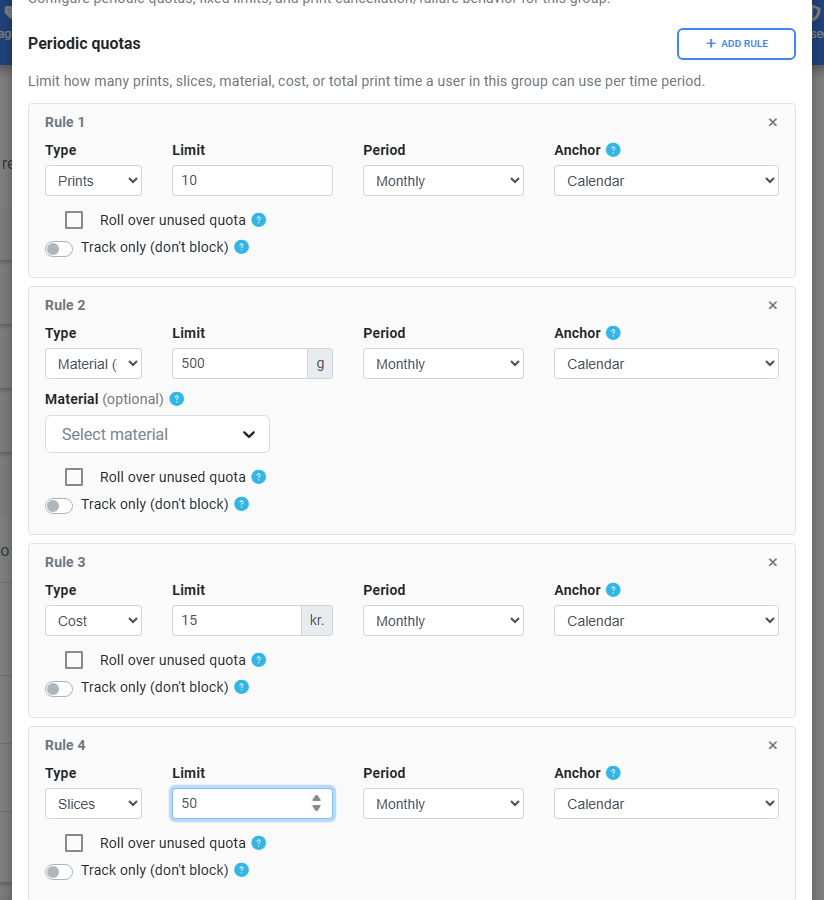
Set an allowance on whichever measure matters for your lab. You can cap the number of prints, grams of filament, total print time, cloud-slice credits, or the cost of printing in your account currency - and combine several at once (for example 10 prints and 500g per month). A material-grams limit can even be scoped to a single filament type, so an expensive specialty or engineering filament gets its own tighter cap.
When someone reaches a limit, their next print is blocked with a clear message showing which allowance ran out and when it resets - no silent failures, no confusion at the printer.
Different allowances for different groups
Allowances attach to user groups, so you decide what each role gets. A first-year class can get a small weekly quota, an advanced or specialist group a larger one, and teachers can be exempt entirely. Every member of a group inherits its policy automatically, so onboarding a new class of students is nothing more than adding them to the right group.
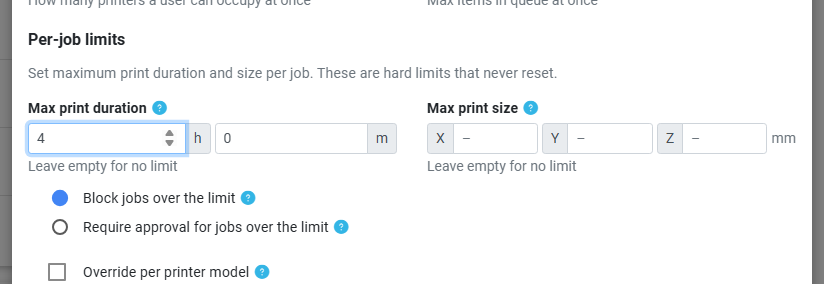
You can also set hard per-job limits per group - a maximum print time and maximum print dimensions (X/Y/Z), with optional tighter caps on specific printer models - so no single job ties up a printer for two days.
On School and Enterprise accounts an allowance can also attach to a workgroup, which a member can hold any number of. That covers the case a single group per person cannot: the robotics club gets its own 20 kg pool shared between its members, or every member of it gets an extra 2 kg each, without inventing a "Student (robotics)" group. You choose account-wide whether matching personal allowances add together or the highest one wins, with optional per-user caps on top.
Reset every day, week, month or term
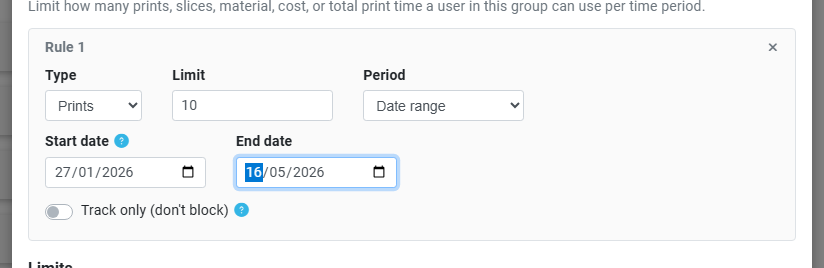
Pick how often each allowance refreshes: daily, weekly, monthly, a custom number of days, a fixed date range, or by academic semester. The semester option follows the terms you define in your school settings - quota refreshes when a new term starts and stays frozen over the breaks - so a per-term print allowance is one setting, not a calendar reminder you have to action by hand.
You also control the anchor: reset on the calendar (start of each week/month), relative to when a student first printed, relative to when they joined, or from a specific date you choose. Unused quota can optionally roll over into the next period, up to a cap you set.
Built around the school year
Define your academic terms once under School settings - name each semester and its start and end dates - and the semester reset period uses them everywhere. The option appears automatically for schools that run on terms; libraries and makerspaces, which don't, simply don't see it, so the choices you're offered always fit how your institution actually runs.
At the start of a new term you can also bulk-reset every selected user's usage to zero in one click from the users page - a clean slate for the whole class without editing accounts one at a time.
Give each user a prepaid print balance
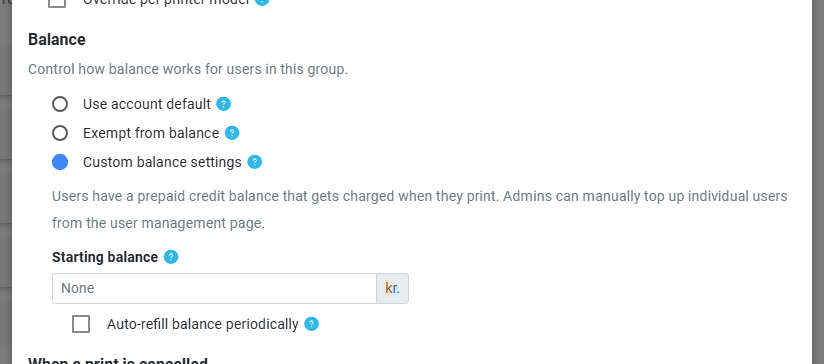
Alongside quotas you can run a prepaid balance: every user gets a credit balance, and each print deducts its cost. Set a starting balance, auto-refill it on a schedule (a fixed top-up or a top-up to a target, with an optional maximum), and choose whether running out of balance blocks printing or just gets logged.
That second mode matters for makerspaces and labs that bill usage: in tracking mode the balance never blocks a print, it just records the cost so you can report or charge for it later through the API and webhooks - the same pattern print-management tools like PaperCut use. In enforced mode an empty balance stops the next print until it's topped up. See the quotas & limits guide for the full walkthrough.
Ready to put fair limits on your lab?
Set an allowance per group, give each student a balance, and let the limits run themselves.
Start your free trialStudents can ask for more, teachers approve in a click
A hard cap that needs a teacher to log into settings every time is its own kind of friction. When a student hits their limit, SimplyPrint can show them a Request more button right where the print was blocked. Their request lands in the teacher's quota-requests inbox on the school dashboard, where you approve or deny it inline - adjust the amount, add a note, and optionally notify the student.
You decide per group whether students can request more at all, and who gets emailed when a request comes in (nobody, all teachers, or specific admins). Teachers can also top up or reset any individual's quota and balance directly from the users page.

Fair when a print cancels or fails
A quota that charges a student for a print that failed halfway through isn't fair, and they'll tell you so. You control exactly how cancelled and failed prints count: charge the full amount, charge nothing, or pro-rate by how far the print got, with an optional grace window so a quick cancel in the first few minutes costs nothing. Filament can be set to always count (it was extruded either way) while the print itself doesn't. Sensible defaults are already in place, so it's fair out of the box.
Always-visible usage, for students and staff
Every user sees their own quota and balance as progress bars in the top bar and on their account page, with a countdown to the next reset and a full balance transaction history. A warning appears once they're near a limit, so running out is never a surprise. Staff with the right permission see each user's remaining allowance right next to their name in the queue, so a teacher reviewing prints knows at a glance who has room left.
Pairs with the rest of your school setup
Quotas are one half of running a shared lab. These features handle the other half - reviewing what gets printed, organising your users, and reporting usage.
Plan availability
Quotas, limits and prepaid balance are one feature, included on the School and Enterprise plans. The Free, Basic, Pro and Print Farm plans don't include usage limits - they're built for individual makers and production farms rather than shared, multi-user labs.
| Feature / Limit | Free | Basic | Pro | Print Farm | Enterprise | School | Cloud Slicer | Filament Manager |
|---|---|---|---|---|---|---|---|---|
|
Quotas, limits & balance
Per-group quotas (prints, filament, time, cost, slices), per-job size and duration limits, prepaid balance with auto-refill, and the request-more workflow. School and Enterprise.
|
||||||||
|
Teacher & student dashboard
The classroom dashboard that surfaces the teacher's quota-requests inbox alongside pending approvals. School plan.
|
||||||||
|
Queue approval
Review and approve prints before they run - the natural companion to quotas in a classroom. School and Enterprise.
|
Want to learn more about our plans?
View full pricing & feature comparison