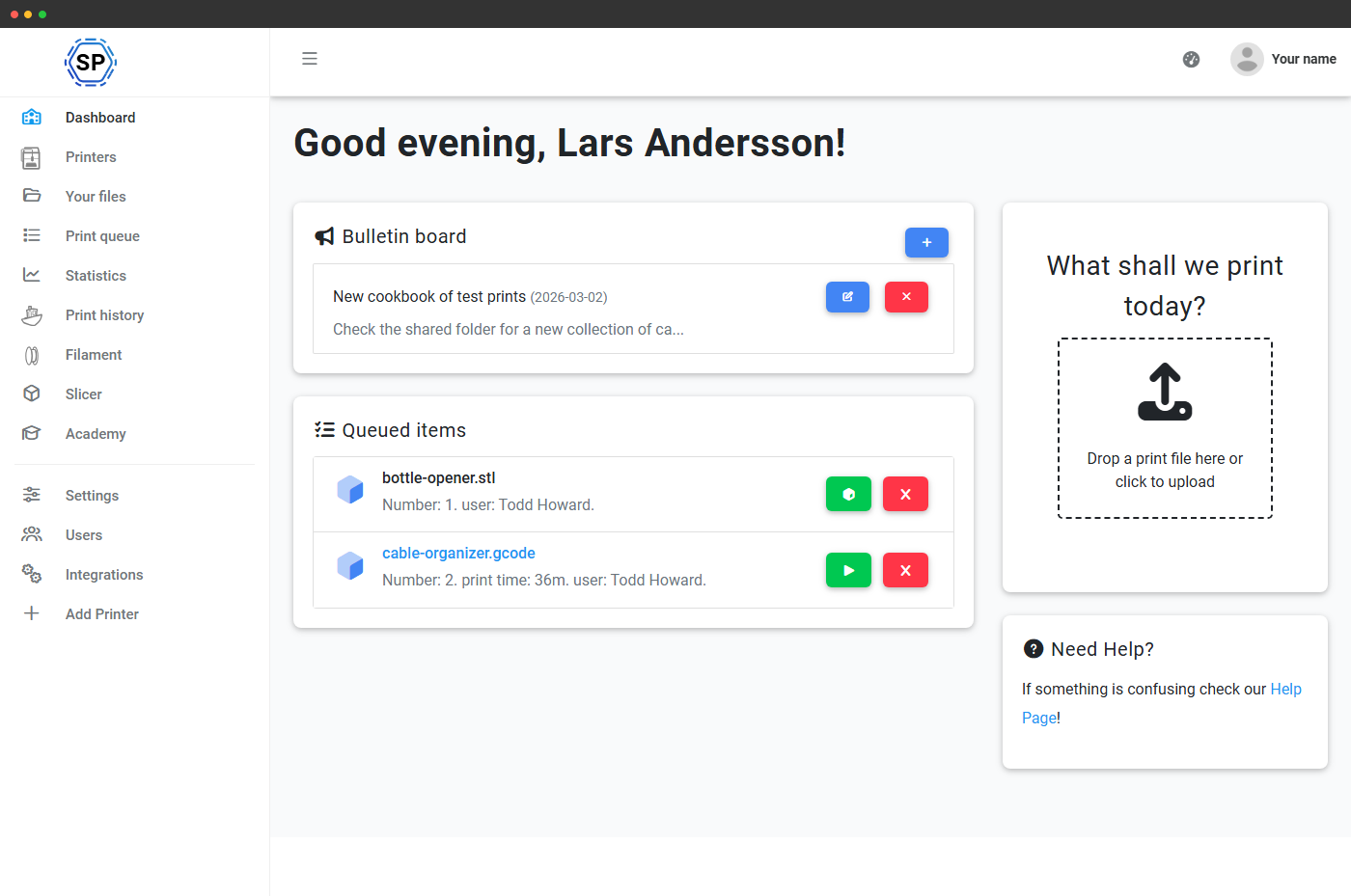
What a class is - and why it matters
A class in SimplyPrint is a small bundle of fields: a name, an end date (or a recurring MM-DD that re-arms every year), an optional next class to roll students into when the term ends, an optional Google Classroom URL, and an optional SSO group ID for IdP-driven membership. Layer that over the broader School plan and you get a real cohort: students appear in the right teacher's dashboard, share the right quota bucket, see the right bulletin board, and disappear at the end of the year without a manual cleanup pass.
Why classes matter
Classes give you three things flat-list rosters can't. Accountability per cohort: when a spool gets burned through in a week you know which class did it, not just "someone". Budget per cohort: quotas live at the class level so AP Engineering can have a bigger material allowance than the intro elective without you tracking it on a spreadsheet. Audit per cohort: the audit log filters by class, so end-of-term reporting, parent questions and insurance paperwork all answer themselves.
Everything a class carries, in one editor
Open Settings → Organization → School settings → Classes and a class is a single form: name, expiry rule, rollover chain, Google Classroom link, SSO group. Set it once and the rest of the panel - users page, dashboard, queue, bulletin - reads from it.
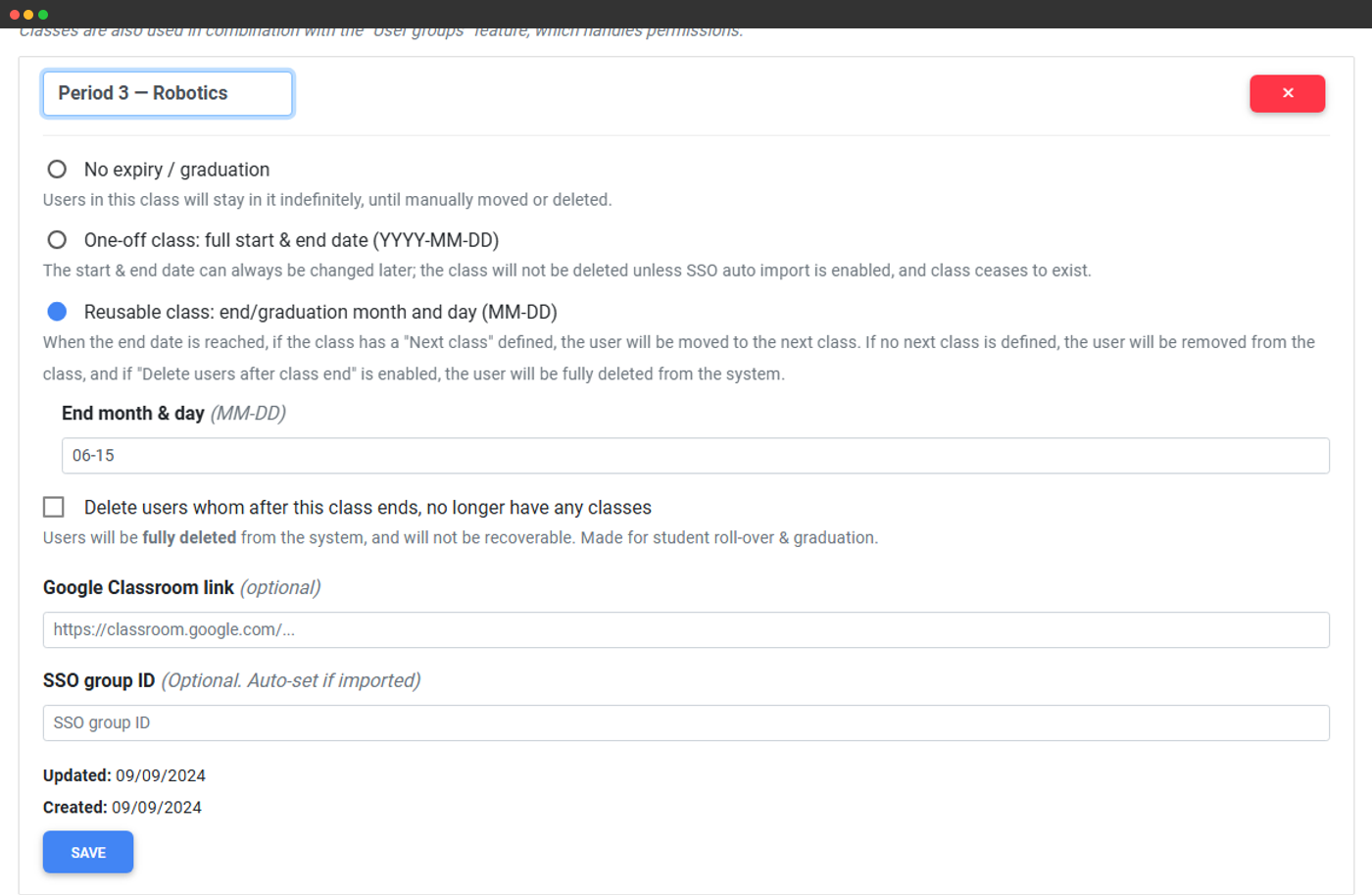
Name the class and assign students from the users page.
No expiry, a fixed date, or a recurring MM-DD that re-arms yearly.
Auto-remove students whose only class has expired.
Paste a Classroom URL to surface a quick link.
Drop in a SAML or Unilogin group ID to auto-place students.
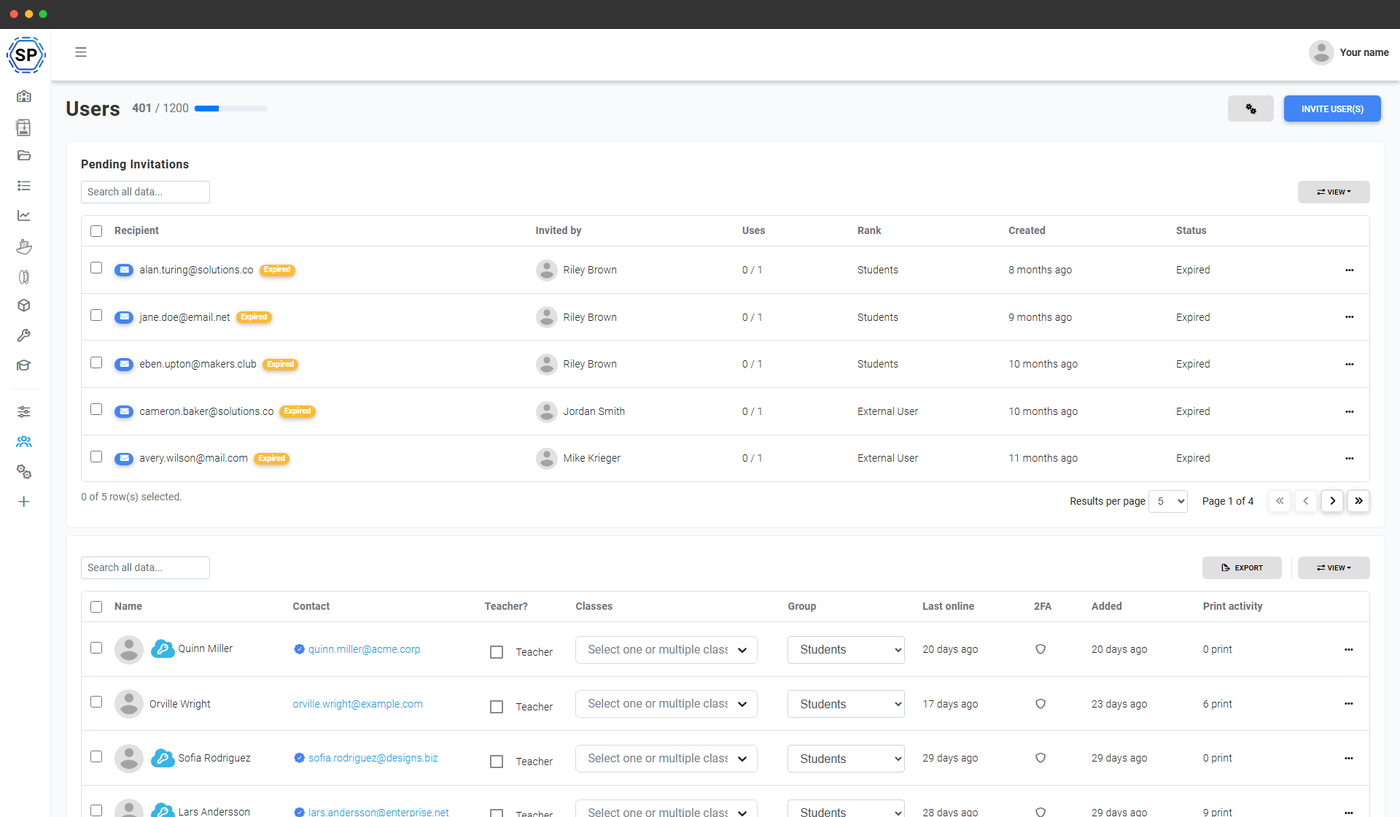
A Classes column on the users page
On a School account, the users page grows a Classes column right next to rank. Each row is a multi-select - assign a student to one class or several, change their classes in bulk, see at a glance who belongs to what. The same picker shows up in the Invite user modal, so new students land in the right cohort from the moment they accept.
Want to limit how many classes a single student can join? Settings → Organization → School settings → Max classes per user caps it.
Classes are not Print Farm "groups". Classes are time-bounded student cohorts (Year 9 Design, Period 3 Robotics) that expire at end-of-term and roll over to next year's intake. Print Farm groups are persistent operational divisions (shift A, contractor pool, sales engineers) that don't expire. They can coexist on the same account - a school running a paid maker-services side hustle uses both.
Quotas that follow the class
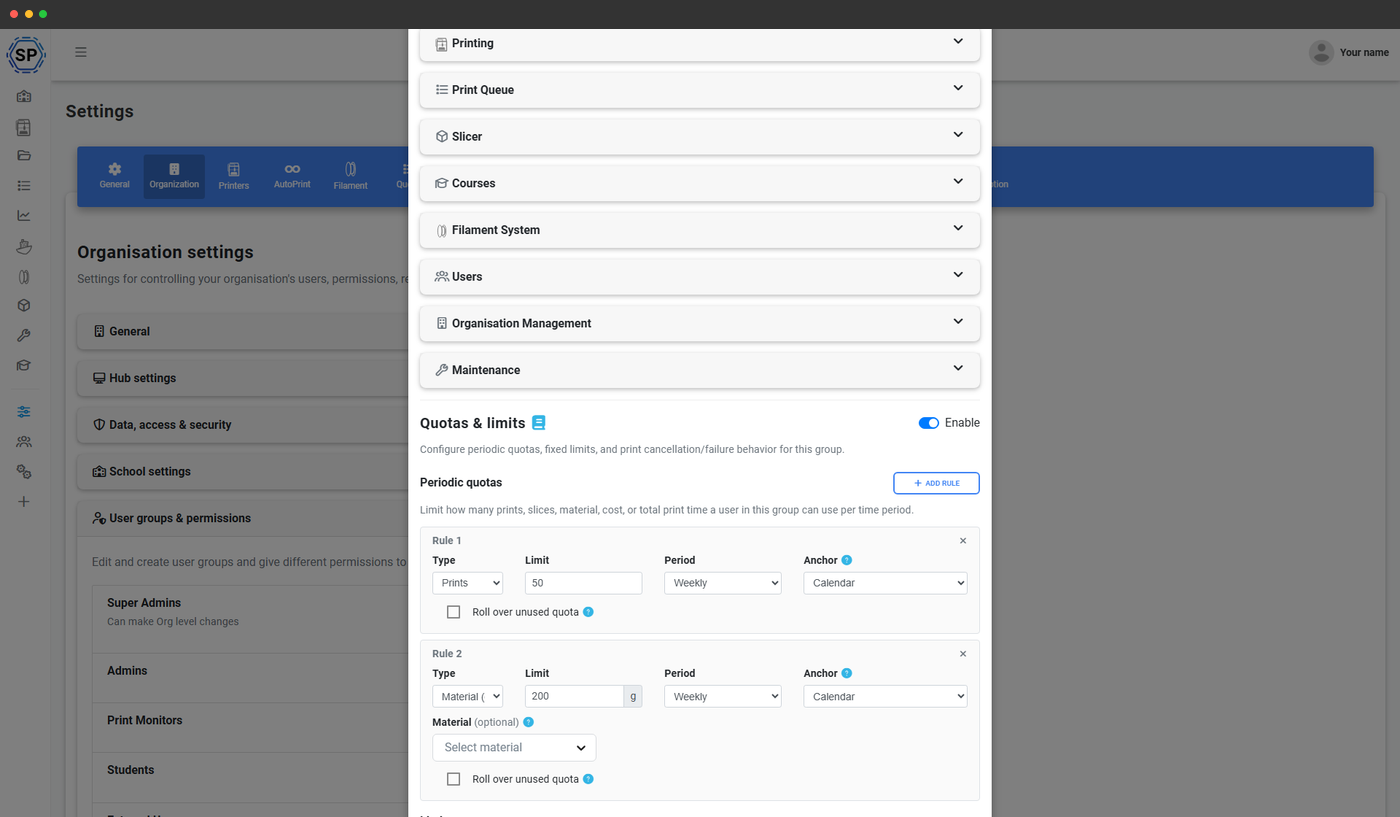
On the School plan, usage policies let you cap monthly print time, filament weight or print count per user or per rank. Classes are the natural unit to group those quotas around - give your AP Engineering cohort a higher print budget than your intro elective, top a class up mid-semester when a project genuinely needs more headroom, and review balance-refund requests from the teacher dashboard.
Quotas are checked when a student queues a job, so nobody can sneak a 30-hour print past the system - they get a clear "out of quota" message and a one-click request-more flow that lands in the teacher's inbox.
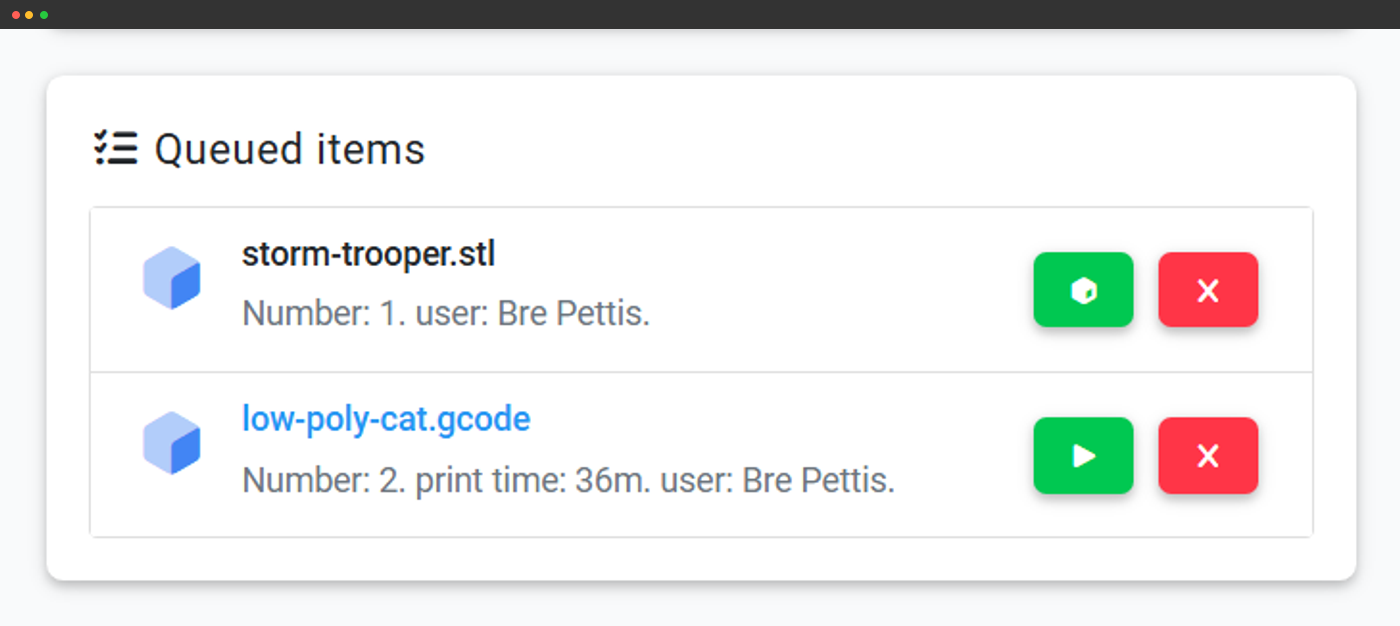
A class-scoped print queue with teacher approval
Every print a student queues is tagged with their class membership, so teachers can filter the queue down to their cohort and approve, comment on or send back any job before it hits the printer. Combine class membership with queue approval and you get a proper teacher-gated production pipeline: students drop the file, the right teacher sees it, the job runs only when it's been signed off.
Comments, revisions and approval history stay attached to the queue item, so end-of-term grading or audit conversations have a paper trail.
Bulletin board, scoped per class
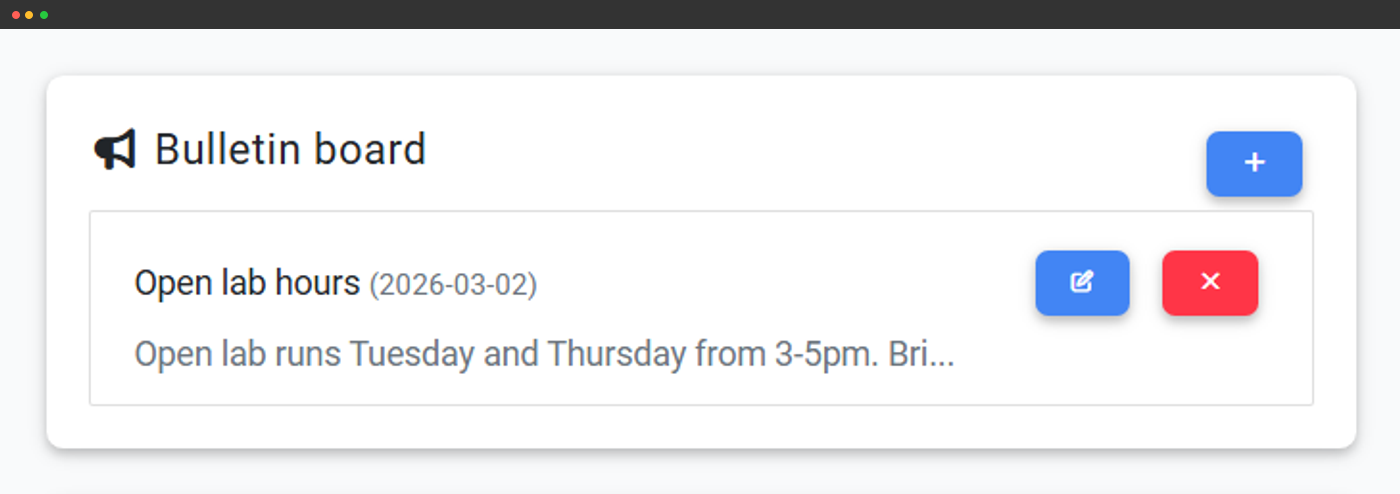
The dashboard bulletin board doesn't have to be a single school-wide channel. Post a message scoped to one class ("Period 3 - the green PLA is on order, use the grey roll until Friday") and only that cohort sees it on their dashboard. Post a school-wide bulletin for things that genuinely concern everyone ("Lab closed for in-service training next Tuesday") and it shows on every dashboard.
Rich text, multiple pinned messages, scheduled visibility - the same lightweight CMS that lives on the teacher & student dashboard, just with a per-class audience selector.
File tags that mirror your classes
Create a tag per class and use filename tag rules to auto-apply that tag based on a regex pattern in the file name - so if your AP Engineering students prefix files with ap-eng_, every print they queue picks up the class tag without anyone touching the tag picker. Teachers can then filter the queue and file browser down to their cohort at a glance.
Pair file tags with the same file tag rules to auto-route prints to specific printers or printer groups - so the design tech class's models always land on the lab's PLA-only machines and the AP physics class's prints go to the engineering wing.
End-of-term rollover, without the spreadsheet
End-of-term used to mean re-tagging every student. Auto-rollover does it in one click.
Two switches on every class take the pain out of end-of-year cleanup:
- Delete students on end - when the class expires, every student whose only membership was this class is removed from the account. No more 800 inactive logins from three graduated cohorts.
- Auto next class - pick a successor class and SimplyPrint moves the roster forward automatically. Kindergarten becomes 1st grade on June 30th; Period 3 - Year 8 becomes Period 3 - Year 9 the moment summer break ends.
Class import from your identity provider
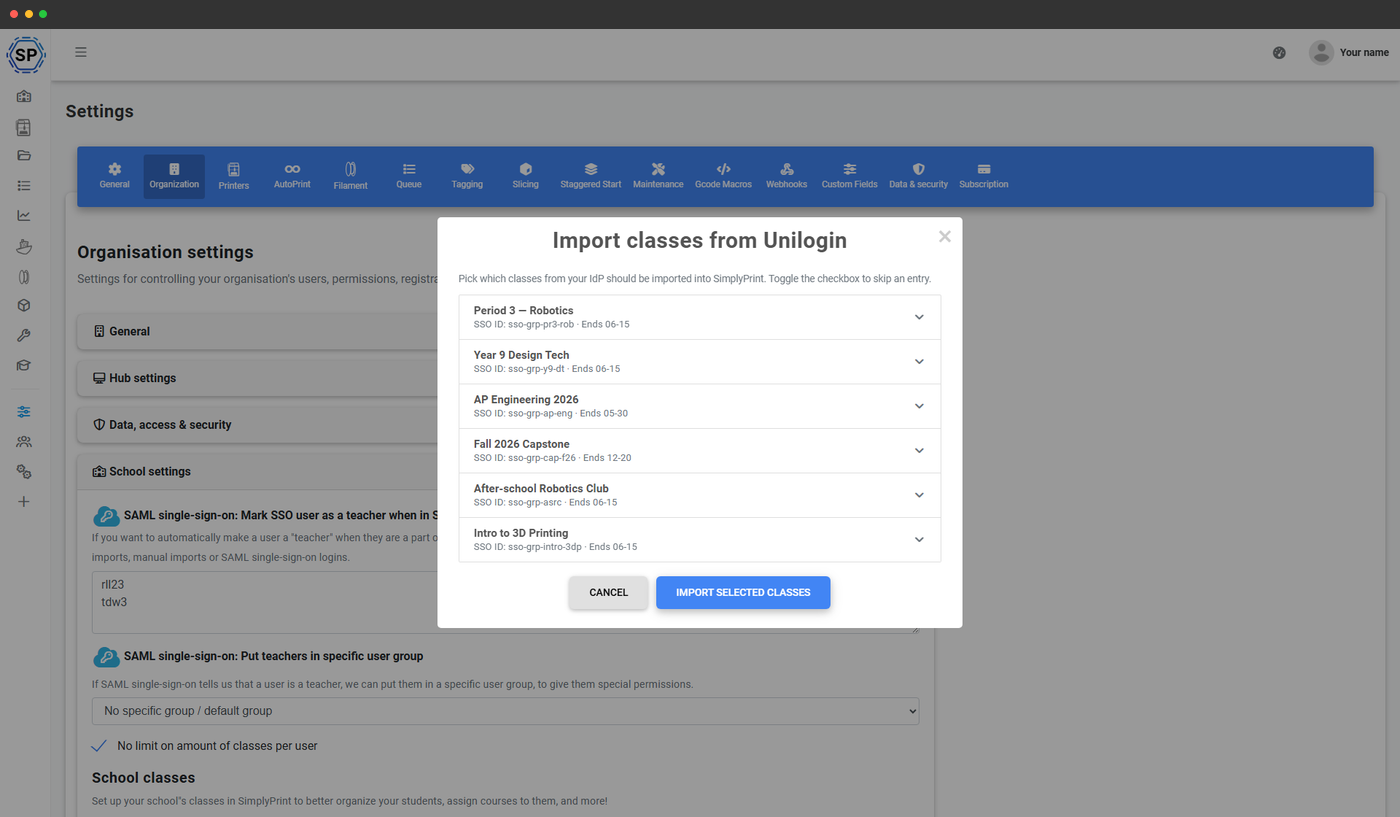
If your school already runs a SAML SSO or Unilogin, classes don't have to be typed in by hand. SimplyPrint can pull the roster straight from the IdP and keep it in sync overnight - so the SimplyPrint class list mirrors the source-of-truth your school IT team already maintains.
Manual import
Pick IdP classes from the picker and import in bulk.
Scheduled auto-import
Flip a switch and the roster syncs itself overnight.
Allow / ignore lists
Filter which SSO class IDs are imported or suppressed.
Auto-flag teachers
List IdP groups whose members should land as teachers.
Plan access: school classes are part of the School plan
Classes ship as part of the School plan (marketed as Education) alongside the rest of the classroom feature set - the teacher & student dashboard, per-user quotas, queue approval, SSO with class import, the Academy with custom courses. No per-seat surcharge, no extra add-on - one plan covers the whole cohort. Up to 300 classes per account.
| Feature / Limit | Free | Basic | Pro | Print Farm | Enterprise | School | Cloud Slicer | Filament Manager |
|---|---|---|---|---|---|---|---|---|
|
Teacher & student dashboard
Role-aware /panel/dashboard with class-scoped queue, bulletin board and quota inboxes.
|
||||||||
|
Per-user & per-class quotas
Cap print time, filament weight or print count per student - bucketed by the class they belong to.
|
||||||||
|
Class-scoped queue approval
Teachers see and sign off on every print their cohort sends to the queue before it hits a printer.
|
||||||||
|
SSO class import (SAML + Unilogin)
Pull classes straight from your IdP, with auto-promotion of teachers based on SSO group membership.
|
||||||||
|
File tag rules
Auto-route class-tagged files to the right printers or printer groups - one rule, every print of the term.
|
||||||||
|
Academy with custom courses
Author class-specific lessons in the Academy and surface them on the student dashboard for that cohort.
|
Want to learn more about our plans?
View full pricing & feature comparisonFrequently asked questions
How many classes can I create?
Can a student belong to more than one class?
What's the difference between a class and a user rank?
What happens to a class when its end date passes?
Does class membership change which printers a student can use?
Do I need SSO to use classes?
Can I reorder classes in the picker?
Which plan includes school classes?
Classes are one piece of SimplyPrint for schools
Classes are the organising unit; the rest of the School plan is the platform that runs on top of them - a teacher & student dashboard, school-shaped user management, the Academy with custom courses, SSO, queue approval and printer monitoring built for a lab full of mixed printers. See the full SimplyPrint for schools page to explore everything the School plan includes.