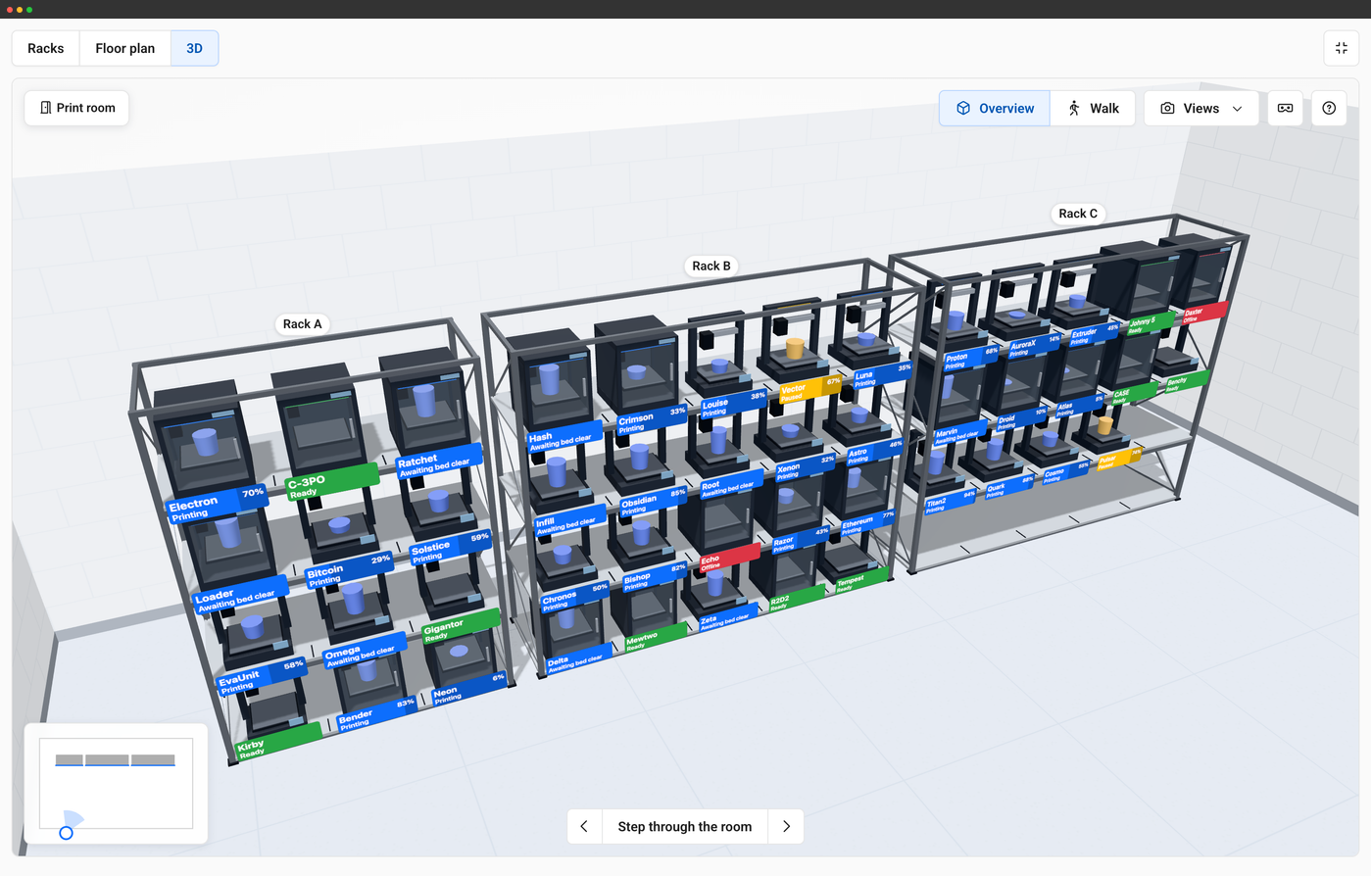
When printer names stop telling you where a printer is
A farm starts as one tidy row, numbered left to right. Then printers get moved, retired and replaced, and the order on the shelves no longer matches the order on the screen. Whoever knows the room finds the printer; everyone else walks the aisles reading name tags. The farm layout records where each printer physically stands, so the screen and the room agree again. SimplyPrint is a cloud-based 3D printer management platform for FDM printers from most major brands; the farm layout is a view of its Printers page.
One layout, drawn three ways
You describe the farm once, and every view reads the same layout. Racks is where daily work happens: each rack from the front, shelf by shelf, with a live tile per printer. The floor plan shows where the racks and benches stand in the room. With more than one room, All rooms shows the building.
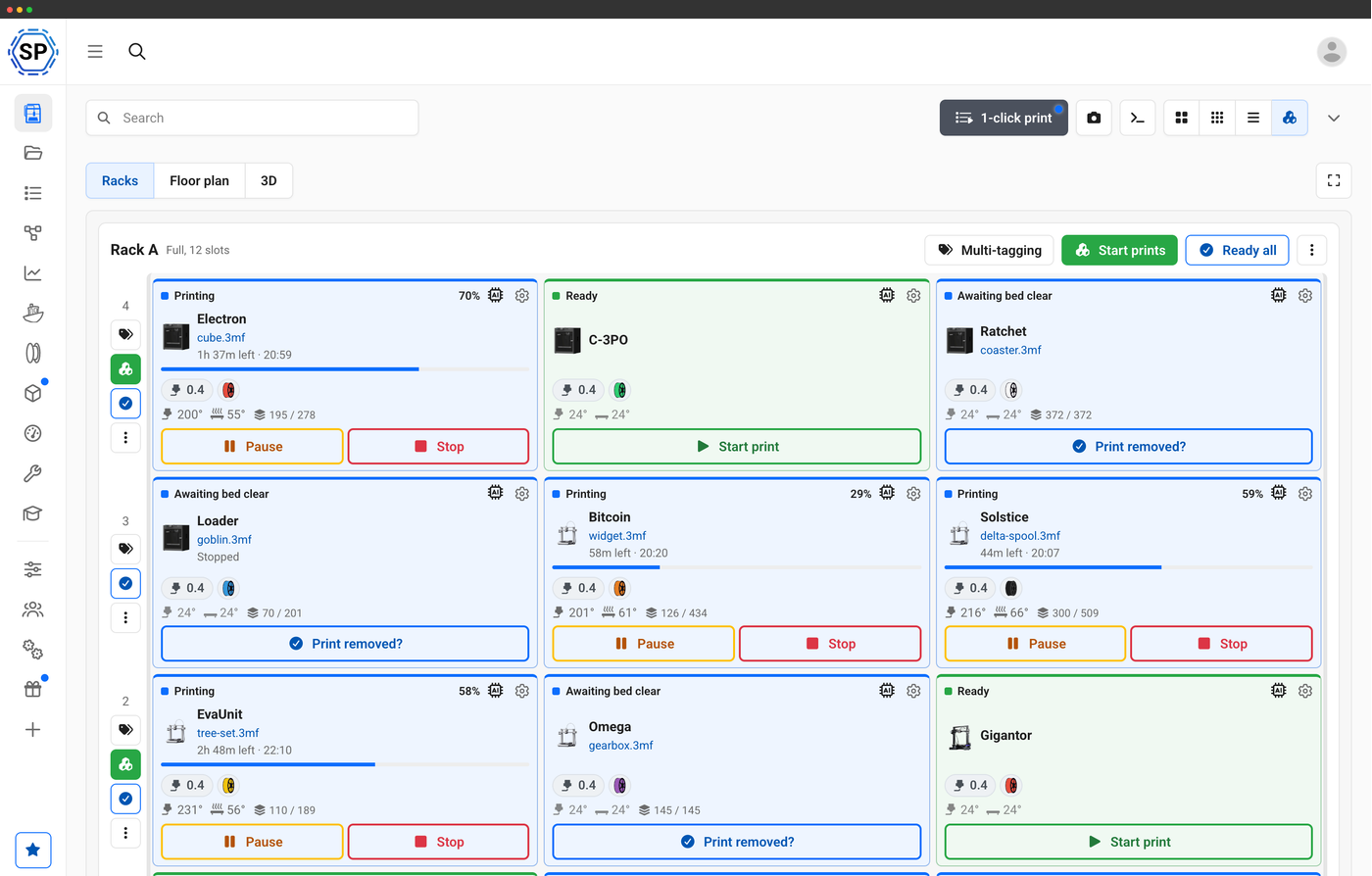
Every rack from the front, with status, job and progress in each slot.
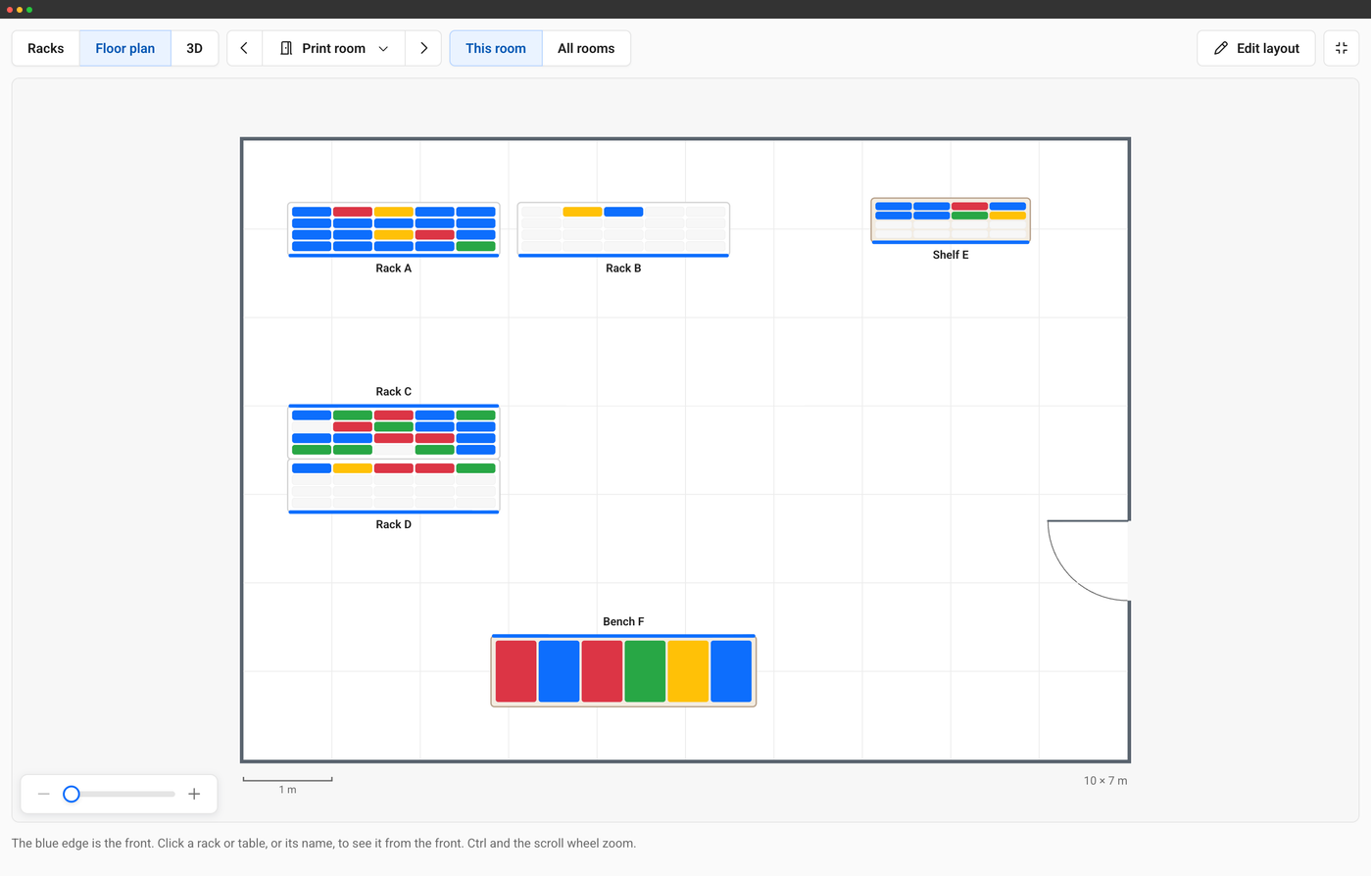
The room from above, with walls, doors and a status dot per printer.
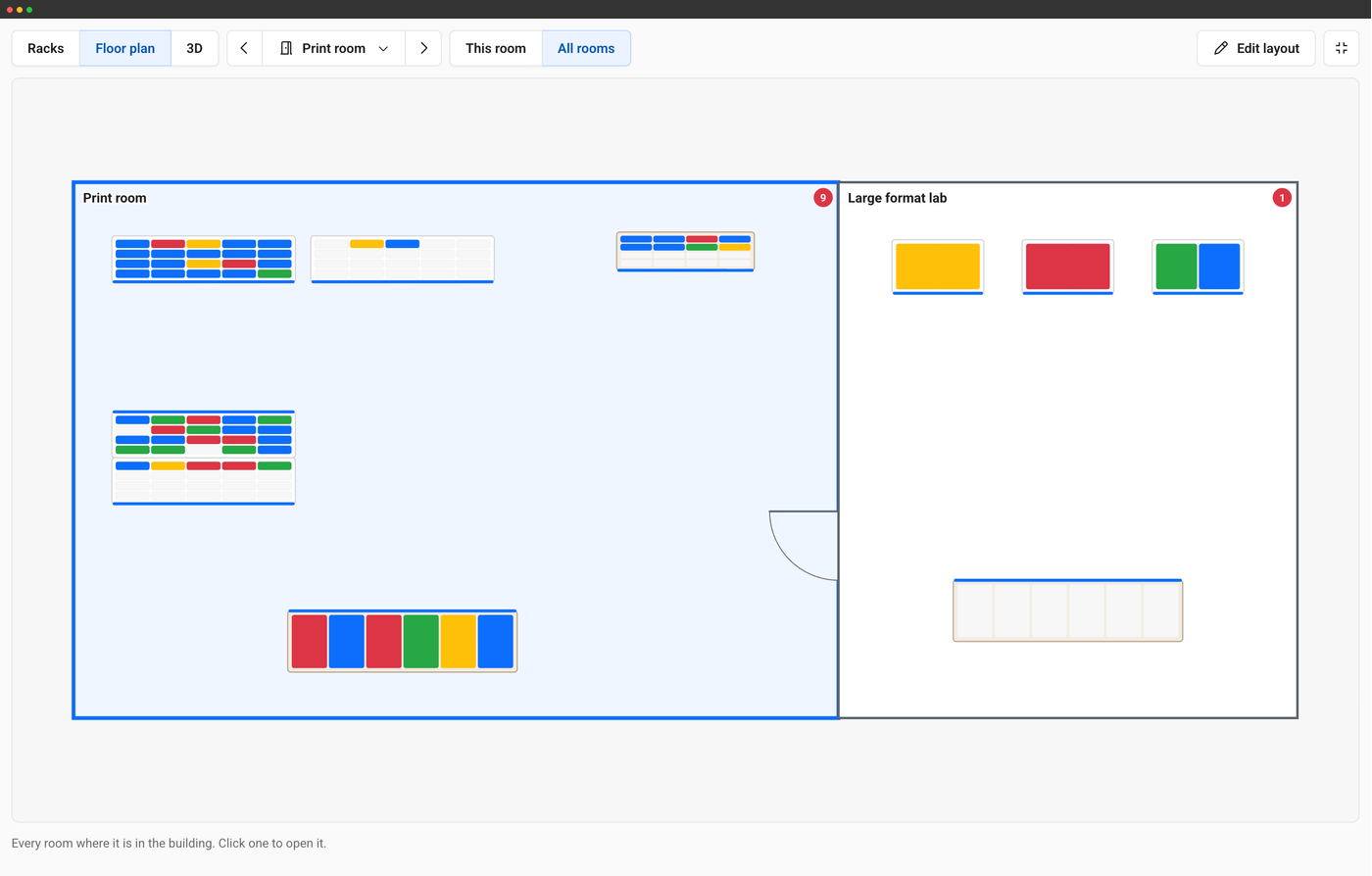
Every room where it is in the building, in live status colors.
Find a printer by where it stands
Search for a printer, or click a status card such as Awaiting bed clear, and the printers that don't match fade instead of disappearing. The racks still look like the real ones, so the match stands out exactly where you will find it in the room.
Away from the layout, a placed printer carries its location as a line like Rack A · shelf 2 · position 3: next to its name in its control panel, and in the clear bed, pause and cancel dialogs, so you know which machine to walk to.
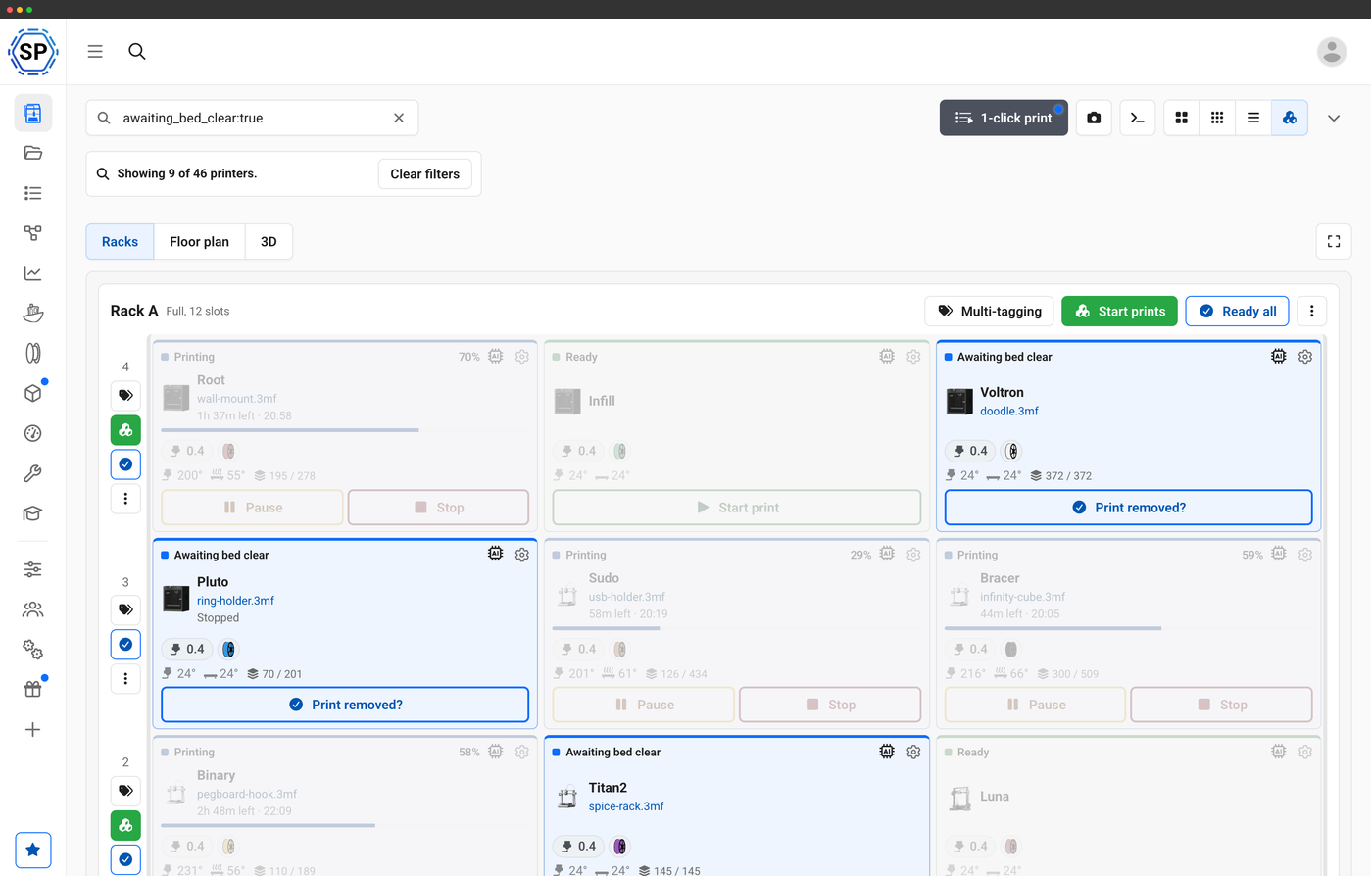
Every bed waiting to be cleared, lit up in its slot.
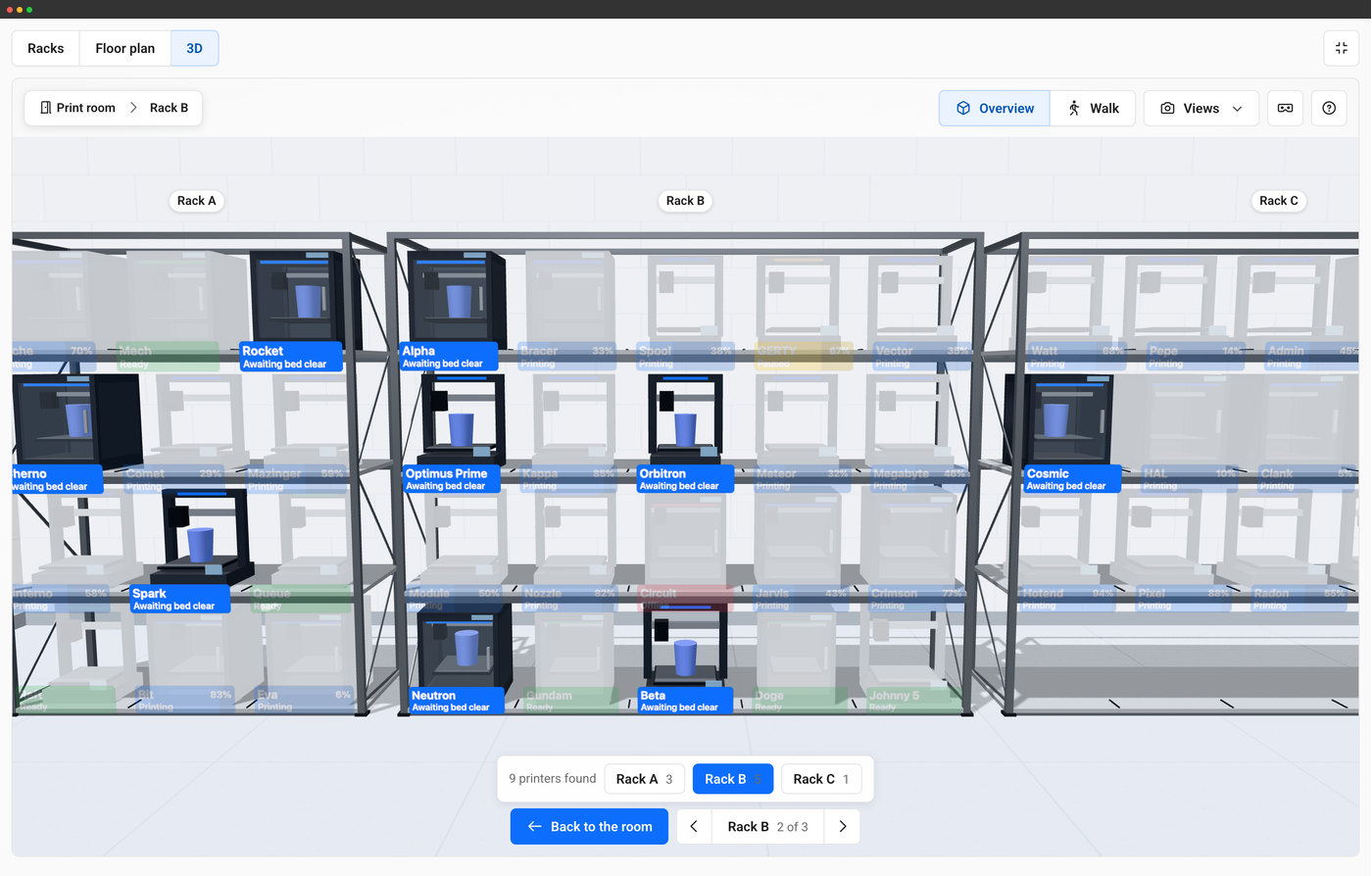
The same search in the 3D room, with the printers or racks it found listed to go to.
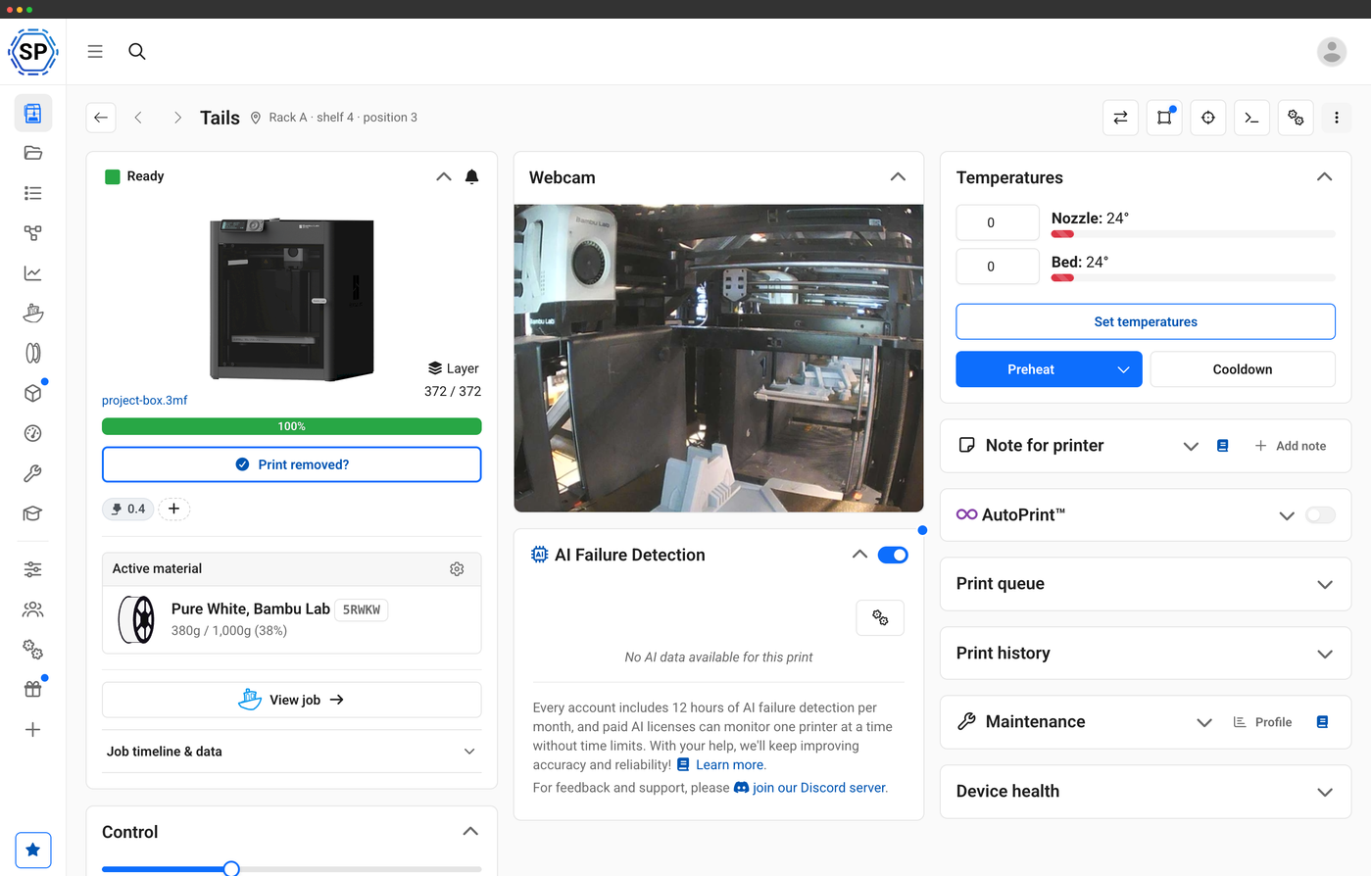
The location line next to the printer's name.
Work a whole rack or one shelf at a time
The way you walk the room
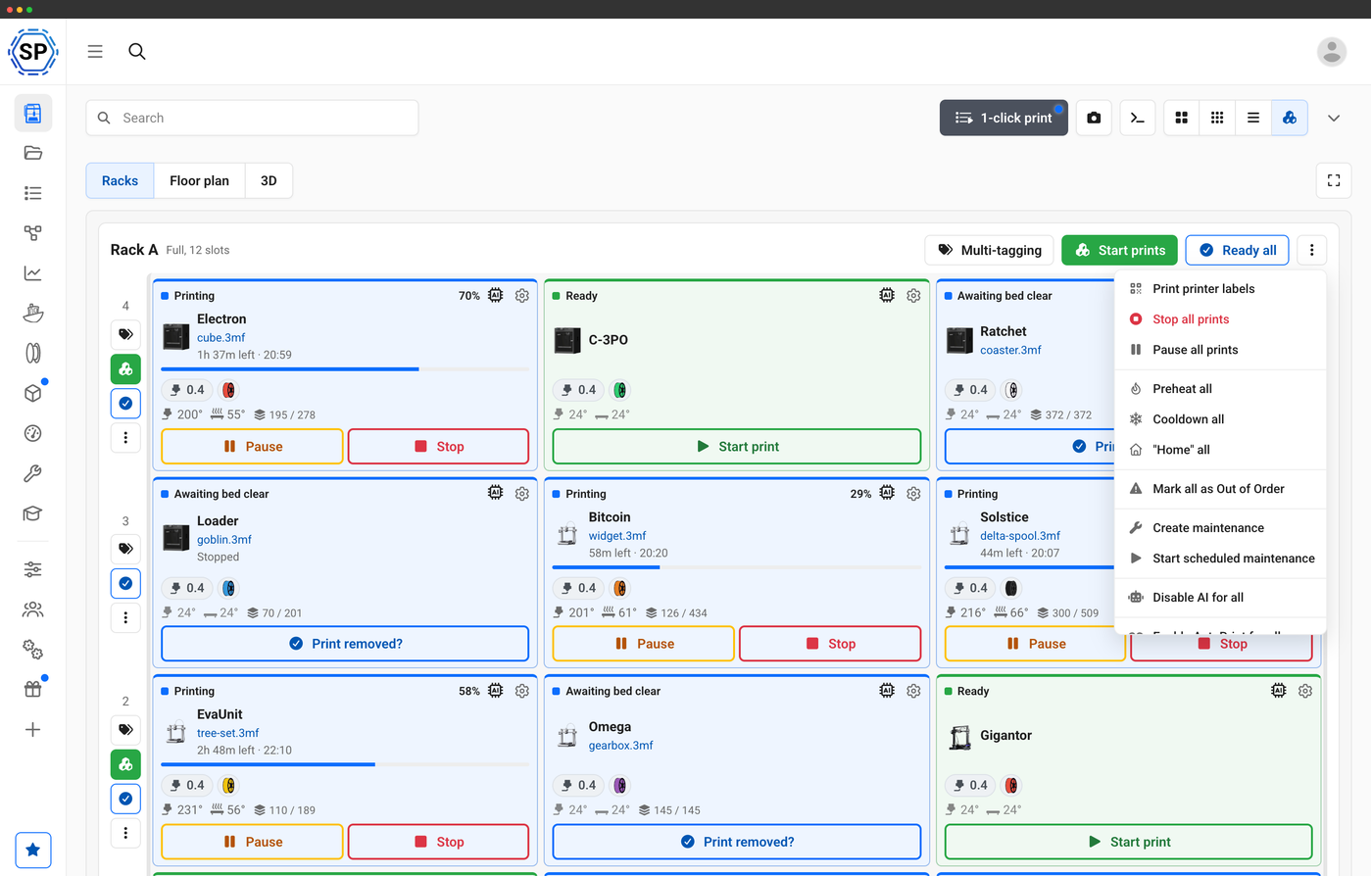
You clear beds rack by rack, not in alphabetical order. Every rack, and each shelf on a rack with several, has its own buttons that act only on the printers standing there:
- Start prints on every idle printer of the rack or shelf
- Ready all - mark its finished beds as cleared in one go
- Tag every printer there at once
- More actions - pause or resume, preheat or cool down, mark as out of order, start maintenance
Walk your print farm in 3D
The same layout as a 3D room in your browser. Printers are drawn to their shape and size - enclosed, bed-slinger or delta - each with a status light and a label on the shelf edge, and what is on the bed grows while it prints. It is the view to show a visitor or a new colleague the farm, and to find a printer by where it stands when the name means nothing to you yet.
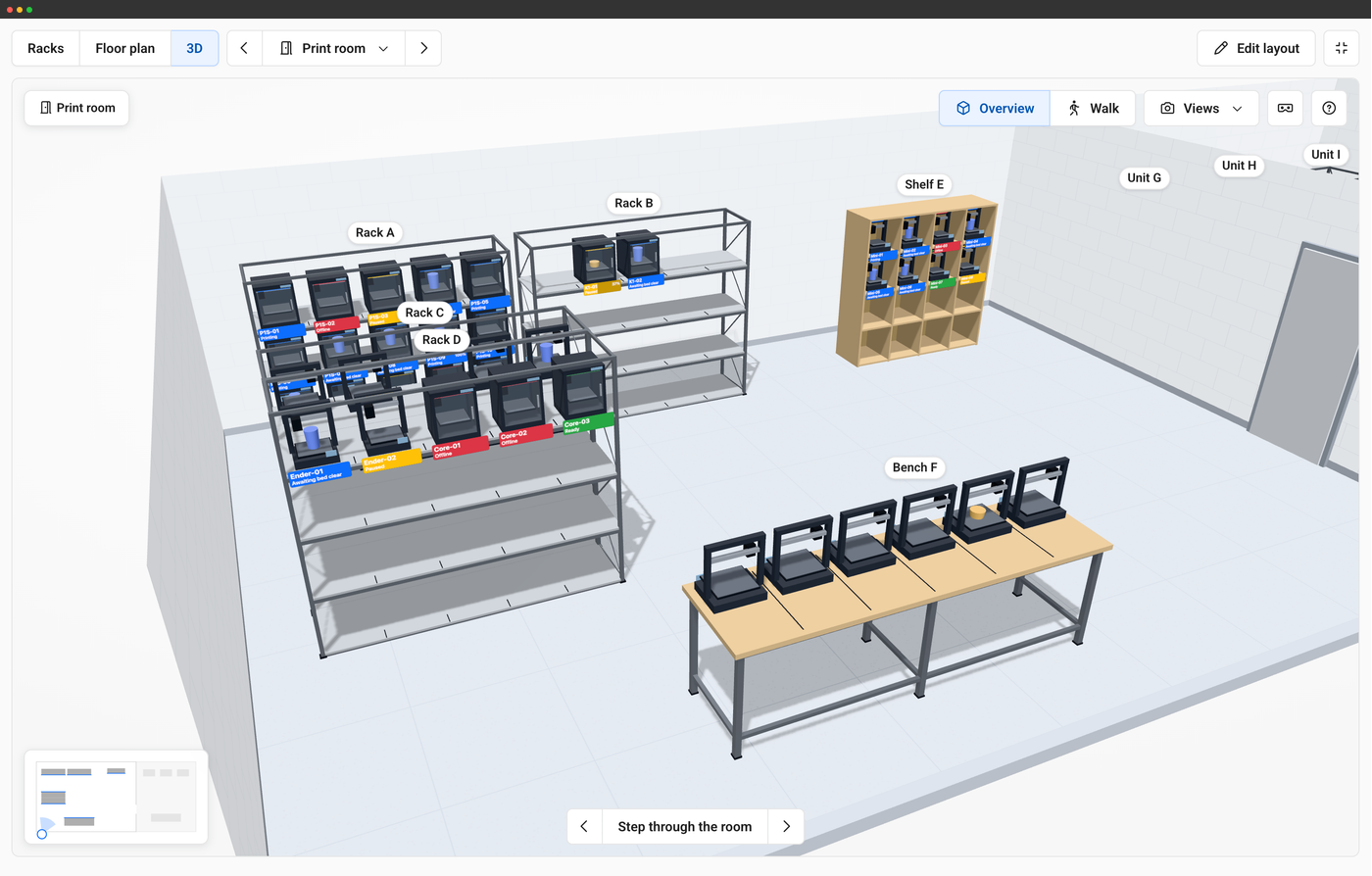
Turn, move and zoom the room, with every rack named.
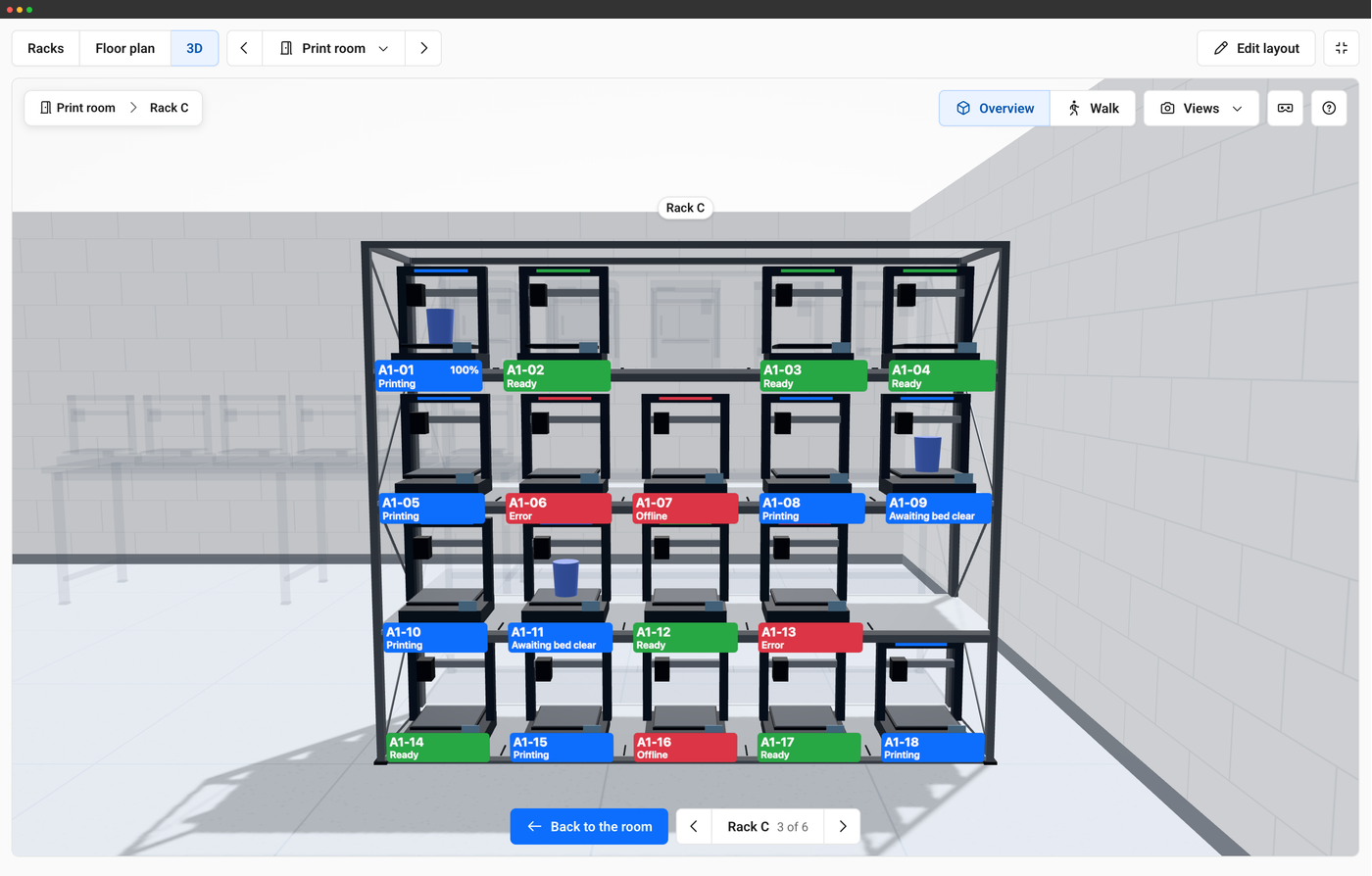
Click a rack to stand in front of it. Whatever is in the way is cut away.
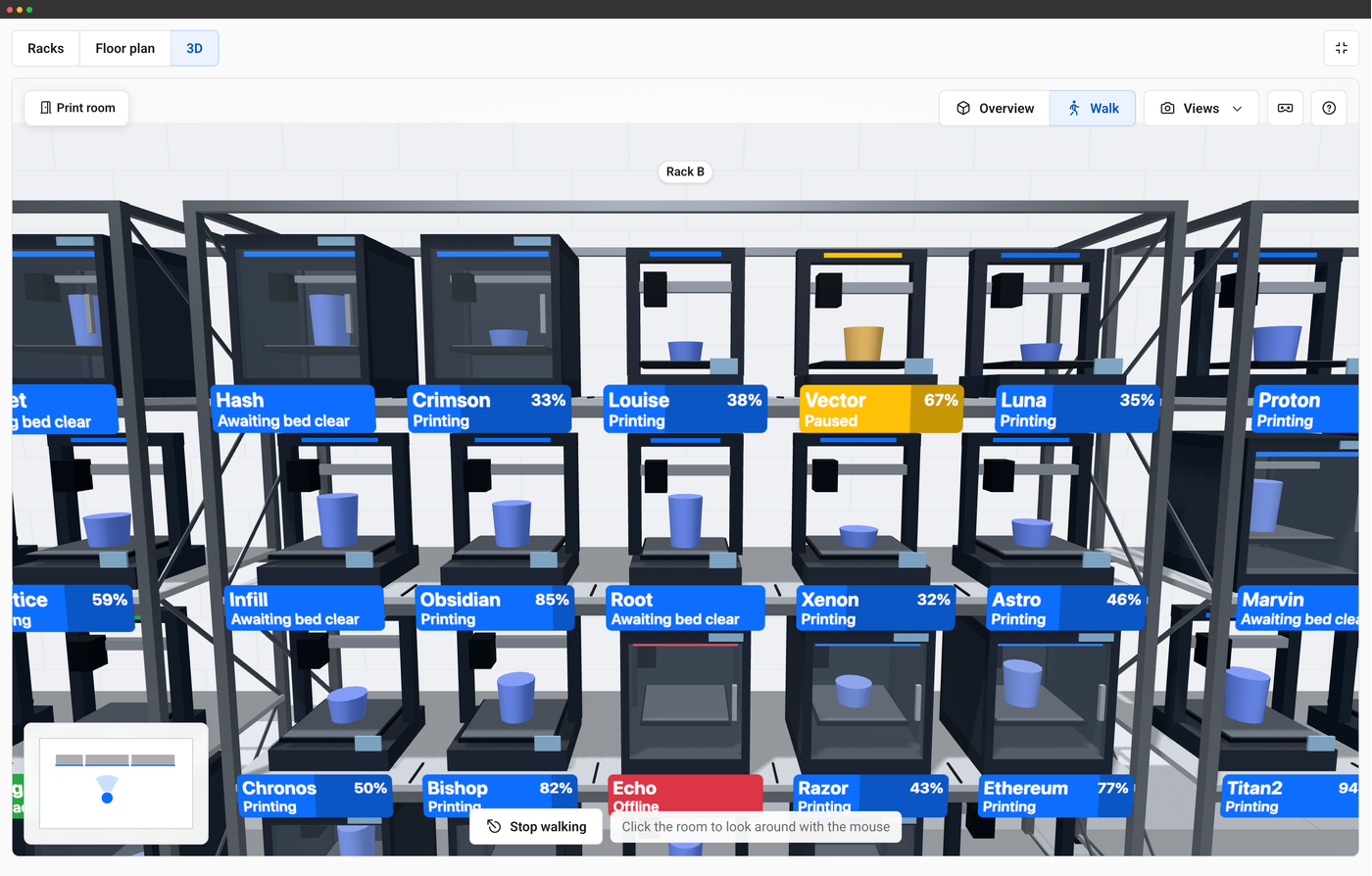
Walk the aisles with the keyboard, or click where you want to go.
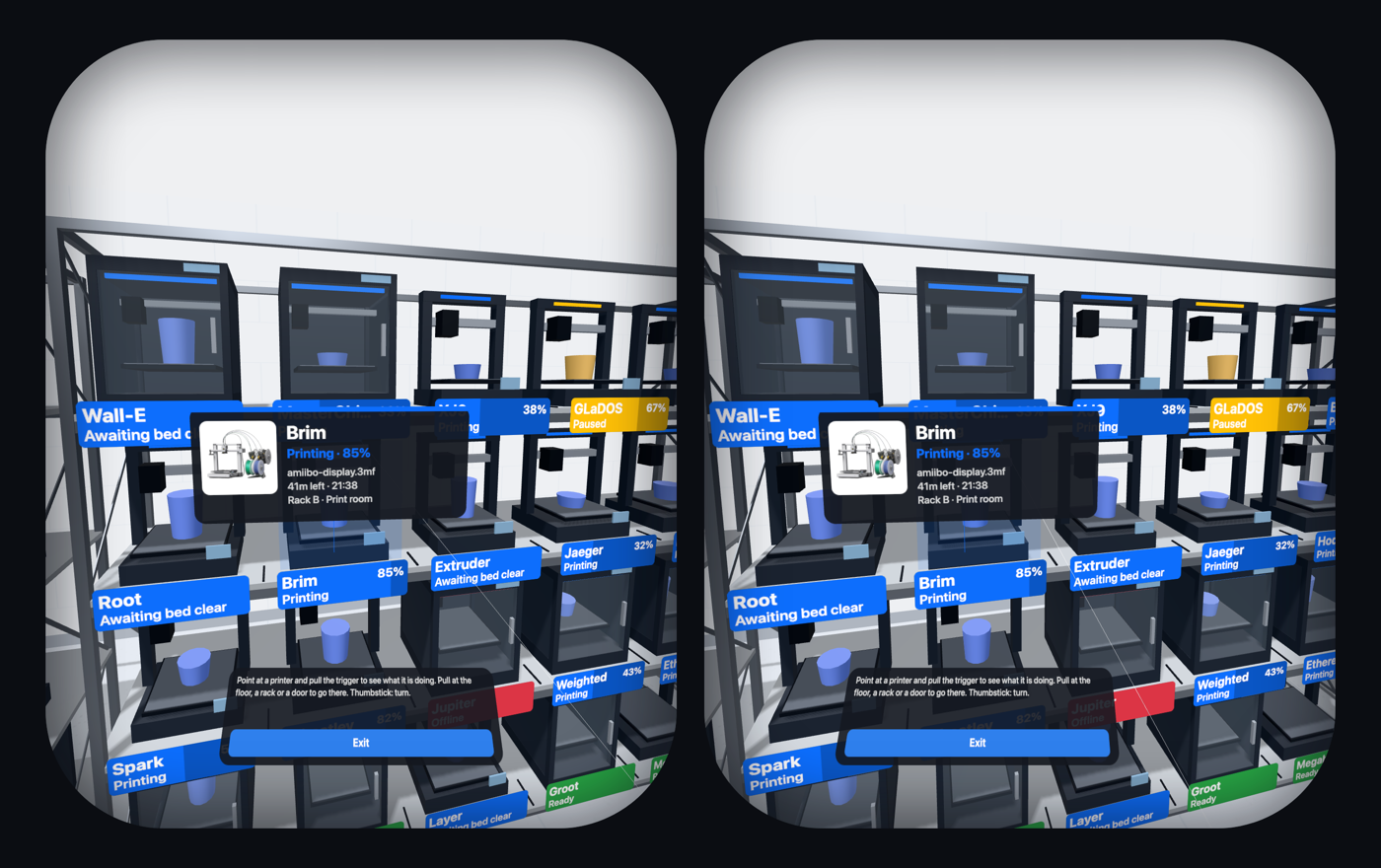
What each eye sees in a headset: the racks at life size, and the printer you point at.
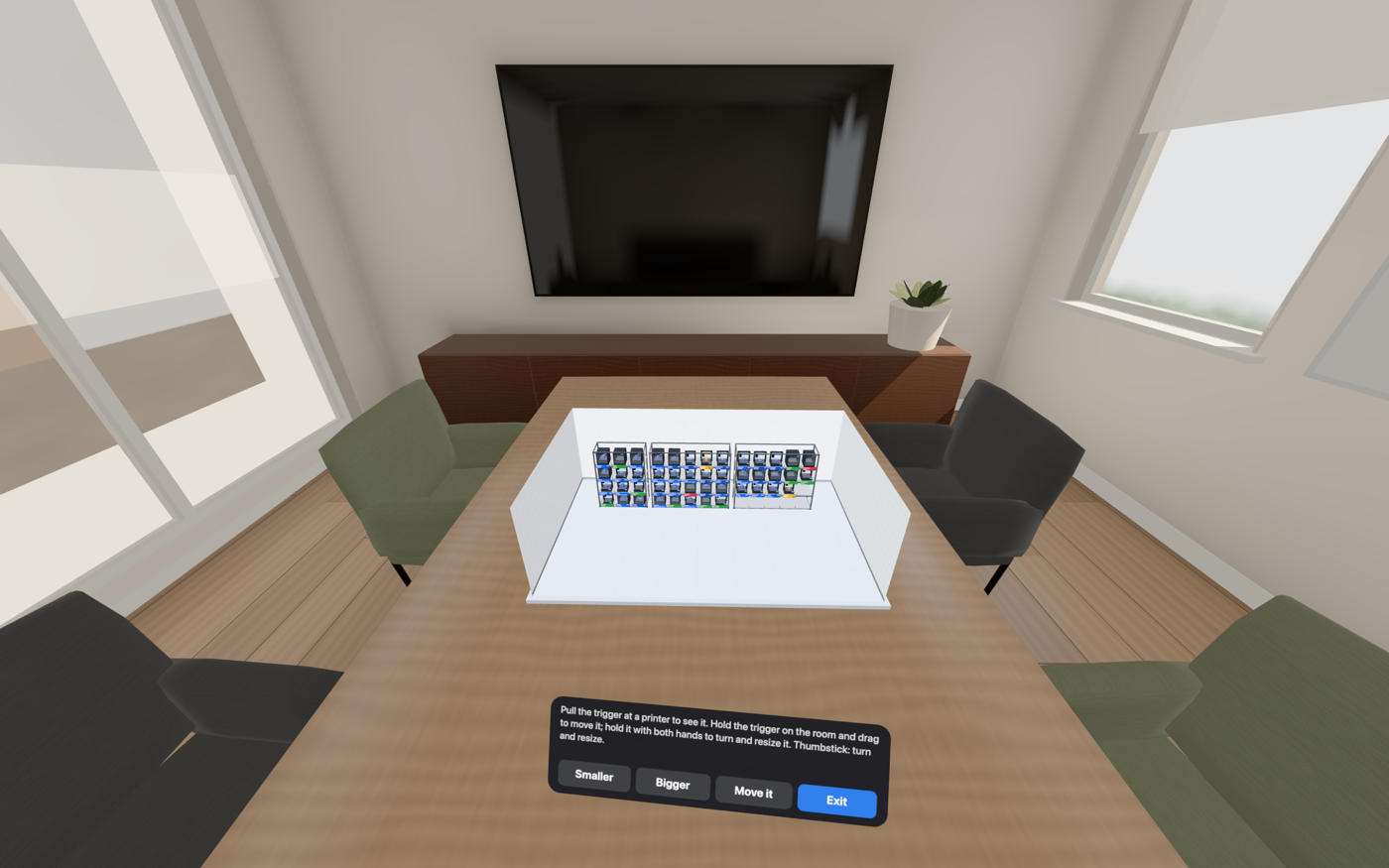
The farm as a model on a table in the room you are in, with buttons to resize and move it.
Your farm in a VR headset, or on your desk in AR
Nothing to install
The 3D room also opens in the browser of a Meta Quest or an Apple Vision Pro, or an Android phone in a viewer like Google Cardboard: walk between your racks at life size and point at a printer to see what it is doing. In AR, on a Quest or an Android phone, the farm stands as a model on your table.
It is the same layout, read-only: you look and point, and act on printers on the screen. Useful for showing a farm to someone who is not in the building. Not a reason to buy a headset.
Set up your 3D print farm layout without drawing it
Templates, a printer group or a scanner
The first time you open the Layout view, SimplyPrint suggests racks, shelves and benches for the number of printers you have. Correct the guess, and the layout is there. Then put the printers in:
- Fill a rack from a printer group, in the group's order
- Scan each printer's QR label as you walk past, with a handheld scanner or your phone's camera - the next slot is picked for you
- Click a slot, then a printer, or tick several and place them together
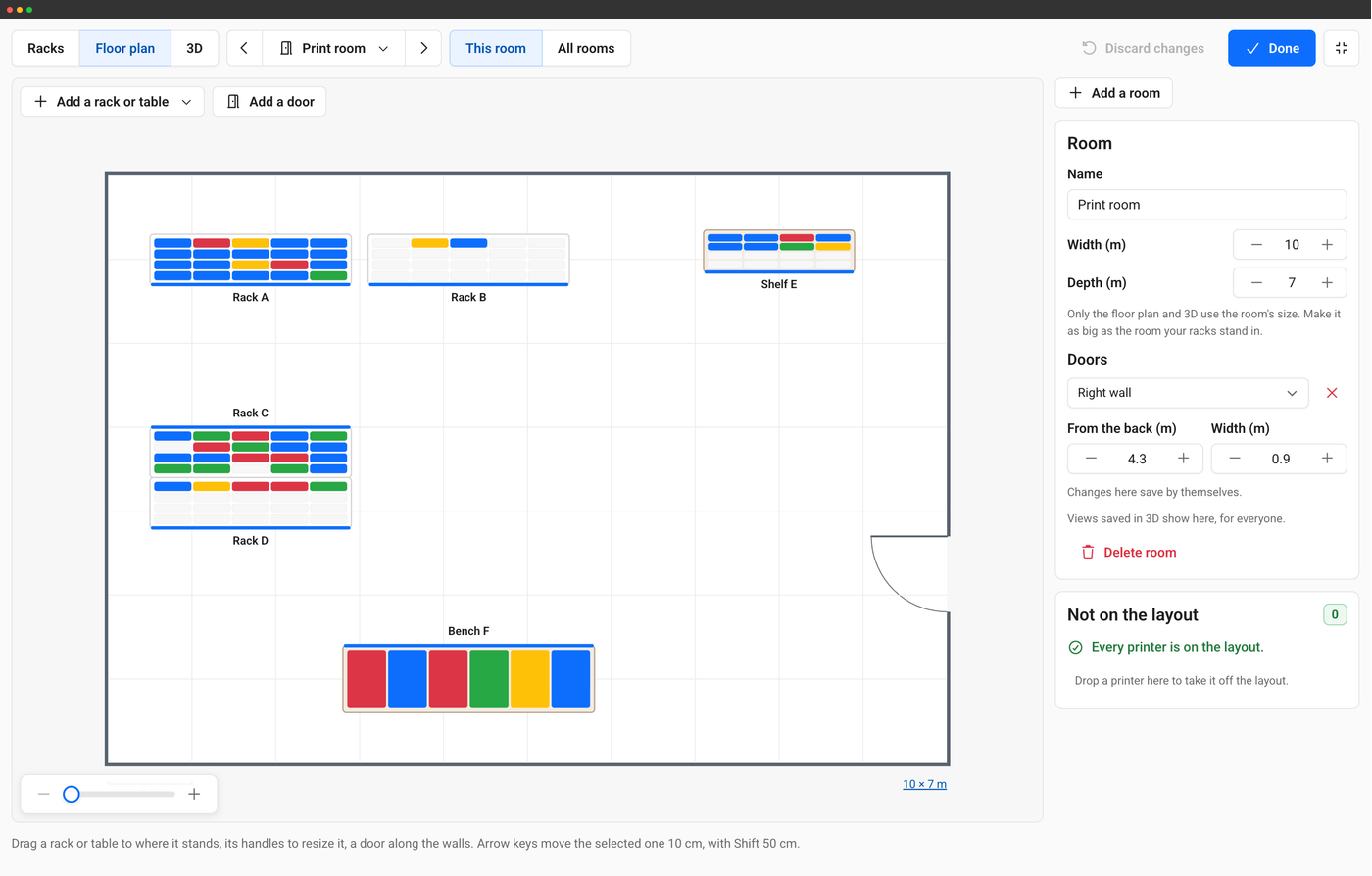
Made for rooms that are not one tidy row
New staff and students find the right printer
In a print farm, the person on the evening shift did not set up the room. When a print fails on P1S-14, the layout shows which rack and shelf to walk to, and the location is in the dialog they are already looking at.
In a school or makerspace, a student is told their print is done and has never been in lab 2. The floor plan shows the room, and the rack front shows the printer. Put the Layout view on full screen and it is a status board of the room, in the room's own shape.
Moving a printer changes nothing but its place
The layout answers where is this printer? Printer groups answer what is this printer for? They are kept apart on purpose: move a printer to another rack and its group, its print queue and who has access to it stay exactly as they were. A rack can hold printers from several groups, and a group can be spread over several racks.
See organisation managementDecide who sees the layout and who edits it
Plan access: which plans include the farm layout?
The farm layout is part of the Pro plan and up. Pro has one room; Print Farm, School and Enterprise have as many rooms as your building has (up to 50). On other plans the Layout view shows a preview with your own printers on a made-up layout.
| Feature / Limit | Free | Basic | Pro | Print Farm | Enterprise | School | Cloud Slicer | Filament Manager |
|---|---|---|---|---|---|---|---|---|
|
Farm layout
Racks, floor plan, the 3D room, and VR and AR.
|
Want to learn more about our plans?
View full pricing & feature comparisonFrequently asked questions
What is the farm layout in SimplyPrint?
How long does it take to set up?
Does moving a printer on the layout change its group or queue?
Can I use it for more than one room?
Do I need a VR headset?
Can I print labels for racks and shelves from it?
Which plans include the farm layout?
Step-by-step guide
How to open the Layout view, what each view shows, who can see it and who can edit it, and what to do when something is missing.
Read the Layout view guide