+2
0.4
Black
 Sigma
Sigma
Stop hand-picking printers for every job. Click 1-Click Print, SimplyPrint reads what each printer has loaded (material, colour, nozzle), pairs queue items with the printers that can run them, and starts every match in one shot. Walk away.
Get started for free More info & how-to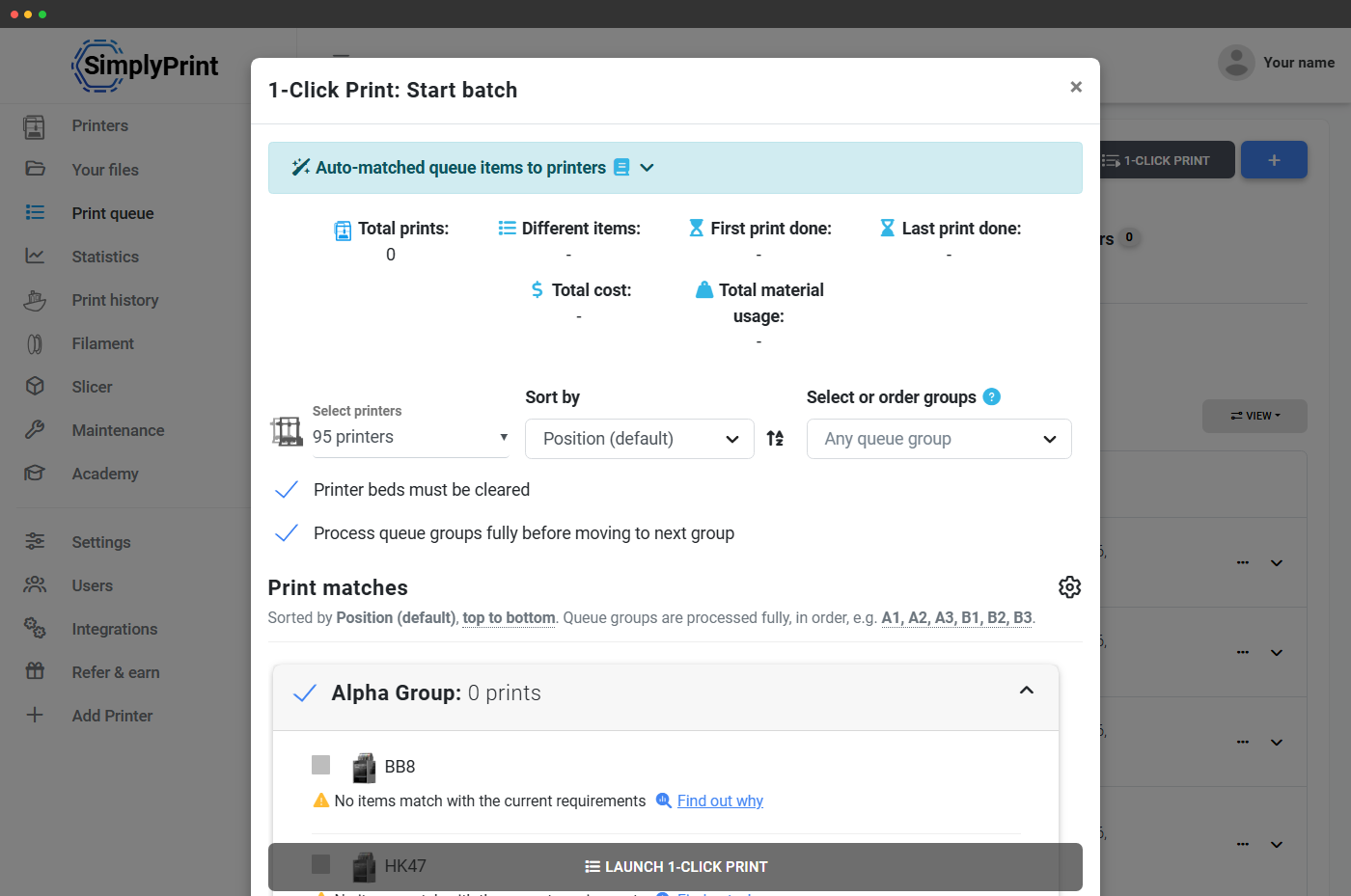
SimplyPrint reads the material, colour, nozzle and tags on each printer, compares them to the requirements on each queue item, and only starts a job where the printer is ready for it. Items without a match stay in the queue until a fitting printer is free.
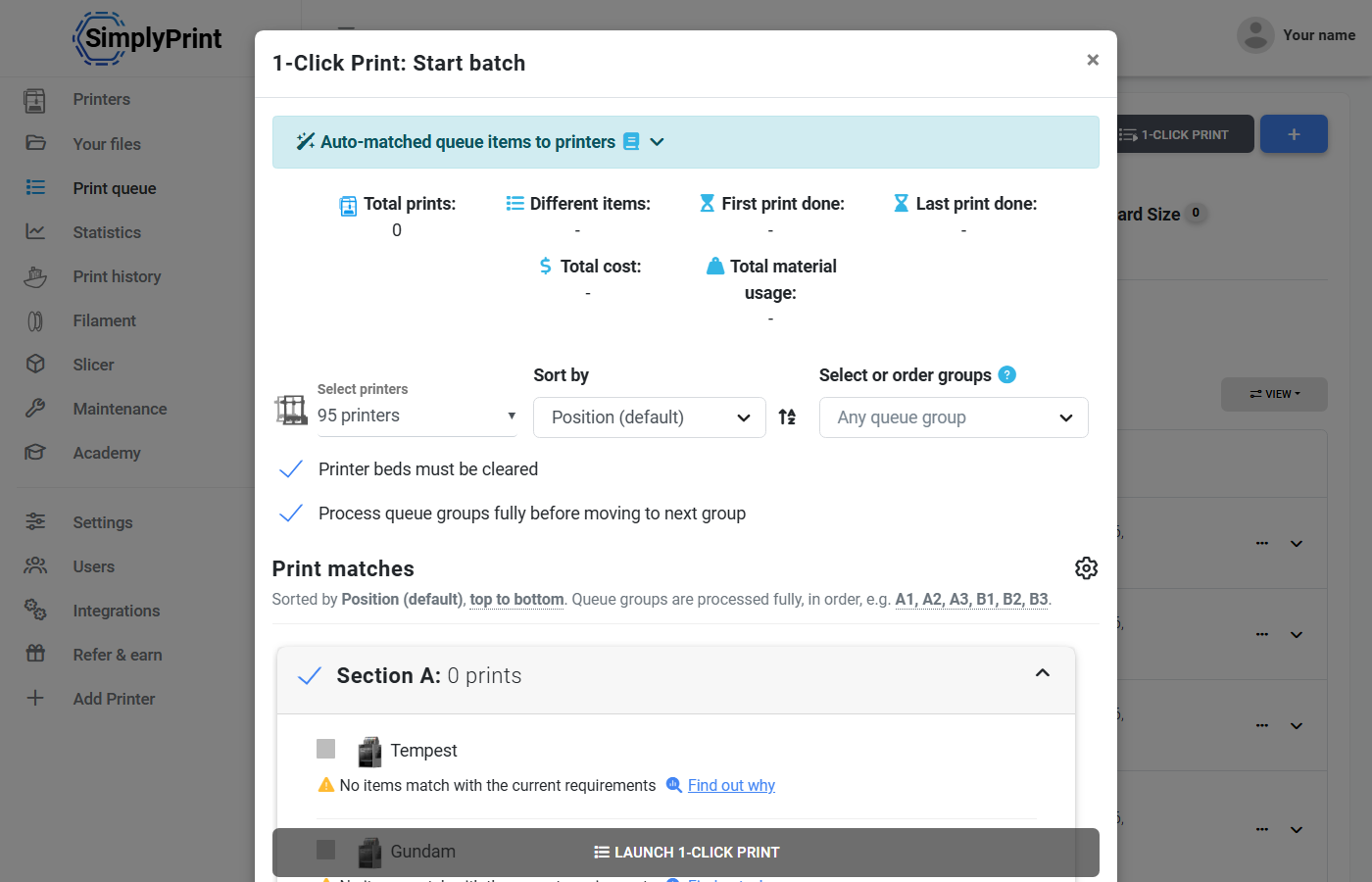
The 1-Click Print button lives at the top of your print queue. Click it and SimplyPrint opens the batch dialog: a summary of total prints, time and material across the batch, a printer selector (defaults to every operational printer in your fleet), sort and grouping controls, and the Print matches list showing exactly which queue item each printer would pick up.
For each printer the matcher either pairs it with the next compatible queue item or shows "No items match with the current requirements" with a Find out why link straight into the Queue Inspector. Hit Launch 1-Click Print and every matched job starts simultaneously.
1-Click Print isn't separate logic - it asks SimplyPrint's matching engine the same question AutoPrint does: "what's the next queue item this printer can actually run?" The engine compares each printer's loaded material, mounted bed type, nozzle config and tags against every queued file's requirements (parsed from slicer metadata on upload). Matches are offered; mismatches stay in the queue.
That's why 1-Click Print never starts a PETG file on a PLA-loaded printer, never tries to print a 0.6 mm nozzle file on a 0.4 mm printer, and never sends a file requiring a textured plate to a printer with a smooth one. The bad start doesn't happen because the system never offers it.
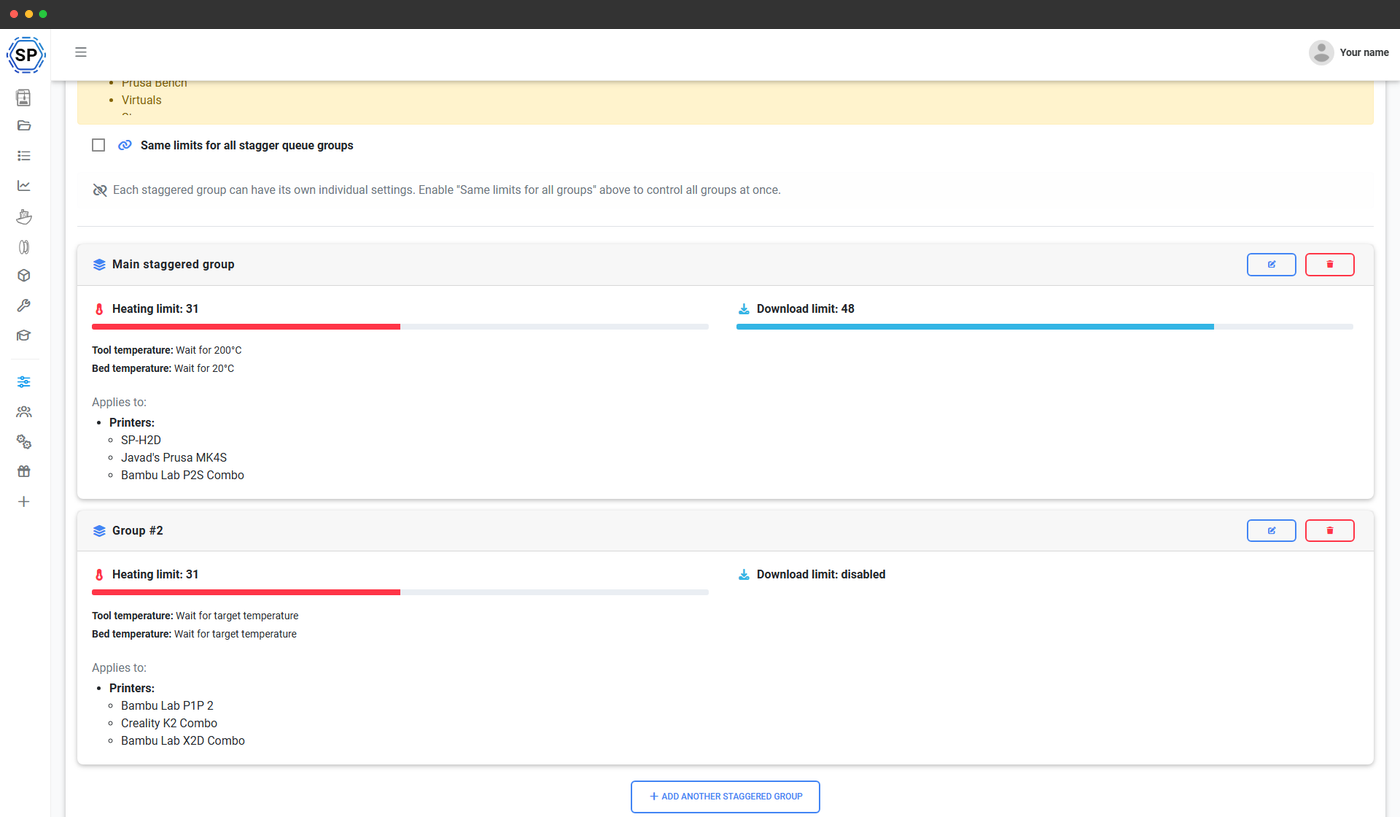
Identical items, identical printers, intentionally non-identical start times
When you 1-Click Print a queue of identical items to a row of identical printers, SimplyPrint staggers the start times so the printers don't all hit the heated-bed peak at the same moment, don't all need the operator at the same minute when they finish, and don't all clear at once. Set the stagger interval, hit 1-Click, walk away. Your power draw smooths out, your operator's evening doesn't collapse into a single five-minute panic, and the next print of each printer is queued up by the time the previous one comes off the bed.
Hit one button and SimplyPrint starts a job on every compatible printer in your fleet. Six different files, forty printers, one click.
Total prints
40
Sigma
Louise
Solstice
Quark
XJ
Vicki
Meteor
Vector
Cyber
Rosie
NovaX
Helix
Neon
Blazer
Marvin
Synth
Louise
Rosie
AuroraX
Optimus
Quark
Chewbacca
Module
Bender
Spark
Quark
Photon
Circuitry
Glitch
Omega
Bender
Nova
Meteor
Mercury
Proton
Pixel
Comet
Aurora
Echo
Spark
Across our 2026 print-farm feedback survey, 1-Click Print and staggered starts came up as the single biggest farm time-saver - more than any other feature.
"1-click printing sending all of our gcode out to 20+ printers all at once saves me the most time."
"1-Click Print is awesome (with staggered starts!) and being able to export CSV files for me, our accounting and procurement teams."
"I can run 50% more jobs in the same or less time. SimplyPrint saves me several hours weekly."
The Process queue groups fully before moving to next group toggle is small in the UI but huge in operation: it lets you treat a queue group as one customer order, one school assignment, one production run. Every printer pulls from group A until group A is empty, then group B starts. Customer orders ship complete. Assignments stay batched. Production runs don't get accidentally interleaved with the next job.
Use queue groups to keep batches together - a customer order, a school assignment, a production run. The 1-Click Print modal includes a Select or order groups dropdown so you can run only one group at a time, restrict 1-Click to a subset of groups, or set the order in which groups are processed.
The Process queue groups fully before moving to next group toggle keeps each group's items together: every printer pulls from group A until group A is empty, then group B starts. Customer orders ship complete; assignments stay batched.
The modal's Printer beds must be cleared check holds the line: a printer with a print still on its bed is skipped until the bed is cleared (manually marked, or auto-detected if you've enabled AI bed check). No surprise overprints, no jammed builds.
If your account uses queue approval (School and Enterprise plans), 1-Click Print skips anything still pending approval and only starts items that have been approved. Student submissions or contractor uploads can sit in the queue waiting for a teacher / supervisor's green light - 1-Click won't push them through.
1-Click Print is included on Pro and above. The print queue and matching engine it depends on are also Pro+ (queue) and Free+ (matching engine).
| Feature / Limit | Free | Basic | Pro | Print Farm | Enterprise | School | Cloud Slicer | Filament Manager |
|---|---|---|---|---|---|---|---|---|
|
1-Click Print
Start every matched queue item across your fleet in one click. Included on Pro and above.
|
||||||||
|
Print queue
The underlying queue that 1-Click pulls from. Included on Pro and above.
|
||||||||
|
Smart routing & tagging
The matching engine that pairs queue items with compatible printers. Included on every plan, even Free.
|
Want to learn more about our plans?
View full pricing & feature comparisonRead our helpdesk guide on auto-matching queue items to printers for the full walkthrough.
