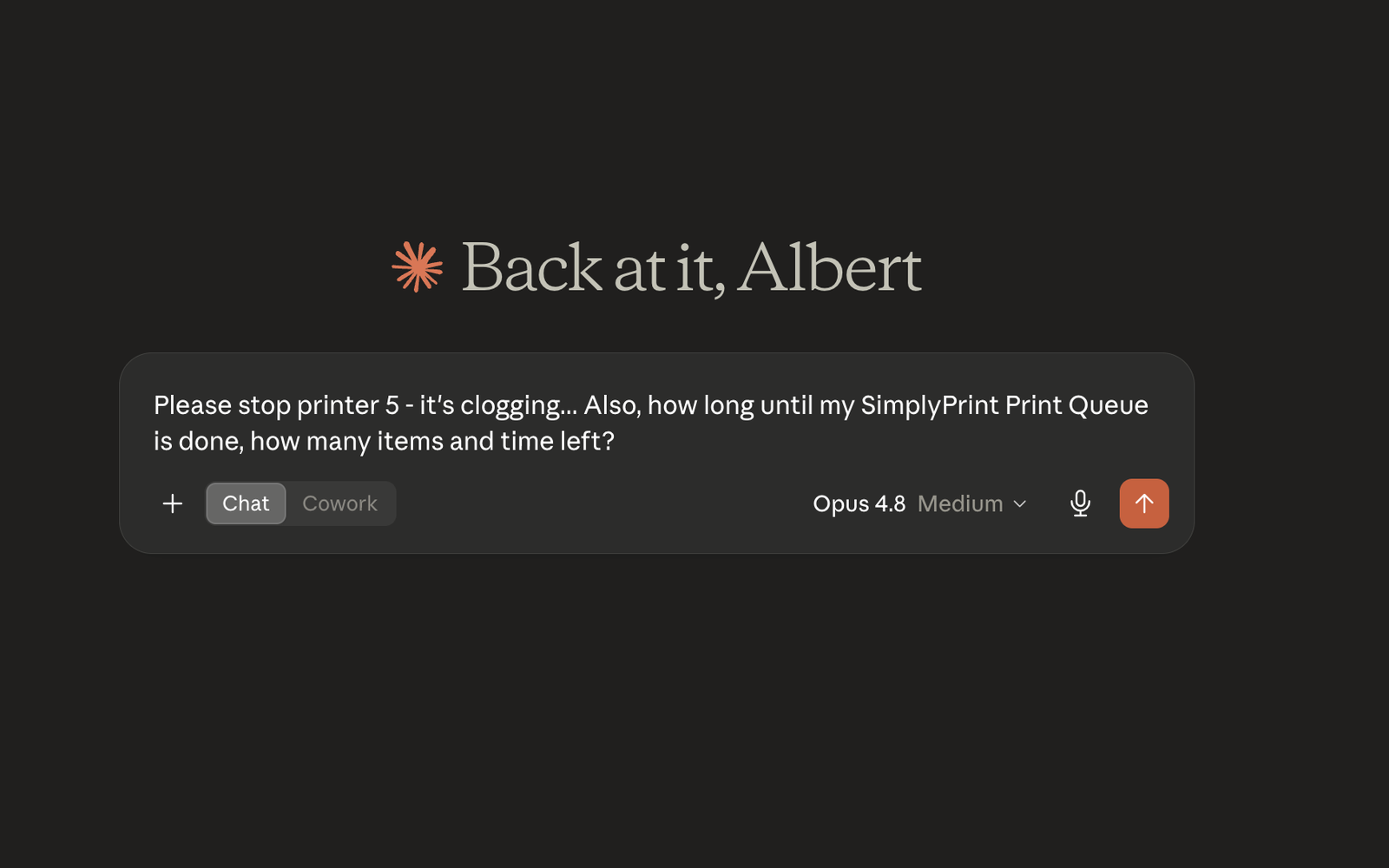
One URL. Every MCP client. Your whole fleet.
Paste https://simplyprint.io/api/mcp into any MCP-aware assistant's connector settings, approve the OAuth consent screen, and you are done. Same auth model as the rest of SimplyPrint, same permissions, same data - just spoken to in natural language instead of clicked in the panel.
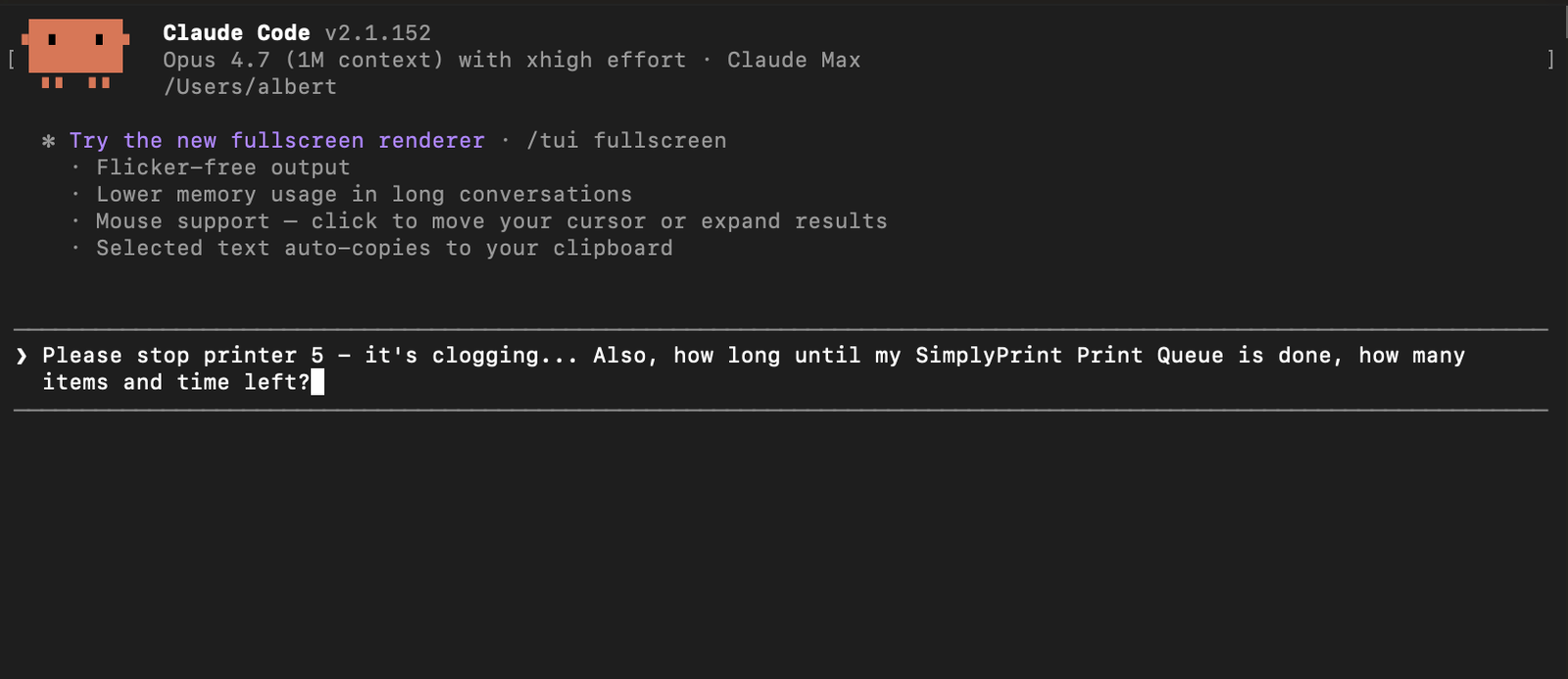
What is MCP?
MCP - Model Context Protocol - is an open standard created by Anthropic and supported by a growing range of AI clients. It lets an AI assistant call external tools through a single uniform interface. Instead of every assistant inventing its own plugin format, MCP defines one shape that Claude, ChatGPT, Gemini, Cursor, Windsurf, Cline, Zed and others understand.
SimplyPrint runs an official MCP server at https://simplyprint.io/api/mcp. Any assistant that supports custom connectors or MCP servers can connect to it - one URL, every client. We are also listed on the official Model Context Protocol registry as io.simplyprint/simplyprint, so clients that browse the registry can discover us automatically.
Discover or install SimplyPrint
Find SimplyPrint in the official MCP Registry, install the Claude Code plugin, or install the Gemini CLI extension. All three point to the same official SimplyPrint MCP server.
Almost everything you can do in the panel - as native AI tools
The MCP server exposes a broad set of the same operations the panel uses, grouped into categories the assistant picks from. The tools are wired to the same API endpoints that power the SimplyPrint web app - so a printer in an MCP call is the same printer object the API returns.
Inspect, send G-code, jog, control fans, home, pause, resume, cancel.
Add, reorder, edit, approve, deny, revive, group and comment.
Search, filter, estimate cost, update metadata, organize folders.
Inspect spools, adjust weight, assign, unassign, mark dried.
Filter past jobs, archive, pull success rate, filament, time and cost.
What people actually ask their assistant
A few of the real prompts that map cleanly to a tool call, taken from the example surface in the helpdesk article:
- Printers: "What's printing right now?" - "Home all three axes on Printer 4." - "Cancel the print on the K2."
- Queue: "Approve the three pending items from Sarah." - "Queue five copies of benchy.gcode for tomorrow." - "Which printer in the shop can print the next item fastest?"
- Files: "Find every file tagged 'prototype' and delete them." - "Estimate the cost of printing battery-holder.gcode on the X1C."
- Filament: "Which spools are below 100 grams?" - "Adjust the remaining weight on spool 42 to 820 grams."
- Stats: "How much filament did we use this week?" - "Show me the details of yesterday's longest print."
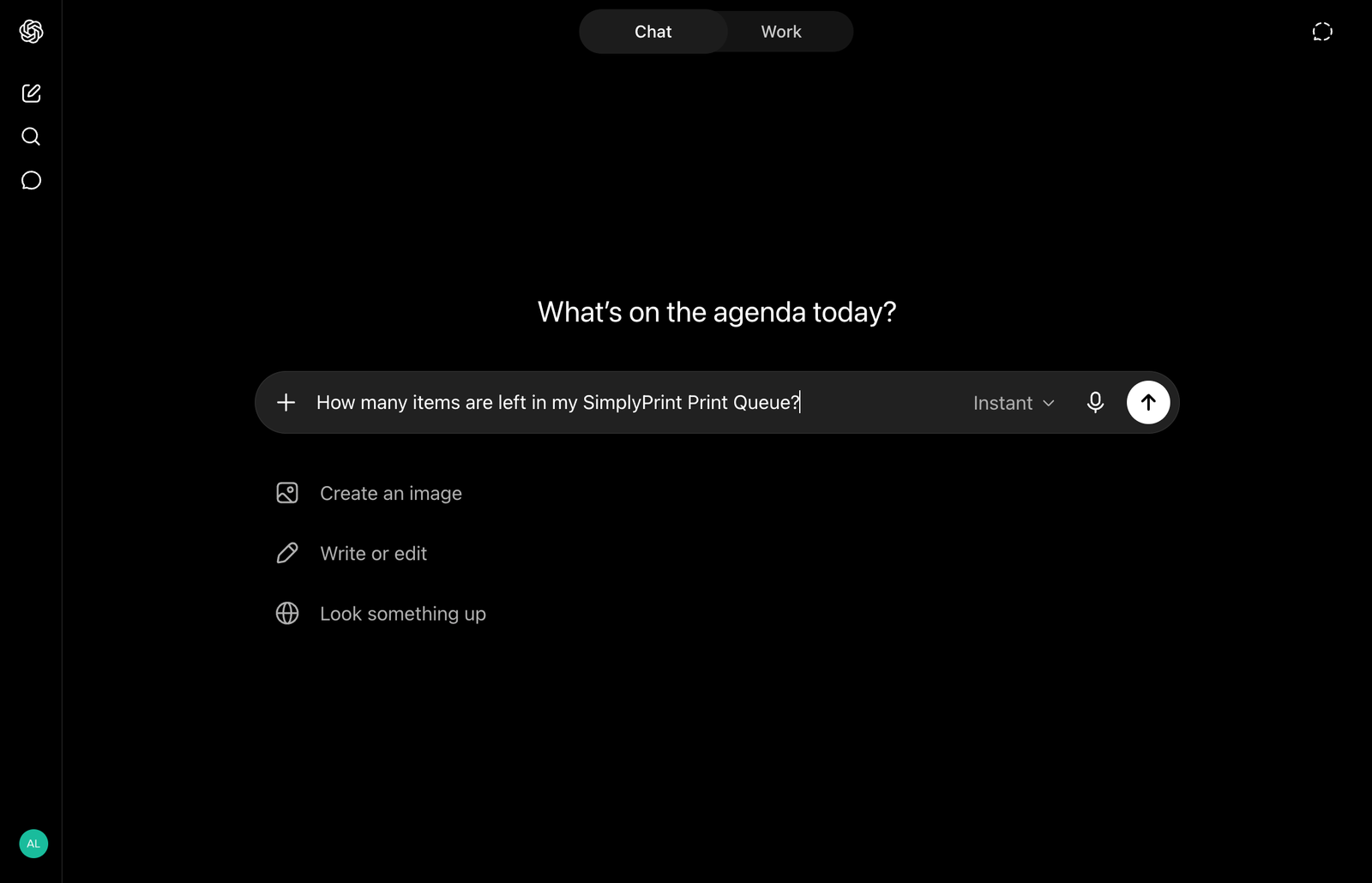
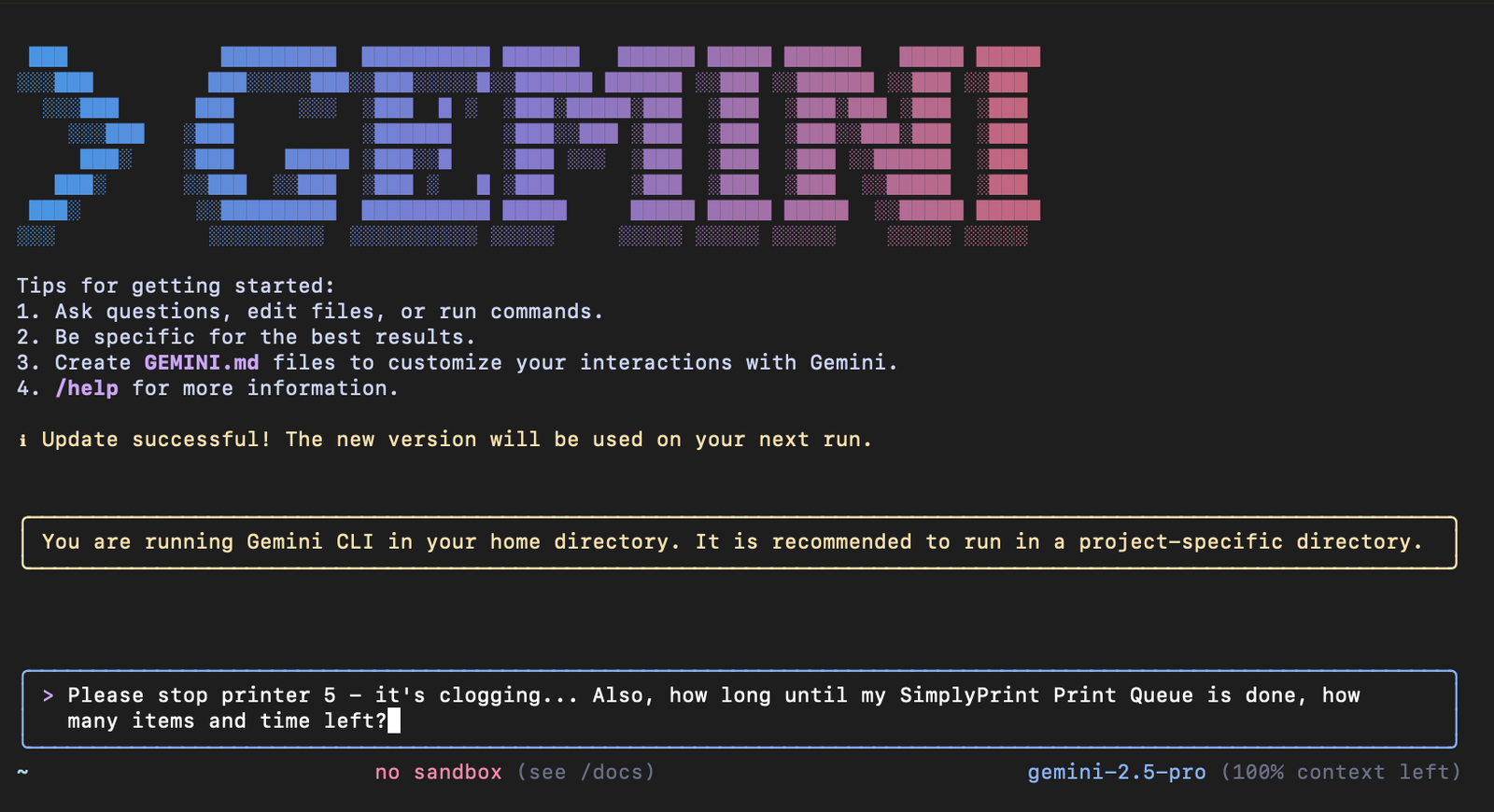
Config-file clients: one JSON block
Editor and CLI MCP clients (Claude Desktop, Claude Code, Cursor, Cline, Zed) keep their MCP server list in a JSON config file. Drop SimplyPrint in under mcpServers and the client takes care of the OAuth round-trip on first use.
{
  "mcpServers": {
    "simplyprint": {
      "url": "https://simplyprint.io/api/mcp"
    }
  }
}Granular scopes - grant only what the assistant needs
Each permission grants the assistant a specific slice of your account. The OAuth consent screen lists every scope an assistant is asking for, and you decide what to approve - so a read-only summarizer never gets write access, and a queue-only automation never sees filament details.
- View vs Manage: almost every category has separate read and write scopes. Want a strictly read-only assistant? Skip the manage scopes. Want full automation? Grant both.
- Per-user tokens: the token is bound to your user, not the account admin. It inherits your permissions in the account, never more.
- Off-limits by design: billing, subscription changes and account deletion are not exposed to MCP at all - no scope can unlock them.
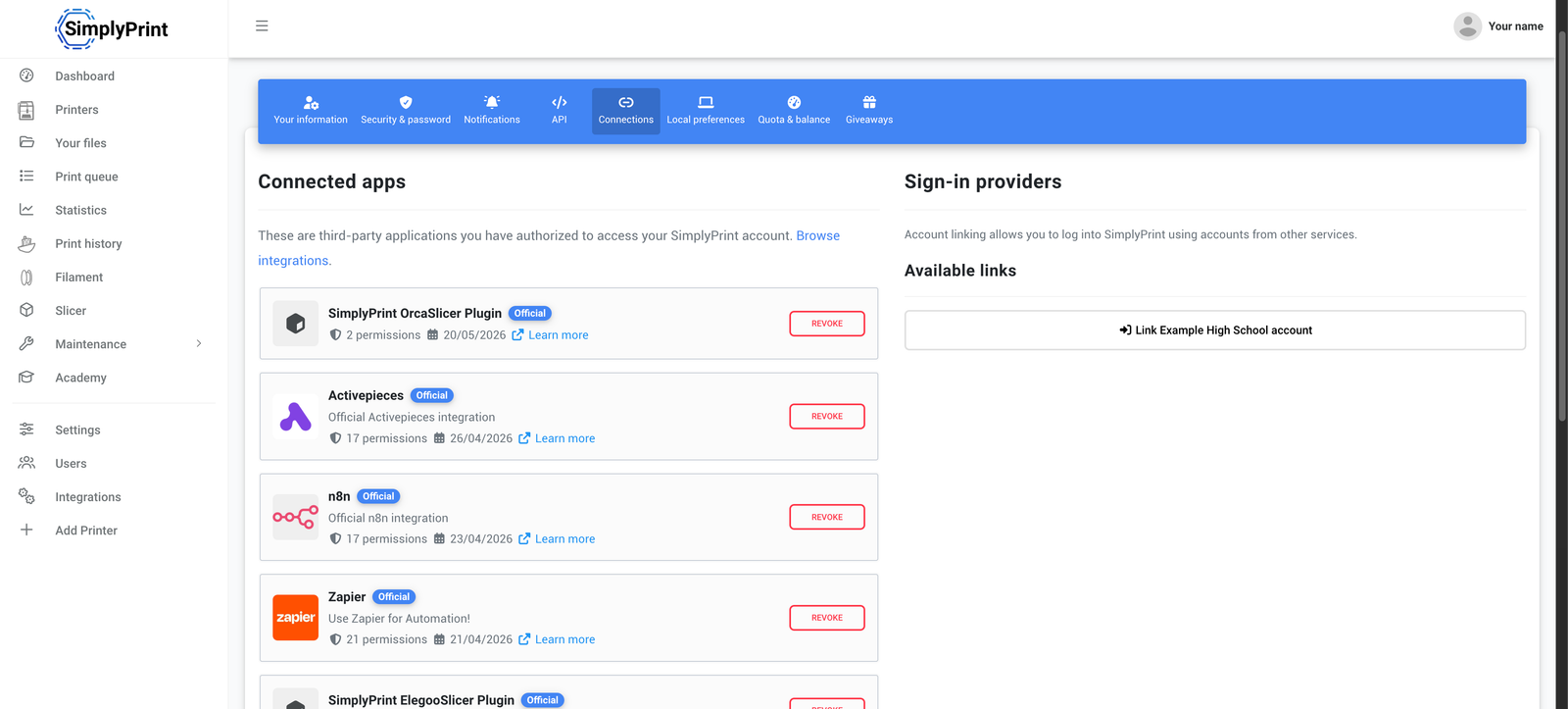
- Revoke instantly: open account settings → connected apps, see every connected assistant with its scopes and last-used timestamp, click revoke. The assistant stops working immediately.
Building your own MCP client?
If you're writing a custom MCP client, the auth flow is a standard OAuth 2.1 Authorization Code grant against https://simplyprint.io/oauth/authorize and https://simplyprint.io/oauth/token. Full curl walkthrough, scope reference and token semantics live in the API docs.
Works with every MCP-aware assistant
The integration is identical on every client - same URL, same OAuth dance, same tool surface. We have first-class walkthroughs for the most common clients and the same setup works in every other MCP-aware tool.
Works in claude.ai, Claude Desktop and Claude Code.
Create a developer-mode app from the SimplyPrint MCP URL.
Install the official extension or add the MCP URL directly.
Any MCP-aware editor or agent connects through the same OAuth flow.
Search "simplyprint" in your client's MCP registry to add it.
OAuth, scoped tokens, revocable any time
Security is the same model the rest of SimplyPrint uses, just packaged for AI clients.
- OAuth flow, not pasted keys: you log in on simplyprint.io, the assistant never sees your password. The token it receives is opaque to it.
- Scope-gated: a token can only call tools that match the scopes you approved. Tools outside its scope are filtered out of its tool list and rejected at call time.
- Audience-bound: tokens are bound to the canonical MCP URL they were issued against (RFC 8707). A token for SimplyPrint can only be used against SimplyPrint - no cross-server replay.
- Short-lived access, rotating refresh: access tokens last 1 hour, refresh tokens rotate on every use and expire after 90 days. Per MCP 2025-06-18 spec.
- Per-user, never shared: the token inherits your permissions in the account. An assistant connected by a viewer can never escalate to admin actions.
- Full delivery log: every MCP call is logged server-side with method, params, duration and outcome - so you can audit what an assistant actually did.
Pairs with the REST API and webhooks
MCP sits alongside the rest of the SimplyPrint developer surface - same auth model, same data shapes, same permission system:
- The SimplyPrint API is what your own code calls to pull state on demand.
- Webhooks are what SimplyPrint pushes the moment something changes, so you do not have to poll.
- MCP is what AI assistants call when they need to read or act on the same fleet - through a vetted, scope-gated tool registry instead of raw endpoints.
Plan access: which plans include MCP?
MCP access is included on the Pro plan and above, at no extra cost. No per-tool fee, no per-call fee, no separate AI seat. The assistant's own subscription (Claude Pro, ChatGPT Plus, Gemini, etc.) is paid to that vendor, not to SimplyPrint.
| Feature / Limit | Free | Basic | Pro | Print Farm | Enterprise | School | Cloud Slicer | Filament Manager |
|---|---|---|---|---|---|---|---|---|
|
MCP API access
Full MCP server with the complete user-facing tool surface - printers, queue, files, filament, jobs, statistics. OAuth-based, scope-gated, available on Pro and above.
|
||||||||
|
Basic API (pairs with MCP)
Same plans, same auth model. Use the REST API for your own code, MCP for AI assistants - both ride the same per-user permission system. See the API feature page for tiers and limits.
|
||||||||
|
Webhooks (Print Farm and above)
If your AI workflow needs to react to events instead of poll for them, pair MCP with webhooks. Included on Print Farm, School and Enterprise.
|
Want to learn more about our plans?
View full pricing & feature comparisonFrequently asked questions
What is MCP?
What is the SimplyPrint MCP URL?
Which AI assistants can connect?
Which AI assistants support MCP?
How does token refresh work?
What can an assistant actually do?
Do I have to paste an API key?
How do I revoke an assistant's access?
Does my data train the AI?
What does MCP cost on SimplyPrint?
Can multiple assistants connect to the same account?
How is MCP different from the REST API and webhooks?
Where is the step-by-step guide?
Step-by-step setup guide
For the full client-by-client walkthrough - including specifics for Claude, ChatGPT, Gemini CLI and editor MCP clients - see the connect SimplyPrint to any AI assistant via MCP article in the helpdesk.