A 3D print farm maintenance checklist should tell an operator what to inspect now, what the manufacturer says to service, what usage counter creates the next job, who owns it, and when the printer is safe to return to the queue. It should not copy one daily, weekly or monthly interval across every model in a mixed fleet.
Use four kinds of maintenance work:
- Pre-use or shift checks for visible contamination, damage, loose material, abnormal noise and a build surface that is ready for the next job.
- Manufacturer-prescribed service for model-specific cleaning, lubrication, inspection, calibration and replacement.
- Usage-triggered work when print hours, filament consumed, completed prints or failures reach a threshold chosen for that printer family.
- Event-driven work when an operator reports a problem, a print repeatedly fails, or a supported printer notification identifies an issue.
That is the maintenance schedule. The rest of this guide turns it into a repeatable fleet workflow without inventing service intervals that belong in the printer manual.
Start the 3D print farm maintenance checklist with a register
Build one row for every recurring task. A spreadsheet can hold the first draft, but the fields matter more than the tool:
| Field | What to record |
|---|---|
| Task | One observable action, such as inspect a belt path or clean a specified surface |
| Scope | Exact models, printer group, component or site to which the task applies |
| Authority | Manufacturer manual, service bulletin or internally approved procedure |
| Trigger | Calendar time, print hours, filament, print count, failures, a due-task bundle or a reported problem |
| Threshold | The approved value for this model and operating environment |
| Owner | Role or team responsible for starting and completing the work |
| Evidence | Checklist completion, note, photo, measurement or test result required |
| Parts and tools | Compatible spare part, consumable, tool and supplier reference |
| Return-to-service test | What must pass before the printer can receive jobs again |
Do not write "lubricate every month" unless the manufacturer or an approved internal procedure says that for the exact mechanism. For example, Prusa publishes separate regular maintenance instructions for specific printer families. That model-specific source is more useful than a universal blog interval.
When your fleet contains multiple brands or models, group tasks by compatibility. A cleaning task may apply broadly; a lubricant, belt-tension procedure, nozzle installation torque or electronics inspection may not. The scope field prevents a convenient checklist from becoming an unsafe instruction.
This is also the foundation of 3D printer fleet maintenance: shared ownership and records, with procedures and thresholds that remain specific to each supported machine family. A useful 3D printer maintenance checklist standardizes the questions and evidence without standardizing incompatible physical instructions.
The pre-use 3D printer checklist
A pre-use check should be short enough that operators actually perform it. It is an inspection, not permission to dismantle a machine.
- Build area: remove loose filament and failed-print debris; confirm the build surface is installed correctly and visibly usable for the assigned material.
- Toolhead and nozzle area: look for accumulated material, damaged wiring, a displaced cover or anything touching a moving or heated component.
- Filament path: check that filament feeds without an obvious snag and that tubes, guides and spool placement are not obstructing movement.
- Motion path: make sure no tools, printed parts, purge material or cables are inside the travel area.
- Printer state: read any warning shown by the printer or management dashboard rather than dismissing it to clear the screen.
- First layer policy: decide whether the job and environment require an operator to observe the start. Do not replace local safety rules with an automation setting.
If the check finds an issue, stop the dispatch path and report the problem. A maintenance checklist fails when it records the observation but leaves the printer eligible for the next queued job.
Turn manufacturer instructions into task templates
The printer manual supplies the procedure; the fleet system makes that procedure repeatable. Convert each approved procedure into a task template with:
- a specific title and scope;
- the source link or internal work instruction;
- the steps the technician must complete;
- the expected duration for planning, if your team has measured it;
- required parts and tools;
- a verification step;
- the escalation rule when the verification fails.
Keep safety-critical instructions in the authoritative source rather than paraphrasing them into a short generic note. If the task involves mains power, heaters, batteries, pressure, solvents, lifting, interlocks or equipment your team is not trained to service, route it to the qualified owner defined by your organization.
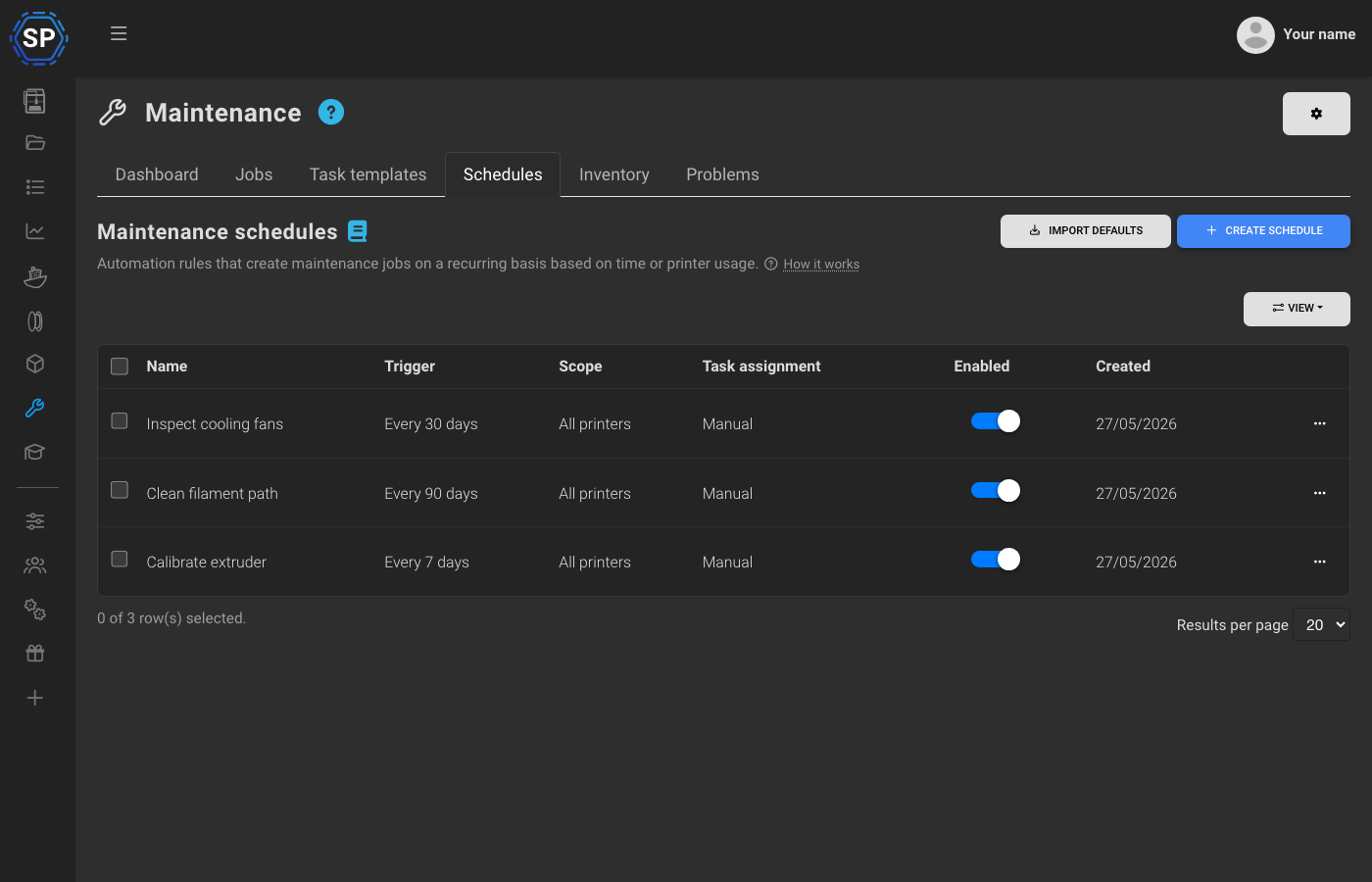
SimplyPrint task templates can be scoped to all printers or selected printers, brands or models. Templates can be included every time or become due by elapsed days, print hours, filament consumed, reported problems or failures. That allows one maintenance workspace to hold shared administrative structure without pretending the physical procedure is identical across machines.
Choose the trigger that matches the failure mode
The best trigger is the counter most closely related to why the work becomes due.
Calendar days
Use elapsed days when time matters even if the printer is idle, or when an approved inspection must happen on a fixed calendar. A date-only schedule is simple, but it can over-service a quiet printer and under-service a heavily used one.
Print hours
Use print hours when wear broadly tracks running time. SimplyPrint tracks hours since the last maintenance for each printer and schedule. A schedule can create the work order when the configured threshold is reached, and the maintenance dashboard can show work that is due or approaching its expected date.
Filament consumed
Use filament grams when the task is related to material passing through the extrusion path. This can distinguish two printers with similar calendar age but very different throughput. The threshold still comes from your approved procedure or observed fleet history, not from SimplyPrint.
Print count
Use completed-print count when cycles matter more than duration. A printer producing many short jobs can have fewer print hours but many more load, heat, cool and handling cycles.
Failure count
Use a failure threshold as an investigation trigger, not proof that a particular component is broken. SimplyPrint can count failures since the previous maintenance and optionally filter by cancellation-reason type. The resulting job should diagnose the cause rather than blindly replace a part.
Task threshold
Use a task threshold to bundle several due procedures into one efficient maintenance job. This is useful when taking a printer out of rotation has an operational cost and several compatible tasks can be completed during the same service window.
Device notification or reported problem
Use event-driven work when a person or supported device identifies a specific problem. In SimplyPrint, operators can report problems and link them to maintenance jobs. Supported Bambu HMS notifications can map device messages to maintenance tasks. That integration is specific; it is not a claim that every printer alert from every brand automatically diagnoses maintenance.
Printer maintenance
Keep your print farm running smoothly
Assign work and define the return-to-service gate
Every maintenance job needs one accountable owner even when several people contribute. The owner should know:
- why the job was created;
- which procedure applies;
- which printer and component are in scope;
- which parts are approved;
- which observations must be recorded;
- which test returns the printer to service;
- who decides when the test fails.
In SimplyPrint, a maintenance job is a work order for a specific printer with tasks, status, priority, assignment and history. A task can record completion and consumed spare parts. The printer profile keeps its maintenance history alongside operational statistics, so the next investigation does not begin with a paper log in another building.
Avoid an ambiguous final checkbox such as "looks good." Use a result that can be repeated: the manufacturer-prescribed calibration completed, a controlled test print passed the local acceptance rule, the relevant warning cleared, or the qualified technician signed off. The exact gate belongs to your process and printer, not to this article.
Use maintenance mode to protect the queue
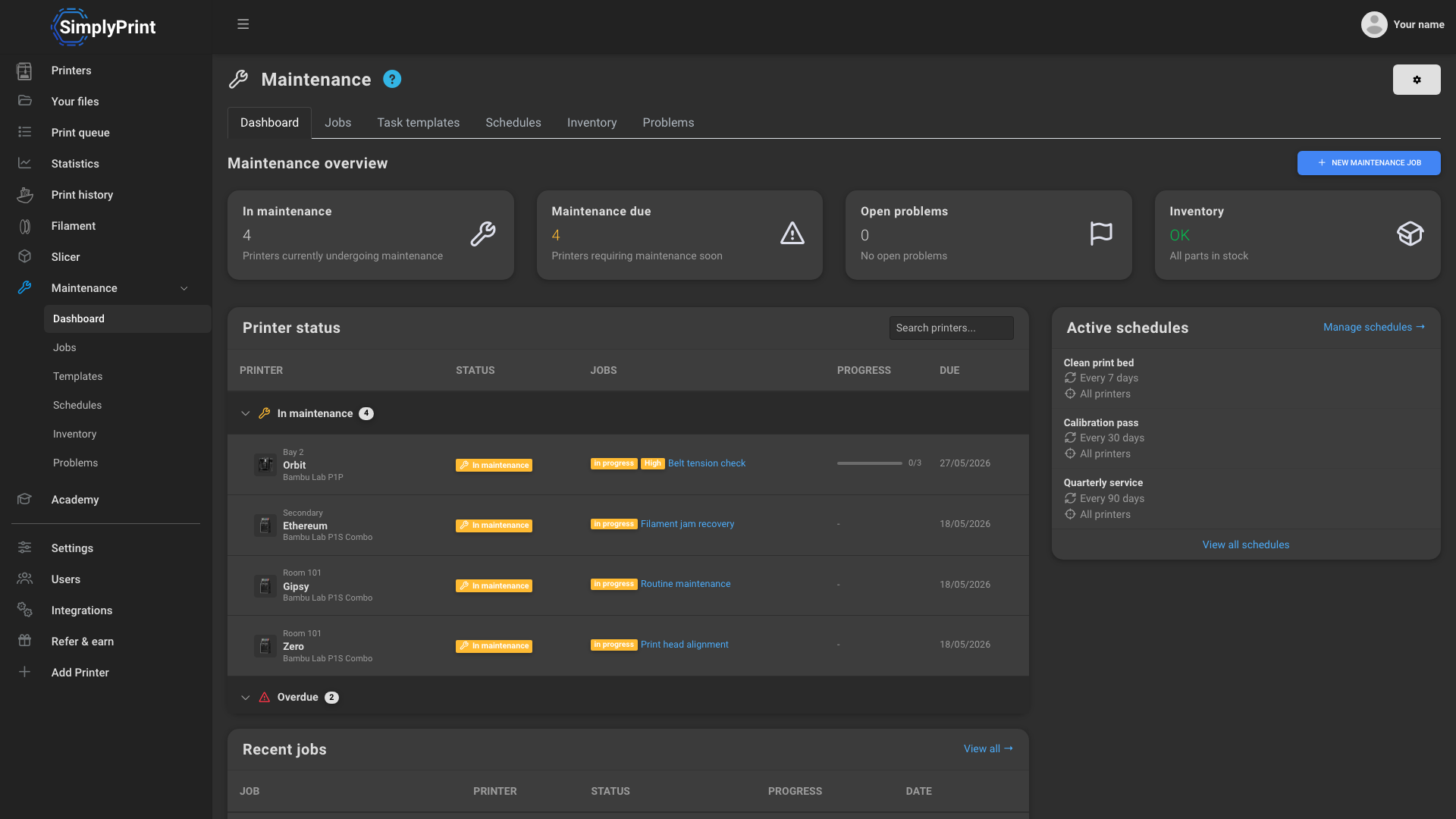
A shared queue should not discover that a printer is being serviced after it assigns a job. Starting any SimplyPrint maintenance job marks that printer as in maintenance:
- AutoPrint does not dispatch to it;
- 1-Click Print does not use it.
Generic queue matching and manual starts are separate paths. Authorized maintenance managers can manually start a print after a warning, so maintenance mode must be paired with an operating rule that prevents manual dispatch while service is underway. Completing or cancelling the active job clears the maintenance state. The operational rule is simple: start the maintenance job before opening the machine, and complete it only after the return-to-service gate passes.
Maintenance mode does not make physical work safe and does not replace lockout, isolation or other procedures required by the equipment and workplace. It protects software dispatch while your approved physical procedure protects the technician and machine.
Build a spare-parts list from actual tasks
Do not start with an internet list that says every farm needs a fixed number of nozzles, belts, fans or sensors. Start with the task register:
- list the parts required by each approved procedure;
- record exact compatibility by model or component revision;
- record the supplier and lead time;
- set a reorder threshold based on expected demand and lead time;
- assign an owner for substitutions and obsolete parts;
- review consumption after completed work.
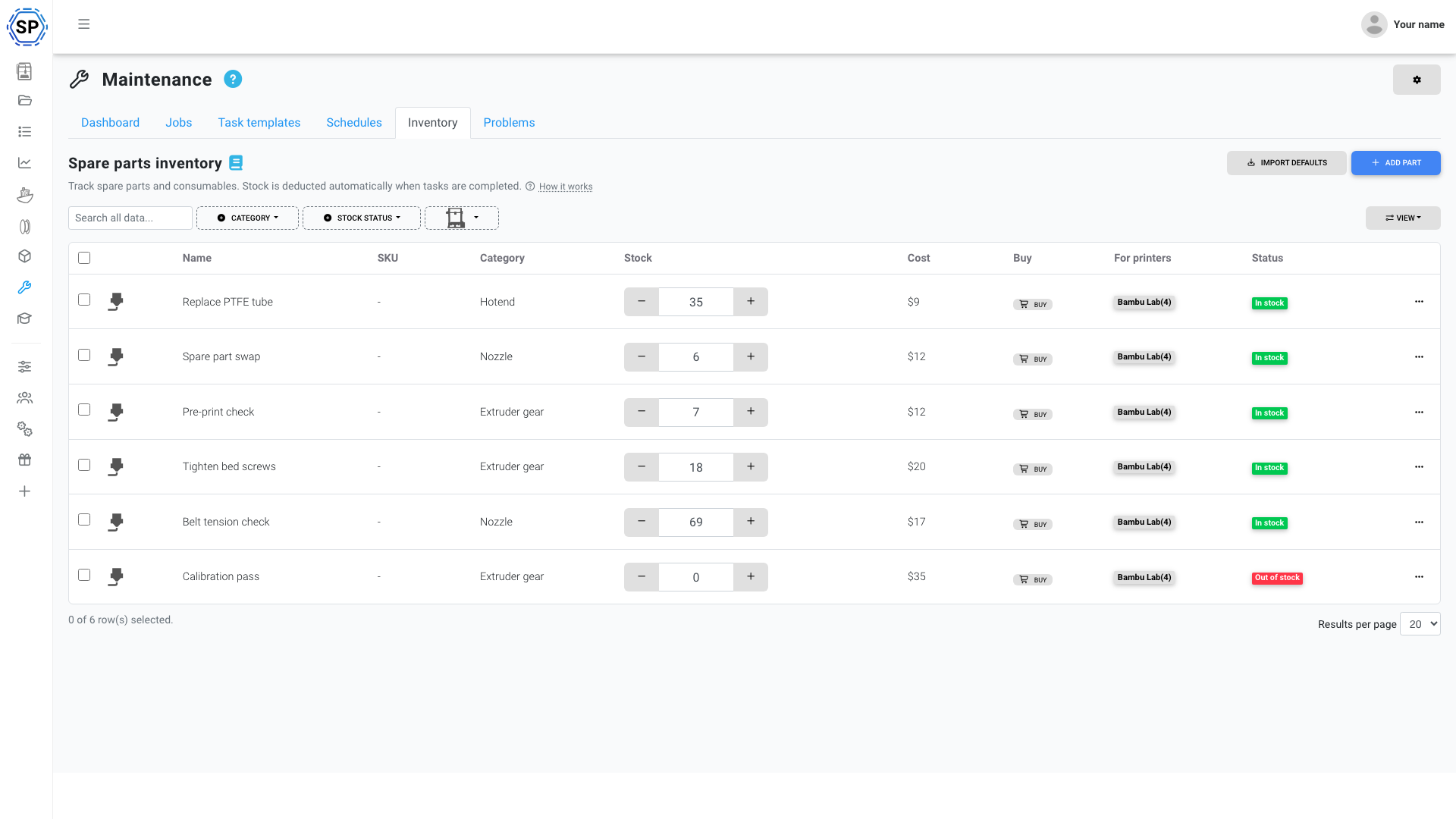
SimplyPrint's maintenance inventory stores stock quantity, a low-stock threshold, cost, supplier information and printer compatibility. When a completed maintenance task consumes an assigned part, inventory can be deducted; low or out-of-stock states can generate notifications and webhooks. Those controls help maintain the record, but the operator remains responsible for setting sensible thresholds and approving compatible replacements.
Review the schedule with fleet evidence
A maintenance schedule is a hypothesis about when work becomes useful. Review it against the data you actually have:
- Which tasks are repeatedly completed early with nothing found?
- Which problems appear before their scheduled task becomes due?
- Does one model or site show more failures after similar usage?
- Are jobs waiting because the right part or trained owner is unavailable?
- Are printers being returned to the queue before the verification step is recorded?
- Are cancellation reasons consistent enough for a failure-count trigger to mean anything?
The statistics feature and maintenance history help locate patterns, but they do not establish causation on their own. Change a threshold only after the responsible operator reviews the printer manual, the work history and the operating environment.
For fleets spread across sites, keep global task definitions separate from local ownership. The guide to managing multiple 3D printers explains how to assign sites, user access, queue policy and escalation without losing central visibility.
Copyable maintenance workflow
Use this sequence for every printer family:
- Inventory the exact model, connection, nozzle and relevant component revisions.
- Link the manufacturer's current maintenance and safety documentation.
- Create one scoped task per approved procedure.
- Choose calendar, print-hour, filament, print-count, failure, task-bundle or problem triggers.
- Set thresholds from the authoritative source and your reviewed fleet history.
- Assign the responsible role, required evidence, parts and escalation path.
- Start the maintenance job before work begins, and restrict manual dispatch until the return-to-service gate passes.
- Define and record the return-to-service test.
- Review failures, repeat problems, parts consumption and overdue work on a regular operations cadence.
- Update the schedule when the manufacturer changes instructions or your evidence justifies a change.
That produces a real 3D printer maintenance schedule: specific enough to operate, flexible enough for a mixed fleet, and honest about where software ends and the equipment manufacturer's instructions begin. See printer maintenance for the schedules, jobs, problems, inventory and maintenance-mode workflow, or the print-farm operations guide for the wider queue and staffing context.