Stop hand-picking printers for every job
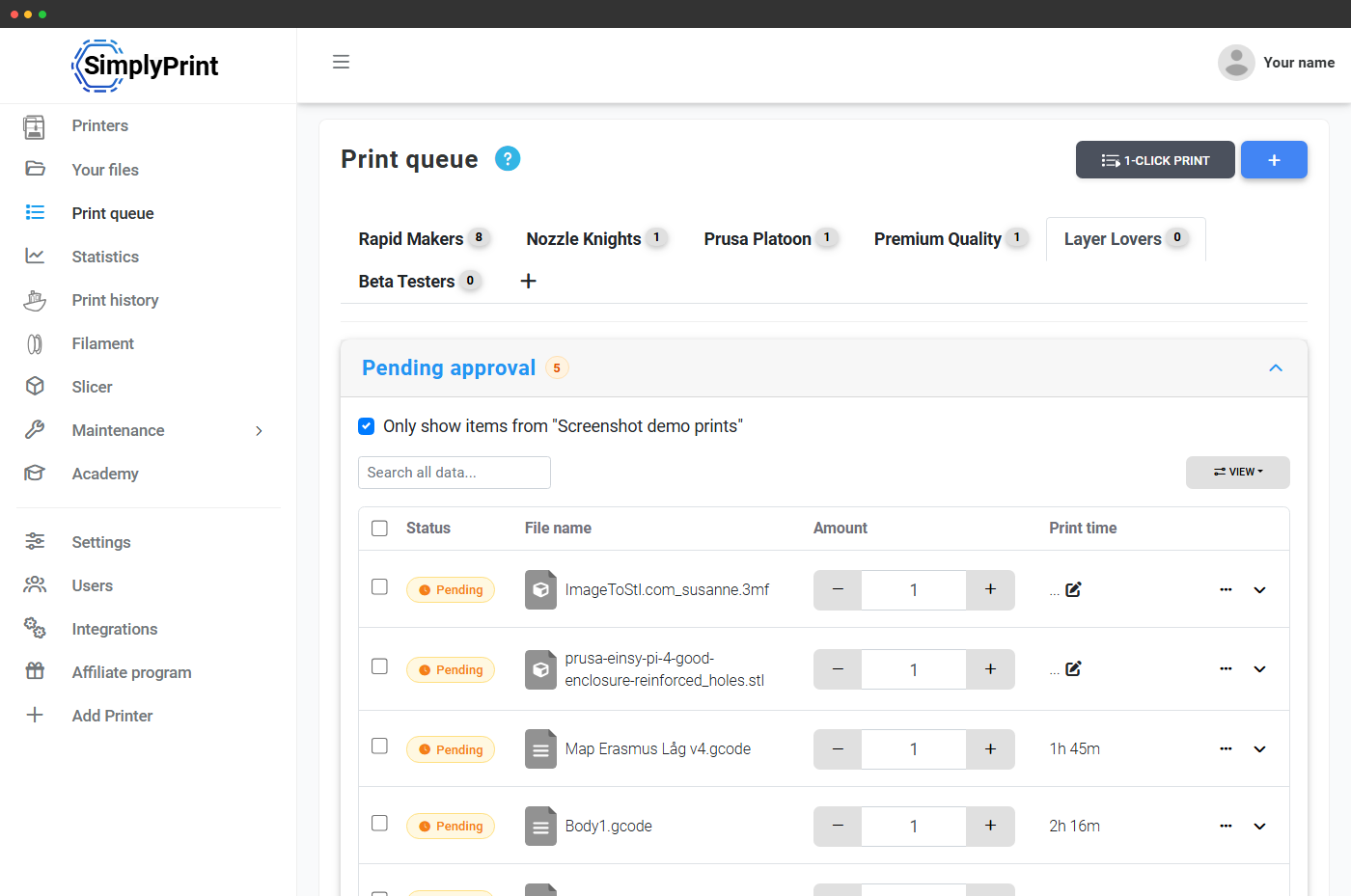
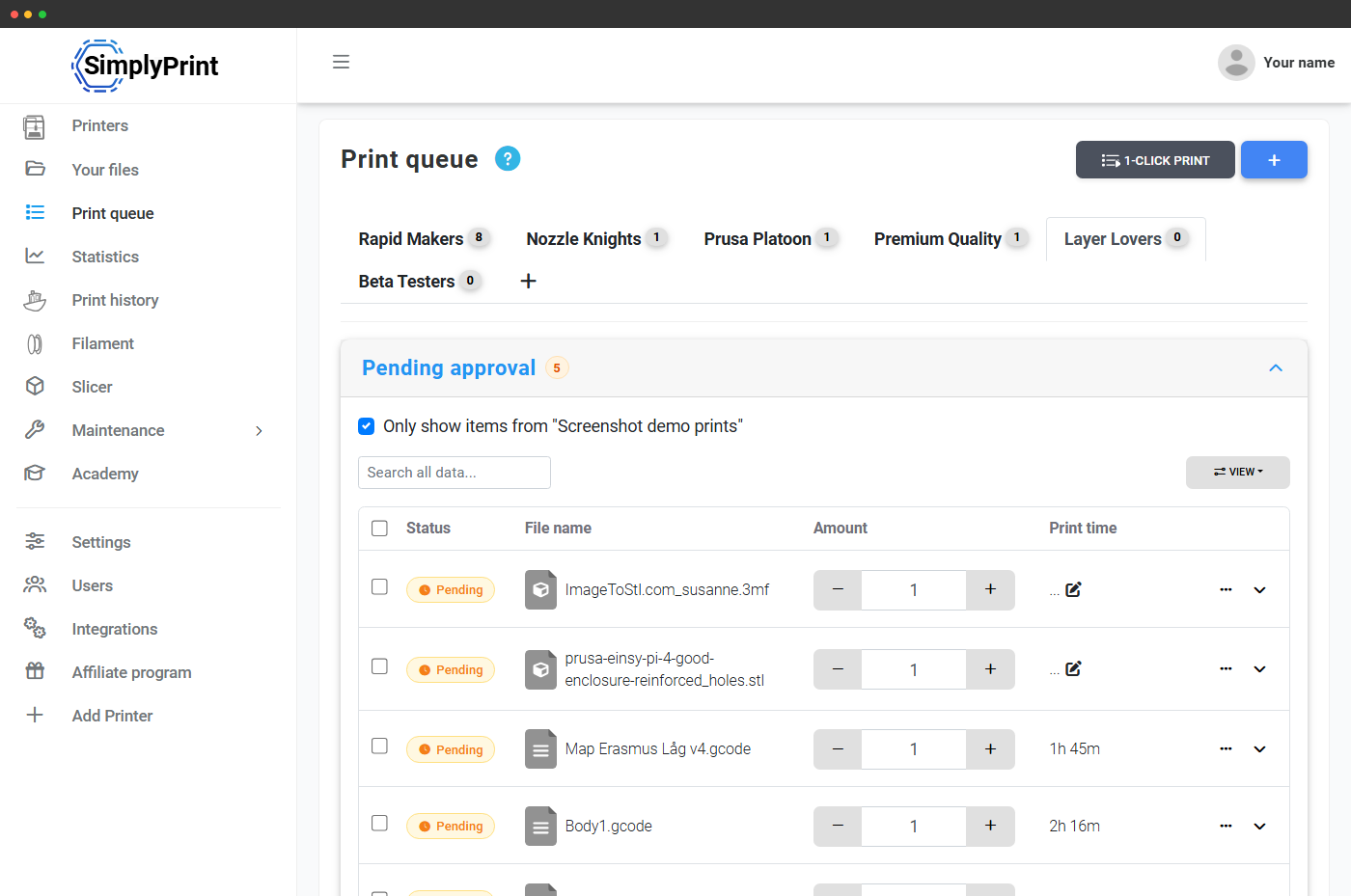
At three printers you remember which has the textured plate. At ten you start writing it down. At thirty you accept that someone, sometime, will send a 260C PETG file to a PLA-only printer. The matching engine removes the memory load entirely - the queue refuses to offer an incompatible job, 1-Click Print only starts the ones that fit, and AutoPrint keeps the fleet fed without anyone hovering over it.
See routing decisions in real time
Watch the conductor walk the queue, evaluate every printer across seven dimensions, and slide each file into the printer that actually fits.
Routing checklist Walked per printer, short-circuits on the first failing axis.
- Printer ready
- Material
- Colour
- Bed plate
- Nozzle
- Build volume
- Filament
Incoming queue
- phone-case.gcode 1
- bracket.3mf 2
- flange-v2.gcode 3
- giant-vase.gcode 4
- tpu-grommet.3mf 5
- tool-holder.gcode 6
Your fleet
How the conductor routes a file
The system doesn't warn you about a mismatch. It doesn't offer the mismatch in the first place.
When a job goes into the queue, SimplyPrint reads the file's bed type, material, nozzle size and colour from the slicer metadata, then compares those requirements against every printer's currently loaded filament, mounted plate, nozzle config and tags. The job only becomes runnable on printers that satisfy every active constraint - that's why 1-Click Print and AutoPrint can fire off a batch with no manual matching. Print bed size, max temperature, multi-material configuration and printer model compatibility are also factored in, so even a file with no tags at all won't be sent to a printer that physically can't run it.
The bottleneck on a print farm isn't usually print speed - it's the seconds (or minutes, or hours) between one print ending and the next one starting. Smart routing's job is to remove that gap. As printers report ready, AutoPrint pulls the next compatible job out of the pool - on a shared, in-memory claim ledger that prevents two printers from grabbing the same job in the same tick. No one has to decide "which P1S takes this PETG run?" - the conductor decides. Combined with multi-material mapping, filament-loaded tracking and printer maintenance mode, the matcher knows the real state of your fleet, not just the configured state.
Routing by compatibility, not by FIFO
Most farm tools route by FIFO. SimplyPrint routes by compatibility - and silently skips mismatches before they hit a printer.
What operators say
"This makes it easier to do 80% of the work you do every day, which is sending print tasks."
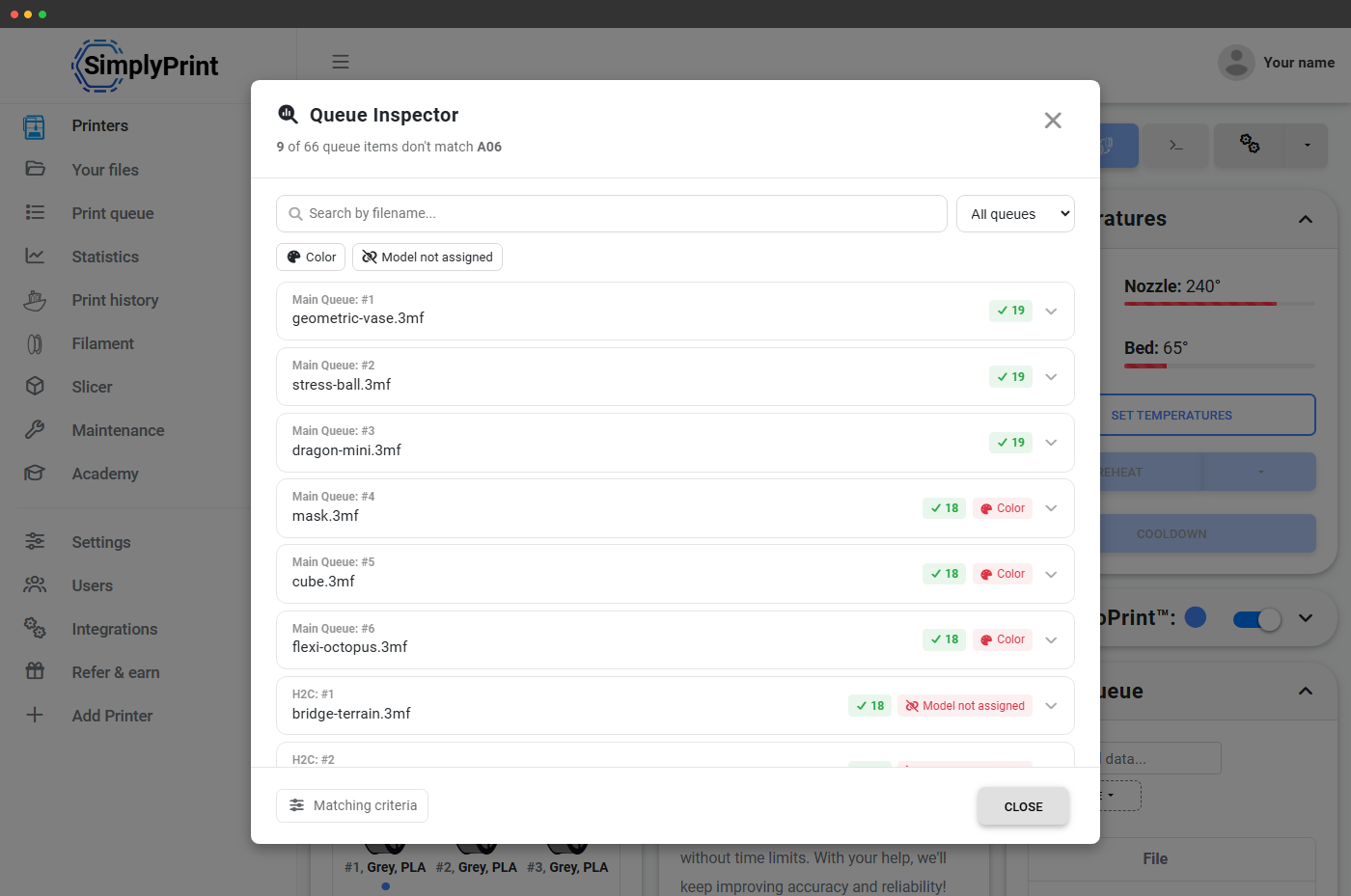
Queue Inspector: see exactly why a file matches or doesn't
Open any printer's control panel and hit the Queue Inspector button. SimplyPrint walks every queued item through the matching engine for that specific printer and tells you, per file, exactly which checks pass and which fail. "19 of 20 checks pass, fails on colour". "Model not assigned". "Bed type mismatch". Filter by issue type, search by filename, or expand any item to see the full criteria breakdown with one-click quick-fixes.
Most users never need to open it - matching just works. When something looks off ("why isn't this file showing up on that printer?"), the inspector is the answer in one click.
Compatibility checks across seven dimensions
Every file and every printer carries up to seven routing dimensions: bed type, material, nozzle, colour, build volume, filament weight remaining and temperature range. Plus printer model clusters that group cross-compatible models. Plus freeform custom tags on Print Farm and above. Toggle any dimension on or off per account.
Smooth PEI, textured PEI, glass, garolite or custom plates.
PLA, PETG, ABS, TPU, nylon and engineering composites.
Auto-tag size, type and volume (high-flow vs standard).
Map hex to named tags and cluster similar shades together.
P1P + P1S together, MK4 + MK4S together - cross-compatible model clusters.
SimplyPrint checks the file's footprint and height against each printer's available build volume - no routing a 350mm vase to a 256mm bed.
The routing engine knows how many grams the slicer estimated and how many grams remain on each loaded spool - a print that needs 480g doesn't get routed to a spool with 200g left.
The file's required nozzle and bed temperatures get matched against each printer's max-supported ranges - no 260C PETG to a PLA-only printer.
Files tag themselves on upload
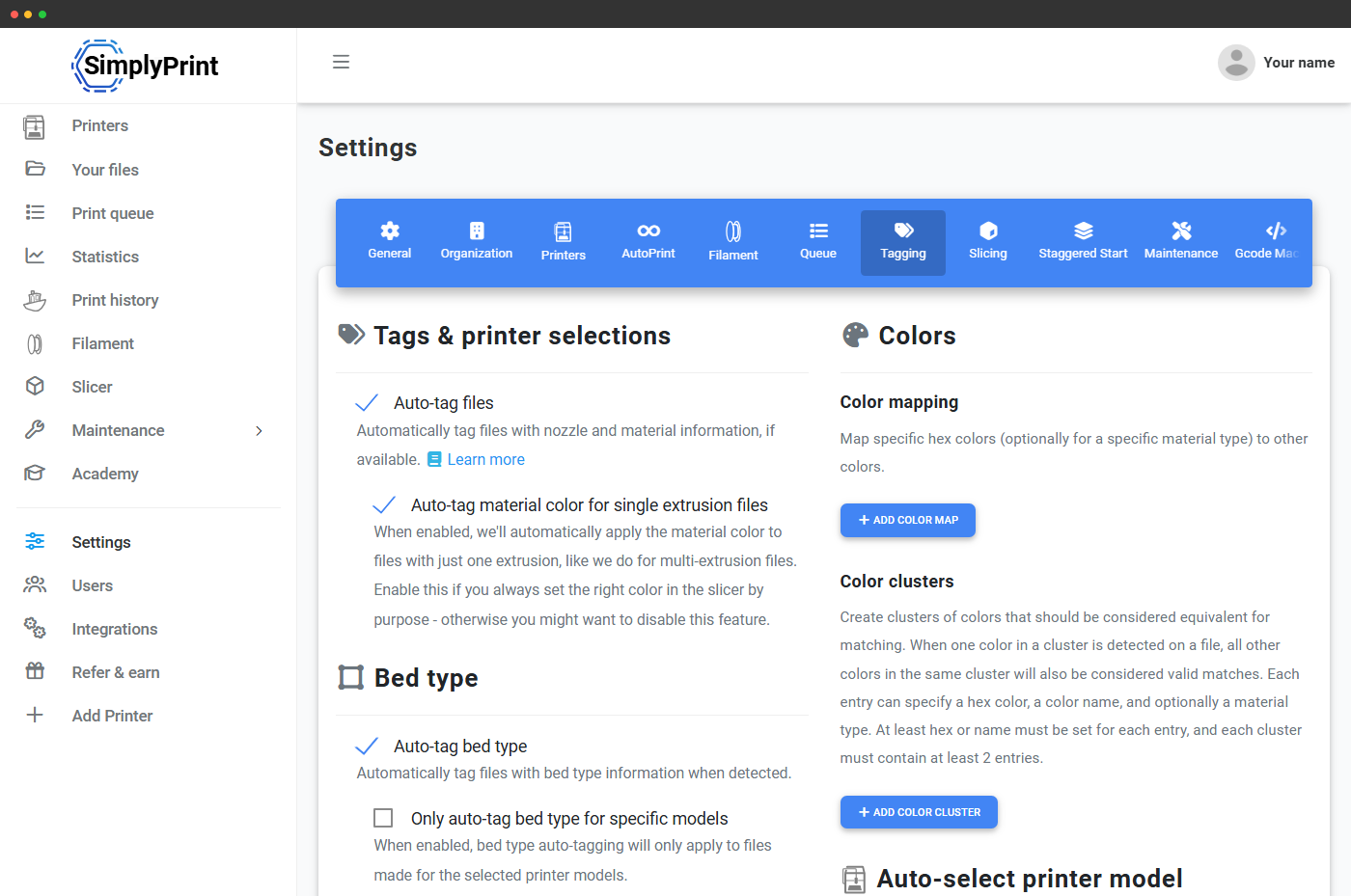
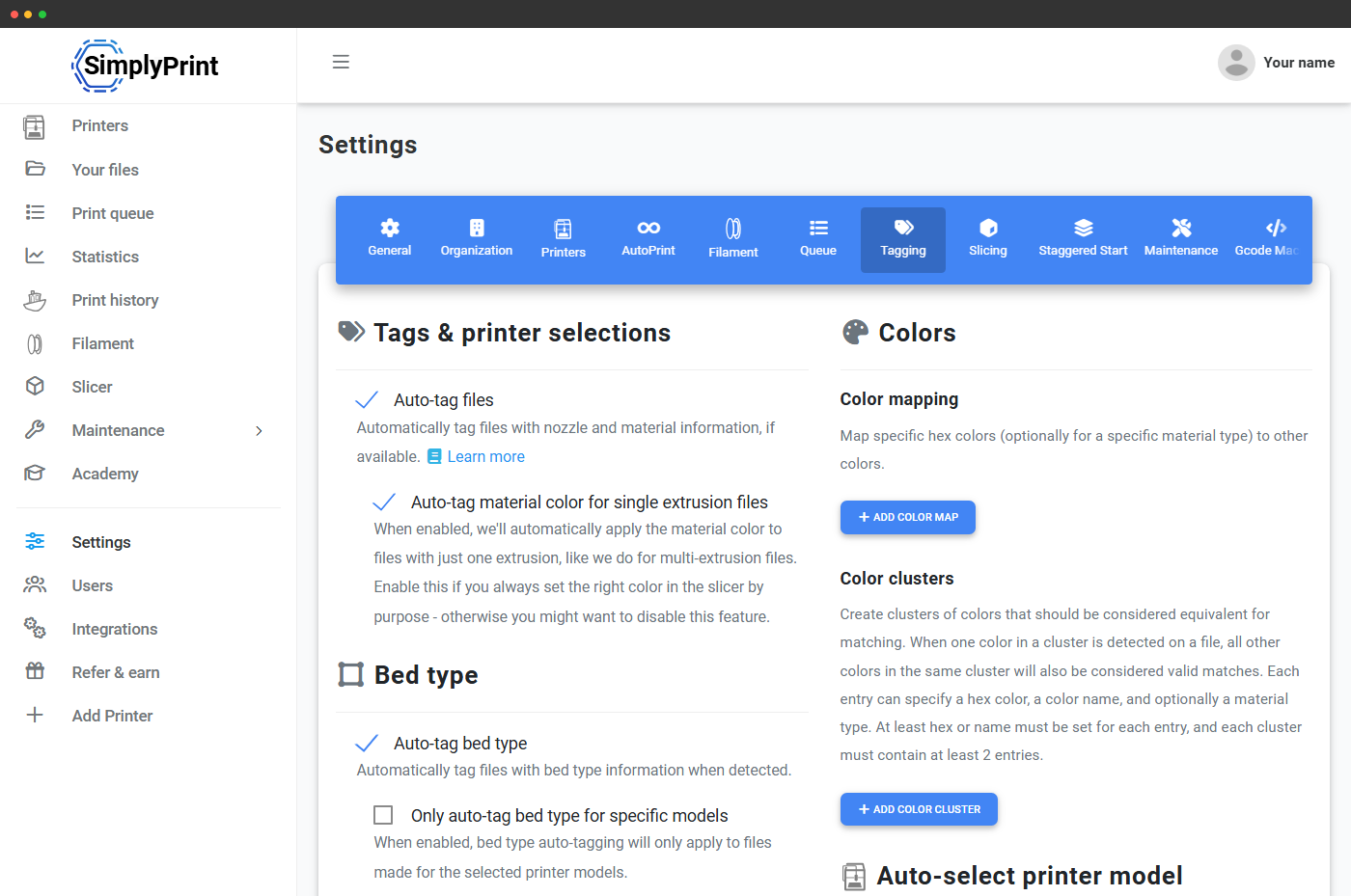
Matching only works if files actually carry tags - so SimplyPrint reads slicer metadata on upload and tags every file automatically. PrusaSlicer, OrcaSlicer, BambuStudio, Cura, SuperSlicer and the SimplyPrint Cloud Slicer all write the metadata the parser reads. Bed type, material, nozzle size, colour - all parsed from GCode comments and 3MF metadata before the file lands in the queue.
You don't tag anything by hand unless you want to.
Filename tag rules for files without metadata
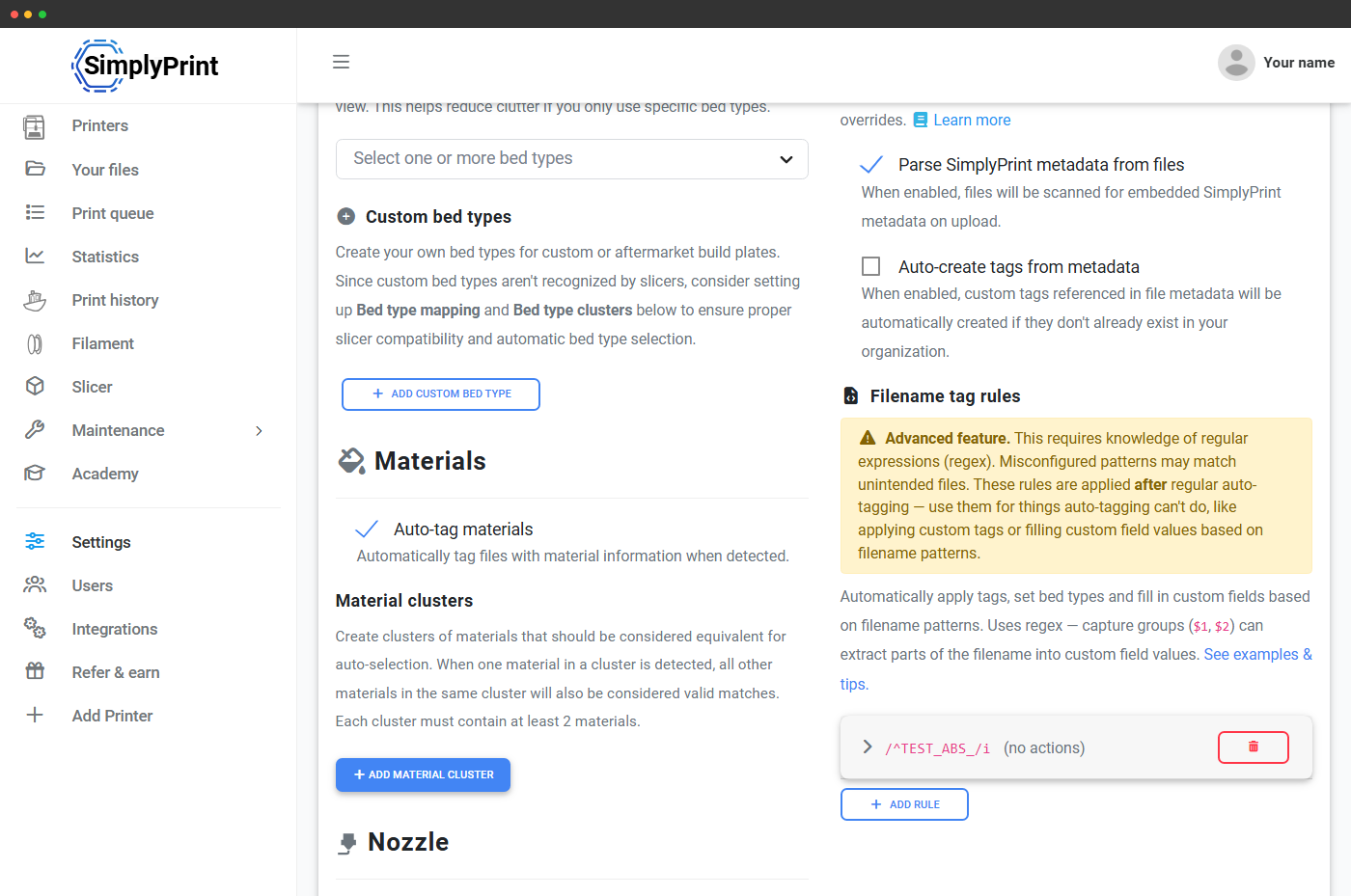
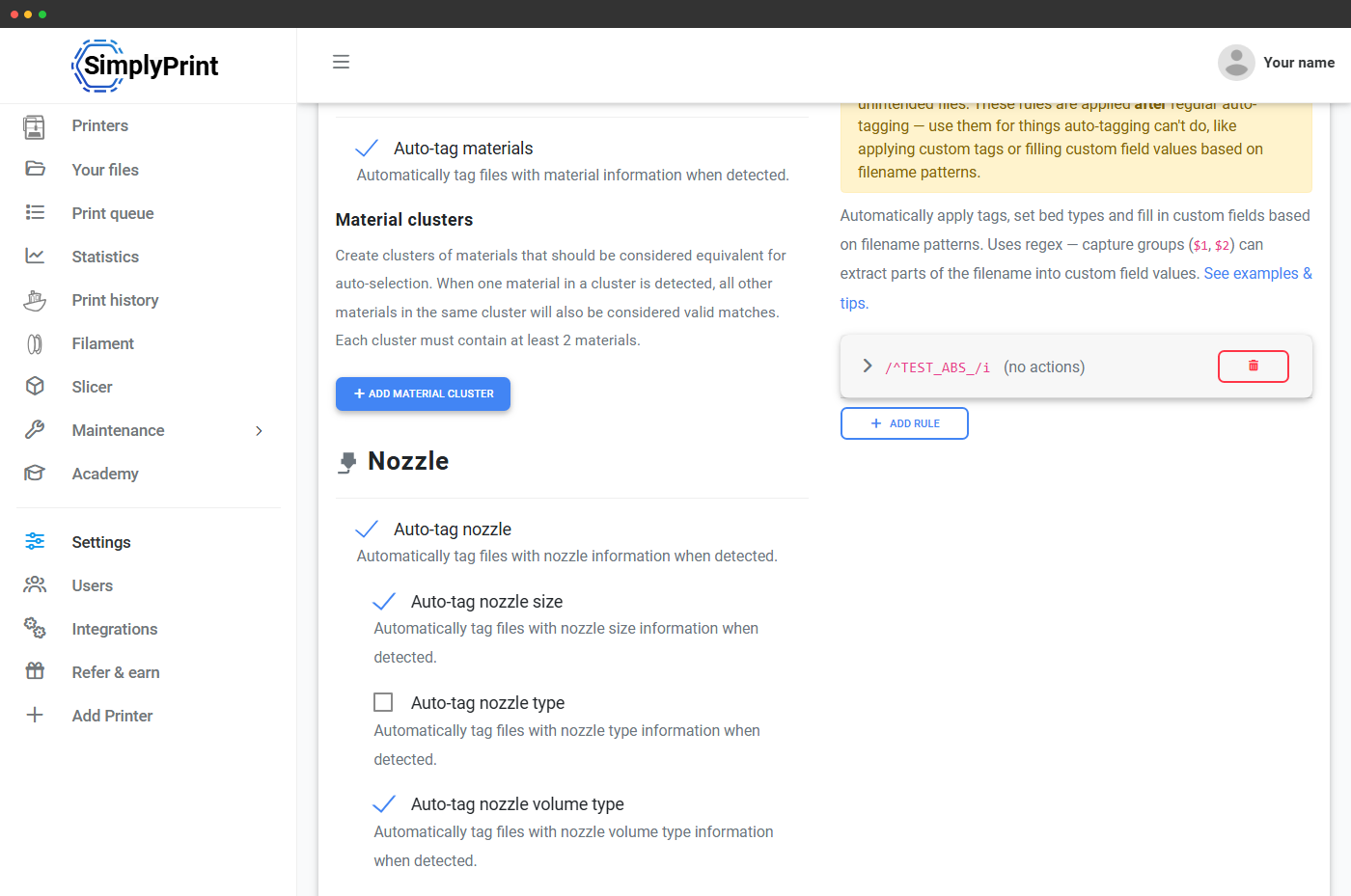
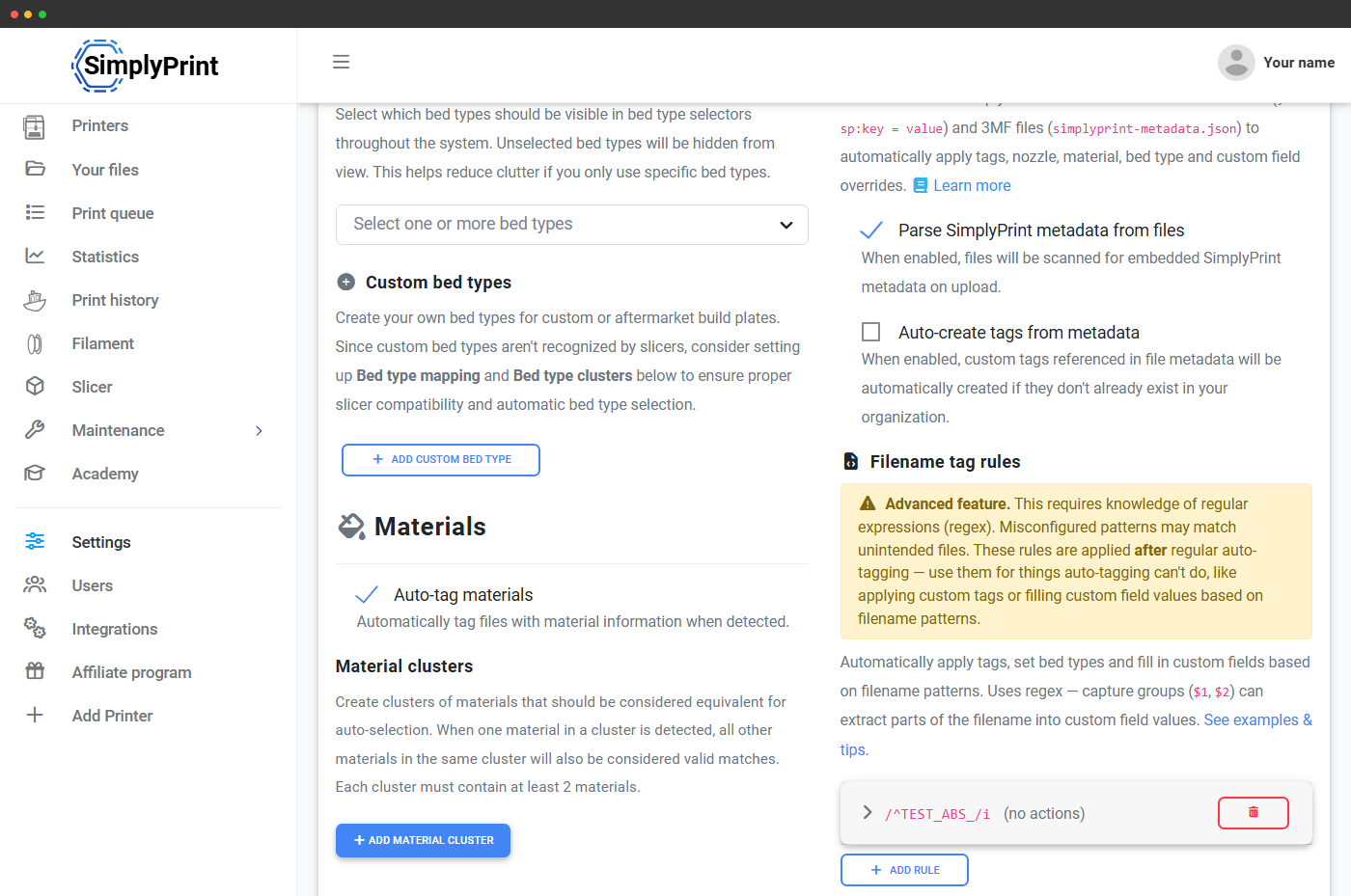
Not every file comes from a slicer that writes clean metadata. For uploads from older slicers, downloaded prints or files renamed by hand, filename tag rules let you define regex or text-match rules against the filename - and any matching file gets the configured tags applied automatically on upload.
Example: a rule like ^(ABS|abs)_ tags any filename starting with "ABS_" or "abs_" with the ABS material tag. Combine multiple rules to catch your team's naming conventions and stop tagging files by hand entirely.
Available on Basic and above.
Material and bed clusters - because PLA isn't always just PLA
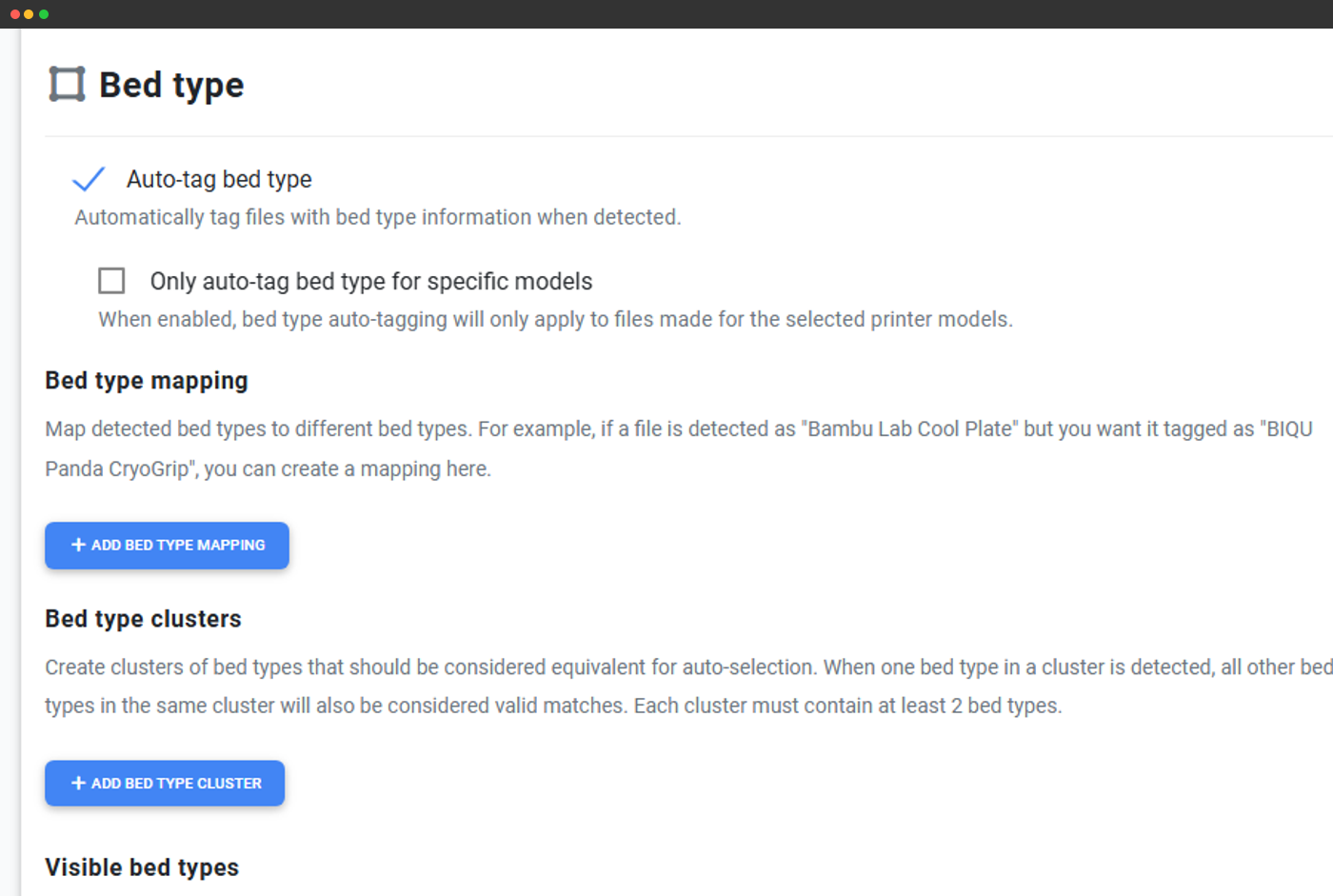
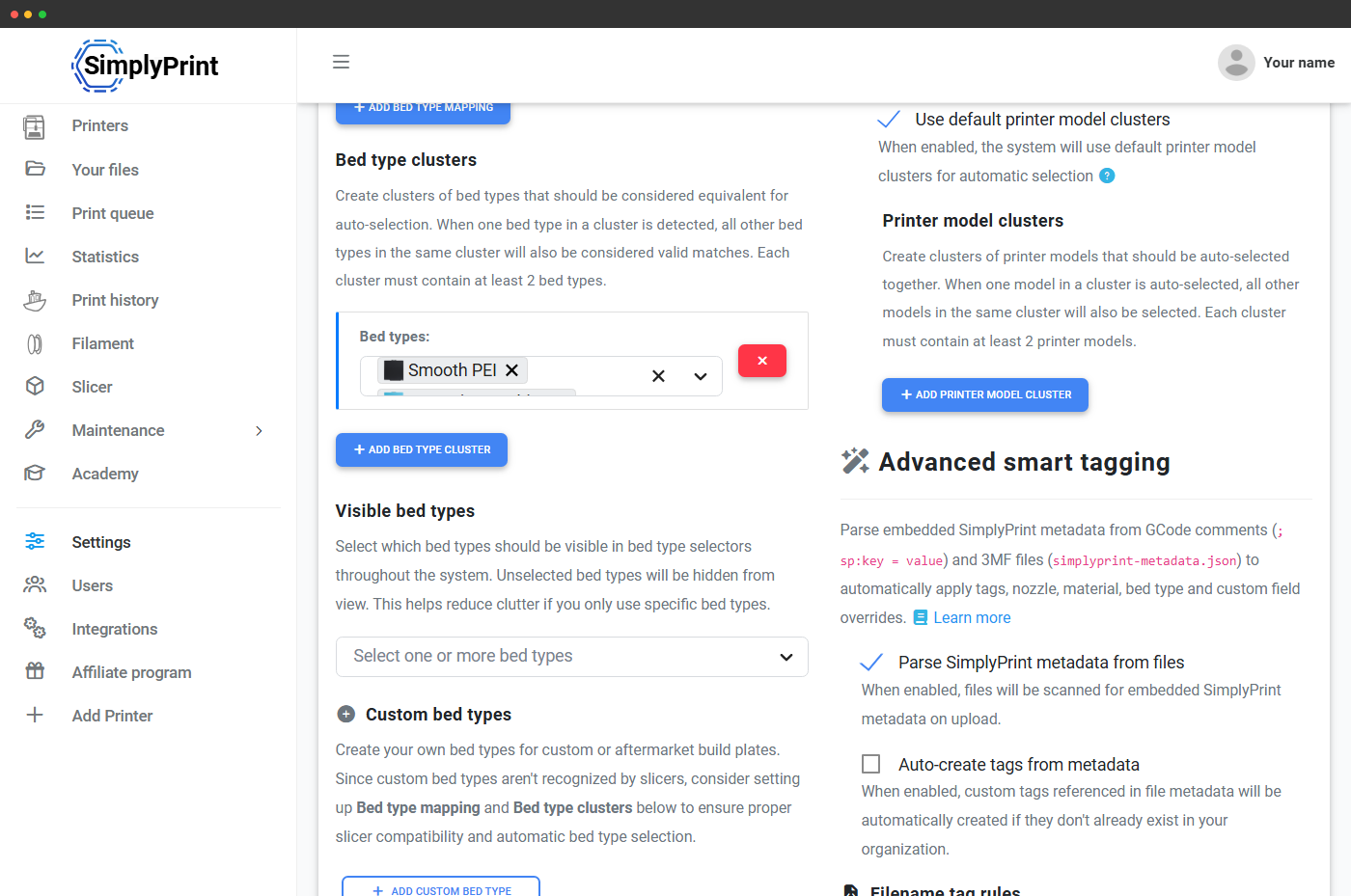
Slicers tag files with the exact material name from the loaded filament profile - so the same physical roll might show up as "PLA", "PLA+", "Hyper-PLA" or a brand-specific name across different team members' profiles. Material clusters let you say "all of these are PLA for matching purposes" so a printer configured for one variant accepts files sliced for any of them. The same idea applies to bed types: bed type clusters group equivalent plates (smooth PEI variants, textured variants, etc.) so the matcher treats them as interchangeable.
Print farms with custom non-standard plates can add their own bed types on Print Farm and above.
Set it up once, never touch it again
Advanced tagging is one trip into settings, not a daily chore
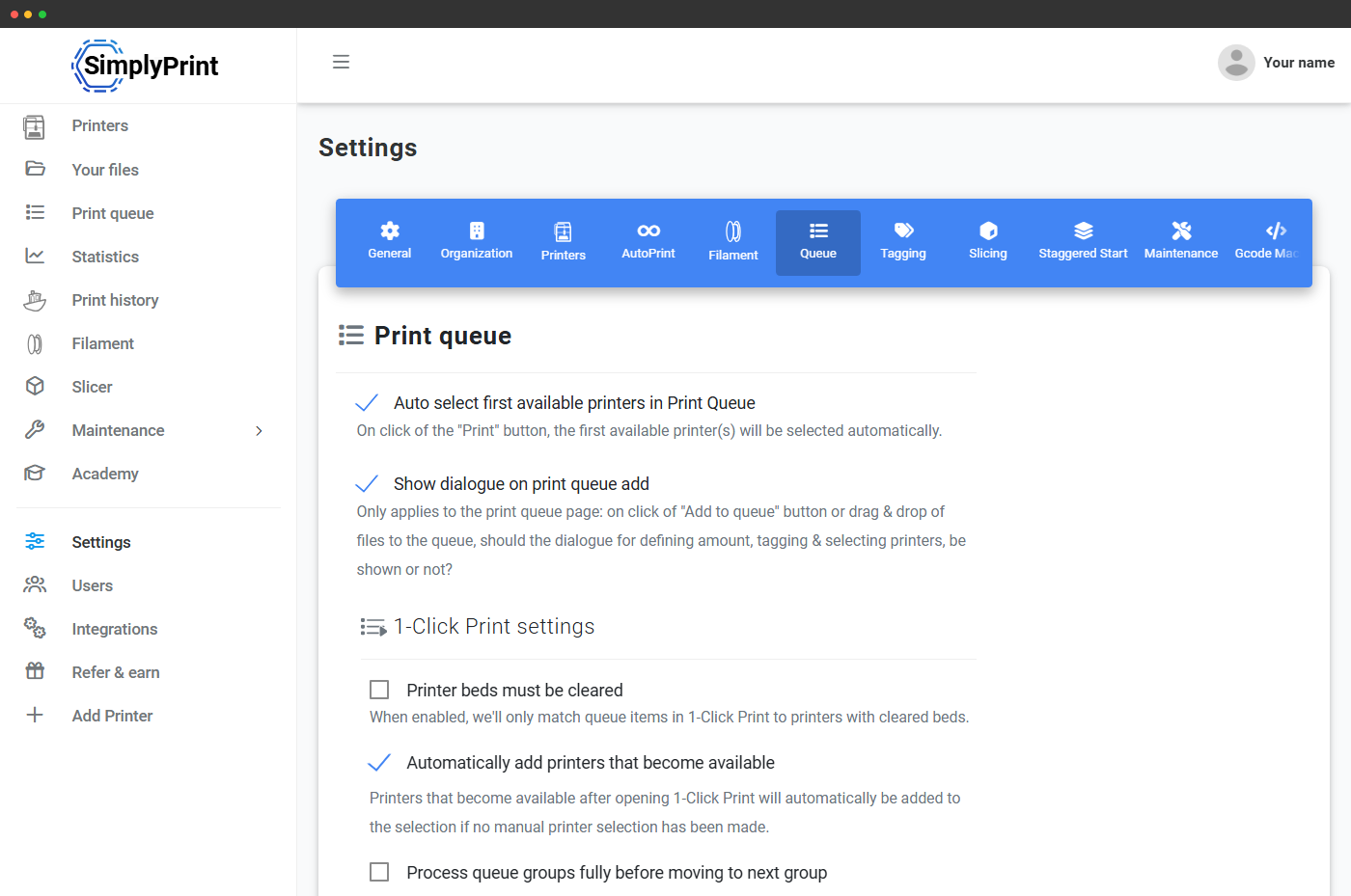
Open Settings → Queue once to pick which dimensions you want enforced strictly (e.g. material always required) and which ones to leave loose, define clusters and bed types specific to your fleet, toggle auto-tagging behaviour and author filename tag rules. After that, you don't come back unless something physical changes - a new printer model joins the fleet, you adopt a new plate type, or your team standardises a new naming convention.
Plan access: what's required for smart routing?
The core tagging engine - bed type, material, nozzle, colour, model clusters, slicer-metadata parsing - is on every plan, including Free. Filename tag rules unlock on Basic. Custom tags and custom bed types unlock on Print Farm.
| Feature / Limit | Free | Basic | Pro | Print Farm | Enterprise | School | Cloud Slicer | Filament Manager |
|---|---|---|---|---|---|---|---|---|
|
Smart routing & tagging engine
Auto-tagging from slicer metadata for bed type, material, nozzle and colour. Cluster definitions, model selection, queue matching - all included on Free.
|
||||||||
|
Filename tag rules
Auto-apply tags from filename patterns at upload time. Catch your team's naming conventions without hand-tagging. Unlocks on Basic.
|
||||||||
|
Custom tags
Freeform tags on top of the built-in dimensions ("customer-X", "enclosure-only", "experimental"). Tag printers and files with anything your fleet needs, the matcher enforces them.
|
||||||||
|
Custom bed types
Define non-standard build plates beyond the SimplyPrint default library, with their own auto-tagging rules and matching behaviour.
|
Want to learn more about our plans?
View full pricing & feature comparisonFrequently asked questions
What does smart routing actually do?
Do I have to tag every file by hand?
What if a file doesn't end up on the printer I expected?
Which slicers does the auto-tagger understand?
; sp:key = value comments in GCode, or simplyprint-metadata.json in 3MF) lets you author tags from any source.What if my printer takes any material - do I have to assign anything?
Can I group compatible bed types and materials?
How does this interact with 1-Click Print and AutoPrint?
Which plans include smart routing?
Want the full setup walkthrough?
Our helpdesk has step-by-step guides for setting up the tagging engine. Start with All about the Tags feature for the core concepts, then read Auto-tagging & auto printer model selection for the matcher configuration, and Advanced smart tagging for embedded metadata and filename rules.