-
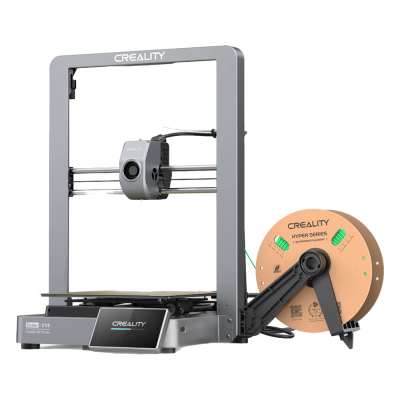
1 Readying Ender-3 V3
-
2 Enable SimplyPrint
Before You Start: Custom Firmware
Your Creality K1 / Ender-3 V3 series requires custom firmware to work with SimplyPrint.
We know that sounds technical - and it is one of the more involved setups - but we've worked hard to make it as straightforward as possible.
Some printer manufacturers don't provide an easy way for platforms like SimplyPrint to communicate with their printers. The community has developed alternative firmware that unlocks these capabilities.
Yes! The firmware is developed by active communities, can typically be removed, and preserves your printer's core functionality. You can usually roll back or factory reset if needed.
A note about warranty
Some manufacturers may consider custom firmware a warranty modification. The risk is low - to date, we haven't had a single known case of a SimplyPrint user damaging their printer or being denied warranty repair because of this setup.
That said, it's ultimately your choice to proceed.
Estimated time: 15–30 minutes
We'll guide you through every step.
You'll Also Use SSH
This setup requires SSH - a way to send text commands to your printer from your computer. We know it sounds technical, and we wish we could avoid it, but unfortunately the printer's design leaves us no other option.
The good news: it's simpler than it sounds. You'll just copy and paste a few commands we provide - no coding required.
Using a Creality K2? There is a separate guide for the K2 series; open the K2 setup guide.
Welcome to the Creality K1, K1C, K1 Max and Ender-3 V3 series setup guide for SimplyPrint!
In this guide, we'll go through the steps to get your printer connected to SimplyPrint.
Installing the Root Access firmware
- Get root access: follow the great guides made by Guilouz
- Creality K1 series: follow this guide
- Ender-3 V3 series: follow this guide
- Important warning: This is an advanced procedure; if you're unsure, please stop and read up on it first.
SSH Access
- SSH is a way to access the computer/device inside your printer, via command-line.
- Not sure how to use SSH?
- Windows guide: https://guilouz.github.io/Creality-Helper-Script-Wiki/firmwares/ssh-connection/
- Mac & Linux: open the Terminal and proceed to the next step.
- Establish SSH connection to the printer with the username
root: - Via command-line, use:
ssh root@printerip* - Replace
printeripwith the actual IP address of your printer. - The password is most likely
creality2023orcreality, but will be displayed on the screen during the Root Access step. - Don't be confused when the password doesn't show up as you type; this is a security feature of SSH.
Install Moonraker and Mainsail or Fluidd via the "Helper script"
- Comprehensive up-to-date guide with images: https://guilouz.github.io/Creality-Helper-Script-Wiki/helper-script/helper-script-installation/
- If you have any issues, fall back to that guide; it's always up-to-date and more detailed.
- Install the Helper Script via SSH by pasting the following command:
git clone --depth 1 https://github.com/Guilouz/Creality-Helper-Script.git /usr/data/helper-script
- Run the script:
sh /usr/data/helper-script/helper.sh
- Update, if it asks you to.
- In the menu, choose Install.
- First install Moonraker and nginx (option
1). - When the menu shows again, select Fluidd (option
2) or Mainsail (option3). - Fluidd and Mainsail are two different UIs for Klipper, both great choices.
- You probably won't be using either much, as you'll be interacting with your printer via SimplyPrint.
- In the install menu, choose SimplyPrint: https://guilouz.github.io/Creality-Helper-Script-Wiki/helper-script/simplyprint/
Camera setup
To make the camera show up inside SimplyPrint, you need to enable the Moonraker camera stream.
- Detailed guide: https://help.simplyprint.io/en/article/creality-k1-k1c-k1-max-camera-not-working-how-to-fix-1fvuuz4/
- Using the Helper Script:
- Go to [Tools]
- Select Enable camera settings in Moonraker
Open Mainsail or Fluidd
Now that you have Moonraker and either Mainsail or Fluidd installed, we're almost there! Open the UI in your browser:
- Fluidd:
http://printerip:4408 - Mainsail:
http://printerip:4409 - Replace
printeripwith the actual IP address of your Creality printer.
Now, proceed to the next and final step, where we'll link up your printer to SimplyPrint!




Thousands complete this setup every week. Follow each step carefully - most issues come from skipping ahead.
That's it! You're all set
You're now ready to connect your printer and start using SimplyPrint.
Create your free account