
-
1 Readying Sonic Pad
-
2 Fluidd setup
Before You Start: Root Access
Your Creality Sonic Pad requires enabling "root access" to connect to SimplyPrint.
Don't let the technical name worry you - this is usually as simple as navigating to a setting on your printer's screen and checking a box. You'll also use "SSH" to run a few commands.
Think of it like unlocking "administrator mode" on your printer. It gives you (and SimplyPrint) the ability to add features and make changes that the standard interface doesn't allow.
Your printer manufacturer has locked down certain features. By enabling root access, you're giving yourself permission to use your printer to its full potential.
Not really! In most cases, the manufacturer has provided this option themselves - it's just tucked away in the settings. You're using a feature they built in.
We simply enable our component in the printer's existing software - we don't install packages or make invasive changes. You can usually factory reset to undo everything.
A note about warranty
Some manufacturers mention that enabling root access may affect your warranty. The risk is low - we haven't had a single known case of a SimplyPrint user being denied warranty service because of this.
But it's your call.
We'll show you exactly where to find this setting and what commands to run.
Set up SimplyPrint on the Creality Sonic Pad
In this guide we will go through:
- Find your Sonic Pad's IP address
- Enable root access and get the password
- Download the SSL package via SSH
- Enable SimplyPrint in Fluidd
1. Find your Sonic Pad's IP address
- On the touchscreen, navigate to "Configure" → "Network settings".
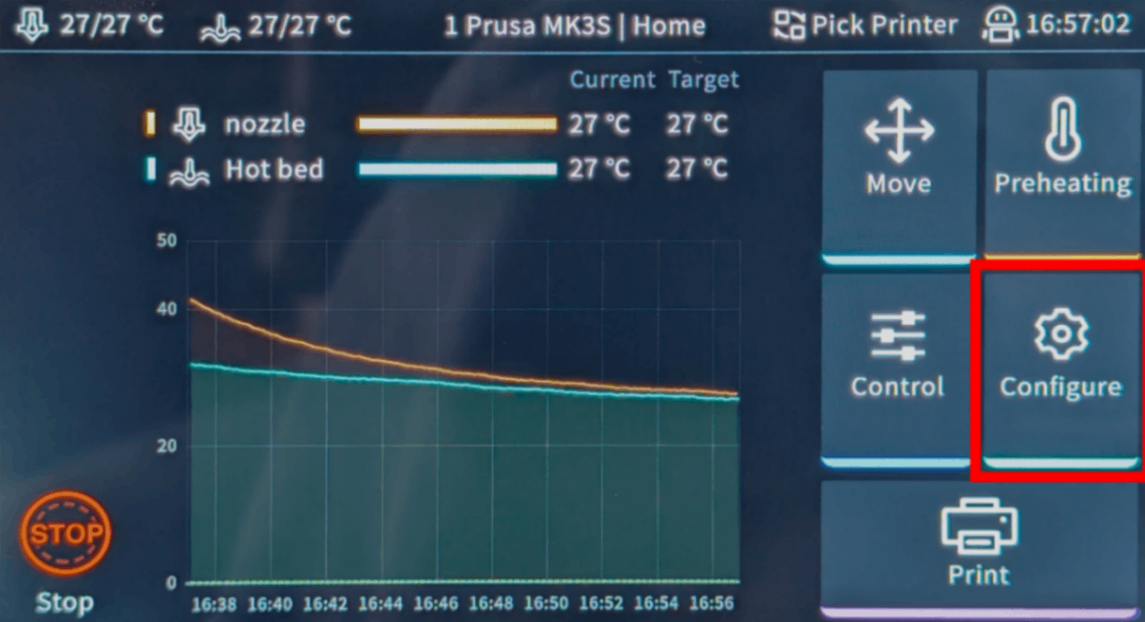
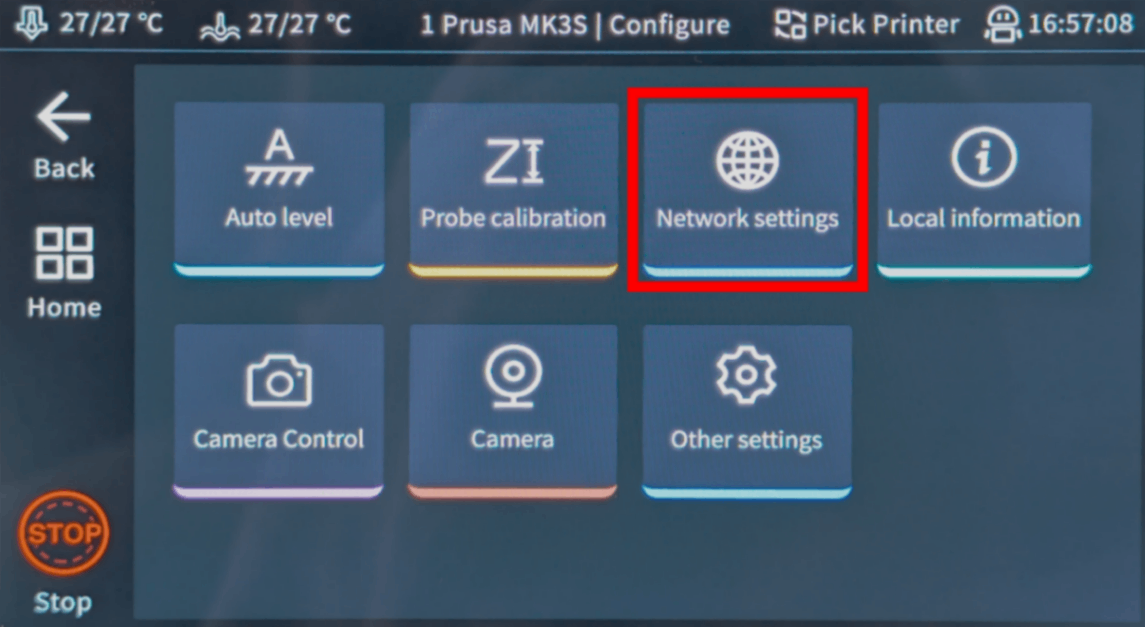
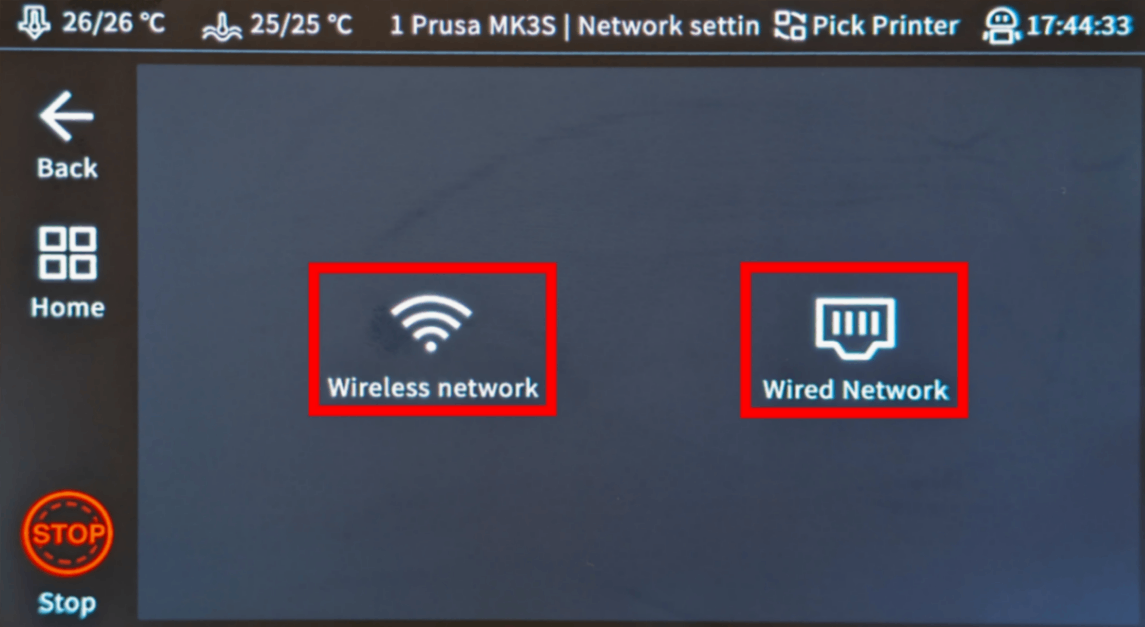
- Select "Wireless" or "Wired", depending on your connection method.
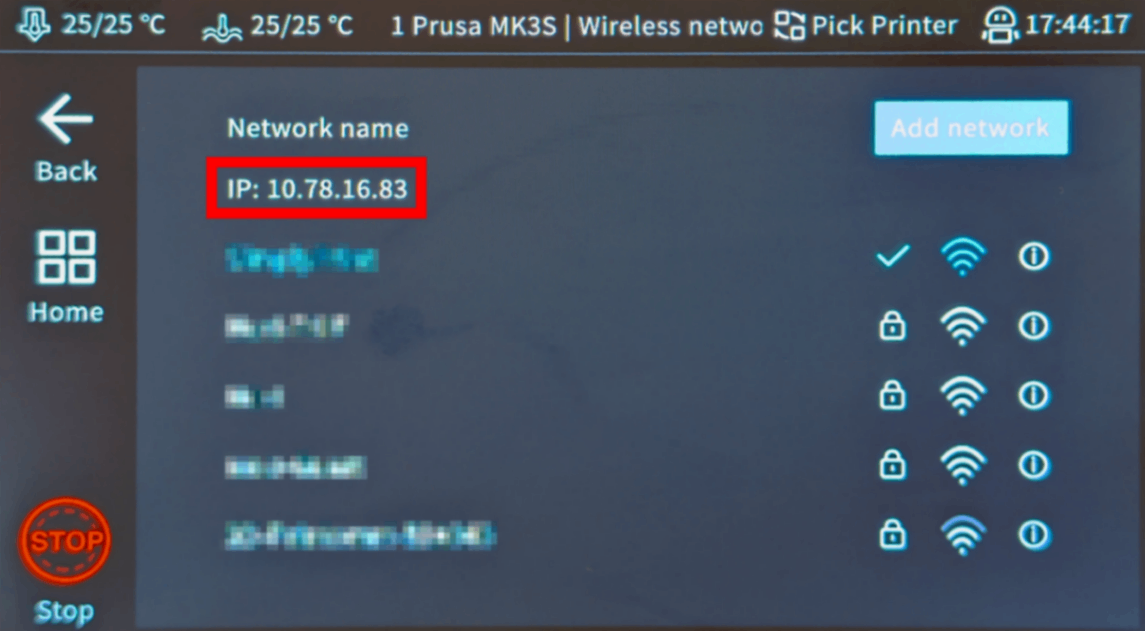
- Next to "IP" / "IP address", note down the number (e.g.
192.168.1.42).
Tip
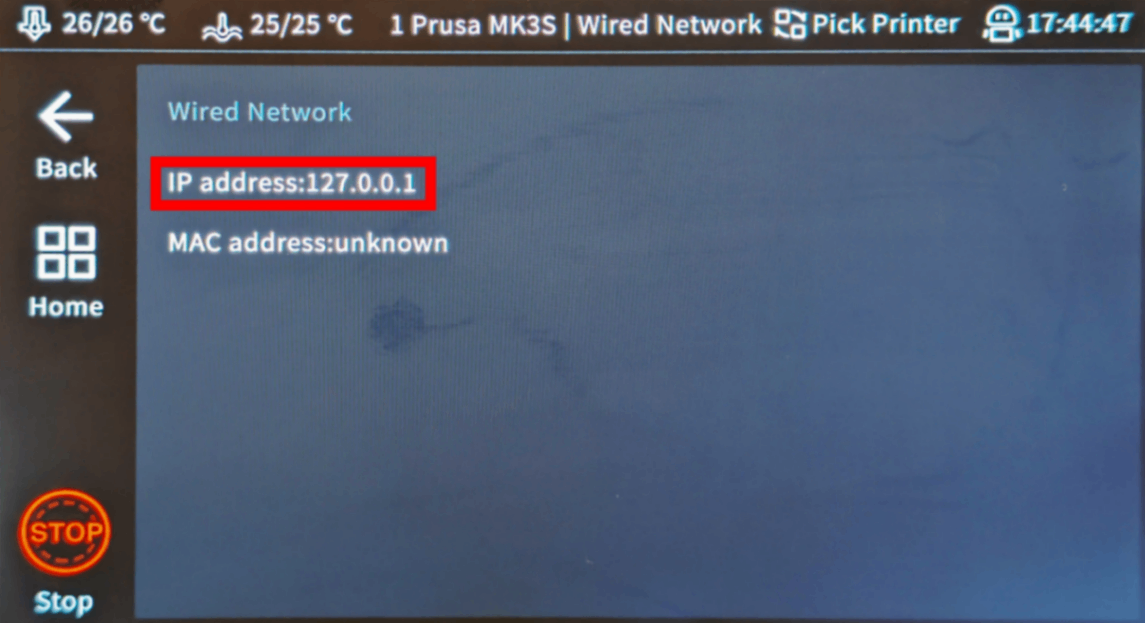
If the IP address shows 127.0.0.1, that's an internal loopback address; switch to the other connection type (Wireless/Wired) and check there instead.
2. Enable root access
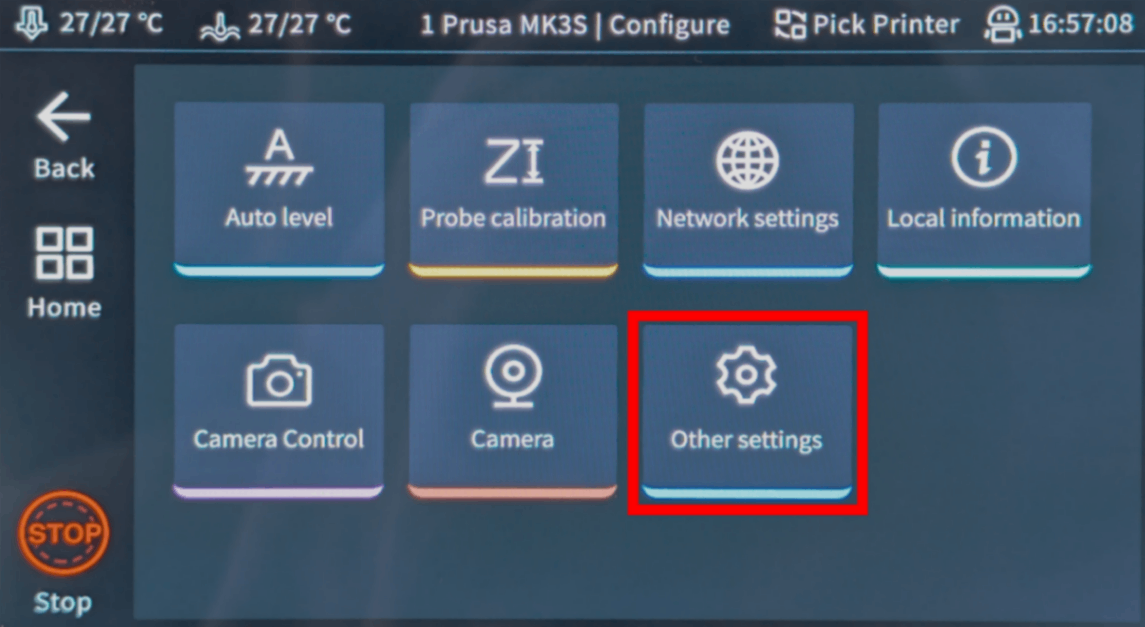
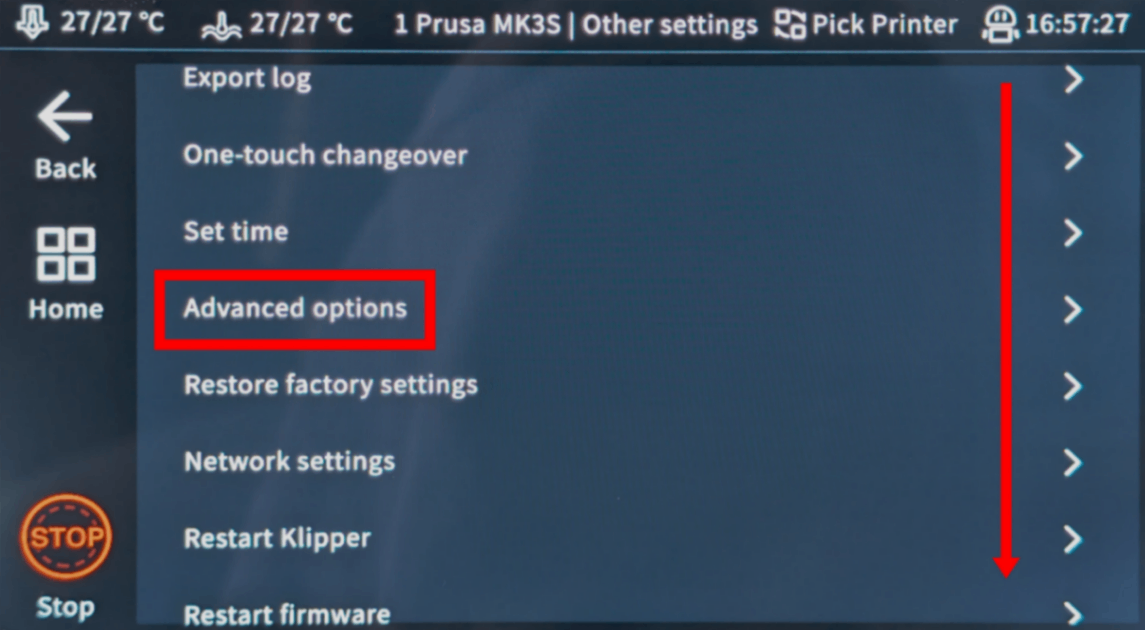
- On the touchscreen, go to "Configuration" → "Other settings" → "Advanced options" → "Root Account".
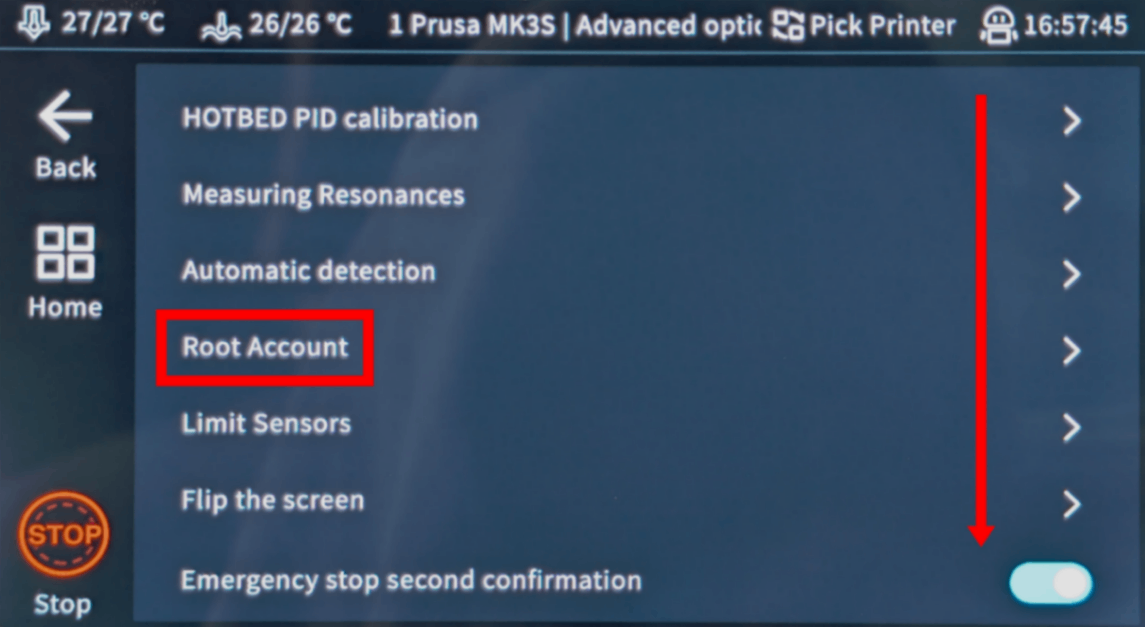
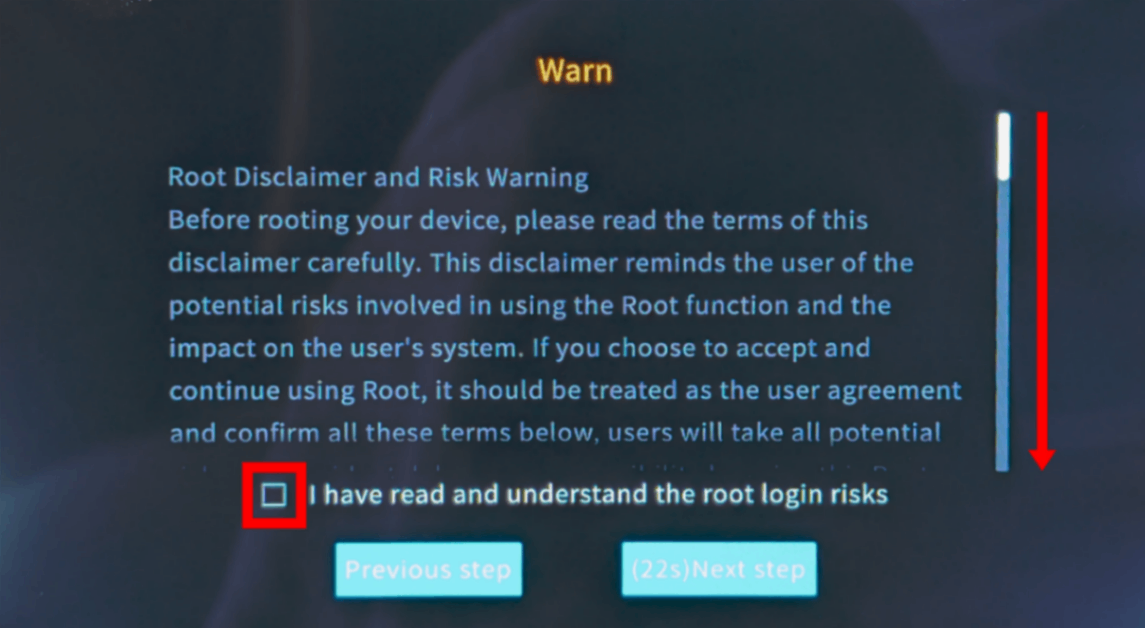
- Read the disclaimer and scroll all the way down, check "I have read and understand the root login
risks" and wait 30 seconds.
Make sure you do understand the risks of enabling root access on your Sonic Pad.
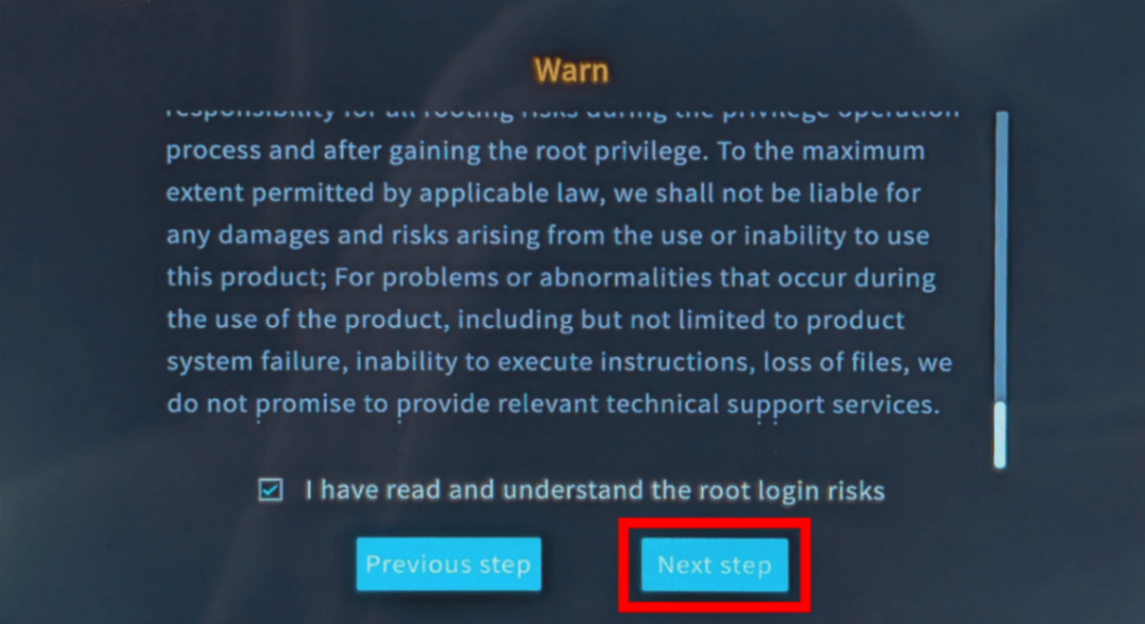
- Tap "Next step".
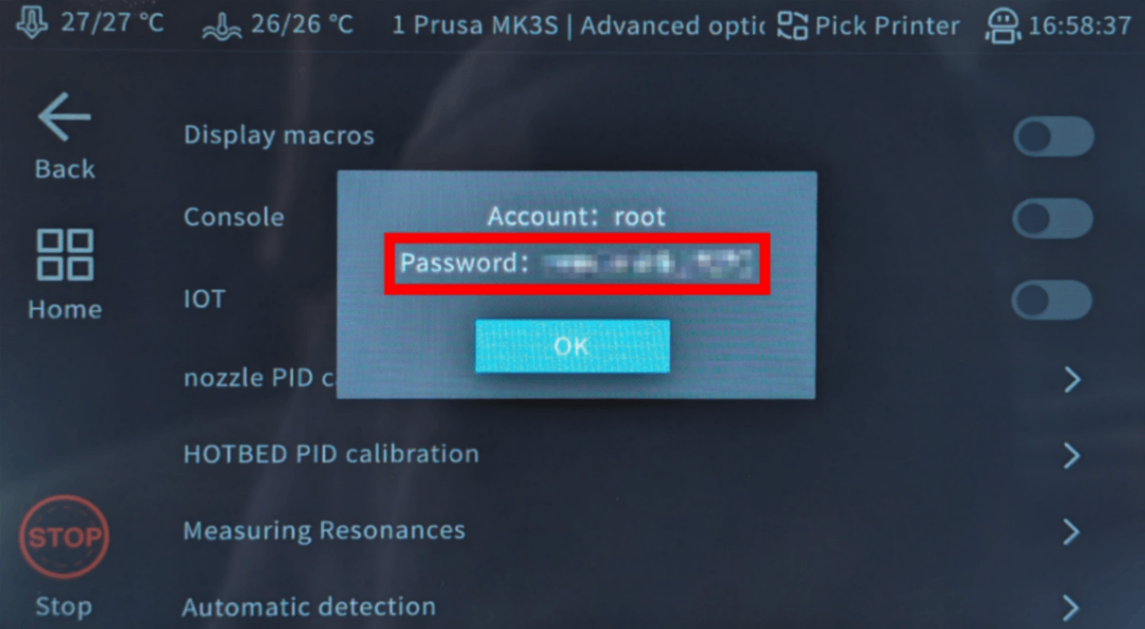
- Note down the generated root password.
3. Download the SSL package via SSH
- SSH to the Sonic Pad using the IP and root password you noted:
ssh -o HostKeyAlgorithms=+ssh-rsa root@[IP_ADDRESS]
Yes, this is the annoying technical part. We're sorry — we've tried everything to avoid it, but your device simply doesn't give us another option.
But here's the thing: it's easier than it looks. You're just going to copy-paste a few commands. That's it. Pick your computer type below and follow the steps — we'll walk you through every click.
192.168.1.42).
Do not include http://, slashes, or port numbers.
Windows 10 / 11
- Press Win + X and select "Terminal" or "PowerShell"
-
Type the SSH command (replace the placeholders):
Example:
ssh username@ip-addressssh [email protected] -
If asked "Are you sure you want to continue connecting?", type
yesand press Enter -
Enter the password when prompted
The password won't show as you type — that's normal! Just type it and press Enter.
macOS
- Press Cmd + Space to open Spotlight, type "Terminal", and press Enter
-
Type the SSH command (replace the placeholders):
Example:
ssh username@ip-addressssh [email protected] -
If asked "Are you sure you want to continue connecting?", type
yesand press Enter -
Enter the password when prompted
The password won't show as you type — that's normal! Just type it and press Enter.
Linux
- Open Terminal (usually Ctrl + Alt + T, or find it in your applications menu)
-
Type the SSH command (replace the placeholders):
Example:
ssh username@ip-addressssh [email protected] -
If asked "Are you sure you want to continue connecting?", type
yesand press Enter -
Enter the password when prompted
The password won't show as you type — that's normal! Just type it and press Enter.
Chromebook
-
Enable Linux (skip if already done):
- Open Settings
- Go to Advanced → Developers
- Turn on "Linux development environment"
- Follow the setup wizard (takes a few minutes)
- Open the "Terminal" app from your app launcher
-
Type the SSH command (replace the placeholders):
Example:
ssh username@ip-addressssh [email protected] -
If asked "Are you sure you want to continue connecting?", type
yesand press Enter -
Enter the password when prompted
The password won't show as you type — that's normal! Just type it and press Enter.
Common issues
- "Connection refused" — Make sure you're on the same network and the IP address is correct.
- "Permission denied" — Double-check your username and password.
-
"Host key verification failed" — The device was reset or reinstalled. Remove the old key with:
ssh-keygen -R <ip-address>
Using a tablet or phone?
While there are SSH apps available for Android and iOS, we recommend using a computer for SSH connections. A proper keyboard and screen make typing commands much easier.

- Download and install the package using our helper script:
wget -qO- https://download.simplyprint.io/sonic-pad/sonic-pad-ssl.sh | bash
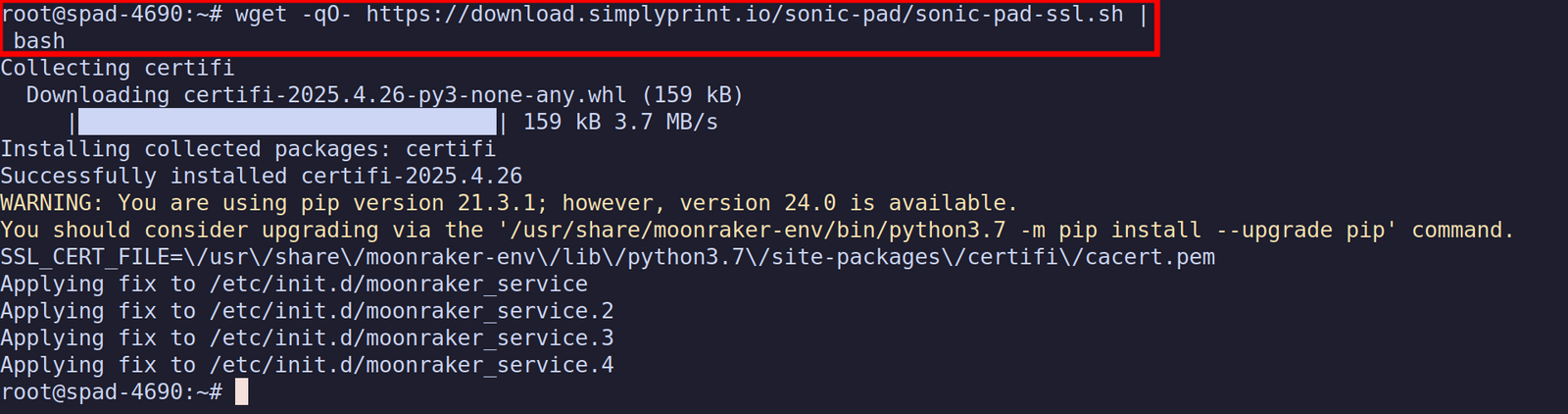
- Wait for the script to complete, then exit with:
exit
4. Open the Fluidd web interface
In your browser on your computer or phone, visit http://[IP_ADDRESS]. Here you'll find the "Fluidd" web interface that is hosted by your Sonic Pad - note that you must be on the same network as the Sonic Pad to access the Fluidd web interface.
Now, proceed to the next step which will show you in details how
to find and open the moonraker.conf configuration file, where we have to add the [simplyprint] line.




Thousands complete this setup every week. Follow each step carefully - most issues come from skipping ahead.
That's it! You're all set
You're now ready to connect your printer and start using SimplyPrint.
Create your free account