-
1 Readying BIGTREETECH Pad
-
2 Fluidd setup
Set up SimplyPrint on the BIGTREETECH Pad
In this quick guide you'll find the BIGTREETECH Pad's IP address and then proceed directly to Fluidd to finish the SimplyPrint setup.
In this guide we will go through:
- Find your BIGTREETECH Pad's IP address
- Open the Fluidd web interface
1. Find your BIGTREETECH Pad's IP address
- On the Pad touchscreen, go to "More" → "Network".
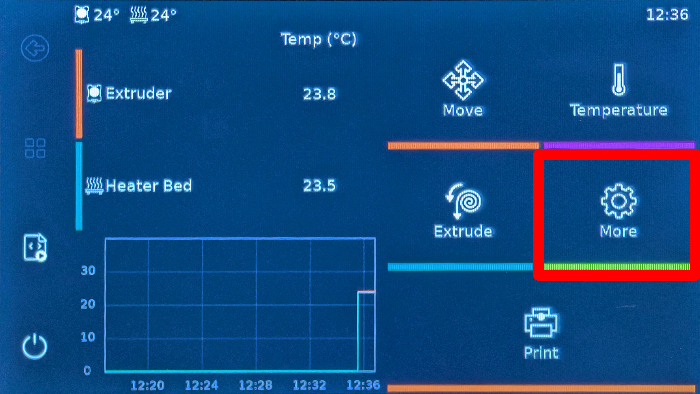
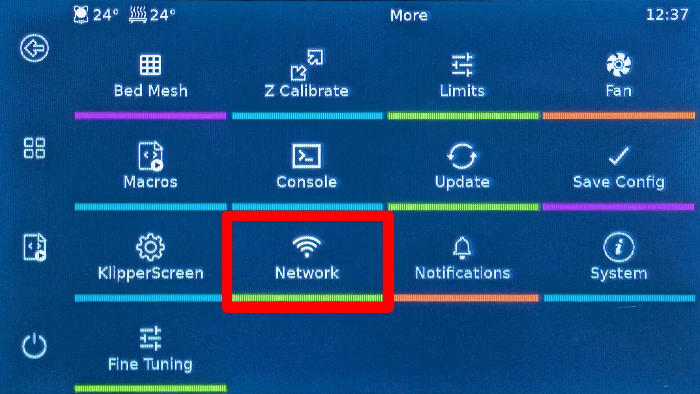
- Connect the BIGTREETECH Pad to your Wi‑Fi or wired network, if it isn't already.
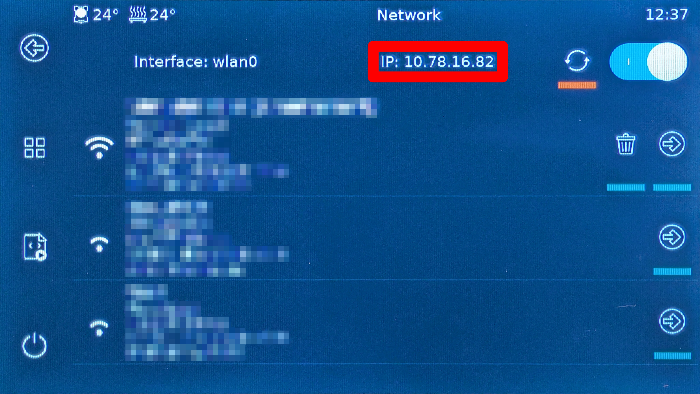
- Once connected, note the IP address shown on the Network page (top‑right). For example
192.168.1.42.
Tip
Make sure the device you use to open Fluidd is on the same local network as the Pad; otherwise the page will not load.
2. Open the Fluidd web interface
In your browser on your computer or phone, visit http://[IP_ADDRESS] (replace with the IP you just noted).
This opens the Fluidd web interface hosted by your BIGTREETECH Pad.
Now, proceed to the next step, which will guide you through enabling SimplyPrint in Fluidd by adding the required [simplyprint] section to your moonraker.conf file.
Need help?




Thousands complete this setup every week. Follow each step carefully - most issues come from skipping ahead.
That's it! You're all set
You're now ready to connect your printer and start using SimplyPrint.
Create your free accountWhat works with this connection method
Which SimplyPrint features work when a printer connects this way. Some depend on the printer model; each printer's compatibility page has its own table.
| Feature | Klipper (Moonraker) |
|---|---|
| Monitoring | |
| Live status and progress | Yes |
| Webcam | Yes 1 |
| AI failure detection | Yes 1 |
| Time left | Depends 2 |
| Layer progress | Depends 2 |
| Temperatures | Yes |
| Printing | |
| Starting a print | Yes |
| Pause, resume and cancel | Yes |
| Skip objects | Yes |
| Files | |
| Print sliced 3MF files | Depends 2 |
| Printer control | |
| Change temperatures | Yes |
| Moving with the controls | Yes |
| Homing | Yes |
| Extrude and retract | Yes |
| Change print speed | Yes |
| Fan speed | Yes |
| Baby stepping | Yes |
| Send G-code | Yes |
| Calibration | |
| Change filament | Yes |
| Bed leveling | Yes |
| Z-Offset Calibration | Yes |
| Automation | |
| AutoPrint Pro | Yes |
| Download the file before the print starts | No 3 |
Klipper (Moonraker)
Monitoring
- Live status and progress Yes
- Webcam Yes 1
- AI failure detection Yes 1
- Time left Depends 2
- Layer progress Depends 2
- Temperatures Yes
Printing
- Starting a print Yes
- Pause, resume and cancel Yes
- Skip objects Yes
Files
- Print sliced 3MF files Depends 2
Printer control
- Change temperatures Yes
- Moving with the controls Yes
- Homing Yes
- Extrude and retract Yes
- Change print speed Yes
- Fan speed Yes
- Baby stepping Yes
- Send G-code Yes
Calibration
- Change filament Yes
- Bed leveling Yes
- Z-Offset Calibration Yes
Automation
- AutoPrint Pro Yes
- Download the file before the print starts No 3
Works Depends Not supported
- Needs a camera
- Depends on the printer model
- SimplyPrint doesn't support this through this connection yet.