
-
1 Readying Nebula Smart Kit
-
2 Set up
Before You Start: Custom Firmware
Your Creality Nebula Smart Kit requires custom firmware to work with SimplyPrint.
We know that sounds technical - and it is one of the more involved setups - but we've worked hard to make it as straightforward as possible.
Some printer manufacturers don't provide an easy way for platforms like SimplyPrint to communicate with their printers. The community has developed alternative firmware that unlocks these capabilities.
Yes! The firmware is developed by active communities, can typically be removed, and preserves your printer's core functionality. You can usually roll back or factory reset if needed.
A note about warranty
Some manufacturers may consider custom firmware a warranty modification. The risk is low - to date, we haven't had a single known case of a SimplyPrint user damaging their printer or being denied warranty repair because of this setup.
That said, it's ultimately your choice to proceed.
Estimated time: 15–30 minutes
We'll guide you through every step.
You'll Also Use SSH
This setup requires SSH - a way to send text commands to your printer from your computer. We know it sounds technical, and we wish we could avoid it, but unfortunately the printer's design leaves us no other option.
The good news: it's simpler than it sounds. You'll just copy and paste a few commands we provide - no coding required.
Set up Klipper and SimplyPrint on the Creality Nebula Smart Kit
In this guide we will go through:
- Download and install the rooted firmware
- Find your Nebula's IP address
- Connect via SSH and run the installer
- Install Klipper, Moonraker, and SimplyPrint
- Enable camera settings
- Access your web interface
1. Download and install the rooted firmware
- Download the latest
NEBULA_ota_img_V6.*.imgfile from the latest release on GitHub. - Transfer the
.imgfile to the USB stick that came with your Nebula. - Insert the USB stick into the Nebula.
- On the Nebula screen, press the "Upgrade" button when the firmware upgrade pop-up appears.
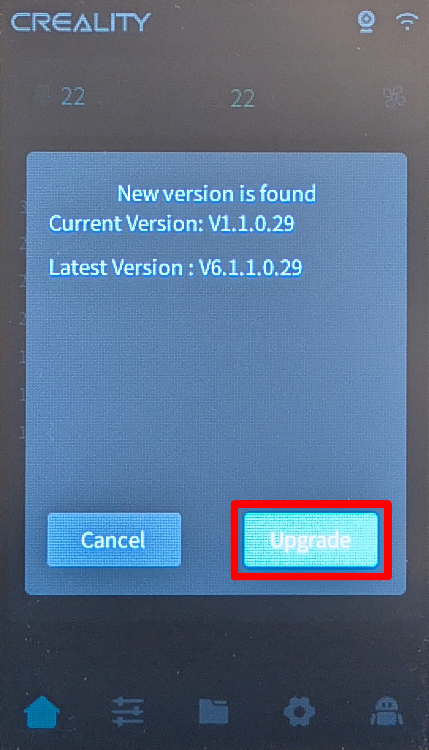
- Wait for the installation to finish. The Nebula will reboot automatically when complete.
2. Find your Nebula's IP address
- On the touchscreen, navigate to "Settings" → "Network".
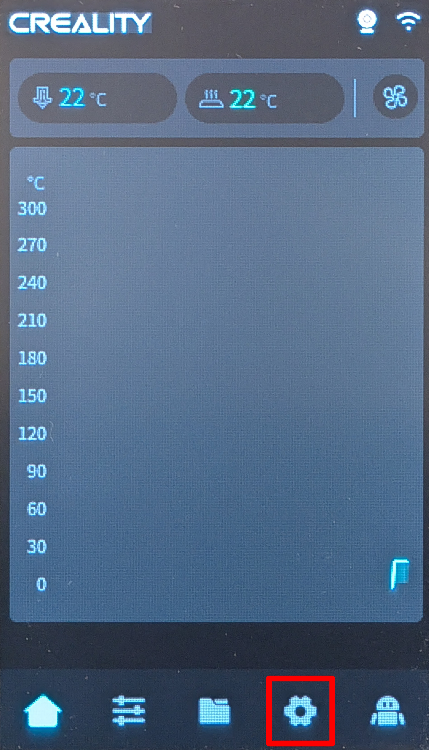
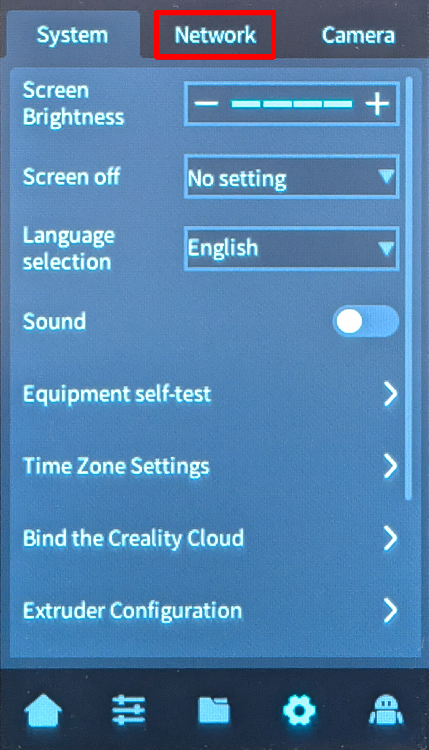
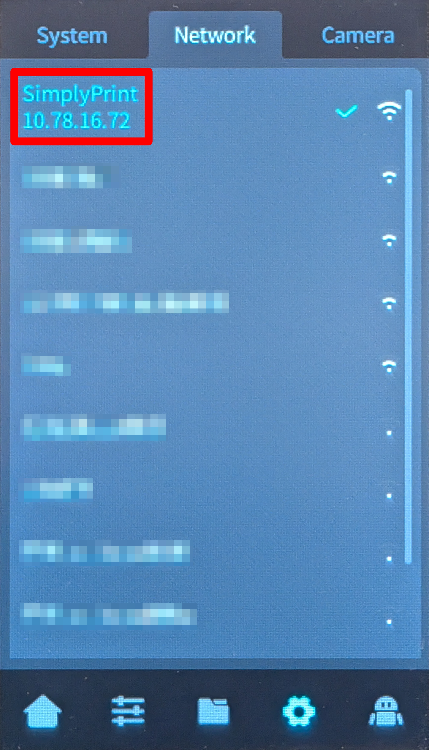
- Note down the IP address shown on the network screen (e.g.
192.168.0.42).
3. Connect via SSH and run the installer
Yes, this is the annoying technical part. We're sorry — we've tried everything to avoid it, but your device simply doesn't give us another option.
But here's the thing: it's easier than it looks. You're just going to copy-paste a few commands. That's it. Pick your computer type below and follow the steps — we'll walk you through every click.
192.168.1.42).
Do not include http://, slashes, or port numbers.
Windows 10 / 11
- Press Win + X and select "Terminal" or "PowerShell"
-
Type the SSH command (replace the placeholders):
Example:
ssh username@ip-addressssh [email protected] -
If asked "Are you sure you want to continue connecting?", type
yesand press Enter -
Enter the password when prompted
The password won't show as you type — that's normal! Just type it and press Enter.
macOS
- Press Cmd + Space to open Spotlight, type "Terminal", and press Enter
-
Type the SSH command (replace the placeholders):
Example:
ssh username@ip-addressssh [email protected] -
If asked "Are you sure you want to continue connecting?", type
yesand press Enter -
Enter the password when prompted
The password won't show as you type — that's normal! Just type it and press Enter.
Linux
- Open Terminal (usually Ctrl + Alt + T, or find it in your applications menu)
-
Type the SSH command (replace the placeholders):
Example:
ssh username@ip-addressssh [email protected] -
If asked "Are you sure you want to continue connecting?", type
yesand press Enter -
Enter the password when prompted
The password won't show as you type — that's normal! Just type it and press Enter.
Chromebook
-
Enable Linux (skip if already done):
- Open Settings
- Go to Advanced → Developers
- Turn on "Linux development environment"
- Follow the setup wizard (takes a few minutes)
- Open the "Terminal" app from your app launcher
-
Type the SSH command (replace the placeholders):
Example:
ssh username@ip-addressssh [email protected] -
If asked "Are you sure you want to continue connecting?", type
yesand press Enter -
Enter the password when prompted
The password won't show as you type — that's normal! Just type it and press Enter.
Common issues
- "Connection refused" — Make sure you're on the same network and the IP address is correct.
- "Permission denied" — Double-check your username and password.
-
"Host key verification failed" — The device was reset or reinstalled. Remove the old key with:
ssh-keygen -R <ip-address>
Using a tablet or phone?
While there are SSH apps available for Android and iOS, we recommend using a computer for SSH connections. A proper keyboard and screen make typing commands much easier.
- Open a terminal or SSH client on your computer.
- Connect to the Nebula using SSH with the IP address you noted:
ssh root@[IP_ADDRESS]
For example; ssh [email protected]
- When prompted for a password, enter:
creality- don't get confused by the password not showing up while you type it; that's normal - Once connected, run the Creality Helper Script:
./installer.sh
4. Install Klipper, Moonraker, and SimplyPrint
- When the script menu appears, choose "1) [Install] Menu".
- Install the following components in order:
- 1) Moonraker and Nginx
- 2) Fluidd (port 4408) or 3) Mainsail (port 4409) - choose your preferred interface (not sure which to pick? We recommend Mainsail)
- 5) Klipper Gcode Shell Command
- 10) Nebula Camera Settings Control
- 11) USB Camera Support
- 17) SimplyPrint
- Wait for each installation to complete before proceeding to the next.
5. Enable camera settings
- Return to the main menu of the Creality Helper Script.
- Navigate to "5) [Tools] Menu".
- Choose "3) Enable camera settings in Moonraker".
6. Access your web interface
- Open a web browser on your computer.
- Navigate to
http://[YOUR_IP]:[PORT], where:
[YOUR_IP]is the IP address you noted earlier[PORT]is4408for Fluidd or4409for Mainsail
- For example:
http://192.168.0.42:4409
And that's it! Your Nebula Smart Kit is now running Klipper with SimplyPrint.
Factory reset option
If you need to perform a factory reset, you can add an empty file named factory_reset (no file extension) to the USB stick, then turn off the Nebula, insert the USB stick, and turn it back on. Warning: This will permanently delete all user-installed software and custom configurations. Only Wi-Fi settings, printer identity, and essential system files will be preserved. For more details, see the GitHub repository.




Thousands complete this setup every week. Follow each step carefully - most issues come from skipping ahead.
That's it! You're all set
You're now ready to connect your printer and start using SimplyPrint.
Create your free account