
FreeCAD
Send your parametric solids, meshes and assemblies directly from FreeCAD to SimplyPrint for slicing and printing
Download SimplyPrint.zip Read the full guide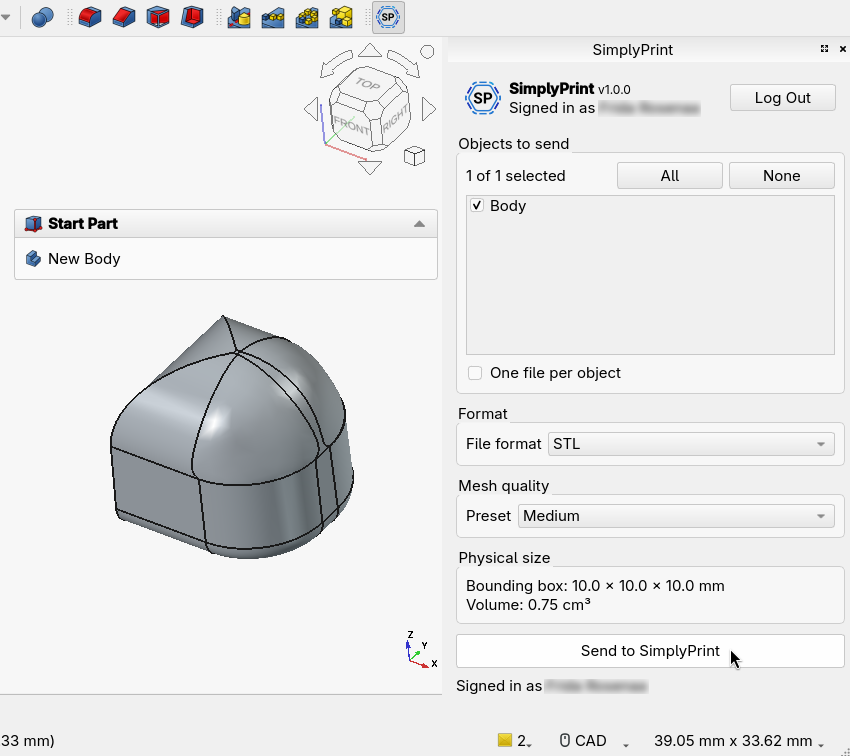
Send your parametric solids, meshes and assemblies directly from FreeCAD to SimplyPrint for slicing and printing
Download SimplyPrint.zip Read the full guide
SimplyPrint is not endorsed by or affiliated with FreeCAD. We use trademarks and images only to indicate compatibility with our platform. Use of FreeCAD hardware with SimplyPrint may not be as intended by FreeCAD. All rights belong to respective owners.
The SimplyPrint addon for FreeCAD bridges the gap between parametric CAD and 3D printing. Model in FreeCAD, then send your work straight to your printer in a single click - no separate mesh export step, no juggling files between programs.
New to printing CAD models? Read the full walkthrough: how to 3D print from FreeCAD.
The addon adds a context-aware SimplyPrint dock panel that adapts to the workbench you're in - pick solids in Part or Part Design, send meshes as-is from the Mesh workbench, or push a whole Assembly as one file. It also installs a dedicated SimplyPrint workbench with a toolbar and menu for one-click access from anywhere. Pick STL, 3MF or OBJ, choose mesh quality, hit Send to SimplyPrint, and SimplyPrint opens in your browser with the model loaded - ready to slice, queue, or print.
In FreeCAD, go to Tools → Addon Manager.
Search for SimplyPrint in the list and click Install.
Restart FreeCAD - the SimplyPrint dock panel and workbench appear.
Download the zip:
Download SimplyPrint.zipFind your FreeCAD user Mod/ folder - open FreeCAD's Python console (View → Panels → Python console) and run App.getUserAppDataDir(). The addon goes in the Mod subfolder of that path.
Extract the zip into that folder so you end up with Mod/SimplyPrint/.
Restart FreeCAD.
The SimplyPrint dock panel docks on the right of the FreeCAD window (available in every workbench). Click Log In the first time - a browser tab opens, you approve the request, and you're set for future sessions.
Open or model something with solids or meshes - the panel shows the objects it found, the mesh-quality options for solids, and the real bounding box and volume. Choose a format and mesh quality, tick the objects to send, and click Send to SimplyPrint. Your browser opens SimplyPrint with the file loaded, ready to slice, queue, or print on one or more printers.
Install the SimplyPrint addon
In FreeCAD, open Tools then Addon Manager, search for SimplyPrint and click Install. Restart FreeCAD and the SimplyPrint dock panel and workbench appear.
Log in and pick your objects
Open the SimplyPrint dock panel, click Log In once to approve the browser sign-in, then tick the solids, meshes or assemblies you want and choose STL, 3MF or OBJ with a mesh quality.
Send to SimplyPrint and print
Click Send to SimplyPrint and the model opens in your browser, loaded and ready to slice, queue or print on any connected printer.
Install the free SimplyPrint addon from FreeCAD's Addon Manager, open the SimplyPrint dock panel, select your objects and click Send to SimplyPrint. The model opens in your browser ready to slice and print, with no manual STL export step.
Yes. The FreeCAD addon and sending models to SimplyPrint are free, and SimplyPrint's free plan lets you connect a printer and print wirelessly.
You can send STL, 3MF or OBJ. 3MF preserves units and works well for multi-object files, while STL is the most universally compatible. You also pick a mesh quality before sending.
Yes. SimplyPrint works with any printer you connect to it - 140+ brands and 600+ models through OctoPrint, Klipper or a built-in integration.
Yes. After sending from FreeCAD, you slice the model in SimplyPrint's browser slicer with your own settings, then print now, add it to the queue or save it for later.
Integration for SimplyPrint allows for applications to interact with your 3D printers, and your 3D printers to interact with other applications. This allows for endless possibilities, and we strongly believe that your 3D printer should be able to function as an IOT device, working together with any and all applications you can imagine!
This is why the team behind SimplyPrint work to provide official integrations for the most popular platforms, slicer and applications, while also allowing our users to create custom integrations using our API, or for approved third party vendors to create integrations to be used by all SimplyPrint users, using a "Log in with SimplyPrint" method (using the "OAuth2" method).
If you're a developer interested in creating an integration for SimplyPrint, please read our documentation on the subject.
If you're not a developer yourself, but would like to see an integration for a specific application, go check if it's already on our roadmap or suggestion list, and if not, feel free to suggest it!