In the Bambu Studio vs OrcaSlicer question, the two are close relatives, not rivals: OrcaSlicer began as a fork of Bambu Studio, so they look and slice alike. For a stock Bambu Lab printer, Bambu Studio is the smoother default, while OrcaSlicer adds calibration tools and supports far more printer brands from a single app. The honest twist most comparison pages cannot offer is that you do not actually have to choose at install time, because SimplyPrint runs both real engines in your browser. This guide covers the shared lineage, an at-a-glance decision table, profile compatibility, and which slicer fits a beginner versus a power user.
Is OrcaSlicer based on Bambu Studio?
Yes. OrcaSlicer is a fork of Bambu Studio, which is itself a fork of PrusaSlicer, which descends from the original open-source Slic3r project. That shared ancestry is why the two slicers feel nearly identical when you open them: the same plate view, the same project workflow, the same parameter tree. OrcaSlicer's maintainers state plainly in the project's GitHub repository that it is "based on Bambu Studio." Over time the community project has layered its own features on top, but the slicing core they share means a part that slices well in one usually slices well in the other.
The lineage runs deeper than a single fork. Slic3r, released in 2011, established the open-source slicing toolchain. Prusa Research forked it into PrusaSlicer to support its own machines. Bambu Lab then forked PrusaSlicer into Bambu Studio when it launched the X1 in 2022. The developer known as SoftFever forked Bambu Studio into OrcaSlicer shortly after, originally to add tuning features Bambu owners wanted. Each generation kept the core slicing engine and added a layer on top.
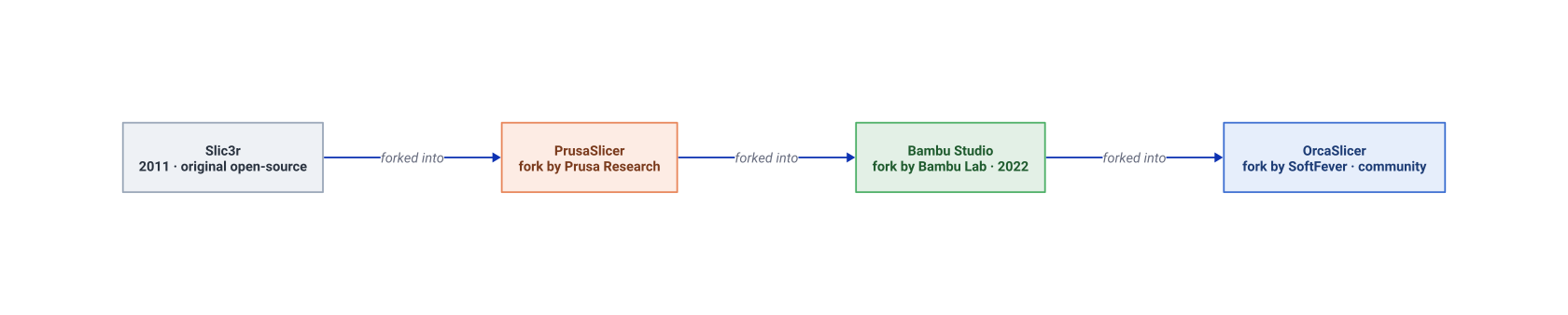
This chain matters in practice. It is why profiles, project files, and settings move so cleanly between the two apps. It is why the menus and shortcuts feel familiar. And it is why a "vs" decision is lower-stakes than it first looks. You are not comparing two unrelated programs. You are comparing two branches of the same tree.
Bambu Studio vs OrcaSlicer at a glance
The fastest way to settle the Orca Slicer vs Bambu Studio question is side by side. Both are free and open source, both read and write the 3MF project format, and both run the same family of slicing algorithms. The differences are about maintainer, printer breadth, and extra tooling, not about slice quality on a shared printer.
| Criterion | Bambu Studio | OrcaSlicer |
|---|---|---|
| Maintained by | Bambu Lab (first-party) | Community (open source) |
| Based on | PrusaSlicer | Bambu Studio |
| Best for | Stock Bambu Lab printers | Multi-brand fleets and tuning |
| Bambu AMS and cloud | Full, native support | Supported, slightly behind on new features |
| Calibration tests | Limited | Extensive (flow, pressure advance, temperature towers) |
| Printer brand support | Bambu-focused, some others | Very broad (Bambu, Creality, Prusa, Voron, and more) |
| Release cadence | Tied to Bambu firmware | Frequent community releases |
| Price | Free | Free |
If you only run Bambu Lab machines, the table tilts toward Bambu Studio. The moment a second brand enters the picture, OrcaSlicer's breadth starts to matter more. It is worth stressing what is the same in both columns. The underlying slicing engine, the infill patterns, the support generation, the seam logic, and the G-code output for a given profile all match. A benchmark plate sliced with the same settings in each app produces near-identical toolpaths, because the math doing the work is shared code. So the columns that differ - maintainer, calibration depth, brand support, and release cadence - are the only places a real decision lives. That is good news: it means you are choosing a workflow and an ecosystem, not gambling on print quality.
Which is better for a Bambu Lab printer?
People often ask, is OrcaSlicer better than Bambu Studio, and the honest answer depends on your printer. For a stock Bambu Lab printer, Bambu Studio is the better starting point. It is built and maintained by Bambu Lab, so AMS multi-color, the Bambu cloud, and firmware features tend to land there first and work without configuration. If your goal is to print the tuned profiles Bambu ships for the X1, P1, A1, or H2D and you do not want to think about settings, Bambu Studio gets you there with the least friction. OrcaSlicer still drives Bambu Lab printers very well, and many Bambu owners prefer it for its calibration suite. The practical rule: choose Bambu Studio if you value first-party AMS and cloud support, and choose OrcaSlicer if you want deeper calibration or already run other brands. Either way, you can run both in the browser and compare the sliced result before committing to one.
Two specifics make the difference concrete. First, AMS handling: Bambu Studio's multi-material flushing, color assignment, and filament mapping are tuned by Bambu and tend to need the least tinkering on a stock setup. OrcaSlicer supports the AMS, but new AMS behavior usually appears in Bambu Studio first. Second, calibration: OrcaSlicer ships a built-in suite of test prints (flow ratio, pressure advance, temperature towers, retraction towers, and more) that Bambu Studio largely leaves to you to source elsewhere. If you have ever chased stringing or over-extrusion, that calibration tab is the single biggest reason Bambu owners install OrcaSlicer alongside Bambu Studio rather than instead of it. Neither slicer produces a worse print on the same profile. The gap is in convenience and tooling, not in the part that comes off the bed.
Do Bambu Studio profiles work in OrcaSlicer?
Mostly, yes, and Bambu Studio vs Orca Slicer profile compatibility is one of the strongest reasons the "vs" decision is low-stakes. Because OrcaSlicer descends directly from Bambu Studio, the two use a very similar printer and filament profile structure, and OrcaSlicer can import Bambu Studio configuration and 3MF project files. In practice that means a Bambu Studio filament profile or printer setup transfers into OrcaSlicer cleanly in almost every case, with only a few Bambu-specific options that may not map one-to-one. The reverse path works too, since both apps speak the same project format.
Here is what carries over and what to double-check:
- Geometry and plate layout - transfers exactly via 3MF.
- Print and filament settings - import cleanly in almost all cases.
- Supports and modifiers - preserved in the 3MF project.
- Bambu cloud and AMS-specific flags - may need a quick review after import.
The safe habit is to import the profile, then preview the first slice before a long print. There are two ways to move a profile across. You can export the printer or filament configuration from one slicer and import it into the other. Or you can simply open a 3MF project, which already carries the settings it was sliced with. The 3MF route is more reliable, because the format bundles geometry, print settings, supports, and plate layout into one file. Nothing is left behind in a separate config. For the format itself, see our explainer on what a 3MF file is. Where you do hit friction, it is almost always around Bambu-only features such as cloud-linked filament IDs or AMS slot mapping, which have no exact equivalent outside Bambu Studio. Those are quick to re-set by hand, and everything geometric and dimensional comes through untouched.
Beginner vs power user: which should you pick?
Your experience level is the cleanest tiebreaker. A beginner with a single Bambu Lab printer is best served by Bambu Studio: the defaults are tuned, the AMS workflow is guided, and there are fewer knobs to get lost in. A power user, a tinkerer, or anyone running multiple printer brands will get more from OrcaSlicer, whose calibration tests (flow ratio, pressure advance, temperature towers) and broader settings reward people who like to dial things in.
- Pick Bambu Studio if you want the simplest path on a stock Bambu Lab printer with AMS and cloud.
- Pick OrcaSlicer if you want calibration tools, finer control, or support for many printer brands at once.
- Pick both if you cannot decide - they share a 3MF project format, so nothing is locked in.
There is a middle path many people land on. Start in Bambu Studio to learn the basics and lean on Bambu's tuned defaults. Then add OrcaSlicer once you want calibration tests or a non-Bambu machine. Because the two share a project format and most of their settings, graduating from one to the other is not a reset. Your tuned profiles and saved projects come with you. That is the opposite of how slicer comparisons usually feel, where picking the "wrong" one means relearning an app. Here, the cost of switching is close to zero.
That last point is the one no single-app download can make. Because the two share a lineage, switching between them costs you almost nothing, which leads to the real answer below.
Run both engines in the browser, no need to choose
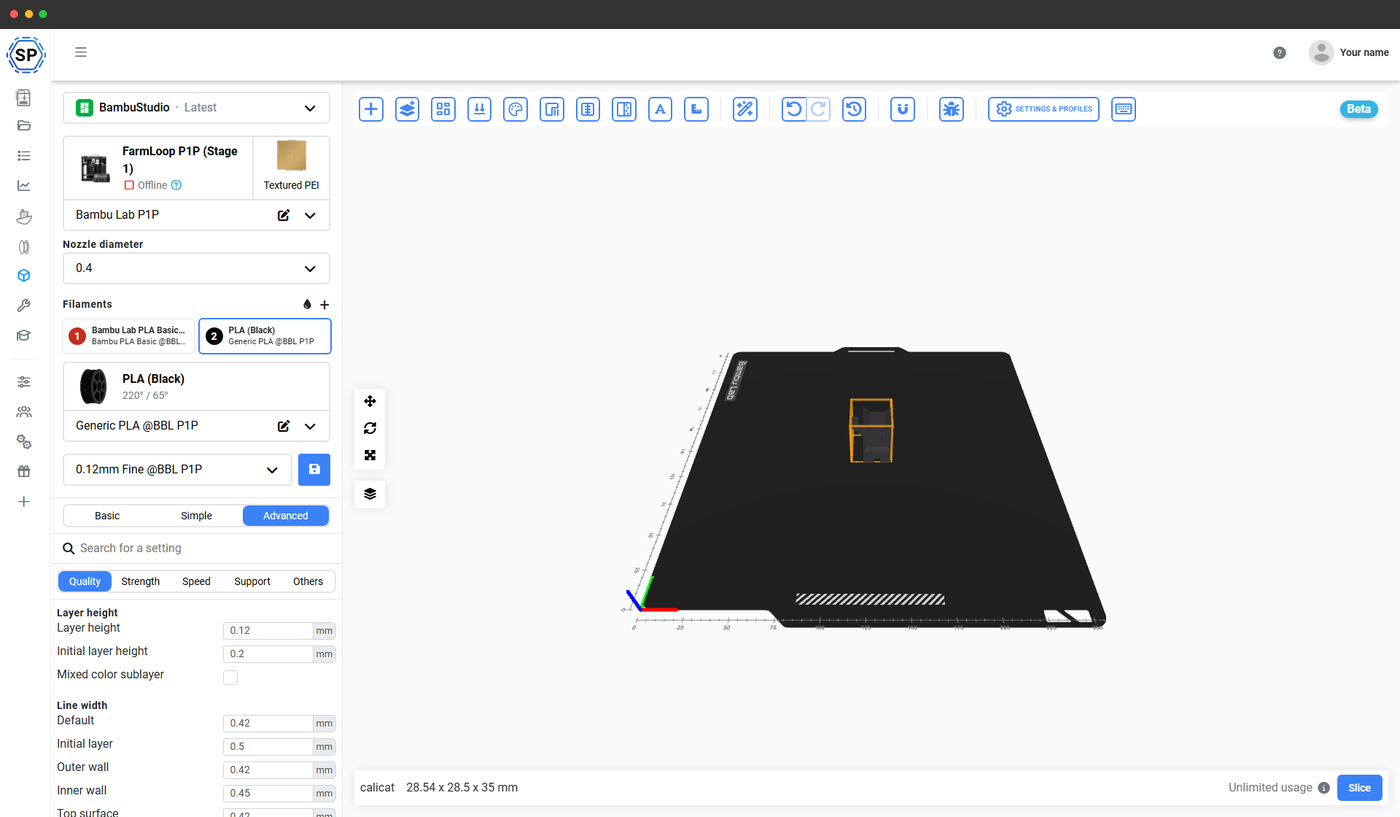
Here is the answer a single-app vendor cannot give you. With SimplyPrint you do not pick Bambu Studio or OrcaSlicer at install time, because you do not install either one. SimplyPrint runs the real, unmodified Bambu Studio and OrcaSlicer engines on our servers through their official command-line interface. You drive them from any browser, including a desktop, laptop, Chromebook, or tablet. Same engines, same profiles, identical G-code to the desktop apps.
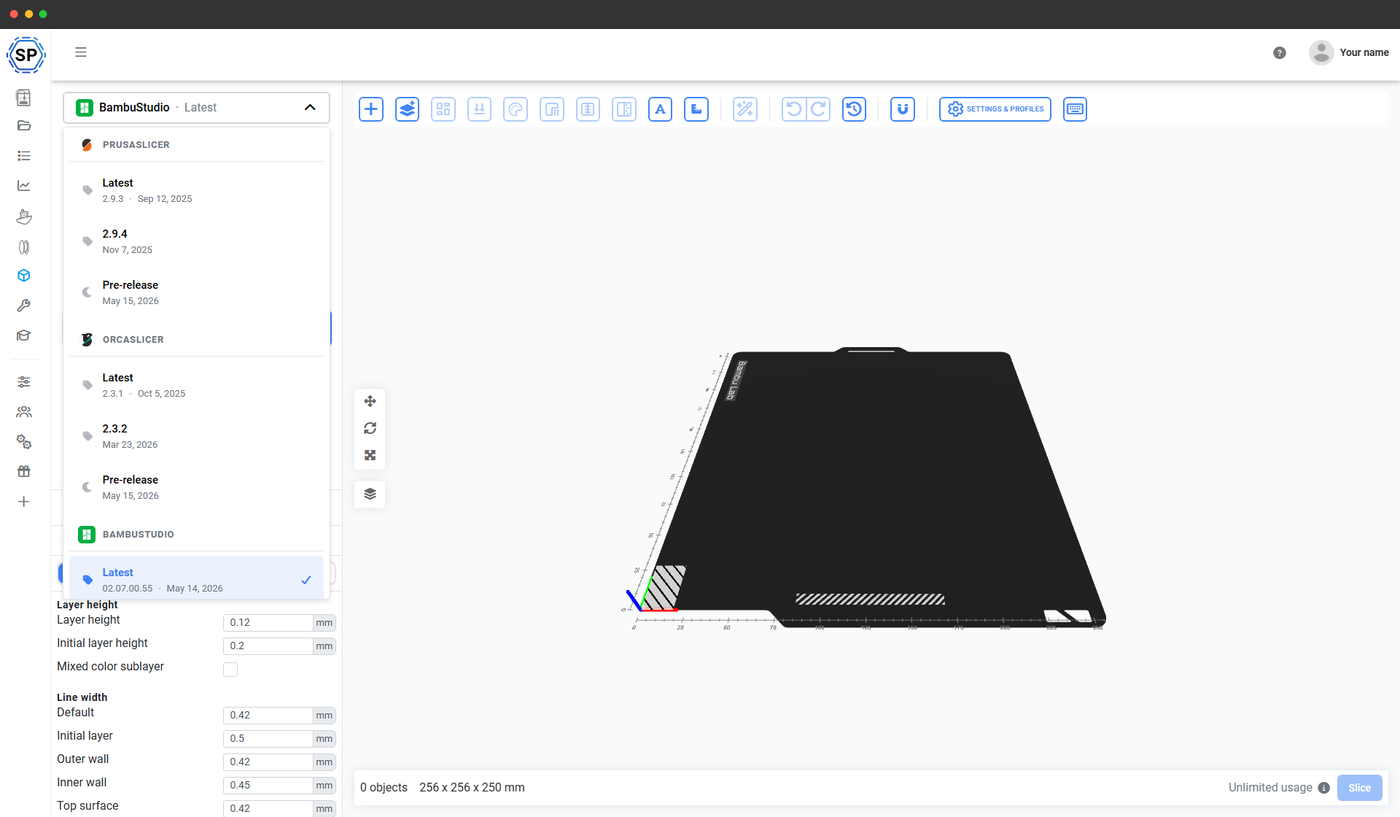
That changes the comparison entirely. Want Bambu Studio's first-party AMS handling for your X1 and OrcaSlicer's calibration tools for a Voron in the same fleet? Use both, and standardize one shared profile across the team so a print farm or classroom slices consistently no matter which engine each machine needs. Because the engines are the upstream open-source builds run through their official command-line interface, not a stripped-down web re-implementation, the result is the same G-code you would get on the desktop. That fidelity is the whole point: a browser slicer is only useful if it slices like the real thing, and SimplyPrint does because it is the real thing, just hosted.
The browser approach also clears the obstacles that make a single-app choice painful in the first place. A Chromebook or iPad cannot install either desktop slicer, an older laptop may struggle with the 3D preview, and a school or office machine may block installs entirely. None of that matters when the engine runs on our servers and you only need a browser tab. Download intent still belongs with the vendors, so grab the desktop apps from Bambu Lab or the OrcaSlicer releases page if you want them locally. But if the only thing standing between you and a sliced file is which app to install, the browser removes the decision. See our guide to slicing without installing any software for the full walkthrough, or compare the wider field in our browser-based 3D slicer roundup.