What is a 3MF file? A 3MF file (3D Manufacturing Format) is a modern file type for 3D printing that stores a model's geometry plus its color, units, plate layout, and slicer settings inside a single compact archive. Where the older STL format saves only a raw triangle mesh, a 3MF can carry a complete, ready-to-print project. That is why it has become the default "save" and "share" format in slicers like OrcaSlicer, Bambu Studio, and PrusaSlicer, and why it is the file you hand off when one tuned setup has to print on many machines.
This guide explains what is actually inside a 3MF, how it compares to STL, how to open one (including online with no install), and why it is the format worth sharing across a print farm or classroom.
What is a 3MF file?
A 3MF file is an XML-based container that describes a 3D model and everything needed to manufacture it. It was created by the 3MF Consortium, a Linux Foundation joint development project, to replace the 1980s STL format with something that carries more than bare geometry. The extension is .3mf, and the format is an open, royalty-free standard backed by Microsoft, HP, Autodesk, Prusa Research, and other major vendors.
In practice, a 3MF can hold the mesh, the units and scale, per-object colors and materials, multiple objects arranged on a build plate, and in many slicers the full slicing configuration. Because the spec stores units explicitly, a 3MF that says "20 mm" always opens at 20 mm, sidestepping the unit guessing that plagues STL. It is the format your slicer saves a project to when you click save, and the format most online model libraries now offer alongside STL.
3MF vs STL: what is the difference?
The short version of 3MF vs STL: STL stores only the surface geometry of a model as a list of triangles, with no units, no color, and no print settings. 3MF stores that same geometry plus the context a printer and slicer need, all in one smaller file. STL has been the universal exchange format since 1987 and works everywhere, but it throws away everything except the shape.
A practical example: export a multi-color, multi-part model to STL and you get a single uncolored mesh, often split into separate files you have to reassemble and re-color by hand. Save the same model as 3MF and the colors, the part arrangement, and your tuned settings travel with it. Here is how the two formats line up.
| Capability | STL | 3MF |
|---|---|---|
| Stores geometry | Yes (triangle mesh) | Yes (triangle mesh) |
| Stores units and scale | No (unitless) | Yes (explicit units) |
| Stores color and materials | No | Yes |
| Multiple objects on one plate | No (one mesh) | Yes |
| Embeds slicer settings | No | Yes (in slicer 3MFs) |
| File size | Larger, verbose | Smaller (compressed) |
| Universal tool support | Yes, everywhere | Yes, now near universal |
| Year introduced | 1987 | 2015 |
For most modern slicing, 3MF is the better default. STL still earns its place when you need maximum compatibility with an older tool or a CAD program that only exports meshes. If you are weighing the two, our guide on converting an STL to G-code covers where each format fits in the print workflow.
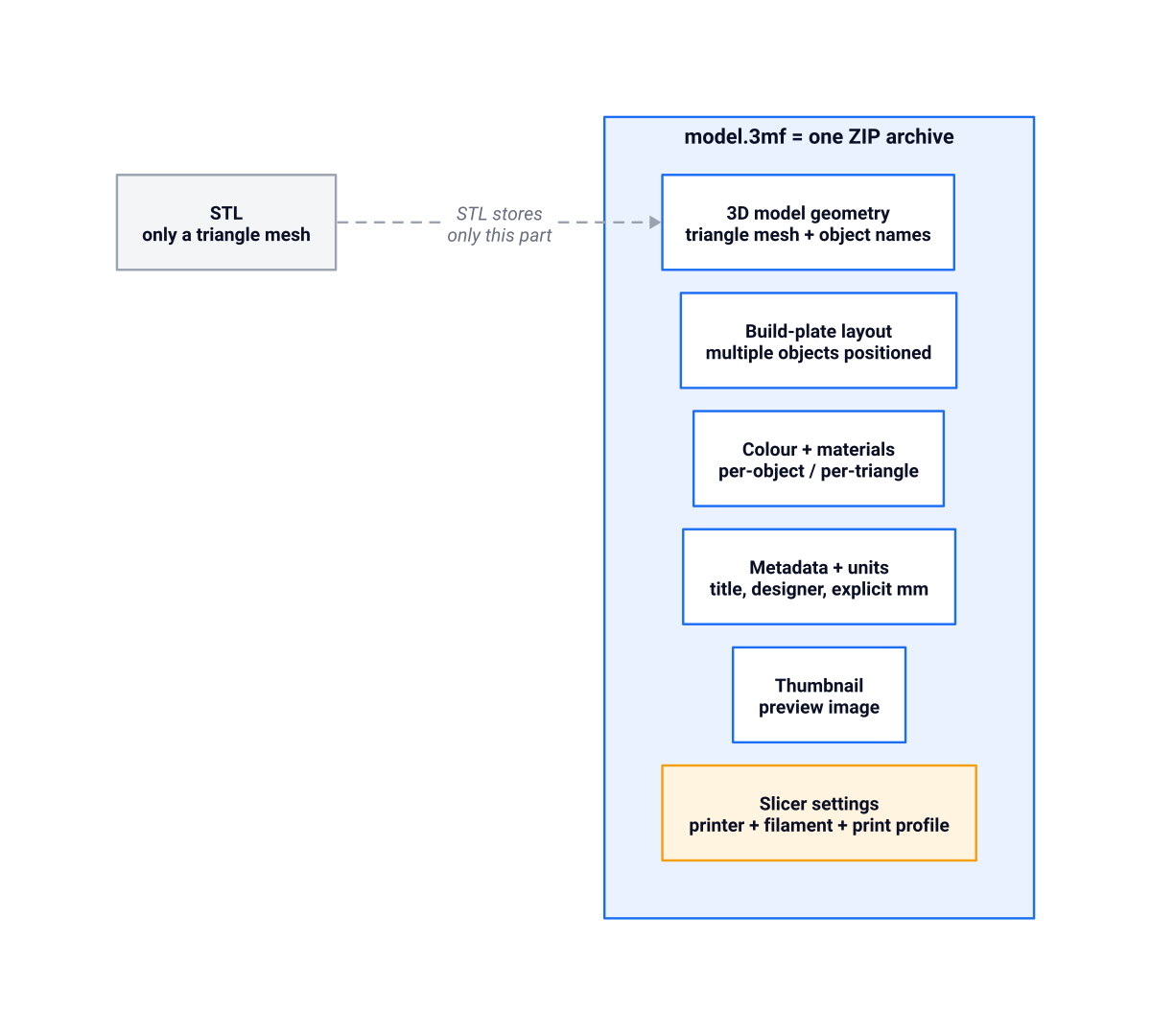
What is inside a 3MF? It is a ZIP archive
A 3MF file is really a ZIP archive with a structured set of files inside it, which is why it stays compact and extensible. Rename a copy from model.3mf to model.zip, open it, and you can browse the parts that make up the project. The format follows the Open Packaging Conventions, the same packaging idea used by modern Office documents.
Inside a typical 3MF you will find:
- The 3D model - an XML file holding the mesh geometry, object names, and the build plate layout that positions each part.
- Color and material data - per-object or per-triangle color, and references to any materials used, so a multi-color model stays multi-color.
- Metadata - the title, designer, units, and creation tool, all stored as plain text.
- A thumbnail - a preview image many viewers show without fully parsing the model.
- Slicer settings - when saved from OrcaSlicer, Bambu Studio, or PrusaSlicer, the printer profile, filament profile, and print settings ride along in vendor-specific folders. The 3MF Consortium documents this in the open 3MF specification on GitHub.
That last point is the one that matters most for everyday printing. A "project 3MF" exported from a slicer is not just a shape, it is a snapshot of a print that was already dialed in. Re-slicing it later, or on a different machine, can be a single click rather than a profile rebuild.
How to open a 3MF file (and online, with no install)
To open a 3MF file you need a 3D printing slicer, a CAD program, or a 3D viewer that supports the format. On desktop, OrcaSlicer, PrusaSlicer, Bambu Studio, Cura, Fusion 360, and Blender all open 3MF directly, and on Windows you can preview one in the built-in 3D Viewer or Paint 3D without any extra software. Opening a slicer-made 3MF in the same slicer restores the model, the plate, and the saved settings together.
If you cannot install a desktop slicer, you can open a 3MF file online instead. Searching for how to open 3MF file online usually points to a browser-based cloud slicer: upload the file and it loads in any browser, on a Chromebook, tablet, or phone. SimplyPrint's cloud slicer runs the real, unmodified OrcaSlicer, PrusaSlicer, Bambu Studio, ElegooSlicer, Creality Print, and Cura engines on its servers, so when you open a project 3MF the embedded geometry, color, and brand-compatible profiles come through as the desktop app would read them. There is nothing to download and nothing to update.
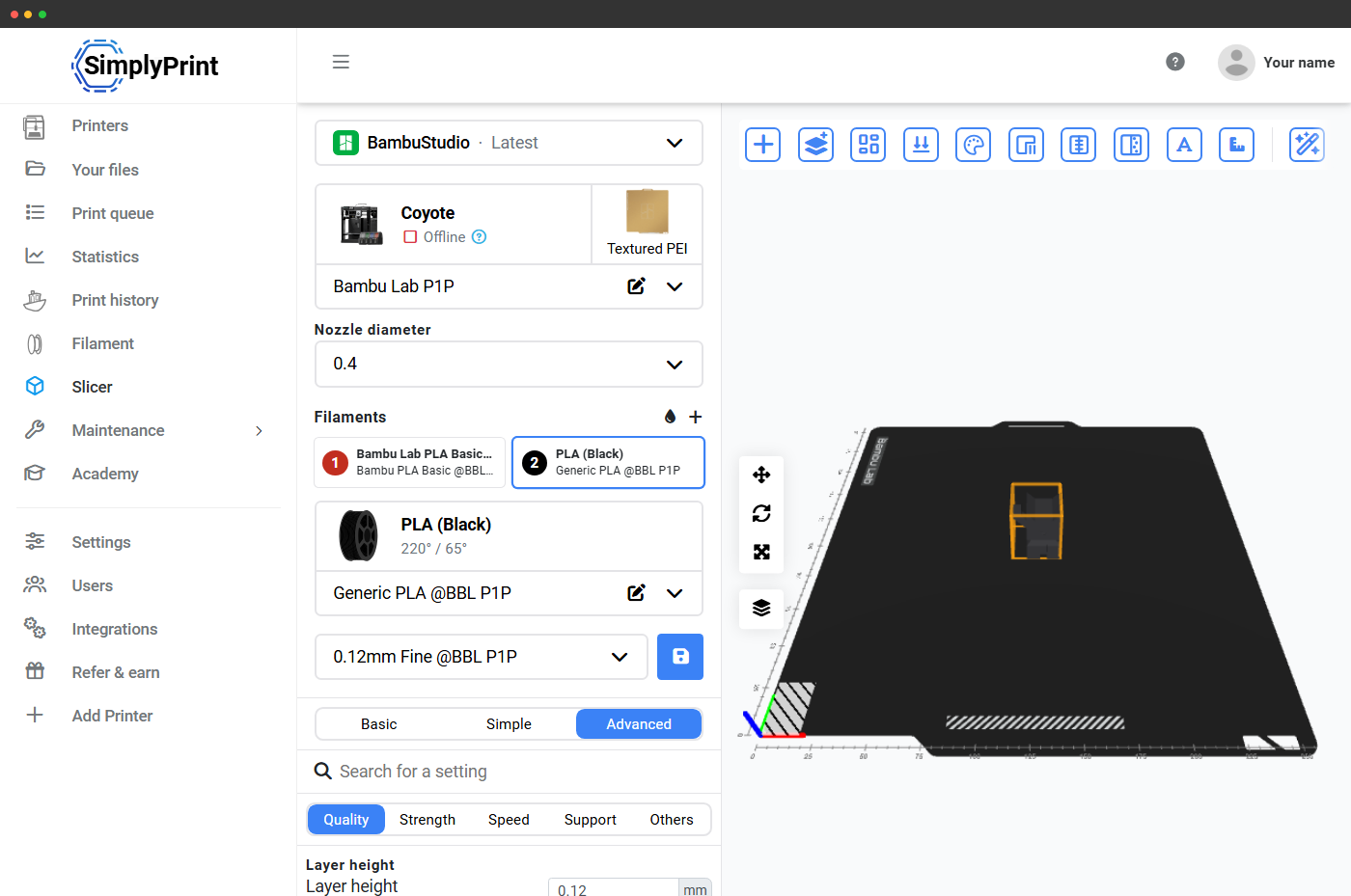
This is the same approach our readers use to slice on a Chromebook, where desktop slicers will not install at all. The file opens, you confirm the printer and settings, and you slice.
Why 3MF is the format you share across a print farm
Because a project 3MF carries the full slicer setup, it is the right unit to share when one tuned configuration has to run on many printers. Hand a colleague an STL and they have to rebuild the profile, the plate, and the supports from scratch. Hand them a 3MF and they open a print that is already configured. For a print farm running 20 identical machines, or a classroom of students printing the same assignment, that difference is the whole workflow.
The pattern looks like this:
- Tune one print - load the model, pick the printer and filament, set the layout, and slice it the way you want.
- Save it as a 3MF - the geometry, plate, color, and settings are now bundled in one file.
- Re-slice it anywhere - open that single 3MF on any machine or in the browser and the setup is preserved.
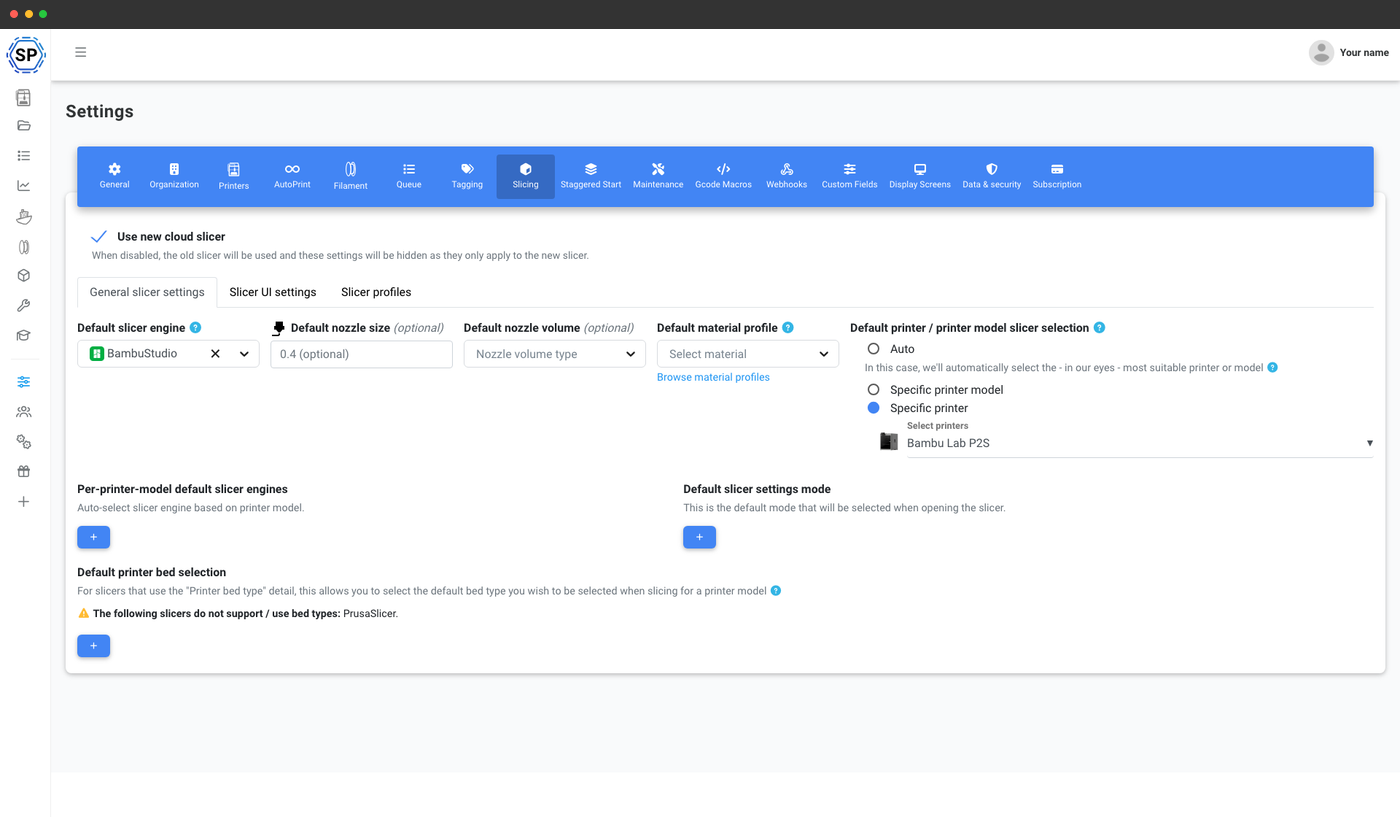
SimplyPrint takes this one step further by keeping profiles centralized in your account rather than trapped in one file on one laptop. A farm or school standardizes on a shared set of profiles, and any operator can open a 3MF and slice it against the correct settings without copying configs between computers. You get the portability of a self-contained 3MF plus a single source of truth for the settings behind it.
According to the 3MF Consortium, the format is supported by most major slicers and CAD tools, which is why a 3MF you save today will still open across your fleet years from now. If your team works across mixed brands, the engine-accurate route matters: SimplyPrint re-slices a 3MF on the same upstream OrcaSlicer or Bambu Studio engine that wrote it, not a third-party reimplementation that only approximates it. You can compare the engines directly in our Bambu Studio and OrcaSlicer breakdown and the OrcaSlicer feature page.
Should you use 3MF or STL going forward?
For new work, default to 3MF and keep STL as a fallback. Save and share 3MF whenever you want color, units, plate layout, or print settings to travel with the model, which is almost always once a print is dialed in. Reach for STL only when a target tool genuinely cannot read 3MF, or when you need the most universal mesh exchange format possible for an older program.
A few quick rules of thumb:
- Sharing a finished print setup? Use a project 3MF so the recipient can slice in one click.
- Sending a model to a tool that predates 3MF? Export STL for compatibility.
- Archiving your own designs? Keep the 3MF, since it preserves the most context in the smallest file.
- Printing across a farm or classroom? 3MF plus centralized profiles is the lowest-friction path.
The format you save today shapes how easy your next print is. A 3MF that remembers your settings turns a re-print into a single action, on the desktop or in the browser.