A browser based 3D slicer is a slicer you run inside a web browser, with no program to download or install, that turns an STL or 3MF model into printable G-code. You upload a file, pick a printer profile, click slice, and get a G-code file back or send the job straight to a printer. Because nothing installs, this kind of web based 3D slicer works on a Chromebook, an iPad, a phone, or a work laptop where you cannot install software.
The catch is that not all online slicers are equal. Most run their own in-house slicing engine, so their settings and output differ from the desktop OrcaSlicer or PrusaSlicer you might already use. This article surveys the main browser-based slicers, explains the one difference that actually matters, and shows where running the real desktop engines in the cloud pays off for a whole farm or classroom. If you have searched for an online 3D slicer no download tool and ended up at a desktop installer instead, this is the comparison that closes the gap.
What is a browser based 3D slicer and how does it work?
A browser-based 3D slicer moves the slicing work off your computer and onto a web app. Instead of installing a 200 MB desktop program, you open a URL, upload an STL or 3MF model, choose a printer and material profile, and the slicer converts the model into G-code that a 3D printer can run. Some tools do the slicing inside the browser tab using JavaScript or WebAssembly; others, often called cloud slicers, run the slicing on a remote server and stream the result back.
The server approach matters for heavy models. Slicing a detailed miniature can use several gigabytes of memory, which a budget Chromebook does not have. When the work runs on a server, your device only needs a browser, so an old laptop slices as fast as a workstation. The output is the same in either case: a downloadable G-code file, or a print-ready job queued to a connected printer.

Do online slicers use the same engine as the desktop app?
Usually not, and this is the single most important thing to check. A slicing engine is the code that decides every toolpath, support, and layer. Most web slicers wrote their own engine, so loading "OrcaSlicer settings" into them is impossible because the settings, the seam logic, and the G-code are all different. You get a slicer in a browser, but not the slicer you tuned at home.
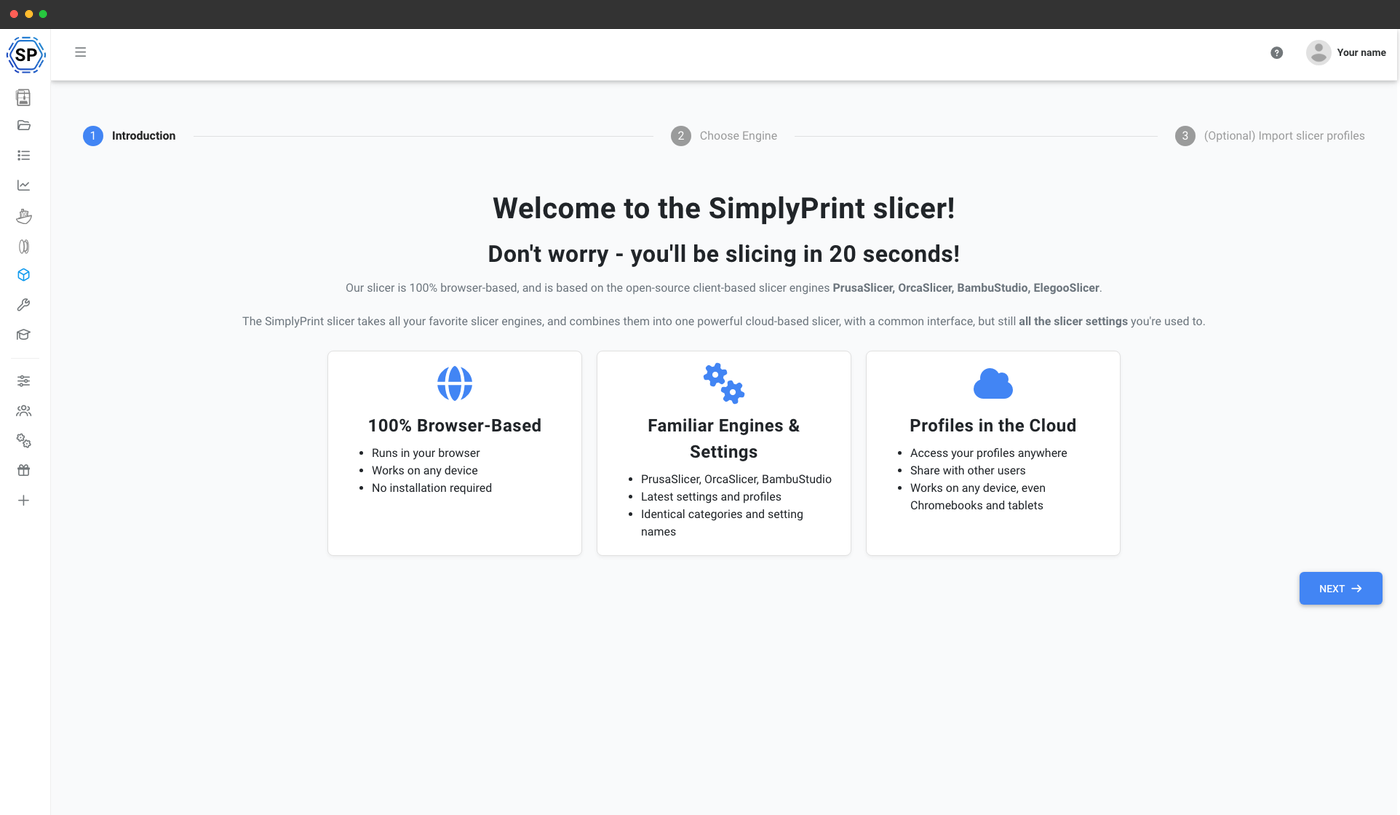
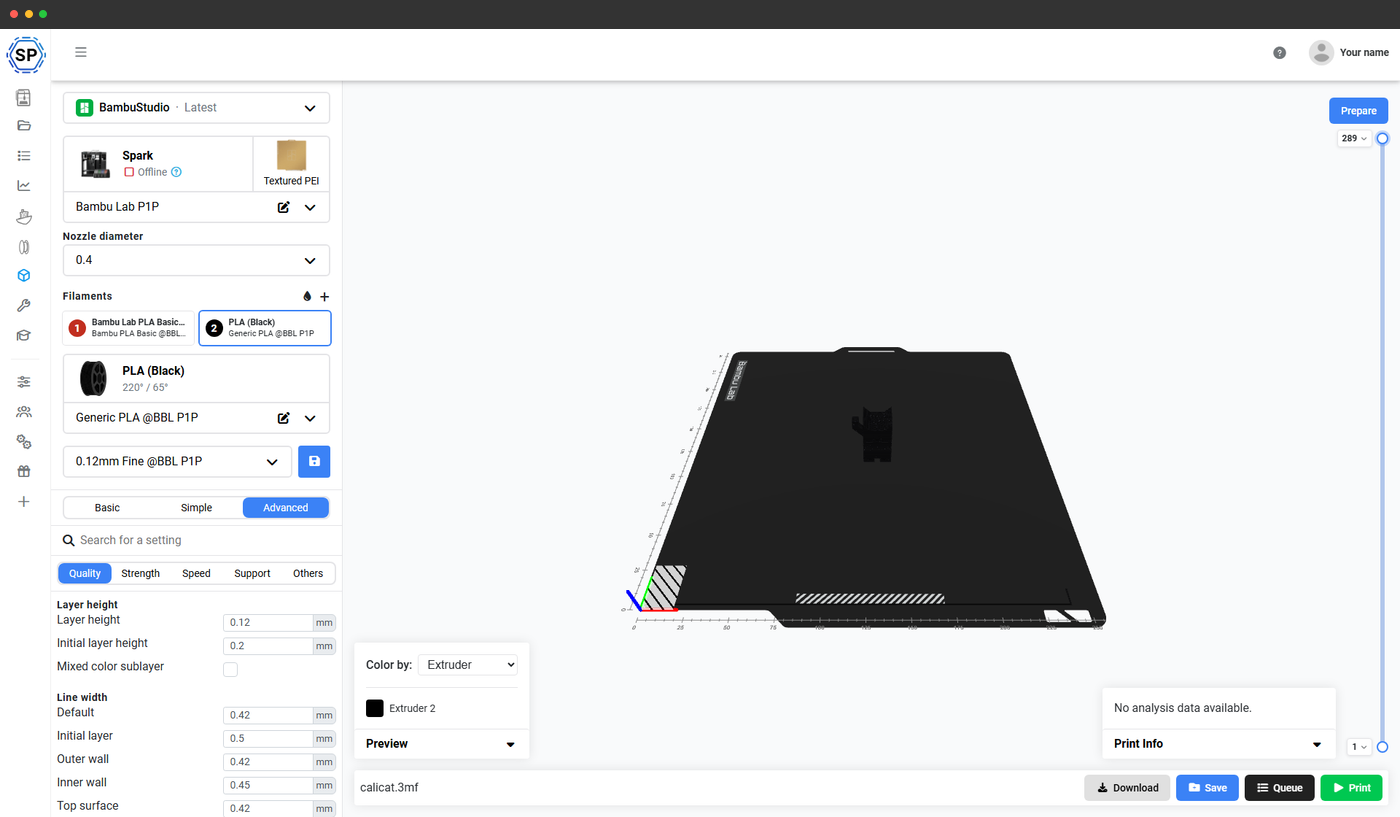
SimplyPrint takes the opposite approach. It runs the real, unmodified OrcaSlicer, PrusaSlicer, Bambu Studio, ElegooSlicer, Creality Print and Cura engines on its servers, calling each one through its official command-line interface. Because it is the same code, the G-code is identical to the desktop app, and brand profiles carry over one to one. You can import a PrusaSlicer .ini or an Orca/Bambu .json profile and slice with it unchanged.
The main browser-based slicers compared
Several tools let you slice in a browser, but they split into two groups: those running a custom web engine, and those running the actual desktop engine in the cloud. The table below summarises the main options. Engine details come from each project's own documentation and source, such as the OrcaSlicer repository and the PrusaSlicer repository.
| Slicer | Runs in browser | Slicing engine | Profiles match desktop Orca/Prusa | Shared profiles across machines |
|---|---|---|---|---|
| SimplyPrint | Yes | Real OrcaSlicer / PrusaSlicer / Bambu Studio / Elegoo / Creality / Cura | Yes, one to one | Yes, stored in account |
| Kiri:Moto | Yes | In-house engine | No | Limited |
| SelfCAD | Yes | In-house engine | No | Per-account |
| Polar Cloud | Yes | In-house / queued | No | Per-account |
| AstroPrint | Yes | In-house cloud slicer | No | Per-account |
| 3DPrinterOS | Yes | In-house cloud slicer | No | Per-organisation |
| REALvision | Yes | In-house engine | No | Per-account |
The honest read: every browser slicer removes the install barrier, and tools like Kiri:Moto are genuinely good for quick one-off slices. What none of the in-house-engine tools can do is give you the exact behaviour of the desktop OrcaSlicer or PrusaSlicer engine that the community has standardised on, which is the reason the real-engine approach exists.
Is there a free online 3D slicer with no download?
Yes, several browser slicers are free, but "free" and "no download" can mean different things, so it helps to know what you are signing up for. The clearest free, no-install options break down like this:
- Kiri:Moto is free and open-source, slices inside the browser tab, and needs no account for a basic slice. It is a fast way to slice a simple model, but it runs its own engine.
- SelfCAD bundles an online slicer with its modelling tools on a freemium plan, again on a custom engine.
- SimplyPrint has a free plan with a monthly slice quota and runs the real OrcaSlicer, PrusaSlicer, Bambu Studio, ElegooSlicer, Creality Print and Cura engines on its servers, so the free tier still produces desktop-identical G-code.
If your only goal is to turn one STL into G-code today, any of these will do it with no download. If you expect to tune profiles, reuse community settings, or slice the same way across several printers, pick the tool whose engine matches your desktop slicer, because the free tier of a custom-engine slicer locks you into that engine's output.
Why running the real engine matters
If you have never tuned a profile, any browser slicer will print fine. The real-engine difference shows up the moment you care about repeatable results. Three things break when an online slicer uses its own engine:
- Profiles do not transfer. A retraction, pressure-advance, or support profile dialled in for OrcaSlicer means nothing to a different engine. You re-tune from scratch.
- G-code differs. Seam placement, support interface, and bridging are engine-specific. A model that prints cleanly on desktop Orca can come out differently on a custom web engine.
- Community settings stop applying. Most printer profiles shared on forums, MakerWorld, and GitHub are written for OrcaSlicer, PrusaSlicer, or Bambu Studio. A non-matching engine cannot load them.
Running the upstream engine in the cloud avoids all three. The community spent years tuning OrcaSlicer profiles, and most major FDM brands now ship an OrcaSlicer-based slicer of their own, Creality Print, Anycubic Slicer Next, ElegooSlicer, Orca-Flashforge, Snapmaker Orca and Sovol's build among them, so their profiles are Orca-native too. When the cloud runs the same engine, that whole body of work just loads.
If you came here looking specifically for a Creality Print alternative that runs on any device, or a Prusa Easy Print alternative with the full settings instead of a preset picker, those pages compare each one directly.
Can you slice on a Chromebook, tablet, or phone?
Yes, and this is where browser-based slicing earns its place. Desktop OrcaSlicer and PrusaSlicer do not run on Chrome OS, iPadOS, Android, or a locked-down work PC. A browser-based slicer sidesteps all of that because the only requirement is a modern browser. Upload your STL or 3MF, slice, and download the G-code or send it to a printer.
For school-issued Chromebooks this is often the only viable path, since IT frequently disables the Linux container that desktop slicers would need. A cloud slicer that runs the work on a server is also faster on weak hardware, because the device never has to do the heavy lifting. For the device-specific walkthroughs, see how to slice on a Chromebook and print from an iPad or Chromebook. If you simply want the no-account, no-download path, see slice a 3D model without installing any software.
Slicing for a whole farm or classroom from the browser
The browser model pays off most when more than one person slices. A print farm or a classroom has the same problem: many people, many machines, and a need for consistent output. A browser slicer that stores profiles in an account, rather than on each computer, solves this directly.
- One tuned profile, every machine. Tune a printer and filament profile once; everyone slices against it. No copying
.inior.jsonfiles between computers. - Profile control. A teacher or farm lead can decide which ranks may edit slicer profiles at all, so students and new hires slice against the tuned profiles instead of changing them by mistake.
- A shared queue. Sliced jobs route through approval and onto the right printer, instead of living on one person's desktop.
Because SimplyPrint runs the real engines, a farm can standardise on a single shared OrcaSlicer profile and still pick the right engine per printer, all from the browser.
How to start slicing in your browser
The setup is short. Here is the whole flow on SimplyPrint, which works the same on any device:
- Create a free account. No download, no credit card for the free tier.
- Upload an STL or 3MF. Drag the file into the panel, or open it straight from your files.
- Pick an engine and printer profile. Choose OrcaSlicer, PrusaSlicer, Bambu Studio, ElegooSlicer, Creality Print, or Cura, then your printer. Import a profile you tuned at home if you have one.
- Adjust settings and slice. Set layer height, infill, and supports, then slice. The job runs on the server; you watch progress in the browser.
- Download or print. Download the G-code, add it to a queue, or send it to a connected printer.
That is the entire browser-based slicing workflow, and none of it touches a desktop install. For the deeper engine details, the slicer feature page covers every supported engine and how profile import works.