Setting up SimplyPrint on Snapmaker U1
Easy steps to connect your Snapmaker U1 3D printer to SimplyPrint.
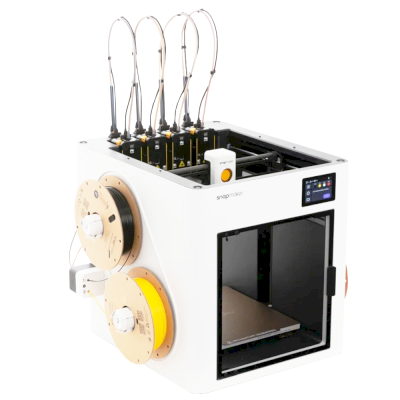


Bring your Snapmaker printer(s) into SimplyPrint with one small app on a device on your network - across brands, with nothing installed on the printers.
No software is installed on your Snapmaker printer - the SimplyPrint Client does the work for it:
Any computer or device such as a Raspberry Pi that can run the SimplyPrint client
The device must be on the same network as your printer(s)
Make sure it's powered on and connected to your network
Now that you understand how the client works, let's set up your Snapmaker printer with SimplyPrint.
Next, you'll install the SimplyPrint Client on a device, then connect your printer.
Thousands complete this setup every week. Follow each step carefully - most issues come from skipping ahead.
You're now ready to connect your printer and start using SimplyPrint.
Create your free account