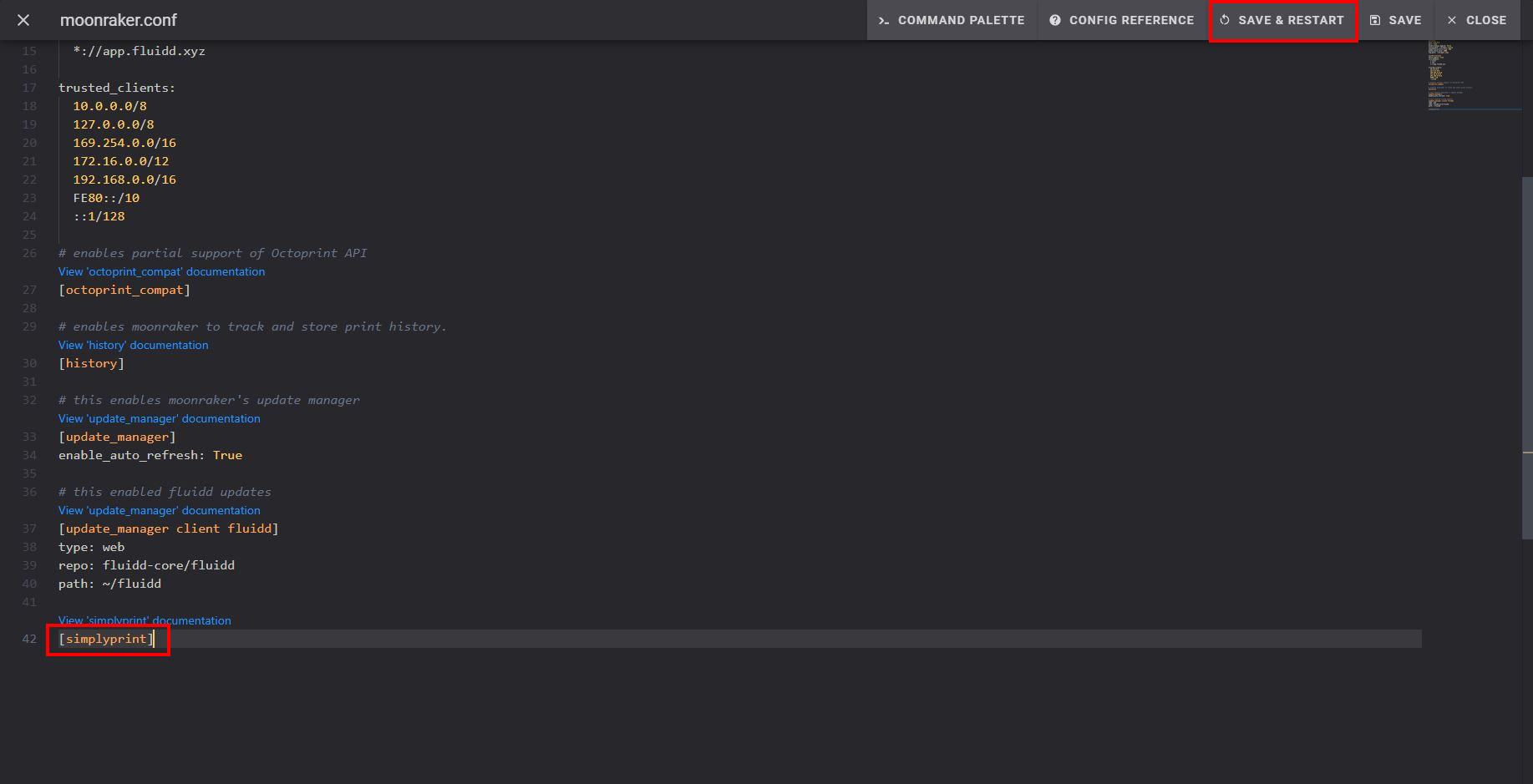
Add [simplyprint] to the moonraker.conf config file
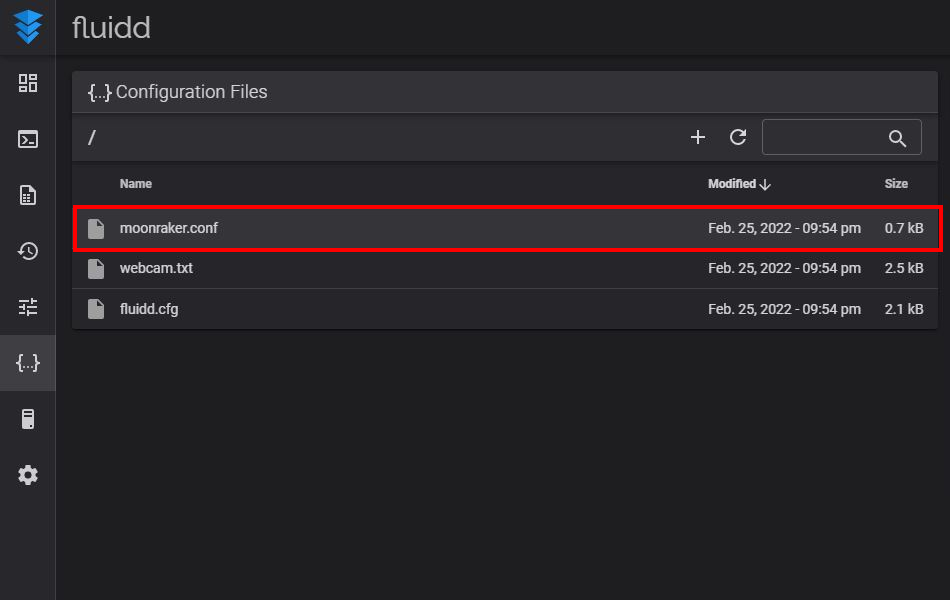
- Go to the "Configuration" tab
- Under "Configuration Files", click on the
moonraker.conf file
- NOTE: depending on your printer, the Moonraker config file may go by a different name. Common names are
moonraker.conf, user.moonraker.conf, moonraker.generated.config, or a custom filename. If moonraker.conf isn't present, edit whichever file Moonraker is actually loading on your printer.
- Add
[simplyprint] to the bottom of the file (with an empty line above it)
- Click the "Save & restart" button
Lastly; link your printer to SimplyPrint
After saving and restarting, your printer should appear automatically in SimplyPrint!
- Go to SimplyPrint.io and click Add Printer
- Check Pending Printers - your printer will likely appear there automatically
- Click to add it and you're done!
If your printer doesn't appear in Pending Printers:
This can happen if you're not on the same network as your printer (different outgoing IP). In this case, use the setup code:
- In the "Announcements" bell (🔔) in the top bar, find the "SimplyPrint Setup Request" message
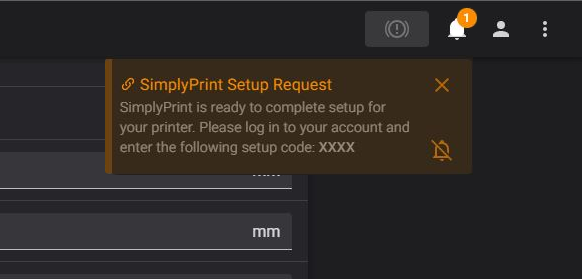
- Copy the setup code and paste it in SimplyPrint under Add Printer
Still having trouble? See our guide: Printer in setup isn't detected / can't find setup code.