
-
1 Readying ChromaPad
-
2 Mainsail setup
Add [simplyprint] to the moonraker.conf config file
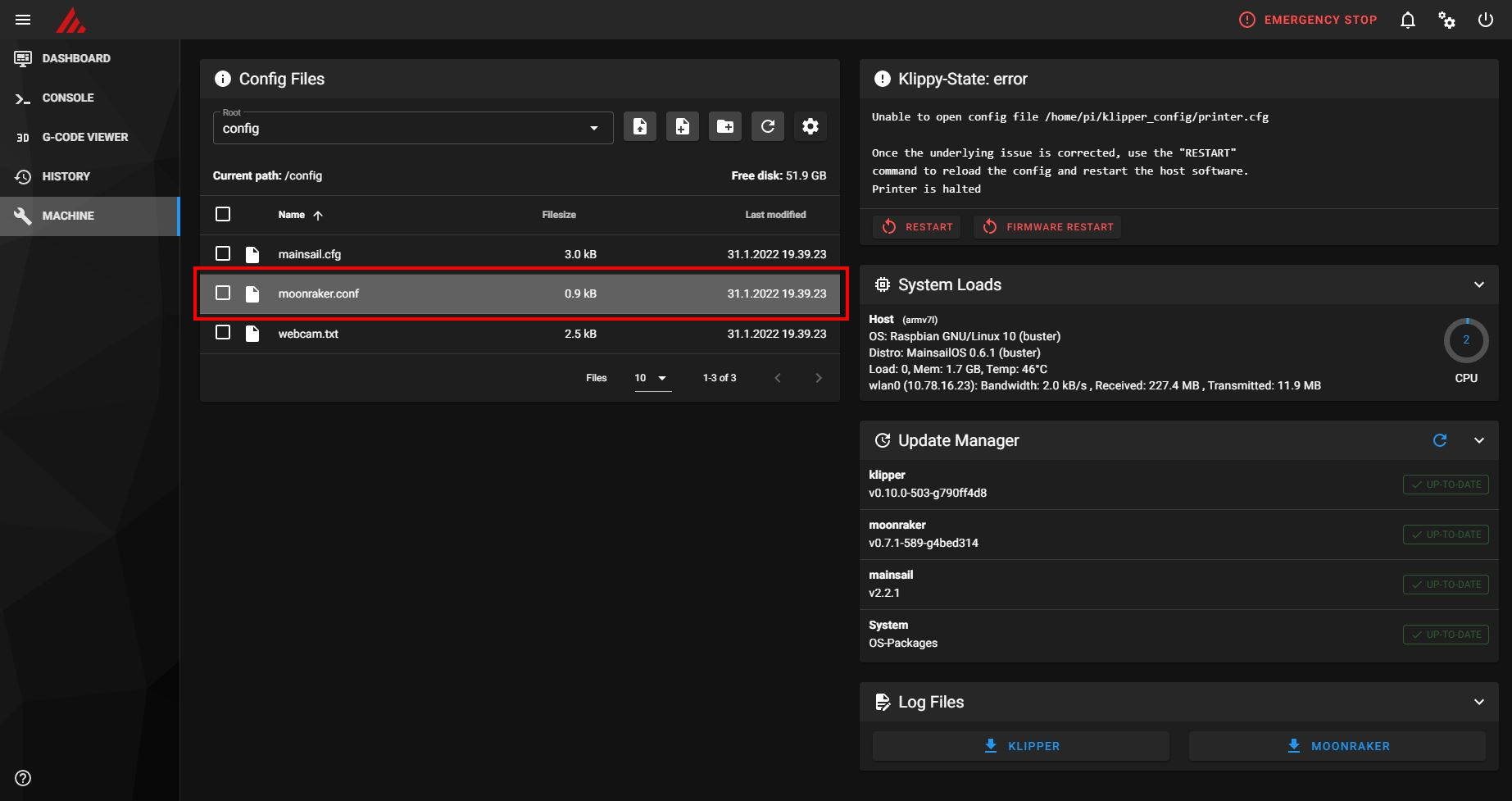
- Go to the "Machine" tab
- Under "Config Files", click on the
moonraker.conffile- NOTE: depending on your printer, the Moonraker config file may go by a different name. Common names are
moonraker.conf,user.moonraker.conf,moonraker.generated.config, or a custom filename. Ifmoonraker.confisn't present, edit whichever file Moonraker is actually loading on your printer.
- NOTE: depending on your printer, the Moonraker config file may go by a different name. Common names are
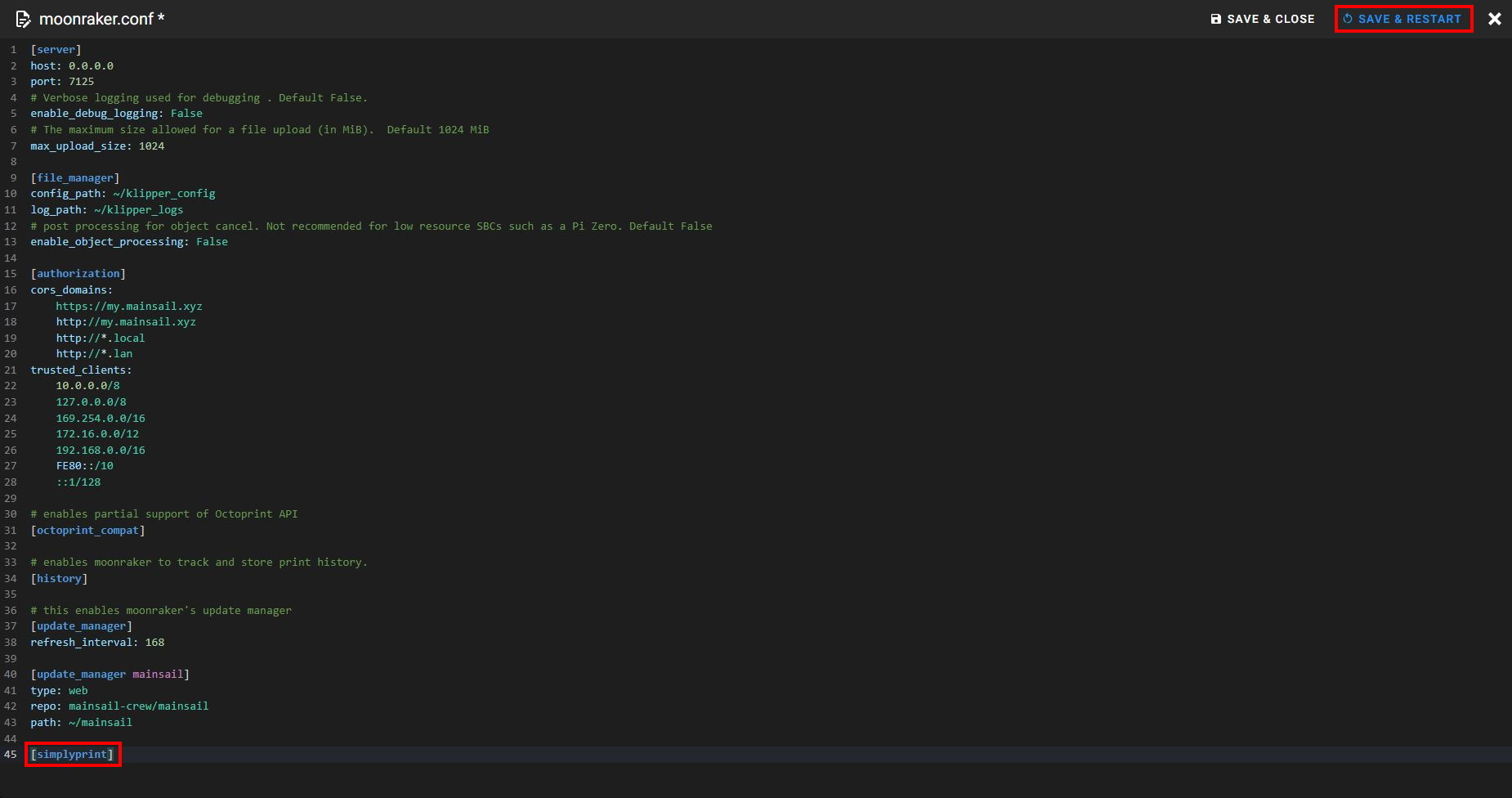
- Add
[simplyprint]to the bottom of the file (with an empty line above it) - Click the "Save & restart" button
Lastly; link your printer to SimplyPrint
After saving and restarting, your printer should appear automatically in SimplyPrint!
- Go to SimplyPrint.io and click Add Printer
- Check Pending Printers - your printer will likely appear there automatically
- Click to add it and you're done!
If your printer doesn't appear in Pending Printers:
This can happen if you're not on the same network as your printer (different outgoing IP). In this case, use the setup code:
- In the "Announcements" bell (🔔) in the top bar, find the "SimplyPrint Setup Request" message
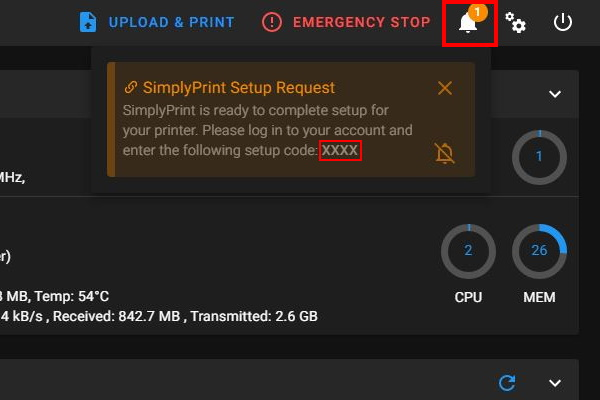
- Copy the setup code and paste it in SimplyPrint under Add Printer
Still having trouble? See our guide: Printer in setup isn't detected / can't find setup code.
Need help?




Thousands complete this setup every week. Follow each step carefully - most issues come from skipping ahead.
That's it! You're all set
You're now ready to connect your printer and start using SimplyPrint.
Create your free account