
ChatGPT
Control your print farm from ChatGPT - ask OpenAI's assistant about printers, queue and jobs in plain English
Open ChatGPT Read the full setup guide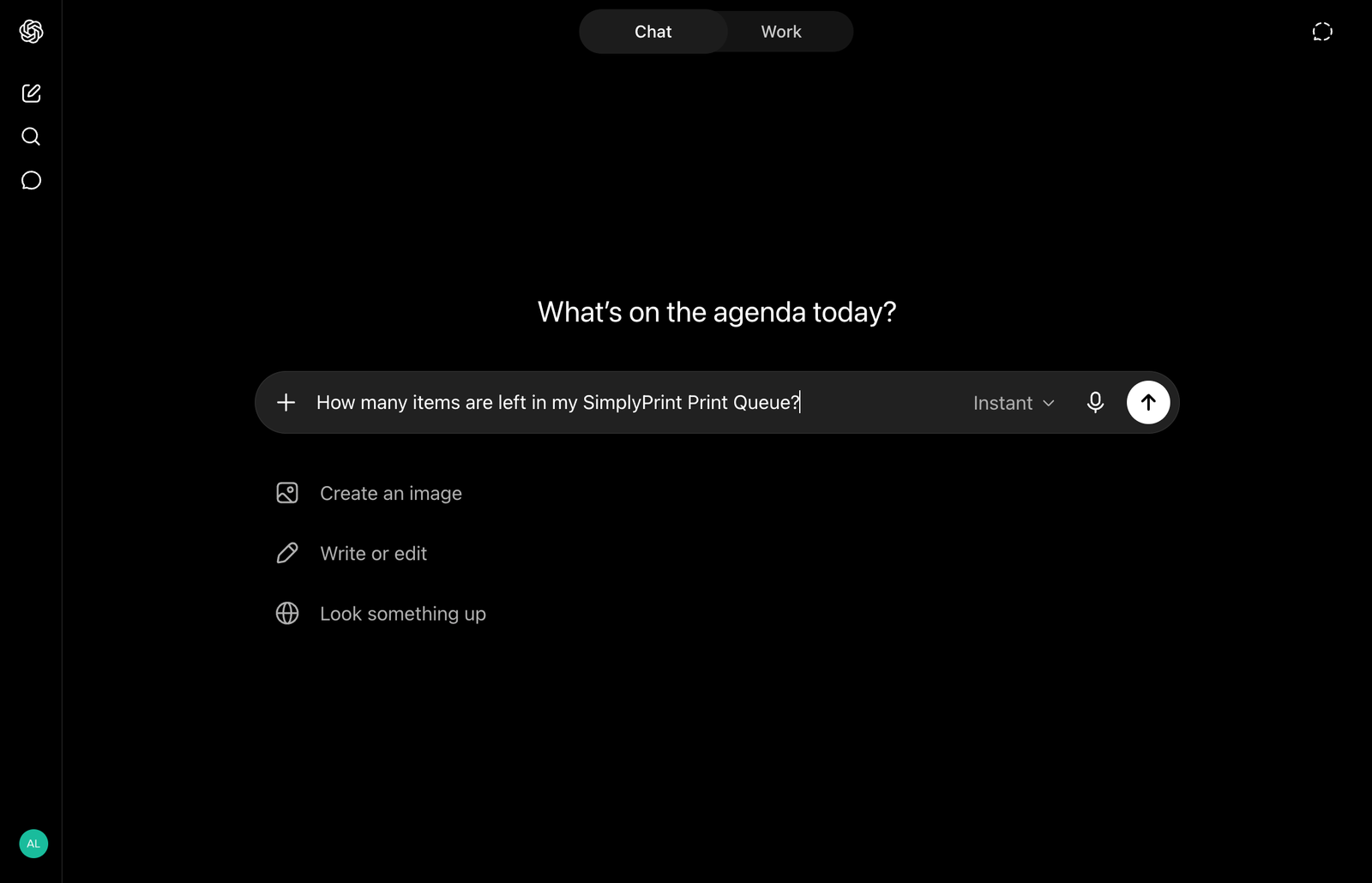
Control your print farm from ChatGPT - ask OpenAI's assistant about printers, queue and jobs in plain English
Open ChatGPT Read the full setup guide
SimplyPrint is not endorsed by or affiliated with OpenAI. We use trademarks and images only to indicate compatibility with our platform. Use of OpenAI hardware with SimplyPrint may not be as intended by OpenAI. All rights belong to respective owners.
With the SimplyPrint + ChatGPT integration, you can ask ChatGPT about your print farm and have it take action for you. Check which printers are busy, queue a job, change filament, diagnose a failure or pull this week's success rate - all in plain English in ChatGPT on the web.
The integration is powered by the SimplyPrint MCP server. MCP (Model Context Protocol) is the open standard that lets AI assistants talk to external tools, and ChatGPT can connect to a public remote MCP server in developer mode.
SimplyPrint as the name and https://simplyprint.io/api/mcp as the MCP server URL.Once connected, ChatGPT can call the SimplyPrint actions your approved scopes allow - list and control printers, manage the queue, inspect files, adjust filament spools, pull stats and history. You can keep the connection read-only or grant write access by category.
Full step-by-step setup and the complete scope reference are in the AI assistant setup article. For other AI assistants that speak MCP, see the generic MCP integration.
Enable developer mode
In ChatGPT, open Settings -> Security and login and turn on Developer mode. Availability depends on your account and workspace policy.
Create the developer-mode app
Open the Plugins directory, select the plus button, and enter name SimplyPrint and MCP server URL https://simplyprint.io/api/mcp.
Approve access
ChatGPT opens a browser tab for OAuth - log in to SimplyPrint and approve the scopes you want it to have. No API keys, revocable at any time.
Start chatting
Open a conversation and select the SimplyPrint app from Developer mode in the tools menu before asking about your printers, queue or files.
Yes. Connected to SimplyPrint, ChatGPT can check printer status, queue jobs, manage filament, inspect files and pull stats for any printer SimplyPrint supports - 140+ brands and 600+ models. Write actions are available only when you approve the matching scopes.
Direct MCP connections use ChatGPT developer mode, whose availability depends on your account and workspace policy. Your SimplyPrint account itself does not need a special plan for MCP.
Through the SimplyPrint MCP server at https://simplyprint.io/api/mcp, with tools covering printers, queue, files, filament and stats. MCP (Model Context Protocol) is the open standard used by remote connectors.
You stay in control. The connection uses OAuth2 with per-user, scoped tokens - grant read-only or full control - and you can revoke access at any time from your SimplyPrint account. No API keys are pasted into the chat.
Developer mode lets you create an app from the public SimplyPrint MCP endpoint before it is available through ChatGPT's public plugin directory.
Claude (claude.ai, Claude Desktop and the Claude Code plugin) and Google's Gemini CLI extension have dedicated integrations, and any MCP-aware client like Cursor or Windsurf works via the generic MCP integration.
Integration for SimplyPrint allows for applications to interact with your 3D printers, and your 3D printers to interact with other applications. This allows for endless possibilities, and we strongly believe that your 3D printer should be able to function as an IOT device, working together with any and all applications you can imagine!
This is why the team behind SimplyPrint work to provide official integrations for the most popular platforms, slicer and applications, while also allowing our users to create custom integrations using our API, or for approved third party vendors to create integrations to be used by all SimplyPrint users, using a "Log in with SimplyPrint" method (using the "OAuth2" method).
If you're a developer interested in creating an integration for SimplyPrint, please read our documentation on the subject.
If you're not a developer yourself, but would like to see an integration for a specific application, go check if it's already on our roadmap or suggestion list, and if not, feel free to suggest it!