
MCP (Model Context Protocol)
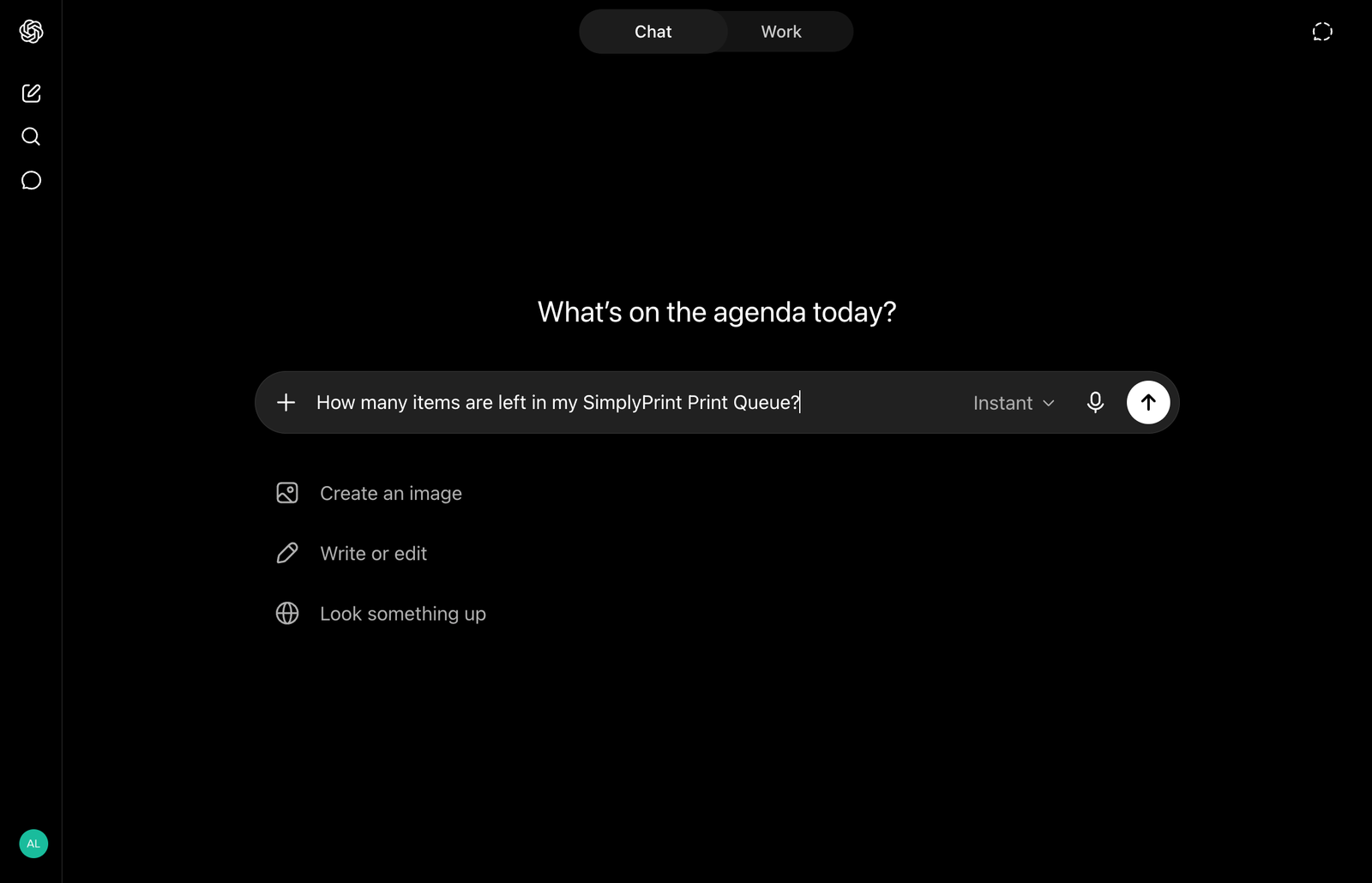
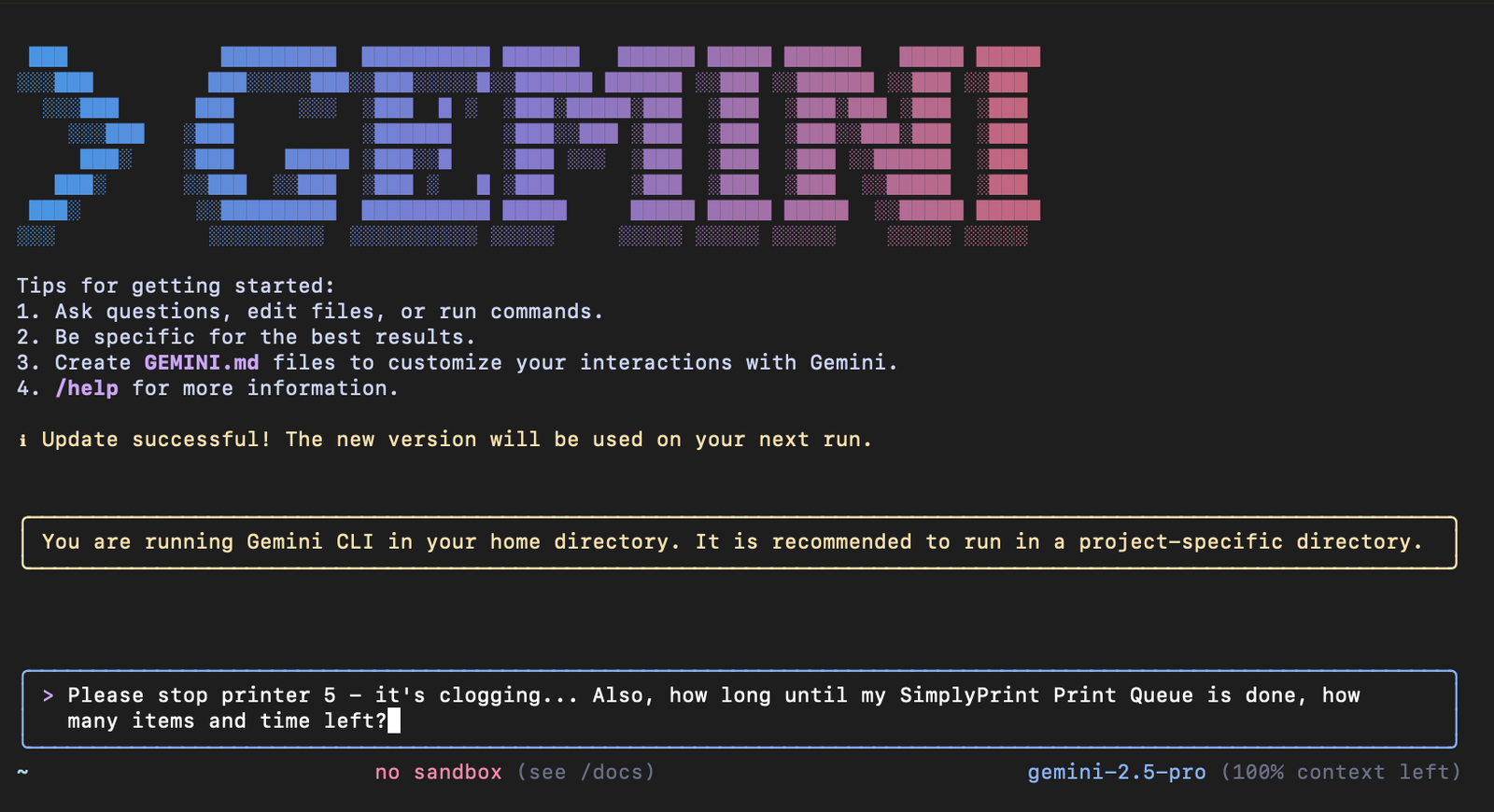
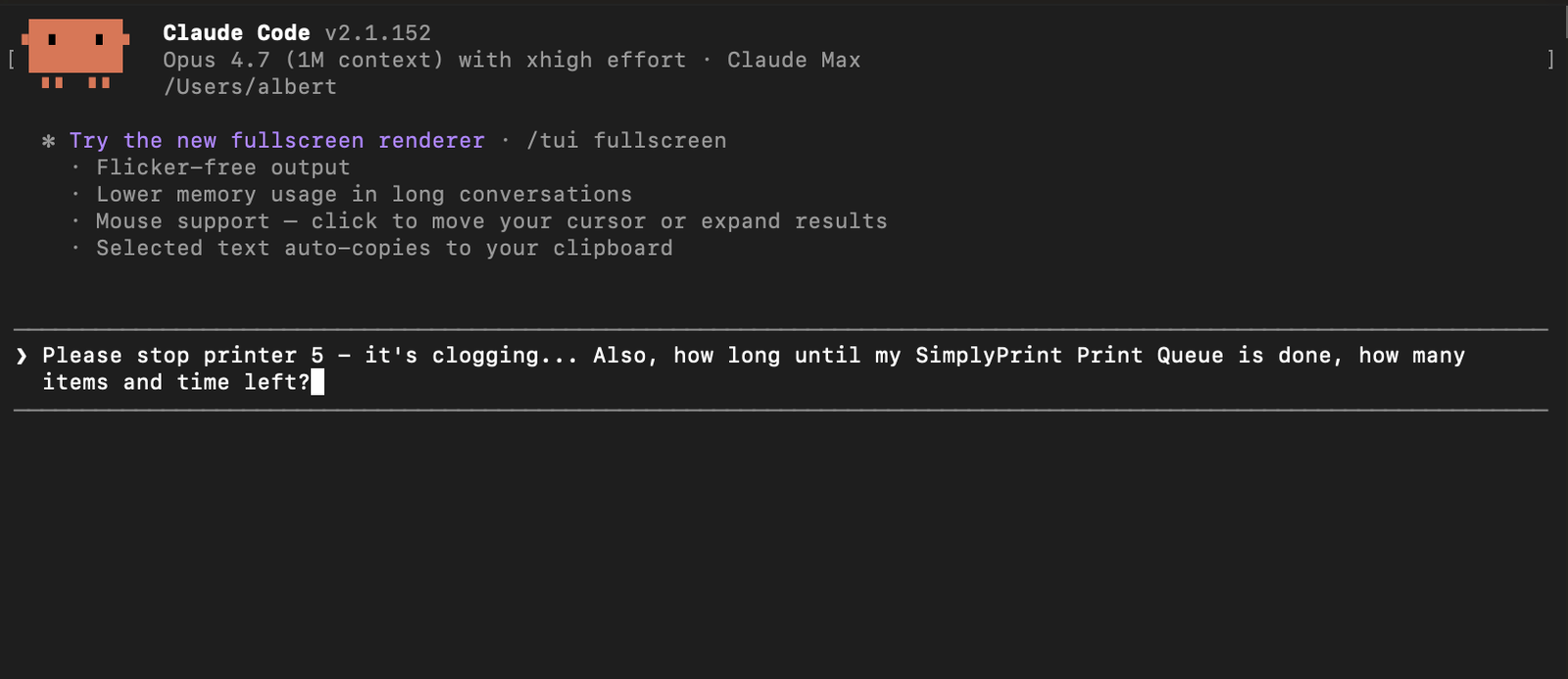
Plug SimplyPrint into any AI assistant that speaks MCP - Claude, ChatGPT, Gemini, Cursor, Windsurf and more
Learn about MCP Read the full setup guide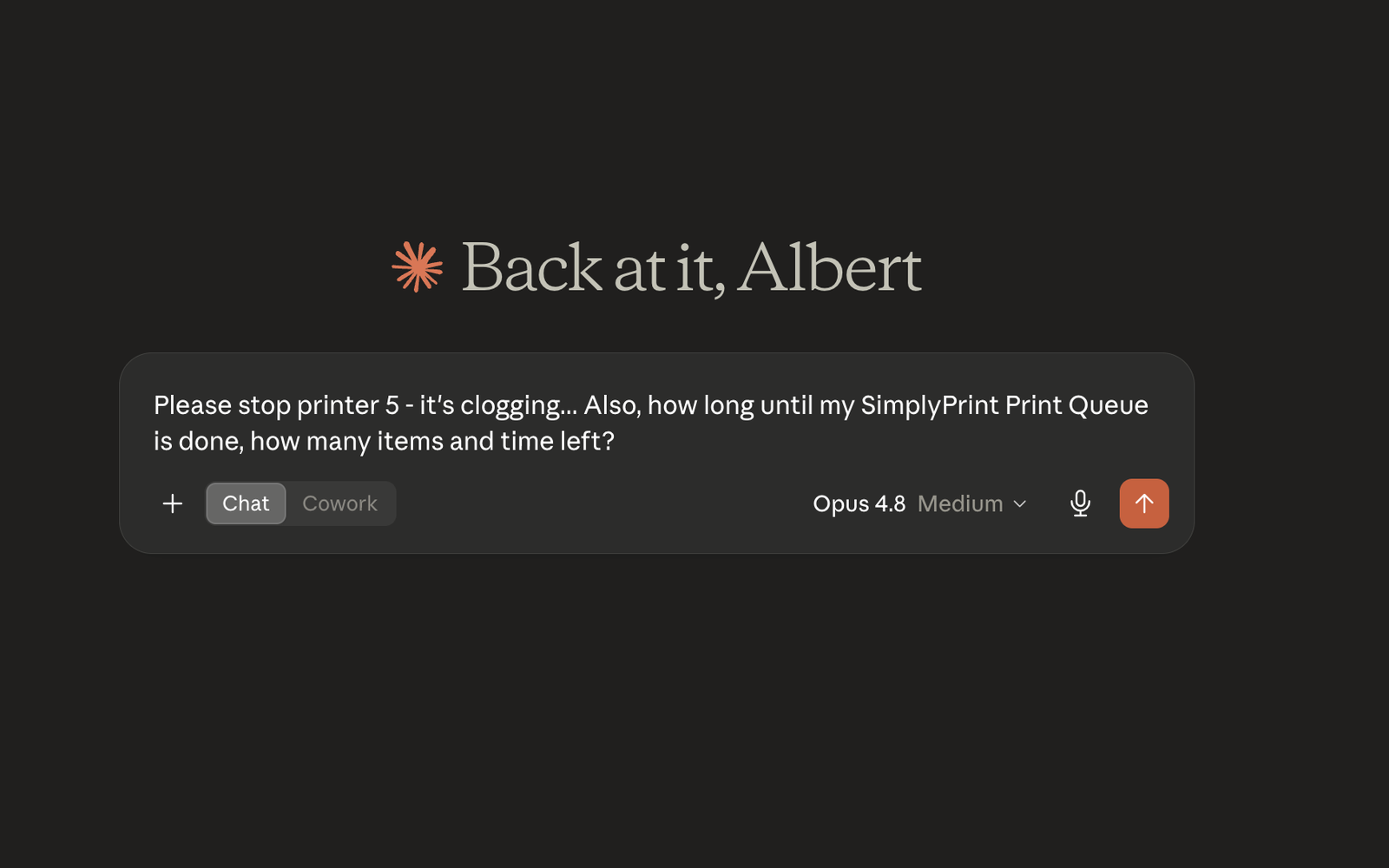
Plug SimplyPrint into any AI assistant that speaks MCP - Claude, ChatGPT, Gemini, Cursor, Windsurf and more
Learn about MCP Read the full setup guide
SimplyPrint ships an official MCP server. MCP (Model Context Protocol) is the open standard that lets AI assistants talk to external tools in a structured way. If your assistant supports MCP, you can point it at SimplyPrint with a single URL and control your farm in natural language.
That includes Claude (claude.ai, Claude Desktop, Claude Code), ChatGPT developer-mode apps, Google Gemini CLI, Cursor, Windsurf, Cline, Zed, and MCP-aware open-source AI chat frontends - they all work with the same SimplyPrint MCP endpoint.
https://simplyprint.io/api/mcp. OAuth for login. Scoped tokens, revocable any time.
gemini extensions install https://github.com/SimplyPrint/simplyprint-gemini-extension.Pasting an API key into a chatbot is risky: the key is unbounded and hard to revoke. MCP uses OAuth, so every connection is scoped to exactly the permissions you approve and can be revoked instantly from Account settings > Connected apps.
The SimplyPrint MCP server exposes the same actions as the main API: list and control printers, manage the print queue, inspect and reorganise files, adjust filament spools, pull stats and print history, set custom fields. New tools appear automatically as SimplyPrint gains features - no re-connecting needed.
Full setup steps per client, scope reference and example prompts live in the help desk MCP article.
Open the client's MCP settings
Find the custom connectors or remote MCP server option - every client names it slightly differently, but the shape is always the same.
Paste the server URL
https://simplyprint.io/api/mcp is the whole configuration - no keys, no extra fields.
Approve access
When the client first calls a SimplyPrint tool, it opens a browser for OAuth. Log in to SimplyPrint and approve the scopes you want it to have.
Start asking
You're connected - ask the assistant anything about your farm, queue, files or filament.
An official remote MCP (Model Context Protocol) server at https://simplyprint.io/api/mcp exposing tools for printers, queue, files, filament, stats and print history - so MCP-aware AI assistants can read and control your SimplyPrint account within the scopes you approve.
Claude (claude.ai, Claude Desktop and the Claude Code plugin), ChatGPT through a developer-mode app, Google's Gemini CLI extension, and MCP-aware editors like Cursor, Windsurf, Cline and Zed. Any compatible MCP client can connect to the endpoint.
No - the server uses OAuth2. Each connection gets a per-user, scoped token: you approve exactly what the assistant can do, and you can revoke it at any time from Account settings > Connected apps.
You decide how much it can do. Scopes can be read-only or grant control by category, and access is revocable instantly. Only approve write scopes when you want the assistant to take actions such as cancelling a print.
Any printer connected to SimplyPrint - 140+ brands and 600+ models through OctoPrint, Klipper or a built-in integration.
The AI assistant setup article has per-client walkthroughs, the full scope reference and example prompts.
Integration for SimplyPrint allows for applications to interact with your 3D printers, and your 3D printers to interact with other applications. This allows for endless possibilities, and we strongly believe that your 3D printer should be able to function as an IOT device, working together with any and all applications you can imagine!
This is why the team behind SimplyPrint work to provide official integrations for the most popular platforms, slicer and applications, while also allowing our users to create custom integrations using our API, or for approved third party vendors to create integrations to be used by all SimplyPrint users, using a "Log in with SimplyPrint" method (using the "OAuth2" method).
If you're a developer interested in creating an integration for SimplyPrint, please read our documentation on the subject.
If you're not a developer yourself, but would like to see an integration for a specific application, go check if it's already on our roadmap or suggestion list, and if not, feel free to suggest it!