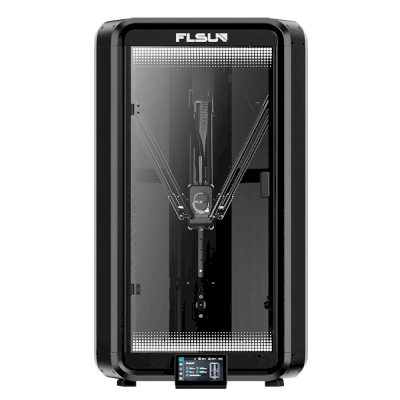
-
1 Get your printer ready
-
2 Enable SimplyPrint
Heads up: This setup has a technical step
You'll need to use something called "SSH" to run a few commands.
We know — we wish we could skip this part too. But your device doesn't give us a simpler option. The good news: it's just copying and pasting. If you can follow instructions, you can do this.
Your printer manufacturer doesn't provide a simpler way for platforms like SimplyPrint to connect. SSH is how we work around that limitation to give you the features you need.
You'll run a few commands that we provide - mostly just copy and paste. No coding required.
Some FLSUN T1 and S1 printers ship with outdated SSL certificates, which may prevent SimplyPrint from connecting properly. To fix this, you just need to run a quick command on your printer via SSH.
Connect to your printer via SSH
Yes, this is the annoying technical part. We're sorry — we've tried everything to avoid it, but your device simply doesn't give us another option.
But here's the thing: it's easier than it looks. You're just going to copy-paste a few commands. That's it. Pick your computer type below and follow the steps — we'll walk you through every click.
192.168.1.42).
Do not include http://, slashes, or port numbers.
Windows 10 / 11
- Press Win + X and select "Terminal" or "PowerShell"
-
Type the SSH command (replace the placeholders):
Example:
ssh username@ip-addressssh [email protected] -
If asked "Are you sure you want to continue connecting?", type
yesand press Enter -
Enter the password when prompted
The password won't show as you type — that's normal! Just type it and press Enter.
macOS
- Press Cmd + Space to open Spotlight, type "Terminal", and press Enter
-
Type the SSH command (replace the placeholders):
Example:
ssh username@ip-addressssh [email protected] -
If asked "Are you sure you want to continue connecting?", type
yesand press Enter -
Enter the password when prompted
The password won't show as you type — that's normal! Just type it and press Enter.
Linux
- Open Terminal (usually Ctrl + Alt + T, or find it in your applications menu)
-
Type the SSH command (replace the placeholders):
Example:
ssh username@ip-addressssh [email protected] -
If asked "Are you sure you want to continue connecting?", type
yesand press Enter -
Enter the password when prompted
The password won't show as you type — that's normal! Just type it and press Enter.
Chromebook
-
Enable Linux (skip if already done):
- Open Settings
- Go to Advanced → Developers
- Turn on "Linux development environment"
- Follow the setup wizard (takes a few minutes)
- Open the "Terminal" app from your app launcher
-
Type the SSH command (replace the placeholders):
Example:
ssh username@ip-addressssh [email protected] -
If asked "Are you sure you want to continue connecting?", type
yesand press Enter -
Enter the password when prompted
The password won't show as you type — that's normal! Just type it and press Enter.
Common issues
- "Connection refused" — Make sure you're on the same network and the IP address is correct.
- "Permission denied" — Double-check your username and password.
-
"Host key verification failed" — The device was reset or reinstalled. Remove the old key with:
ssh-keygen -R <ip-address>
Using a tablet or phone?
While there are SSH apps available for Android and iOS, we recommend using a computer for SSH connections. A proper keyboard and screen make typing commands much easier.
- Find your printer's IP address (usually shown on the printer's screen).
- Open a terminal:
- Windows → Command Prompt
- Mac → Terminal
- Enter the following command, replacing
[ip-address]with your printer's IP:
ssh pi@[ip-address]
Example:
ssh [email protected]
- When prompted for a password, enter:
1
(yes, the password is just "1" by default)
(it won't show as you type, just press ENTER)
Run the certificate update fix
Once connected to your printer, paste this one-liner and press ENTER:
wget -qO- https://download.simplyprint.io/flsun/flsun-ssl.sh | sudo bash
This is a small script made by us to update the certificates to allow your printer to connect to our servers.
Verify success
If no errors are shown when running the command, the update worked.
Continue to the next step to enable SimplyPrint inside of your printer's web panel (Mainsail/Fluidd).




Thousands complete this setup every week. Follow each step carefully - most issues come from skipping ahead.
That's it! You're all set
You're now ready to connect your printer and start using SimplyPrint.
Create your free account