Your hardware clears the bed, SimplyPrint runs the queue
Built for custom robotics and factory automation: AutoPrint handles the printing and the queue, you handle the physical clear, and a single API call or webhook hands control back so the line never stops.
What is the API & webhooks clearing method?
API & webhooks is a clearing method for AutoPrint where your own system clears the bed and then tells SimplyPrint the bed is clear, so the next queued job can start. SimplyPrint doesn't physically clear anything here - it waits. When a print finishes, AutoPrint pauses on that printer until your automation - a robot controller, a PLC, a vision system, an external sensor or a factory line - removes the part and signals back. That signal comes one of two ways: API, where your system calls SimplyPrint to mark the bed as clear, or webhook, where SimplyPrint notifies your system that the print is done so it can clear and report back. Either way, the moment the bed is marked clear, the next job in your queue begins.
API or webhook: which should I use?
Two ways to wire your automation to AutoPrint. They cover opposite directions of the same handshake.
How it works in SimplyPrint
Wire it up once and your custom line keeps clearing itself between prints.
See it in SimplyPrint
Turn on AutoPrint, let smart matching pick the next job, and hand the physical clear to your own system.
Flip AutoPrint on for a printer and choose API & webhooks as its clearing method.
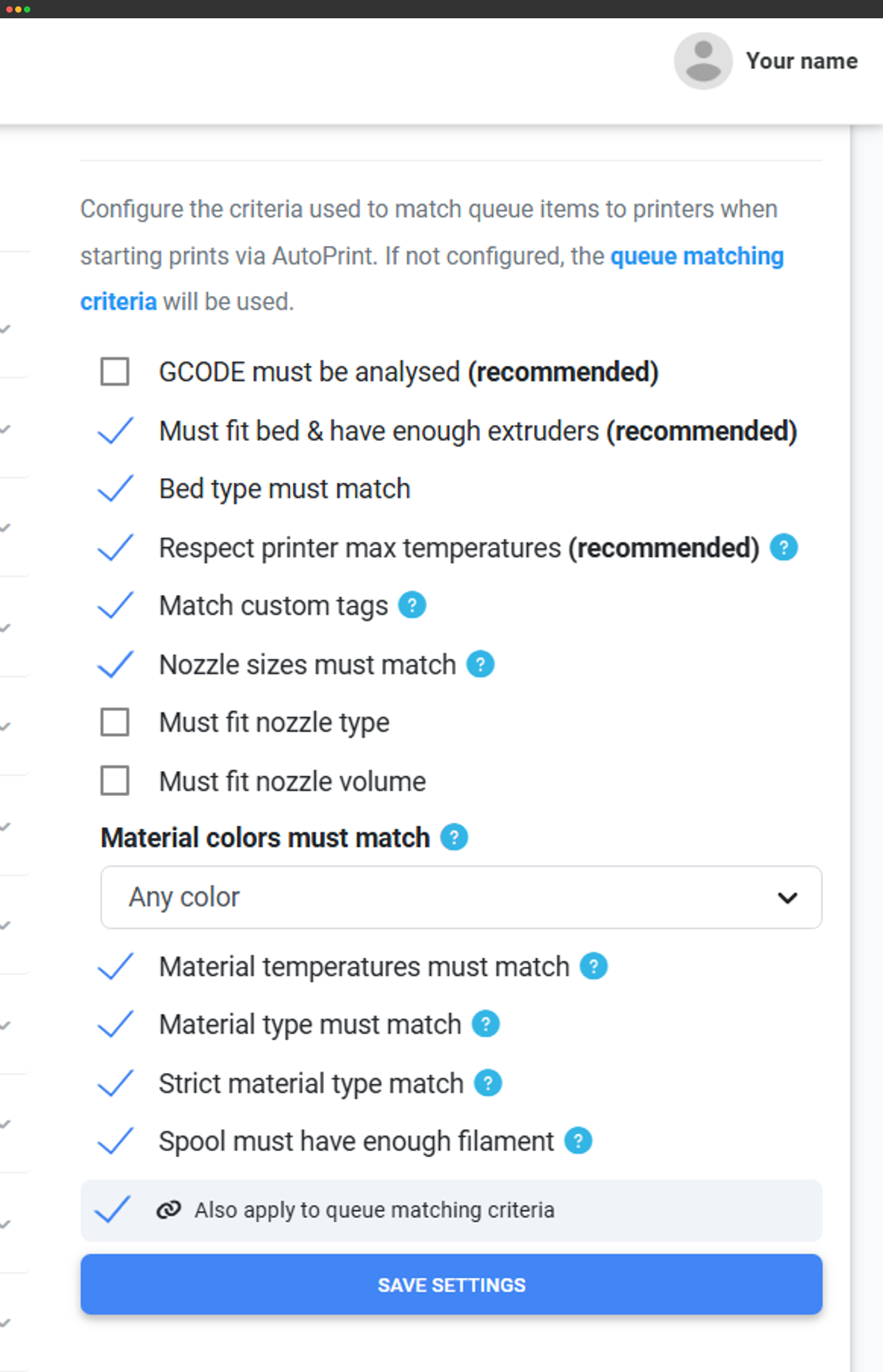
Matching criteria decide which queued job runs next on which printer, so your automation only ever has to clear and signal.
Works with any printer
Most clearing methods depend on specific hardware. This one doesn't. Since your own system performs the physical clear and reports back, the API & webhooks method works with any printer SimplyPrint can drive. SimplyPrint handles the printing and the queue, your automation handles the clear, and the API or webhook is the bridge between them - so it fits anything from a single bespoke rig to a full factory line.
Built for custom robotics and factory automation
Where programmatic clearing earns its keep.
Nothing to buy - it's built in
API & webhooks is a built-in SimplyPrint clearing method, so there's no hardware add-on to purchase from us for the method itself. Enable AutoPrint on your printer, choose API & webhooks as the clearing method, and wire your automation to the API or a webhook. For request and event details, head to the SimplyPrint developer and API docs - we keep the exact endpoints and payloads documented there rather than on this page.
Read the developer docsWhere to go next
The reference and the setup guide for building your integration.
Plan access: what plan do I need?
API & webhooks runs through AutoPrint. AutoPrint is included on Pro as 1 license (up to 5 total). Print Farm, Enterprise and Education include unlimited AutoPrint licenses.
| Feature / Limit | Free | Basic | Pro | Print Farm | Enterprise | School | Cloud Slicer | Filament Manager |
|---|---|---|---|---|---|---|---|---|
|
AutoPrint licenses
One AutoPrint license per printer you want clearing itself through your own automation.
|
1 included Up to 5 total · $3.00/mo per extra license |
Want to learn more about our plans?
View full pricing & feature comparison