
About this integration
SimplyPrint is not endorsed by or affiliated with Dassault Systèmes SolidWorks. We use trademarks and images only to indicate compatibility with our platform. Use of Dassault Systèmes SolidWorks hardware with SimplyPrint may not be as intended by Dassault Systèmes SolidWorks. All rights belong to respective owners.
3D print directly from SolidWorks - export, slice and print in one click
The SimplyPrint add-in for SolidWorks bridges the gap between CAD design and 3D printing. Model in SolidWorks, then send your part or assembly straight to your printer in a single click - no separate export step, no juggling files between programs.
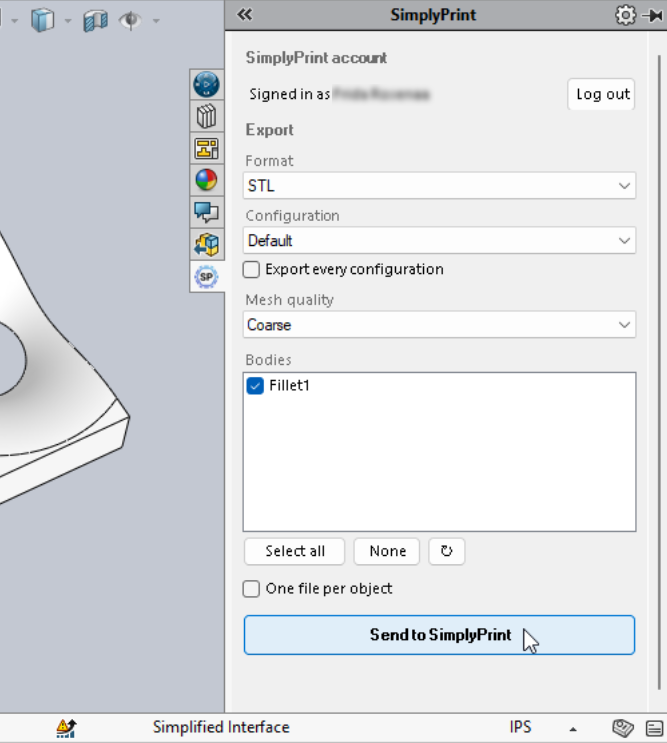
The add-in adds a SimplyPrint tab to the right-hand Task Pane, plus a toolbar button and a Tools → SimplyPrint menu entry. Pick STL or 3MF, choose which configuration, bodies or components to export, dial in the mesh quality, hit Send, and SimplyPrint opens in your browser with the model loaded - ready to slice, queue, or print.
How to install
Option 1 - Windows installer (recommended)
-
Download the installer:
Download SimplyPrintSolidWorks-installer.exe Right-click the installer and choose Run as administrator - registering the add-in needs admin rights. If Windows SmartScreen warns about an unknown publisher, click More info → Run anyway.
Click through the installer - it copies the add-in and registers it with SolidWorks for you.
Open SolidWorks (or restart it if it was already running), then go to Tools → Add-Ins, tick SimplyPrint, and tick Start Up so it loads automatically next time.
Option 2 - Manual install
-
Download the zip:
Download SimplyPrintSolidWorks.zip Extract the zip to a folder you'll keep around (for example
C:\Program Files\SimplyPrint\SolidWorks- don't leave it in Downloads where it might get cleaned up).Open an administrator command prompt and register the add-in with
RegAsm:%WINDIR%\Microsoft.NET\Framework64\v4.0.30319\RegAsm.exe /codebase "C:\path\to\SimplyPrintSolidWorks.dll"Open SolidWorks, go to Tools → Add-Ins, tick SimplyPrint, and tick Start Up.
Getting started
Open the SimplyPrint tab in the Task Pane (or use Tools → SimplyPrint) to open the panel. Click Log in the first time - a browser tab opens, you approve the request, and you're set for future sessions. Pick the format, configuration, scope and mesh quality you want, then hit Send to SimplyPrint. Your browser opens SimplyPrint with the model uploaded, ready to slice, queue, or print on one or more printers.
- Export STL or 3MF directly from SolidWorks to SimplyPrint (3MF needs SolidWorks 2019 or newer)
- Export one configuration, the active configuration, or every configuration at once
- Send whole parts and assemblies, pick individual bodies or components, or one file per body
- Engineering-grade mesh control - Coarse / Fine presets, or a Custom chord deviation (mm) and angle tolerance (degrees)
- Assemblies keep their real position, and units auto-convert to millimeters
- Chunked uploads for huge assemblies - multi-hundred-megabyte exports just work
How to use SolidWorks with SimplyPrint
Install the SimplyPrint add-in
Run the Windows installer as administrator, or register the zip manually with RegAsm. Then open SolidWorks, go to Tools > Add-Ins, tick SimplyPrint and tick Start Up so it loads automatically.
Log in once
Open the SimplyPrint tab in the Task Pane and click Log in. A browser tab opens, you approve the request, and the session is remembered for next time.
Send your model and print
Pick STL or 3MF, choose the configuration, scope and mesh quality, then hit Send. SimplyPrint opens in your browser with the model loaded, ready to slice, queue or print.
Frequently asked questions
How do I 3D print from SolidWorks?
Install the SimplyPrint add-in for SolidWorks, then open the SimplyPrint tab in the Task Pane to export your part or assembly as STL or 3MF and send it. The model opens in SimplyPrint in your browser, ready to slice, queue or print - no manual export or SD cards.
Is the SolidWorks integration free?
Yes. The add-in is free to install and use, and SimplyPrint's free plan lets you connect a printer and print wirelessly.
Does it work on Mac?
No. SolidWorks runs on Windows only, so the add-in is Windows-only too. The Windows installer registers it for you; you can also register the zip manually with RegAsm.
STL or 3MF - which format should I send?
Both work. STL is the universal mesh format, while 3MF preserves units and per-body metadata (and needs SolidWorks 2019 or newer). You choose the format, the configuration, the scope of bodies or components, and the mesh quality before sending.
Can I export multiple configurations?
Yes. SolidWorks files often hold several design variants as named configurations. The add-in lets you send a single configuration, just the active one, or every configuration at once - each lands in SimplyPrint as its own file.
Can I print to any 3D printer after sending?
Yes. Once the model is in SimplyPrint you can slice it and print to any printer on your account - 140+ brands and 600+ models through OctoPrint, Klipper or a built-in integration.
About SimplyPrint integrations
Integration for SimplyPrint allows for applications to interact with your 3D printers, and your 3D printers to interact with other applications. This allows for endless possibilities, and we strongly believe that your 3D printer should be able to function as an IOT device, working together with any and all applications you can imagine!
This is why the team behind SimplyPrint work to provide official integrations for the most popular platforms, slicer and applications, while also allowing our users to create custom integrations using our API, or for approved third party vendors to create integrations to be used by all SimplyPrint users, using a "Log in with SimplyPrint" method (using the "OAuth2" method).
If you're a developer interested in creating an integration for SimplyPrint, please read our documentation on the subject.
If you're not a developer yourself, but would like to see an integration for a specific application, go check if it's already on our roadmap or suggestion list, and if not, feel free to suggest it!