Den samme platform til flere brugere, med et ekstra lag regler til klasseværelset
SimplyPrints skolefunktioner bygger oven på det almindelige brugersystem, så du beholder alle 168 tilladelser, alle rollemønstre og alle poster i revisionsloggen, som en printfarm får, plus strammere standardindstillinger til den måde, klasseværelser faktisk fungerer på: en opdeling mellem lærere og elever på rolleniveau, kvoter som tilladelse, køgodkendelse sendt til den rette lærer og SSO-udbydere, som skoler faktisk bruger.
Tre personer, én konto, tre forskellige logins
Brugeradministration til skoler handler primært om at sikre, at den rette person ser den rette side, så snart vedkommende logger ind. Her er, hvad hver af de tre klasseværelsesroller får på den samme skolekonto:
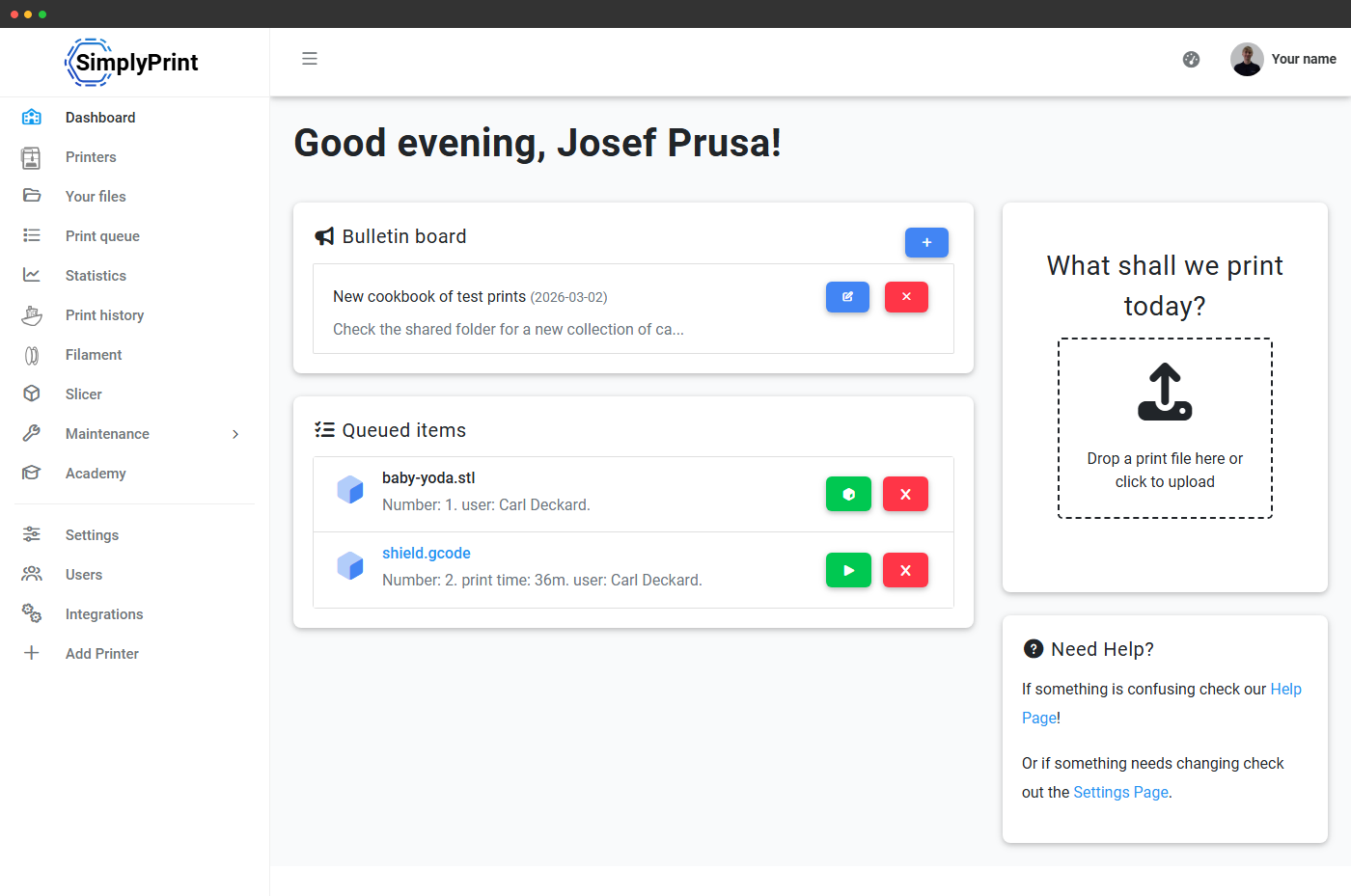
- Lander på læreroversigten på /panel/dashboard
- Indbakke til afventende elevprint, med godkend/send tilbage med ét klik
- Anmodninger om kvoteoptankning fra hendes klasse
- Flådestatus for de printere, hun administrerer
- Forfatterværktøjer til opslagstavle
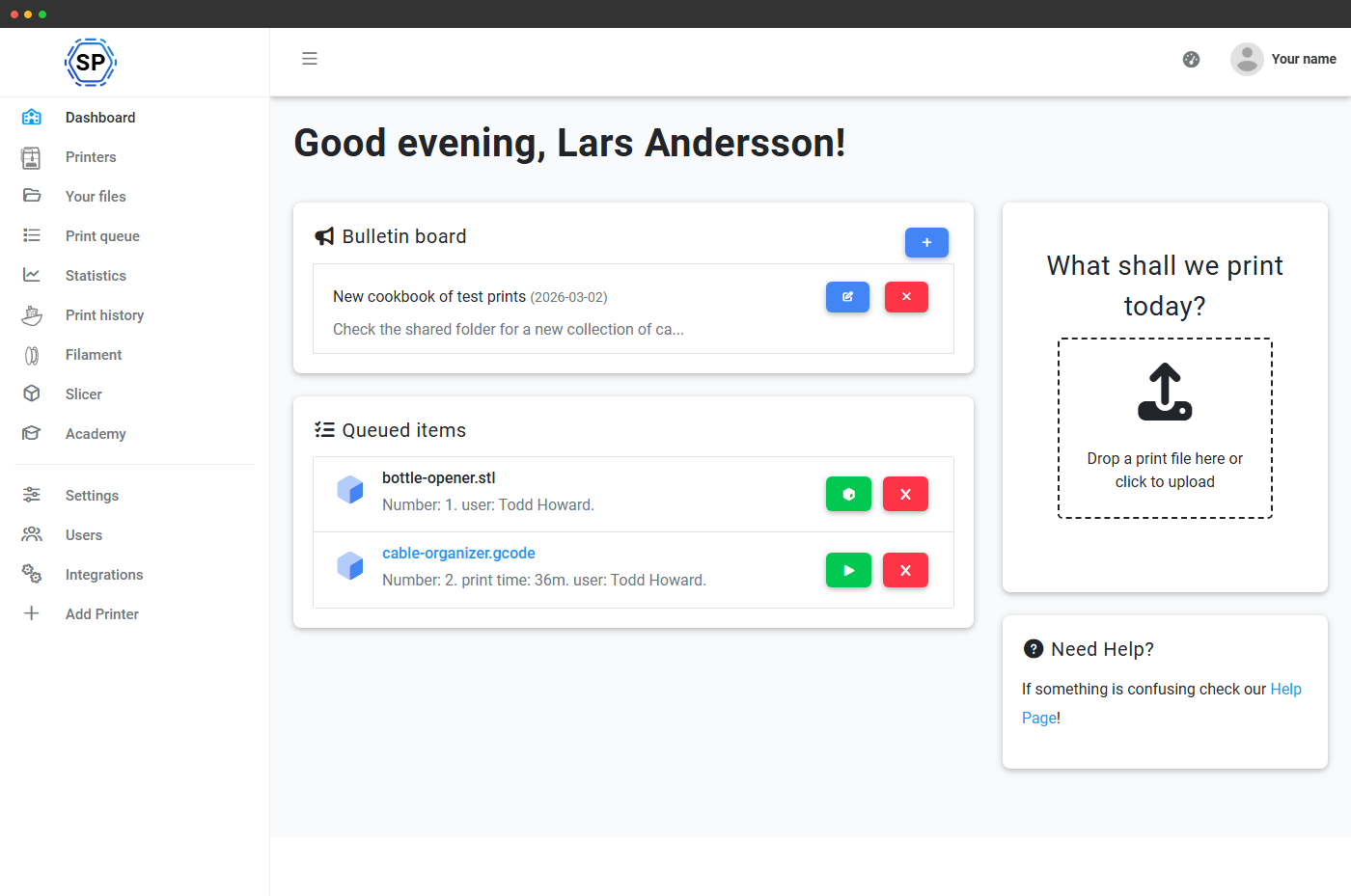
- Lander på elevoversigten på /panel/dashboard
- Upload med træk og slip direkte til printkøen
- Egne print (i kø, i gang, færdige) og resterende kvote
- Opslagstavle (skrivebeskyttet) og kontaktliste over hvem man kan spørge
- Ingen adgang til slicerprofiler, indstillinger eller andre elevers filer
- Sætter SSO op én gang og behøver derefter ikke gøre mere
- Ejer rolledefinitionerne og tilladelsestræet
- Læser revisionsloggen ved gennemgang af elevsikkerhed eller hændelser
- Håndterer listen over tilladte domæner og obligatorisk 2FA på Enterprise
- Behøver ikke logge ind ved daglige ændringer i klassen
Inviter en hel elevliste på én gang, eller hent den fra din identitetsudbyder
Tre måder at få en klasse på SimplyPrint uden at skrive 30 mails manuelt:
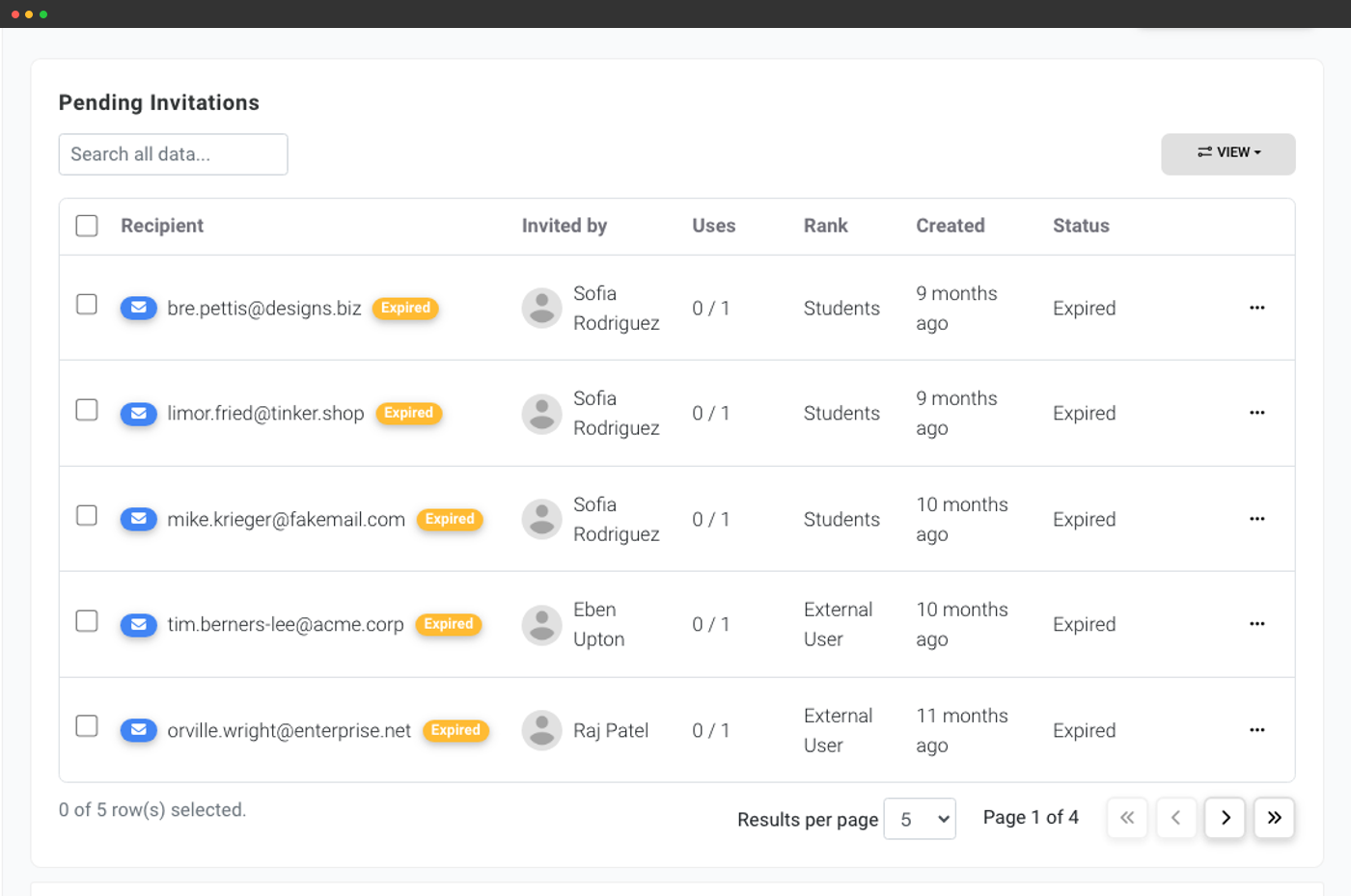
- Masseinvitation via e-mail - indsæt en liste over elevers e-mailadresser, vælg den rang, de skal have, og send. Se, hvilke invitationer der stadig afventer, og send dem igen med ét klik.
- Åbent invitationslink - opret en delbar URL, som lader alle med linket tilslutte sig på en valgt rang. Praktisk til trykte uddelinger, skoleportalen eller en klasse-Discord. Begræns accept til @yourschool.edu, så det kun virker for dit domæne.
- Automatisk SSO-oprettelse - forbind din identitetsudbyder én gang, så oprettes nye brugere automatisk, når de logger ind. Knyt SSO-grupper til SimplyPrint-roller, så de rette personer automatisk bliver lærere.
- Google Workspace for Education - den mest udbredte K-12-IdP
- Microsoft Entra ID (tidligere Azure AD) - almindeligt i større distrikter og på universiteter
- Clever og ClassLink via deres SAML-connectorer, de elevadministrationsplatforme, som de fleste amerikanske skoledistrikter standardiserer på
- Auth0 og enhver generisk SAML 2.0 IdP, til føderationsbaserede eller tilpassede opsætninger
- Unilogin: førsteklasses support til danske skoler
Lærer vs. elev: en opdeling efter rang, ikke efter klasse
På en skolekonto er alle ikke-administratorer som standard elever. Markér en person som lærer, manuelt, for flere brugere ad gangen på brugersiden eller via medlemskab af en SSO-gruppe, så skifter personen til et andet brugerniveau med et andet standardsæt af rettigheder. Ingen kode, ingen separat rolle at koble på og ingen opsætning pr. klasseværelse: Opdelingen ligger i brugerniveausystemet, så den samme lærerkonto fungerer på tværs af alle de klasser, læreren er tilknyttet.
Det tilpassede rangsæt, som de fleste skolekonti ender med:
- Administrator, som regel én IT-ansvarlig og én laboratoriekoordinator. Fuld paneladgang, rangeditor, revisionslog og SSO-konfiguration.
- Lærer - godkender elevprint, administrerer kvoter for sin klasse, redigerer slicerprofiler, ser lærerdashboardet.
- Elev - uploader filer, sætter print i kø, ser sin egen kvote og opslagstavlen. Har ikke adgang til slicerprofiler, andre brugeres filer og rå G-code.
- Forælder/tilsynsførende med læseadgang - en rolle til åbent hus for forældre og tilsynsførende. Kan se printkøen og dashboardet, men ikke foretage ændringer.
Hvorfor lærere har brug for en anden portal at logge ind på
En lærer, der driver en klasse på tredive, vil ikke lande på samme dashboard som eleven, der lige har sat en fidget spinner i køen. Læreren har brug for et kontrolcenter: hvad afventer min godkendelse, hvem er løbet tør for kvote, hvilken printer skal have opmærksomhed, hvem er logget ind lige nu. Den samme URL (/panel/dashboard) viser et lærerkontrolcenter for personale og en simpel upload-og-kø-flade for elever, ingen rolleomskifter, intet separat login, den rigtige visning dukker bare op, når de logger ind.
Lærervisningen samler arbejdsgangen, som før krævede tre forskellige faner, kø, brugere og printere, på én skærm. Elevvisningen skjuler alt, en elev ikke har brug for, så de ikke farer vild. Indstil begge fra én indstillingsside, eller slå en af dem helt fra, hvis skolen ikke ønsker den.
Kvoter: ikke en klasseindstilling, men en tilladelse på rollen
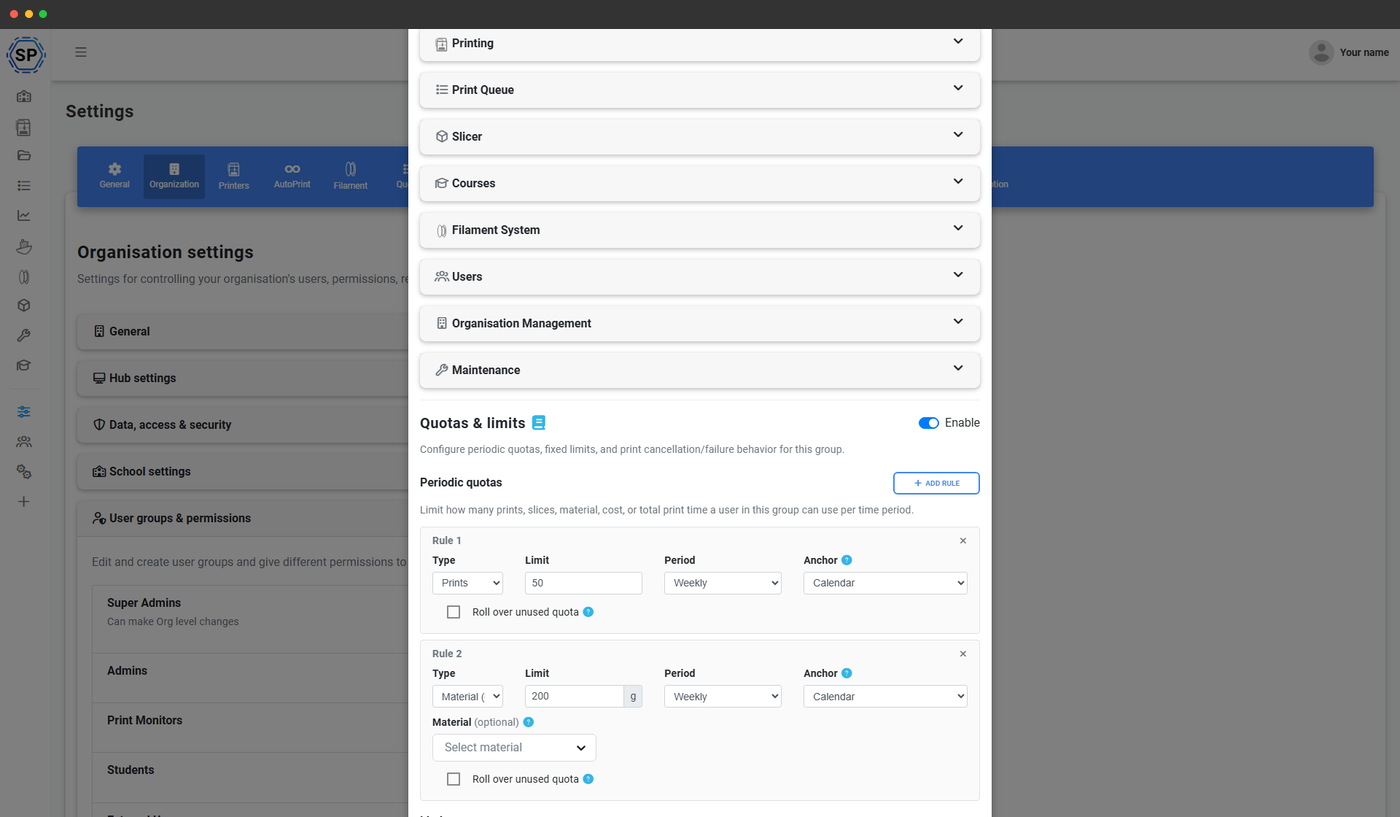
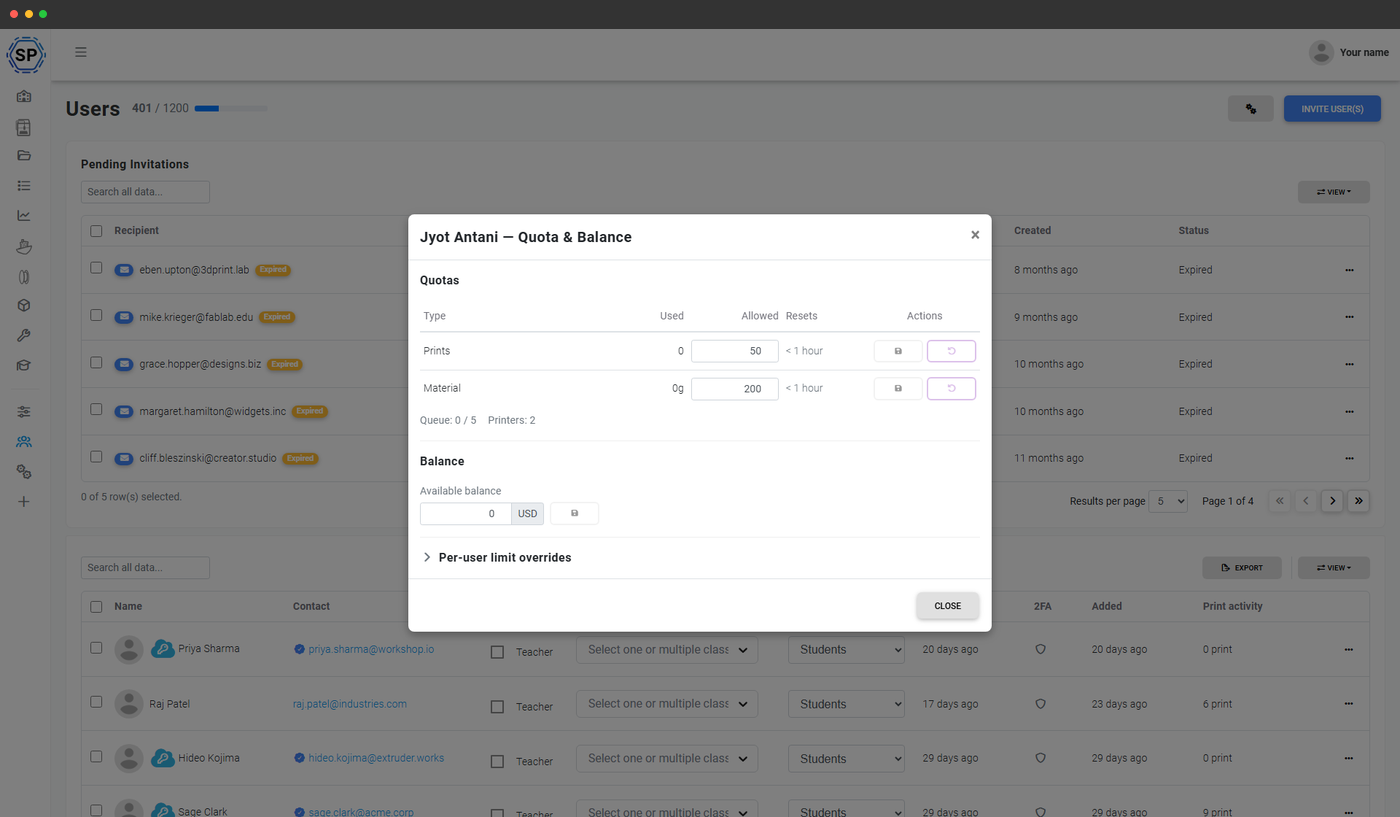
Kvotepolitikker knyttes til roller (eller til individuelle brugere), ikke til klasser. Det er vigtigt, fordi den naturlige enhed, du vil begrænse, er "en elev", ikke "en klasse". En elev kan være med i tre klasser og skal stadig have ét samlet månedsbudget. Elevrollen begrænser månedlig printtid, filamentvægt eller antal print. Lærerrollen arver en politik uden kvoter, mens laboratorieassistentrollen ligger midt imellem.
Kvoter tjekkes, når et job sættes i kø, så ingen kan snige et 30-timers print forbi grænsen. De får en tydelig besked om opbrugt kvote og kan med ét klik anmode om mere, hvorefter anmodningen lander i lærerens indbakke. Lærere kan godkende, afvise eller tilsidesætte anmodningen fra dashboard-widgeten, som regel på under 30 sekunder.
Klassebudgetter, der giver AP-teknik en større materialeramme end introvalgfaget, findes på siden skoleklasser. Kvoter som tilladelse og klassebudgetter kombineres: En elev arver både loftet for sin rolle og loftet for sin klasse. Den laveste grænse gælder.
Godkendelse i printkøen: læreren godkender hvert elevprint
Køgodkendelse er det ene klasseværelsesflow, der forvandler SimplyPrint fra en printkø til en lærerstyret produktionspipeline. Hvert job, som en bruger med Student-rang sætter i kø, lander i en afventende bane i stedet for i den aktive kø. Læreren ser miniaturebilledet, gcode-analysen, den estimerede pris og elevens aktuelle kvoteforbrug på sit dashboard og vælger derefter en af fire handlinger:
- Godkend, jobbet flyttes til den aktive printkø og køres i rækkefølge.
- Send tilbage til rettelse: Skriv en kommentar med ændringsønsket. Eleven genindsender det samme.
- Afvis - med en begrundelse, der sendes på e-mail til eleven.
- Print og godkend - godkender printjobbet og sender det direkte til en printer med ét klik, når du har tillid til opgaven.
Alle tilladelser, alle roller, alle auditlog-poster gælder stadig
Skolekonti arver hele multi-bruger-systemet, alle 168 tilladelser, hver rang, den fulde audit-log, CSV-eksport, hele pakken. De skolespecifikke dele ligger oveni, de erstatter ikke noget.
Det betyder, at de samme mønstre, som en printfarm opbygger (en rang med skrivebeskyttet visning for interessenter, en slicer-låst rang til nyansatte, en filamentadminrang med lageradgang), fungerer på samme måde på en School-konto. Skoleplanen tilføjer blot opdelingen mellem lærer og elev, skolerettede standardindstillinger og de SSO-udbydere, skoler bruger.
Hvad er inkluderet i School-abonnementet
Flerbrugerlaget til skoler er en del af School-planen (markedsført som Education): 500 brugere inkluderet fra start, ubegrænsede klasser, opdeling mellem lærere og elever, printkøgodkendelse, kvoter, SSO med automatisk oprettelse og en revisionslog. Intet tillæg pr. bruger og intet tilkøb pr. funktion.
| Funktion/grænse | Gratis | Basic | Pro | Printfarm | Enterprise | Skole | Cloud Slicer | Filament Manager |
|---|---|---|---|---|---|---|---|---|
|
Inkluderede brugere
Pladser inkluderet i planen. School inkluderer 500 fra start; ekstra brugere kan tilføjes.
|
1 | 1 | 1 | 1 | 10 | 500 | 1 | 1 |
|
Flere brugere
Rigtige login til alle lærere og elever med historik og tilskrivning pr. bruger.
|
||||||||
|
Lærer- og elevdashboard
Rollebaseret /panel/dashboard med godkendelsesindbakke, kvoteanmodninger og elevuploadområde.
|
||||||||
|
Godkendelsesflow for printkø
Alle elevprint går gennem en lærer, før de når en printer.
|
||||||||
|
Kvoter som en tilladelse
Sæt et loft for printtid, filamentvægt eller antal print pr. rolle eller bruger. Grænsen kontrolleres, når et print sættes i kø.
|
||||||||
|
Single sign-on (SAML)
Google Workspace, Microsoft Entra ID, Clever, ClassLink, Auth0, Unilogin og enhver SAML 2.0-IdP.
|
||||||||
|
Kontoens revisionslog
Fuld tidslinje over hvem der gjorde hvad, logins, prints, indstillingsændringer, rangændringer.
|
Vil du vide mere om vores abonnementer?
Se fuld pris- og funktionssammenligningHvor resten af historien om skoler findes
Denne side er flerbrugerlaget. De andre skolesider:
- Skoleklasser, enheden til organisering af hold: klasselister og kvoter pr. klasse, overførsel ved skoleperiodens afslutning, SSO-import af klasser og opslagstavlen afgrænset til én klasse.
- Dashboard for lærere og elever, det dybdegående kig på dashboardet med to tilstande, alle widgets, opsætningsgrænsefladen og værktøjet til at forhåndsvise som elev.
- Skoler og uddannelse (oversigt), den brede fortælling: SDPC-overholdelse, den indbyggede DPA, Hub-kiosksiden, distriktspriser og budskabet om samlet budget.
- SSO, den underliggende SAML- og Unilogin-implementering med opsætningsnoter pr. udbyder.