Én kontakt pr. handling, ikke én stor admin/ikke-admin-kontakt
De fleste platforme giver dig to roller, administrator og bruger, og nøjes med det. Vi giver dig 196 individuelle tilladelsesindstillinger, fordi rigtige teams ikke passer i en tabel med to rækker. Personen, der administrerer dit filament, bør ikke kunne slette printere. Eleven, der slicer sine egne modeller, bør ikke kunne redigere kontoens slicerprofiler. Praktikanten, der rydder printplader, bør ikke kunne sende rå G-code.
Roller: genanvendelige samlinger af tilladelser
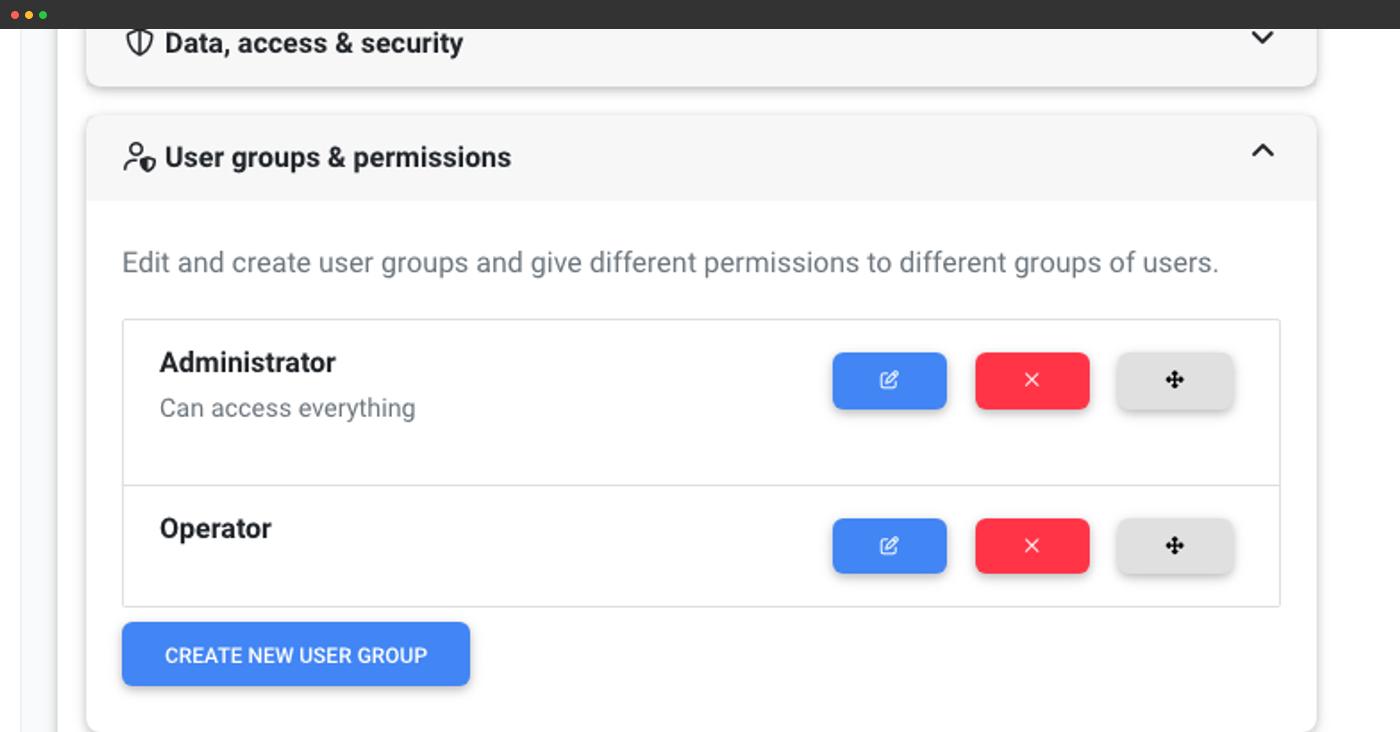
En rolle samler et sæt tilladelser under et navn, f.eks. "Operatør", "Filamentadmin", "Lærer" eller "Bruger med læseadgang". Tildel en bruger en rolle, så får brugeren alle tilladelser i pakken. Ændr rollen, så opdateres alle brugere med den med det samme.
SimplyPrint kommer med fornuftige standardrangniveauer til de fleste opsætninger, administrator, medlem, læser og nogle flere, men den virkelige styrke ligger i at oprette dine egne:
- Klon en standardrang og tilpas den
- Byg en helt ny rang fra bunden med kun de tilladelser, du vil have
- Markér en tilladelse som tri-state, så individuelle brugere kan tilsidesætte den
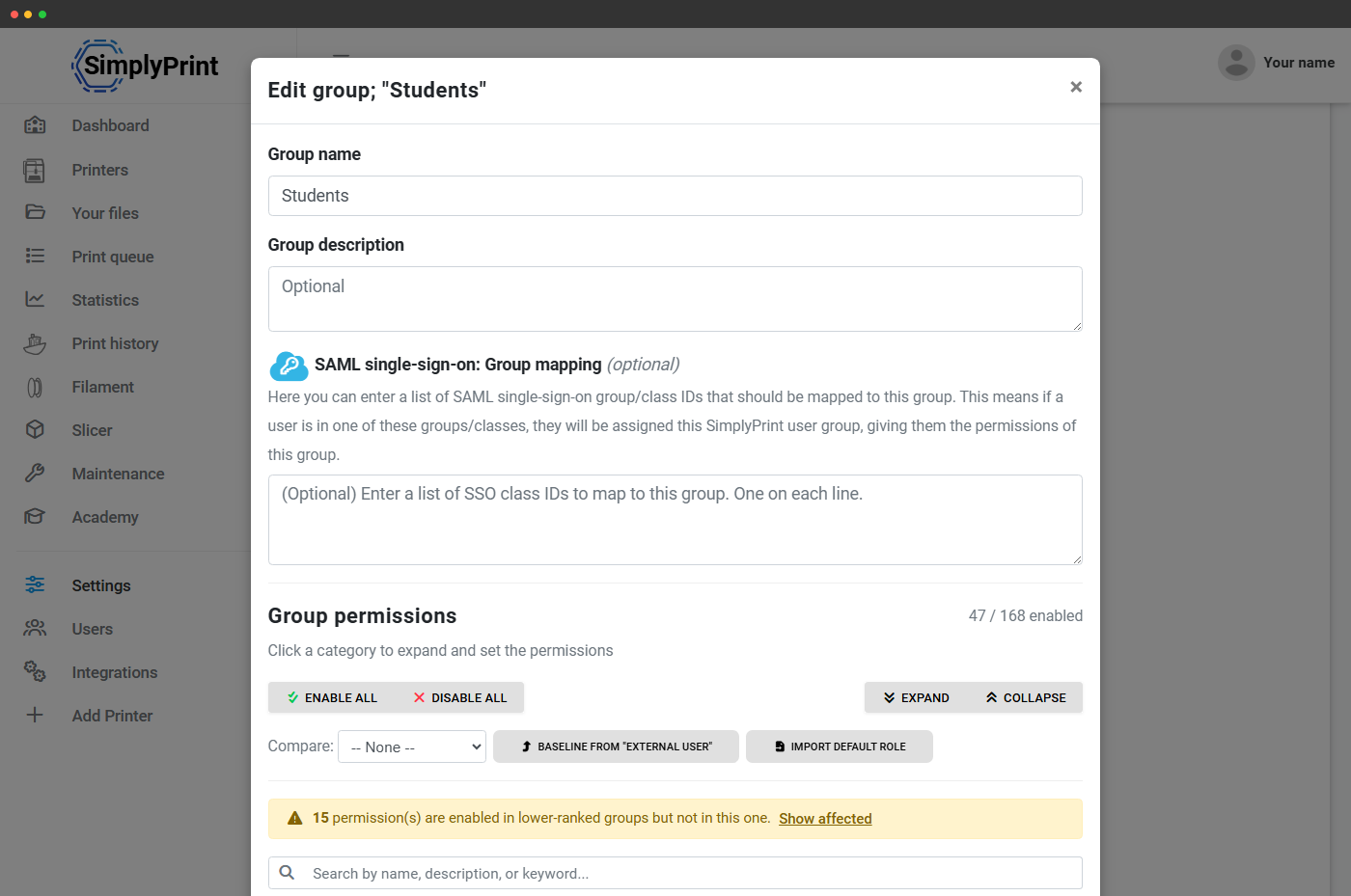
- Omarrangér rangene efter anciennitet, så ligestillede ikke kan forfremme sig selv over deres egen rang
Den fulde tilladelsesmatrix
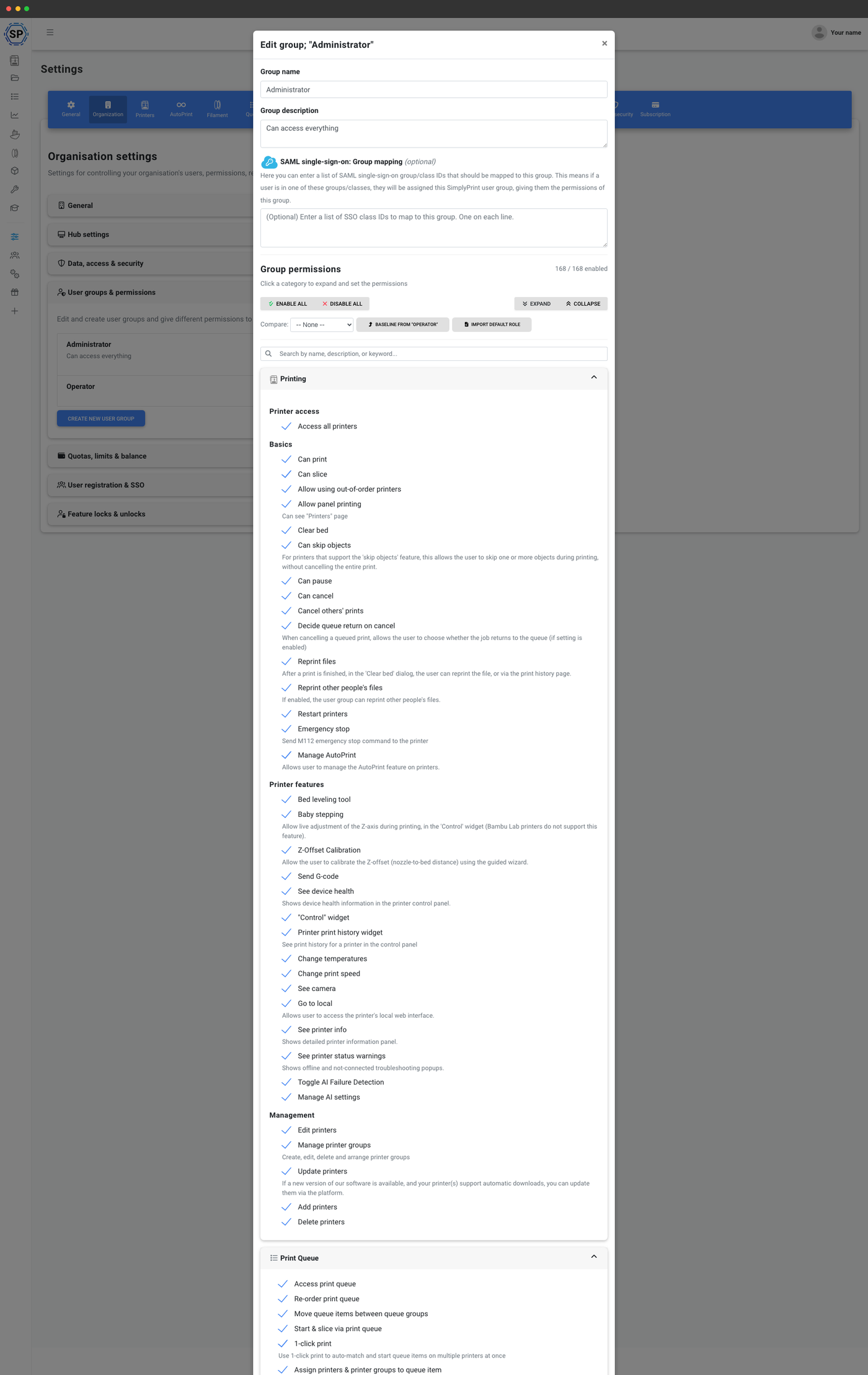
Når du redigerer en rolle, får du hele tilladelsesmatrixen i én oversigt, du kan rulle i. Tilladelser er grupperet efter område: printeradministration, printkø, filer, slicer, filament, vedligeholdelse, webhooks, API, kontoadministration og skole, så du straks kan se, hvad en rolle kan og ikke kan.
Hver tilladelse har et tooltip, der forklarer præcis, hvad den styrer i almindeligt sprog. Ingen gætterier om, hvad queue_approve_view_all betyder. Matrixen fortæller dig det.
Det kan du styre: tilladelseskategorierne
De 196 rettigheder er opdelt i cirka et dusin områder. Overskrifterne:
- Printere: tilføj, rediger, slet, genstart, nødstop, nivellér printplade, babystep, send rå G-code, se kameraer, styr blæsere og motorer
- Printkø: tilføj, omarrangér, redigér andres elementer, godkend, spring godkendelse over, se færdige elementer, genopliv færdige elementer, tildel printere
- Filer: upload, organisér i mapper, tildel materiale- og dysetags, tilføj brugerdefinerede felter
- Slicer: over 25 dedikerede slicer-tilladelser - skift motor, skift bedtype, skift profiler, mal farver, arranger automatisk, roter automatisk, forenkl, mål, se standardprofiler, gem organisationsprofiler
- Filament: opret, skift, markér som tørret, justér vægt, administrér placeringer og labels, scan stregkoder og NFC, se alle printjob, der brugte en spole
- Vedligeholdelse: se og administrer opgaver, fuldfør opgaver, administrer lager, rapporter problemer
- Kontoadministrator: administrer brugere, invitér, skift roller, administrer abonnement, webhooks, API-nøgler, brugerdefinerede felter og funktionsoplåsninger
- Skole: angiv en bruger som lærer, ændr klasseplaceringer, administrer skoleindstillinger
- Kvoter: administrer kvoter, godkend kvoteanmodninger, administrer brugersaldo, tilbagefør kvote
- Compliance: Se revisionslog, administrer DPA samt adgangs- og sikkerhedsindstillinger
Typiske rangmønstre, vi ser kunder bygge
Nogle rolleskabeloner, der går igen:
- Interessent med læseadgang - kan se printere, printkøen og printhistorikken, men kan ikke starte, annullere eller ændre noget. Velegnet til ledere, forældre ved åbent hus eller kunder, der vil have indblik i produktionen.
- Printkøgodkender - kan godkende og omarrangere køen, se alle elementer i køen og starte print, men kan ikke redigere printerindstillinger eller administrere brugere.
- Filamentadministrator: fuld adgang til filamentbeholdningen (opret, redigér, markér som tørret, administrér placeringer, scan NFC), men ingen printer- eller printkøtilladelser ud over visning.
- Pålidelig operatør: alt, hvad en daglig printfarmoperatør har brug for: starte og annullere print, rydde printpladen, administrere køen og skifte filament, men uden adgang til kontoadministration eller fakturering.
- Begrænset slicer-elev - kan kun slice med forudindstillede profiler, kan ikke skifte slicerprogram/-motor eller printpladetype eller redigere profiler og kan sætte print i kø, men ikke starte dem direkte.
Adgang pr. printer: ikke alle roller kan se alle printere
Tilladelser svarer på "hvilke handlinger kan denne bruger udføre?". Adgang pr. printer svarer på "på hvilke printere?". En rolle kan begrænses til bestemte printere, bestemte printergrupper eller bestemte printermodeller, og du bestemmer, om brugere i den rolle overhovedet kan se de printere, de ikke har adgang til, eller om de printere skjules helt.
Sådan kan en skole køre printere til mellemtrinnet adskilt fra printere til gymnasiet på én konto, eller sådan kan en printfarm give en tredjepartsoperatør adgang til én printerlinje uden at vise resten af printfarmen.
Arbejdsgrupper: når én rolle pr. person ikke er nok
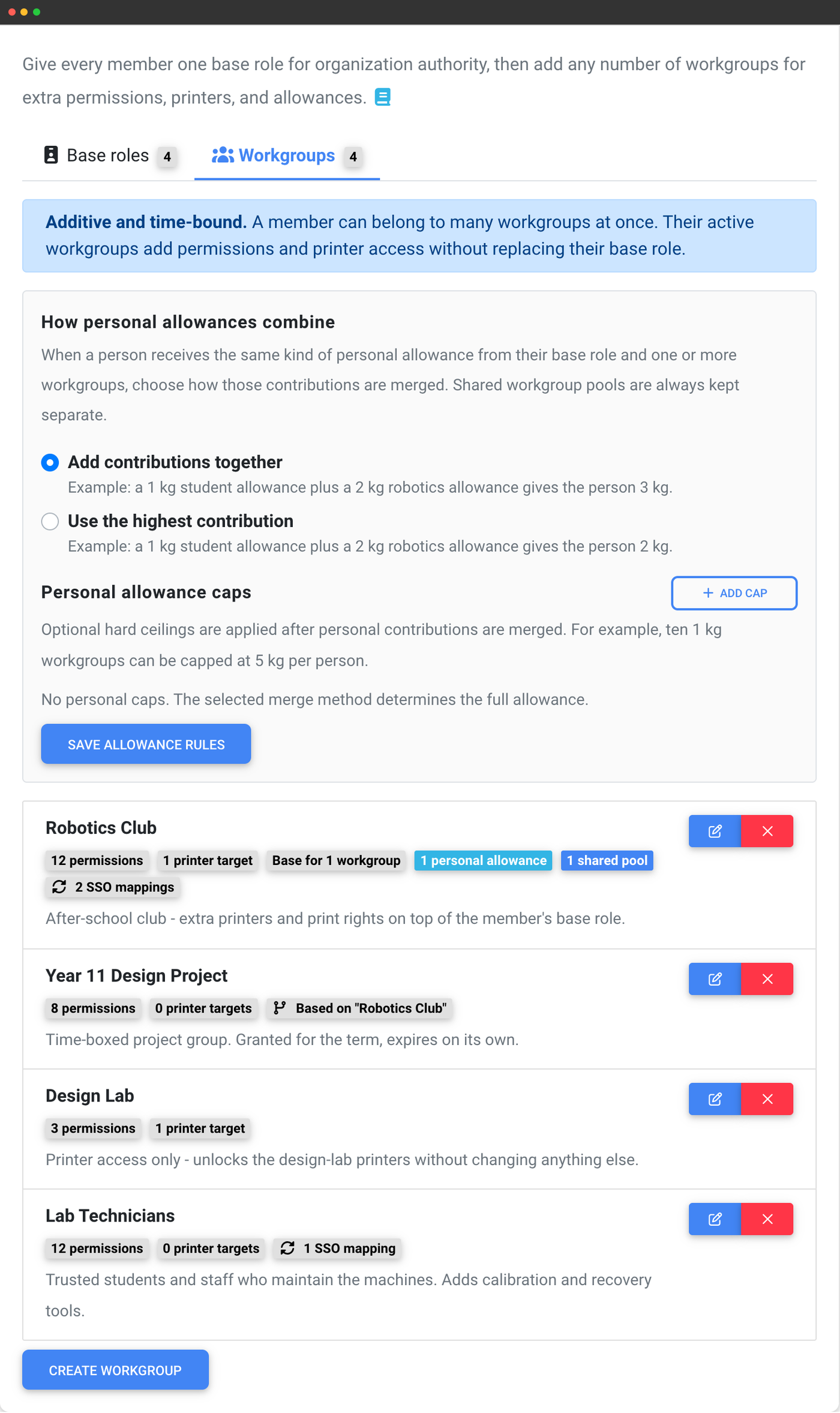
En rang svarer på "hvem er denne person?", og alle har præcis én. Men rigtige teams skal også kunne svare på "hvad er de ellers en del af lige nu?", læreren, der leder robotikklubben, eleven i designlaboratoriet i ét semester, entreprenøren, der har brug for tre printere i seks uger.
Arbejdsgrupper er den anden akse. Et medlem kan have et vilkårligt antal på én gang, og hver arbejdsgruppe tilføjer tilladelser og printeradgang oven på medlemmets rolle. Den gældende adgang er summen: Du kan gøre noget, hvis din rolle tillader det, eller en aktiv arbejdsgruppe tillader det. Intet erstattes, og en arbejdsgruppe kan aldrig fjerne adgang.
Det er det, der forhindrer en eksplosion i antallet af niveauer. Fire niveauer plus to arbejdsgrupper udtrykker det, der ellers ville kræve seksten niveauer med navne som "Elev (robotteknik + laser)". Arbejdsgrupper kan også udløbe af sig selv og synkronisere så mange ad gangen fra din identitetsudbyder, som matcher, mens et niveau kun kan være ét.
Beføjelser i organisationen, som administration af brugere, fakturering, API-nøgler og indstillinger, forbliver permanent på rangen, så du aldrig stiltiende gør nogen til administrator ved at give dem en arbejdsgruppe for en periode.
Alle handlinger logges, så brugen af tilladelser kan auditeres
Tilladelser betyder kun noget, hvis du kan verificere, at de overholdes. Konto-revisionsloggen registrerer hver handling, en bruger udfører, logins, startede print, uploadede filer, ændrede indstillinger, omfordelte roller, ændrede tilladelser, koblet til den brugerkonto, der udførte den.
Revisionsloggen er inkluderet i Education- og Enterprise-abonnementerne. CSV-eksport er en Enterprise-funktion, nyttig til compliancegennemgange, IT-undersøgelser og kvartalsrapporter.
Hvad en blokeret bruger faktisk ser
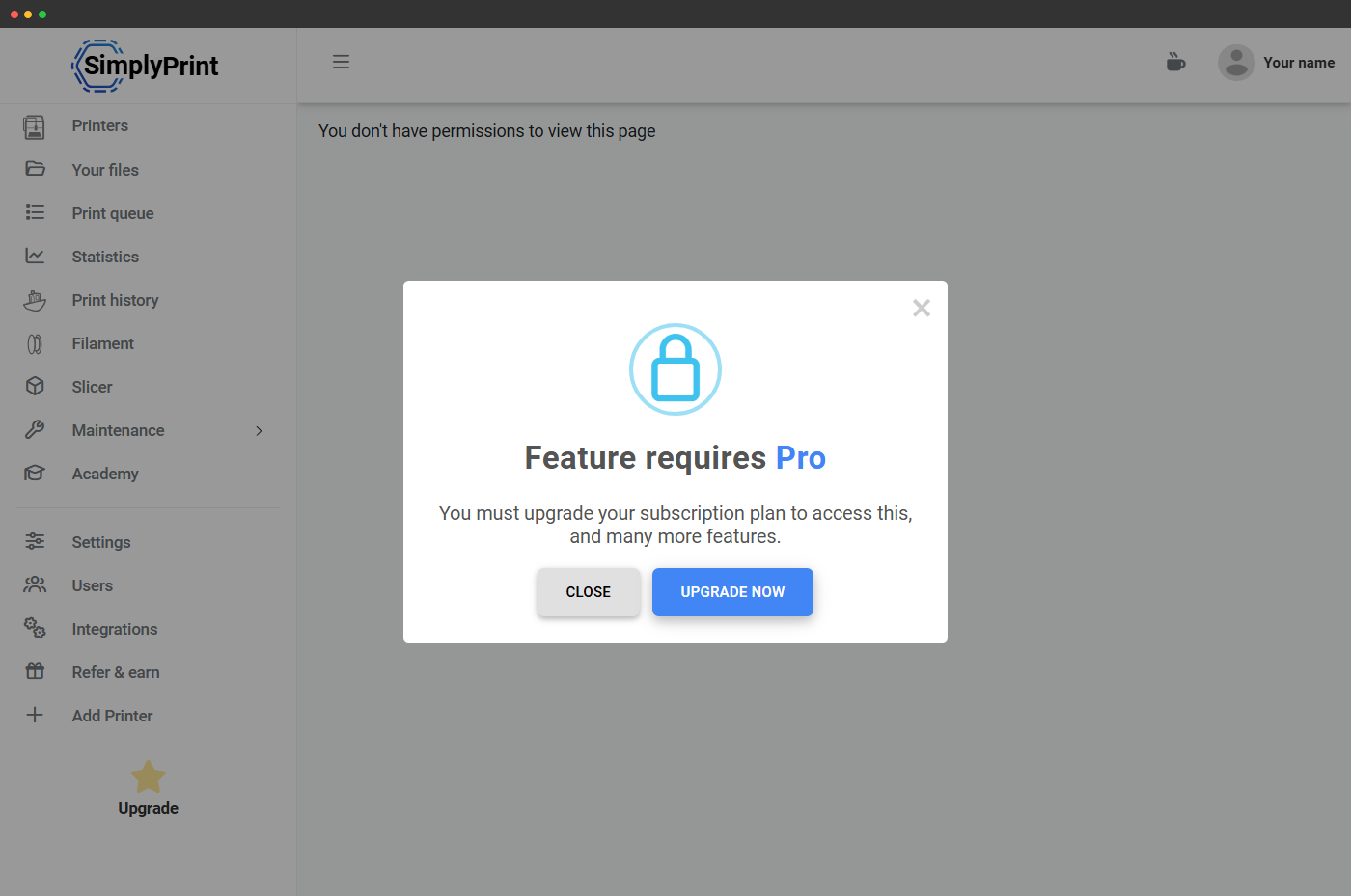
Tilladelser skjuler ikke bare menupunkter. Når en elev (eller enhver anden begrænset bruger) prøver en handling, deres rolle ikke tillader, viser SimplyPrint en klar besked om manglende tilladelse, der nævner den manglende tilladelse og henviser til den rette person at spørge. Ingen mystiske 404-fejl, ingen ødelagte knapper, bare et høfligt "din rolle kan ikke det her, spørg din lærer".
En del af multibrugersystemet
Tilladelser og roller er en del af den bredere multibrugerplatform. Hvis du vil have det store overblik over, hvordan brugere inviteres, hvordan teamsiden fungerer, og hvordan kvoter og køgodkendelse hænger sammen, så gå tilbage til multibrugeroversigten.
Tilbage til multibrugeroversigten