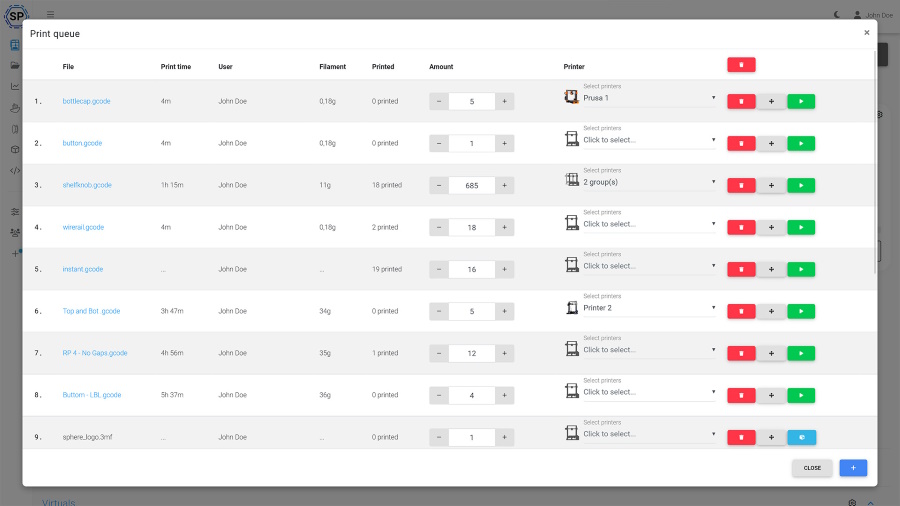
Tinkercad classroom 3D printing in 2026 is browser-only on every device a student is likely to have. That covers Chromebooks, school-locked Windows laptops, and iPads, with no install needed anywhere. The hard part is everything that comes after the student presses Export. How do 25 students share four printers? How does the teacher approve submissions before filament starts heating? How do you stop a student from printing at 0.05 mm layer height with 100% infill on a queue with a 30-minute lesson timer? SimplyPrint adds that layer on top of Tinkercad: a shared print queue, teacher approval, role-based permissions for students and teachers, and a locked-down slicer.
This guide is the classroom-operational counterpart to the device-side walkthrough. For the click-by-click "Export to SimplyPrint" flow on a single Chromebook, see How to 3D print directly from Tinkercad on a Chromebook. This article covers what happens once you scale it up: roles, permissions, the shared queue, and how to get a class running without involving school IT.
Why you can 3D print from Tinkercad in schools and classrooms on every device
Tinkercad is browser-only, which means it runs on every device a school is realistically going to put in front of a student. SimplyPrint is also browser-only. The printers connect to SimplyPrint's cloud rather than to the student's device. So there is nothing for IT to install, no Linux container to enable on a Chromebook, and no USB pass-through to allow. The student opens a tab, designs, clicks Export, and the file lands inside the school's SimplyPrint account.
For the per-device walkthrough, including what to click in Tinkercad's Export panel and the three-way slice / queue / save dialog on the SimplyPrint side, read the Chromebook companion article. The rest of this guide assumes a student already knows how to export and focuses on what happens next.
The Tinkercad classroom 3D printing workflow at a glance
The classroom version of the workflow has three roles. Each role uses a different set of clicks on a different page, and the permissions you set per role decide what they can and cannot do.
| Role | What they do | Where they do it |
|---|---|---|
| Student | Sign in (single sign-on or class invite), open Tinkercad, design, Export to SimplyPrint, submit to the queue. | Tinkercad → SimplyPrint Files / Queue |
| Teacher | Review the incoming submission, approve or send back for revision, optionally re-slice, dispatch to a printer. | SimplyPrint Queue tab |
| Lead teacher / admin | Set up shared printer profiles, lock the settings students can change, define class membership and the queue ordering policy. | SimplyPrint Settings + Users |
The student side does not change between a single Chromebook and a full lab. The same Tinkercad Export to SimplyPrint click sends the model. What changes is where the model lands and who can do what with it after it gets there. The Tinkercad schools workflow has three moving parts. The cloud slicer runs the engines. The Tinkercad classroom queue holds the submissions. The teacher approval 3D print queue step decides what actually starts on a printer. Everything else, including printer status notifications when a job finishes and class-wide reporting, is built on top of those three.
Flere Brugere
Vær flere om 3D print
What students, teachers, and admins can each do
SimplyPrint's school plan ships with three preset roles, student, teacher, and lead-teacher admin, that cover the common classroom case. You can build new roles on top, but the defaults are what most schools actually run. Here's what each role can and cannot do by default:
| Action | Student | Teacher | Admin / lead teacher |
|---|---|---|---|
| Use the slicer | yes | yes | yes |
| Submit prints to the shared queue | yes | yes | yes |
| Start a print on a printer | no | yes | yes |
| Dispatch the next queued job across all printers | no | yes | yes |
| Pick which printer a specific job runs on | no | yes | yes |
| Edit other students' queue items | no | yes | yes |
| Cancel another user's print | no | yes | yes |
| Open the raw slicer settings panel | no | yes | yes |
| Manage shared slicer profiles | no | no | yes |
| Invite new students or teachers | no | no | yes |
| Add or remove printers | no | no | yes |
| Manage school-wide settings | no | no | yes |
| Account administration | no | no | yes |
The student role is intentionally narrow. A student can design, slice within bounds, and submit. They cannot start a print, decide which printer a job goes to, cancel a classmate's job, edit raw slicer settings, or change the school account's structure. The teacher role picks up everything required to run the lab during class. The admin role picks up the rest of the lifecycle: who is in the class, which printers are part of the lab, and how the slicer is configured.
A teacher does not need to learn the full permission model on day one. New users default to student, the teacher promotes the few people who need to dispatch prints, and that is enough to start. Custom roles for senior projects, club leaders, or teaching assistants can come later.
The teacher's locked-down student slicer
The most common classroom failure mode is not the wrong design. It is the right design sliced wrong: layer height at 0.05 mm, supports off when they were needed, nozzle temp set for ABS on a PLA printer. SimplyPrint's slicer permission set is built to stop those before they reach a printer.
Settings to leave on for students by default:
- Layer height (within a teacher-defined range, set on the shared profile).
- Infill (between sensible bounds, say 10 percent to 30 percent for class assignments).
- Print-quality preset (Basic / Standard / Fine, mapped to layer height presets).
Settings to lock for students:
- Nozzle size. A hardware constant of the printer, not a per-job choice.
- Machine profile. Students don't pick which printer model a job slices for. The shared queue auto-matches based on tags.
- Bed type. Belongs to the printer config, not the print job.
- Filament profile. The school stocks specific filament; students shouldn't import unknown profiles.
- The raw slicer settings panel. The deepest setting to lock. With this off, students cannot open the full slicer settings and edit values directly. They only see the safe controls above.
Together with a shared teacher-approved profile, this means every student starts from the same baseline and the surface area they can change is small and bounded. Nothing a student can click breaks the lab.
What happens when 25 students submit at once
A single student pressing Export is easy. Twenty-five students pushing twenty-five designs into the same printer pool in the back half of a 50-minute lesson is the interesting case. That is what the print queue is built for.
What happens behind the scenes:
- Each Tinkercad submission lands in the pending queue in SimplyPrint, tagged with the student's name, the assigned class, and (if the teacher configured it) the assignment or course.
- The auto-match step looks at the file's required tags (material, nozzle size, build plate, sometimes color) against every online printer in the lab. Jobs that match an idle printer become eligible to dispatch. Jobs that do not match are held until a compatible printer frees up.
- The teacher (or a teaching assistant with the teacher role) sees the incoming list. They review each submission and either approve it for dispatch, send it back to the student for revision, or reject it. Bulk approve is a single click for the full visible queue.
- The queue ordering policy decides what runs next. The default is first-in, first-out, but the teacher can reorder, prioritize a stuck student, or freeze the queue during cleanup.
- The next online matching printer picks up the next approved job. Across a four-printer lab, that means up to four prints can start in parallel from the same approval batch.
Common bottlenecks in a real classroom:
- Filament colour. If every student picks the same colour and only one printer has it loaded, the queue serializes. Either let students pick from a colour pool the teacher curates, or use tags to require colour and accept the parallelism cost.
- Nozzle size. A 0.4 mm queue item cannot dispatch to a 0.6 mm printer without a profile change. The auto-match step is strict about this on purpose.
- Build plate. Smooth PEI vs textured PEI vs glass: the auto-match step treats this as a hard constraint when the teacher has tagged the printer correctly.
- Filament weight. If a printer is too low on filament for the scheduled job, the queue holds it until a fresh spool is loaded or the teacher overrides.
The teacher tools to deal with bottlenecks are all in the queue view: reorder, reassign tags, swap profile, send back to student with a note. None of them require leaving the queue tab.
A useful sanity check for the first lesson on a new lab is to run the class through the queue with the teacher set to manual approval only. Every submission requires a click before it dispatches. After a week or two, the teacher has a feel for what students are sending and which prints typically succeed. The approval policy can then move to auto-approve for tagged classes, manual for the rest. That keeps the safety rail for new student groups while removing the click-per-print bottleneck for classes who have learned the rules. SimplyPrint's schools page covers the wider feature roster that supports this, including filament tracking and shared file storage.
Single sign-on and class management
Schools that use Google Workspace, Microsoft Entra ID, Auth0, or a SAML federation (eduGAIN, InCommon) can wire student sign-in to their existing identity provider. Clever is supported for K-12. The teacher does not have to manage student passwords, and students sign in to SimplyPrint with the same credentials they use for Tinkercad or the school portal.
Class membership lives inside SimplyPrint, not inside Tinkercad. The teacher creates classes in the school dashboard, assigns students to a class, and the class becomes a tag on every submission those students push to the queue. That is what lets the teacher filter the queue down to "just this period's submissions" instead of the whole school.
Per-identity-provider setup is its own topic, with a dedicated Google Workspace SSO guide and a Microsoft Entra ID SSO guide in the helpdesk. A future article in this series will cover the full SSO and student permissions story end-to-end.
Try the school plan free for 14 days, no sales call
Most school 3D printing software still gates the trial behind a sales call, a procurement workflow, or a request-a-quote form. SimplyPrint's school plan no longer does. A teacher or STEM coordinator can sign up today, get the school plan free for 14 days, and run a real class through the queue before paying. No credit card during the trial, no sales call to schedule.
That matters for two practical reasons. First, you can validate that the workflow fits your classroom before you ask IT to procure anything. Second, you can do the validation on the actual school devices (Chromebooks, locked-down laptops, the lab's printers) instead of on a demo environment.
For schools that want a guided rollout, the schools onboarding journey walks through pilot, expansion, and full-lab phases.
What this does not yet do
Being honest about the limits saves teachers from finding them mid-lesson:
- Tinkercad Classroom is separate from SimplyPrint class management. Autodesk's own Tinkercad Classroom (the feature that groups Tinkercad designs by class) does not sync with SimplyPrint's class membership. The teacher manages the SimplyPrint class list directly, via SSO group sync or by inviting students by email. The two systems can co-exist, they just do not auto-mirror.
- There is no batch export from Tinkercad. A class assignment with three parts is still three Export clicks per student. This is a Tinkercad-side limit on the Export panel, not something SimplyPrint can fix from its side.
- A student exporting from a personal Tinkercad account into a personal SimplyPrint account lands in their personal account. The teacher has to invite students into the shared school SimplyPrint account before the first Export. Otherwise the model arrives in the wrong place. SSO sidesteps this entirely, because the school identity provider decides which account the user is in.
- A locked-out student cannot un-lock themselves. If a student needs deeper slicer access for a senior project, the teacher promotes them to a custom role. The student cannot grant themselves access on their own. That is by design.
For everything in that list, the workaround is the same: the teacher knows about it on day one, and the lesson plan is built around it instead of into it.
What this means for the classroom
If you have been telling Tinkercad students "design here, print at home", you no longer need to. The classroom workflow turns a shared printer pool into something every student can submit to without the teacher debugging twenty-five separate slicer setups. The teacher keeps full control over which jobs reach the printer, students keep full ownership of their designs, and IT keeps the Chromebook lockdown they want.
A real classroom test takes about 30 minutes to set up. Get the queue running on Monday and you will know by Friday whether it fits your lab. SimplyPrint already supports hundreds of schools running this exact workflow, so the path you are about to walk has been walked before. For the per-device click-path on a student's Chromebook, see the Chromebook companion article, and for slicing on a Chromebook standalone, see the Chromebook slicer guide.