Setting up SimplyPrint on Meltingplot MBL 136: Makerbase-powered (SSH) method
Makerbase-powered (SSH) setup for this printer. Follow the steps to connect your Meltingplot MBL 136 3D printer to SimplyPrint.
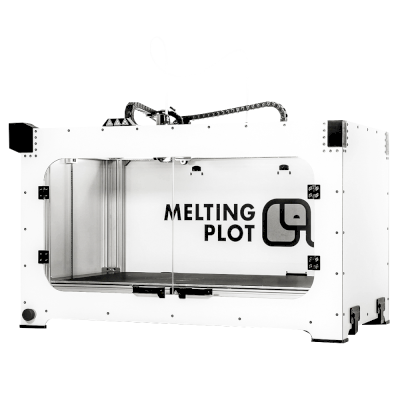
You'll need to use something called "SSH" to run a few commands.
We know — we wish we could skip this part too. But your device doesn't give us a simpler option. The good news: it's just copying and pasting. If you can follow instructions, you can do this.
Your printer manufacturer doesn't provide a simpler way for platforms like SimplyPrint to connect. SSH is how we work around that limitation to give you the features you need.
You'll run a few commands that we provide - mostly just copy and paste. No coding required.
Your printer's Moonraker installation is outdated or uses a manufacturer-modified version that doesn't include SimplyPrint support.
This guide uses a script to install a fresh, up-to-date Moonraker instance with SimplyPrint built in - alongside your existing setup. Your Klipper configuration is not modified.
If you can access your printer's web interface (Mainsail or Fluidd) and cannot get in via SSH, try the regular Klipper setup instead - your printer may work with the standard setup. We're not 100% sure every printer listed here has the Makerbase issue; some may work fine with the regular method.
Use at your own risk: This script has been tested on many printers and installs a separate Moonraker instance alongside your existing setup - it does not modify your Klipper configuration or firmware. However, any modification to your printer's software carries some risk. We cannot guarantee compatibility with every printer or configuration, and we are not responsible for any issues that may arise. If something goes wrong, you can typically remove the installed files and restart your printer to revert to its original state.
You need to know your printer's IP address to connect to it.
SSH lets you run commands on your printer's built-in computer.
Yes, this is the annoying technical part. We're sorry — we've tried everything to avoid it, but your device simply doesn't give us another option.
But here's the thing: it's easier than it looks. You're just going to copy-paste a few commands. That's it. Pick your computer type below and follow the steps — we'll walk you through every click.
192.168.1.42).
Do not include http://, slashes, or port numbers.
ssh username@ip-address
ssh [email protected]
yes and press Enter
ssh username@ip-address
ssh [email protected]
yes and press Enter
ssh username@ip-address
ssh [email protected]
yes and press Enter
ssh username@ip-address
ssh [email protected]
yes and press Enter
ssh-keygen -R <ip-address>
While there are SSH apps available for Android and iOS, we recommend using a computer for SSH connections. A proper keyboard and screen make typing commands much easier.
Once your terminal is open, connect to your printer:
ssh mks@YOUR_IP_ADDRESS
Replace YOUR_IP_ADDRESS with your printer's IP address, e.g. ssh [email protected]
When prompted for a password, type makerbase and press Enter.
The password won't show as you type - that's normal.
Most Makerbase-powered printers - especially Qidi Tech models - have the system clock set incorrectly. This causes SSL certificate errors when downloading files.
If you see an error like ERROR: The certificate of 'download.simplyprint.io' is not trusted, run this command first:
sudo date -s '2026-04-10'
Copy-paste the command above - it already contains today's date.
You may be prompted for a password - use makerbase.
Now we'll download and run the installer script.
The script requires bash, git, and Python 3.7+ on the printer. These are pre-installed on virtually all Klipper printers.
Step 1: Download the installer script:
wget -O moonraker-sp.sh https://download.simplyprint.io/klipper/moonraker-sp.sh && chmod +x moonraker-sp.shStep 2: Run the installer:
./moonraker-sp.sh --install
You may be prompted for a password - use makerbase.
When the script says "Installing moonraker dependencies...", it can take up to 10 minutes. The printer's board is not very powerful, and it's upgrading Python packages in the background. Don't cancel or restart - just let it finish.
Once the script finishes, it will display your printer's setup code.
Use this code to link your printer in the SimplyPrint panel, or check if your printer shows up automatically under Pending Printers.
Your printer is now running a fresh Moonraker instance with SimplyPrint enabled. You can continue using your printer's touchscreen and existing Klipper setup as normal.
What does this script do? It installs a separate, up-to-date Moonraker instance with the SimplyPrint component alongside your existing printer setup. Your existing Klipper configuration and web interface (Mainsail/Fluidd) are not modified. The new Moonraker instance runs on a different port and only handles the SimplyPrint connection.
Thousands complete this setup every week. Follow each step carefully - most issues come from skipping ahead.
You're now ready to connect your printer and start using SimplyPrint.
Create your free account