If you are searching for Orca Slicer Android, the honest answer is that no official OrcaSlicer Android app exists, and the maintainers have confirmed they have no plans to build one. OrcaSlicer is a desktop program for Windows, macOS, and Linux only, so you cannot install it on a phone or tablet. The way to actually slice on your phone is a browser-based cloud slicer that runs the real OrcaSlicer engine on a server and opens in Chrome or Safari on any device.
This guide explains why there is no native mobile slicer, then walks through the workaround that does work: uploading an STL or 3MF in your phone's browser, slicing with the genuine OrcaSlicer engine, and getting print-ready G-code without installing anything. The same approach covers Android phones, iPhones, iPads, and Android tablets.
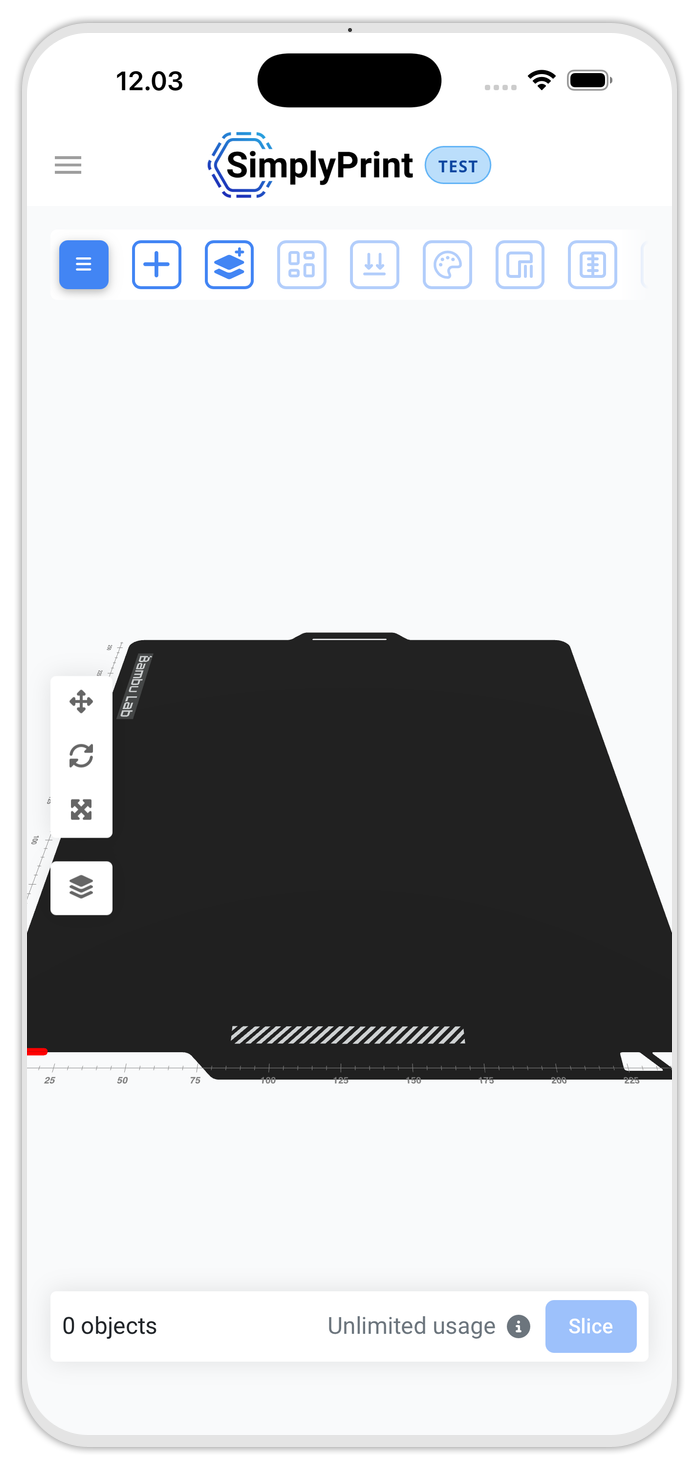
Is there an Orca Slicer Android app?
No. There is no OrcaSlicer Android app, and there is no iOS version either. OrcaSlicer ships only as a desktop build for Windows, macOS, and Linux. Mobile slicing requests have been raised on the project's GitHub and closed by the maintainers, who have stated that a native mobile app is not on the roadmap. You can verify this on the official OrcaSlicer repository, where releases are limited to desktop installers.
So when a "best OrcaSlicer mobile apps" listicle points you to the Google Play Store, treat it with suspicion. Any app using the OrcaSlicer name on a phone is either a remote-control or monitoring tool, a re-skin, or unrelated software. The slicing engine itself does not run on a phone. The reliable path is to move the slicing off the device and into the cloud, which is exactly what a browser-based slicer does.
Why there is no native mobile slicer
Slicing is computationally heavy. Converting a 3D model into G-code means generating tens of thousands of toolpath segments, running collision and support checks, and processing geometry that can run to millions of triangles. Desktop slicers are built around multi-core CPUs and gigabytes of RAM, neither of which a phone reliably offers for a sustained, minutes-long task without throttling or draining the battery.
There is also the maintenance cost. OrcaSlicer's user interface is built on desktop frameworks that do not port cleanly to Android or iOS, so a mobile app would mean a separate codebase to maintain alongside the desktop one. For a community-driven project, that is a large commitment for a workload that is better handled on a server.
That is the gap a cloud slicer fills. Instead of shrinking a desktop slicer onto a phone, it runs the full engine on a server and sends only the result back to your browser. Your phone never does the heavy lifting.
How to run OrcaSlicer on your phone via the browser
You run OrcaSlicer on a phone by using a cloud slicer that hosts the engine for you. SimplyPrint runs the unmodified OrcaSlicer engine on its servers through the slicer's official command-line interface, so you get the genuine output in a browser tab. Your phone only uploads the model and receives the finished G-code; the heavy slicing happens on the server.

Here is the workflow on an Android phone:
- Open the slicer in your phone's browser. Sign in to a free SimplyPrint account in Chrome or any modern Android browser. Nothing installs on the phone.
- Upload your model. Add an STL or 3MF file from your phone's storage, a download, or cloud storage like Google Drive.
- Pick OrcaSlicer and your printer profile. Choose the OrcaSlicer engine and your printer from the built-in profile library, or import a profile you tuned at home.
- Adjust settings if needed. Layer height, infill, supports, and adhesion are all there, with advanced settings behind a toggle.
- Slice. The job runs on the server and progress shows in the browser.
- Send or download. Send the job straight to a connected printer, add it to a queue, or download the G-code.
Is the cloud version the same as desktop OrcaSlicer?
Yes. This is the part that separates a real cloud slicer from a generic web tool. SimplyPrint does not reimplement slicing or run a simplified in-browser engine. It runs the actual OrcaSlicer engine, unmodified, through its published command-line interface, the same way you would script it on a desktop. The same model, the same profile, and the same settings produce the same G-code.
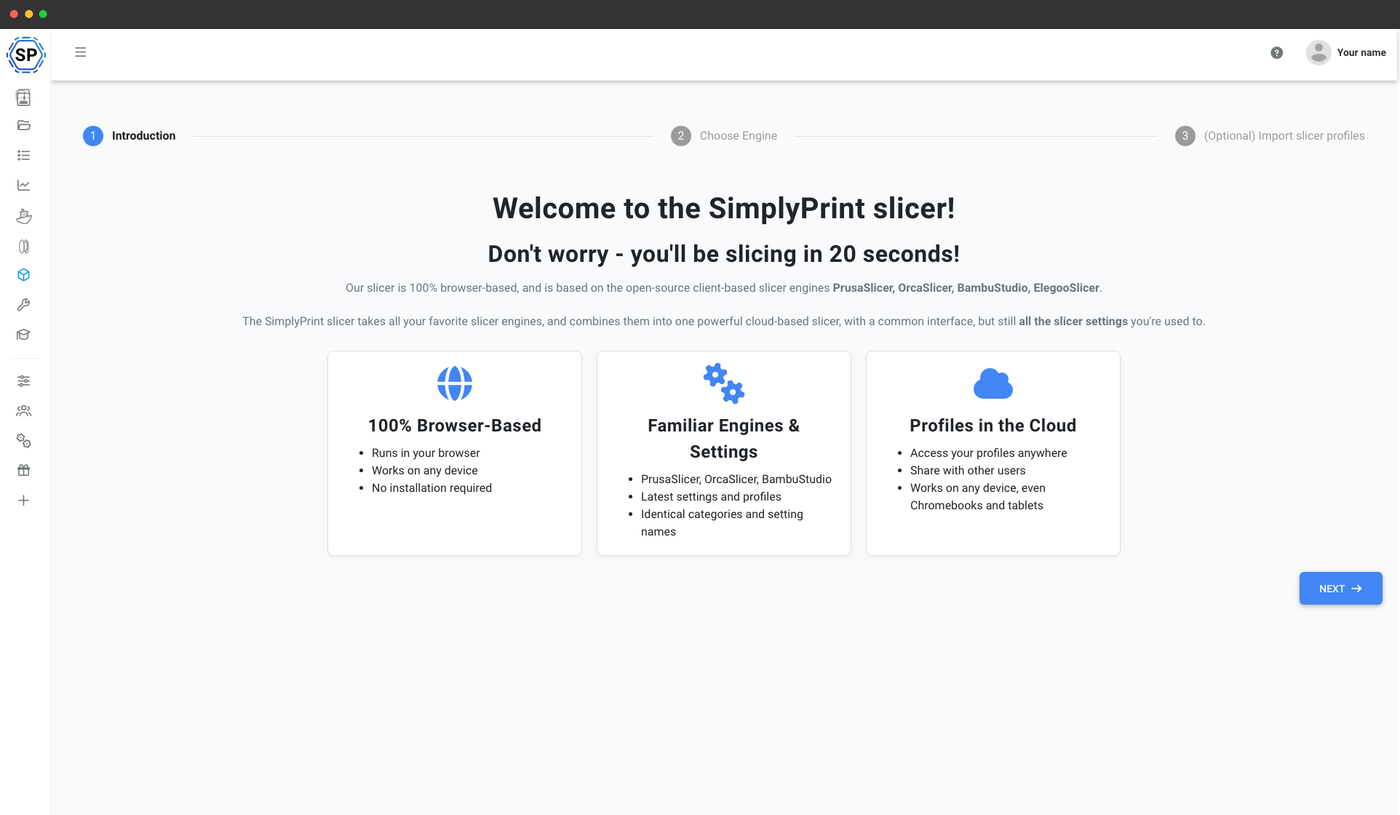
Many "online slicers" instead run a generic Slic3r or Cura-derived engine, which means different toolpaths, different seam placement, and profiles that do not carry over from your desktop setup. With the real engine in the cloud, your OrcaSlicer profiles, filament settings, and printer definitions behave exactly as they do on desktop.
This matters more than it sounds. OrcaSlicer's printer definitions cover thousands of machines, and its calibration-focused features, such as pressure advance, flow-rate, and temperature towers, depend on the exact engine behaviour. A re-implemented or simplified web slicer cannot reproduce those toolpaths exactly, so a model that prints cleanly on your desktop could fail when sliced by a different engine. Running the unmodified engine removes that risk: the same model, profile, and settings produce the same toolpaths the desktop app would, because it is the same engine doing the work.
The table below shows where each option actually stands for slicing on a phone:
| Approach | Runs on Android/iOS? | Engine | Install needed | Same G-code as desktop OrcaSlicer |
|---|---|---|---|---|
| Desktop OrcaSlicer | No | OrcaSlicer | Desktop only | Yes (on desktop) |
| "OrcaSlicer" app from an app store | N/A (not a slicer) | None | Yes | No |
| Generic web slicer | Yes, in browser | Slic3r/Cura-class | No | No |
| SimplyPrint cloud slicer | Yes, in browser | Real OrcaSlicer engine | No | Yes |
For the full breakdown of how browser slicers differ, see the browser-based 3D slicer guide, and the engine details on the OrcaSlicer online feature page.
iPhone, iPad, and Android tablet too
The same browser approach covers every mobile device, not just Android phones. The desktop OrcaSlicer app cannot be installed on iOS or iPadOS, so there is no Orca Slicer iOS download to look for, and an Orca Slicer iPad app does not exist either. Instead, open the cloud slicer in Safari or Chrome on an iPhone or iPad and slice the same way you would on Android. The engine, profiles, and output are identical across devices because all the work happens on the server.
A few practical notes by device:
- iPad - the larger screen makes the build plate and settings panels comfortable to use, which is why it is a popular choice for slicing on the go. See printing from an iPad without a PC for the full file-transfer workflow.
- iPhone and Android phones - fine for slicing and sending a job, even if the smaller screen makes fine adjustments fiddlier. Loading a saved profile and slicing is quick.
- Android tablets and Chromebooks - work exactly like a phone in the browser. If you are on a Chromebook, the dedicated Chromebook slicing guide covers the classroom setup in detail.
Whatever the device, the rule is the same: there is no native app, so the browser is the route, and the slice runs in the cloud.
What works well, and what is fiddly, on a phone
Slicing on a phone is genuinely practical, but it is worth being clear about where the small screen helps and where it gets in the way, so you know what to expect.
What works well on a phone:
- Loading a saved profile and slicing. If your printer and filament profile are already set up, slicing is one upload and one tap. This is the most common real-world use: re-slicing a known model with known settings.
- Sending a job to a connected printer. Choosing a printer and starting a print is well suited to a touchscreen.
- Quick parameter tweaks. Changing layer height, infill, or supports from a list of presets is fast.
What is more comfortable on a tablet or larger screen:
- Manipulating the model on the plate. Rotating, scaling, and arranging multiple parts benefits from a bigger viewport, which is why iPads are popular for this.
- Fine-tuning advanced settings. Working through dozens of expert-mode fields is doable on a phone but quicker on a tablet.
For most hobbyist jobs, the phone is more than enough. The point is that the heavy slicing step never depends on the device, so even a basic phone produces professional G-code.
Getting the sliced file to your printer
Slicing on a phone is only useful if the G-code reaches the printer. There are two clean paths. If your printer is connected to SimplyPrint, the cloud slicer can send the job straight to it or drop it into a print queue, so the phone never has to handle the file at all. This is the smoothest option and works from anywhere.
If the printer is not connected, download the G-code in the browser and transfer it. The simplest hardware bridge is a dual-ended USB-C and USB-A thumb drive: save the file to the USB-C end from your phone, flip it, and plug the USB-A end into the printer. Many printers also accept files over their own Wi-Fi or network interface. Either way, the heavy step, slicing, is already done in the cloud, and the phone has handled only a small file.
What this means for slicing on the go
If you have been hunting for an OrcaSlicer Android or iOS app, you can stop. None exists, and the maintainers have confirmed none is planned. That is not a dead end, though. A browser-based cloud slicer running the real OrcaSlicer engine gives you the full desktop result on any phone or tablet, with no APK, no sideloading, and no Linux container. You upload a model, slice, and send it to your printer from wherever you are.
For hobbyists, that means you can slice 3D prints on phone hardware as easily as on a desktop, fixing a quick model from the couch or the workshop floor without walking to a computer. For anyone managing several printers, it also means one shared profile slices identically on every device and every machine. Your phone is the slicer now, and the engine doing the work is the same OrcaSlicer you already trust.