Opsætning af SimplyPrint på MakerBot Replicator 2: Metoden Creality Nebula Smart Kit
Opsæt denne printer med Creality Nebula Smart Kit. Følg trinnene for at forbinde din MakerBot Replicator 2 3D-printer til SimplyPrint.

Din Creality Nebula Smart Kit kræver tilpasset firmware for at fungere med SimplyPrint.
Vi ved, det lyder teknisk, og det er en af de mere omfattende opsætninger, men vi har arbejdet hårdt på at gøre den så enkel som muligt.
Nogle printer-producenter leverer ikke en nem måde for platforme som SimplyPrint til kommunikation med deres printere. Fællesskabet har udviklet alternativ firmware der låser op for disse muligheder.
Ja! Firmware udvikles af aktive fællesskaber, kan typisk fjernes og bevarer din printers kernefunktionalitet. Du kan normalt rulle tilbage eller fabriksnulstille hvis nødvendigt.
Nogle producenter kan betragte brugerdefineret firmware som en ændring, der påvirker garantien. Risikoen er lav, vi har indtil videre ikke haft et eneste kendt tilfælde, hvor en SimplyPrint-bruger har beskadiget sin printer eller fået afvist en garantireparation på grund af denne opsætning.
Når det er sagt, er det i sidste ende dit valg at fortsætte.
Anslået tid: 15-30 minutter
Vi guider dig gennem hvert trin.
Denne opsætning kræver SSH, en måde at sende tekstkommandoer til din printer fra din computer. Vi ved, det lyder teknisk, og vi ville ønske, vi kunne undgå det, men printerens design giver os desværre ingen anden mulighed.
Den gode nyhed: Det er nemmere, end det lyder. Du skal blot kopiere og indsætte nogle få kommandoer, vi giver dig. Du behøver ikke kode.
I denne guide gennemgår vi:
NEBULA_ota_img_V6.*.img-fil fra seneste udgivelse på GitHub..img-filen til det USB-stik, der fulgte med din Nebula.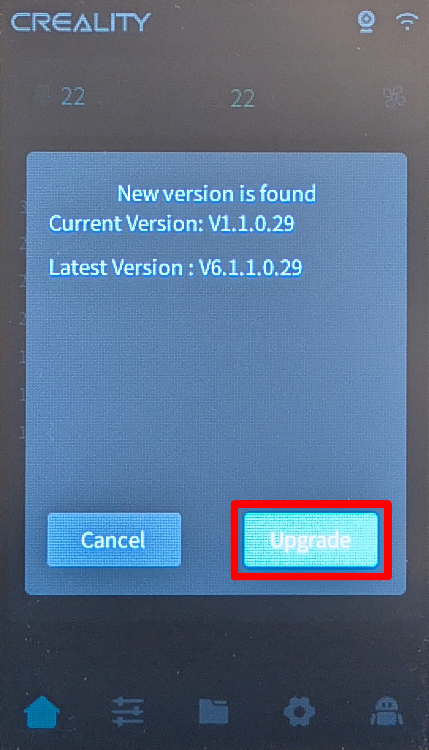
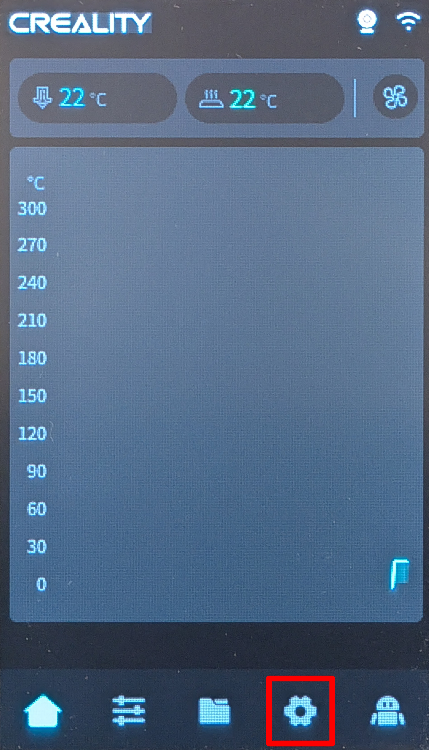
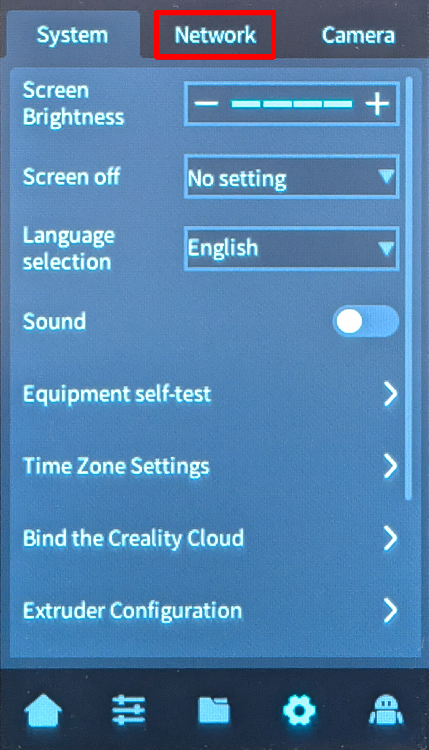
192.168.0.42).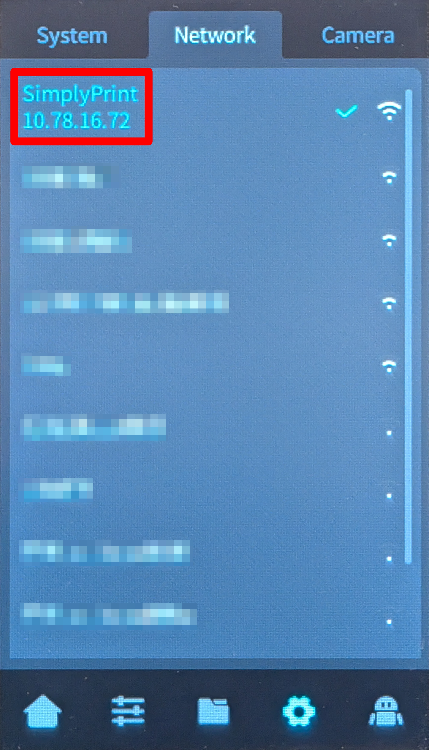
Ja, det er den irriterende tekniske del. Vi beklager, vi har prøvet alt for at undgå det, men din enhed giver os blot ikke anden mulighed.
Men her er sagen: det er nemmere, end det ser ud. Du skal bare kopiere og indsætte et par kommandoer. Det er det. Vælg din computertype nedenfor, og følg trinnene — vi guider dig gennem hvert eneste klik.
192.168.1.42). Inkluder ikke http://, skråstreger eller portnumre.
ssh brugernavn@ip-adresse
ssh [email protected]
yes og trykke Enter
ssh brugernavn@ip-adresse
ssh [email protected]
yes og trykke Enter
ssh brugernavn@ip-adresse
ssh [email protected]
yes og trykke Enter
ssh brugernavn@ip-adresse
ssh [email protected]
yes og trykke Enter
ssh-keygen -R <ip-address>
Mens der er SSH-apps tilgængelige til Android og iOS, anbefaler vi at bruge en computer til SSH-forbindelser. Et ordentligt tastatur og skærm gør det meget nemmere at skrive kommandoer.
ssh root@[IP_ADDRESS]
For eksempel: ssh [email protected]
creality - lad dig ikke forvirre af, at adgangskoden ikke vises, mens du skriver den, det er normalt./installer.sh
http://[YOUR_IP]:[PORT], hvor:[YOUR_IP] er IP-adressen du noterede tidligere[PORT] er 4408 for Fluidd eller 4409 for Mainsailhttp://192.168.0.42:4409Og det var det! Din Nebula Smart Kit kører nu Klipper med SimplyPrint.
Hvis du skal udføre en fabriksnulstilling, kan du tilføje en tom fil med navnet factory_reset (ingen filtype) til USB-stikket, derefter slukke Nebula, sætte USB-stikket i, og tænde den igen. Advarsel: Dette sletter permanent al brugerinstalleret software og brugerdefinerede konfigurationer. Kun Wi-Fi-indstillinger, printeridentitet og essentielle systemfiler bevares. For flere detaljer, se GitHub-repositoriet.
Tusindvis gennemfører denne opsætning hver uge. Følg hvert trin omhyggeligt, de fleste problemer opstår, fordi man springer trin over.
Du er nu klar til at forbinde din printer og begynde at bruge SimplyPrint.
Opret din gratis konto