Yes, this is the annoying technical part. We're sorry — we've tried everything to avoid it, but your device simply doesn't give us another option.
But here's the thing: it's easier than it looks.
You're just going to copy-paste a few commands. That's it. Pick your computer type below and follow the steps — we'll walk you through every click.
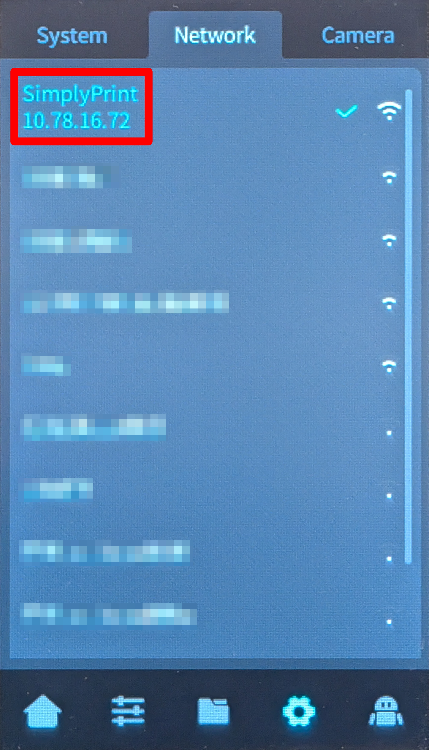
Important: The IP address must be just the numbers (e.g., 192.168.1.42).
Do not include http://, slashes, or port numbers.
Windows 10 / 11
-
Press Win + X and select "Terminal" or "PowerShell"
-
Type the SSH command (replace the placeholders):
ssh username@ip-address
Example: ssh [email protected]
-
If asked "Are you sure you want to continue connecting?", type
yes and press Enter
-
Enter the password when prompted
The password won't show as you type — that's normal! Just type it and press Enter.
macOS
-
Press Cmd + Space to open Spotlight, type "Terminal", and press Enter
-
Type the SSH command (replace the placeholders):
ssh username@ip-address
Example: ssh [email protected]
-
If asked "Are you sure you want to continue connecting?", type
yes and press Enter
-
Enter the password when prompted
The password won't show as you type — that's normal! Just type it and press Enter.
Linux
-
Open Terminal (usually Ctrl + Alt + T, or find it in your applications menu)
-
Type the SSH command (replace the placeholders):
ssh username@ip-address
Example: ssh [email protected]
-
If asked "Are you sure you want to continue connecting?", type
yes and press Enter
-
Enter the password when prompted
The password won't show as you type — that's normal! Just type it and press Enter.
Chromebook
First-time setup: You need to enable Linux on your Chromebook (one-time only).
-
Enable Linux (skip if already done):
-
Open Settings
-
Go to Advanced → Developers
-
Turn on "Linux development environment"
-
Follow the setup wizard (takes a few minutes)
-
Open the "Terminal" app from your app launcher
-
Type the SSH command (replace the placeholders):
ssh username@ip-address
Example: ssh [email protected]
-
If asked "Are you sure you want to continue connecting?", type
yes and press Enter
-
Enter the password when prompted
The password won't show as you type — that's normal! Just type it and press Enter.
Common issues
-
"Connection refused" — Make sure you're on the same network and the IP address is correct.
-
"Permission denied" — Double-check your username and password.
-
"Host key verification failed" — The device was reset or reinstalled. Remove the old key with:
ssh-keygen -R <ip-address>
Using a tablet or phone?
While there are SSH apps available for Android and iOS, we recommend using a computer for SSH connections.
A proper keyboard and screen make typing commands much easier.