Gør en væg af spoler til et lager, der kan scannes
Labels og scanning holder en rigtig beholdning brugbar. Print en QR-kode- eller stregkodelabel til hver spole, og sæt den på. Derefter tager du bare en spole og scanner labelen, så viser SimplyPrint, hvad den indeholder, og hvor meget der er tilbage. Du slipper for at lede i en liste eller gætte på, hvilken rulle der er hvilken.
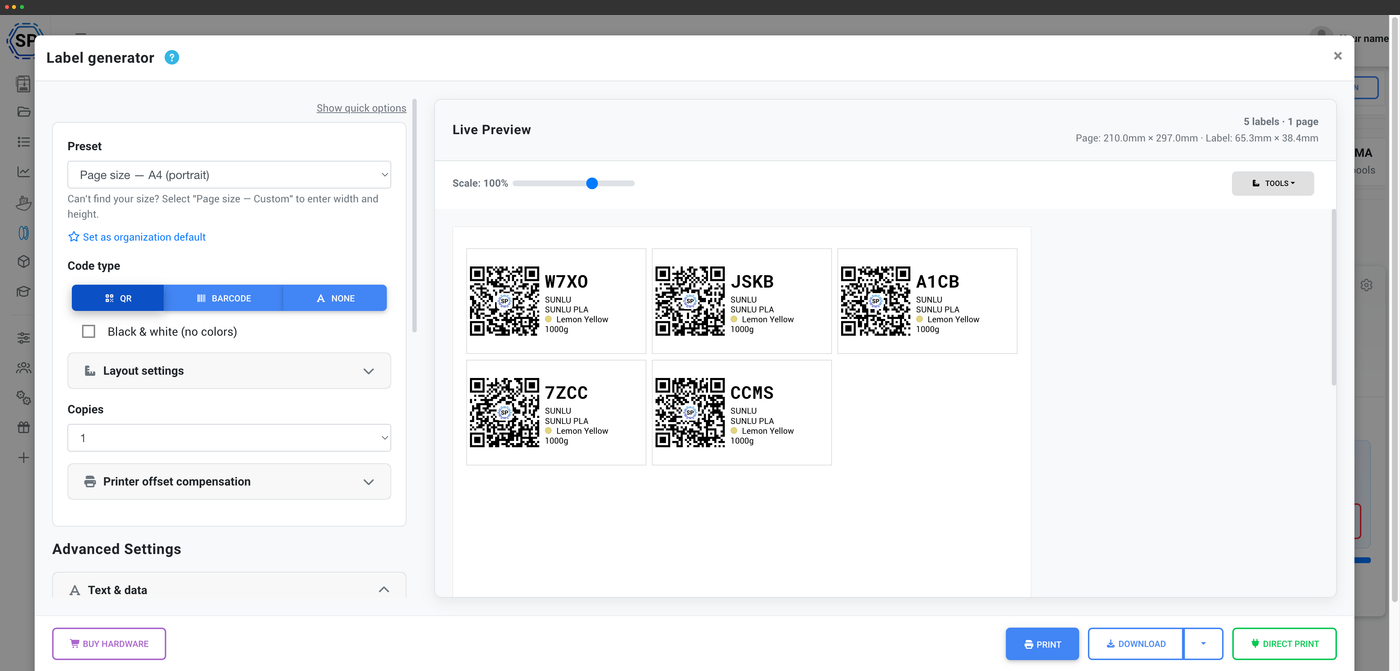
Generer QR-kode- og stregkodelabels til hver spole
Konfigurerbare layouts til A4, A5, Letter eller brugerdefinerede sider
Etiketgeneratoren laver en etiket til enhver spole i din beholdning, kodet som en QR-kode eller stregkode. Arranger etiketterne på A4-, A5- eller Letter-ark eller en brugerdefineret sidestørrelse, få så mange med på hvert ark, som du har brug for, og medtag spolens vigtigste oplysninger, så etiketten både kan aflæses med et blik og scannes.
Labels lige ud af printeren
Fra spoler på række til etiketter, der kan scannes
Send en batch til din termoprinter, og se etiketterne rulle ud, én pr. spole, klar til at blive pillet af og sat på. Hver etiket har en QR-kode eller stregkode, der linker direkte til den aktuelle spolepost i SimplyPrint.
Alle måder at printe en label på
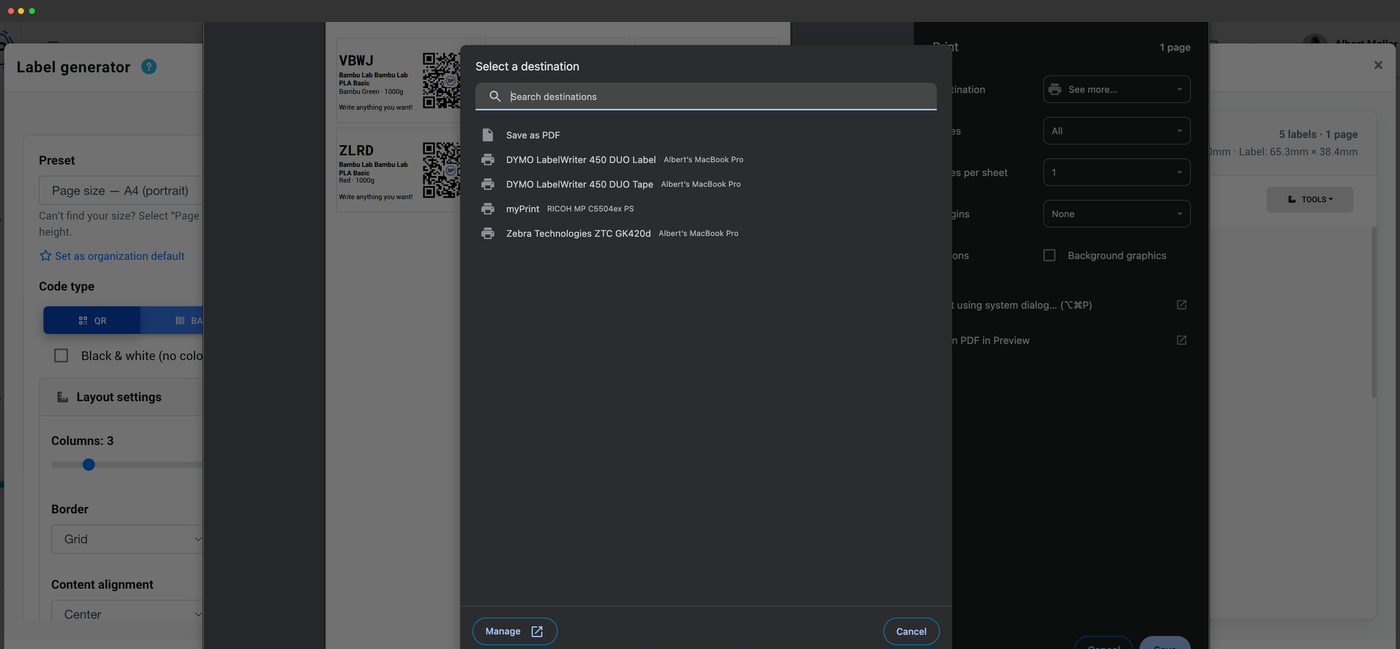
Print etiketter, som det passer til din opsætning. Download en printklar fil, print dem via browseren på en almindelig printer, eller send dem direkte fra browseren til en DYMO- eller Zebra-termoprinter. Med en printeroffsetkalibrering kan du justere printplaceringen, så etiketterne placeres præcist midt på dit specifikke etiketmateriale, uanset hvilken printer du bruger.
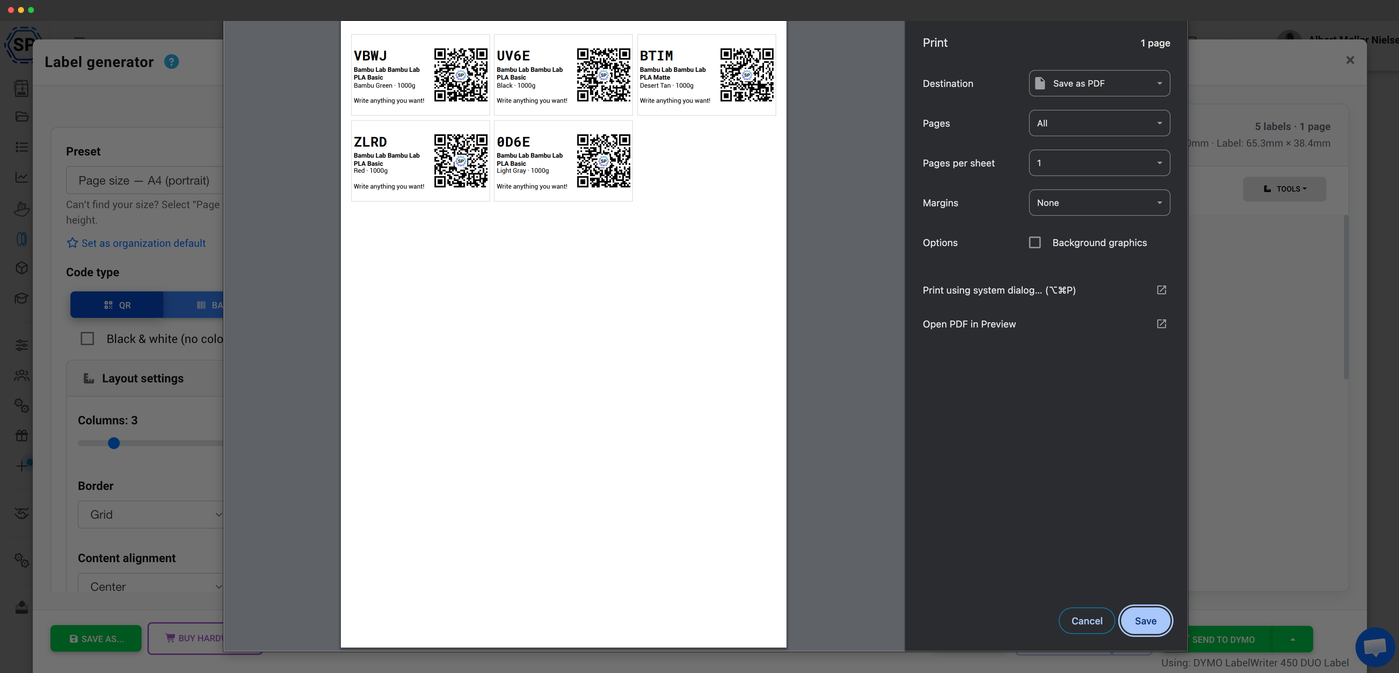
Eksportér en udskrivningsklar PDF eller PNG til papirlabelark, eller download en ZPL- eller DYMO-skabelonfil til direkte brug i printerens egen software.
Tryk på Udskriv, og brug browserens printdialog til at sende arket til en almindelig kontorprinter. Der kræves ingen særlig hardware for at komme i gang.
Send etiketter direkte til en DYMO-etiketprinter via den lokale DYMO Connect-klient, din browser taler med klienten, klienten printer. Ét klik, intet PDF-trin.
Send etiketter direkte til en Zebra-termoprinter via Zebra Browser Print, browseren afgiver etiketten til den lokale klient, som printer den. Bygget til printfarme med højt volumen.
Scan en label for at hente den matchende spole frem øjeblikkeligt
Når en spole er mærket, er det kun et scan væk at finde den. Brug telefonens kamera, et webcam, eller en USB-stregkodescanner (af tastatur-emuleringstypen), og SimplyPrint hopper direkte til den spole, dens resterende vægt, materiale, placering og historik. Perfekt til at gribe den rette rulle på hylden eller tjekke hvor meget der er tilbage, før du binder dig til et langt print.
Scan en label, find spolen
Print en QR-kode eller stregkode til hver spole, og scan den derefter med telefonens kamera, et webcam eller en USB-stregkodescanner for at finde det pågældende filament i din filamentbeholdning.
- Farve
- Galaxy Black
- Placering
- Hylde B · Kasse 12
- Spole-ID
- RX-7K2
Hvad hver etiket indeholder
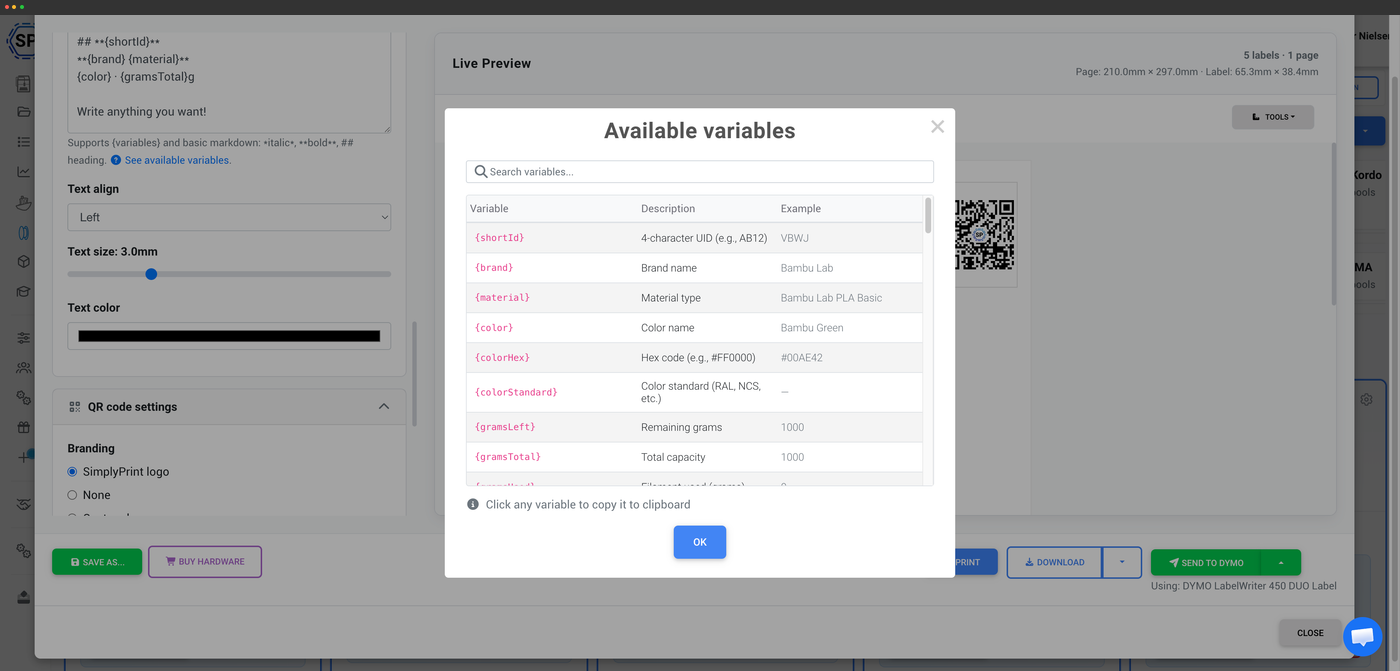
En etiket har nok oplysninger til at identificere spolen med et blik og forbinde den med dens fulde registrering: mærke, materiale, farve, vægt og spolens ID. Scan den, og SimplyPrint finder den aktuelle spole via ID'et, så oplysningerne på skærmen altid er aktuelle, selv når den resterende vægt ændrer sig.
Vil du have tags, som din printer selv læser? Prøv NFC
Labels scannes af dig, NFC-tags læses af din printer og din telefon med et enkelt tryk. Hvis du hellere vil have, at din printer genkender en spole, i det øjeblik den lægges i, på tværs af Bambu Lab, Creality CFS, Prusa OpenPrintTag og mere, dækker NFC-delen af filamentmanageren dig ind.
Udforsk NFC-filamenttagsAbonnementsadgang: hvad kræves til labels og scanning?
Scanning og QR-kodetilpasning låser labelgeneratoren og -opslag op; direkte understøttelse af termoprintere (Dymo og Zebra) er inkluderet i de højere abonnementer. Filamentmanageren, der ligger bag det hele, er gratis på alle SimplyPrint-planer.
| Funktion/grænse | Gratis | Basic | Pro | Printfarm | Enterprise | Skole | Cloud Slicer | Filament Manager |
|---|---|---|---|---|---|---|---|---|
|
Stregkode- og QR-scanning
Scan labels med en telefon, webcam eller USB-stregkodescanner for at hente en spole frem.
|
||||||||
|
Labelgenerator: QR-tilpasning
Generer og tilpas QR-kode- og stregkodelabels til dine spoler.
|
||||||||
|
Labelgenerator: understøttelse af termoprintere
Print direkte til termiske etiketprintere som Dymo og Zebra.
|
Vil du vide mere om vores abonnementer?
Se fuld pris- og funktionssammenligningOfte stillede spørgsmål
Kan jeg udskrive etiketter på en almindelig printer, eller skal jeg bruge en labelprinter?
Understøtter den labelprintere fra Dymo og Zebra?
Hvad kan jeg bruge til at scanne en etiket?
QR-koder eller stregkoder, hvad skal jeg bruge?
Hvilke oplysninger står der på en etiket?
USB-stregkode- og QR-scannere
En USB-scanner fungerer som et tastatur på enhver computer, tilslut og scan bare, ingen drivere eller software skal installeres. Scan en spoles QR-kode for straks at slå dens registrering op.
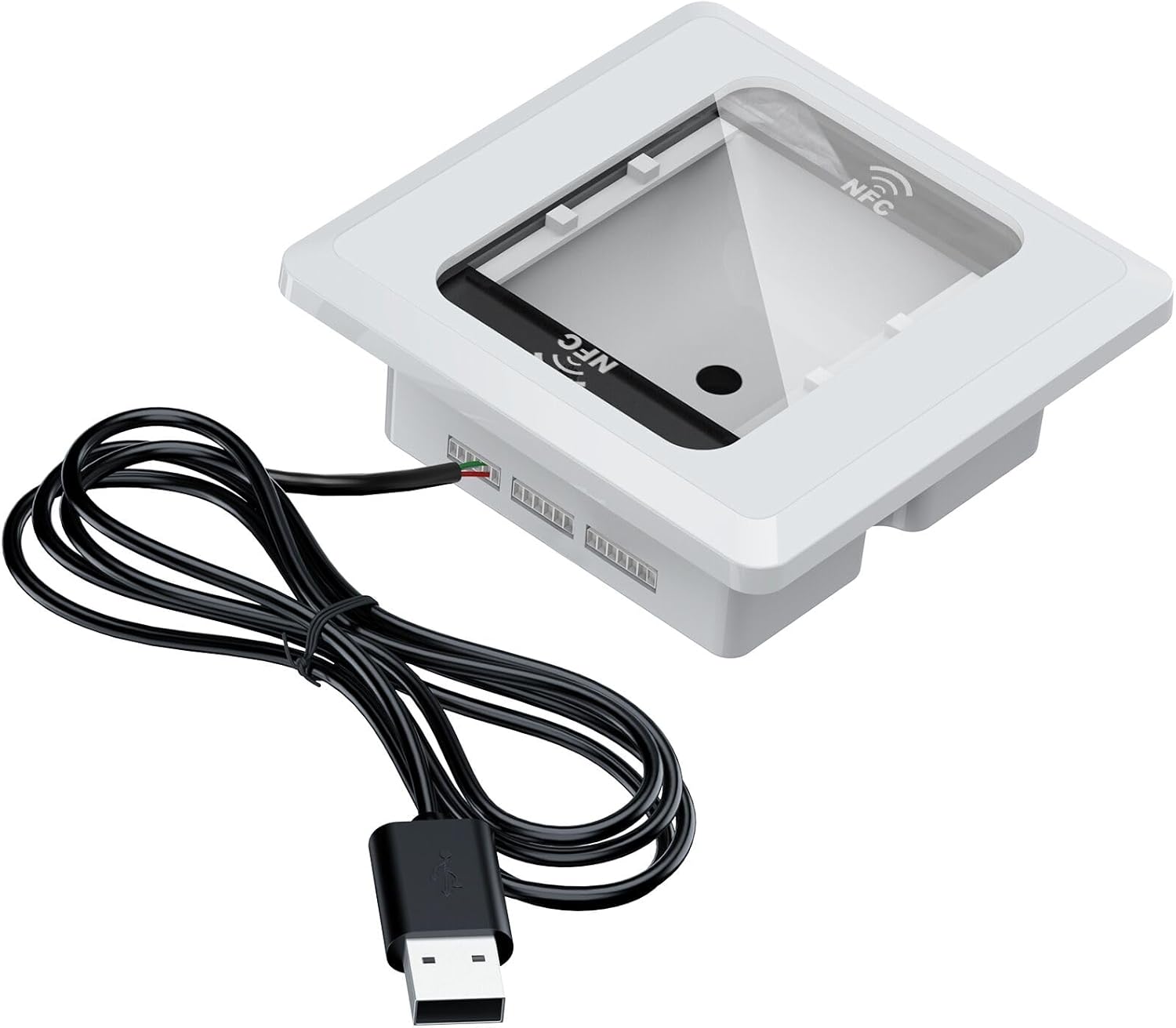
Symcode embedded scanner + NFC
Scanner stregkoder, QR- og NFC-serienumre. Perfekt til at forbinde forudflashede tags (Bambu, QiDi, Prusa).
Se produktet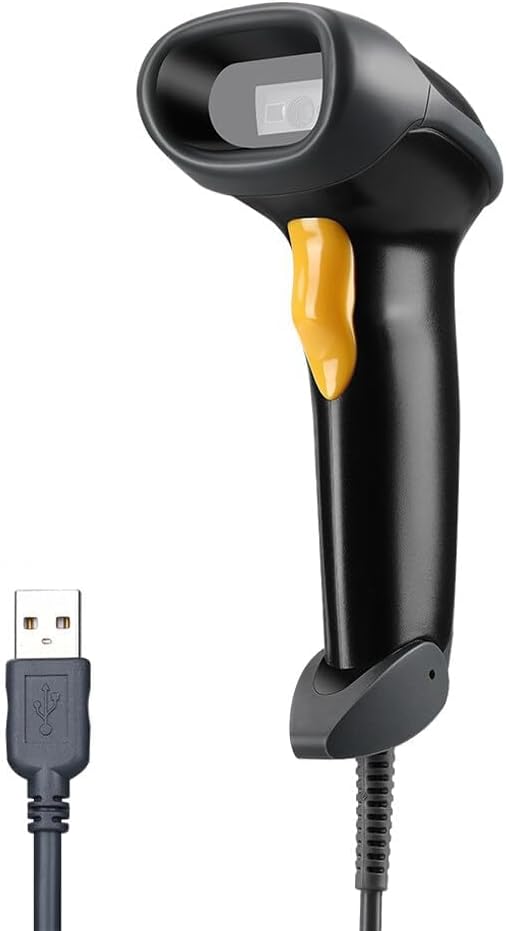
Eyoyo EYH2 handheld USB 2D scanner
Standard håndholdt 2D-stregkode- og QR-scanner. Et budgetvenligt valg til hverdagsbrug.
Se produktet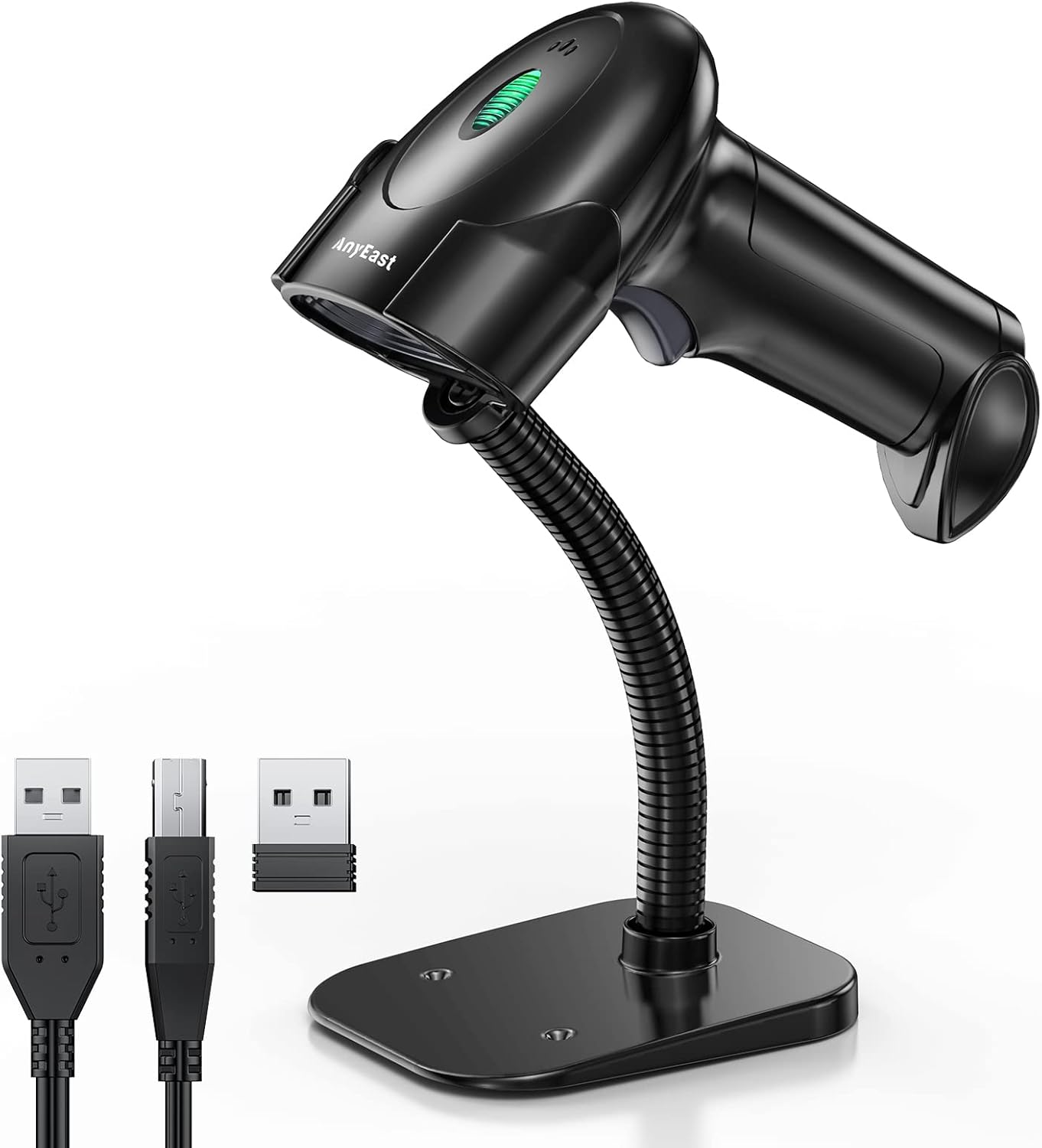
Anyeast scanner with stand
Kommer med en stander til håndfri desktopscanning. Præsenter blot koden under den.
Se produktet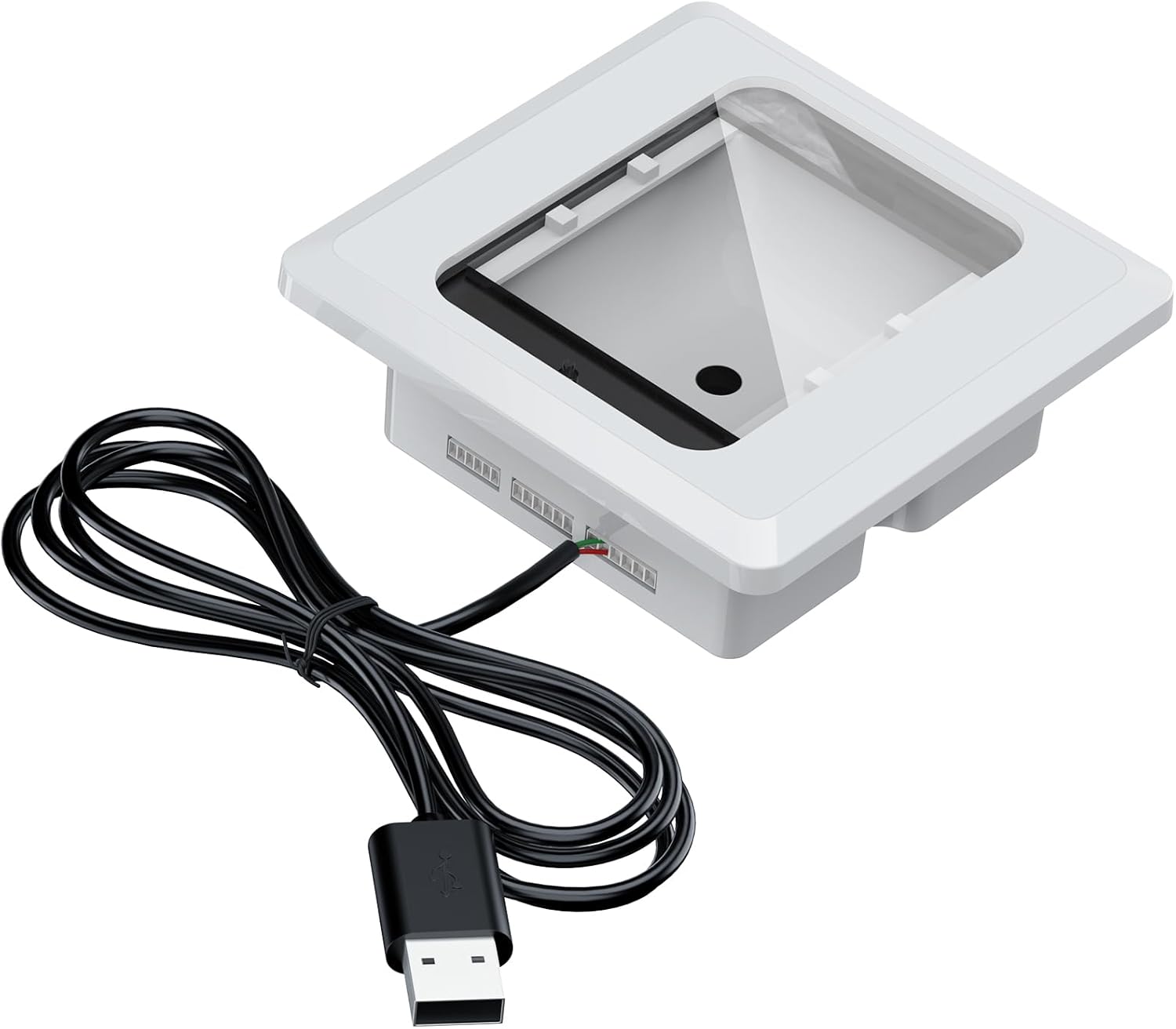
Alacrity embedded scanner
Nem at indbygge i en 3D-printet enclosure til en pæn, fast scanningsstation.
Se produktetAlle scannere her virker på Windows, macOS og Linux ud af boksen (HID-tastaturemulering).
Nogle links er partnerlinks. SimplyPrint kan få provision uden omkostning for dig.
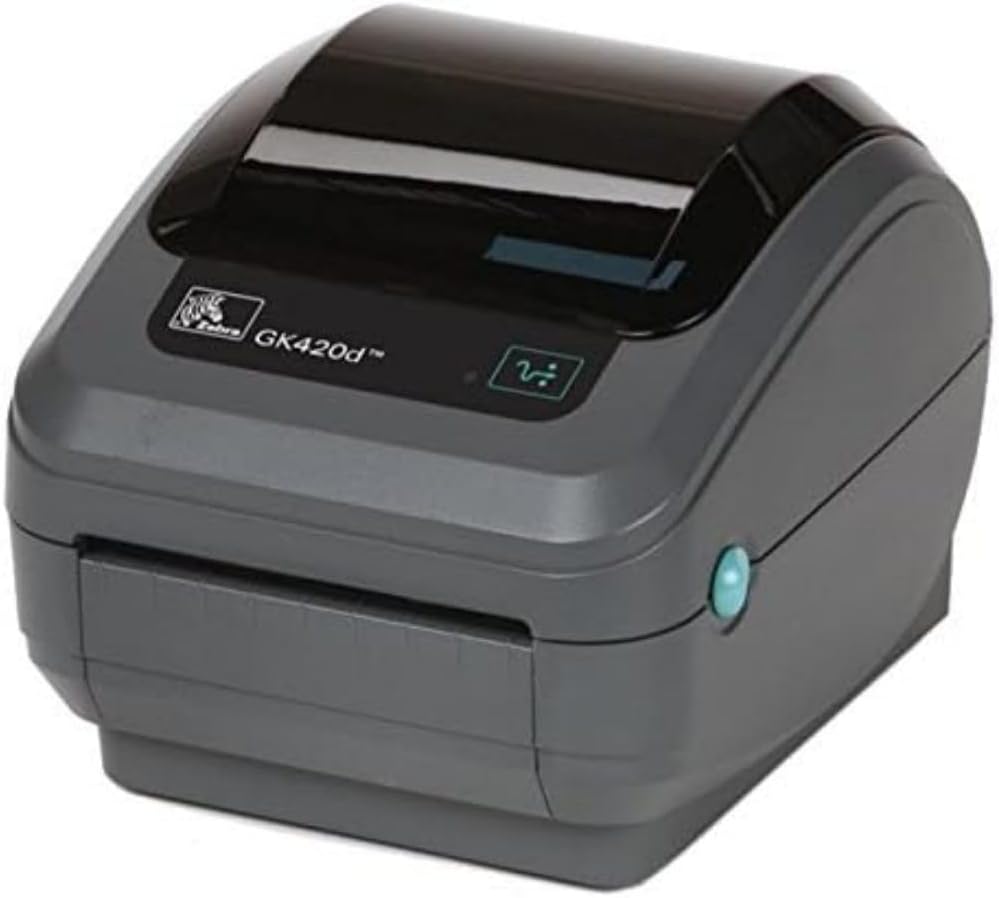
Termiske labelprintere
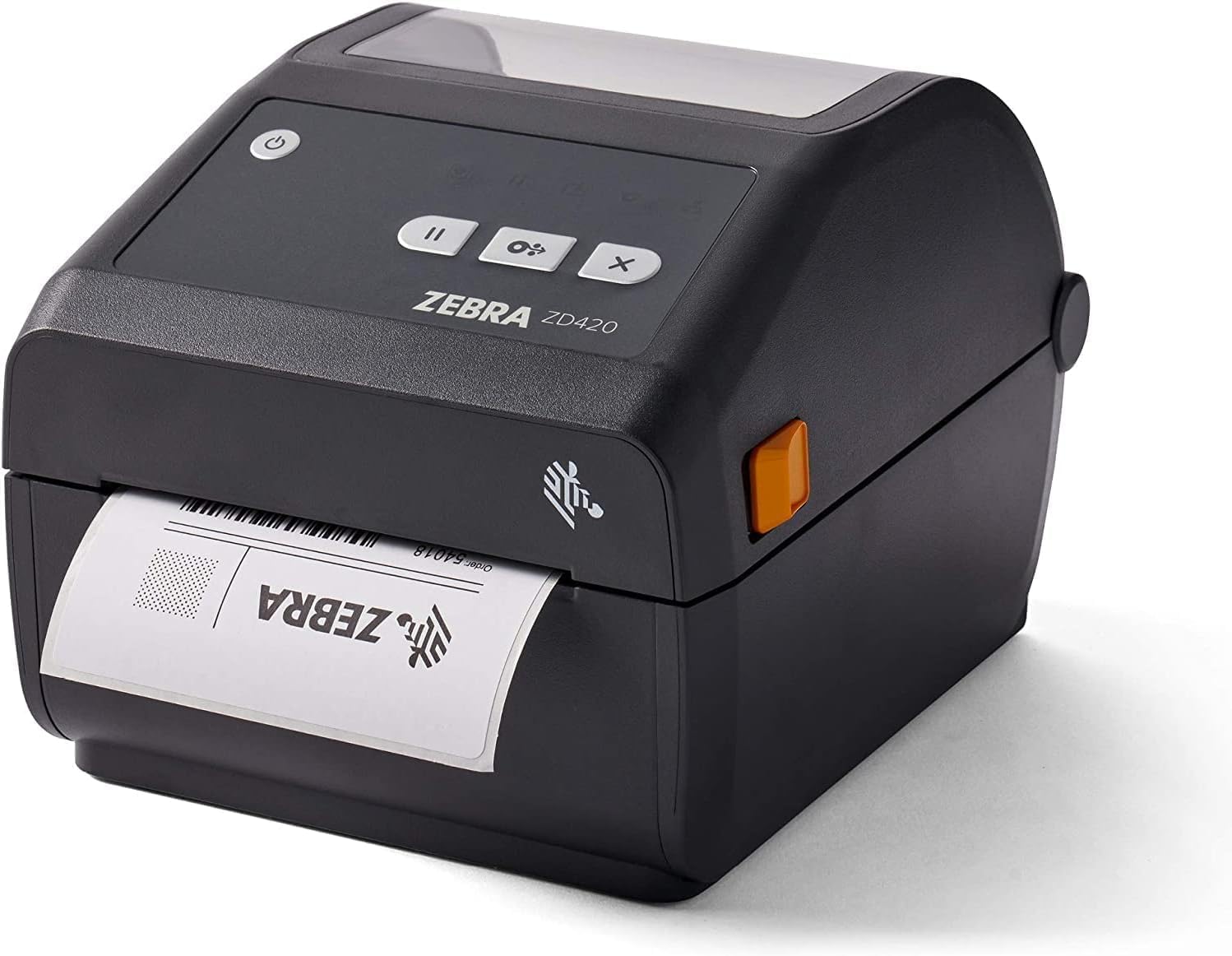
Print spole-, kasse- og forsendelsesetiketter direkte fra SimplyPrint i din browser. Vi understøtter termiske DYMO- og Zebra-printere via deres desktopprintklienter, ét klik uden PDF-trin.
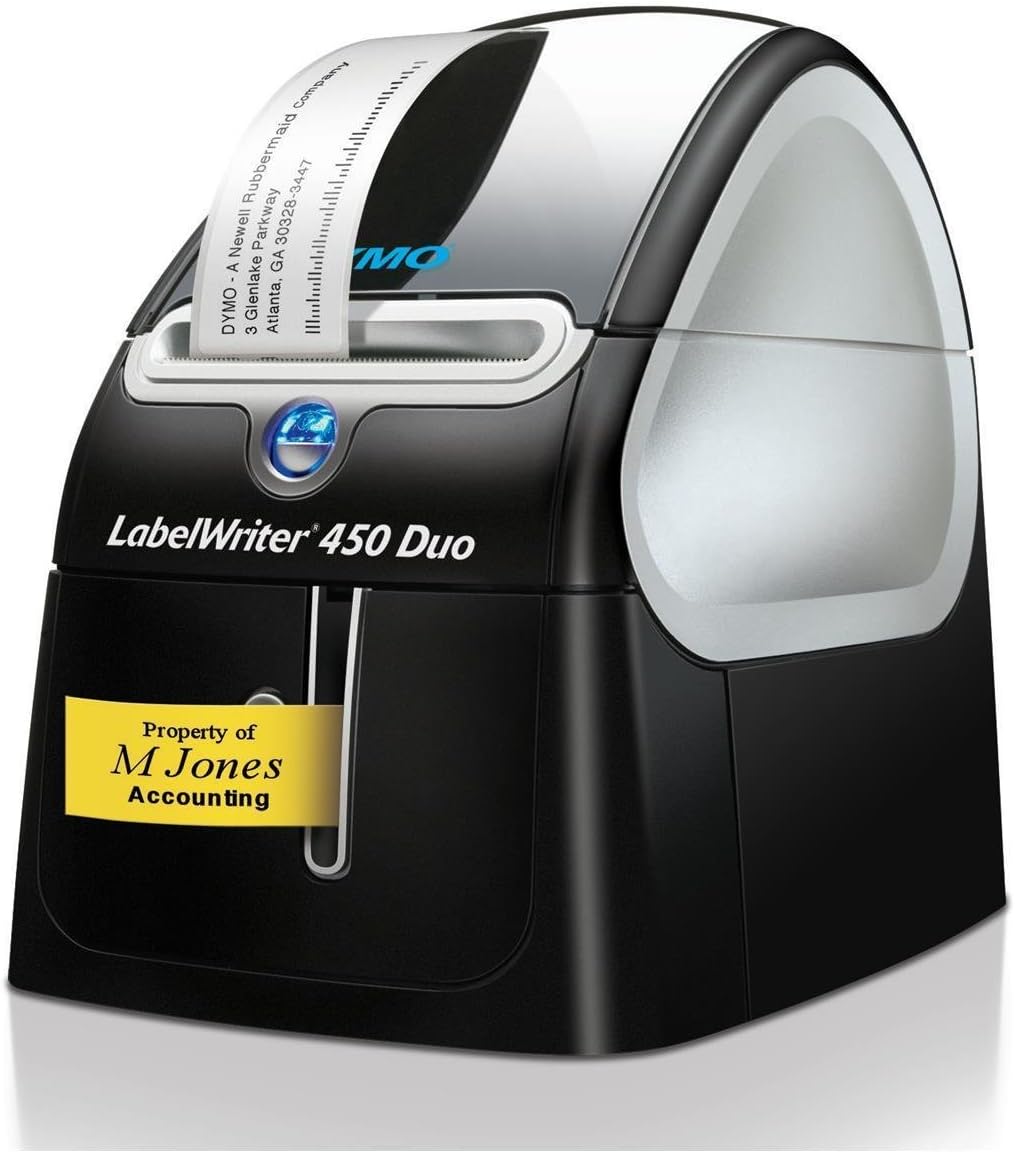
DYMO LabelWriter 450 Duo
Dobbeltfunktionsprinter til etiketter og plasttape. En pålidelig, velafprøvet DYMO-model.
Se produktet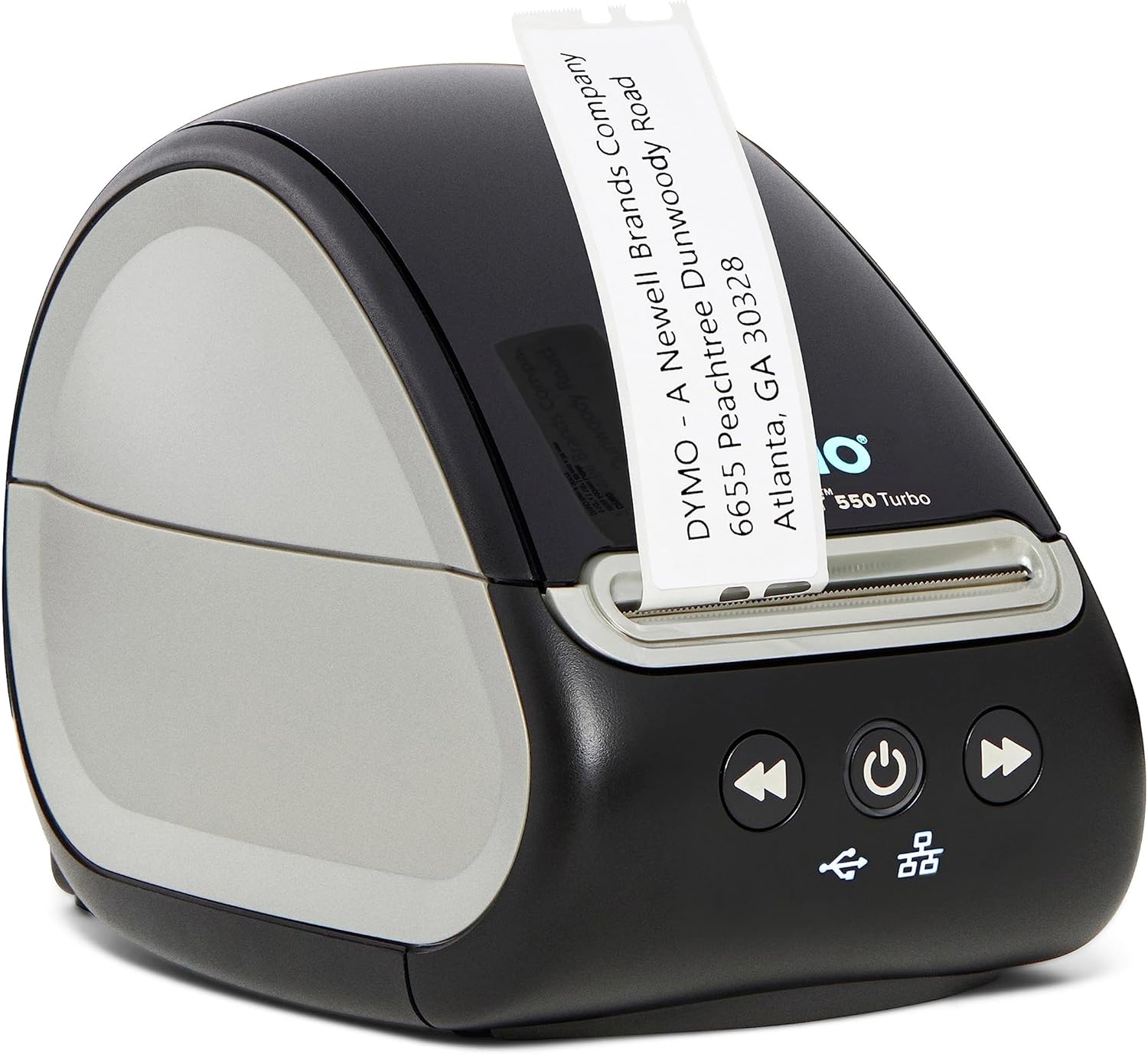
Ingen labelprinter? Du kan stadig bruge labelgeneratoren og udskrive på en almindelig papirprinter.
Nogle links er partnerlinks. SimplyPrint kan få provision uden omkostning for dig.
Printerspecifikke labelguides
Opsætter du en bestemt termoprinter? Disse vejledninger gennemgår direkte print på hver enkelt fra start til slut.