Opsætning af SimplyPrint på MakerBot Replicator 2: Metoden Creality Sonic Pad
Opsæt denne printer med Creality Sonic Pad. Følg trinnene for at forbinde din MakerBot Replicator 2 3D-printer til SimplyPrint.

Din Creality Sonic Pad kræver, at "root-adgang" aktiveres, før den kan forbindes til SimplyPrint.
Lad ikke det tekniske navn bekymre dig, det er som regel så enkelt som at gå til en indstilling på printerens skærm og sætte kryds i et felt. Du bruger også "SSH" til at køre nogle kommandoer.
Tænk på det som at låse "administrator-tilstand" op på din printer. Det giver dig (og SimplyPrint) mulighed for at tilføje funktioner og foretage ændringer, som standardgrænsefladen ikke tillader.
Din printerfabrikant har låst visse funktioner. Ved at aktivere root-adgang giver du dig selv tilladelse til at bruge din printer til dens fulde potentiale.
Egentlig ikke! I de fleste tilfælde har producenten selv gjort denne mulighed tilgængelig - den er bare gemt væk i indstillingerne. Du bruger en funktion, de har indbygget.
Vi aktiverer blot vores komponent i printerens eksisterende software. Vi installerer ikke pakker eller foretager indgribende ændringer. Du kan som regel fabriksnulstille for at fortryde det hele.
Nogle producenter oplyser, at aktivering af rootadgang kan påvirke din garanti. Risikoen er lav, vi har ikke haft et eneste kendt tilfælde, hvor en SimplyPrint-bruger har fået afvist garantiservice på grund af dette.
Men det er dit valg.
Vi viser dig præcis hvor du finder denne indstilling og hvilke kommandoer du skal køre.
I denne guide gennemgår vi:
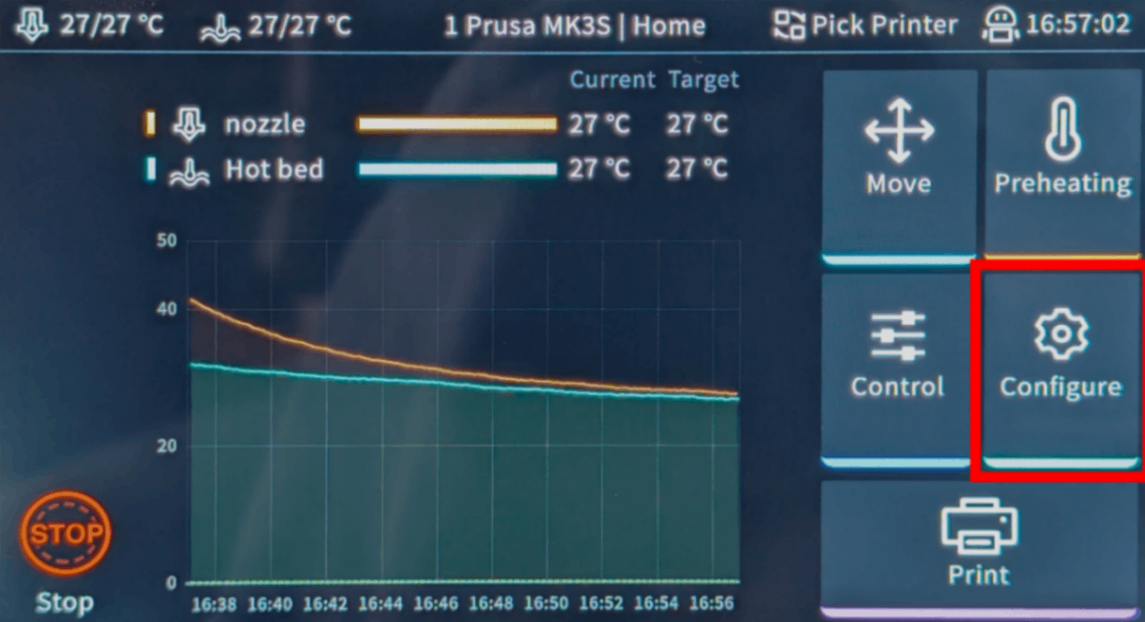
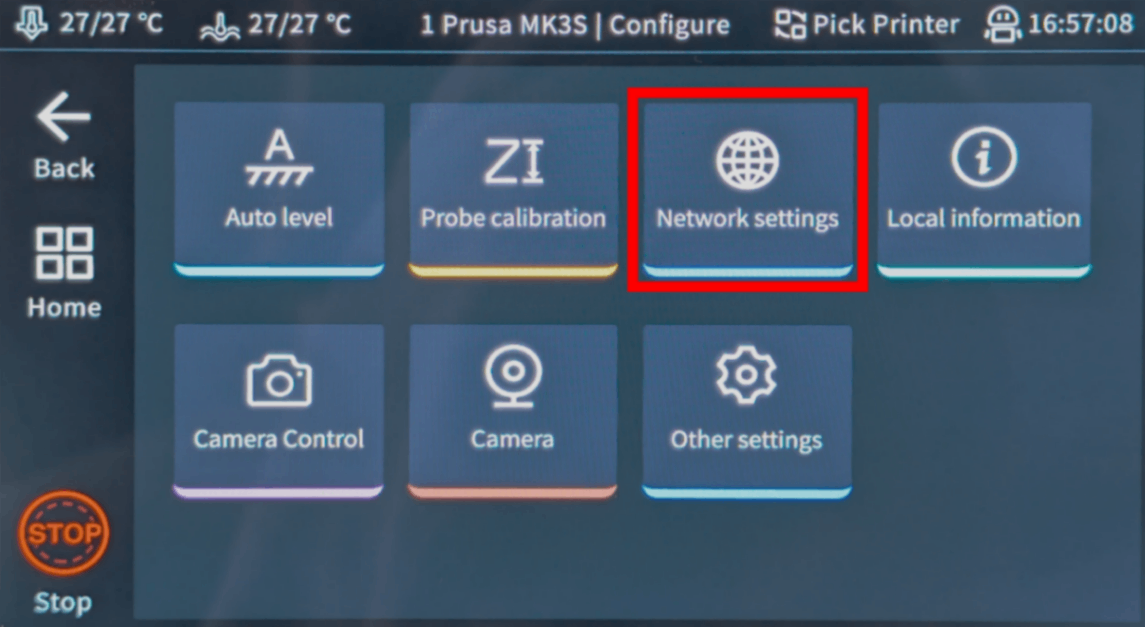
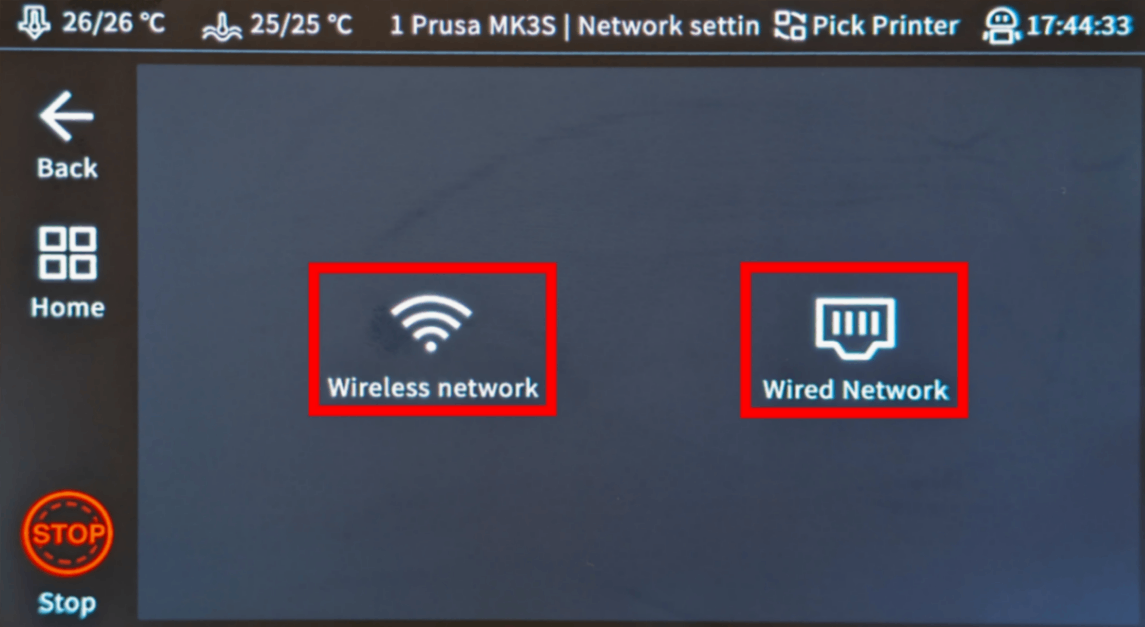
192.168.1.42).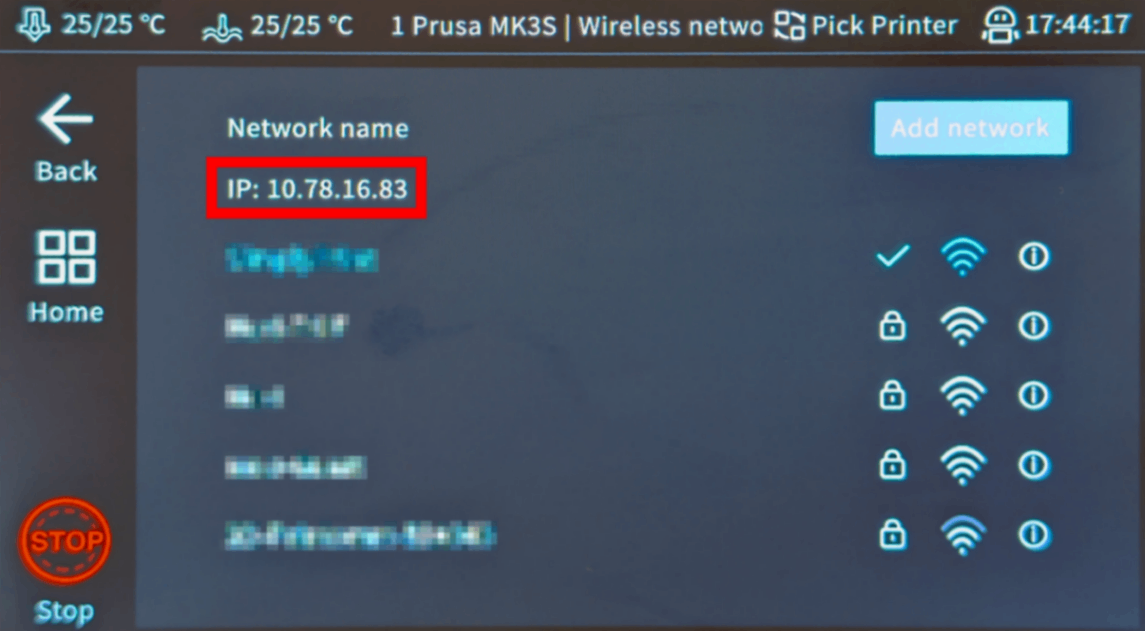
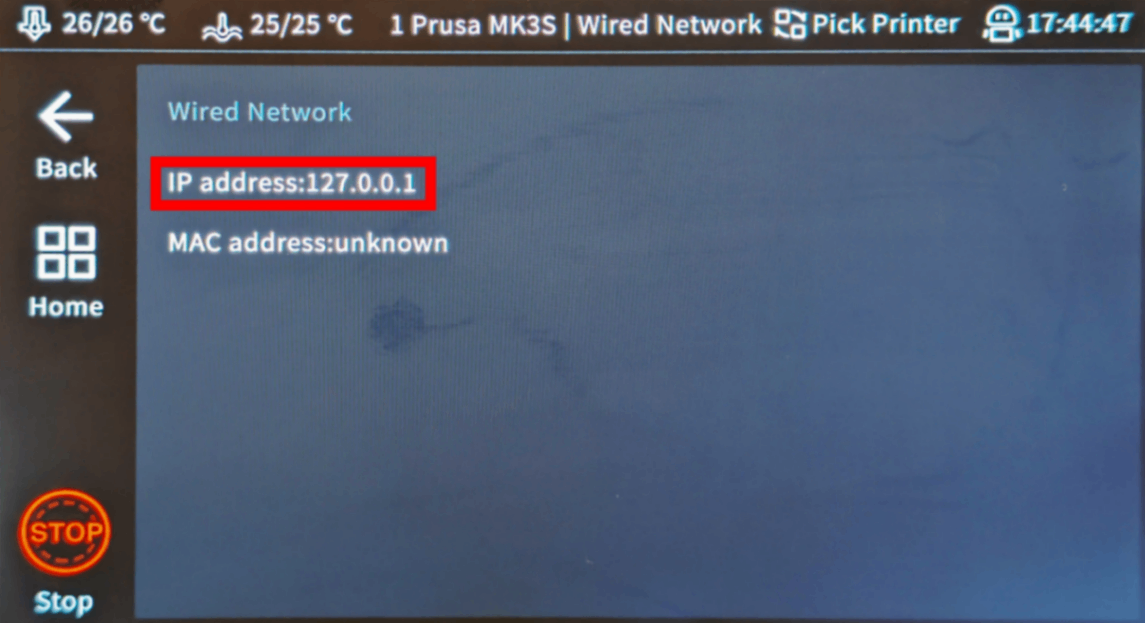
Hvis IP-adressen viser 127.0.0.1, er det en intern loopback-adresse; skift til den anden forbindelsestype (Trådløs/Kablet) og tjek der i stedet.
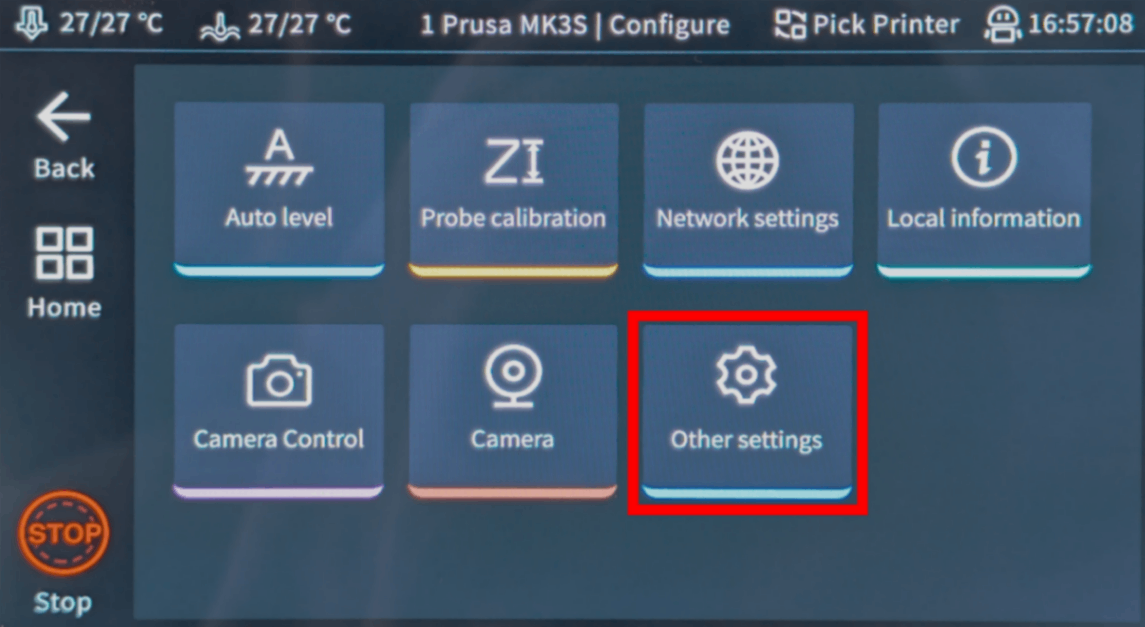
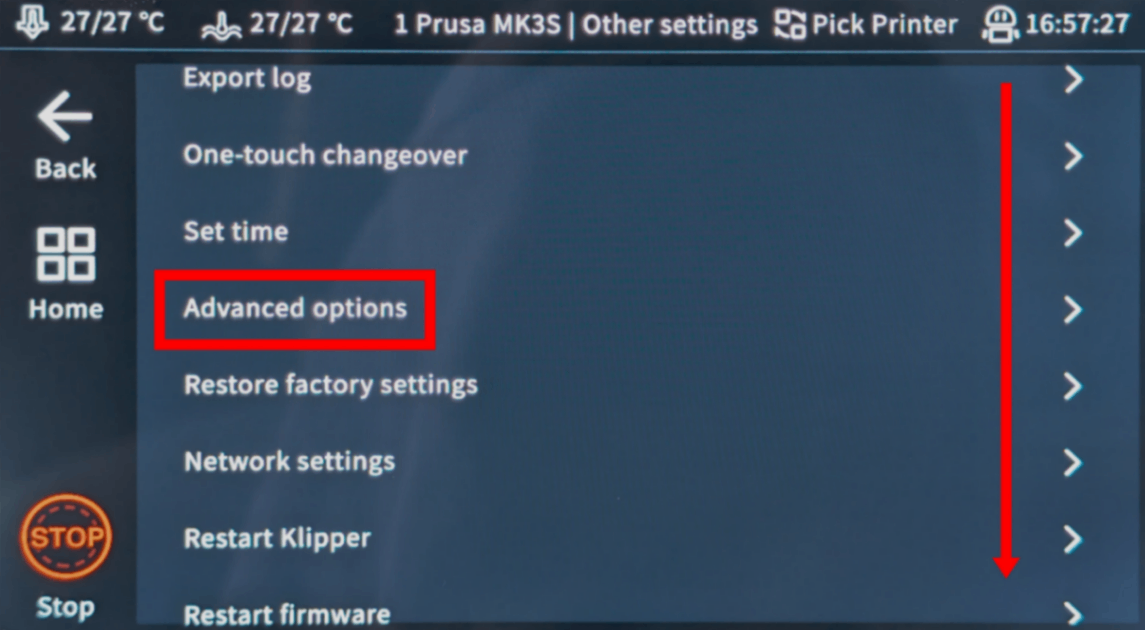
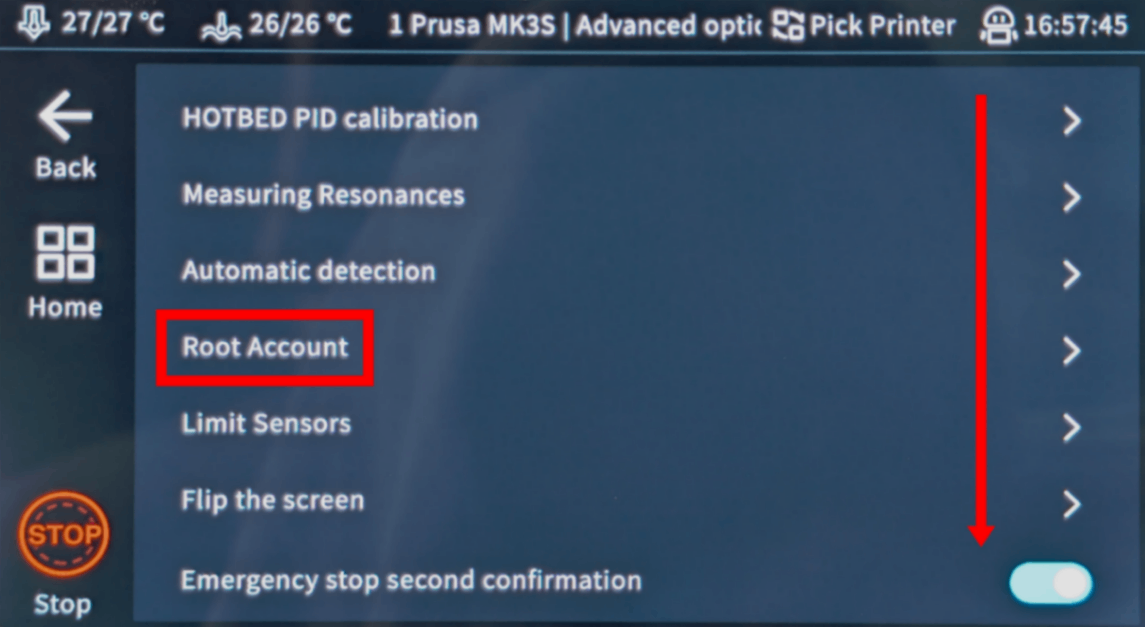
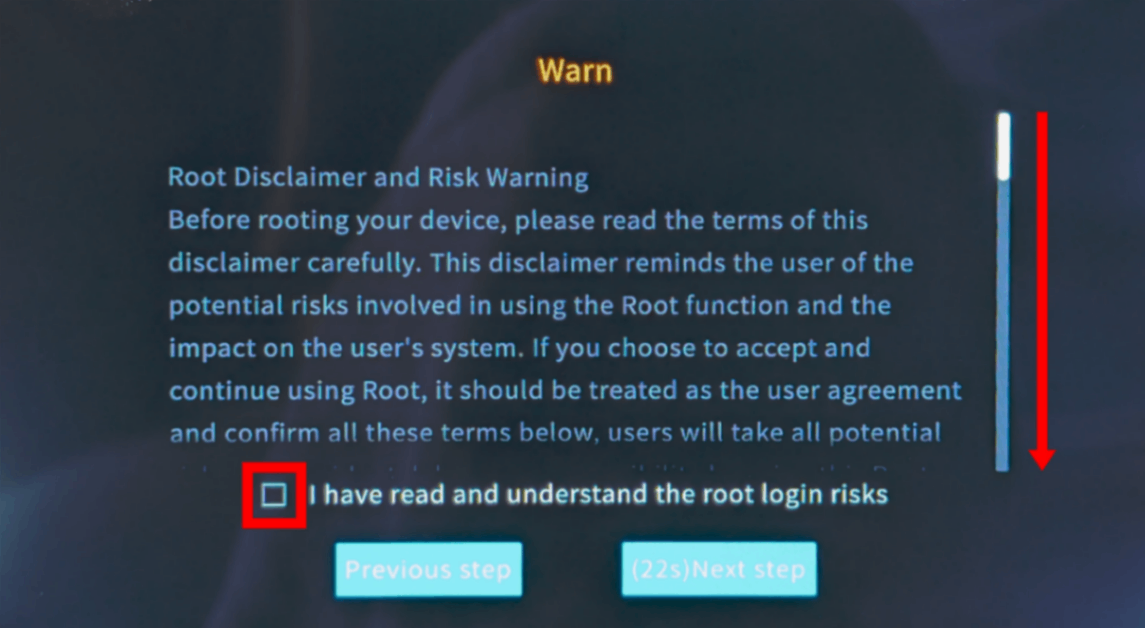
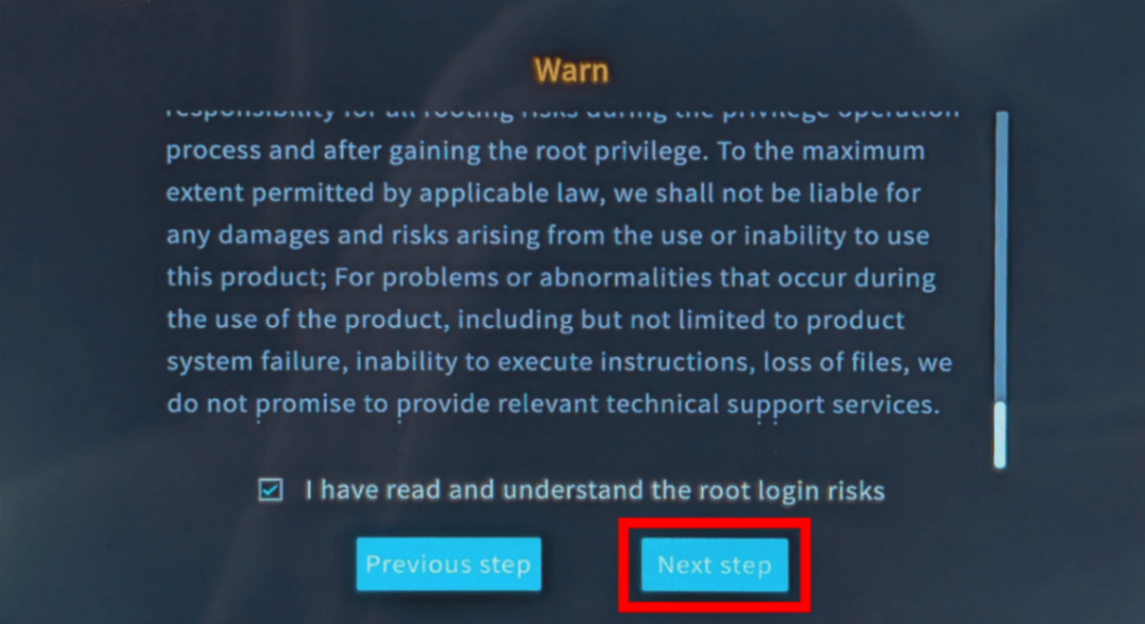
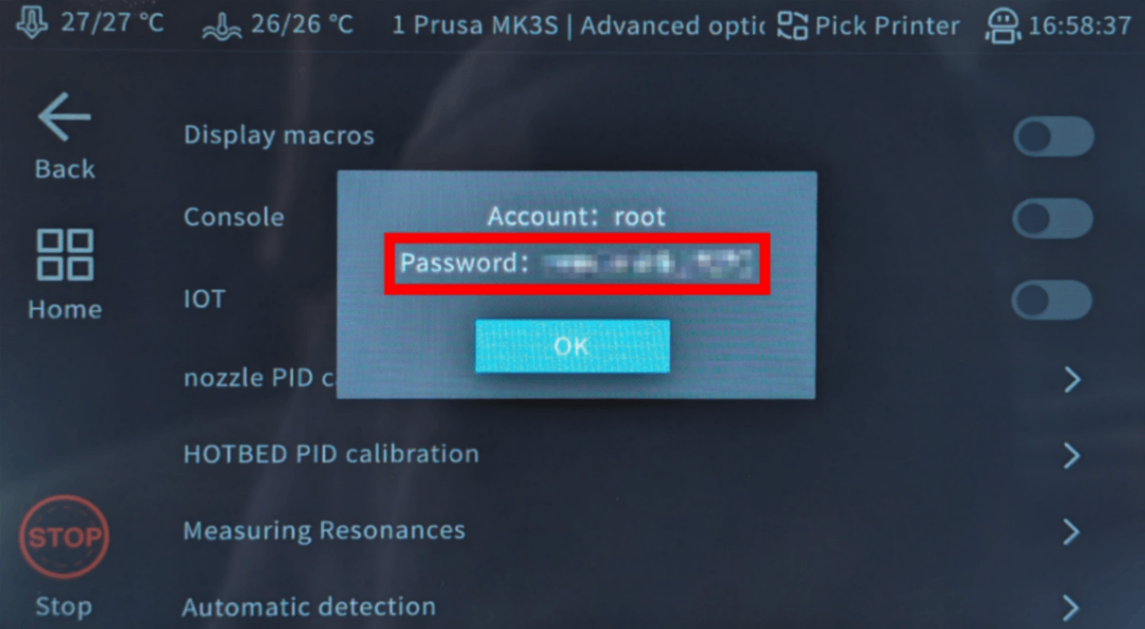
ssh -o HostKeyAlgorithms=+ssh-rsa root@[IP_ADDRESS]
Ja, det er den irriterende tekniske del. Vi beklager, vi har prøvet alt for at undgå det, men din enhed giver os blot ikke anden mulighed.
Men her er sagen: det er nemmere, end det ser ud. Du skal bare kopiere og indsætte et par kommandoer. Det er det. Vælg din computertype nedenfor, og følg trinnene — vi guider dig gennem hvert eneste klik.
192.168.1.42). Inkluder ikke http://, skråstreger eller portnumre.
ssh brugernavn@ip-adresse
ssh [email protected]
yes og trykke Enter
ssh brugernavn@ip-adresse
ssh [email protected]
yes og trykke Enter
ssh brugernavn@ip-adresse
ssh [email protected]
yes og trykke Enter
ssh brugernavn@ip-adresse
ssh [email protected]
yes og trykke Enter
ssh-keygen -R <ip-address>
Mens der er SSH-apps tilgængelige til Android og iOS, anbefaler vi at bruge en computer til SSH-forbindelser. Et ordentligt tastatur og skærm gør det meget nemmere at skrive kommandoer.

wget -qO- https://download.simplyprint.io/sonic-pad/sonic-pad-ssl.sh | bash
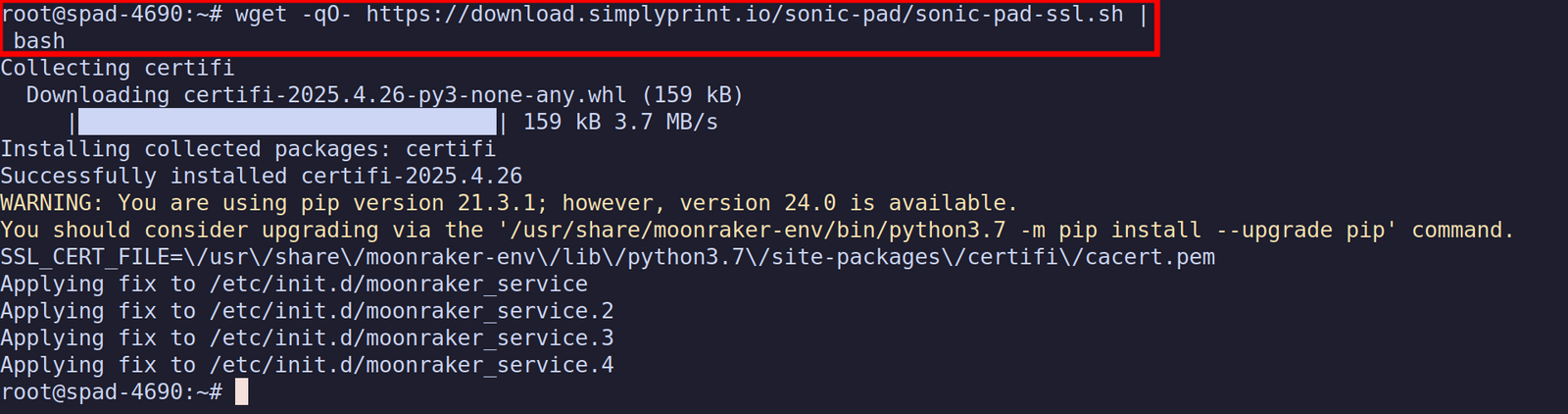
exit
I din browser på din computer eller telefon skal du besøge http://[IP_ADDRESS]. Her finder du "Fluidd"-webgrænsefladen, der hostes af din Sonic Pad, bemærk at du skal være på samme netværk som Sonic Pad'en for at tilgå Fluidd-webgrænsefladen.
Gå nu til næste trin, som i detaljer viser dig, hvordan du finder og åbner konfigurationsfilen moonraker.conf, hvor vi skal tilføje [simplyprint]-linjen.
Tusindvis gennemfører denne opsætning hver uge. Følg hvert trin omhyggeligt, de fleste problemer opstår, fordi man springer trin over.
Du er nu klar til at forbinde din printer og begynde at bruge SimplyPrint.
Opret din gratis konto