Setting up SimplyPrint on Creality K2

Easy steps to connect your Creality K2 3D printer to SimplyPrint.

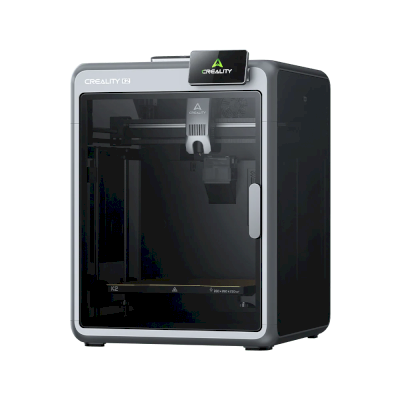
Creality K2 image

Set up SimplyPrint on the Creality K2

In this guide we will go through:

  1. Find your K2's IP address
  2. Enable root access and get the password
  3. Enable SimplyPrint in Fluidd (via SSH)
  4. Access your web interface

1. Find your K2's IP address

  1. On the touchscreen navigate to "Settings""Network".
K2 homescreen with Settings button K2 Settings → Network button
  1. Note down the K2's IP address shown under your network name/SSID.
K2 Network page with IP address

2. Enable root access

  1. On the touchscreen navigate to "Settings" and scroll down to select "Root account information".
K2 homescreen with Settings button K2 Settings → Root account information
  1. Read the disclaimer, check "I have read and understood the risks of Root login" and wait 30 seconds before pressing "Ok".
K2 root access disclaimer
  1. Note down the generated root password.
K2 root account information (password)

3. Enable SimplyPrint in Fluidd (via SSH)

  1. Open a terminal or SSH client on your computer.
  2. Connect to the K2 using the IP address and root password you noted:
ssh root@[IP_ADDRESS]

For example; ssh [email protected]

  1. When prompted for a password, enter the password you noted.
  2. Once connected, run the command below to enable SimplyPrint and restart "Moonraker", which is the firmware's built-in API that includes SimplyPrint:
python3 -c "import urllib.request;print(urllib.request.urlopen('https://download.simplyprint.io/creality/k2/k2-setup.sh').read().decode())" | sh
What does this script do?
This script locates the `moonraker.conf` file that your printer uses, which can either be in /usr/data/moonraker or /data/moonraker. It then adds the SimplyPrint configuration ([simplyprint]) to the file and restarts Moonraker.

4. Add your printer to SimplyPrint

Now everything should be ready! The printer should be connected to SimplyPrint!

Open up the SimplyPrint web dashboard on a computer or phone on the same network as your K2, where it should show up as a pending printer in the "Add printer" flow.


Not showing up inside SimplyPrint?

Find the printer setup code in the printer's local web interface.

  1. Open a web browser on your computer or phone.
  2. Using the IP address you noted, navigate to http://[IP_ADDRESS]:4408 to access the Fluidd panel hosted by your K2.
  3. Find the "Notification" bell icon in the top right corner and click it
  4. Here you should see a "SimplyPrint Setup Request" with a 4-character setup code; use this

If it doesn't work for you, try going through the guide again very carefully. Missed steps is the most common reason for printers not showing up.

That's it! You're all set

You're now ready to connect your printer and start using SimplyPrint.

Create your free account
Back