
Fusion 360
Send dine CAD-modeller direkte fra Fusion 360 til SimplyPrint til slicing og udskrivning
Hent det i Autodesk App Store Læs hele vejledningen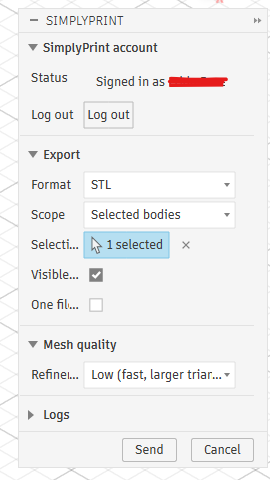
Send dine CAD-modeller direkte fra Fusion 360 til SimplyPrint til slicing og udskrivning
Hent det i Autodesk App Store Læs hele vejledningen
SimplyPrint er hverken støttet af eller forbundet med Autodesk Fusion 360. Vi bruger varemærker og billeder udelukkende for at indikere kompatibilitet med vores platform. Brug af Autodesk Fusion 360 hardware med SimplyPrint kan være anderledes end hvad Autodesk Fusion 360 har tiltænkt. Alle rettigheder tilhører de respektive ejere.
SimplyPrint-tilføjelsesprogrammet til Autodesk Fusion 360 forbinder CAD-design og 3D-print. Modellér i Fusion, og send derefter dit design direkte til din printer med ét klik, intet separat eksporttrin og ingen flytten filer mellem programmer.
Er du ny her? Læs den komplette vejledning: sådan 3D-printer du fra Fusion 360.
Tilføjelsesprogrammet tilføjer en SimplyPrint-knap til Fusions UTILITIES-panel, og ved siden af den indbyggede 3D Print-knap på MAKE-panelet. Vælg STL eller 3MF, vælg hvad du vil eksportere, justér meshkvaliteten, klik på Send, og SimplyPrint åbner i din browser med modellen indlæst, klar til at slice, sætte i kø eller printe.
Hent tilføjelsesprogrammet fra Autodesk App Store:
Hent det i Autodesk App StoreLuk Fusion 360, og kør derefter det downloadede installationsprogram, det placerer tilføjelsesprogrammet direkte i Fusions AddIns-mappe på Windows eller macOS.
Åbn Fusion 360, tryk på Shift+S, og åbn fanen Add-Ins.
Vælg SimplyPrintExport, klik på Run, og markér Run on Startup, så det indlæses automatisk næste gang.
Klik på SimplyPrint-knappen på UTILITIES-panelet, eller ved siden af 3D Print-knappen på MAKE, for at åbne dialogboksen. Klik på Log in første gang. En browserfane åbnes, du godkender anmodningen, og så er du klar til fremtidige sessioner. Vælg det ønskede format, omfang, enheder og meshkvalitet, og klik derefter på Send. Din browser åbner SimplyPrint med modellen uploadet, klar til at slice, sætte i kø eller printe på én eller flere printere.
Installér SimplyPrint-tilføjelsen
Hent det fra Autodesk App Store, og kør installationsprogrammet på Windows eller macOS. Tryk derefter på Shift+S i Fusion, åbn fanen Add-Ins, kør SimplyPrintExport, og markér Run on Startup.
Log ind én gang
Klik på SimplyPrint-knappen i panelet UTILITIES, og vælg Log ind. En browserfane åbnes, du godkender anmodningen, og sessionen huskes til næste gang.
Send din model, og print
Vælg STL eller 3MF, hvad der skal eksporteres, og mesh-kvaliteten, og tryk på Send. SimplyPrint åbner i browseren med modellen indlæst og klar til slicing, kø eller print.
Installér SimplyPrint-tilføjelsen til Fusion 360, og klik derefter på SimplyPrint-knappen for at eksportere din model som STL eller 3MF og sende den. Modellen åbnes i SimplyPrint i din browser, klar til slicing, kø eller print uden manuel eksport eller SD-kort.
Ja. Tilføjelsen er gratis at installere og bruge, og med SimplyPrints gratis abonnement kan du forbinde en printer og printe trådløst.
Ja. Tilføjelsesprogrammet fungerer på både Windows og macOS. Installer det fra Autodesk App Store på begge platforme.
Begge virker. STL er det universelle meshformat, mens 3MF bevarer enheder og farver. Du vælger format, omfanget af legemer eller komponenter og meshkvaliteten, før du sender.
Ja. Når modellen er i SimplyPrint, kan du slice den og printe den på enhver printer på din konto, over 140 mærker og 600 modeller via OctoPrint, Klipper eller en indbygget integration.
Integration med SimplyPrint gør det muligt for applikationer at kommunikere med dine 3D-printere og omvendt. Det giver uendelige muligheder, og vi er overbeviste om, at din 3D-printer bør kunne fungere som en IoT-enhed og arbejde sammen med enhver applikation, du kan forestille dig!
Derfor arbejder teamet bag SimplyPrint på at levere officielle integrationer til de mest populære platforme, slicere og applikationer, samtidig med at vores brugere kan oprette egne integrationer med vores API, eller godkendte tredjepartsleverandører kan oprette integrationer, som alle SimplyPrint-brugere kan anvende, med en "Log ind med SimplyPrint"-metode (med metoden "OAuth2").
Hvis du er udvikler og interesseret i at oprette en integration til SimplyPrint, så læs venligst vores dokumentation om emnet.
Hvis du ikke selv er udvikler, men gerne vil se en integration til en bestemt applikation, så tjek om den allerede er på vores roadmap eller forslagsliste, og hvis ikke, så foreslå den!