SSO for 3D printers lets everyone who uses your printers sign in with the account they already have at school or work. Nobody gets a new password, and your IT team decides who has access. In SimplyPrint, an admin connects your identity provider once over SAML 2.0 or OpenID Connect (OIDC). From then on, students, teachers and colleagues click one button to reach the printers, the print queue and the cloud slicer.
This guide covers what single sign-on changes for a 3D printing lab, which providers work, how to choose between SAML and OIDC, and the setup steps from start to finish. It ends with what happens after the first sign-in.
What does SSO for 3D printers actually change?
A shared 3D printer without accounts has no idea who sent a job. A printer behind a shared login is not much better: everyone is "lab-user", and a password taped to the wall is the access policy.
Single sign-on fixes the identity part of that problem. Each person signs in as themselves, through the same login page they use for email and coursework. SimplyPrint then knows:
- who printed what, so the queue, print history and statistics are per person
- which group they belong to, so permissions and limits apply automatically
- when they leave, because removing them from your directory removes their access
The printers themselves never see a password. Your identity provider confirms who the person is, and SimplyPrint decides what that person may do with your printers.
Why do 3D printer labs and print farms use single sign-on?
Three problems come up again and again in shared 3D printing spaces.
Account admin eats the first week of term. Creating 300 student accounts by hand, then resetting the passwords they forget, is slow. With SSO, an account is created the first time someone signs in. There is nothing to prepare.
Leavers keep access. In a company or a university, a contractor who left in March can still start prints in June if their account was never removed. When the login comes from your directory, a disabled user cannot sign in anymore. With roster sync, their SimplyPrint account is cleaned up too.
Permissions drift. Teachers need to approve prints, students need a safe subset of settings, and technicians need everything. SimplyPrint can map groups from your directory to user groups, so a teacher arrives as a teacher and a student arrives with the limited access you chose. You can see what each group may do on the SSO for schools page.
Which identity providers work with SimplyPrint?
If your provider speaks SAML 2.0 or OpenID Connect, it works. Nearly every provider does. These are the ones schools and companies ask about most:
| Provider | Method | Notes |
|---|---|---|
| Google Workspace | SAML or OIDC | Ready-made presets for both |
| Microsoft Entra ID | SAML or OIDC | Formerly Azure AD. Presets for both |
| Okta | SAML or OIDC | Ready-made OIDC preset |
| Auth0 | SAML or OIDC | Ready-made SAML preset |
| Keycloak and Authentik | OIDC | Ready-made OIDC presets |
| Clever | SSO | SimplyPrint is verified with Clever |
| InCommon, eduGAIN and WAYF | SAML federation | For universities and research institutions |
| UNI-Login | SSO | The Danish educational login |
| OneLogin, Ping, ClassLink and others | SAML or OIDC | Any standards-compliant provider |
The full list with logos and a guide per provider is on the single sign-on overview.
SAML vs OIDC: which should you pick?
Both protocols do the same job, and your users will not notice which one you chose. The difference is in the setup work for your IT team.
| OpenID Connect (OIDC) | SAML 2.0 | |
|---|---|---|
| What you exchange | An issuer URL, a client ID and a client secret | A metadata file and a signing certificate |
| Setup effort | Quickest. SimplyPrint discovers the endpoints itself | A few more fields to fill in on each side |
| Best for | Microsoft Entra ID, Google Workspace, Okta, Auth0, Keycloak, Authentik | Providers that only offer SAML, or teams that already run it |
| Federations | Not used for federation login | Required for InCommon, eduGAIN and WAYF |
Our recommendation: choose OIDC unless your provider only supports SAML, you already run SAML for other tools, or you sign in through an academic federation. OIDC is built on OAuth 2.0 and is described by the OpenID Foundation. SAML is an OASIS standard that most universities and large companies already use.
Your account runs one method at a time. Switching keeps the other method's saved settings, so you can try one and move back without re-entering anything.
How to set up SSO for SimplyPrint
Whoever manages your identity provider can usually do the whole setup. These are the steps.
1. Check your plan and admin rights
Single sign-on is included on the School and Enterprise plans, with no add-on to buy. Compare plans on the pricing page. The person doing the setup needs the "Edit registration settings" permission in SimplyPrint.
2. Choose SAML or OIDC
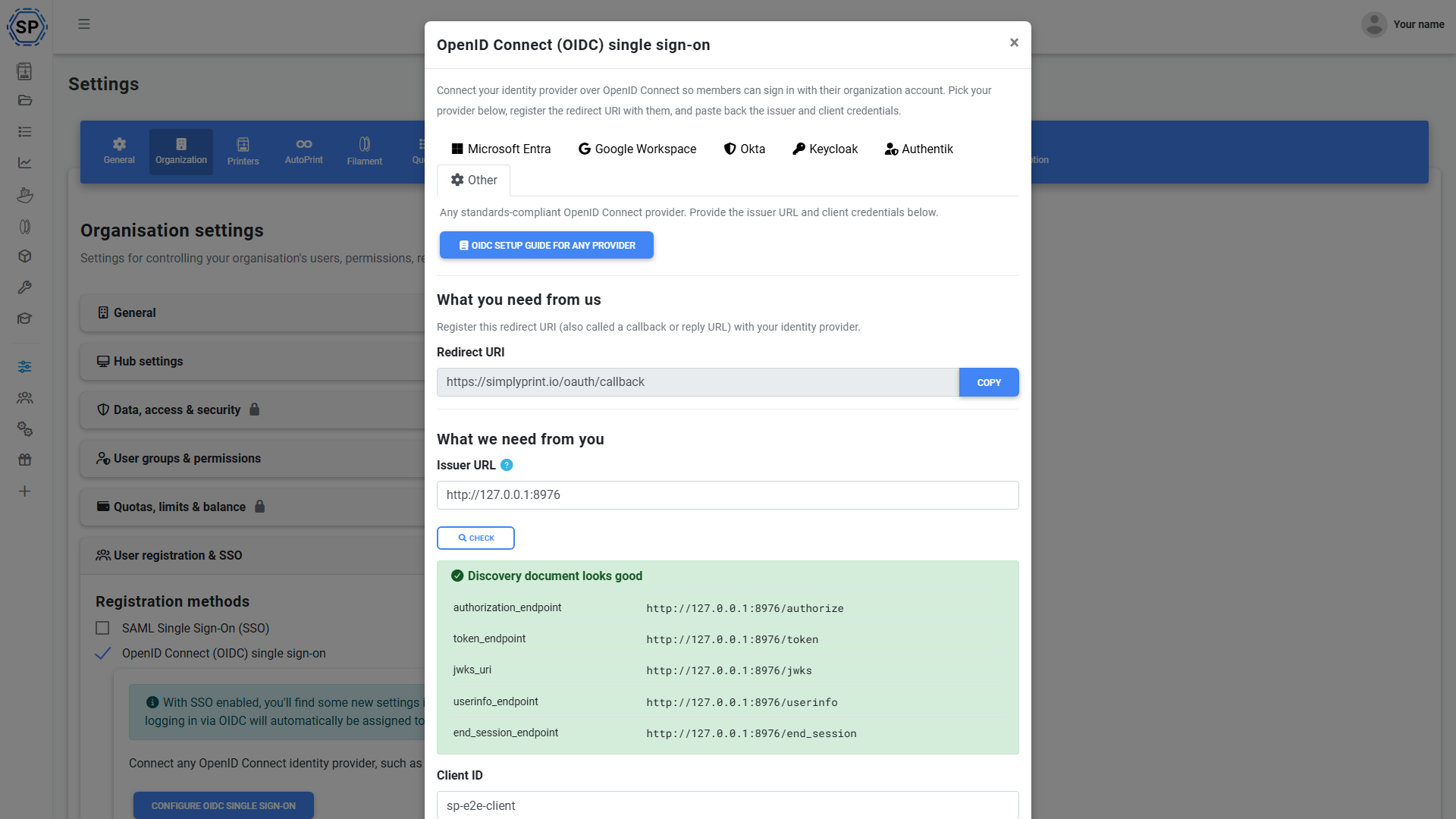
In SimplyPrint, go to Settings, then Organization, and open User registration & SSO. Turn on either SAML single sign-on or OpenID Connect (OIDC) single sign-on, then open its configuration.
The OIDC window has preset tabs for Microsoft Entra, Google Workspace, Okta, Keycloak and Authentik, plus "Other" for any standard provider. Each preset fills in the right defaults for that vendor.
3. Register SimplyPrint in your identity provider
- OIDC: create a new app registration (sometimes called a client). Copy the redirect URI that SimplyPrint shows and paste it in as the callback or reply URL. Copy it from the window rather than typing it, because it must match exactly.
- SAML: your account has its own metadata file, linked at the top of the SAML configuration. Upload it to your provider, or copy the entity ID and the assertion consumer URL from it.
4. Paste your provider's details into SimplyPrint
- OIDC: enter the issuer URL, the client ID and the client secret. On the Microsoft Entra tab you enter the tenant ID instead, and SimplyPrint builds the issuer for you. Press Check to confirm the connection before you save.
- SAML: enter your provider's entity ID, the single sign-on URL and the X.509 signing certificate. Most providers use the HTTP-Redirect binding; some need HTTP-POST.
5. Map names, email and groups
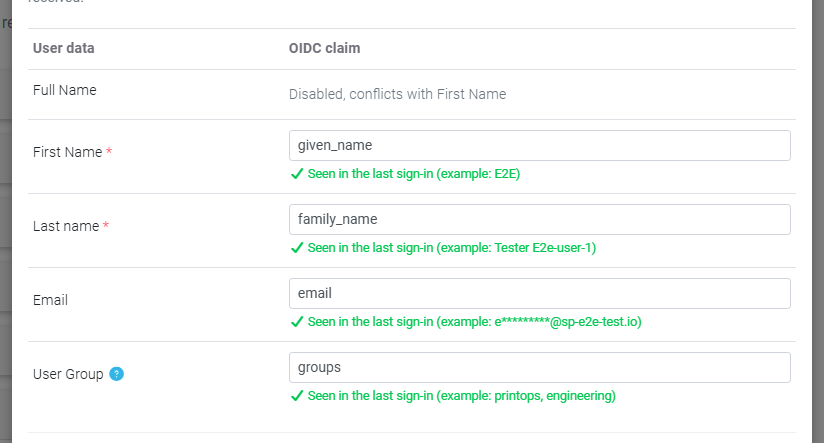
Tell SimplyPrint which attributes or claims carry first name, last name and email. For OIDC, the defaults already match most providers. Optionally, map a groups attribute to SimplyPrint user groups. Schools can also map a teacher flag and class membership, so teachers and classes are set up the moment someone signs in.
6. Test the sign-in and go live
For OIDC, save, then press Test sign-in. It runs the real sign-in in a new tab and shows which claims came back, without creating an account. For SAML, save and sign in through the new option from a private window.
Then finish the setup:
- If you use OIDC, verify your email domains with a DNS record. Accounts on a verified domain are trusted for automatic creation. Microsoft Entra ID does not confirm email addresses, so its preset turns off the verified-email requirement; verifying your domains is the safer way to keep automatic creation trusted.
- School accounts can list their school on the SimplyPrint login page, so students can pick it from the list.
If a sign-in fails, a common cause is a missing name attribute. The step-by-step helpdesk guides cover each error.
What happens after the first sign-in?
Once SSO is live, most of the account admin disappears.
- Accounts are created on first sign-in. Nobody prepares a user list. With OIDC, a user is created automatically when the provider confirms the email address, the address is on one of your verified domains, or you have turned off the verified-email requirement.
- Teachers arrive as teachers. Point SimplyPrint at the group or attribute that marks teachers, and they get teacher access. Students get the access you chose for them.
- Groups and classes follow your directory. Directory groups can map to SimplyPrint user groups and school classes, and they update at each sign-in.
- Existing users keep their history. Anyone who already had a SimplyPrint account can link it to their SSO login and keep their files and prints.
- Email changes do not break accounts. SimplyPrint identifies each user by the stable identifier your provider sends, such as the SAML NameID or the OIDC subject, not by email.
How does SCIM provisioning keep the roster in sync?
Sign-in only tells SimplyPrint about people when they show up. SCIM provisioning goes further: your identity provider pushes changes to SimplyPrint as they happen. SCIM is an open standard, defined in RFC 7644.
With SCIM provisioning turned on:
- people you assign to SimplyPrint in your directory get an account before their first sign-in
- people you disable in your directory can no longer sign in
- people you unassign or delete are removed from your account after a grace period you set (10 days by default)
- there is no spreadsheet to maintain and no end-of-year clean-up
SCIM needs SAML or OIDC set up first: SCIM manages the accounts, and single sign-on is how people sign in to them. SimplyPrint has SCIM setup guides for Okta, Microsoft Entra ID and OneLogin. Google Workspace cannot push to custom SCIM apps, so Google schools rely on accounts being created at first sign-in, or a one-time import. For a print farm with staff turnover, or a school with a new intake every year, this is the step that keeps the printer list of "who may print" accurate.
Can a whole school district share one login?
Yes. A district can connect its identity provider once and share it with every school it manages. When someone signs in, they are routed to their own school. A person who belongs to several schools either joins them all or picks one from a school selector, depending on the district's setting.
District single sign-on is enabled by the SimplyPrint team as part of district onboarding, so get in touch when you plan a rollout across several schools.
Does SSO work on Chromebooks, iPads and shared lab computers?
Yes. Sign-in happens in the browser, so it works on Chromebooks, iPads and shared lab computers. Nothing is installed on the device and no admin rights are needed.
That matters in schools, where students often slice and send prints from a Chromebook. With SSO, a student opens SimplyPrint, signs in with their Google or Microsoft school account, and uploads a model to the print queue without a separate password. Read more about printing from an iPad or Chromebook.
Is single sign-on safe for school data protection reviews?
Single sign-on reduces the number of passwords in circulation, which is a security win on its own. SimplyPrint also follows the REFEDS Data Protection Code of Conduct v2 for federated sign-in, is built in the EU, and is GDPR compliant. Western Australia's Department of Education rated SimplyPrint Low Risk in its Security & Privacy Risk Assessment.
For OIDC, sign-in uses the authorization-code flow with PKCE, and ID tokens must be signed (RS256 or stronger) and are validated. Read the details on the security page, or see how SSO fits a whole school rollout in the 3D printing in schools guide.