Opsætning af SimplyPrint på MakerBot Replicator Mini: Metoden Co Print ChromaPad
Opsæt denne printer med Co Print ChromaPad. Følg trinnene for at forbinde din MakerBot Replicator Mini 3D-printer til SimplyPrint.

[simplyprint] to the moonraker.conf config filemoonraker.conf file
moonraker.conf, user.moonraker.conf, moonraker.generated.config, or a custom filename. If moonraker.conf isn't present, edit whichever file Moonraker is actually loading on your printer.[simplyprint] nederst i filen (med en tom linje over)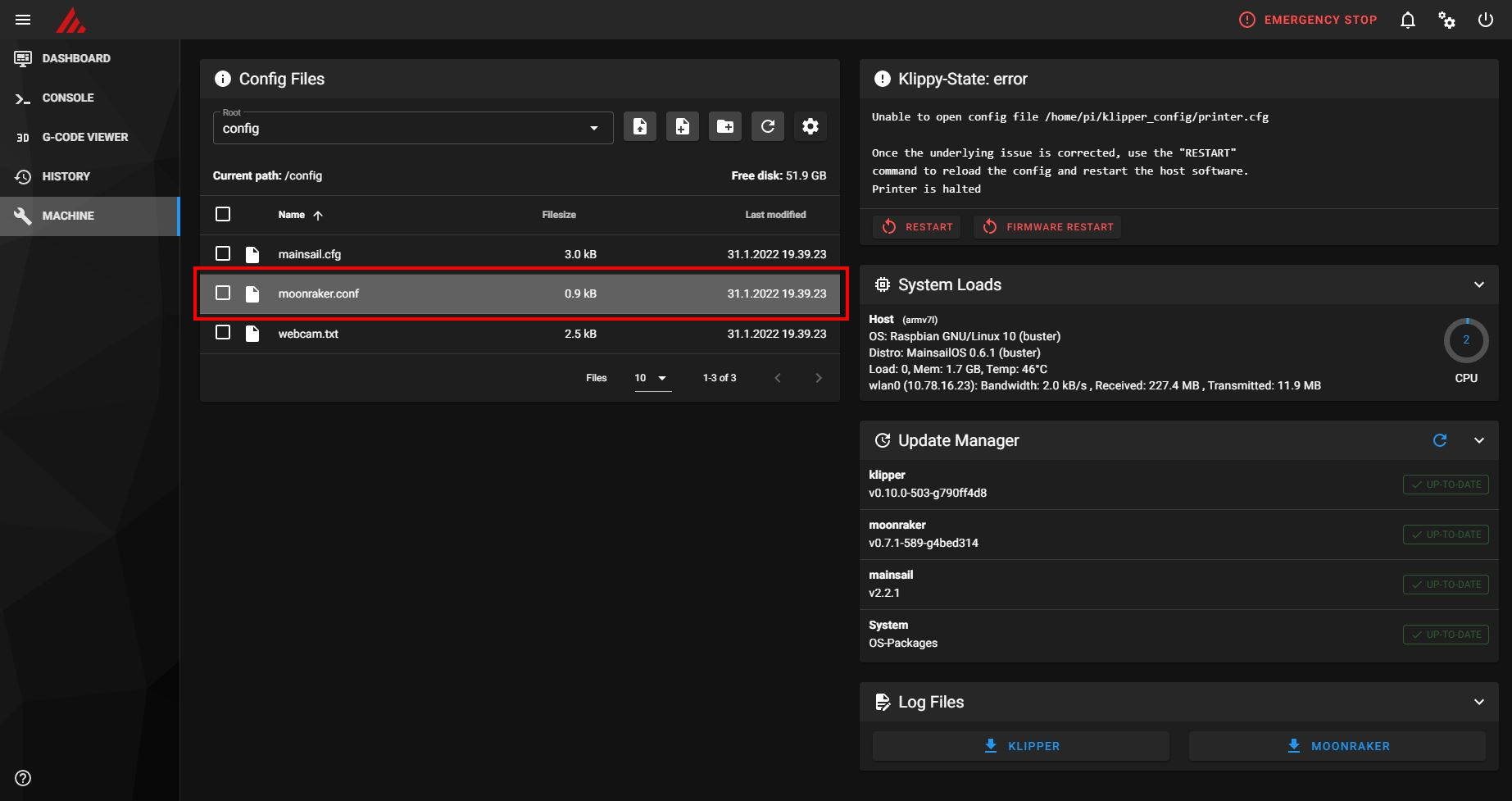
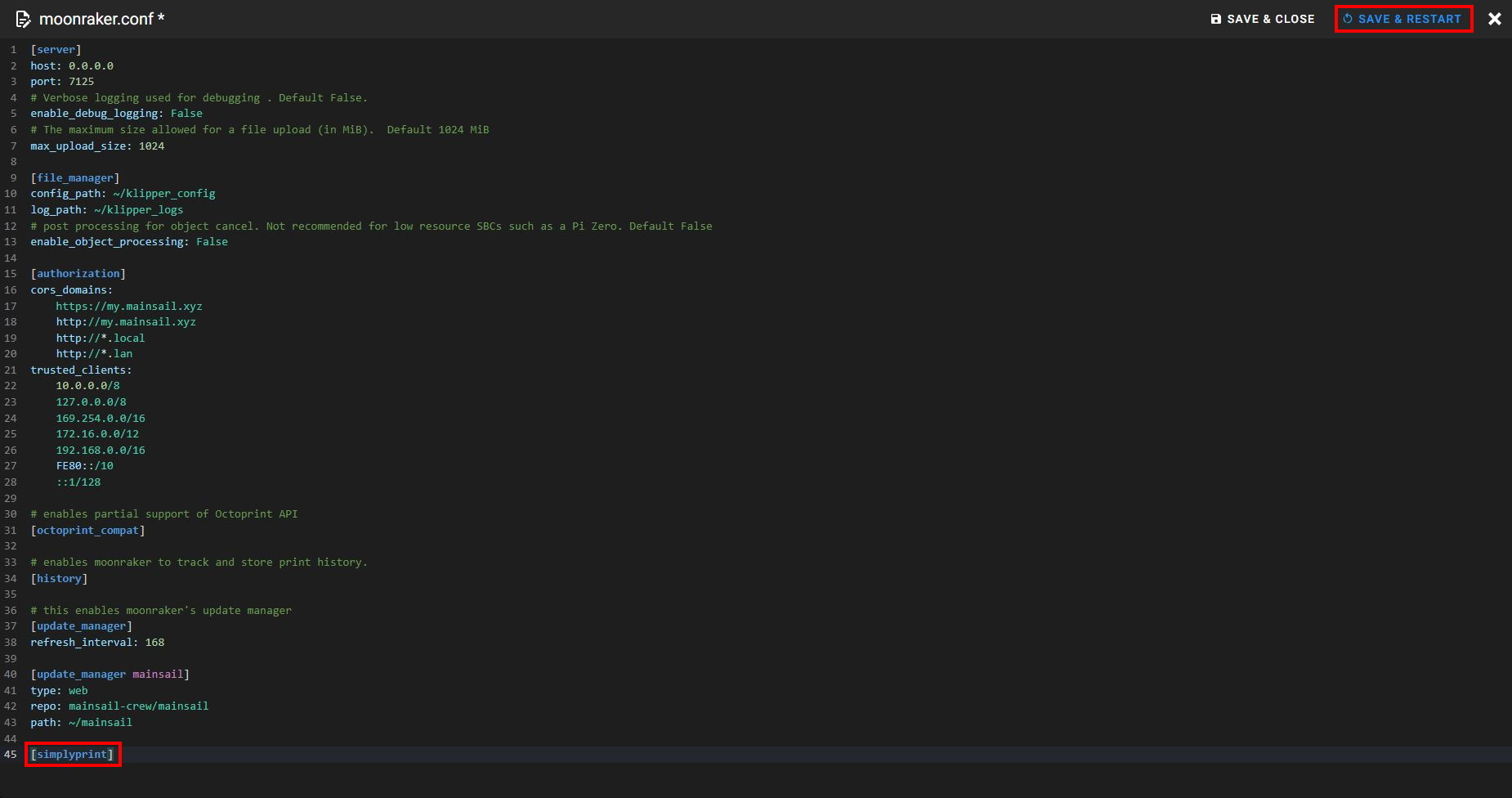
Efter du har gemt og genstartet, skulle din printer automatisk vises i SimplyPrint!
Hvis din printer ikke vises i Afventende printere:
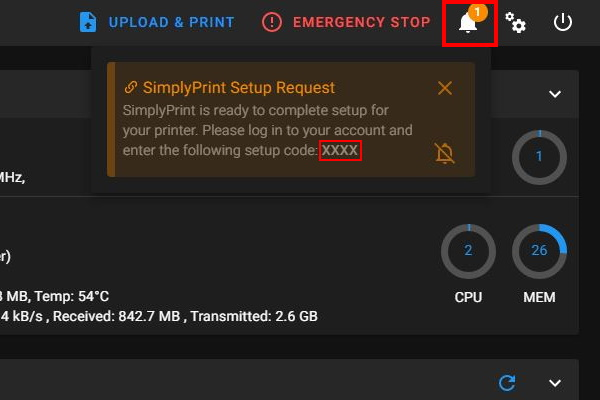
Dette kan ske, hvis du ikke er på samme netværk som din printer (anderledes udgående IP). I dette tilfælde skal du bruge opsætnings-koden:
Har du stadig problemer? Se vores vejledning: Printer i opsætning registreres ikke / kan ikke finde opsætningskode.
Tusindvis gennemfører denne opsætning hver uge. Følg hvert trin omhyggeligt, de fleste problemer opstår, fordi man springer trin over.
Du er nu klar til at forbinde din printer og begynde at bruge SimplyPrint.
Opret din gratis konto