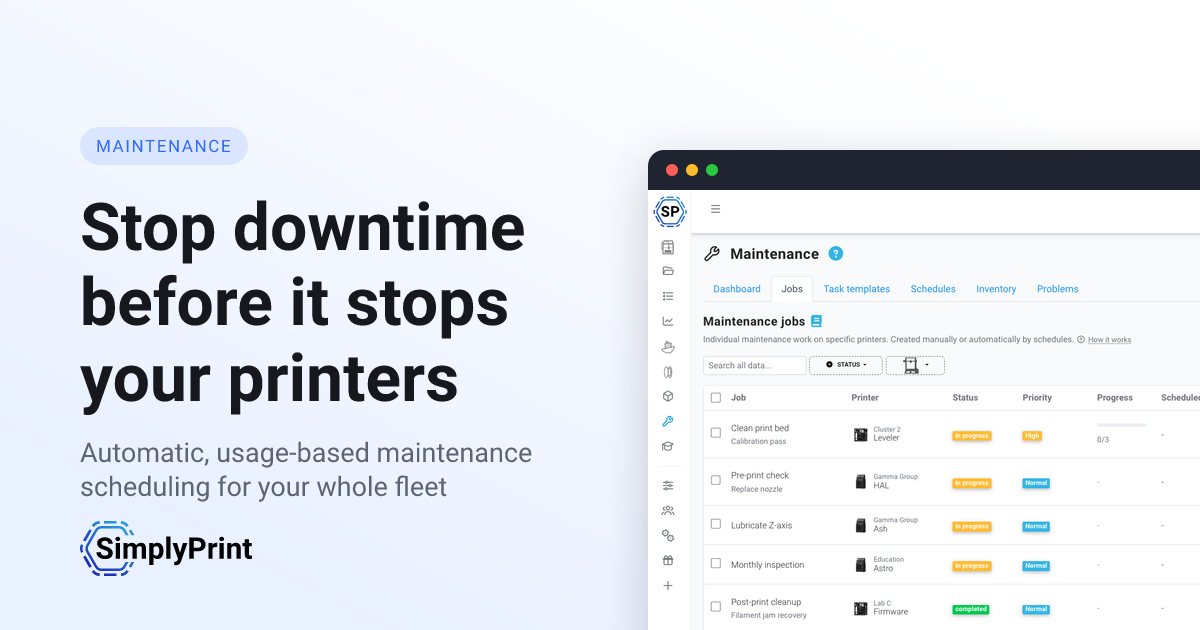
Forebyggende vedligeholdelse holder en printfarm kørende
Uanset om du driver en printfarm med 100 printere, et universitetslaboratorium eller et travlt makerspace, koster nedetid dig print. Hold op med at stole på hukommelsen, klistersedler og panik sidst på ugen. Lad de samme data, der driver din statistik, fortælle systemet, hvornår hver printer har brug for opmærksomhed.
Det sker automatisk
Du konfigurerer reglerne én gang, så opretter systemet vedligeholdelsesjob fremover
Hvert printjob, der kører gennem SimplyPrint, bidrager med de data, vedligeholdelsessystemet skal bruge: printtimer, brugt filament i gram og antal print siden sidste service, registreret pr. printer og pr. tidsplan. En baggrundsevaluator læser tællerne én gang i timen og opretter arbejdsordrer, så snart en printer overskrider din grænse ("for hver 200 printtimer", "for hver 5 kg filament", "for hver 100 print", "hver 30. dag").
En model baseret på glidende gennemsnit bruger hver printers seneste daglige brug til at oprette jobs i god tid, før de forfalder, så dit team kan planlægge i stedet for at reagere. På Bambu Lab-printere kan indgående HMS-notifikationer (de koder, printeren viser ved tilstoppede dyser, løse remme, snavset Lidar, smøreintervaller osv.) også automatisk oprette den tilsvarende vedligeholdelsesopgave. Ingen regneark, ingen kalenderpåmindelser, ingen "hvem skulle lige have gjort det?".
Se printervedligeholdelse i en interaktiv demo
Det komplette værktøjssæt til vedligeholdelse, samlet ét sted
Fem tæt integrerede byggeklodser: vedligeholdelsesjob følger det faktiske arbejde, tidsplaner automatiserer, hvornår det sker, opgaveskabeloner definerer, hvordan det udføres, beholdningen holder styr på reservedelene, og problemer gør det muligt for alle at indberette printerproblemer, som teamet kan tage sig af.
Arbejdsordrer tildelt, sporet og tidsstemplet fra start til slut.
Opret automatisk opgaver efter tid, printtimer, filament eller fejl.
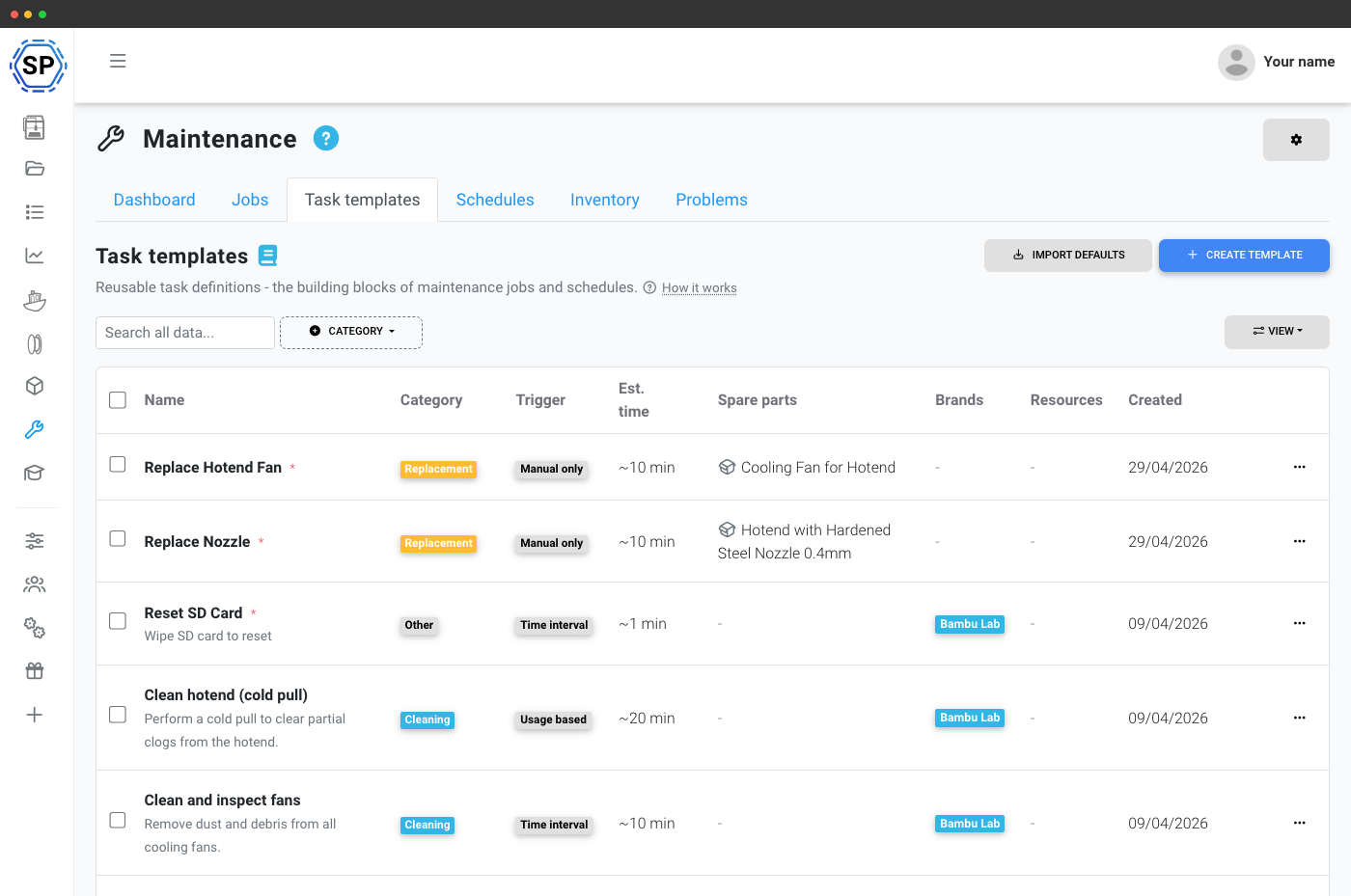
Genanvendelige procedurer med instruktioner, video og reservedele.
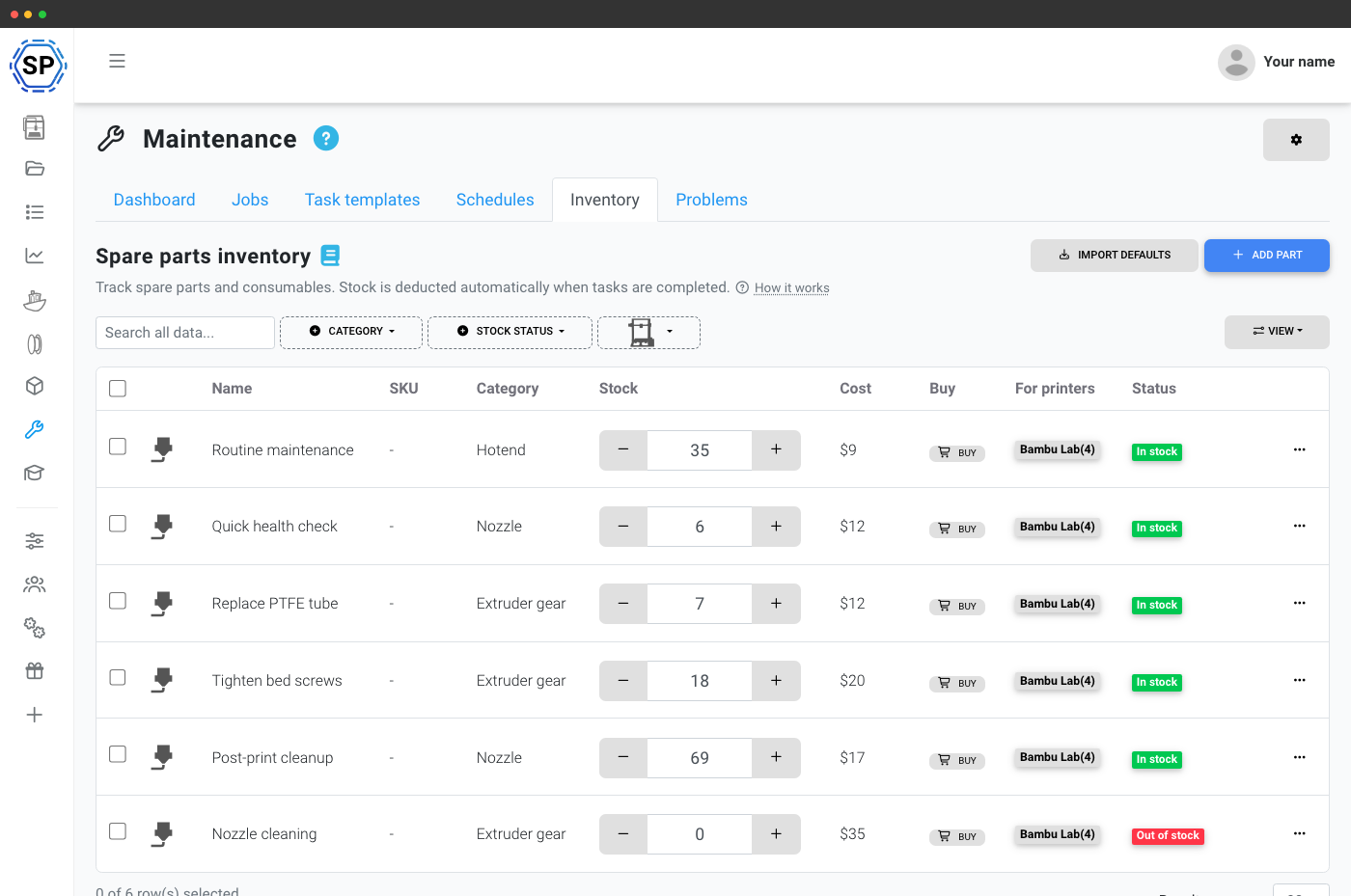
Lagerstatus og advarsler ved lav beholdning med automatisk fratrækning.
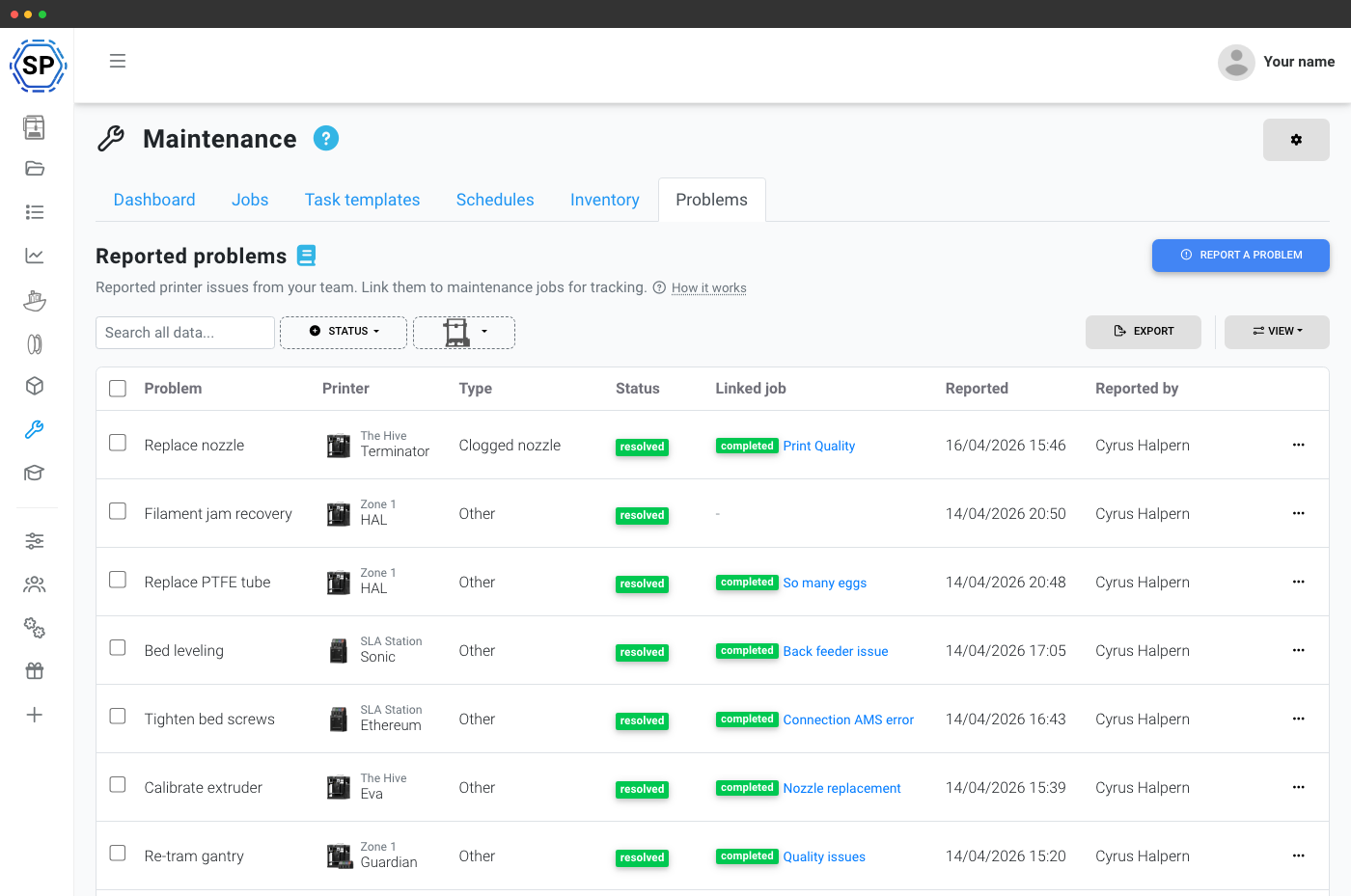
Alle kan rapportere et printerproblem og knytte det til et job.
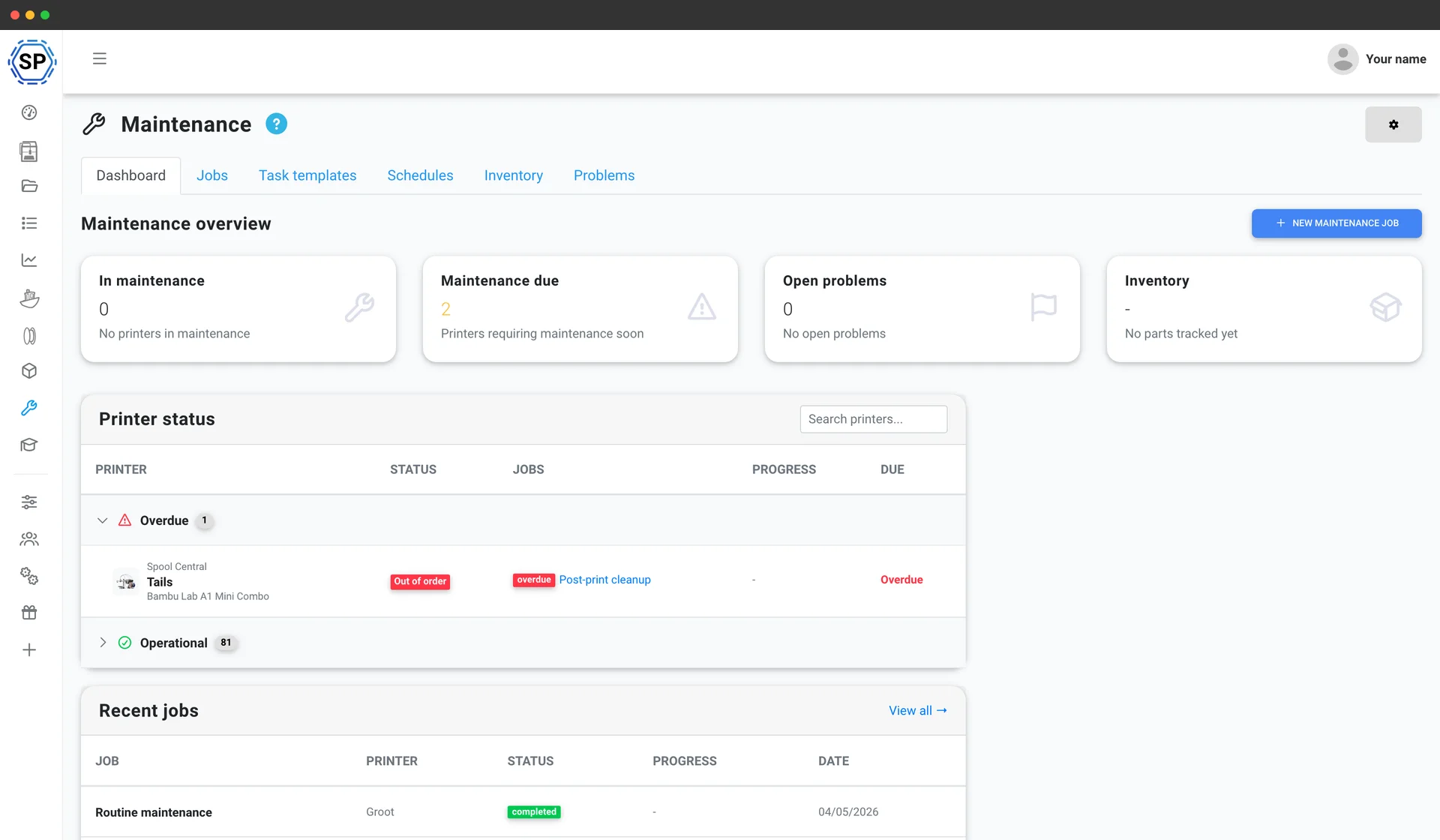
Ét dashboard til hele din vedligeholdelsesdrift
Åbn vedligeholdelsessiden, og se med det samme: hvor mange printere der er i vedligeholdelse, hvilke der er over fristen, hvilke vedligeholdelsesjob der kører i dag, og hvilke reservedele der er ved at slippe op. Printerstatustabellen grupperer hver maskine i din flåde efter dens aktuelle tilstand: i drift, planlagt, over fristen, i vedligeholdelse eller ude af drift, så du altid ved, hvor du skal fokusere først.
Hvis du ikke har brugt funktionen før, guider en introduktion dig gennem den første opsætning, så selv en, der aldrig har administreret et vedligeholdelsesprogram, kan få det op at køre på få minutter.
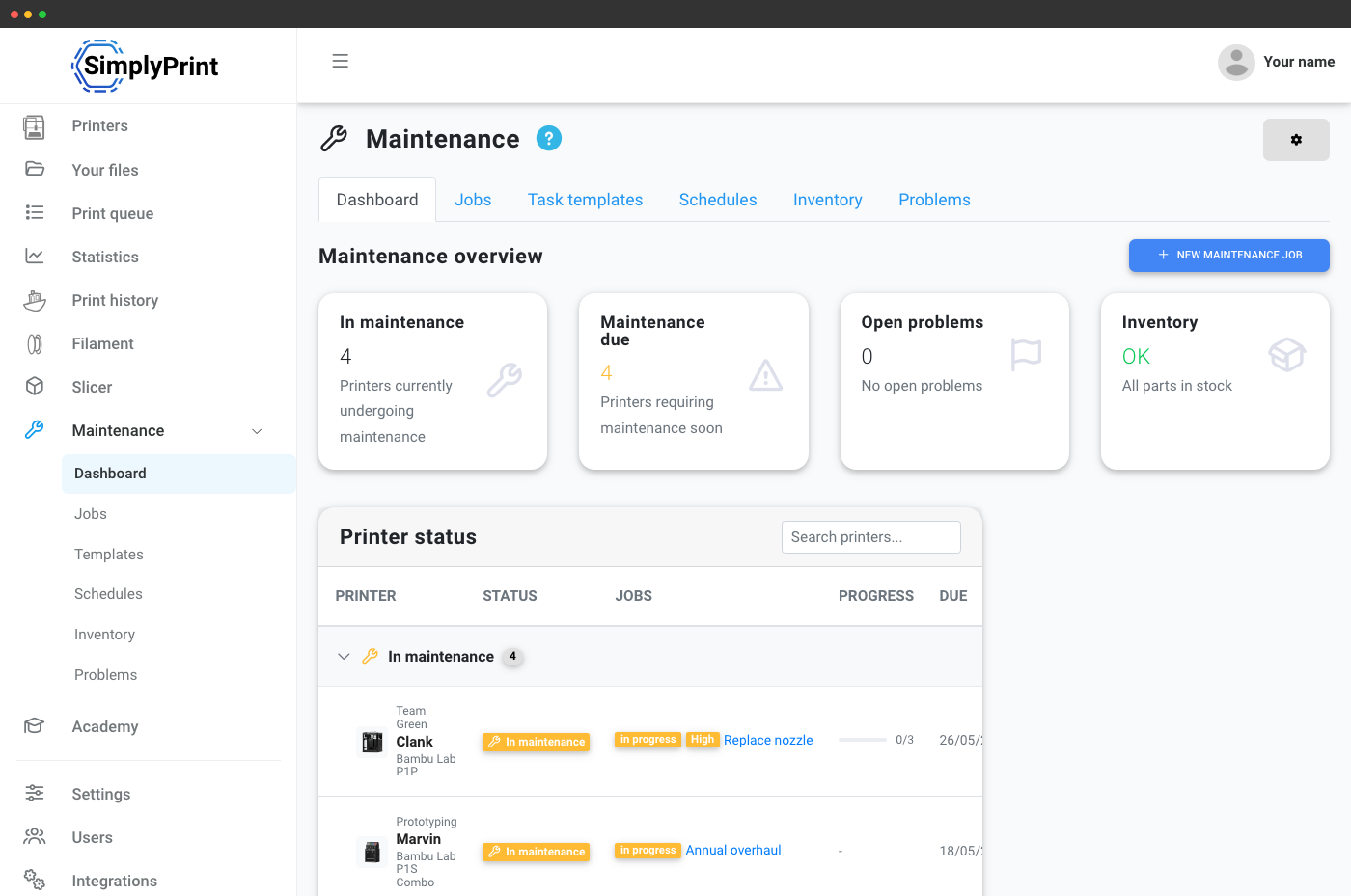
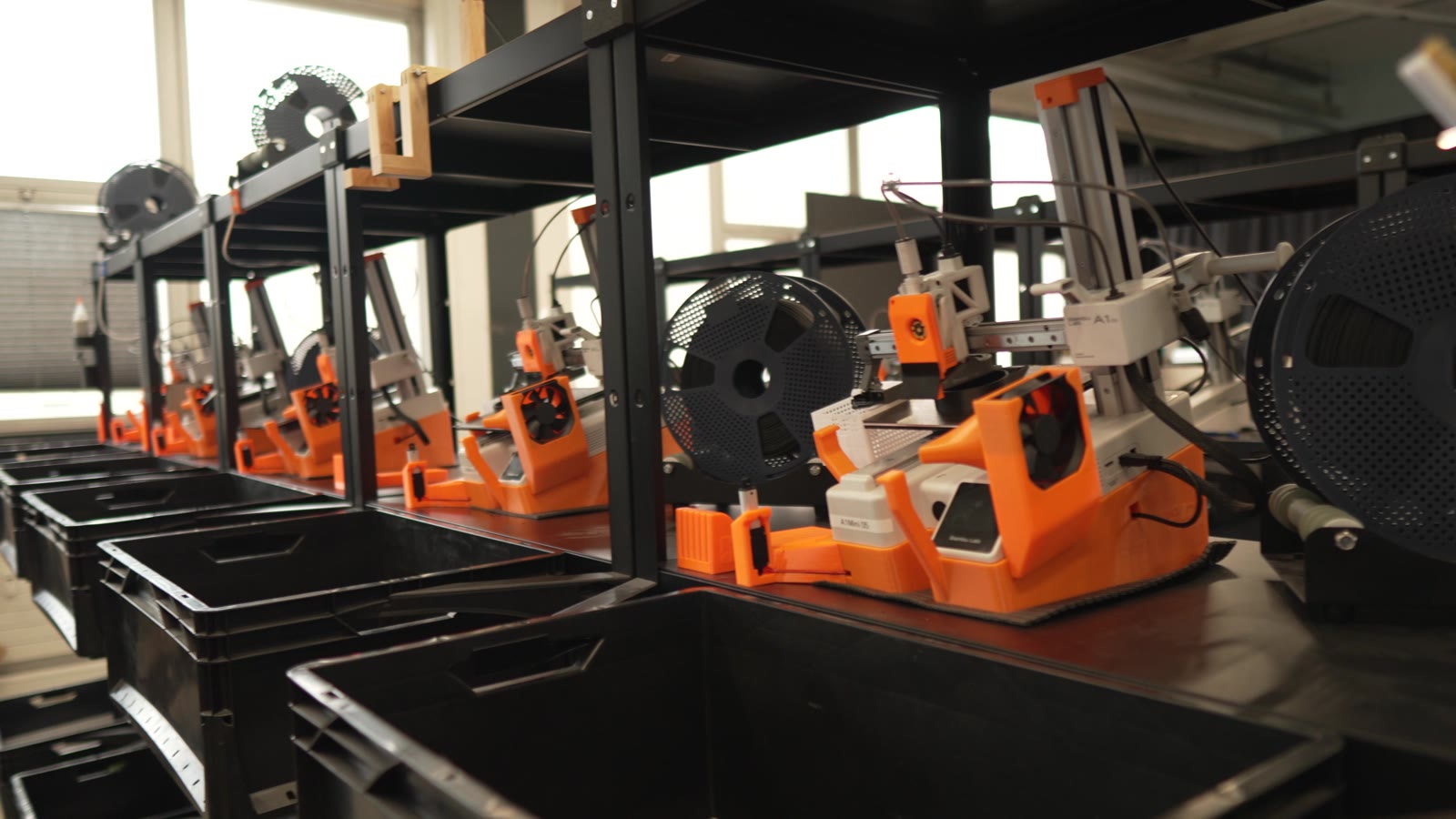
Se, hvordan 3D Farmers bruger Printervedligeholdelse til at styre 40+ printers
A printer that's serviced on schedule fails less, prints more consistently, and costs you fewer wasted nights. Treat maintenance as part of production rather than an interruption to it.
Definér en vedligeholdelsesprocedure én gang, genbrug den for altid
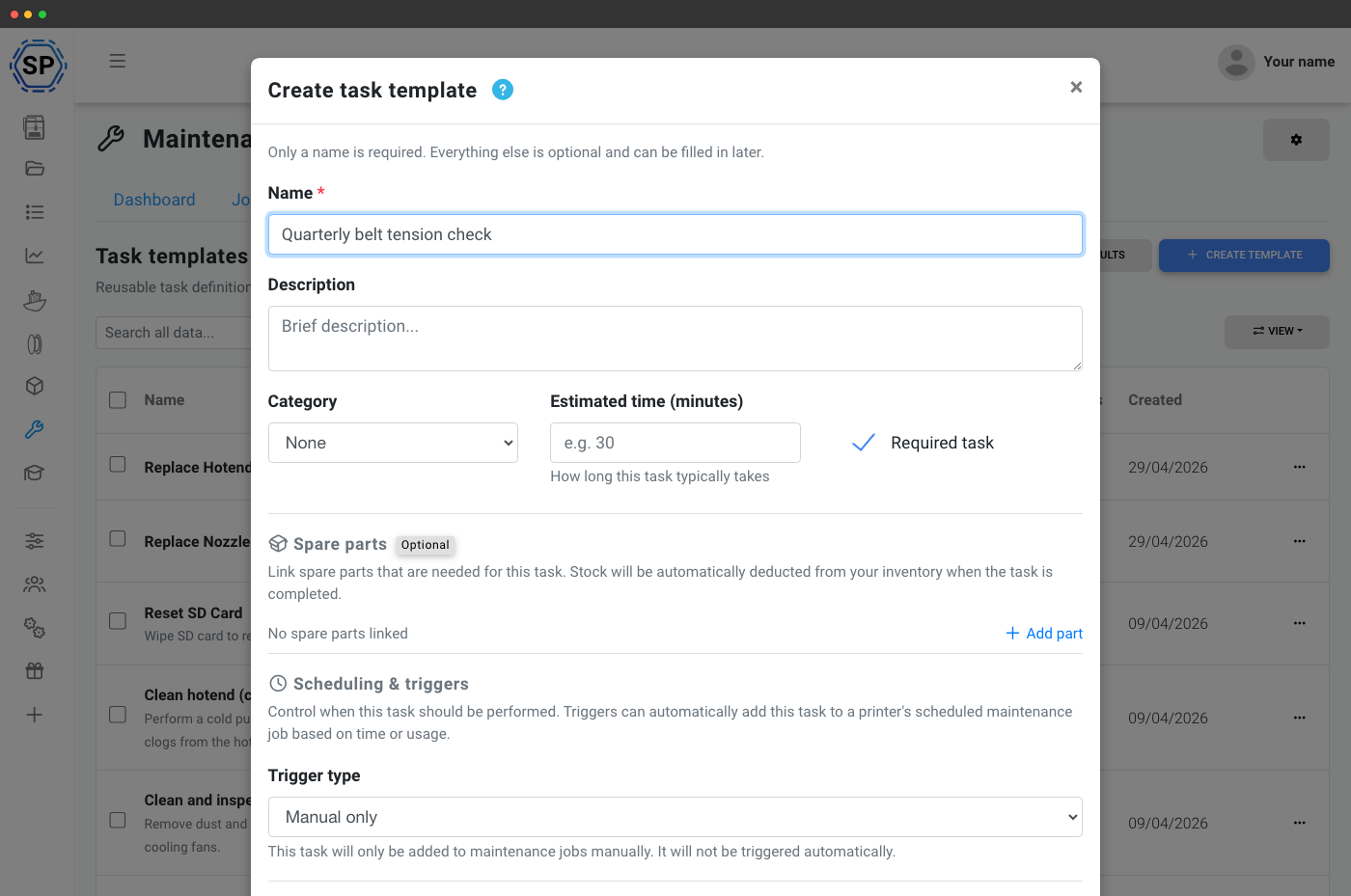
Opgaveskabeloner er systemets kerne. Opret en skabelon som "rengør printpladen", "udskift 0,4 mm-dyse" eller "kontrollér remspænding" med trinvis vejledning, referencelinks, indlejrede YouTube-vejledninger, estimeret tid og nødvendige reservedele.
Vælg en kategori (rengøring, smøring, udskiftning, kalibrering, inspektion, firmware), angiv et omfang (alle printere eller valgte printere, mærker eller modeller), og definer en udløser, så systemet ved, hvornår opgaven skal udføres:
- Altid, medtag i hver vedligeholdelsessession
- Tidsinterval - hver X. dag efter seneste fuldførelse pr. printer
- Forbrugsbaseret: hver X printtimer eller X gram filament
- Problembaseret - når et matchende problem rapporteres på en printer
- Fejlbaseret: efter X printfejl (kan filtreres efter annulleringsårsag)
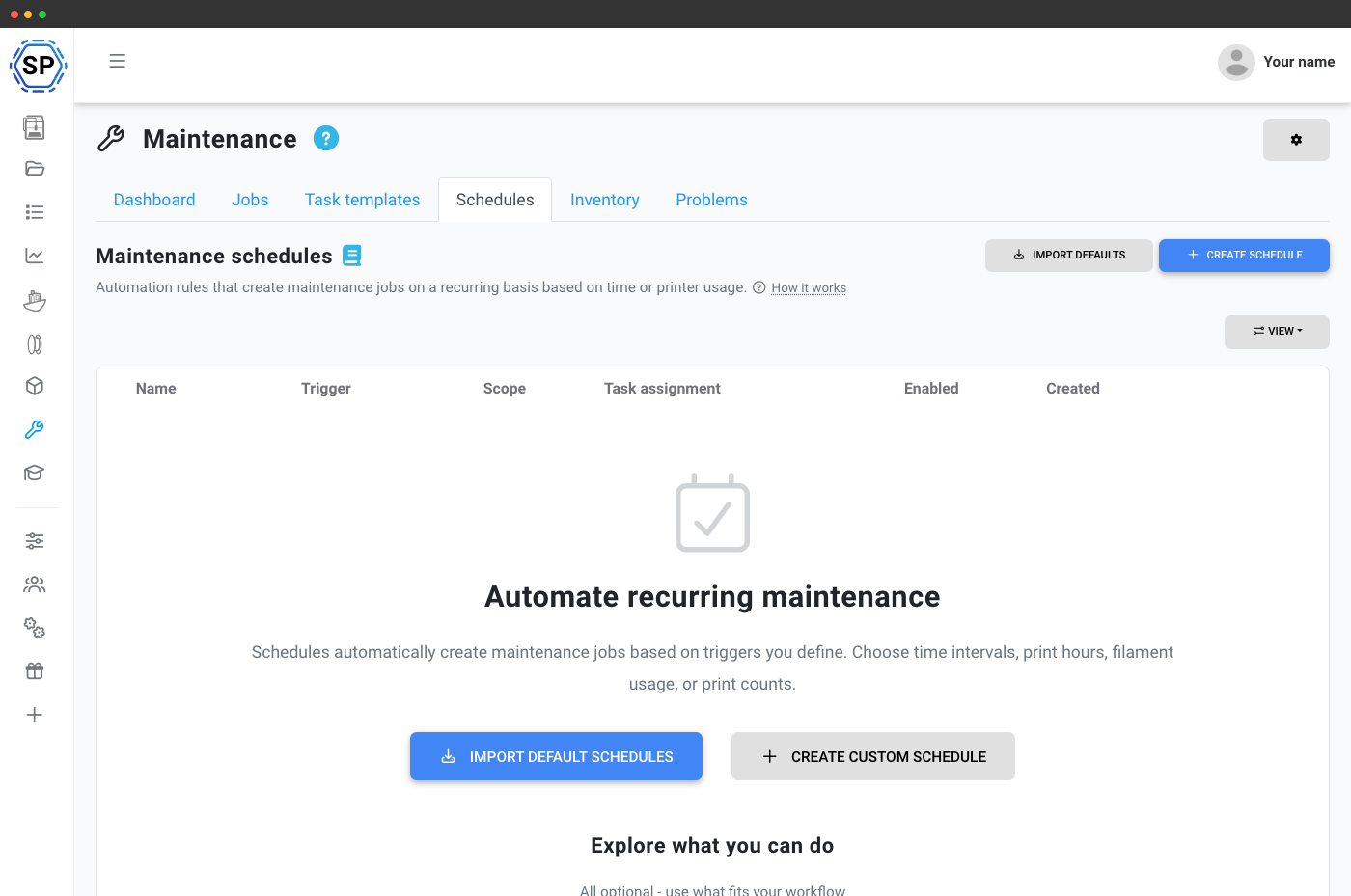
Vedligeholdelse der planlægger sig selv
Planer overvåger dine printere og opretter opgaver, når vedligeholdelse skal udføres, uden regneark, kalenderpåmindelser eller samtaler om "hvem skulle egentlig gøre det?". Systemet vurderer aktive planer én gang i timen og handler på de printere, der har brug for det.
Brug enhver udløser, der passer til, hvordan din flåde faktisk fungerer:
- Tidsbaseret - med 7 / 30 / 90 / 365 dages interval og valgfri minimumstærskel for forbrug
- Printtimer - den smarte med en forudsigelsesmotor, der lærer hver printers gennemsnitlige daglige brug og opretter vedligeholdelsesjob før de forfalder
- Filamentforbrug: spor extruderslid via gram, der føres igennem
- Printantal - én for hver N fuldførte print
- Opgavetærskel - saml flere forfaldne opgaver i ét effektivt job
- Fejlantal: fang printere med problemer, før de spilder mere filament
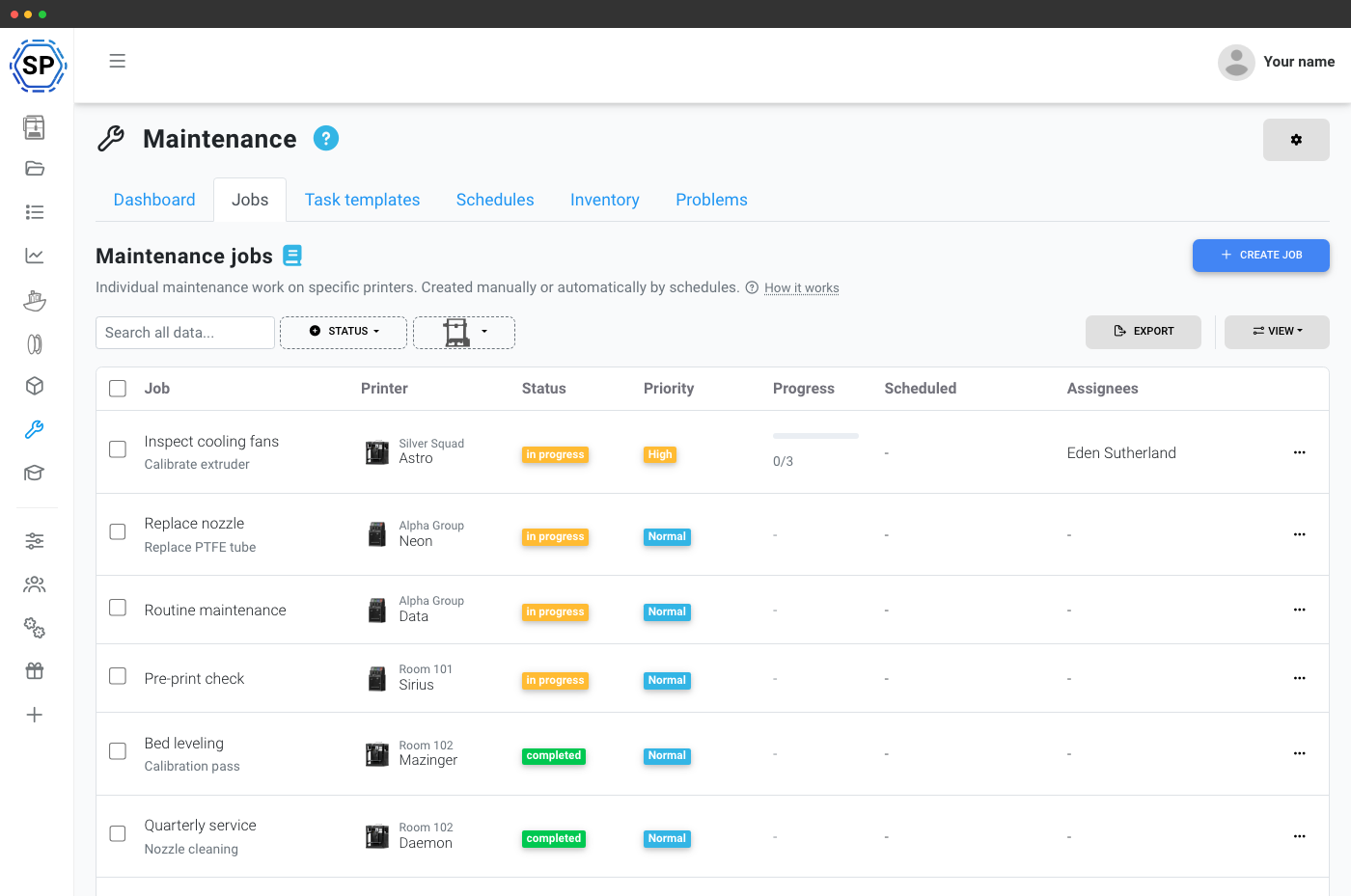
Følg hver vedligeholdelsesarbejdsordre fra start til slut
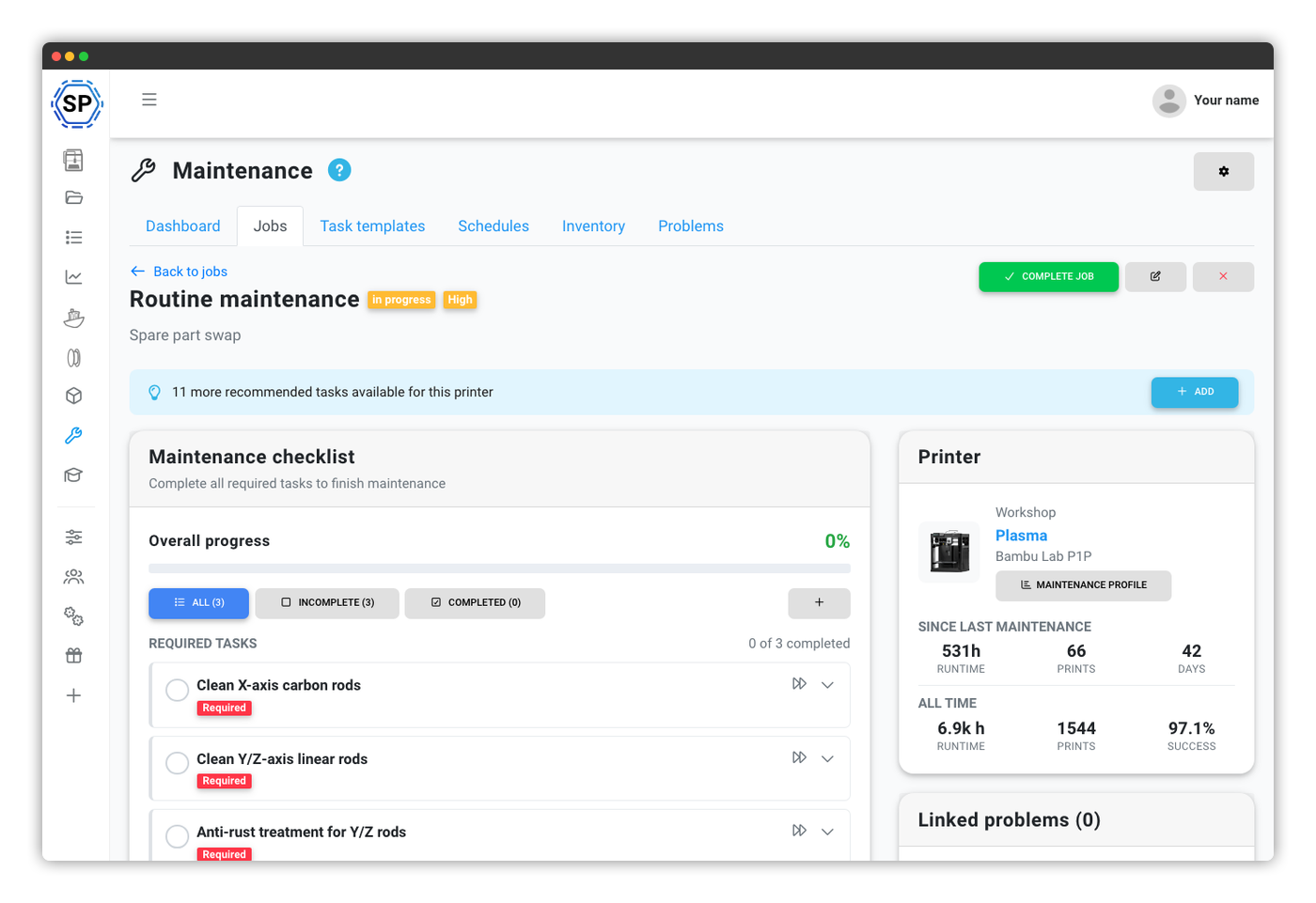
En vedligeholdelsesordre er en arbejdsordre: Den har en titel, prioritet, tildelt team, en tjekliste med opgaver, en startdato og en fuld revisionshistorik over, hvad der skete og hvornår. Ordrer følger en enkel livscyklus: planlagt → i gang → afsluttet (eller annulleret med mulighed for at genåbne), og fremskridtet opdateres i realtid, efterhånden som opgaver afkrydses.
Opret et vedligeholdelsesjob på få sekunder
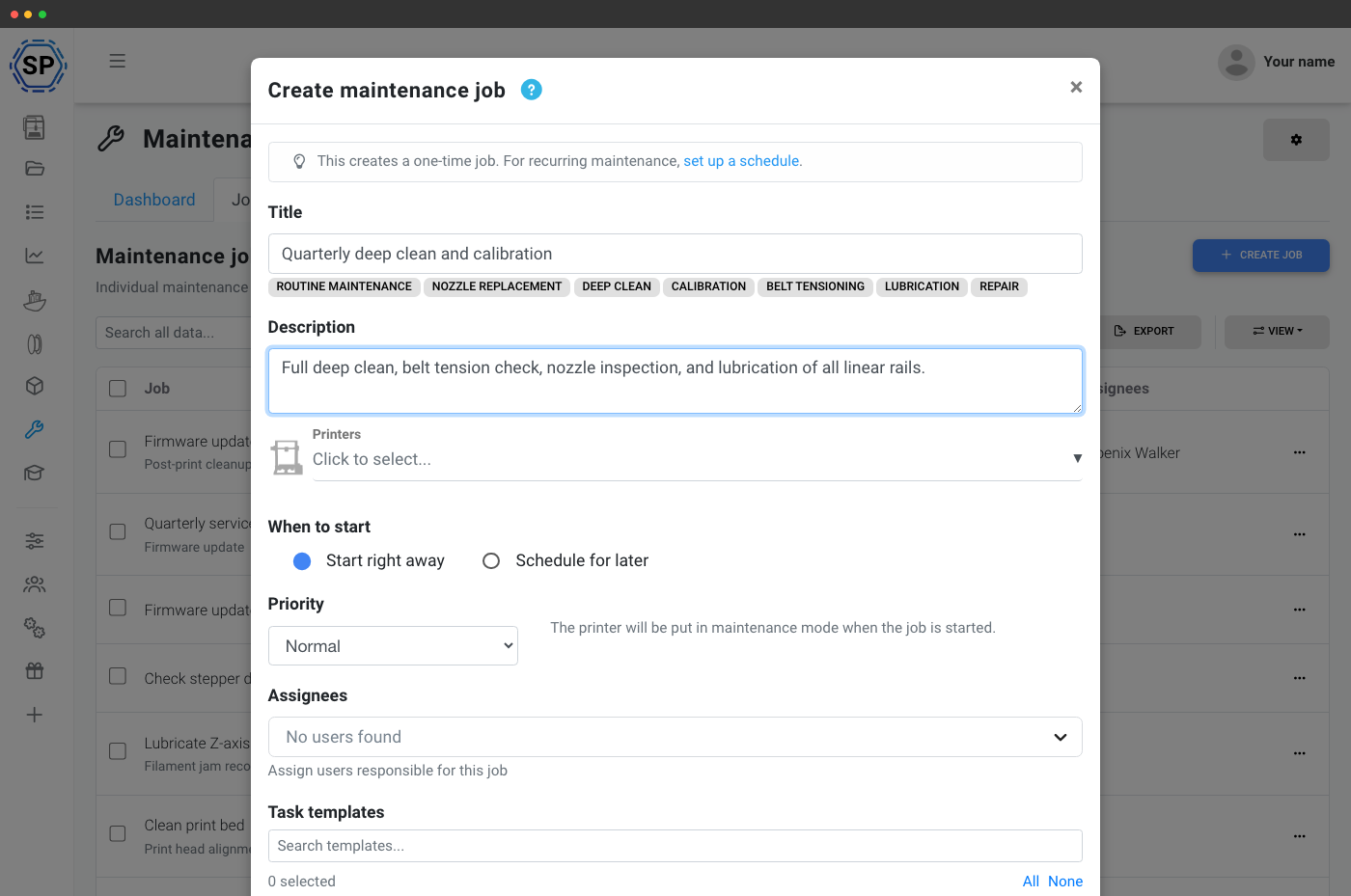
Vælg printer, prioritet og skabeloner, presets klarer resten.
Fuld arbejdsordre
Opgaver, ansvarlige, forfaldsdatoer, tidslinje og kommentarer med vedhæftninger.
Indbyggede printerhandlinger
Kør nivellering af printpladen, filamentskift eller G-code fra en opgave.
Batchjob på tværs af hele flåden
Fuldfør én opgave på tværs af alle printere med ét klik.
Automatisk tildeling respekterer vedligeholdelsestilstand
Når du starter en vedligeholdelsesarbejdsordre, sættes printeren i vedligeholdelsestilstand. AutoPrint springer den over, og 1-Click Print springer den over, indtil arbejdsordren er fuldført eller annulleret. Autoriserede vedligeholdelsesansvarlige kan stadig starte et print manuelt efter en advarsel, så kombiner vedligeholdelsestilstand med en klar regel for manuelle igangsætninger, mens servicearbejdet pågår.
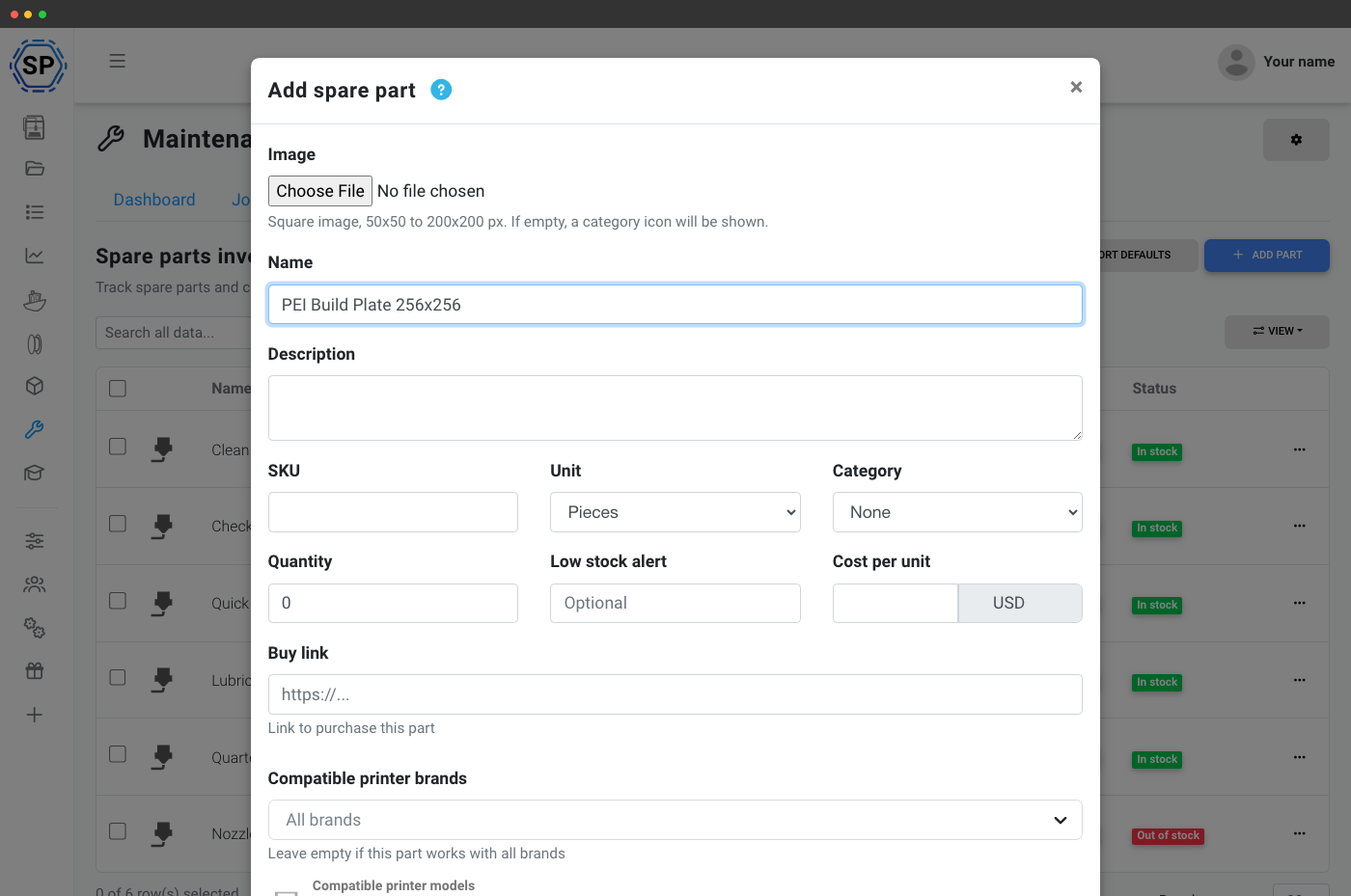
Indbygget beholdning af reservedele
Undgå at løbe tør for dyser på det værst tænkelige tidspunkt. Spor alle reservedele: dyser, remme, lejer, PTFE-rør, blæsere og filtre, med lagerstatus, minimumsgrænser, leverandørlinks og pris pr. del. Lagerbeholdningen reduceres automatisk, når en vedligeholdelsesopgave, der bruger delen, udføres, og justeres tilbage, hvis opgaven igen markeres som ikke udført.
Dele med leverandørinfo
Kategorier, tærskler, modeller og leverandører, eller importér standardindstillinger.
Advarsler om lav lagerbeholdning
OK-, lav- og ikke på lager-statusmærker med notifikationer og webhooks.
Udviklet til teams, selv flåder med 20 forskellige operatører
Vedligeholdelse klares sjældent af én person. Tildel vedligeholdelsesjob til bestemte teammedlemmer, tildel enkelte opgaver i samme job til forskellige personer, angiv en standard ansvarlig bruger på hver opgaveskabelon, og send automatisk notifikationer til de rette personer.
Fem tilladelsesniveauer holder tingene ryddelige:
- Se vedligeholdelse: se jobs, planer, skabeloner, lager, problemer
- Administrer vedligeholdelse - opret / rediger / start / fuldfør vedligeholdelsesjob og tidsplaner
- Fuldfør opgaver - afkryds opgaver på tjeklisten
- Administrer lager - tilføj / rediger / juster lagerbeholdning af reservedele
- Rapportér problemer - markér printerproblemer
En komplet vedligeholdelseshistorik for hver enkelt printer
Hver printer på din konto har sin egen vedligeholdelsesprofil: statusmærkat, samlet antal vedligeholdelser, samlet nedetid, næste planlagte service, åbne problemer, dage siden sidste vedligeholdelse, succesrate, fuld jobhistorik, alle opgaver nogensinde udført (med hvem og hvornår), alle reservedele brugt på den maskine, og en aktivitetstidslinje.
Profilen forudsiger også næste vedligeholdelse ud fra dine aktive tidsplaner, selv før et job er oprettet. Det gør det let at få øje på mønstre: printeren, der fejler 3x oftere end de andre, den, der skal have skiftet dyse hver anden uge, den, der faktisk har kørt perfekt i stilhed i seks måneder.
Drevet af de samme data som din statistik
Vedligeholdelse og statistik er to visninger af de samme tal
Vedligeholdelsesplanerne kører ikke på et separat datagrundlag. Hvert minut SimplyPrint overvåger en printer, der printer, øger også vedligeholdelsestællerne: printtimer, gram filament, fuldførte print, fejl og annulleringsårsager. Statistiksiden giver overblikket; vedligeholdelsesplanerne viser, hvad du skal handle på. Begge læser fra samme datakilde, så i det øjeblik en måling ændrer sig, afspejler begge sider det.
Det er også derfor, at aktivering af AI-fejldetektion, filamentstyring eller beregning af pris pr. print gør vedligeholdelsen bedre: flere data ind, smartere planlægning ud.
Har du Bambu Lab-printere? Vedligeholdelse læser HMS-notifikationer
Din printer siger "smør mine stænger", SimplyPrint planlægger opgaven
Bambu Labs HMS (Health Management System) genererer koder for problemer, printeren selv registrerer: tilstoppede dyser, løse remme, snavset lidar, behov for smøring, fremmedlegemer på printpladen og ophobning i affaldsskakten. SimplyPrint modtager alle HMS-notifikationer fra din Bambu-flåde, og når en kode er knyttet til en vedligeholdelsesskabelon, oprettes den matchende opgave automatisk. Du behøver ikke længere aflæse koder på printerens skærm og gætte på, hvad de betyder.
Som udgangspunkt mapper SimplyPrint de mest almindelige Bambu HMS-koder (smøring, rengøring af stænger/skinner, tilstoppet dyse, rengøring af byggepladen, rengøring af affaldsslisken, Lidar-rengøring, kontrol af remspænding). Du kan udvide mappingen med dine egne skabeloner.
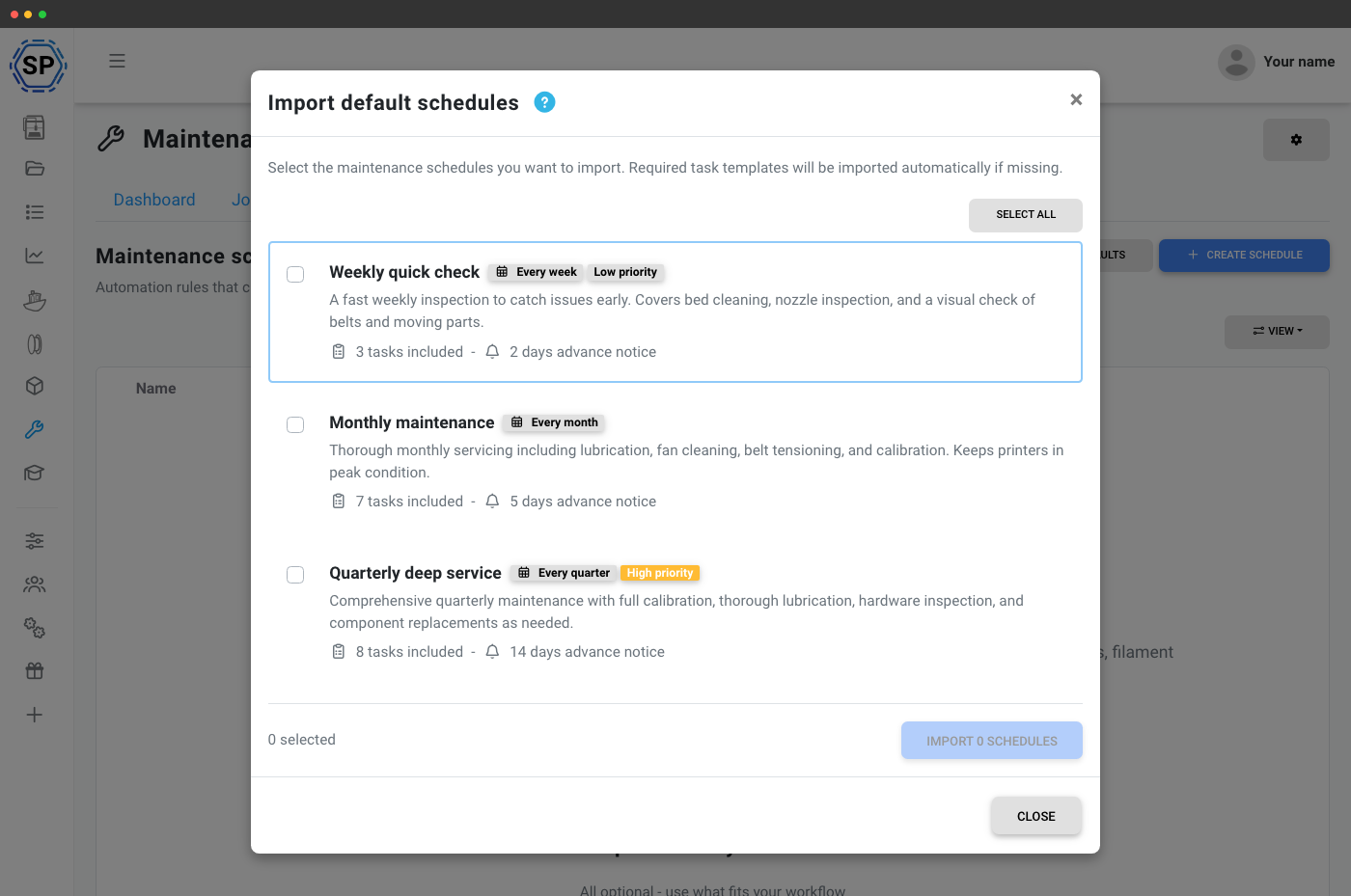
Start ikke fra bunden, importér det indbyggede bibliotek
Er du usikker på, hvilken vedligeholdelse du skal udføre? SimplyPrint leveres med et bibliotek af standardopgaveskabeloner, planer og reservedele, som du kan importere med ét klik. De dækker de mønstre, de fleste printfarme har brug for:
- Ugentligt tjek (rengør printpladen, kontrollér dyse, kontrollér remme)
- Månedlig vedligeholdelse (smøring, rengøring af blæser, kalibrering)
- Kvartalsvist grundigt serviceeftersyn (fuld kalibrering og hardwareeftersyn)
- Årligt hovedeftersyn (fuld inspektion med komplet adskillelse)
- For hver 200/500 printtimer, baseret på forbrug
- For hver 5 kg filament og hvert 100. print, gennemstrømningsbaseret
Abonnementsadgang: hvad kræves til vedligeholdelsesfunktionen?
Hele suiten til printervedligeholdelse er med i Print Farm-, Enterprise- og School-planerne uden tillæg pr. printer, separat tilkøb eller brugsgrænser.
| Funktion/grænse | Gratis | Basic | Pro | Printfarm | Enterprise | Skole | Cloud Slicer | Filament Manager |
|---|---|---|---|---|---|---|---|---|
|
Printervedligeholdelse
Hovedkontakt til vedligeholdelsesdashboard, profiler og notifikationer.
|
||||||||
|
Vedligeholdelsesjob
Opret, tildel, planlæg og afslut arbejdsordrer for en eller flere printere.
|
||||||||
|
Opgaveskabeloner
Definér genbrugelige vedligeholdelsesprocedurer med udløsere, reservedele og værktøjsintegration.
|
||||||||
|
Vedligeholdelsestidsplaner
Automatiser oprettelsen af vedligeholdelsesjob efter tid, printtimer, filamentforbrug, antal print, antal fejl eller opgavetærskler.
|
||||||||
|
Reservedelslager
Lagersporing, advarsler ved lav beholdning og automatisk fratrækning knyttet til vedligeholdelsesopgaver.
|
||||||||
|
Problemrapportering
Alle med tilladelse kan rapportere printerproblemer og knytte dem til vedligeholdelsesjob.
|
Vil du vide mere om vores abonnementer?
Se fuld pris- og funktionssammenligning