+2
0.4
Sort
 Sigma
Sigma
Stop med at vælge printere manuelt til hvert job. Klik på 1-Click Print, så aflæser SimplyPrint hver printers aktuelle materiale, farve og dyse, matcher køelementer med printere, der kan køre dem, og starter alle match på én gang. Lad systemet klare resten.
Kom gratis i gang Mere info og guide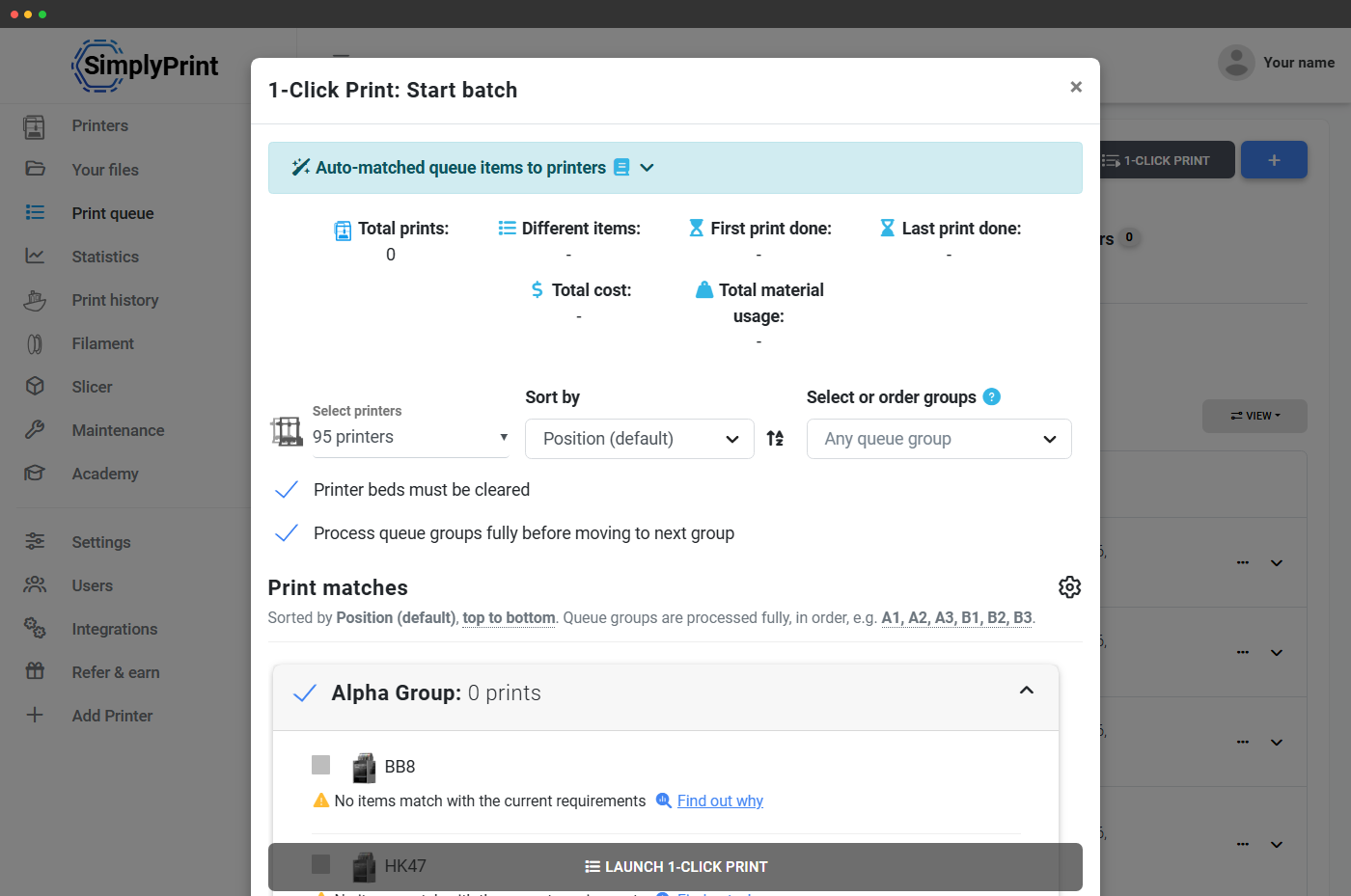
SimplyPrint læser materiale, farve, dyse og tags på hver printer, sammenligner dem med kravene til hvert køelement og starter kun et job på en printer, der er klar til det. Køelementer uden et match bliver i køen, indtil en passende printer er ledig.
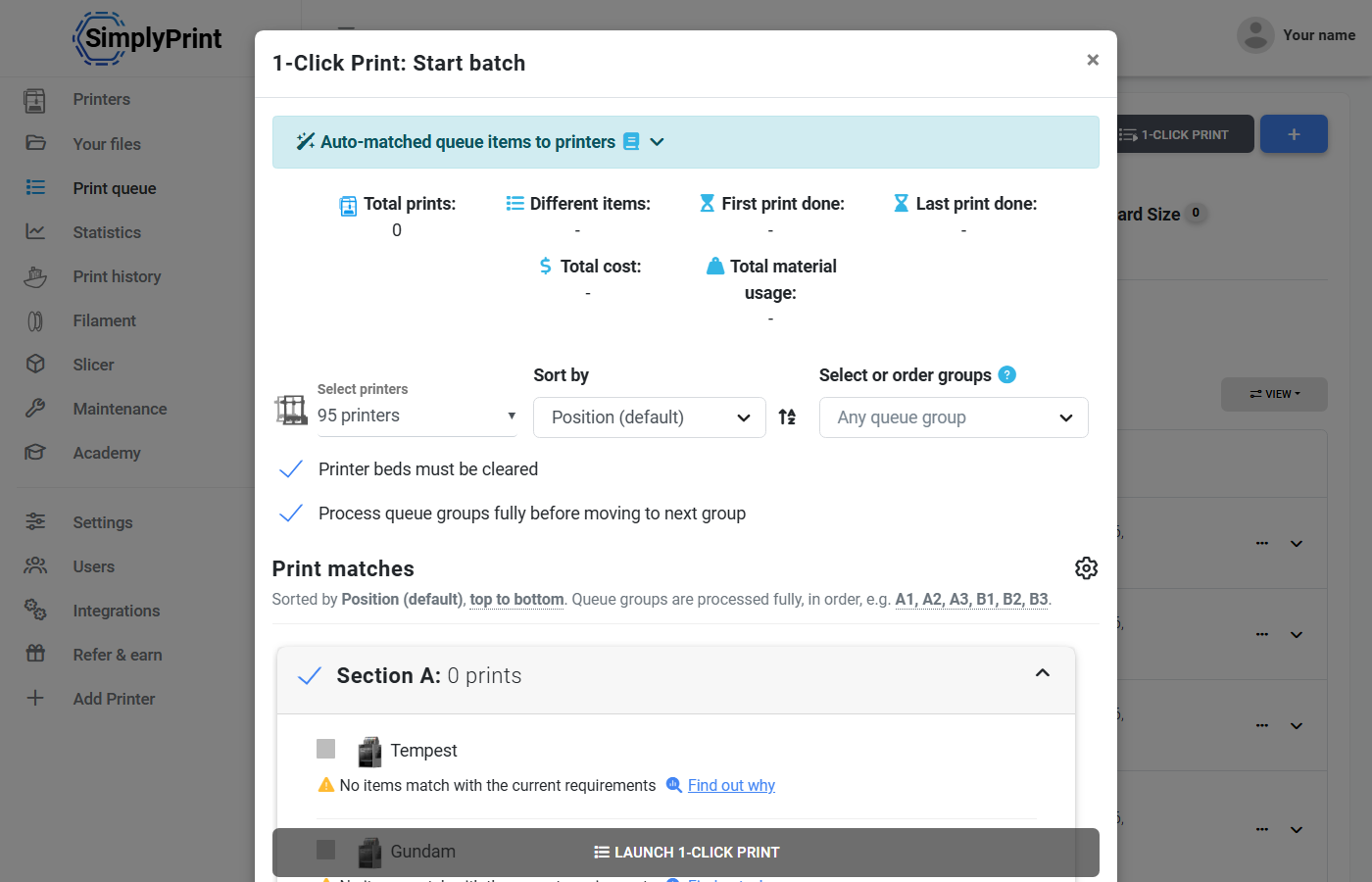
Knappen 1-Click Print er øverst i din printkø. Klik på den, så åbner SimplyPrint batchdialogen: en oversigt over samlet antal print, tid og materiale i batchen, en printervælger (som standard alle funktionsdygtige printere i din flåde), sorterings- og grupperingsindstillinger og listen Printmatch, der viser præcis, hvilket køelement hver printer vil hente.
For hver printer parrer matcheren den med det næste kompatible printkøelement eller viser "Ingen elementer matcher de aktuelle krav" med et Find ud af hvorfor-link direkte til printkøinspektøren. Tryk på Start 1-klik-print, så starter alle matchede job samtidig.
1-Click Print bruger ikke separat logik. Den stiller SimplyPrints matchmotor det samme spørgsmål som AutoPrint: "hvad er det næste køelement, denne printer faktisk kan køre?" Motoren sammenligner hver printers ilagte materiale, monterede printpladetype, dysekonfiguration og tags med kravene til hver fil i køen (udledt af slicer-metadata ved upload). Matchende filer tilbydes, mens filer uden match bliver i køen.
Derfor starter 1-Click Print aldrig en PETG-fil på en printer med PLA, forsøger aldrig at printe en fil til en 0,6 mm-dyse på en 0,4 mm-printer og sender aldrig en fil, der kræver en tekstureret plade, til en printer med en glat. Fejlstarten sker ikke, fordi systemet aldrig tilbyder den.
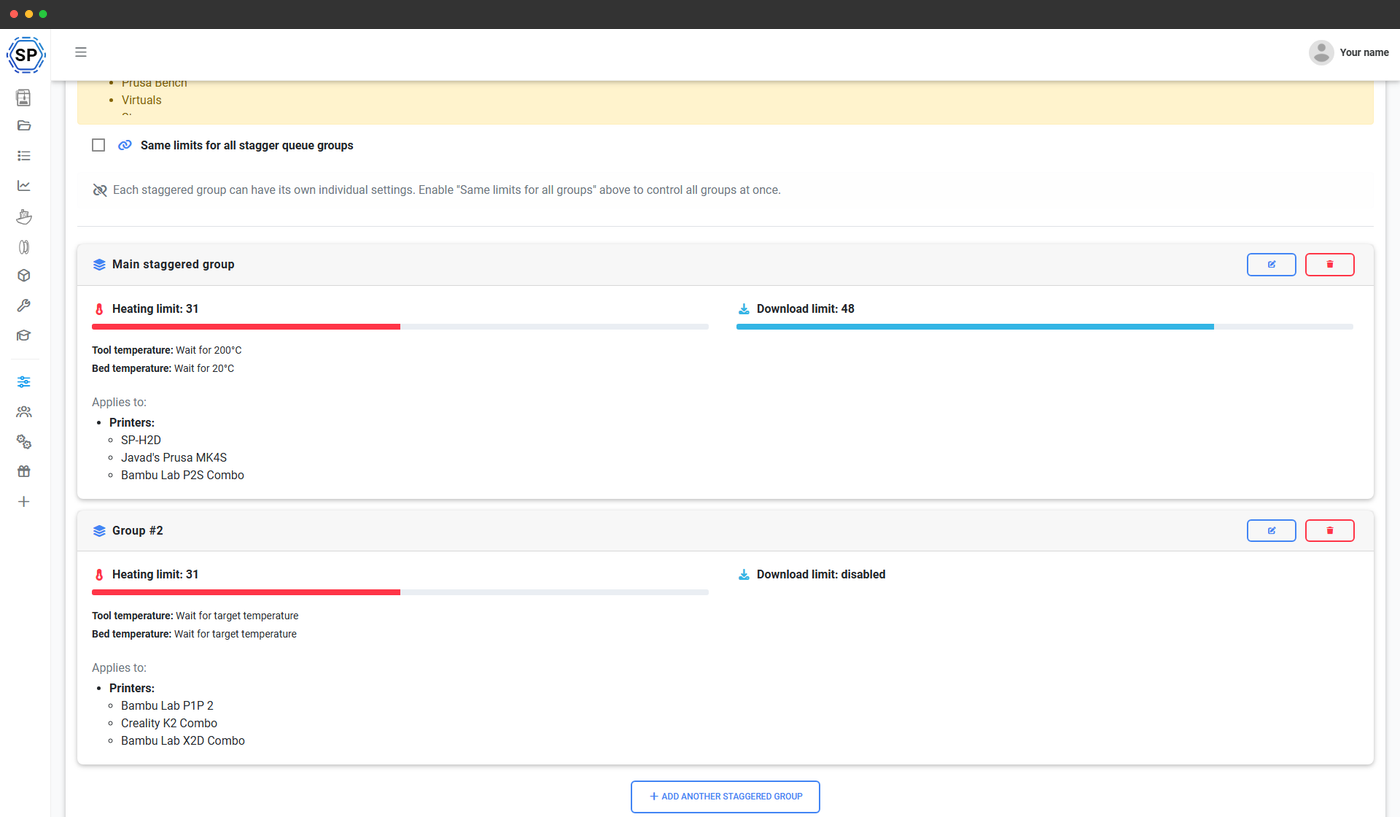
Identiske emner, identiske printere, bevidst forskellige starttidspunkter
Når du bruger 1-Click Print til at printe en kø med ens elementer på en række ens printere, forskyder SimplyPrint starttiderne, så printerne ikke alle rammer højdepunktet for opvarmning af printpladen samtidigt, ikke alle behøver operatøren i samme minut, når de er færdige, og ikke alle skal ryddes på én gang. Angiv intervallet, klik 1-Click, og gå videre. Dit strømforbrug bliver jævnere, din operatørs aften ender ikke i fem minutters panik, og næste print på hver printer er sat i kø, når det forrige kommer af printpladen.
Tryk på én knap, så starter SimplyPrint et job på alle kompatible printere i din flåde. Seks forskellige filer, fyrre printere, ét klik.
Samlede print
40
Sigma
Louise
Solstice
Quark
XJ
Vicki
Meteor
Vector
Cyber
Rosie
NovaX
Helix
Neon
Blazer
Marvin
Synth
Louise
Rosie
AuroraX
Optimus
Quark
Chewbacca
Module
Bender
Spark
Quark
Photon
Circuitry
Glitch
Omega
Bender
Nova
Meteor
Mercury
Proton
Pixel
Comet
Aurora
Echo
Spark
På tværs af vores printfarm-feedbackundersøgelse for 2026 var 1-klik-print og forskudte starter den enkeltfunktion, der sparede printfarme mest tid, mere end nogen anden funktion.
"1-klik-print, der sender al vores G-code ud til mere end 20 printere på én gang, sparer mig mest tid."
"1-Click Print er fantastisk (med forskudt start!), og det er også fantastisk at kunne eksportere CSV-filer til mig, vores bogholderi og indkøbsteam."
"Jeg kan køre 50 % flere job på samme eller kortere tid. SimplyPrint sparer mig flere timer om ugen."
Kontakten Behandl køgrupper helt, før der fortsættes til næste gruppe er lille i UI'et, men stor i drift: Den lader dig behandle en køgruppe som én kundeordre, én skoleopgave eller én produktionskørsel. Hver printer henter fra gruppe A, indtil gruppe A er tom, derefter starter gruppe B. Kundeordrer leveres komplette. Opgaver forbliver samlet i batches. Produktionskørsler bliver ikke ved et uheld flettet sammen med næste job.
Brug køgrupper til at holde batches samlet, en kundeordre, en skoleopgave eller en produktionskørsel. Dialogboksen til 1-Click Print har en rullemenu med Vælg eller sortér grupper, så du kun kan køre én gruppe ad gangen, begrænse 1-Click til en undergruppe af grupper eller angive rækkefølgen, grupper behandles i.
Kontakten Behandl køgrupper helt, før der fortsættes til næste gruppe holder hver gruppes elementer samlet: Hver printer henter fra gruppe A, indtil gruppe A er tom, derefter starter gruppe B. Kundeordrer leveres komplette, og opgaver forbliver samlet i batches.
Kontakten Printplader skal være ryddede i dialogen sikrer det: En printer med et print på printpladen springes over, indtil printpladen er ryddet (markeret manuelt eller registreret automatisk, hvis du har aktiveret AI-printpladekontrol). Ingen uventede overprint, ingen fastklemte print.
Hvis din konto bruger kø-godkendelse (School- og Enterprise-planer), springer 1-klik-print alt, der stadig afventer godkendelse, over og starter kun elementer, der er blevet godkendt. Elevindsendelser eller kontraktøruploads kan ligge i køen og vente på en lærers/vejleders grønne lys, 1-klik skubber dem ikke igennem.
1-Click Print er inkluderet i Pro og derover. Printkøen og matchingmotoren, den afhænger af, er også Pro+ (kø) og Free+ (matchingmotor).
| Funktion/grænse | Gratis | Basic | Pro | Printfarm | Enterprise | Skole | Cloud Slicer | Filament Manager |
|---|---|---|---|---|---|---|---|---|
|
1-klik-print
Start alle matchende køelementer i din printerflåde med ét klik. Inkluderet fra Pro og op.
|
||||||||
|
Printkø
Den bagvedliggende printkø, som 1-Click henter fra. Inkluderet fra Pro og op.
|
||||||||
|
Smart routing og tagging
Matchningsmotoren, der parrer køelementer med kompatible printere. Inkluderet i alle planer, også Free.
|
Vil du vide mere om vores abonnementer?
Se fuld pris- og funktionssammenligningLæs vores helpdesk-guide om automatisk matchning af køelementer til printere for den fulde gennemgang.
