
-
1 前提条件
-
2 Mainsail/Fluiddを探す
-
3 SimplyPrintを有効にする
Add [simplyprint] to the moonraker.conf config file
- 「Configuration」タブを開いてください。
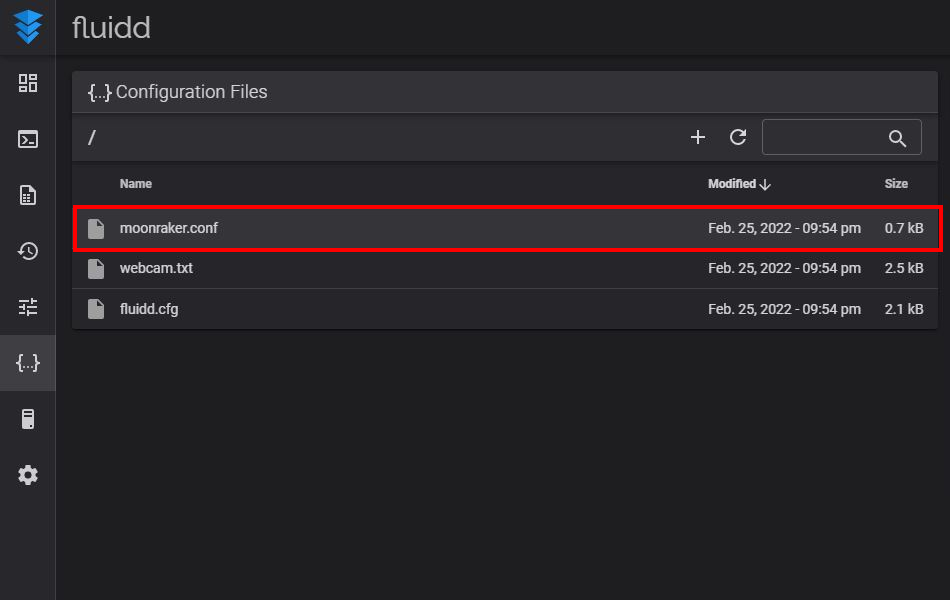
- Under "Configuration Files", click on the
moonraker.conffile- NOTE: depending on your printer, the Moonraker config file may go by a different name. Common names are
moonraker.conf,user.moonraker.conf,moonraker.generated.config, or a custom filename. Ifmoonraker.confisn't present, edit whichever file Moonraker is actually loading on your printer.
- NOTE: depending on your printer, the Moonraker config file may go by a different name. Common names are
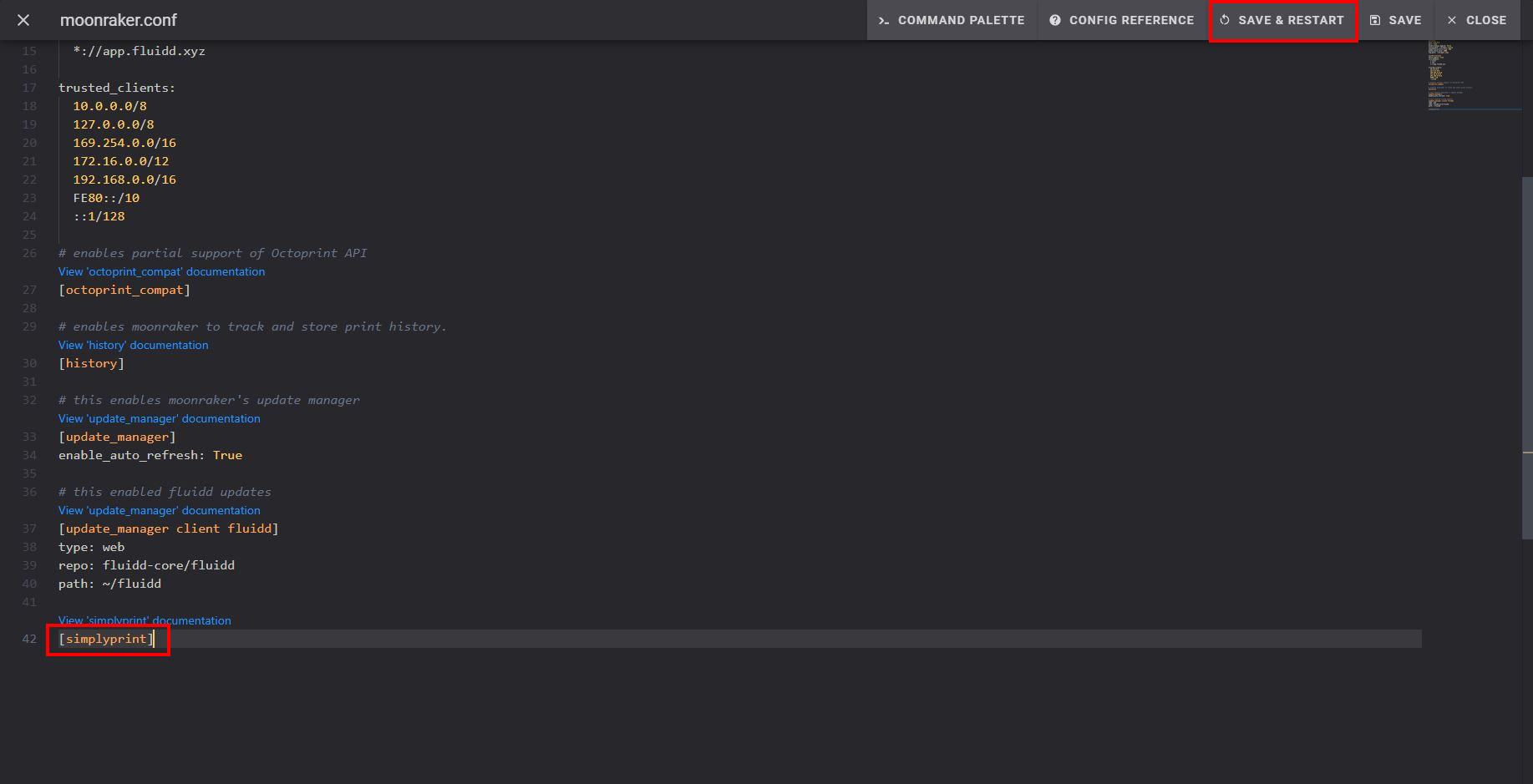
- ファイルの末尾に
[simplyprint]を追加してください(その上に空行を入れます) - 「Save & restart」ボタンをクリック
最後に、プリンターをSimplyPrintに連携
保存して再起動すると、プリンターがSimplyPrintに自動的に表示されます。
- SimplyPrint.ioにアクセスし、プリンターを追加をクリックしてください。
- 保留中のプリンターを確認してください。プリンターは通常、自動的に表示されます
- クリックして追加すれば完了です。
プリンターが「保留中のプリンター」に表示されない場合:
プリンターと同じネットワークに接続していない場合(送信元IPが異なる場合)に発生することがあります。この場合はセットアップコードを使用してください:
- 上部バーの「Announcements」のベル(🔔)から「SimplyPrint Setup Request」メッセージを探してください。
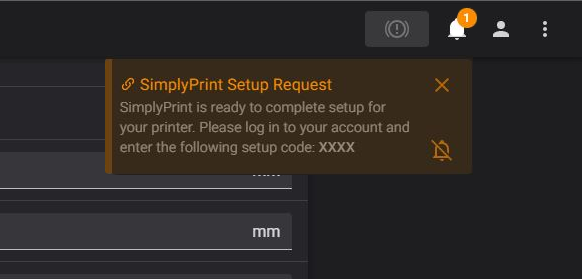
- セットアップコードをコピーし、SimplyPrintのプリンターを追加に貼り付けてください
問題が解決しない場合: セットアップ中のプリンターが検出されない、セットアップコードが見つからないを参照してください。
お困りですか?




毎週数千人がこのセットアップを完了しています。各手順を注意深く進めてください。問題の多くは手順を飛ばすことで発生します。