开始之前:Root 权限
您的Creality K2需要启用“root访问权限”才能连接到SimplyPrint。
不必因技术名称担心,这通常只需在打印机屏幕中进入某项设置并勾选即可。您还需要使用“SSH”运行几条命令。
您可以将其理解为解锁打印机的“管理员模式”。它让您(以及SimplyPrint)能够添加功能,并进行标准界面不允许的更改。
您打印机的制造商锁定了部分功能。启用 root 访问权限后,您将获得充分发挥打印机潜力所需的权限。
并非如此!大多数情况下,制造商已自行提供此选项,只是藏在设置中。您使用的是他们内置的功能。
我们只是在打印机现有软件中启用组件,不会安装软件包或进行侵入性更改。通常您可以通过恢复出厂设置撤销所有更改。
关于保修的说明
部分制造商提到,启用root访问权限可能会影响您的保修。风险很低,我们尚未发现任何SimplyPrint用户因此被拒绝保修服务的案例。
但这由您决定。
我们会准确告诉您在哪里找到此设置以及需要运行哪些命令。
在 Creality K2 上设置 SimplyPrint
本指南将带您了解以下内容:
- 查找您的K2的IP地址
- 启用root访问权限并获取密码
- 在 Fluidd 中启用 SimplyPrint(通过 SSH)
- 访问您的网页界面
1. 查找您的 K2 的 IP 地址
- 在触摸屏上导航至“设置” → “网络”。
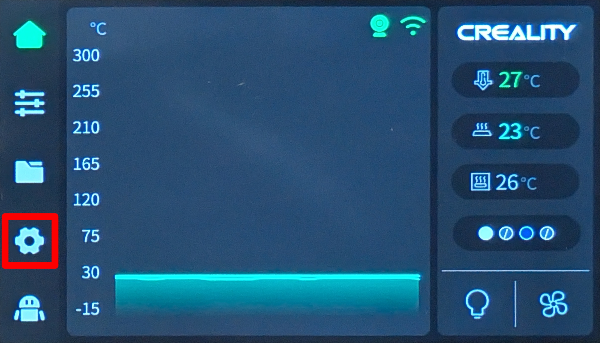
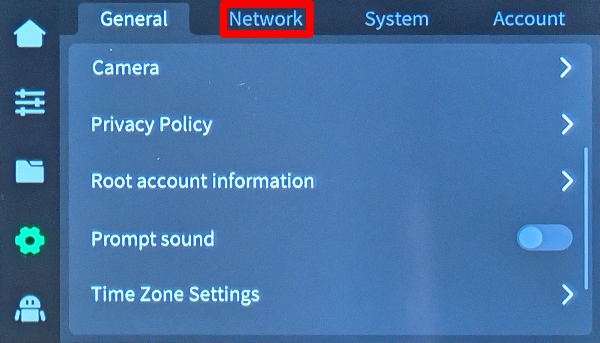
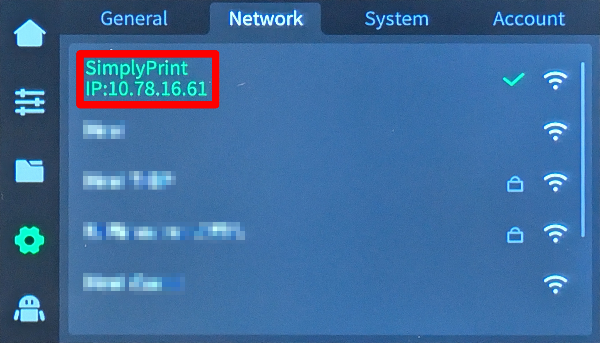
- 记录下显示在网络名称/SSID下方的K2的IP地址。
2. 启用 root 权限
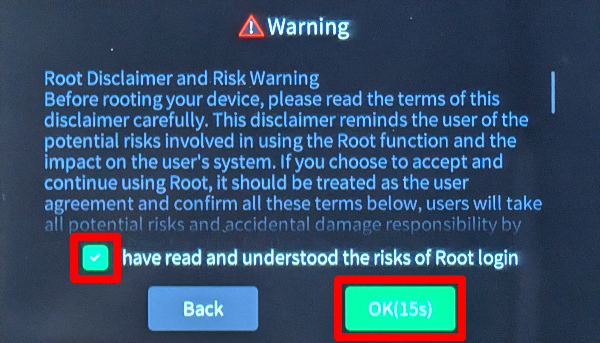
- 在触摸屏上导航至“设置”,然后向下滚动并选择“Root账户信息”。
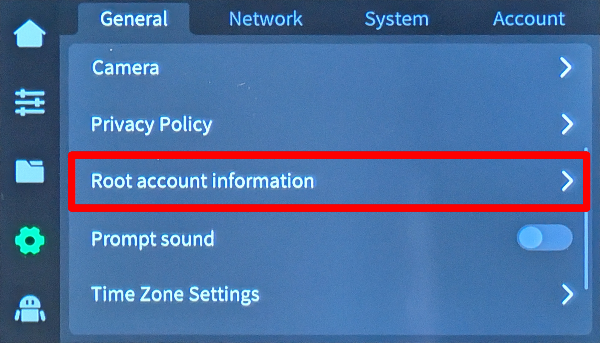
- 阅读免责声明,勾选"我已阅读并理解 Root 登录的风险",等待 30 秒后再点击"确定"。
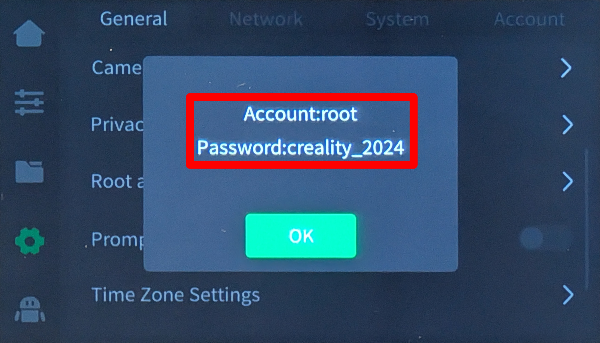
- 记下生成的 root 密码。
3. 在 Fluidd 中启用 SimplyPrint(通过 SSH)
是的,这确实是令人厌烦的技术环节。很抱歉,我们已经尝试了一切方法来避免它,但您的设备就是没有其他选择。
但事实是:这比看起来简单得多。您只需要复制粘贴几条命令,仅此而已。请在下方选择您的电脑类型并按步骤操作—我们会引导您完成每一步。
192.168.1.42),不要包含http://、斜杠或端口号。
Windows 10 / 11
- 按 Win + X,然后选择“终端”或“PowerShell”
-
输入SSH命令(替换占位符):
示例:
ssh username@ip-addressssh [email protected] -
如果系统提示“您确定要继续连接吗?”,请输入
yes并按Enter键 -
出现提示时输入密码
输入密码时不会显示—这是正常现象!直接输入并按回车即可。
macOS
- 按 Cmd + Space 打开 Spotlight,输入“终端”,然后按 Enter
-
输入SSH命令(替换占位符):
示例:
ssh username@ip-addressssh [email protected] -
如果系统提示“您确定要继续连接吗?”,请输入
yes并按Enter键 -
出现提示时输入密码
输入密码时不会显示—这是正常现象!直接输入并按回车即可。
Linux
- 打开终端(通常是Ctrl + Alt + T,或在应用程序菜单中查找)
-
输入SSH命令(替换占位符):
示例:
ssh username@ip-addressssh [email protected] -
如果系统提示“您确定要继续连接吗?”,请输入
yes并按Enter键 -
出现提示时输入密码
输入密码时不会显示—这是正常现象!直接输入并按回车即可。
Chromebook
-
启用Linux(如已完成请跳过):
- 打开设置
- 前往高级→开发者
- 开启“Linux开发环境”
- 按照设置向导操作(需要几分钟)
- 从应用程序启动器中打开“终端”应用
-
输入SSH命令(替换占位符):
示例:
ssh username@ip-addressssh [email protected] -
如果系统提示“您确定要继续连接吗?”,请输入
yes并按Enter键 -
出现提示时输入密码
输入密码时不会显示—这是正常现象!直接输入并按回车即可。
常见故障
- "Connection refused"—请确保您与打印机处于同一网络,并且IP地址正确无误。
- "Permission denied"—请仔细检查您的用户名和密码。
-
"Host key verification failed"—说明设备已被重置或重新安装。请使用以下命令删除旧密钥:
ssh-keygen -R <ip-address>
使用平板电脑或手机?
虽然 Android 和 iOS 都有可用的 SSH 应用,但我们建议使用电脑进行 SSH 连接。合适的键盘和屏幕能让输入命令容易得多。
1. 在电脑上打开终端或SSH客户端。
2.使用您记下的IP地址和root密码连接到K2:
ssh root@[IP_ADDRESS]
例如:<code>ssh [email protected]</code>

3.提示输入密码时,输入您记下的密码_(输入时不会显示密码,请放心,这是正常现象)_。
4. 连接后,运行以下命令以启用SimplyPrint并重启“Moonraker”。Moonraker是固件内置的API,包含SimplyPrint:
python3 -c "import urllib.request;print(urllib.request.urlopen('https://download.simplyprint.io/creality/k2/k2-setup.sh').read().decode())" | sh
<small>
    <b>What does this script do?</b><br>
    This script locates the `moonraker.conf` file that your printer uses, which can either be in <code>/usr/data/moonraker</code>
    or <code>/data/moonraker</code>. It then adds the SimplyPrint configuration (<code>[simplyprint]</code>) to the file and restarts Moonraker.
</small>

---
4. 将您的打印机添加到 SimplyPrint
现在一切都应该准备就绪了!打印机应该已经连接到SimplyPrint!
在与您的K2处于同一网络的电脑或手机上打开SimplyPrint网页版仪表盘,此时它应会在“添加打印机”流程中显示为待处理打印机。
未在 SimplyPrint 中显示?
在打印机的本地网页界面中查找打印机设置代码。
- 在电脑或手机上打开网页浏览器。
- 使用您记下的 IP 地址,访问
http://[IP_ADDRESS]:4408以打开 K2 上托管的 Fluidd 面板。 - 在右上角找到"通知"铃铛图标并点击
- 此处应会看到**"SimplyPrint Setup Request"**及一个 4 位设置代码,使用该代码
如果对您不起作用,请非常仔细地重新按照指南操作一遍。遗漏步骤是打印机未显示的最常见原因。
已知限制
由于 Creality 固件的限制,以下功能不可用:
- 打印剩余时间预估
- 层进度(当前层数)