Om den här integrationen
SimplyPrint rekommenderas inte av och har ingen anknytning till Autodesk Fusion 360. Vi använder varumärken och bilder enbart för att visa kompatibilitet med vår plattform. Användning av hårdvara från Autodesk Fusion 360 med SimplyPrint kanske inte sker på det sätt som Autodesk Fusion 360 har avsett. Alla rättigheter tillhör respektive ägare.
3D-printa direkt från Fusion 360, exportera, slicea och skriv ut med ett klick
SimplyPrint-tillägget för Autodesk Fusion 360 kopplar samman CAD-design och 3D-utskrift. Modellera i Fusion och skicka sedan din design direkt till skrivaren med ett klick, utan separat export eller filhantering mellan program.
Ny på detta? Läs hela guiden: så här 3D-printar du från Fusion 360.
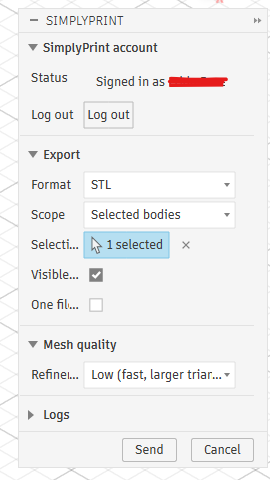
Tillägget lägger till en SimplyPrint-knapp på Fusions panel VERKTYG och bredvid den inbyggda 3D-utskriftsknappen på panelen TILLVERKA. Välj STL eller 3MF, välj vad du vill exportera, justera meshkvaliteten, klicka på Skicka, så öppnas SimplyPrint i din webbläsare med modellen inläst, redo att slicas, läggas i kö eller skrivas ut.
Så installerar du
-
Hämta tillägget från Autodesk App Store:
Hämta det från Autodesk App Store Stäng Fusion 360 och kör sedan det hämtade installationsprogrammet, det placerar tillägget direkt i Fusions AddIns-mapp på Windows eller macOS.
Öppna Fusion 360, tryck på Shift+S och öppna fliken Tillägg.
Välj SimplyPrintExport, klicka på Kör och markera Kör vid start så att det laddas automatiskt nästa gång.
Kom igång
Klicka på knappen SimplyPrint på panelen VERKTYG, eller bredvid 3D-utskriftsknappen på TILLVERKA, för att öppna dialogrutan. Klicka på Logga in första gången, en webbläsarflik öppnas, du godkänner begäran och sedan är allt klart för framtida sessioner. Välj format, omfattning, enheter och meshkvalitet, och klicka sedan på Skicka. Din webbläsare öppnar SimplyPrint med modellen uppladdad, redo att slicas, läggas i kö eller skrivas ut på en eller flera skrivare.
- Exportera STL eller 3MF direkt från Fusion 360 till SimplyPrint
- Skicka hela designen, ett urval kroppar eller bara specifika komponenter
- Justera meshkvaliteten med förinställningarna Låg / Medel / Hög eller finjustera ytavvikelse, normalavvikelse och kantlängd i läget Anpassad
- Uppdelade uppladdningar för enorma designer, exporter på flera hundra megabyte fungerar direkt
- Fungerar på Windows och macOS
Så använder du Fusion 360 med SimplyPrint
Installera SimplyPrint-tillägget
Hämta det från Autodesk App Store och kör installationsprogrammet i Windows eller macOS. Tryck sedan på Shift+S i Fusion, öppna fliken Add-Ins, kör SimplyPrintExport och markera Run on Startup.
Logga in en gång
Klicka på SimplyPrint-knappen i panelen UTILITIES och välj Logga in. En webbläsarflik öppnas, du godkänner begäran och sessionen sparas till nästa gång.
Skicka din modell och skriv ut
Välj STL eller 3MF, vad som ska exporteras och meshkvaliteten och tryck på Skicka. SimplyPrint öppnas i webbläsaren med modellen inläst och redo att slicas, köas eller skrivas ut.
Vanliga frågor
Hur 3D-skriver jag ut från Fusion 360?
Installera SimplyPrint-tillägget för Fusion 360 och klicka sedan på SimplyPrint-knappen för att exportera modellen som STL eller 3MF och skicka den. Modellen öppnas i SimplyPrint i webbläsaren, redo att slicas, köas eller skrivas ut, utan manuell export eller SD-kort.
Är Fusion 360-integrationen gratis?
Ja. Tillägget är gratis att installera och använda, och med SimplyPrints kostnadsfria abonnemang kan du ansluta en skrivare och skriva ut trådlöst.
Fungerar det på Windows och macOS?
Ja. Tillägget fungerar i både Windows och macOS, installera det från Autodesk App Store på valfri plattform.
STL eller 3MF, vilket format ska jag skicka?
Båda fungerar. STL är det universella meshformatet, medan 3MF bevarar enheter och färg. Du väljer format, omfattning för kroppar eller komponenter och meshkvalitet innan du skickar.
Kan jag skriva ut på valfri 3D-skrivare efter att jag har skickat filen?
Ja. När modellen finns i SimplyPrint kan du slicea den och skriva ut den på valfri skrivare på ditt konto, över 140 märken och 600 modeller via OctoPrint, Klipper eller en inbyggd integration.
Om SimplyPrint-integrationer
Integrationen med SimplyPrint låter appar interagera med dina 3D-skrivare, och dina 3D-skrivare med andra appar. Det ger oändliga möjligheter, och vi är övertygade om att din 3D-skrivare ska kunna fungera som en IOT-enhet tillsammans med alla appar du kan tänka dig!
Det är därför teamet bakom SimplyPrint arbetar för att erbjuda officiella integrationer för de populäraste plattformarna, slicrarna och programmen, samtidigt som våra användare kan skapa egna integrationer med vårt API, eller så att godkända tredjepartsleverantörer kan skapa integrationer som kan användas av alla SimplyPrint-användare, med en "Logga in med SimplyPrint"-metod (med metoden "OAuth2").
Om du är en utvecklare som vill skapa en integration för SimplyPrint kan du läsa vår dokumentation om ämnet.
Om du inte är utvecklare själv men vill se en integration för en specifik applikation, kolla om den redan finns i vår färdplan eller förslagslista, och om inte får du gärna föreslå den!