
Acerca de esta integración
SimplyPrint no está avalado por Autodesk Fusion 360 ni afiliado a esta marca. Usamos marcas registradas e imágenes únicamente para indicar la compatibilidad con nuestra plataforma. El uso de hardware de Autodesk Fusion 360 con SimplyPrint puede no ser el previsto por Autodesk Fusion 360. Todos los derechos pertenecen a sus respectivos propietarios.
Imprime en 3D directamente desde Fusion 360: exporta, lamina e imprime con un clic
El complemento de SimplyPrint para Autodesk Fusion 360 conecta el diseño CAD con la impresión 3D. Modela en Fusion y envía tu diseño directamente a la impresora con un solo clic, sin exportarlo por separado ni intercambiar archivos entre programas.
¿Es la primera vez que lo usas? Lee la guía completa: cómo imprimir en 3D desde Fusion 360.
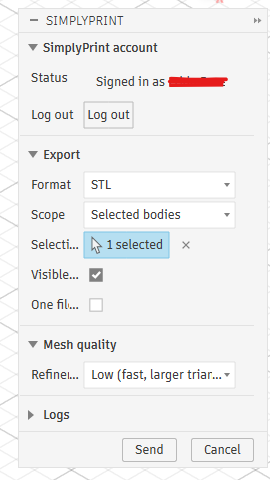
El complemento añade un botón SimplyPrint al panel UTILITIES de Fusion, y junto al botón integrado de impresión 3D del panel MAKE. Elige STL o 3MF, selecciona qué exportar, ajusta la calidad de la malla, pulsa Enviar y SimplyPrint se abrirá en tu navegador con el modelo cargado, listo para laminar, poner en cola o imprimir.
Cómo instalarlo
-
Obtén el complemento en Autodesk App Store:
Consíguelo en Autodesk App Store Cierra Fusion 360 y ejecuta el instalador descargado, instalará el complemento directamente en la carpeta AddIns de Fusion en Windows o macOS.
Abre Fusion 360, pulsa Shift+S y abre la pestaña Complementos.
Selecciona SimplyPrintExport, haz clic en Ejecutar y marca Ejecutar al inicio para que se cargue automáticamente la próxima vez.
Primeros pasos
Haz clic en el botón SimplyPrint del panel UTILITIES, o junto al botón de impresión 3D de MAKE, para abrir el cuadro de diálogo. La primera vez, haz clic en Iniciar sesión, se abrirá una pestaña del navegador, aprueba la solicitud y quedará configurado para futuras sesiones. Elige el formato, ámbito, unidades y calidad de malla que quieras y pulsa Enviar. El navegador abrirá SimplyPrint con el modelo cargado, listo para laminar, poner en cola o imprimir en una o varias impresoras.
- Exportar STL o 3MF directamente de Fusion 360 a SimplyPrint
- Envía el diseño completo, una selección de cuerpos o solo componentes específicos
- Ajusta la calidad de la malla con los valores Bajo / Medio / Alto, o configura la desviación de superficie, la desviación normal y la longitud de arista en el modo Personalizado
- Subidas por partes para diseños enormes: las exportaciones de cientos de megabytes funcionan sin más
- Funciona en Windows y macOS
Cómo usar Fusion 360 con SimplyPrint
Instalar el complemento de SimplyPrint
Obténlo en Autodesk App Store y ejecuta el instalador en Windows o macOS. Después, en Fusion pulsa Shift+S, abre la pestaña Complementos, ejecuta SimplyPrintExport y marca Ejecutar al iniciar.
Iniciar sesión una vez
Haz clic en el botón SimplyPrint del panel UTILITIES y elige Iniciar sesión. Se abrirá una pestaña del navegador, aprobarás la solicitud y la sesión quedará guardada.
Envía tu modelo e imprime
Elige STL o 3MF, selecciona qué exportar y la calidad de malla, y pulsa Enviar. SimplyPrint se abrirá en tu navegador con el modelo cargado y listo para laminar, poner en cola o imprimir.
Preguntas frecuentes
¿Cómo imprimo en 3D desde Fusion 360?
Instala el complemento de SimplyPrint para Fusion 360 y haz clic en el botón SimplyPrint para exportar y enviar tu modelo como STL o 3MF. El modelo se abrirá en SimplyPrint dentro de tu navegador, listo para laminarlo, ponerlo en cola o imprimirlo, sin exportaciones manuales ni tarjetas SD.
¿Es gratis la integración con Fusion 360?
Sí. El complemento se puede instalar y usar gratis, y el plan gratuito de SimplyPrint te permite conectar una impresora e imprimir de forma inalámbrica.
¿Funciona en Windows y macOS?
Sí. El complemento funciona en Windows y macOS. Instálalo desde Autodesk App Store en cualquiera de las dos plataformas.
STL o 3MF: ¿qué formato debo enviar?
Ambos funcionan. STL es el formato de malla universal, mientras que 3MF conserva las unidades y el color. Antes de enviar, eliges el formato, el ámbito de cuerpos o componentes y la calidad de la malla.
¿Puedo imprimir en cualquier impresora 3D después de enviar el archivo?
Sí. Cuando el modelo esté en SimplyPrint, podrás laminarlo e imprimirlo en cualquier impresora de tu cuenta: más de 140 marcas y 600 modelos mediante OctoPrint, Klipper o una integración incorporada.
Acerca de las integraciones de SimplyPrint
La integración con SimplyPrint permite que las aplicaciones interactúen con tus impresoras 3D y que tus impresoras 3D interactúen con otras aplicaciones. Esto abre infinitas posibilidades y creemos firmemente que tu impresora 3D debería poder funcionar como un dispositivo IOT, colaborando con todas las aplicaciones que imagines.
Por eso el equipo detrás de SimplyPrint trabaja para ofrecer integraciones oficiales con las plataformas, slicers y aplicaciones más populares, además de permitir a nuestros usuarios crear integraciones personalizadas con nuestra API, o a proveedores externos aprobados crear integraciones para todos los usuarios de SimplyPrint, mediante el método "Iniciar sesión con SimplyPrint" (con el método "OAuth2").
Si eres desarrollador y te interesa crear una integración para SimplyPrint, consulta nuestra documentación sobre el tema.
Si no eres desarrollador pero te gustaría ver una integración para una aplicación concreta, consulta si ya está en nuestra hoja de ruta o lista de sugerencias y, si no, no dudes en sugerirla!