关于此集成
SimplyPrint 未获得 Autodesk Fusion 360 的认可,也与其没有关联。我们使用商标和图片仅为表明与我们平台的兼容性。将 Autodesk Fusion 360 硬件与 SimplyPrint 搭配使用,可能并非 Autodesk Fusion 360 的预期用途。所有权利归各自所有者所有。
直接从Fusion 360进行3D打印,一键导出、切片和打印
SimplyPrint 的 Autodesk Fusion 360 插件连接了CAD设计与3D打印。您可在Fusion中建模,然后一键将设计直接发送至打印机,无需单独导出,也无需在程序之间来回处理文件。
初次使用?请阅读完整指南:如何从Fusion 360进行3D打印。
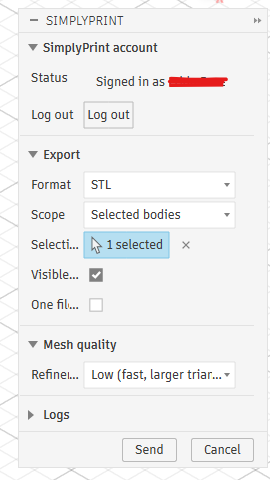
该插件会在Fusion的UTILITIES面板中添加SimplyPrint按钮,在MAKE面板内置的3D Print按钮旁也会添加。选择STL或3MF,选择要导出的内容,调整网格质量,点击Send,SimplyPrint便会在浏览器中打开并加载模型,可立即进行切片、加入队列或打印。
如何安装
-
从Autodesk App Store获取插件:
在Autodesk App Store获取 关闭Fusion 360,然后运行下载的安装程序,它会将插件直接安装到Windows或macOS上的Fusion AddIns文件夹中。
打开Fusion 360,按Shift+S,然后打开Add-Ins选项卡。
选择SimplyPrintExport,点击Run,然后勾选Run on Startup,以便下次自动加载。
开始使用
点击UTILITIES面板中的SimplyPrint按钮,或MAKE中3D Print按钮旁的按钮,以打开对话框。首次使用时点击Log in,浏览器会打开一个标签页,您批准请求后,之后的会话即可直接使用。选择所需的格式、范围、单位和网格质量,然后点击Send。浏览器会打开SimplyPrint并上传模型,您可在一台或多台打印机上进行切片、加入队列或打印。
- 从Fusion 360直接将STL或3MF导出到SimplyPrint
- 发送完整设计、选定实体或指定组件
- 使用低/中/高预设调整网格质量,或在自定义模式中微调表面偏差、法线偏差和边长
- 大型设计分块上传,数百MB的导出文件也能正常处理
- 支持 Windows 和 macOS
如何将Fusion 360与SimplyPrint配合使用
安装SimplyPrint加载项
从Autodesk App Store获取并运行安装程序(Windows或macOS)。然后在Fusion中按Shift+S,打开Add-Ins选项卡,运行SimplyPrintExport并勾选启动时运行。
登录一次
单击UTILITIES面板中的SimplyPrint按钮,然后选择登录。浏览器会打开一个新选项卡,批准请求后,系统会记住会话以供下次使用。
发送模型并打印
选择STL或3MF,再选择要导出的内容和网格质量,然后点击“发送”。SimplyPrint会在浏览器中打开并加载模型,供您切片、加入队列或打印。
常见问题
如何从Fusion 360进行3D打印?
安装适用于Fusion 360的SimplyPrint加载项,然后单击SimplyPrint按钮,将模型导出为STL或3MF并发送。模型会在浏览器中的SimplyPrint内打开,可直接切片、加入队列或打印,无需手动导出或使用SD卡。
Fusion 360集成免费吗?
是。此插件可免费安装和使用,SimplyPrint 免费套餐还允许您连接一台打印机并进行无线打印。
它支持Windows和macOS吗?
可以。该插件可在Windows和macOS上运行,请在任一平台从Autodesk App Store安装。
STL 还是 3MF,我该发送哪种格式?
两者均可。STL是通用网格格式,3MF则可保留单位和颜色。发送前,您可以选择格式、实体或组件范围以及网格质量。
发送后能在任意3D打印机上打印吗?
是。模型进入 SimplyPrint 后,您可以为其切片,并在账户中的任何打印机上打印,涵盖通过 OctoPrint、Klipper 或内置集成连接的 140 多个品牌和 600 多种型号。
关于 SimplyPrint 集成
SimplyPrint的集成功能让应用可与您的3D打印机交互,您的3D打印机也可与其他应用交互。这带来无限可能,我们坚信您的3D打印机应能作为IOT设备,与您能想到的所有应用协同工作!
这正是SimplyPrint团队致力于为最受欢迎的平台、切片软件和应用程序提供官方集成的原因,同时也允许用户通过我们的API创建自定义集成,或允许经批准的第三方供应商使用“使用SimplyPrint登录”方式(使用“OAuth2”方法)创建供所有SimplyPrint用户使用的集成。
如果您是开发者且有兴趣为SimplyPrint创建集成,请阅读我们关于此主题的文档。
如果您本人不是开发者,但希望看到特定应用的集成,请查看它是否已列入我们的路线图或建议列表;如果没有,欢迎您提出建议!