
Fusion 360
CAD modellerinizi dilimleme ve baskı için doğrudan Fusion 360'tan SimplyPrint'e gönderin
Autodesk App Store'dan edinin Tam kılavuzu oku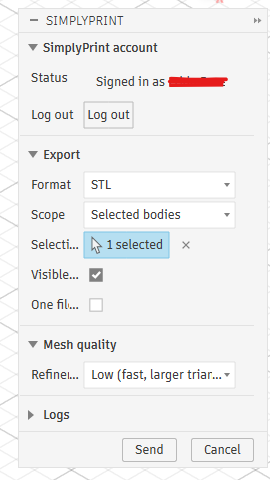
CAD modellerinizi dilimleme ve baskı için doğrudan Fusion 360'tan SimplyPrint'e gönderin
Autodesk App Store'dan edinin Tam kılavuzu oku
SimplyPrint, Autodesk Fusion 360 tarafından onaylanmamıştır veya onunla bağlantılı değildir. Ticari markaları ve görselleri yalnızca platformumuzla uyumluluğu belirtmek için kullanıyoruz. Autodesk Fusion 360 donanımının SimplyPrint ile kullanımı, Autodesk Fusion 360 tarafından amaçlanan şekilde olmayabilir. Tüm haklar ilgili sahiplerine aittir.
Autodesk Fusion 360 için SimplyPrint eklentisi, CAD tasarımı ile 3D baskı arasındaki boşluğu kapatır. Fusion'da model oluşturun, ardından tasarımınızı tek tıklamayla doğrudan yazıcınıza gönderin, ayrı dışa aktarma adımı veya programlar arasında dosya taşıma gerekmez.
Bunda yeni misiniz? Ayrıntılı rehberi okuyun: Fusion 360'tan nasıl 3D baskı alınır.
Eklenti, Fusion'ın UTILITIES paneline bir SimplyPrint düğmesi ekler (MAKE panelindeki yerleşik 3D Print düğmesinin yanına da eklenir). STL veya 3MF seçin, dışa aktarılacakları belirleyin, mesh kalitesini ayarlayın, Gönder'e tıklayın, SimplyPrint model yüklenmiş şekilde tarayıcınızda açılır, dilimlemeye, kuyruğa eklemeye veya yazdırmaya hazırdır.
Eklentiyi Autodesk App Store'dan edinin:
Autodesk App Store'dan edininFusion 360'ı kapatın, ardından indirilen yükleyiciyi çalıştırın, eklenti Windows veya macOS'ta doğrudan Fusion'ın AddIns klasörüne yerleştirilir.
Fusion 360'ı açın, Shift+S tuşlarına basın ve Add-Ins sekmesini açın.
SimplyPrintExport'u seçin, Run'a tıklayın ve sonraki açılışta otomatik yüklenmesi için Run on Startup'ı işaretleyin.
İletişim kutusunu açmak için UTILITIES panelindeki SimplyPrint düğmesine veya MAKE üzerindeki 3D Print düğmesinin yanındaki düğmeye tıklayın. İlk seferde Oturum aç'a tıklayın, tarayıcıda bir sekme açılır, isteği onaylayın ve sonraki oturumlar için hazır olun. İstediğiniz biçimi, kapsamı, birimleri ve mesh kalitesini seçin, ardından Gönder'e tıklayın. Tarayıcınızda SimplyPrint, model yüklenmiş şekilde açılır ve bir veya daha fazla yazıcıda dilimlemeye, kuyruğa eklemeye veya yazdırmaya hazırdır.
SimplyPrint eklentisini kur
Autodesk App Store'dan edinin ve yükleyiciyi çalıştırın (Windows veya macOS). Ardından Fusion'da Shift+S tuşlarına basın, Add-Ins sekmesini açın, SimplyPrintExport'u çalıştırın ve Run on Startup seçeneğini işaretleyin.
Bir kez oturum açın
UTILITIES panelindeki SimplyPrint düğmesine tıklayıp Oturum aç seçeneğini belirleyin. Bir tarayıcı sekmesi açılır, isteği onaylarsınız ve oturum sonraki kullanım için hatırlanır.
Modelinizi gönderip yazdırın
STL veya 3MF'yi, dışa aktarılacak öğeleri ve mesh kalitesini seçip Gönder'e basın. SimplyPrint, model yüklenmiş ve dilimlenmeye, kuyruğa eklenmeye veya yazdırılmaya hazır olarak tarayıcınızda açılır.
Fusion 360 için SimplyPrint eklentisini kurun. Ardından modelinizi STL veya 3MF olarak dışa aktarıp göndermek için SimplyPrint düğmesine tıklayın. Model, tarayıcınızda SimplyPrint'te açılır ve dilimlenmeye, kuyruğa eklenmeye veya yazdırılmaya hazır olur. Elle dışa aktarma veya SD kart gerekmez.
Evet. Eklentiyi kurmak ve kullanmak ücretsizdir. SimplyPrint'in ücretsiz planı da bir yazıcı bağlayıp kablosuz yazdırmanızı sağlar.
Evet. Eklenti hem Windows hem macOS'te çalışır, her iki platformda da Autodesk App Store'dan yükleyin.
İkisi de çalışır. STL evrensel mesh biçimidir, 3MF ise birimleri ve rengi korur. Göndermeden önce biçimi, gövde veya bileşen kapsamını ve mesh kalitesini seçersiniz.
Evet. Model SimplyPrint'e geldikten sonra dilimleyebilir ve hesabınızdaki herhangi bir yazıcıda yazdırabilirsiniz. OctoPrint, Klipper veya yerleşik bir entegrasyon üzerinden 140'tan fazla marka ve 600'den fazla model desteklenir.
SimplyPrint entegrasyonu uygulamaların 3D yazıcılarınızla, 3D yazıcılarınızın da diğer uygulamalarla etkileşmesini sağlar. Bu sonsuz olasılık sunar; 3D yazıcınızın hayal edebileceğiniz her uygulamayla birlikte çalışan bir IOT cihazı gibi işleyebilmesi gerektiğine inanıyoruz!
Bu nedenle SimplyPrint ekibi, en popüler platformlar, slicer'lar ve uygulamalar için resmi entegrasyonlar sunmaya çalışırken kullanıcılarımızın API kullanarak özel entegrasyonlar oluşturmasına ve onaylı üçüncü taraf sağlayıcıların tüm SimplyPrint kullanıcılarının kullanacağı entegrasyonlar geliştirmesine olanak tanır. Bunun için "SimplyPrint ile giriş yap" yöntemi ("OAuth2" yöntemi kullanılarak) kullanılır.
Bir geliştiriciyseniz ve SimplyPrint için entegrasyon oluşturmakla ilgileniyorsanız, lütfen bu konudaki belgelerimizi okuyun.
Kendiniz geliştirici değilseniz ancak belirli bir uygulama için entegrasyon görmek istiyorsanız, bunun yol haritamızda veya öneri listemizde olup olmadığını kontrol edin; yoksa önerin!